1
Add the Slack Message trigger
Create a workflow with a Slack Message trigger, use an existing workflow with a Slack Message trigger, or change an existing workflow’s trigger type to a Slack Message trigger.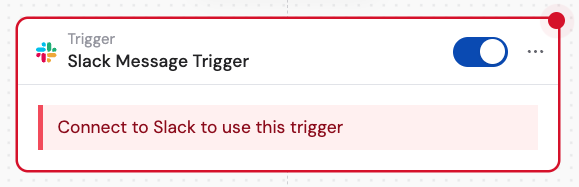
2
Connect your Slack account
If you haven’t already, connect your Slack account to Cassidy.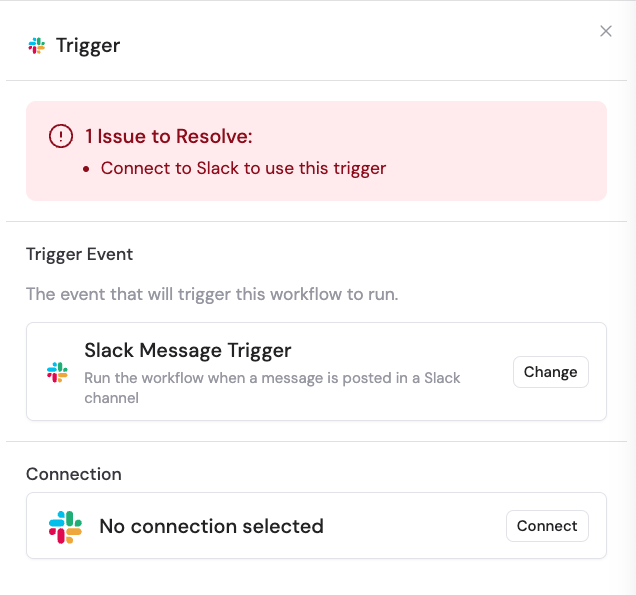
3
Choose the message event type
Select either Message in Channel to run the workflow when a message is posted in a Slack channel, or Direct Message to trigger the workflow when a direct message is sent to Cassidy.
4
Select the channel
If you chose Message in Channel, select the Slack channel where you want the trigger to listen for messages.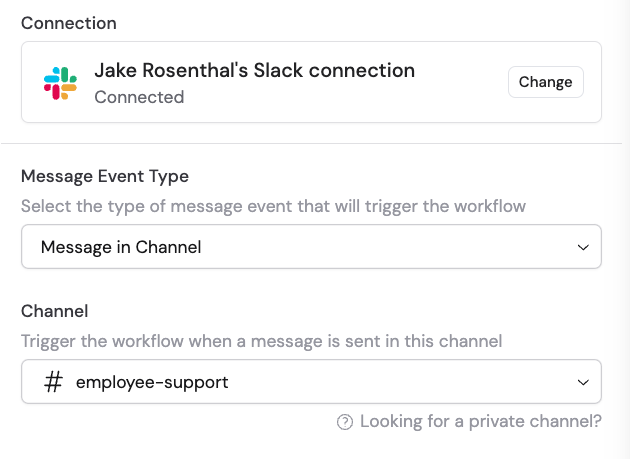
5
Reference the trigger variables
In subsequent Workflow steps, you can reference the following variables from this trigger: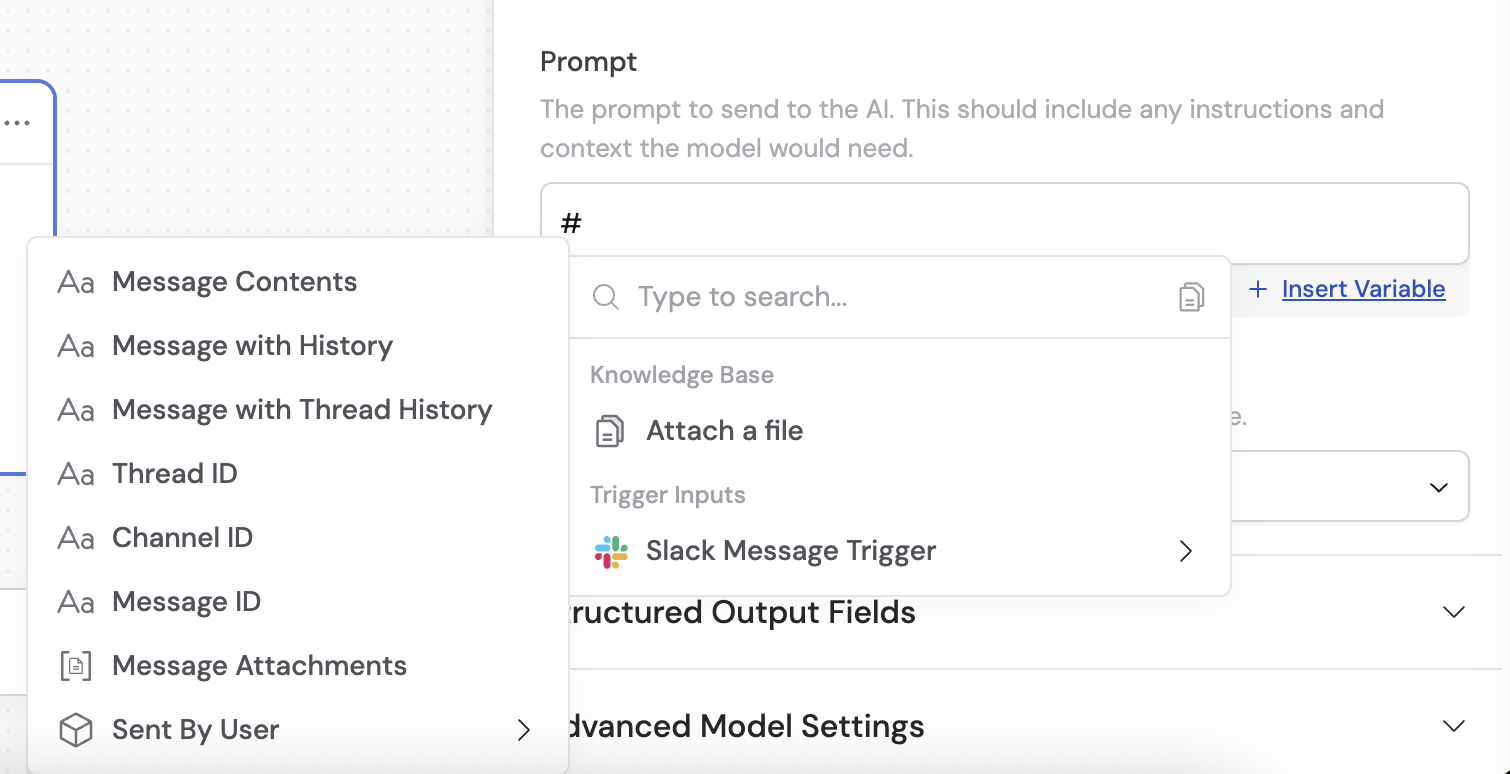
- Message Contents — the content of the message posted in Slack
- Message with History — full conversation history from the Slack channel, including previous messages and responses from Cassidy and other users
- Message with Thread History — thread-specific conversation history if the message is part of a thread
- Thread ID — the unique identifier for the thread if the message is part of a thread
- Channel ID — the unique identifier for the Slack channel where the message was posted
- Message ID — the unique identifier for the specific message
- Message Attachments — any files or attachments included with the message
- Sent By User — user information for the person who sent the message, including their Slack user ID, display name, and other profile details
6
Activate the trigger
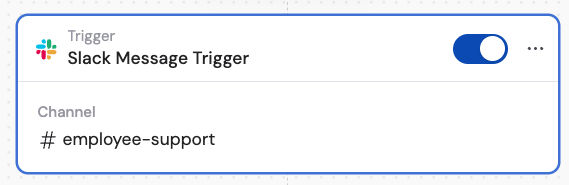
In the Slack Message trigger block, click the toggle switch to turn it on.