

Prerequisites:
- An Agent created in Cassidy
- Admin access to your Slack workspace
Set up the deployment
1
Select your Agent
Navigate to Agents in the sidebar and click the Agent you want to deploy. You can also open the more options menu (…) and select Edit.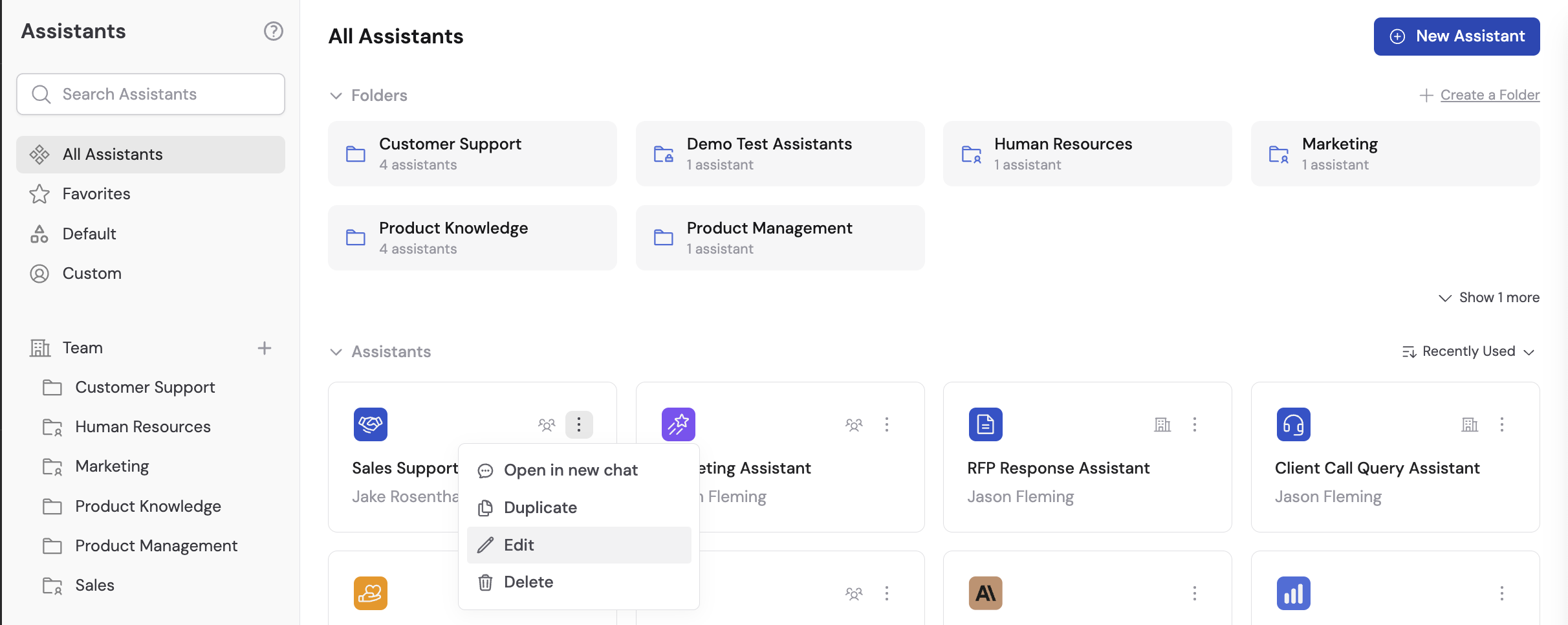
2
Open the Deployments tab
In your Agent’s settings, click the Deployments tab.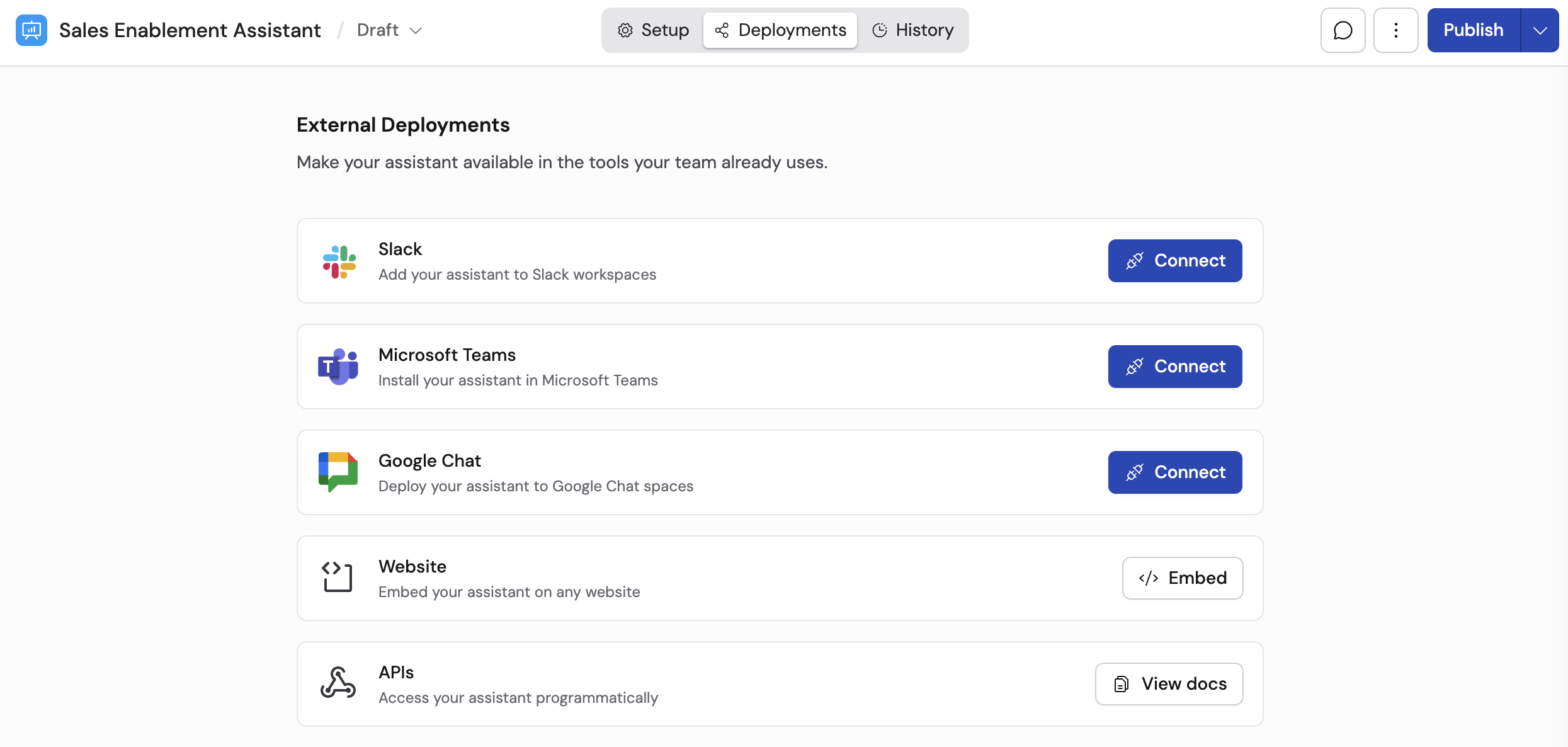
3
Configure Slack display name and description
Adjust the Slack Display Name and Description for how the Agent appears in Slack. Click Next when you’re ready.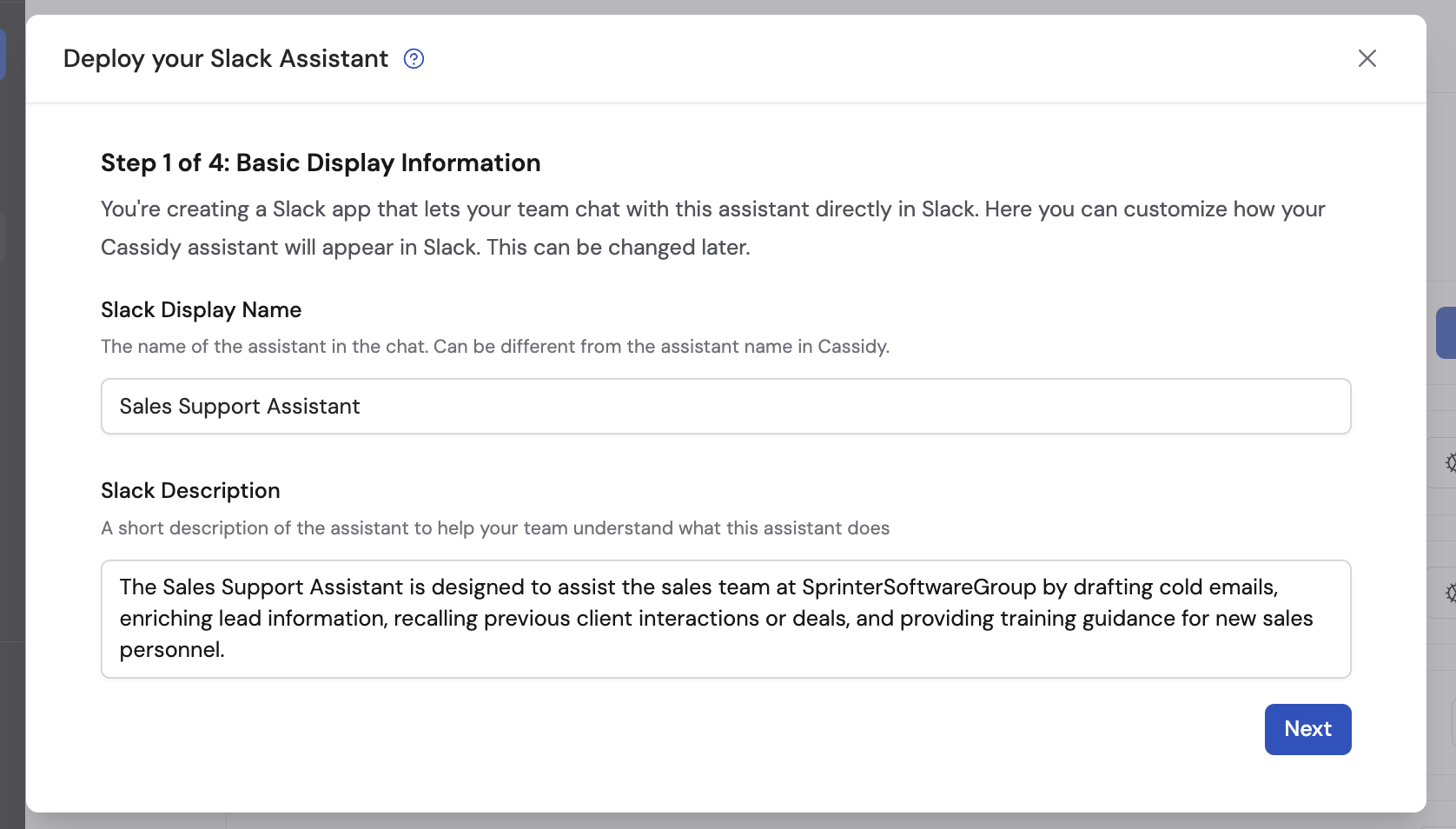
4
Copy the app manifest
Click Copy to copy the app manifest provided by Cassidy. You’ll paste this into Slack in the next step.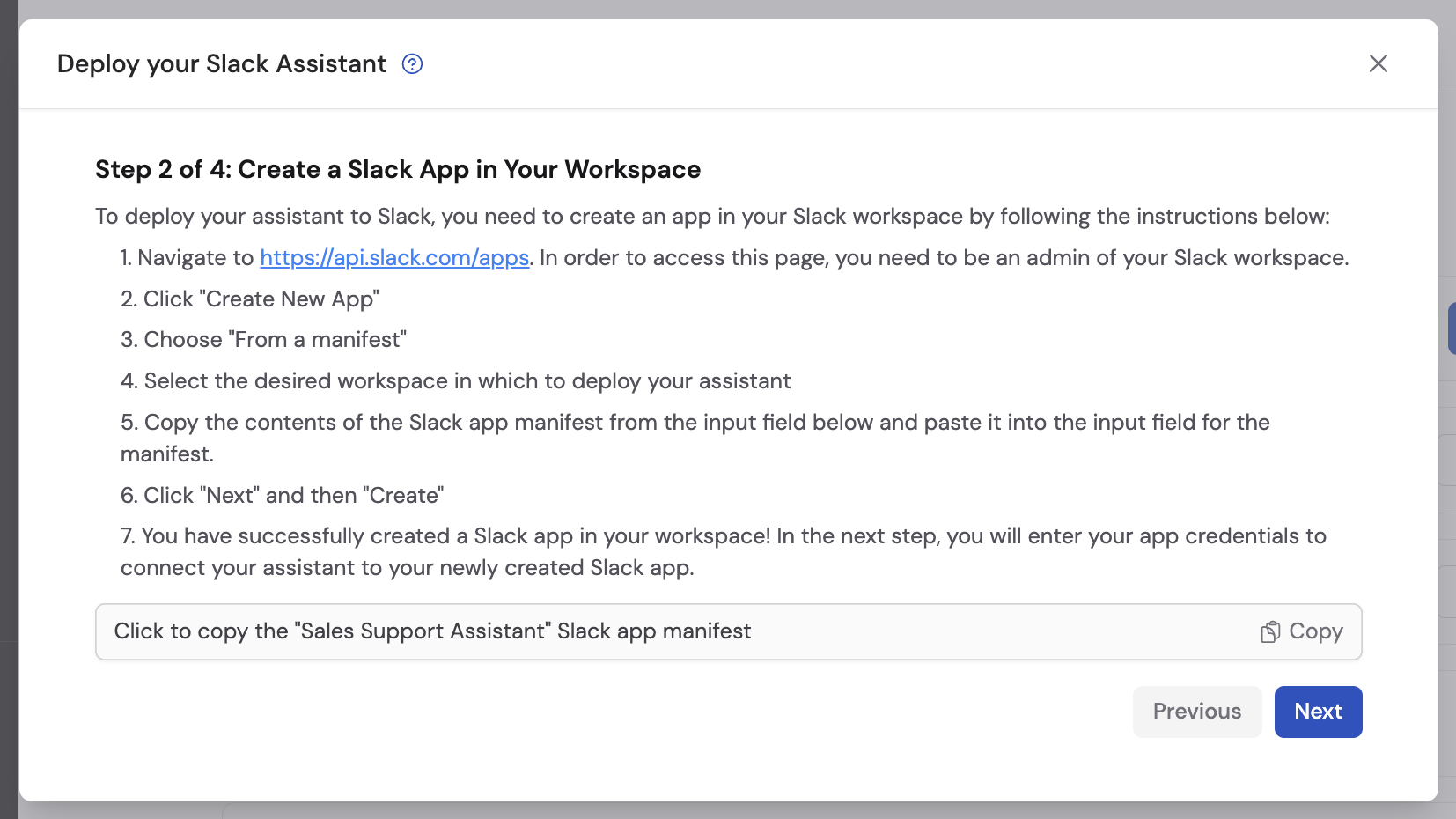
5
Create a new Slack app
Go to api.slack.com/apps and click Create New App.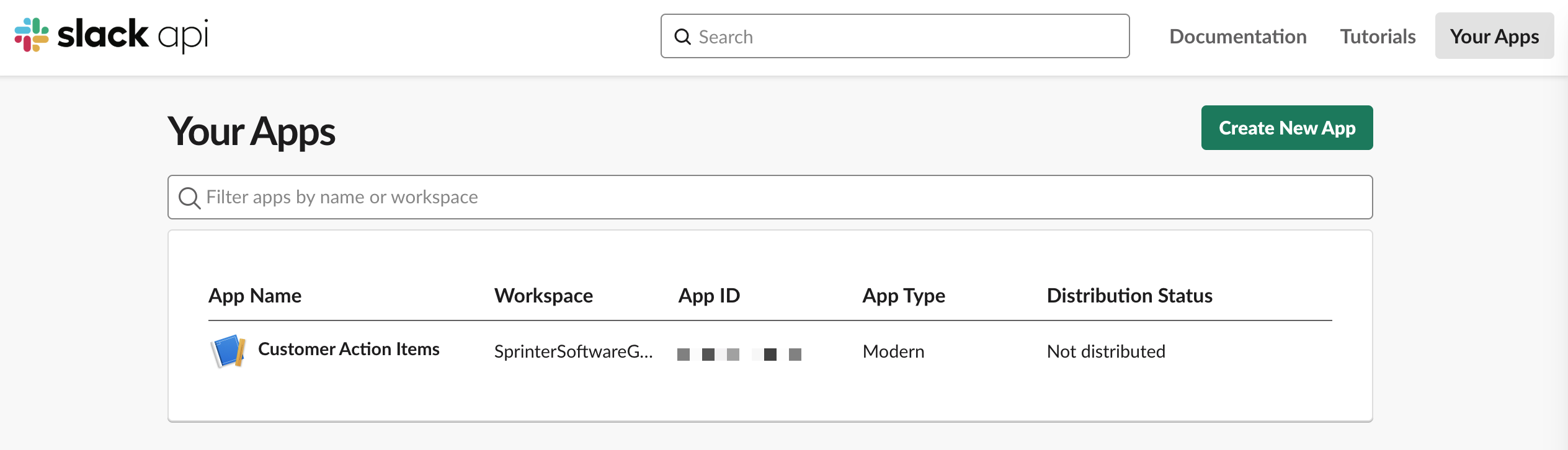
6
Choose 'From a manifest'
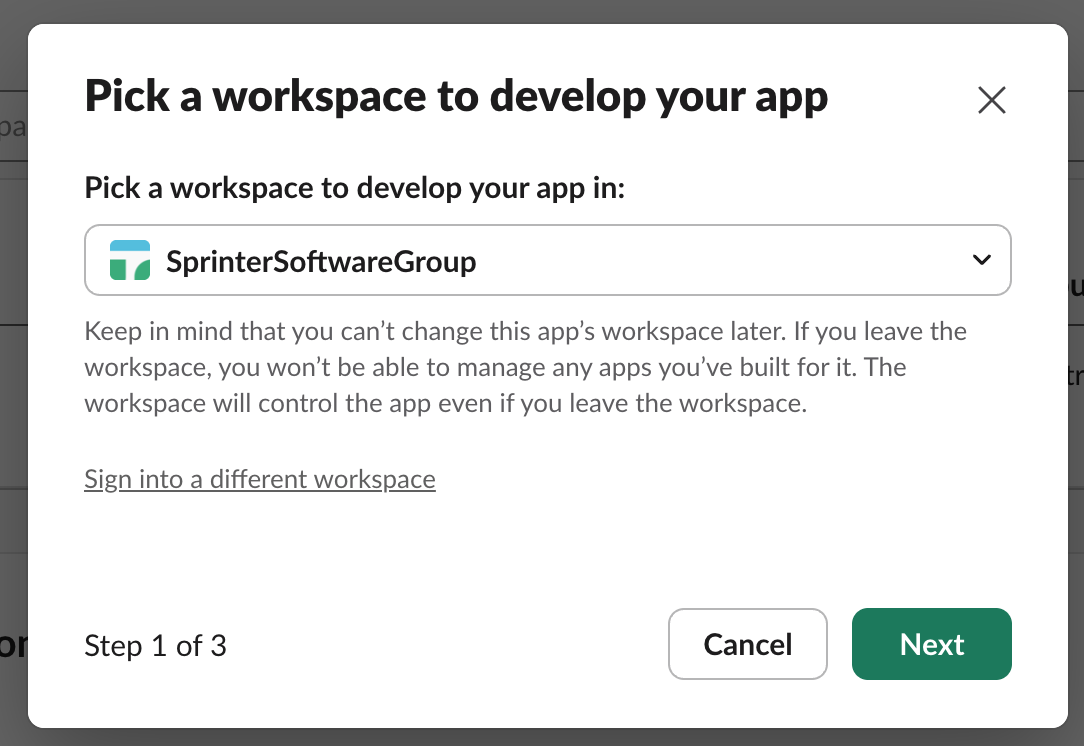
Select From a manifest, then choose your organization’s workspace and click Next.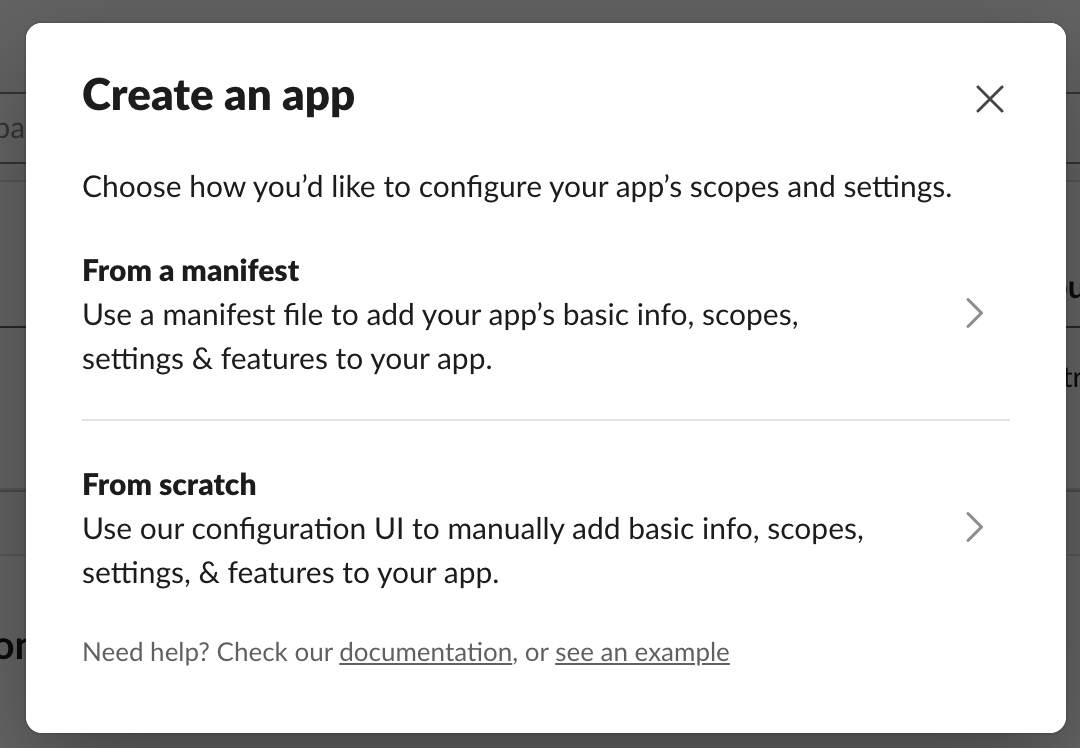
7
Paste the manifest
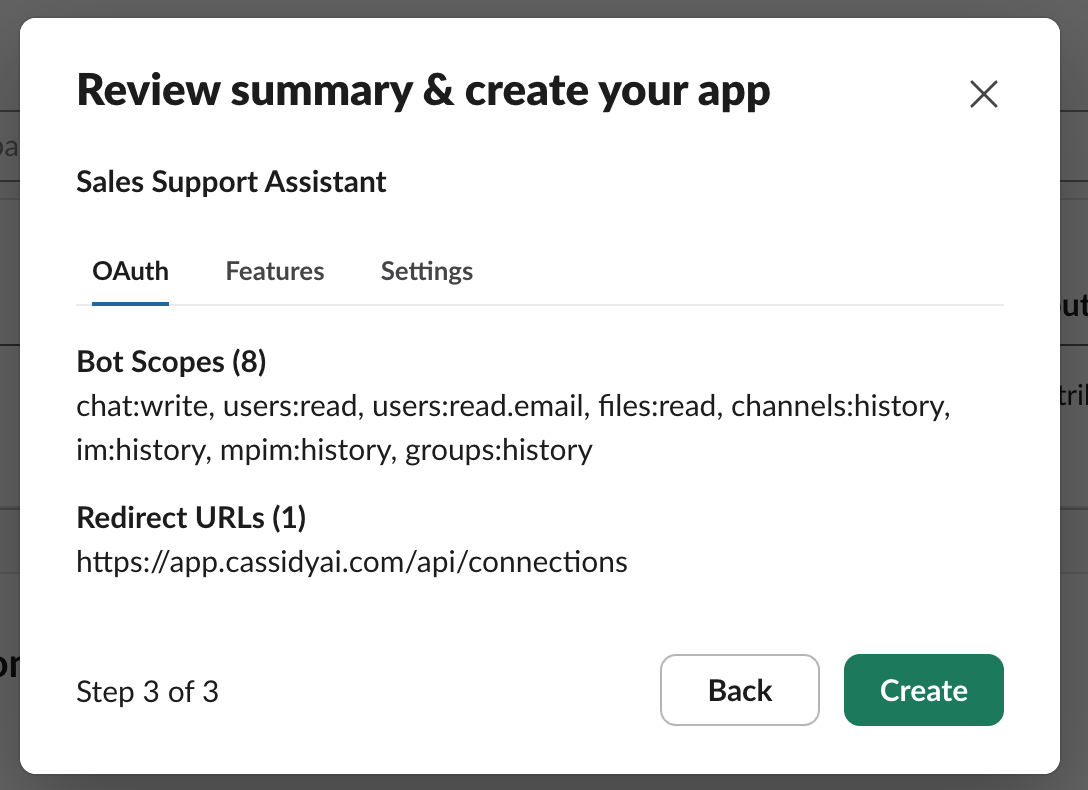
Paste the manifest you copied from Cassidy into the input area. Click Next, then Create to finish creating the Slack app.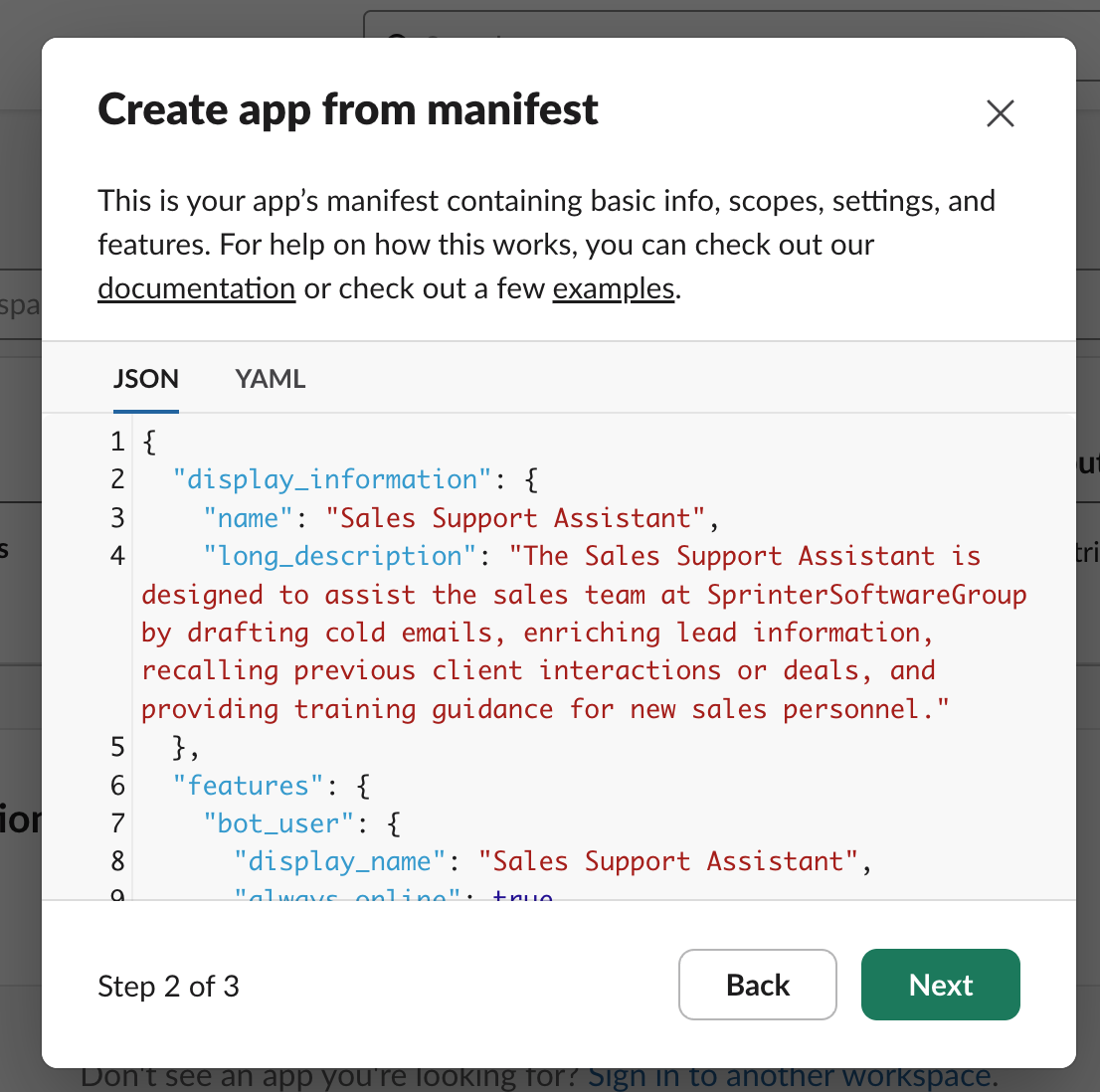
8
Copy credentials from Slack
In your new Slack app’s Basic Information page, copy the App ID, Client ID, Client Secret, and Signing Secret.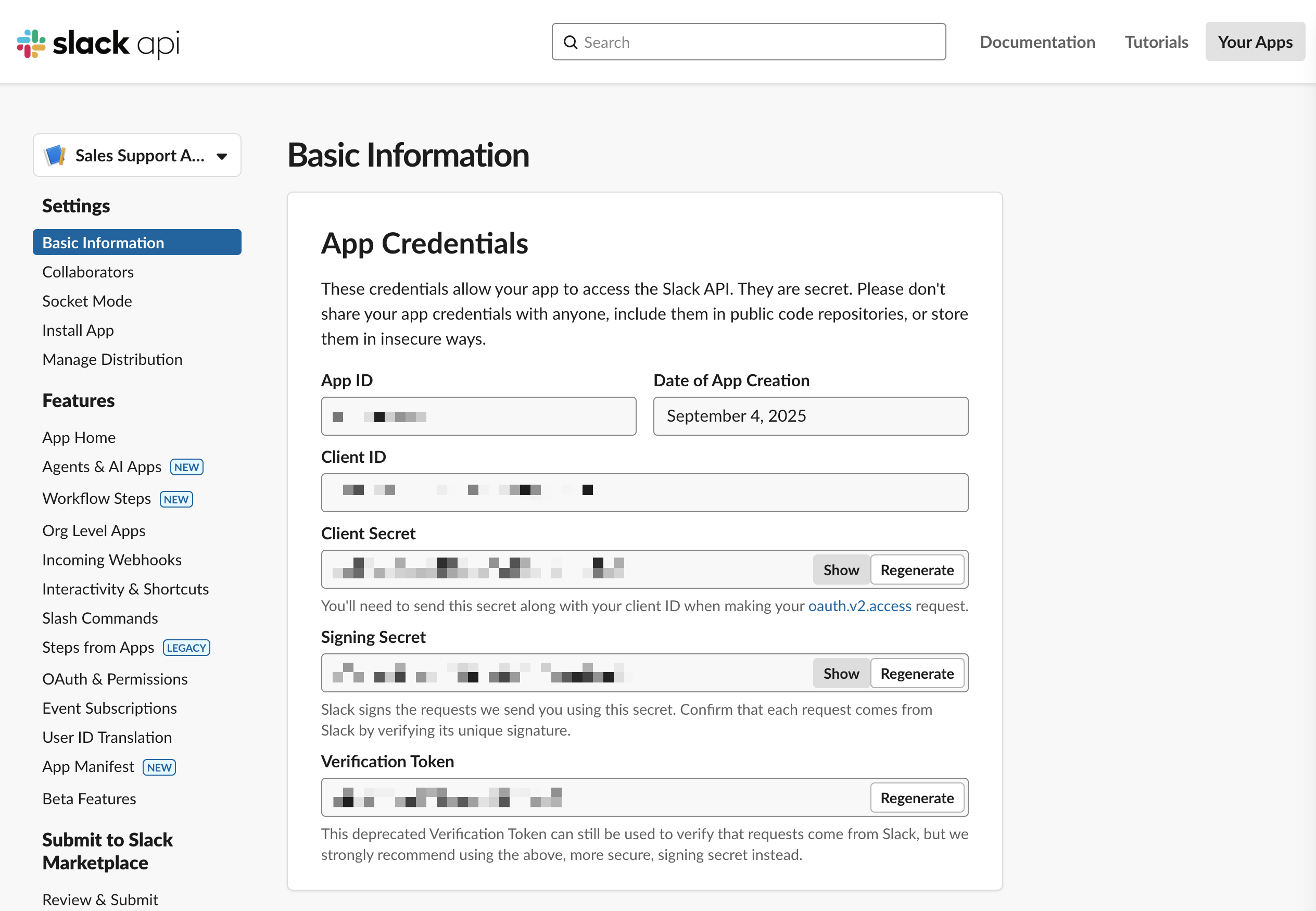
9
Paste credentials into Cassidy
Back in the Cassidy deployment dialog, paste each credential into the corresponding field and click Next.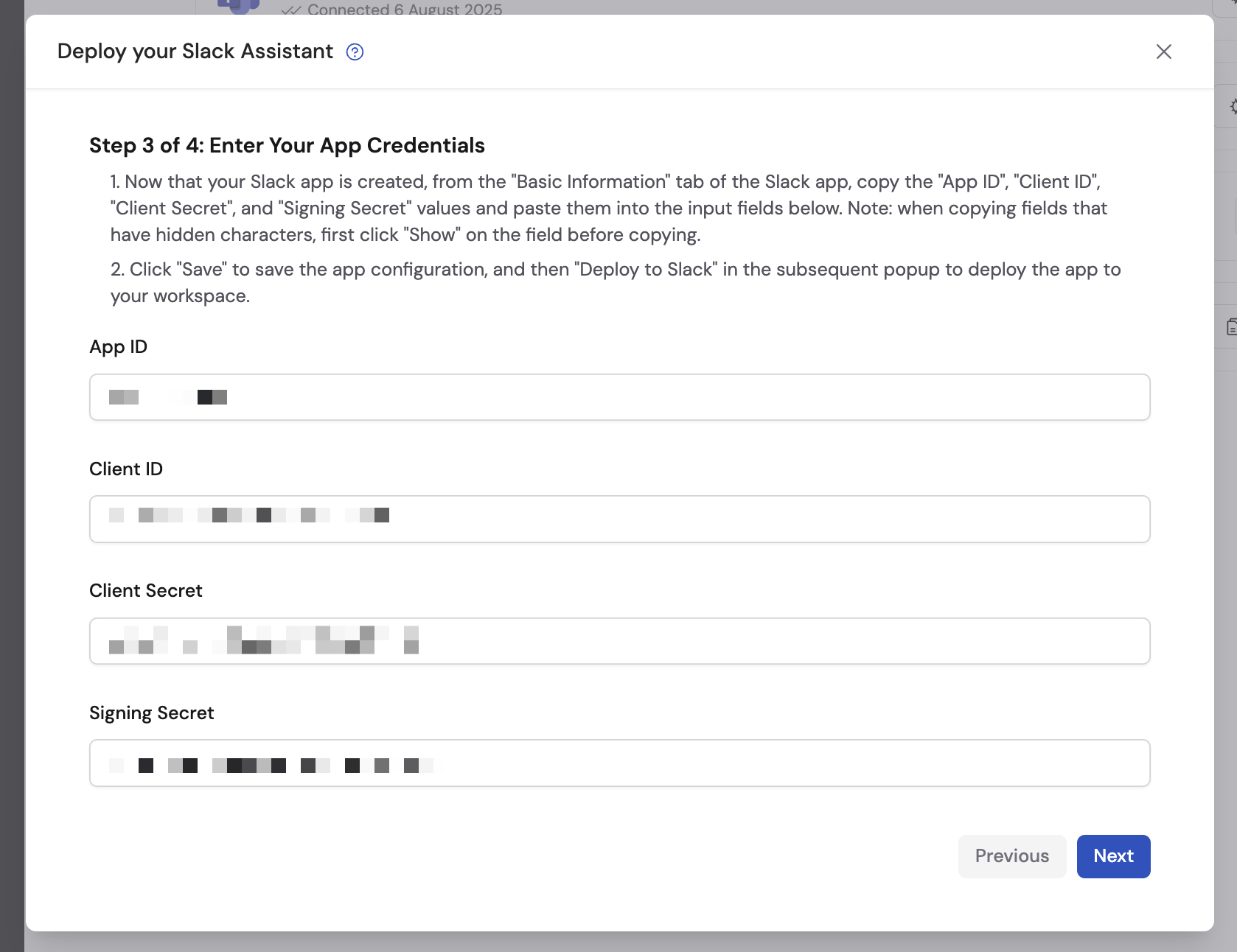
10
Deploy to Slack
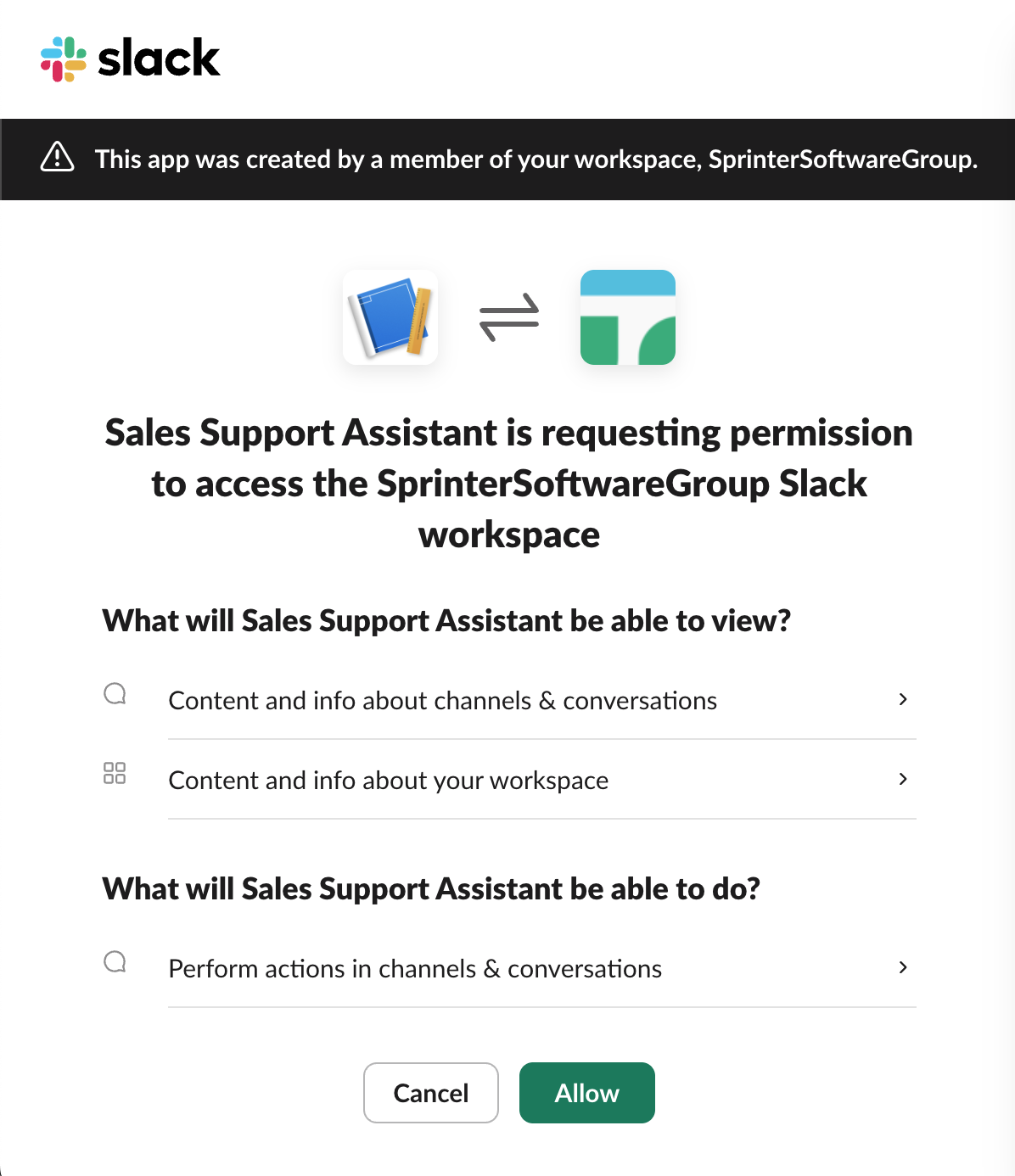
Click Deploy to Slack and complete the OAuth authorization to finish the connection.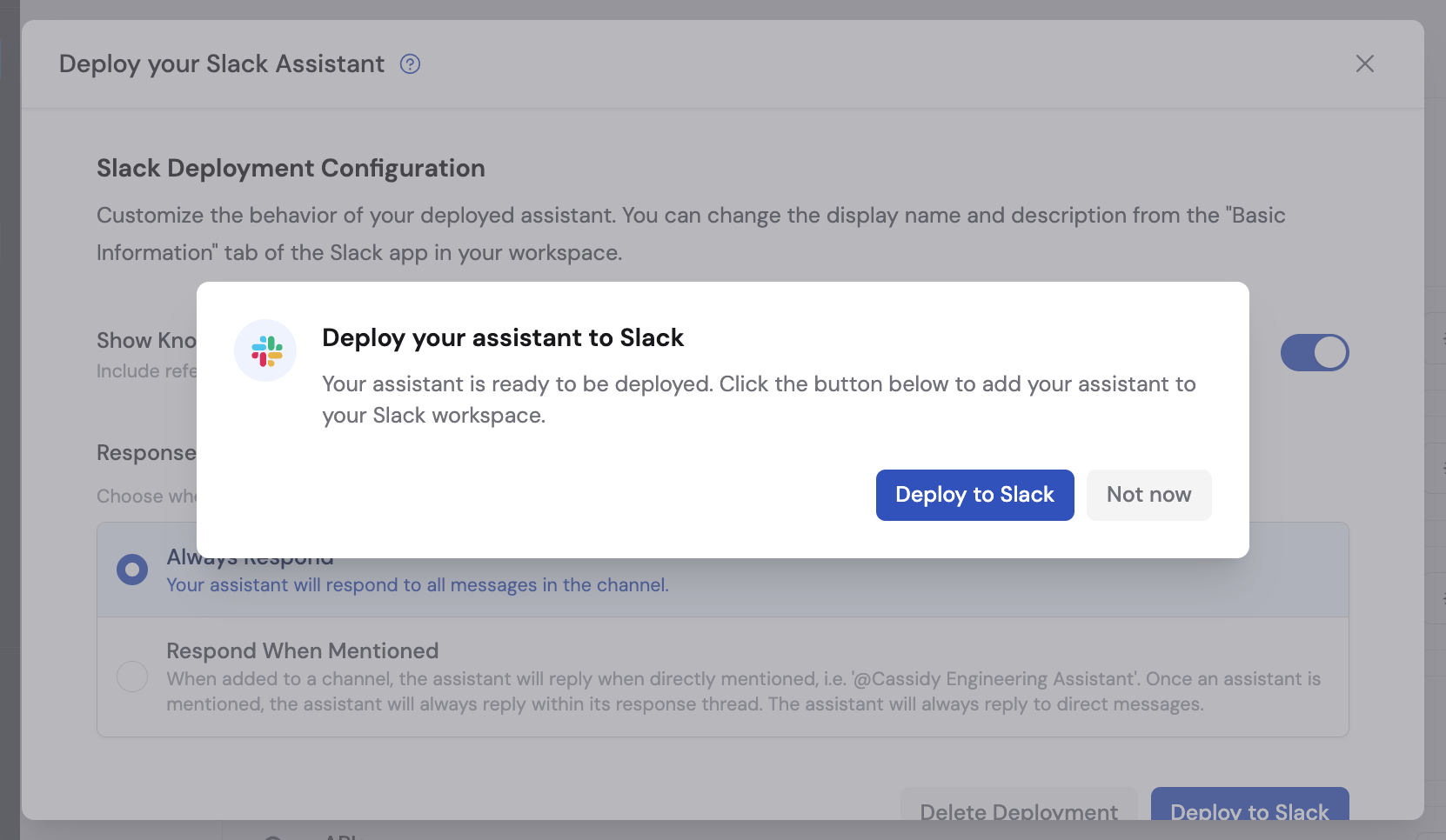
11
Configure the response mode
Choose how the Agent responds in Slack: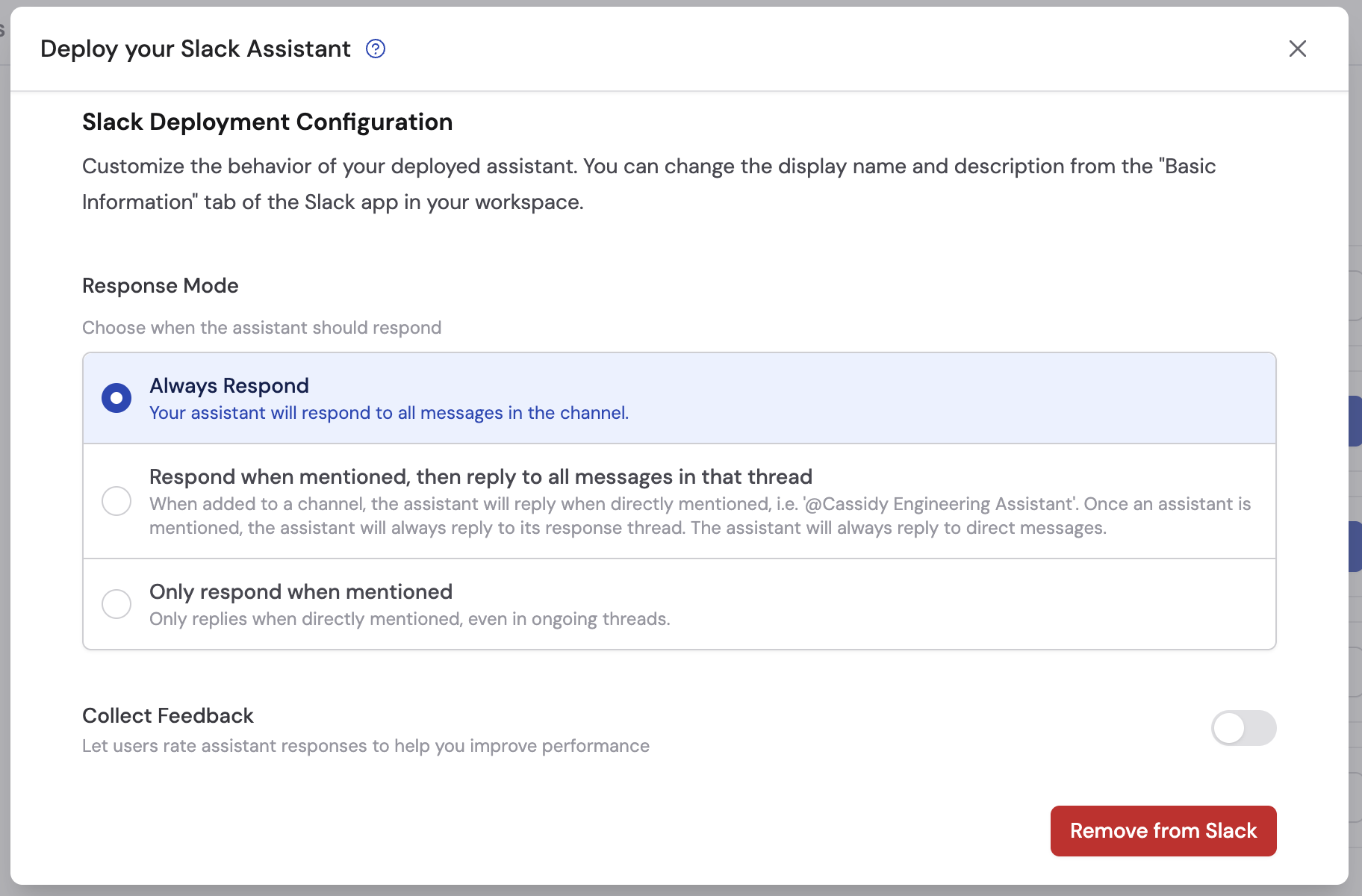
- Always respond — the Agent replies to every message in channels where it’s added
- Respond when mentioned — the Agent only replies when mentioned with @
- Only respond when mentioned — the Agent replies when mentioned, even in ongoing threads
Chat with your Agent in Slack
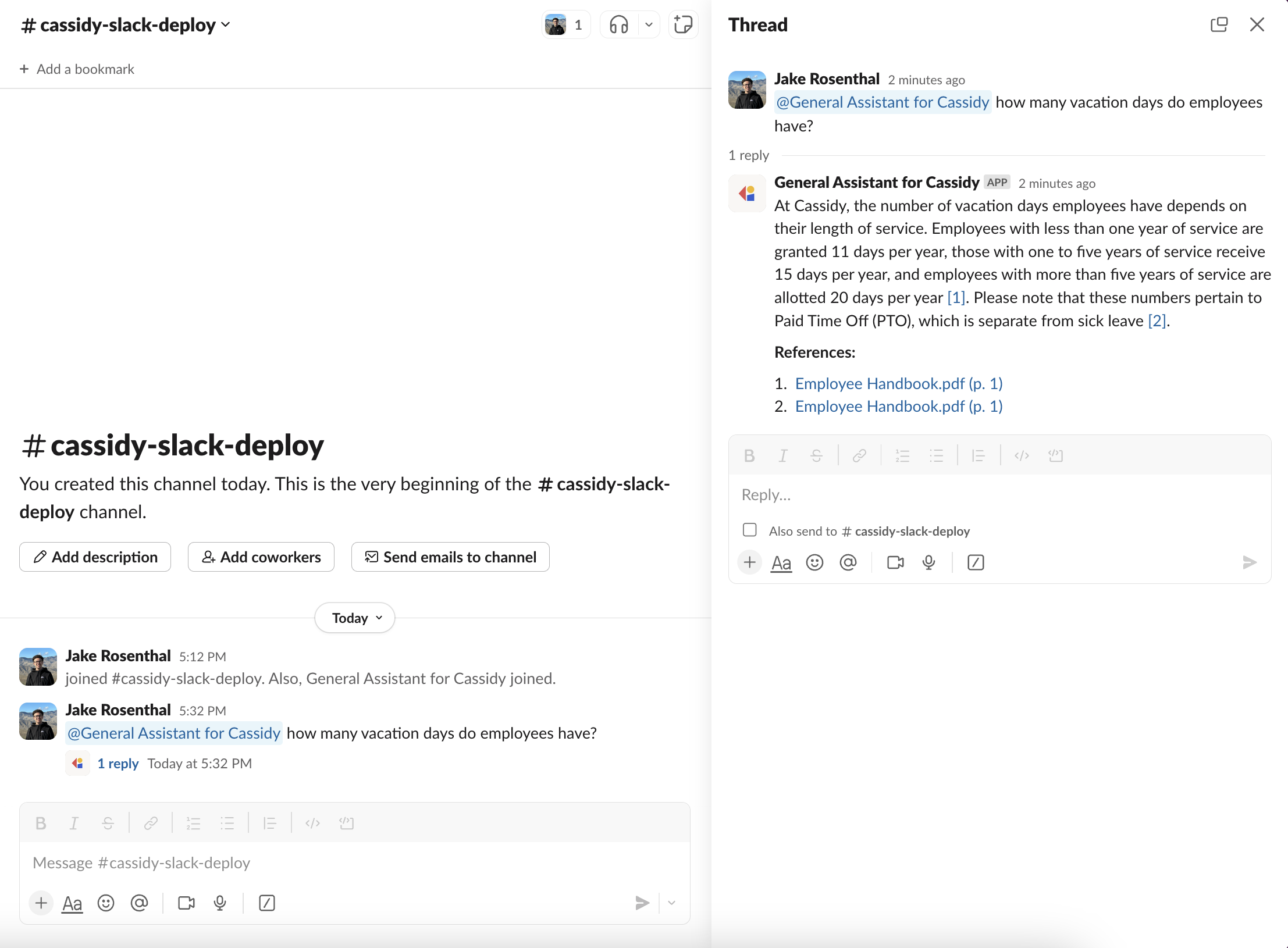
Once deployed, your team can interact with the Agent in two ways:- Direct messages — start a new DM in Slack and search for the app by its display name. Send a message to begin a conversation. Each thread is a separate conversation.
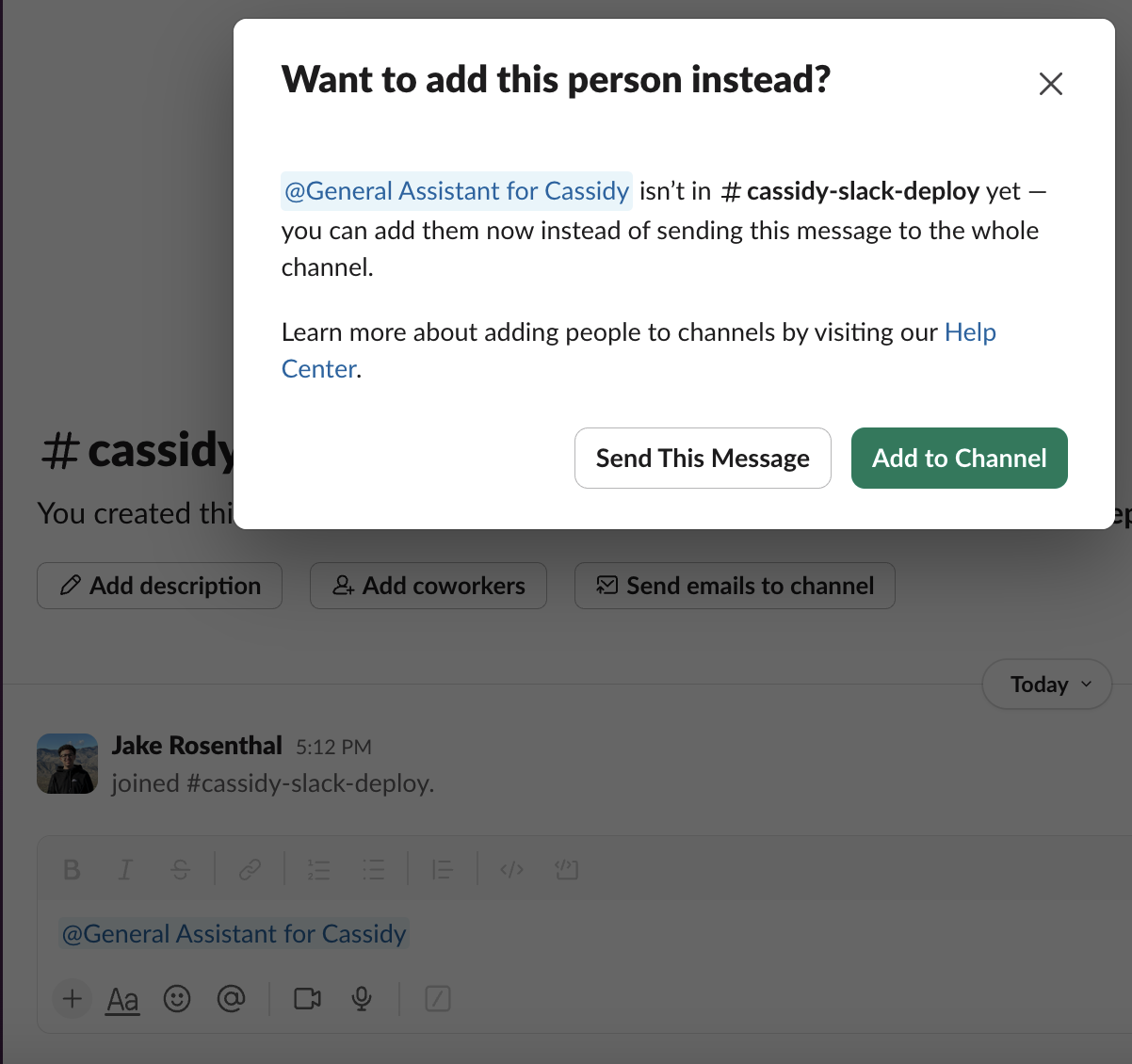
- Channel mentions — in any channel, @ mention the Agent by its display name. Slack prompts you to invite the app to the channel on first mention. Once added, the Agent responds to messages based on the response mode you configured.
Remove the deployment
To remove the Agent from Slack, either delete the app directly in Slack or click Remove from Slack in the Cassidy deployment settings for that Agent.Next steps
Import Slack channels to Knowledge Base
Give your Agent context from real Slack conversations.
Deploy via email
Let users interact with your Agent by sending and receiving emails.
Trigger Workflows from Slack
Automate actions when messages arrive in Slack channels.