

Set up the deployment
1
Navigate to your Agent
Go to Agents and select the Agent you want to embed. Click Edit to open the Agent settings.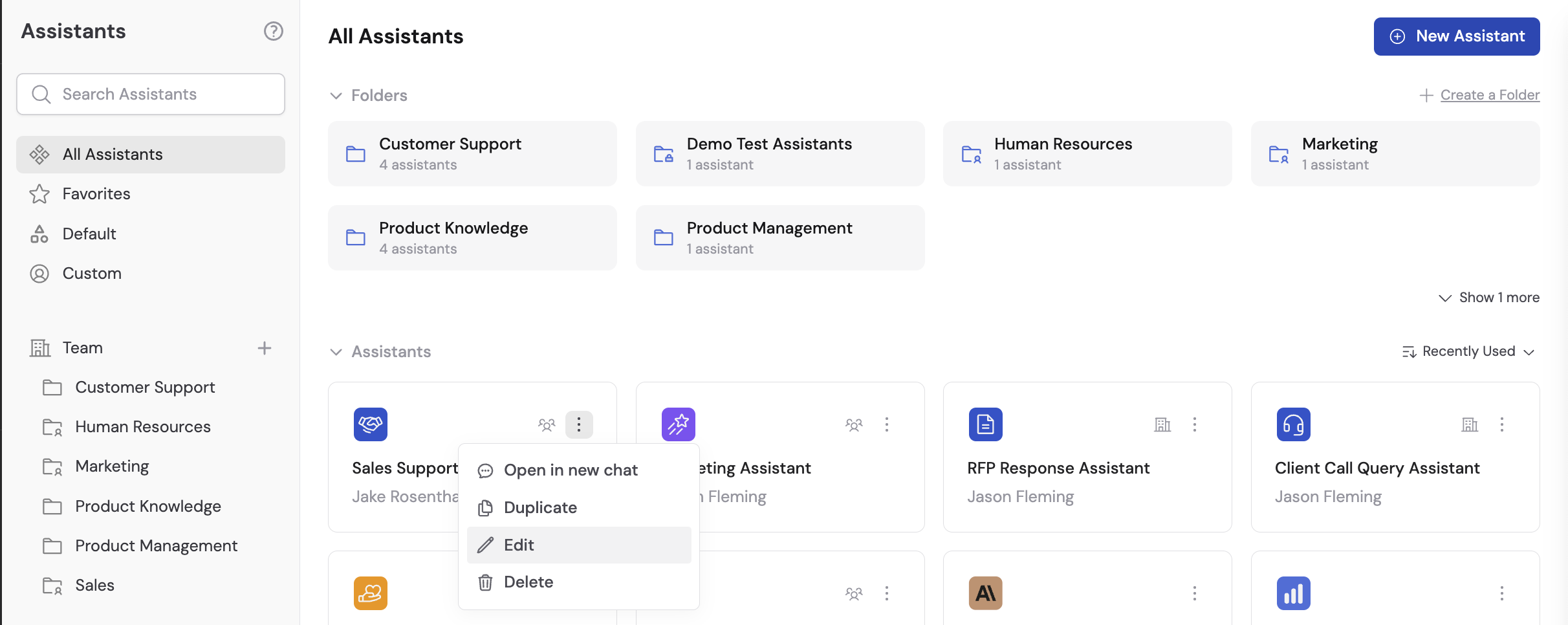
2
Open the Deployments tab
Navigate to the Deployments tab in your Agent’s settings.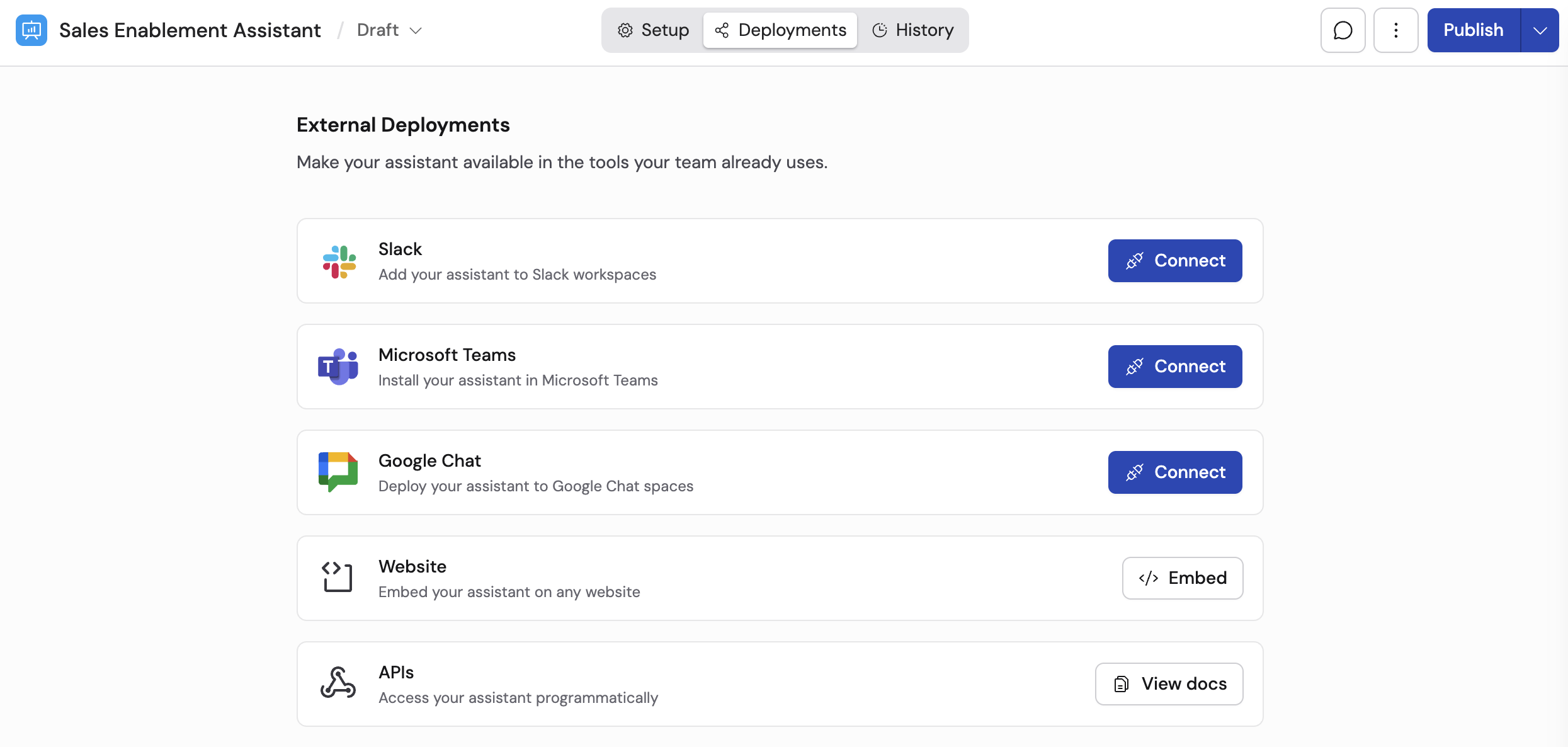
3
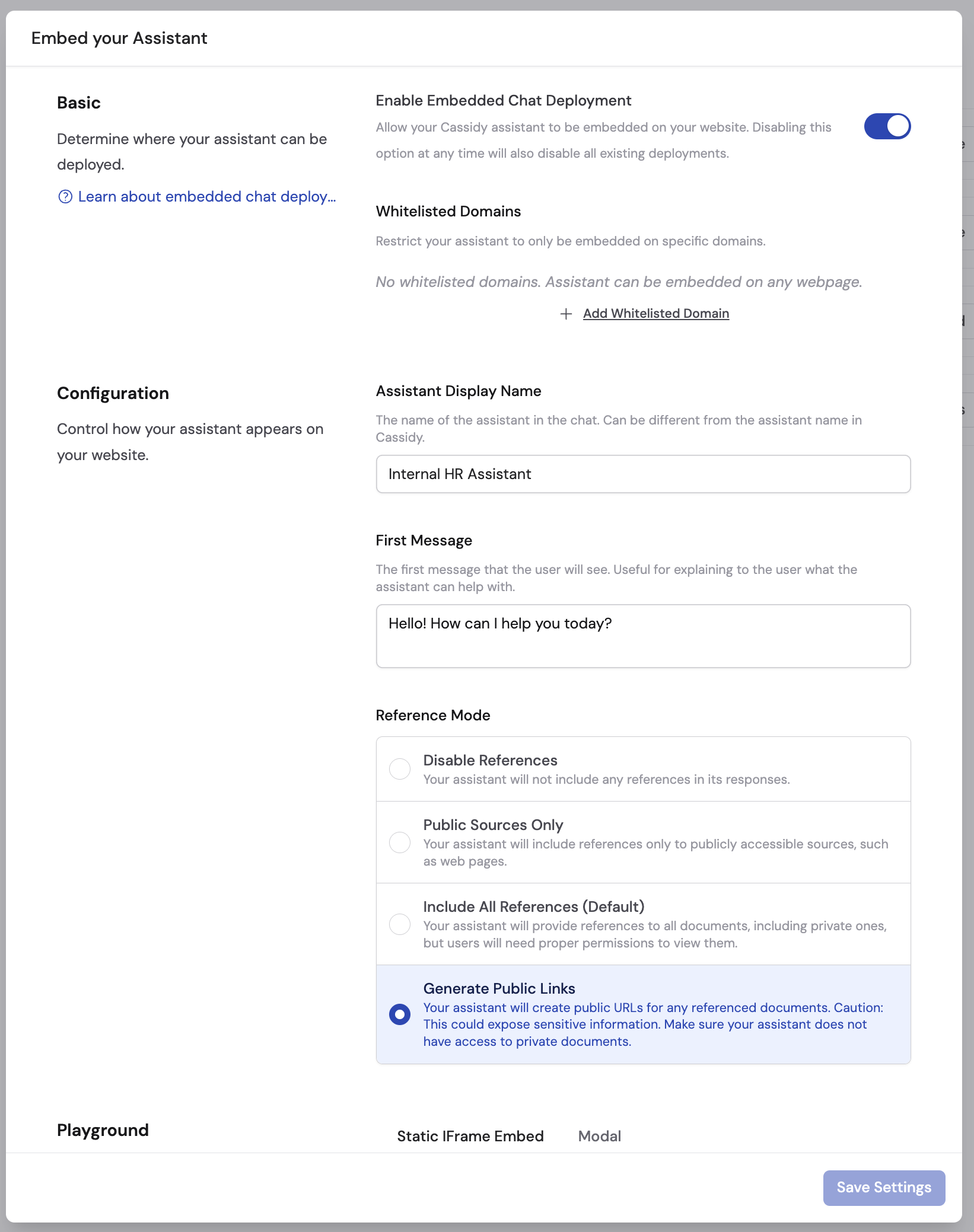
Enable embedded chat
Toggle on Enable Embedded Chat Deployment.
4
Whitelist your domains
Click Add Whitelisted Domain to specify which website domains are allowed to embed the Agent. You can add multiple domains and remove them as needed.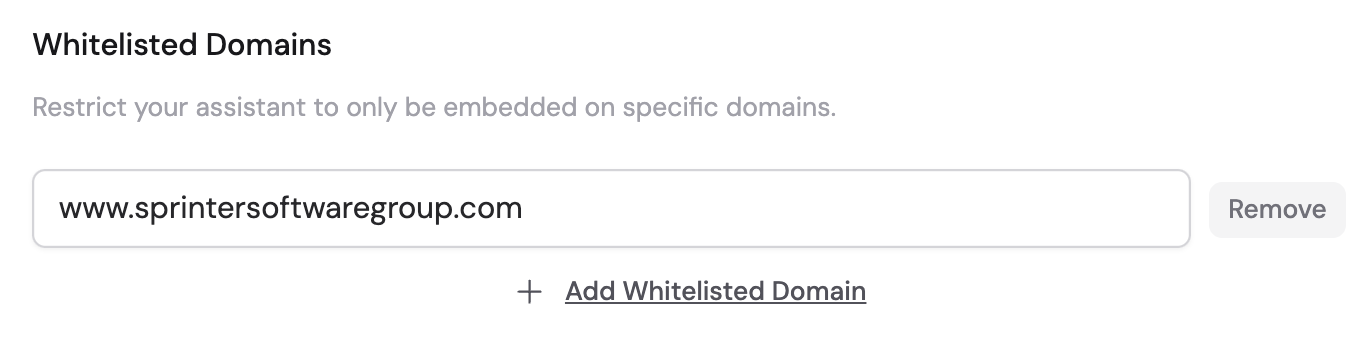
5
Require a secure token (optional)
By default, anyone who has the embed URL can chat with your Agent. To restrict access to only your authenticated users, toggle on Require Secure Token.When enabled, the embed URL requires a short-lived authentication token to work. Create this token on your own backend with your Cassidy API key after you authenticate the user. See Restrict access with secure tokens below for setup instructions. If visitors see an Unauthorized error instead of the chat, see Troubleshooting.
6
Set the display name
Enter the Agent Display Name that visitors will see in the embedded chat widget.
7
Configure the first message
Enter the First Message that greets visitors when they open the chat. Use this to welcome users or prompt them to ask a question.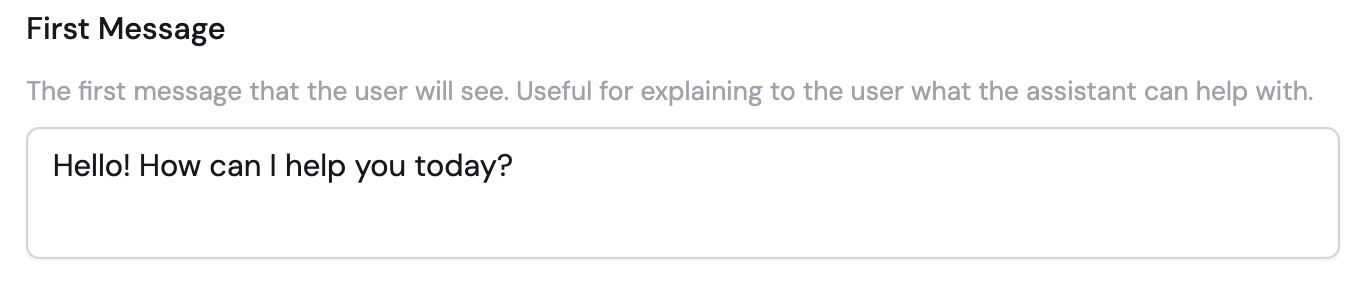
8
Choose the reference mode
Select the appropriate Reference Mode for your use case: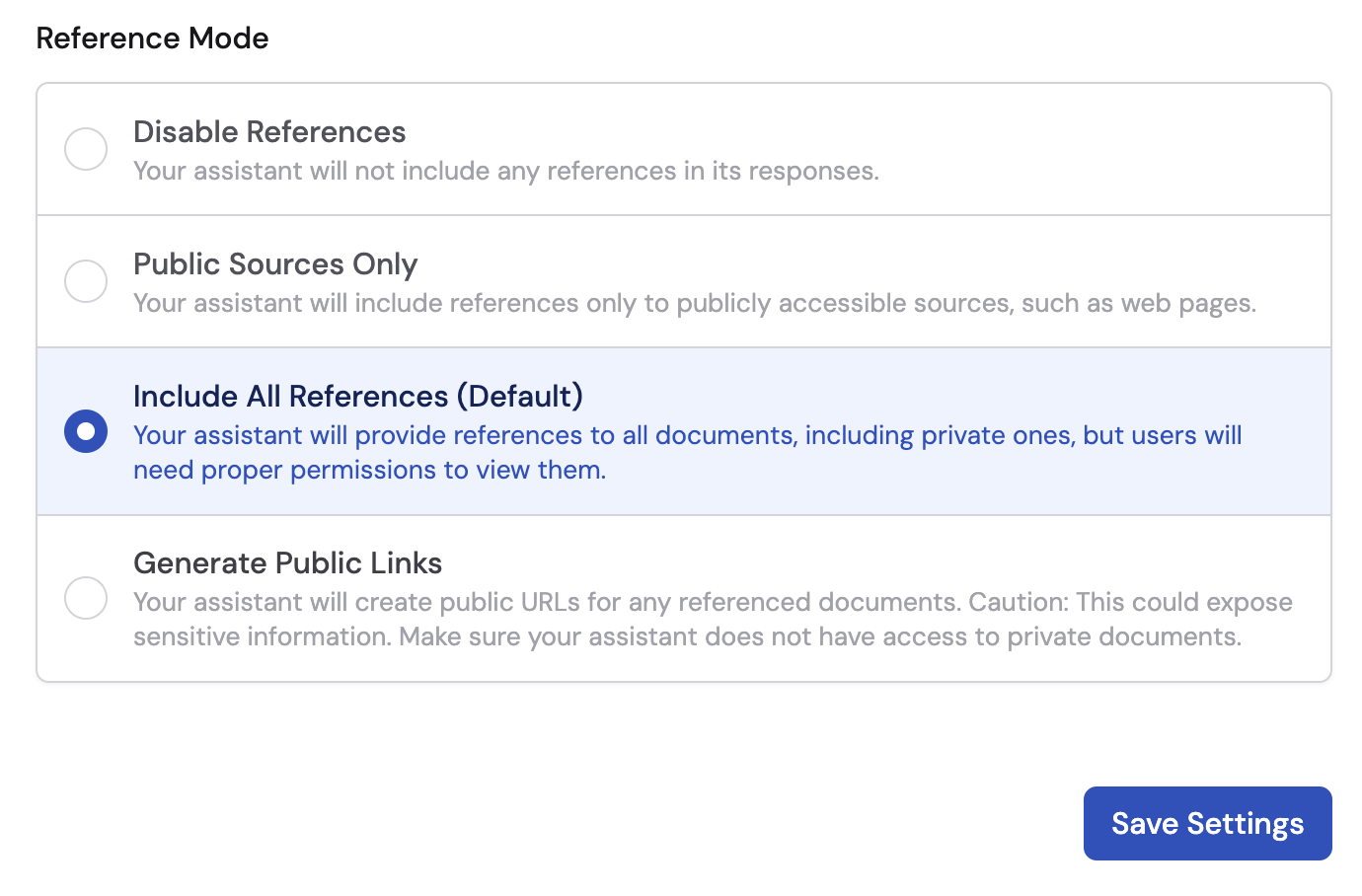
- Disable References — no citations shown in responses
- Public Sources Only — only links to publicly accessible sources
- Include All References (default) — all citations shown, but users need permissions to view private documents
- Generate Public Links — creates public URLs for cited documents
9
Save your settings
Click Save Settings to apply your configuration.
10
Choose your embed format
In the Embed Code section, choose between two formats: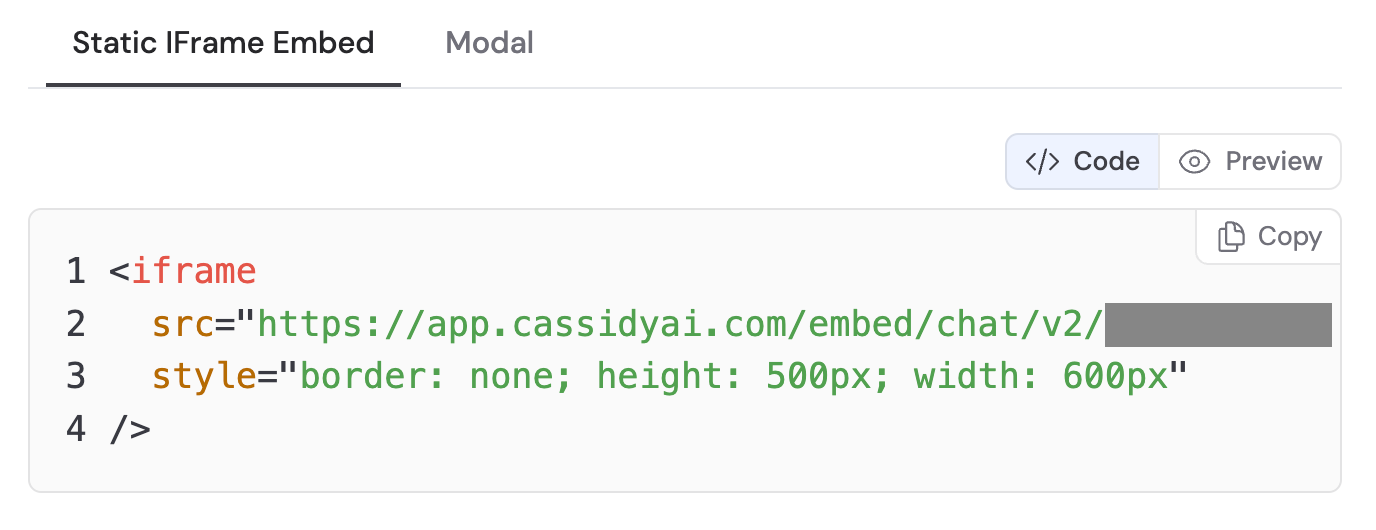
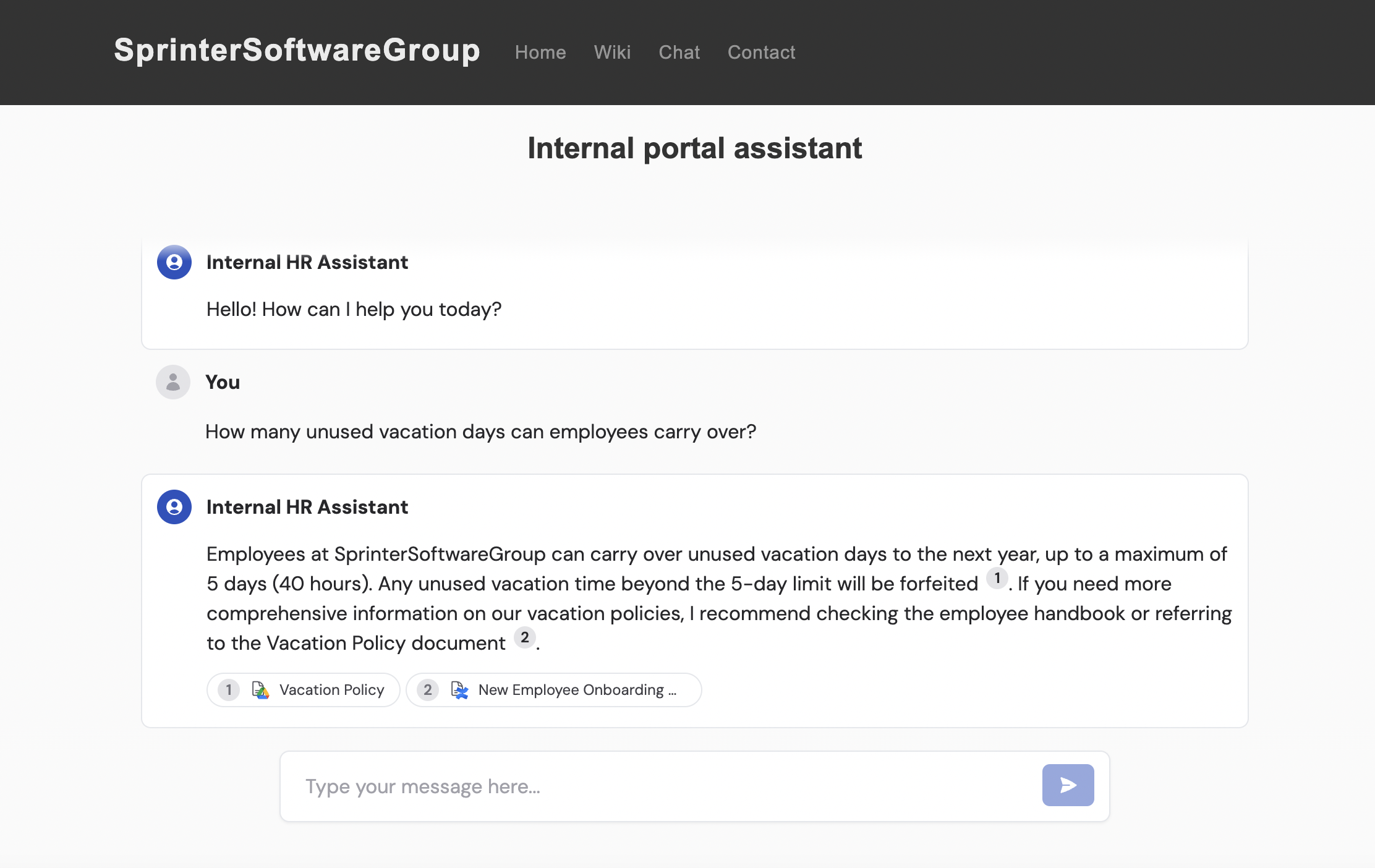
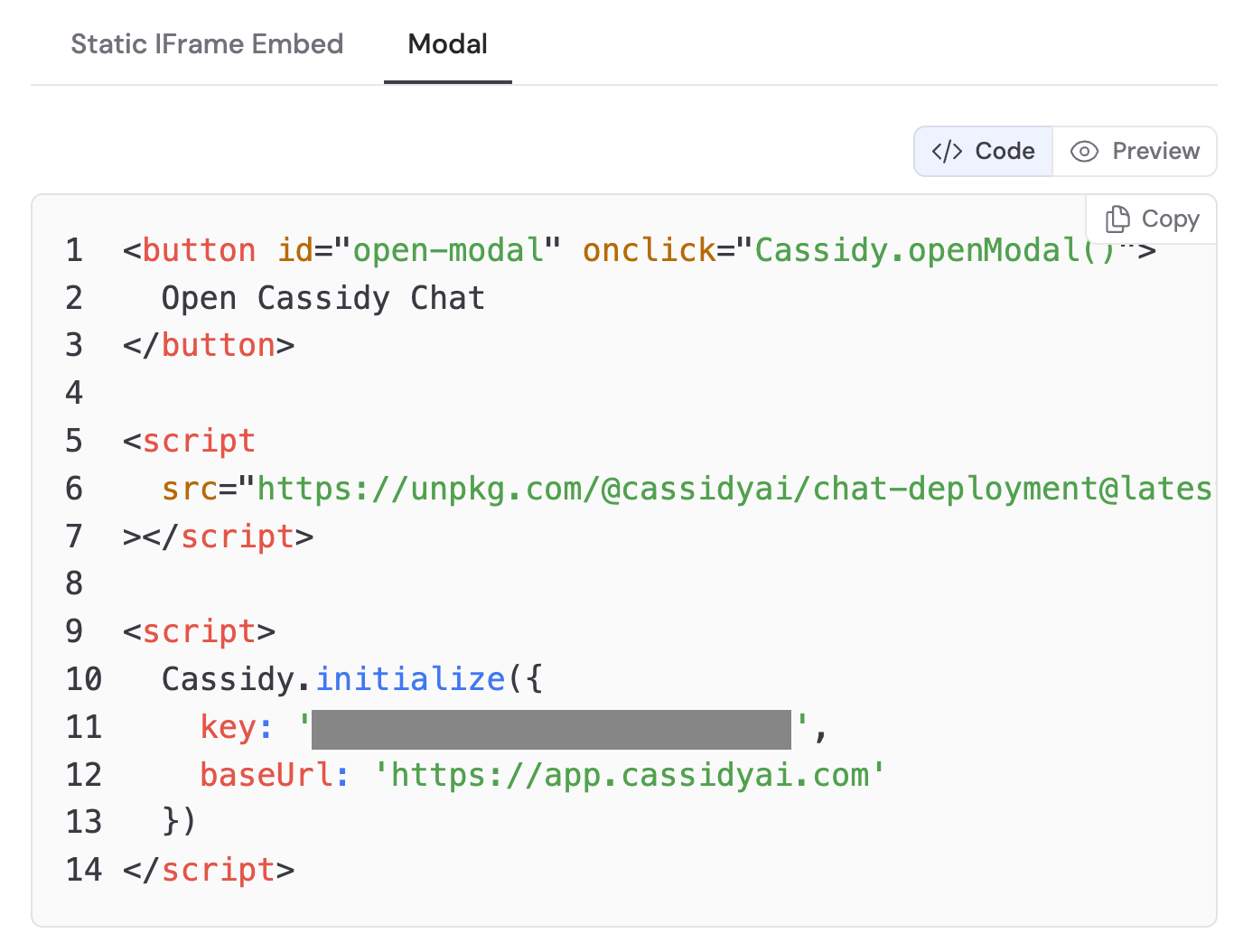
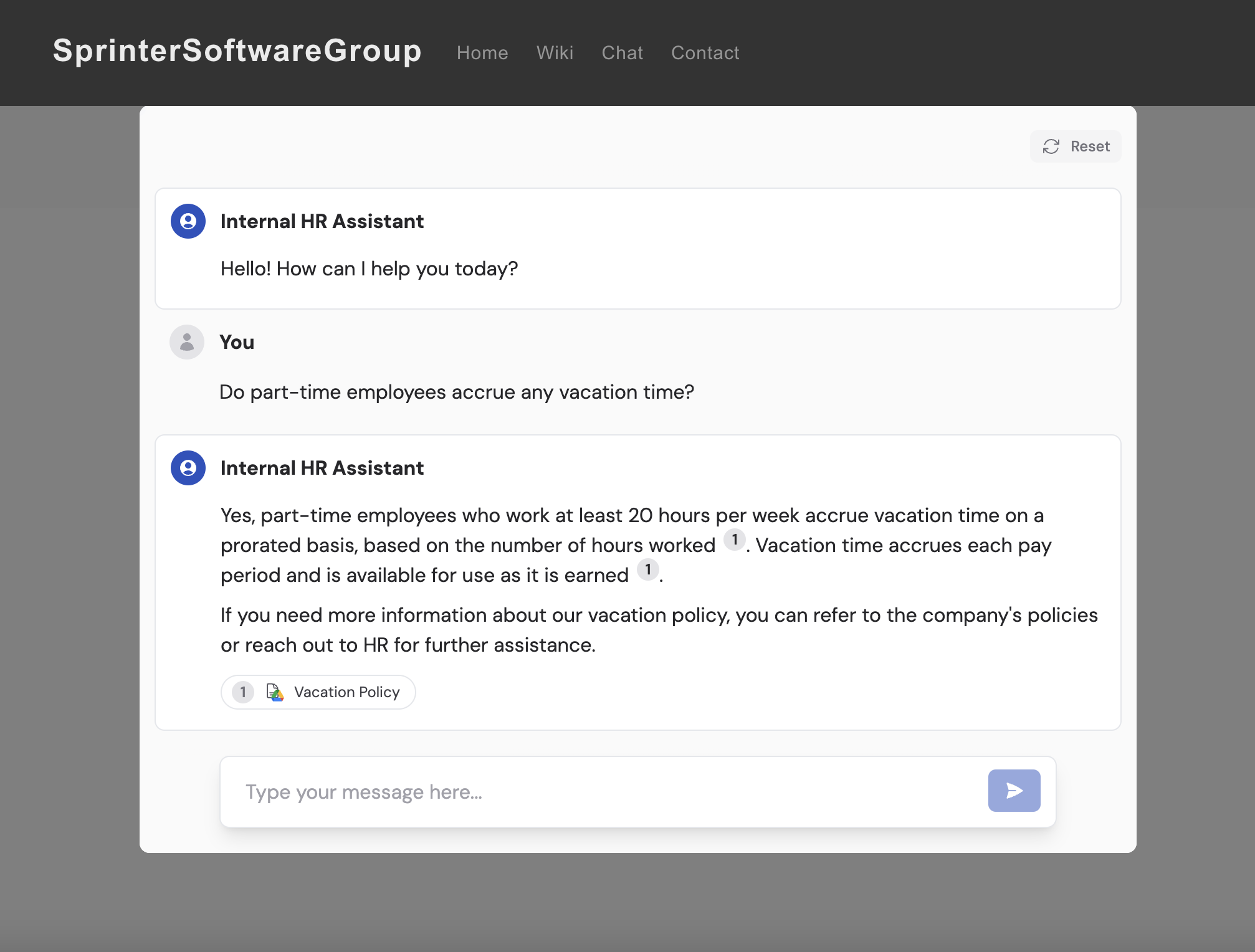
- Static IFrame — the chat component is always visible on the page, ideal for support pages or help centers
- Modal — a floating button that opens the chat as an overlay, best when you want to offer help without taking up permanent space
11
Add the code to your website
Copy the embed code and paste it into your website’s HTML where you want the chat to appear. If you’re using a website builder, add it to a custom HTML block.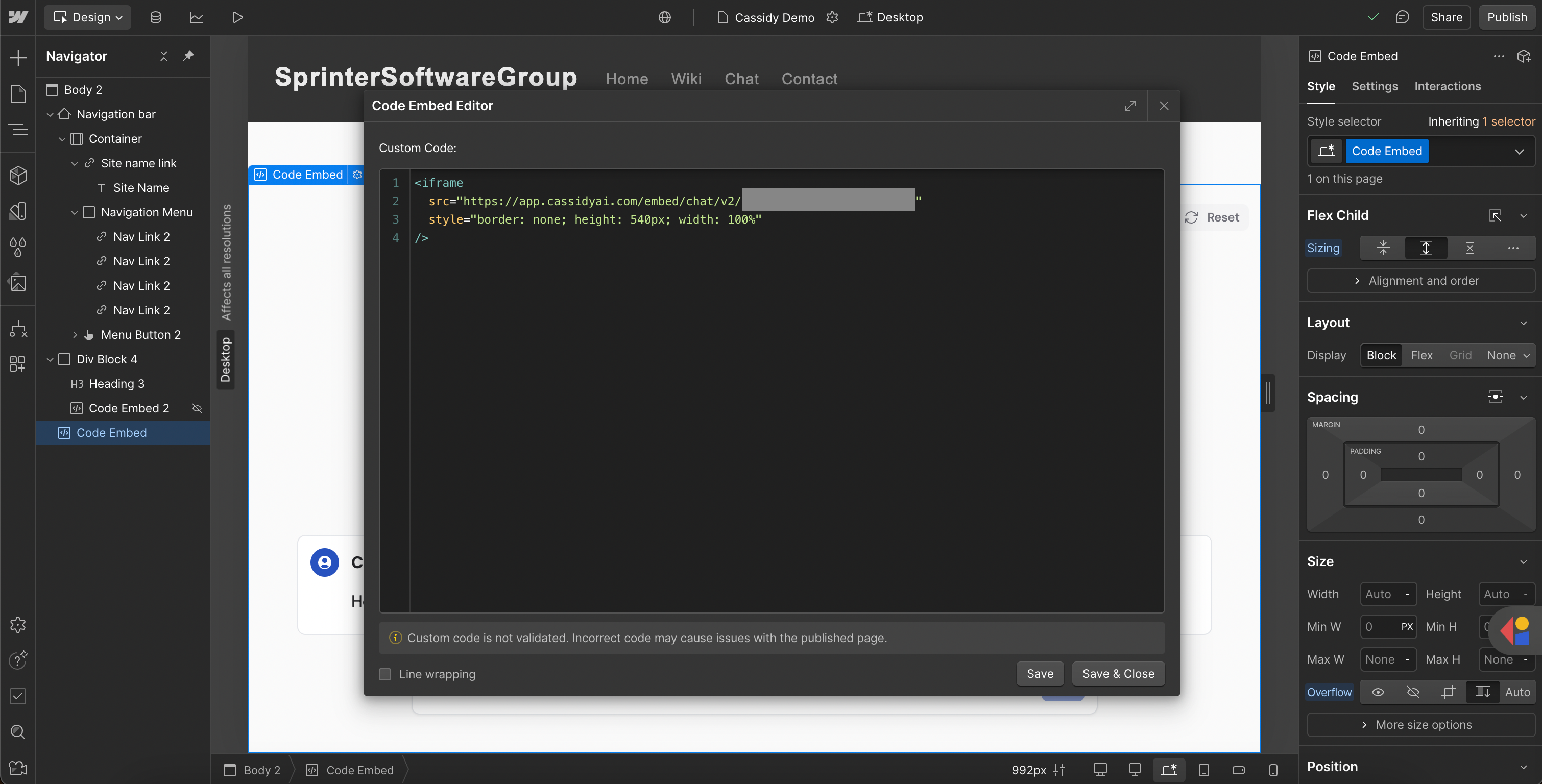
Regenerate your embed URL or modal
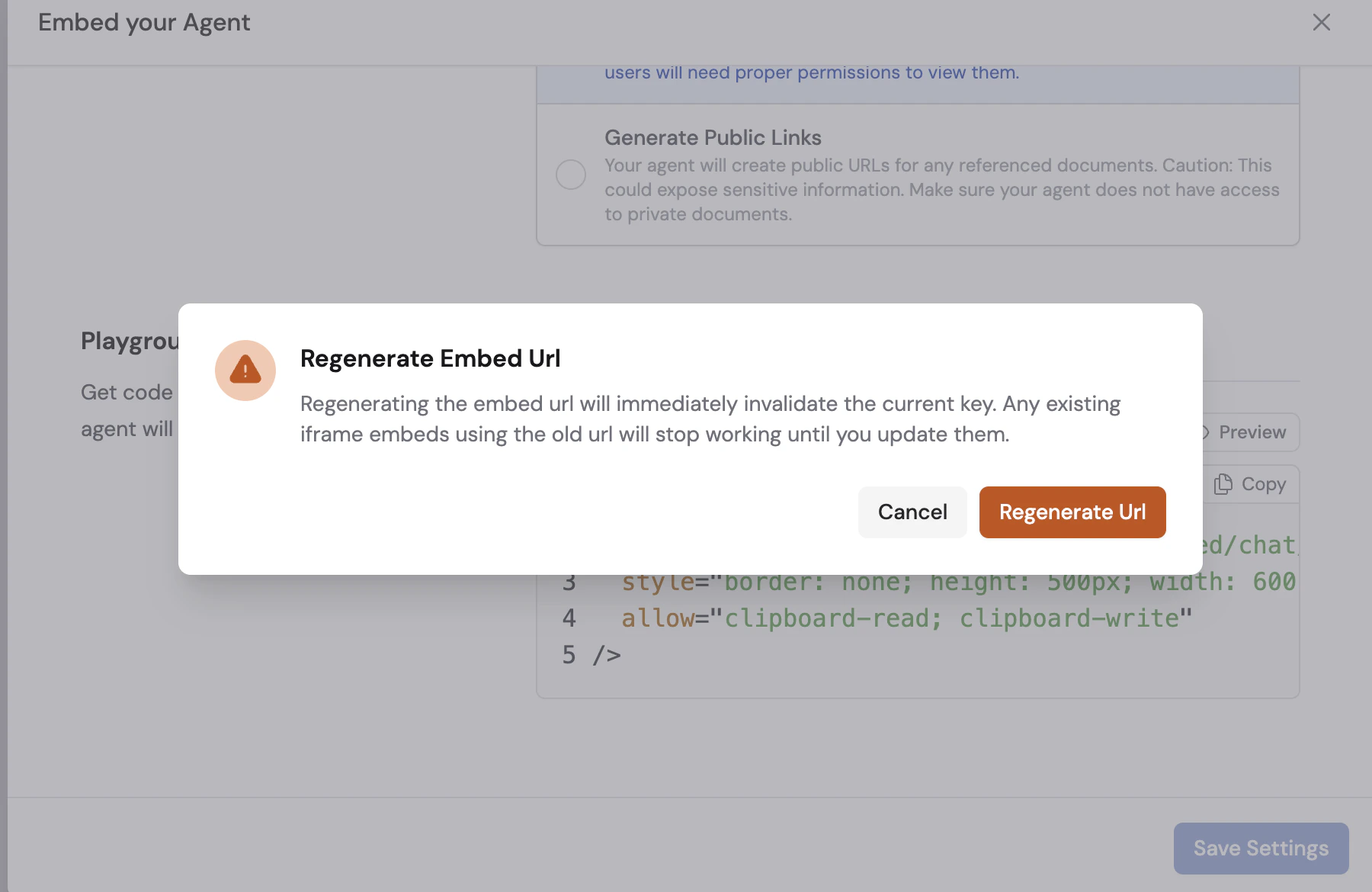
If you need to regenerate the current embed credentials (for example, when you suspect they may have been exposed), click the Regenerate Embed Url/Key button. This will create a new embed key or URL and immediately invalidate all existing chats using the old one.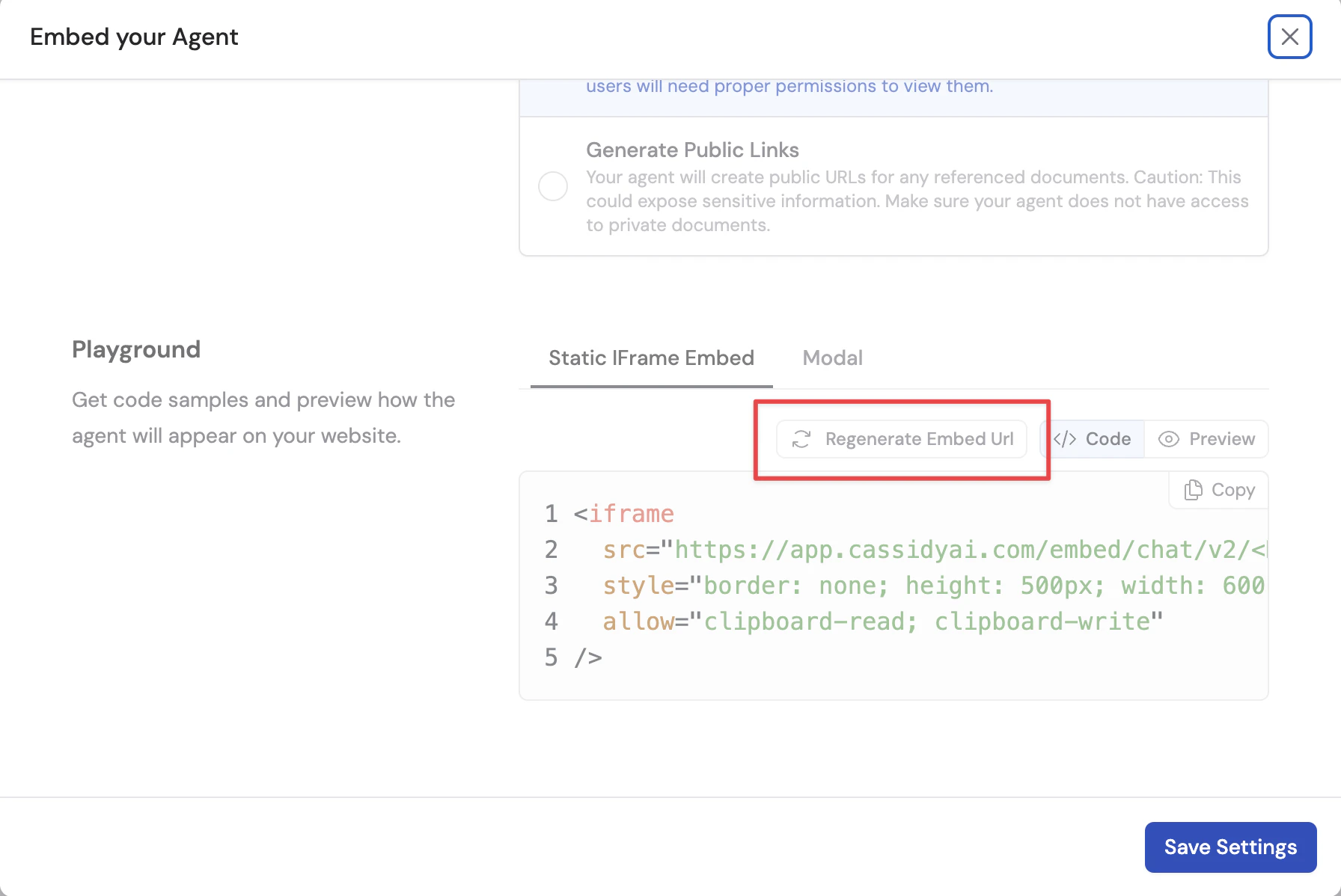
Restrict access with secure tokens
By default, an embedded Agent is public. Anyone with the embed URL can chat with it. Whitelisted domains only control which sites may visually embed the iframe in a browser; they do not stop someone who has the URL from opening it directly. To allow only your authenticated users to chat, enable Require Secure Token. With secure tokens enabled, every embedded chat request must include a short-lived token. Your backend mints that token using your Cassidy API key.1
Authenticate your user
Use your own login system to confirm the visitor is allowed to use the Agent.
2
Create a backend endpoint that mints tokens
From your backend, call the embed token endpoint with your Cassidy API key. The token defaults to a 1-hour lifetime, with a 7-day maximum.Return the token to your frontend.
3
Pass the token to the embed
- Static iframe — append the token to the embed URL as a fragment (
#token=...). The embed reads the token from the URL when it loads. Your app is responsible for refreshing tokens before they expire — mint a new token from your backend and update the iframesrcwith the new fragment.
- Modal — fetch a token from your backend after authenticating the user, then pass it to
Cassidy.initializeasauthToken. Your app is responsible for refreshing tokens before they expire.
Troubleshooting
If Require Secure Token is enabled and the embed does not receive a valid token, visitors will see an Unauthorized screen instead of the chat. This means the embed is working, but the token was missing, expired, or not passed correctly.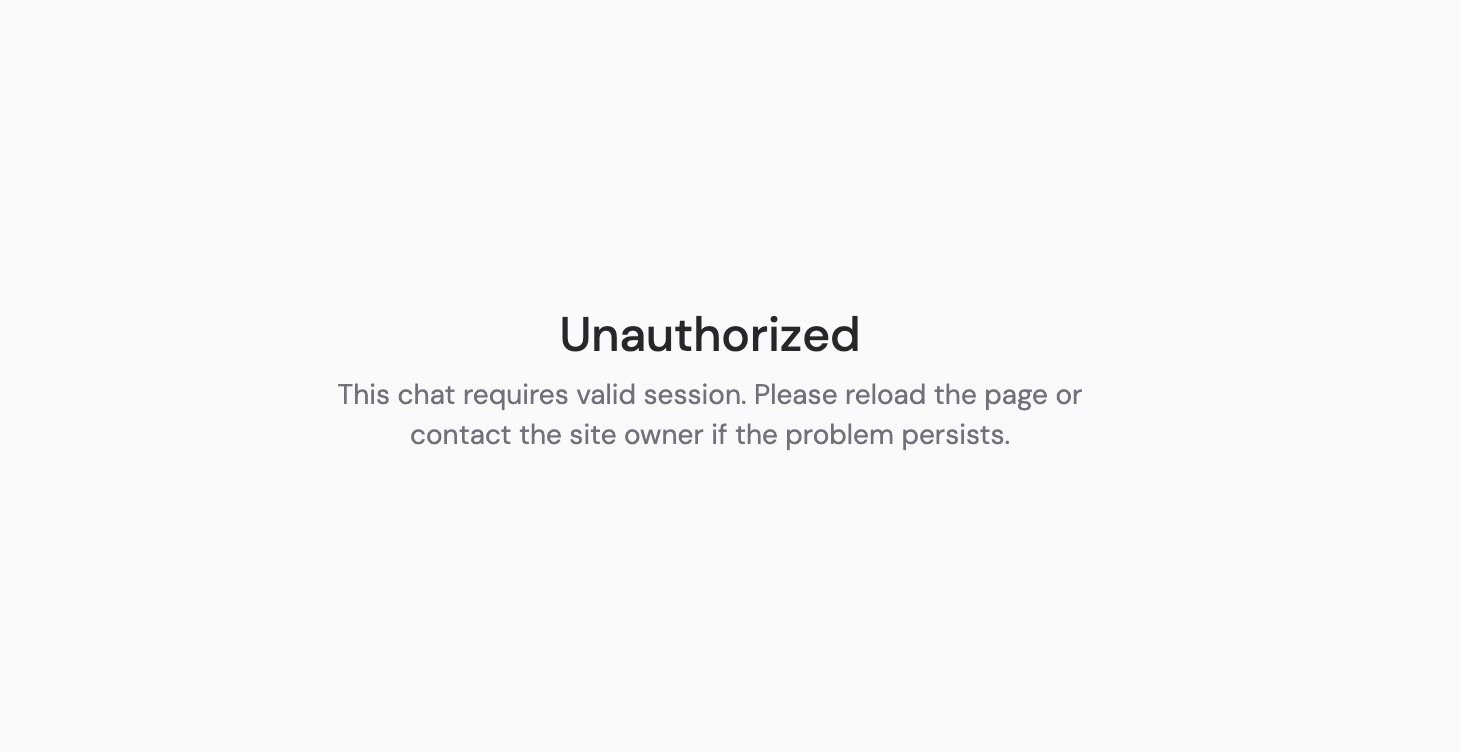
- The embed code on your website does not include a token (for example, the iframe URL is missing
#token=..., or the modal was initialized withoutauthToken). - The token expired and your site has not refreshed it yet.
- Your backend is not minting tokens correctly, or the token was created for a different deployment key.
- If you copied embed code from Cassidy before setting up secure tokens, update your website with the latest embed instructions above.
- Ask whoever manages your website to confirm tokens are being created on your backend and passed into the embed.
- Try reloading the page. If the error persists, contact your site administrator or Cassidy support.
Next steps
Agents overview
Learn more about creating and configuring Agents.
Deploy via email
Deploy your Agent to a dedicated email address.
Deploy via API
Build a custom integration using the Cassidy API.