

Install the extension
1
Open the extension store
Go to the Cassidy AI extension in the Chrome Web Store. You can also access this store from Microsoft Edge.
2
Add the extension
Click Add to Chrome (in Chrome) or Get (in Edge) to start the installation.
3
Accept the permissions
A dialog will ask for permission to add the extension. Review the request and click Add extension to allow Cassidy to read page content.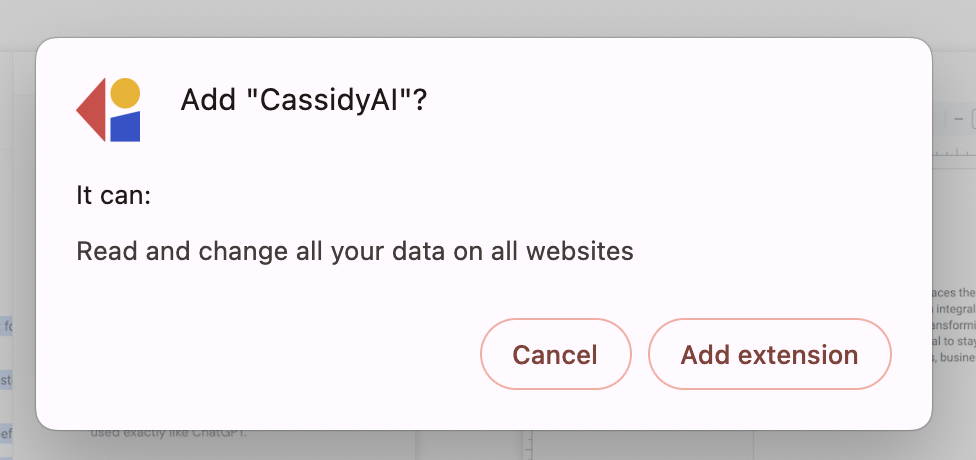
4
Pin the extension (optional)
For quick access, pin Cassidy to your browser toolbar. Click the puzzle piece icon in the toolbar to open the extensions menu, then click the pin icon next to Cassidy.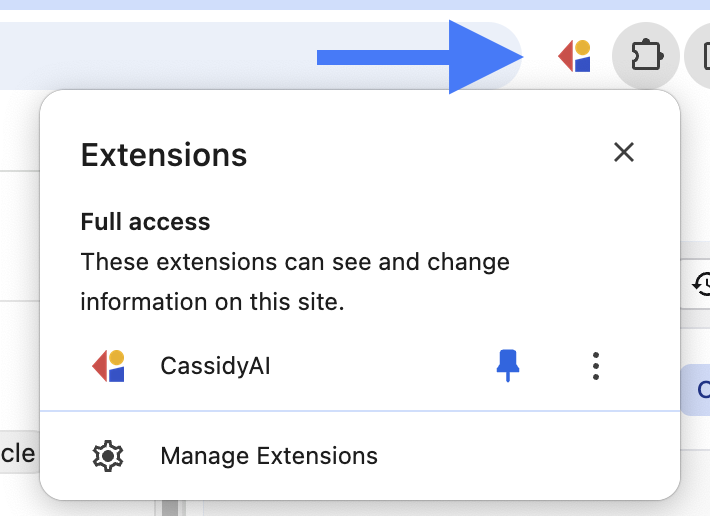
Configure the extension
After installing, you can customize when and how the extension appears.1
Open settings
Locate the Cassidy tag in the bottom-right corner of your browser window. Hover over it to reveal the gear icon, then click it to open settings.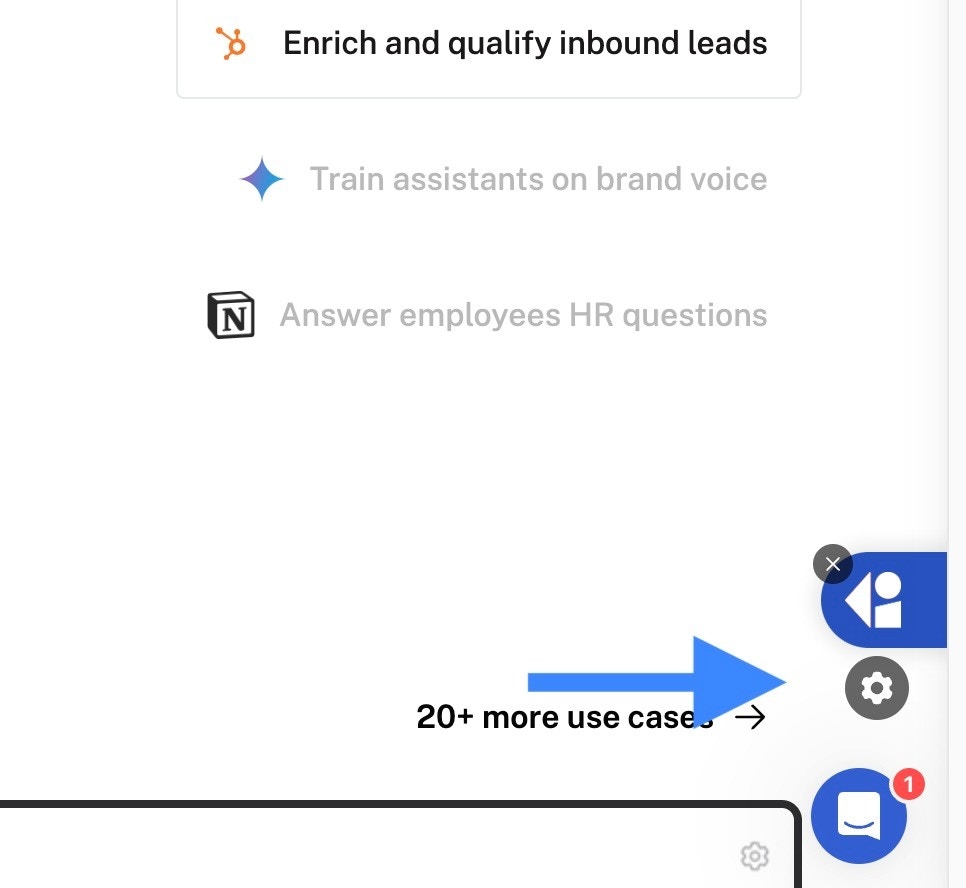
2
Choose display preferences
In the settings menu, configure when to show the Cassidy tag: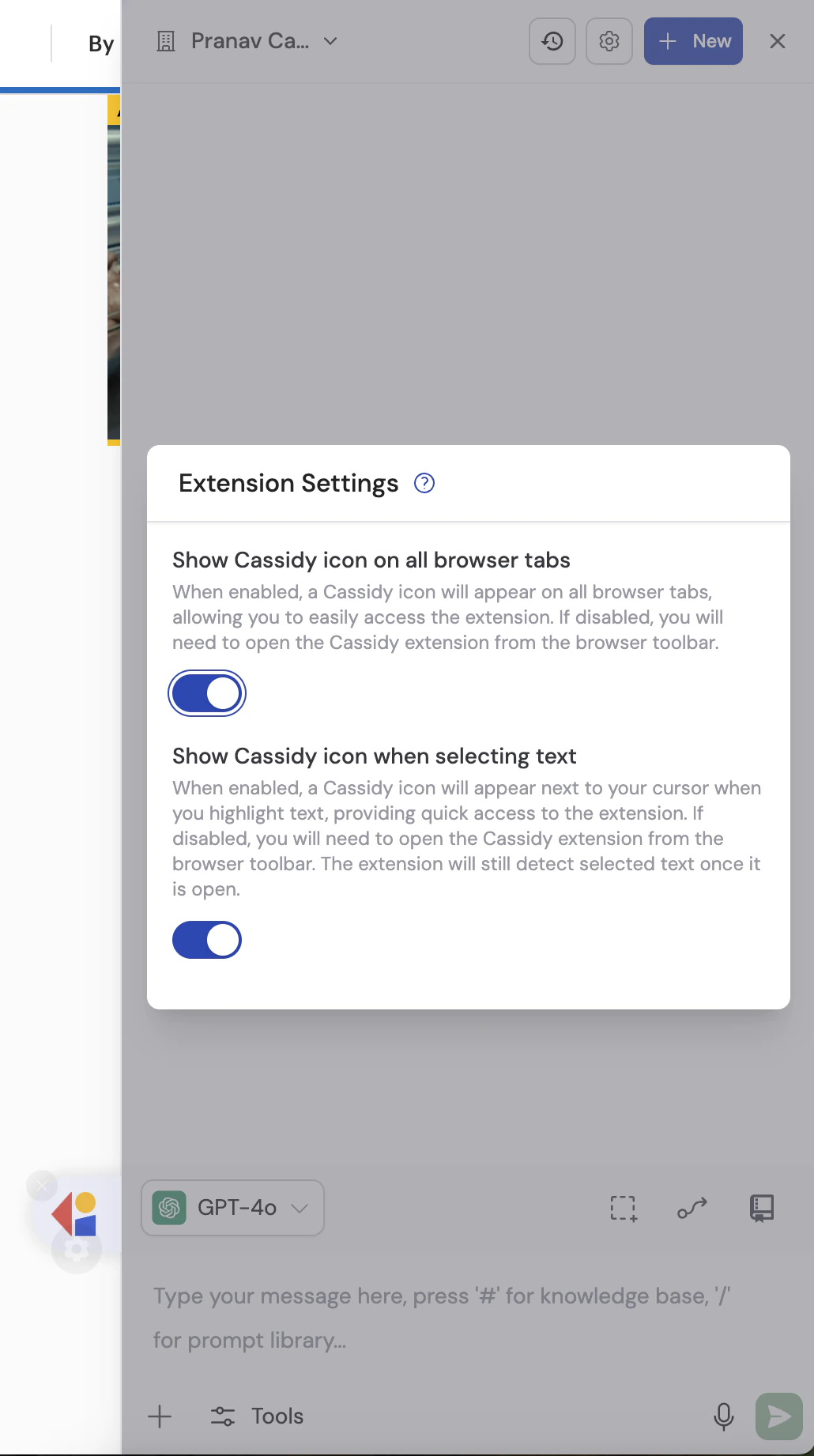
- Show Cassidy icon on all browser tabs — displays the tag on every webpage you visit.
- Show Cassidy icon when selecting text — displays the tag only when you highlight text on a page.
3
Grant page access
When the Agent needs to read your current page, it requests your permission. You can respond in one of three ways: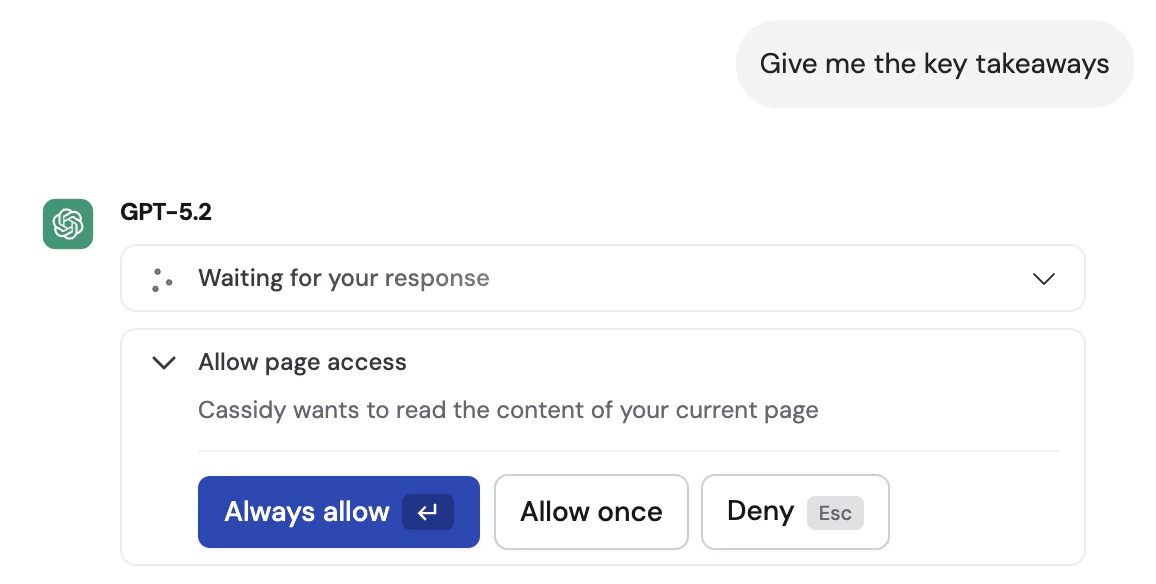
- Always allow — the Agent reads the page automatically on every message without prompting again.
- Allow once — the Agent reads the page for this message only and asks again next time.
- Deny — the Agent responds without reading the page.
What you can do with the extension
Draft email replies
When viewing an email in Gmail, click the Automate button that appears next to the reply buttons. The Cassidy chat panel opens with a suggested prompt based on the email thread, giving you a starting point for your reply.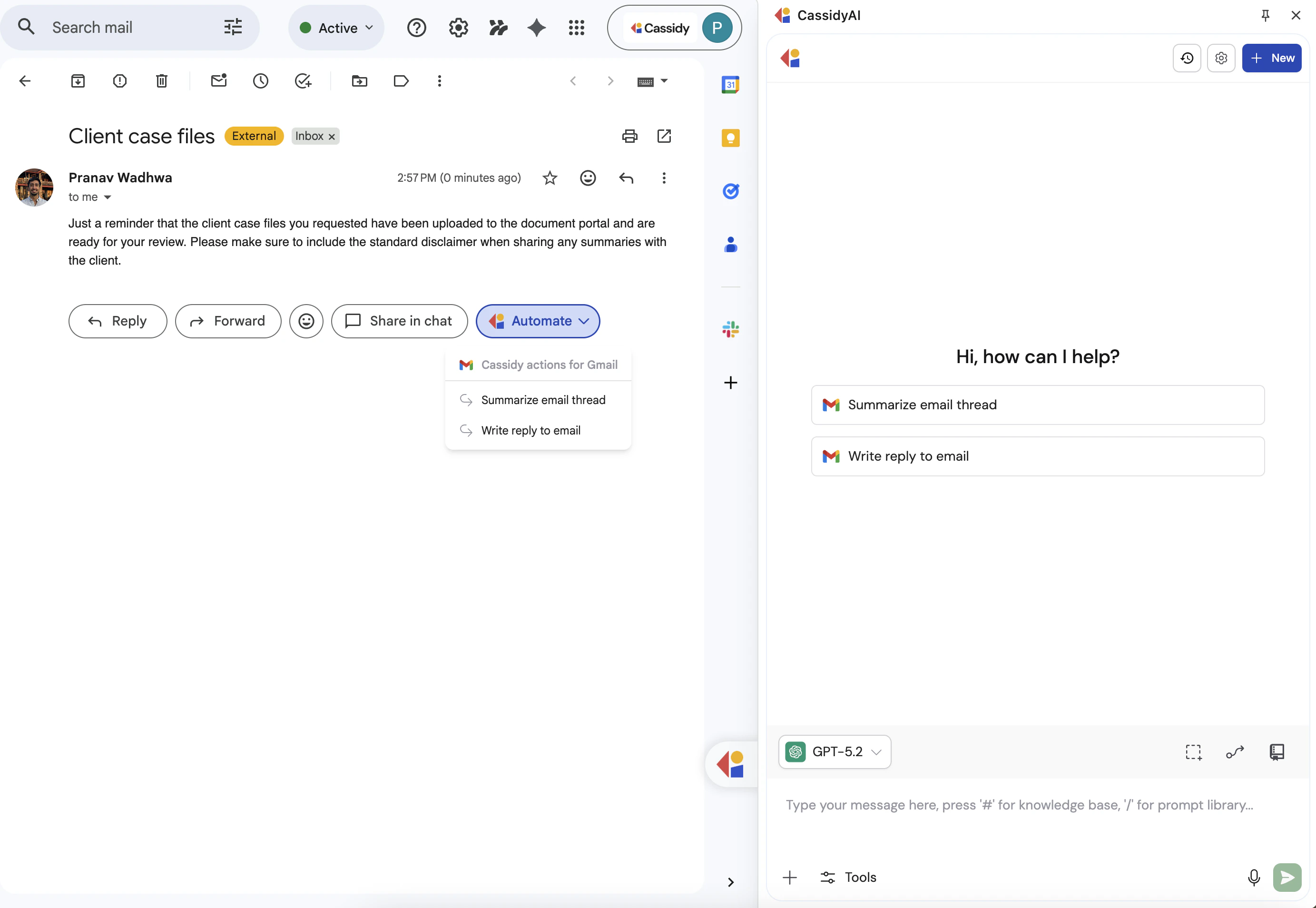
Write LinkedIn messages
On LinkedIn, the Automate button appears next to message controls. Click it to open the chat panel with a pre-filled prompt that helps you craft a personalized message based on the conversation context.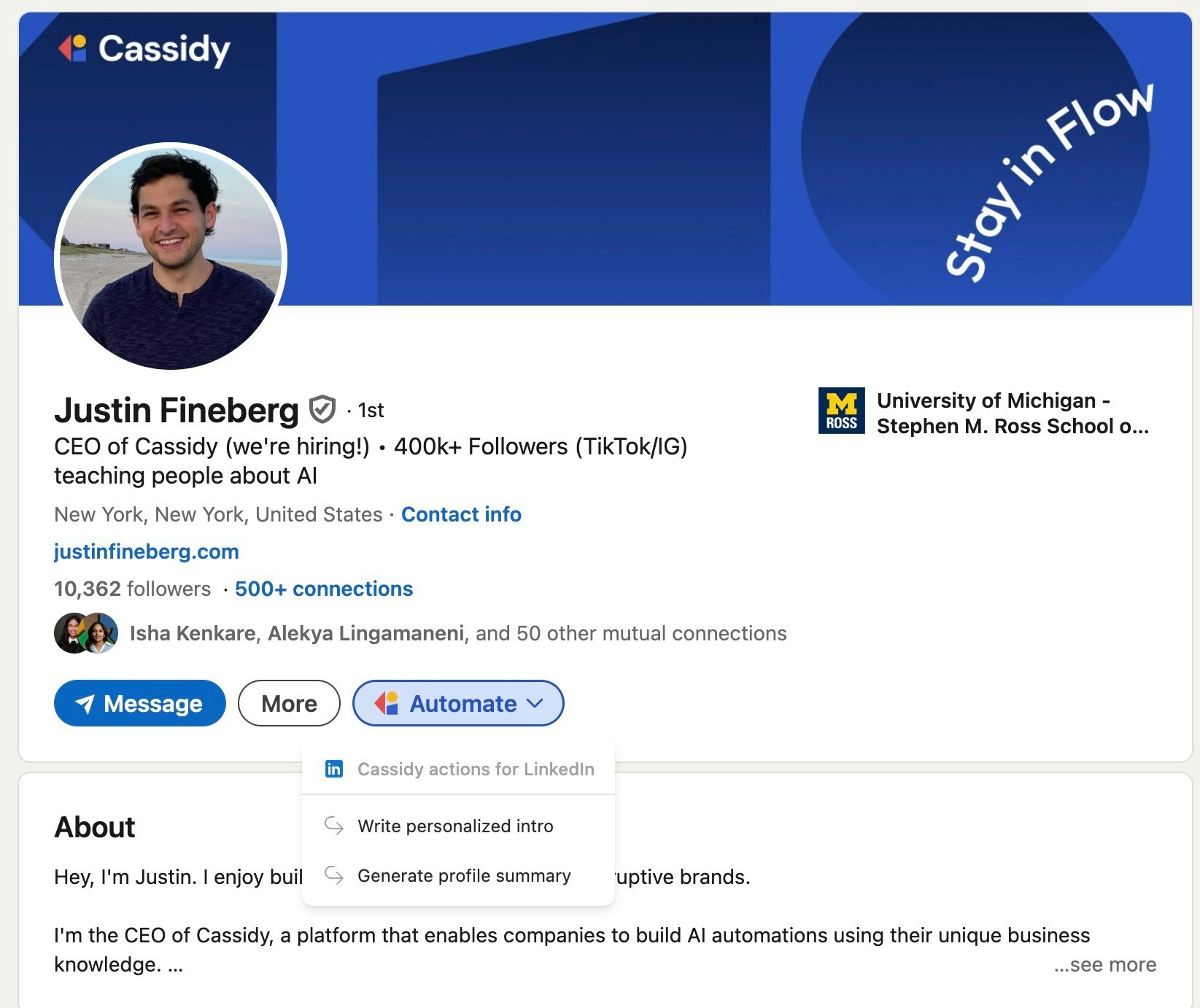
Summarize and analyze webpages
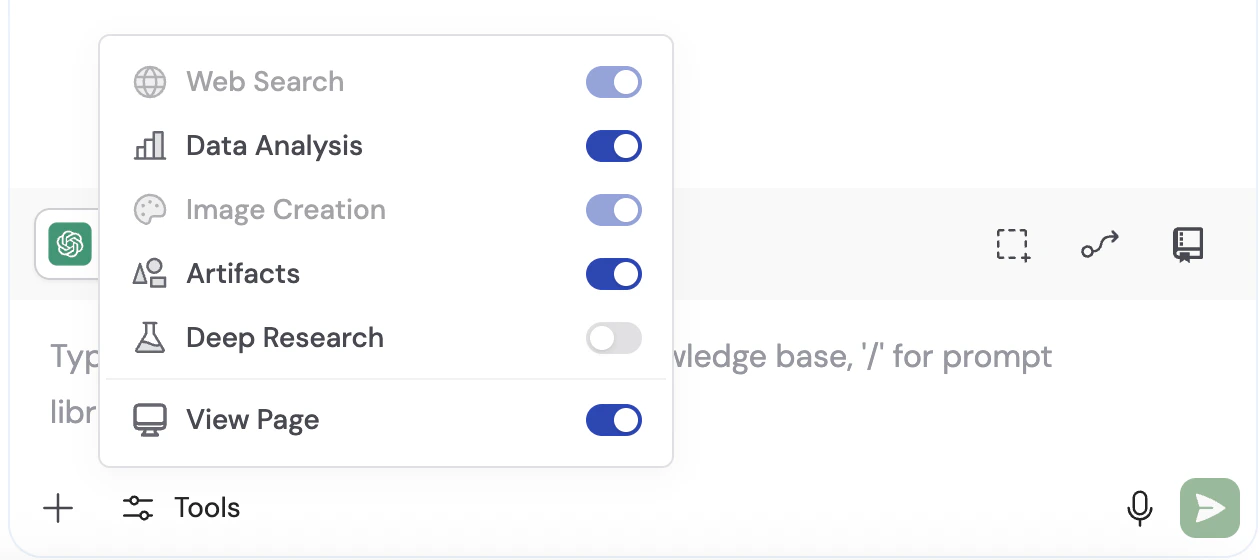
Click the Cassidy tag on any webpage to open the chat panel. Ask your Agent to summarize the page, extract key takeaways, or answer questions about the content. The Agent automatically reads the page to provide context-aware responses.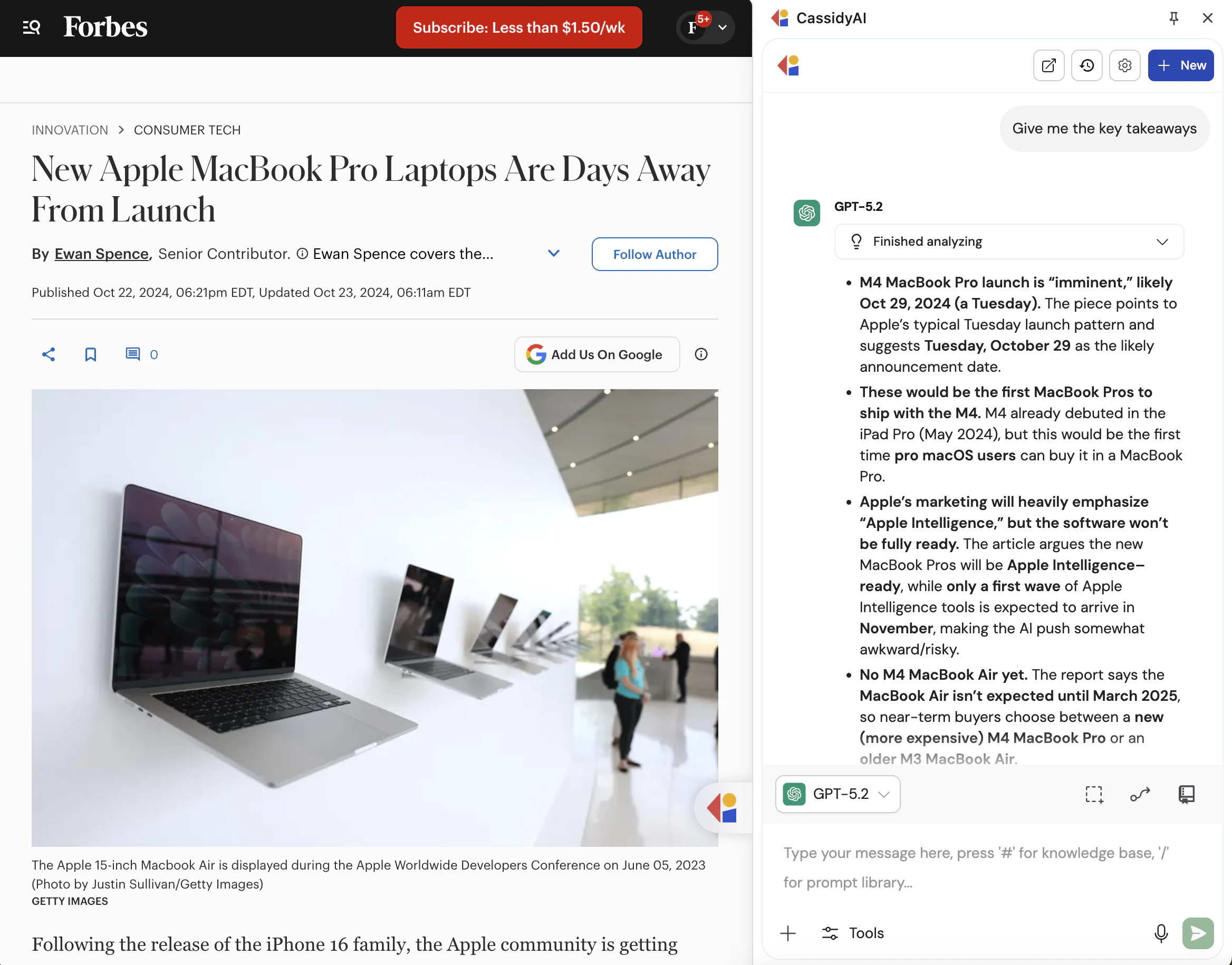
Work with selected text
Highlight any text on a page to trigger the Cassidy tag (if the display setting is enabled). Click it to open the chat panel with the selected text included, so you can ask your Agent to rewrite it, translate it, explain it, or use it as context for a task.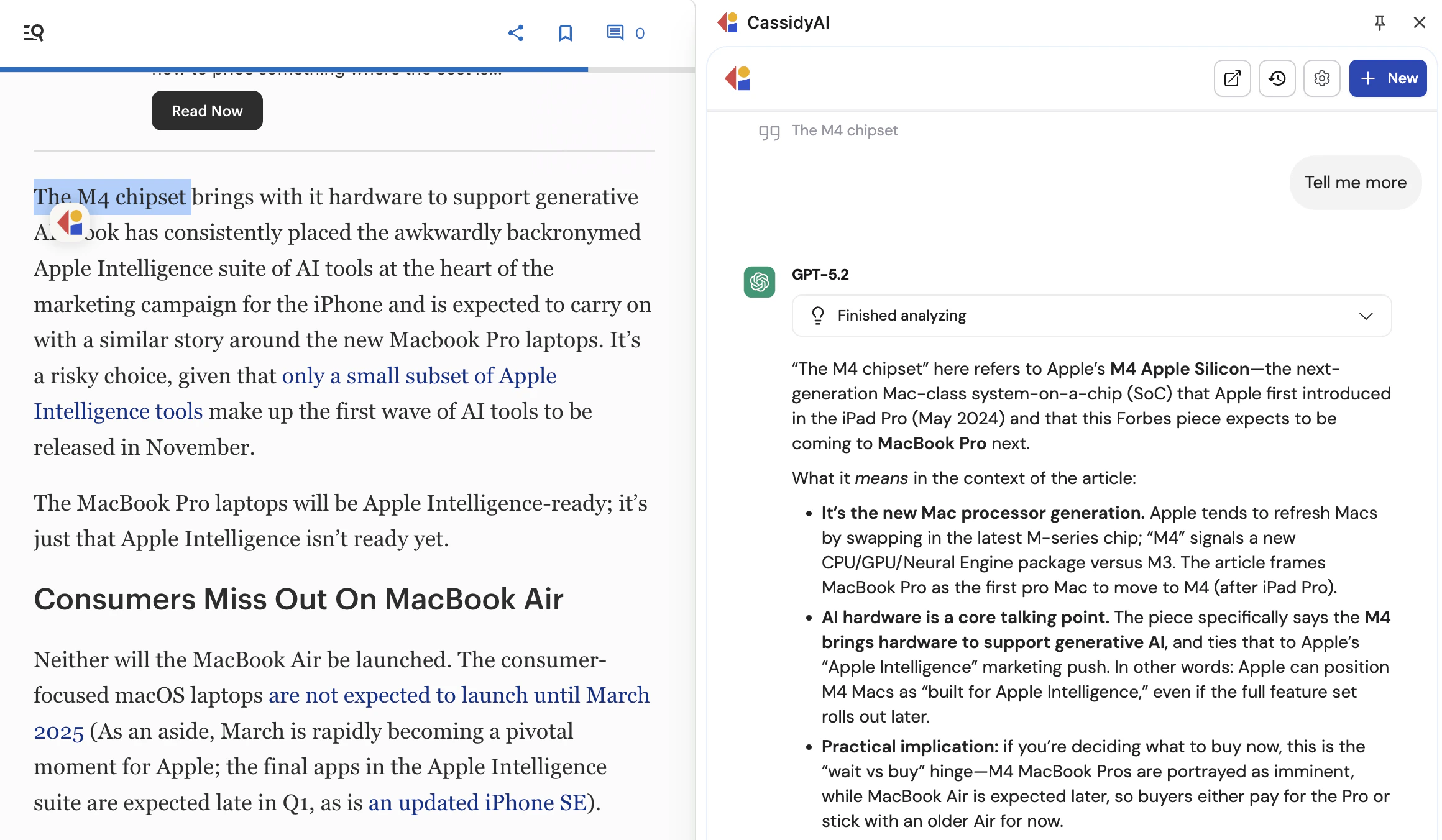
Next steps
Build and configure an Agent
Customize the Agent your extension uses with instructions, knowledge, and
capabilities.
Outlook extension
Bring Cassidy directly into your Outlook inbox.
Use Cassidy on your phone
Add Cassidy to your iPhone or Android home screen.