

Choose your approach
Switch tabs to compare the three options. The sections below have the full setup for each one.- Meetings Connector
- One meeting in Chat
- Knowledge Base import
Best for: Questions that span many meetings — search transcripts and summaries, get answers with timestamped links back to the recording, and skip Knowledge Base import or sync setup.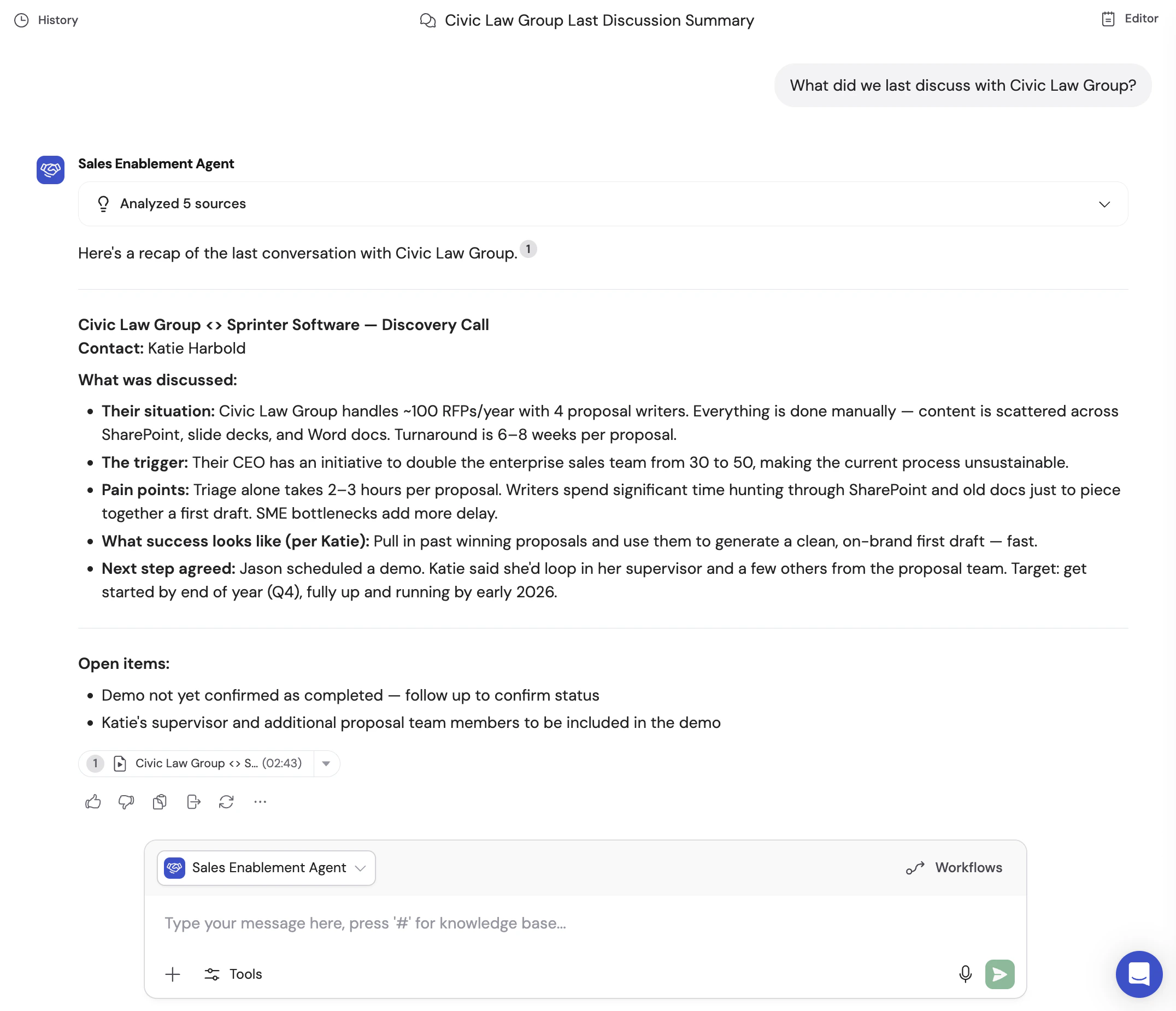
Add the Meetings Connector to an Agent
1
Open the Agent editor
Navigate to Agents, find the Agent you want to configure, click … and select Edit.
2
Open the Connectors panel
In the Setup tab, scroll to the Connectors section and click + Add.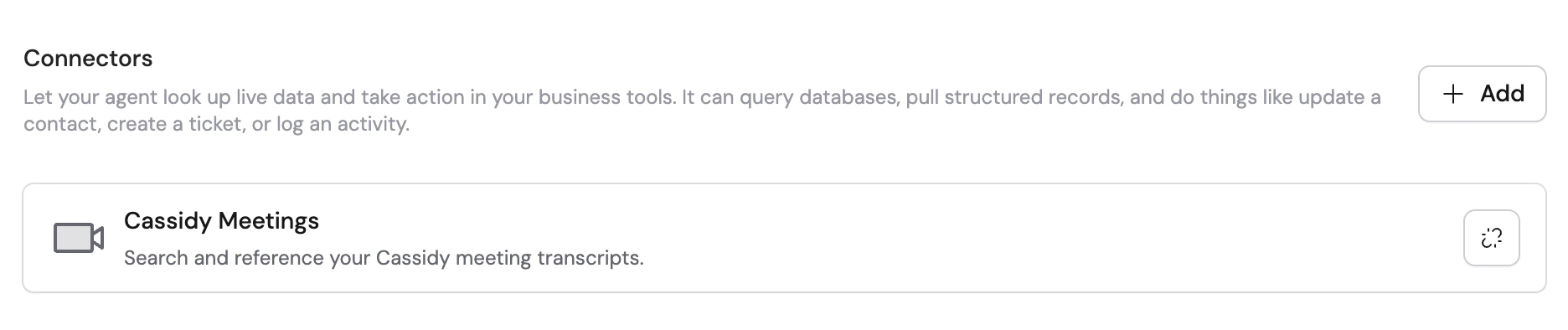
3
Add Cassidy Meetings
Find Cassidy Meetings in the connector list and click + Add.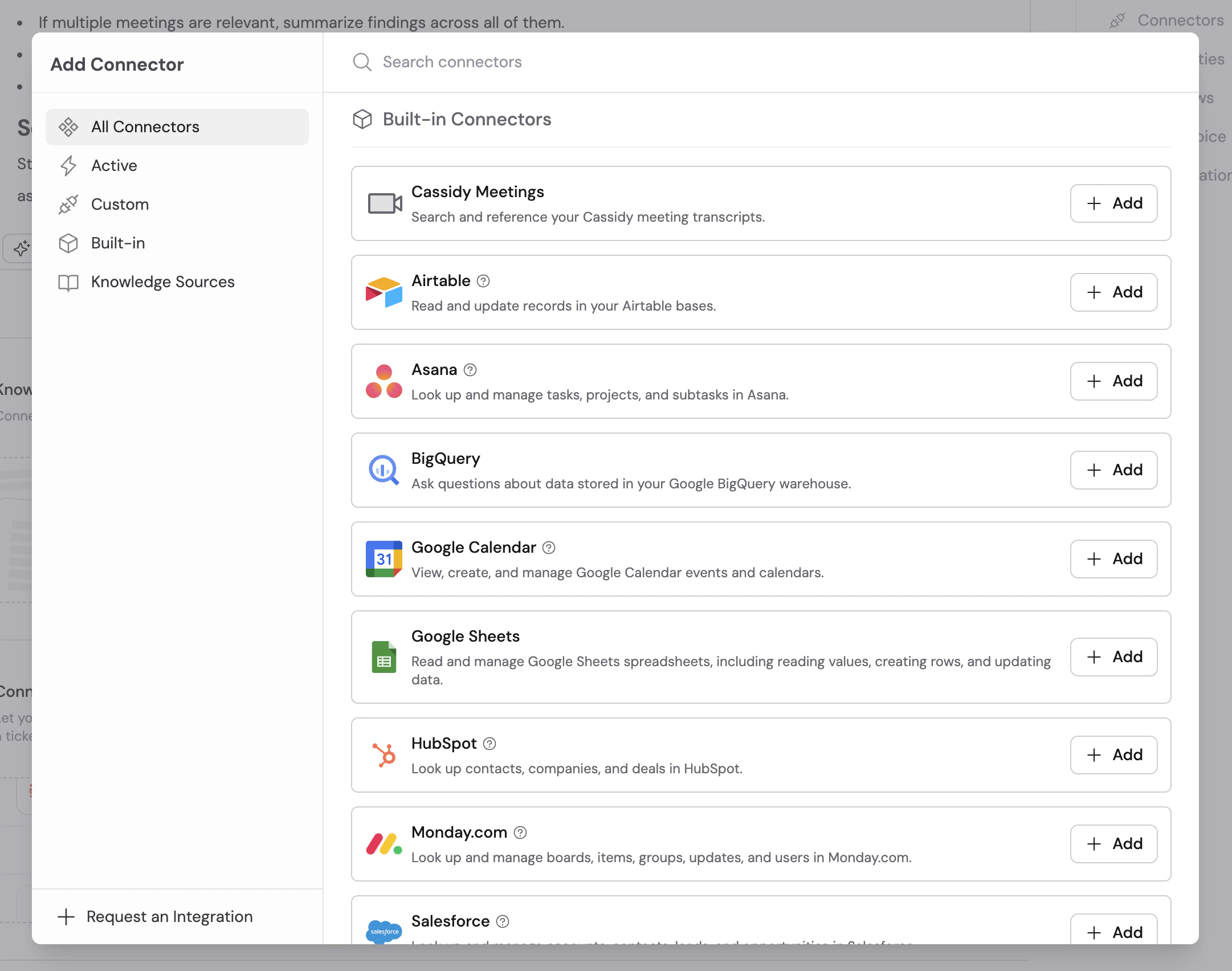
4
Save the Agent
Click Save or Publish. No additional authentication is needed — the Connector uses each user’s existing meeting permissions.
5
Start chatting
Open a chat with the Agent and ask about your meetings. The Agent searches your meeting library and responds with cited excerpts.
What you can ask
Cross-meeting questions (with the Meetings Connector on the Agent):- “What did we decide about the Q3 roadmap in last week’s planning meeting?”
- “Summarize my call with Acme Corp from yesterday”
- “What has the engineering team said about the migration timeline across recent standups?”
- “Find all meetings where pricing was discussed in the last month”
- “What action items came out of this morning’s sync?”
- “What were the action items from this meeting?”
- “Summarize the key decisions made”
- “What did [person] say about the timeline?”
Chat with one meeting
Open a recorded meeting directly in Chat when you only need context from that conversation.1
Find the meeting
Navigate to Meetings in the left sidebar and open the meeting you want to chat with.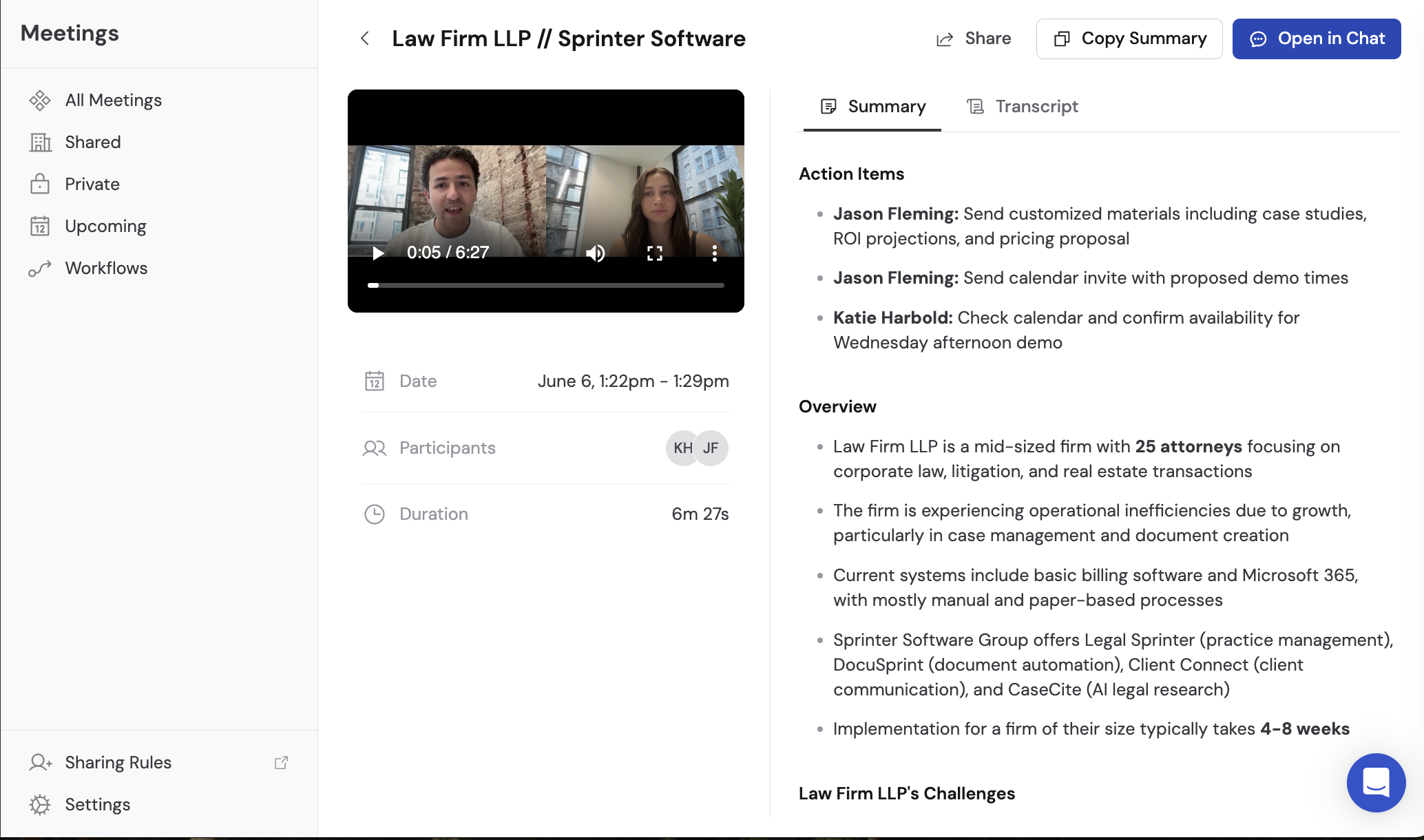
2
Open in Chat
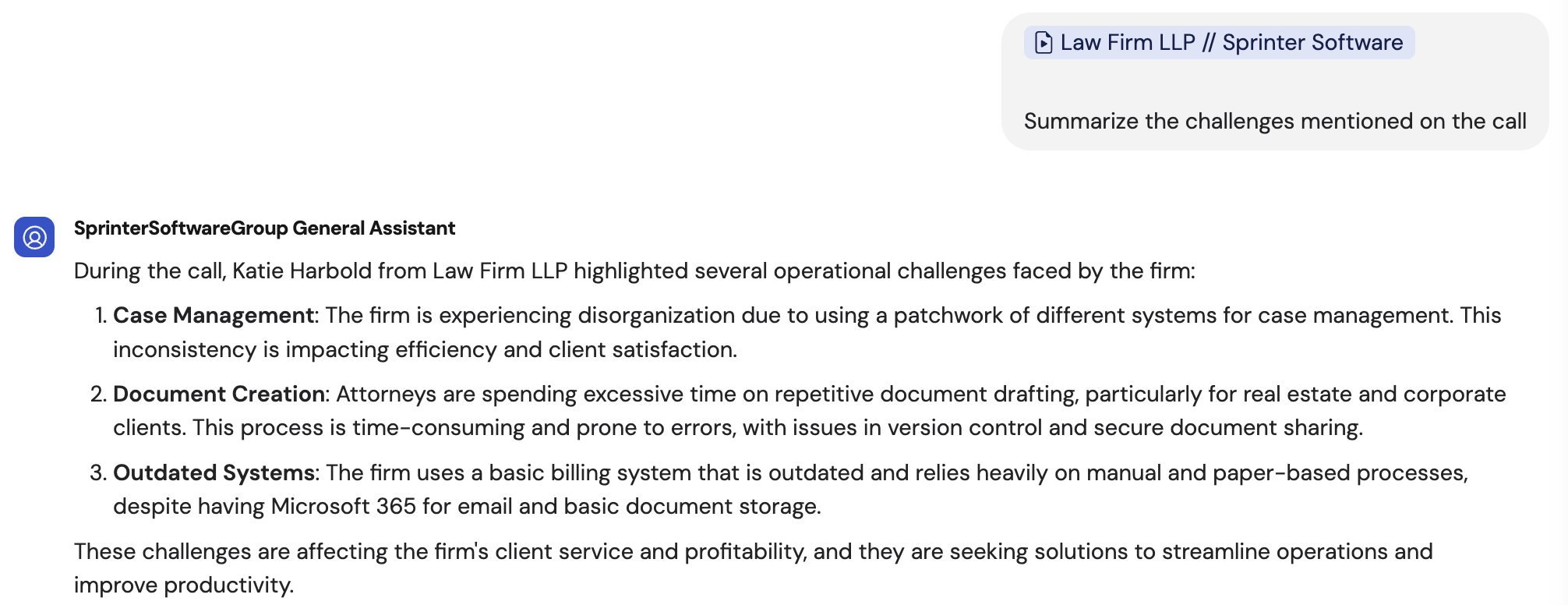
Click Open in Chat to start a conversation with that meeting’s content.
3
Ask your question
Type a prompt in the chat box. Cassidy uses the meeting’s transcript and summary to answer your question.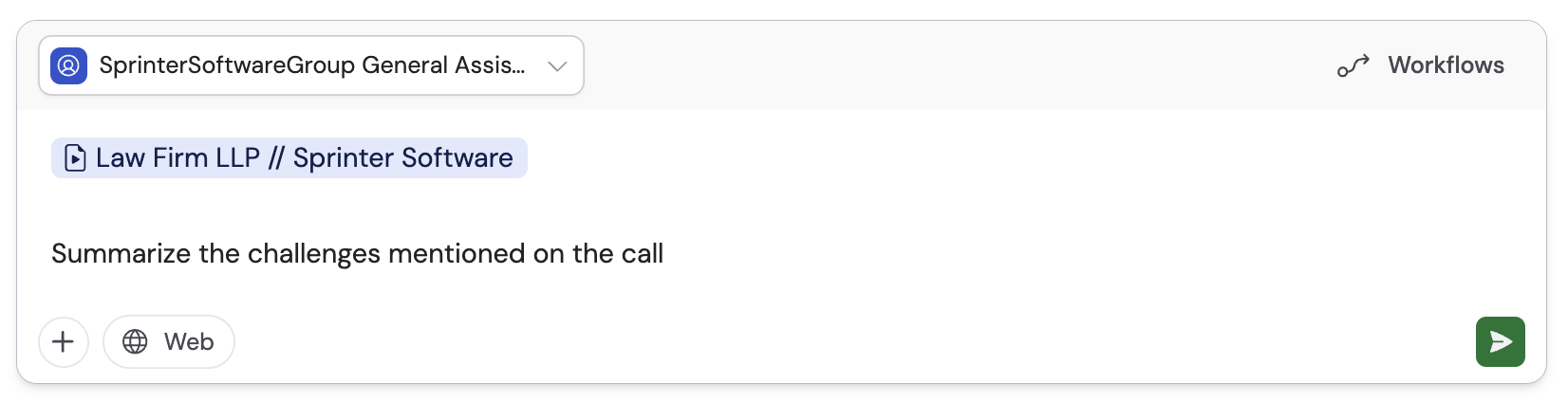
Import meetings to your Knowledge Base
Use this path when you want meeting transcripts and summaries in the same searchable library as uploads, websites, and other Knowledge Base content — for example, a folder that mixes call notes with product docs. For most “ask an Agent about our meetings” workflows, the Meetings Connector above is simpler because it reads your meeting library directly.1
Navigate to the Knowledge Base
Click Knowledge Base in the left sidebar.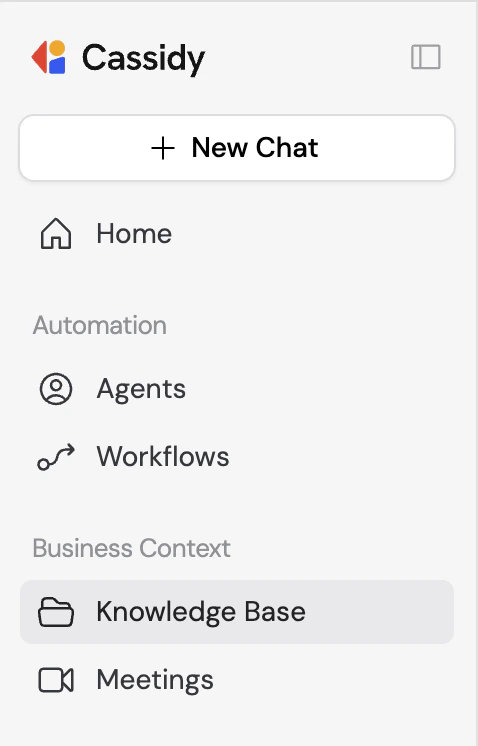
2
Choose a folder
Select the folder or collection where you want to store your imported meetings, or stay in the main Knowledge Base area.
3
Click + New and select Meetings
Click + New in the top right, then choose Meetings from the dropdown.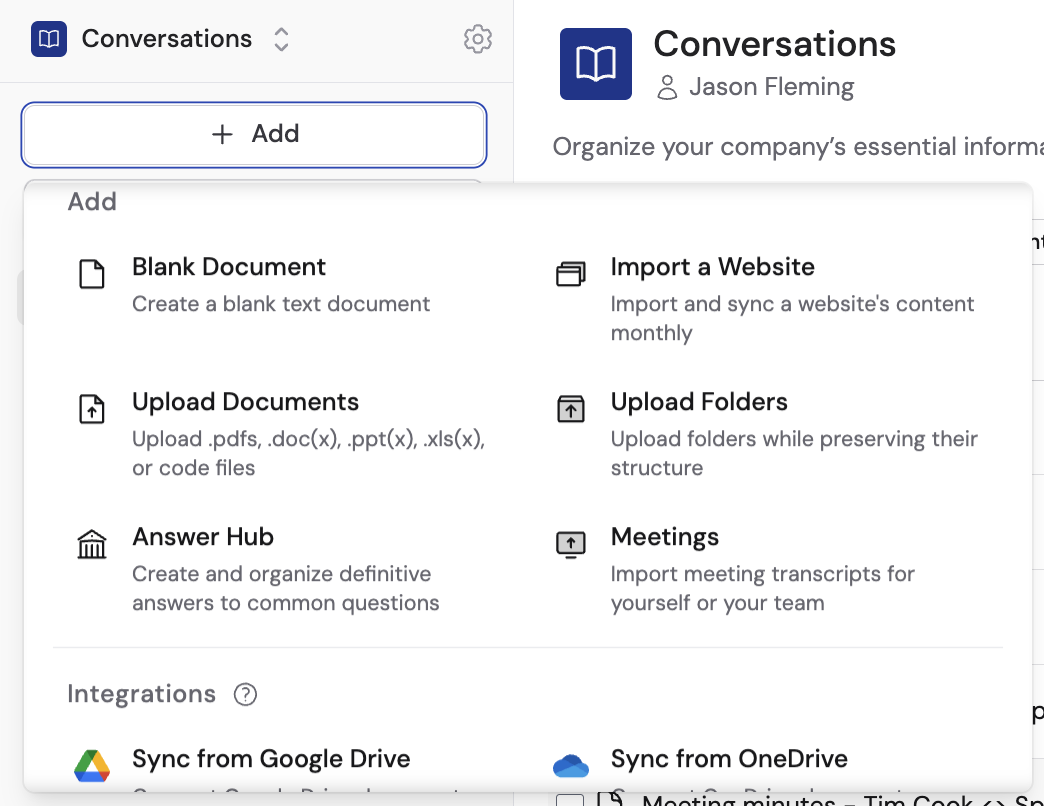
4
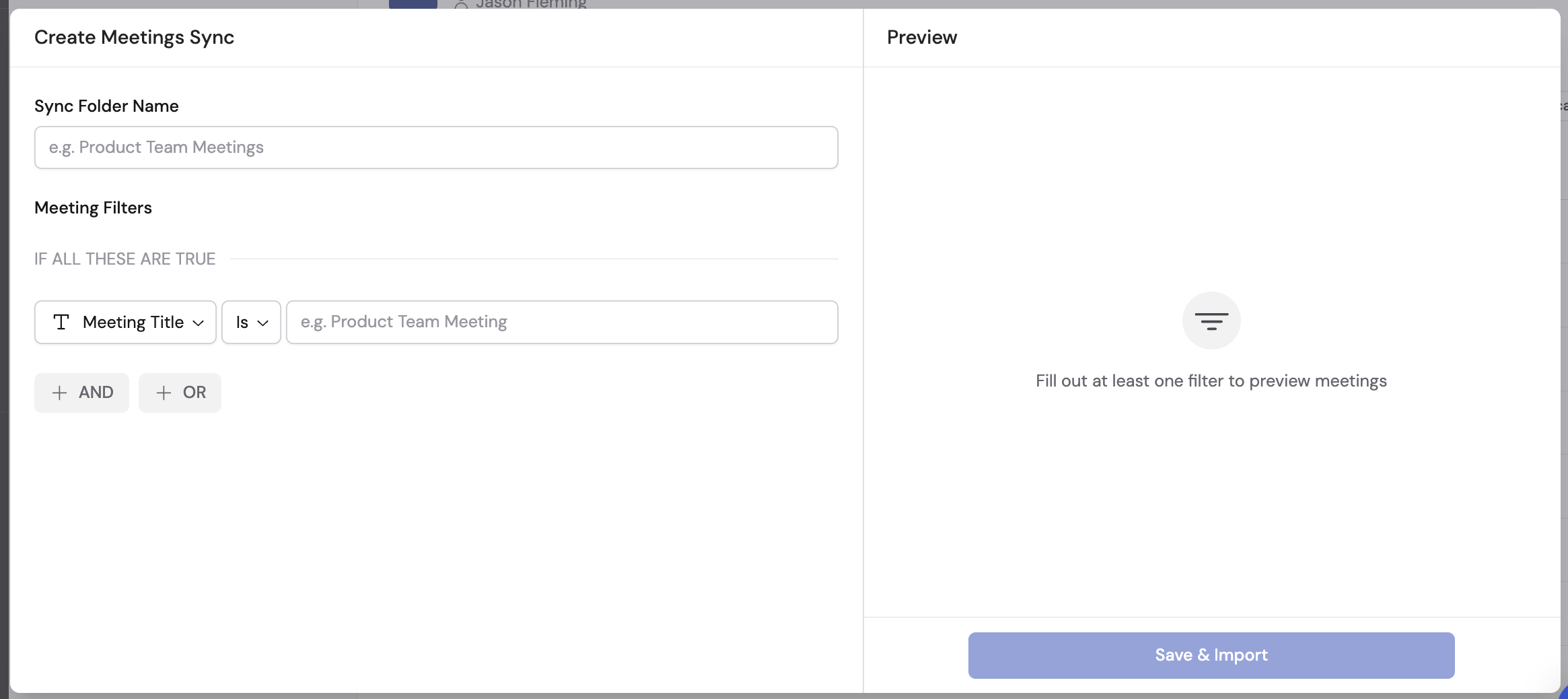
Name the folder
Enter a descriptive name for the folder that will contain your imported meetings (e.g., “Sales Calls Q1” or “All Team Meetings”).
5
Set meeting filters
Configure filters to choose which meetings to import. You can create AND/OR conditions based on: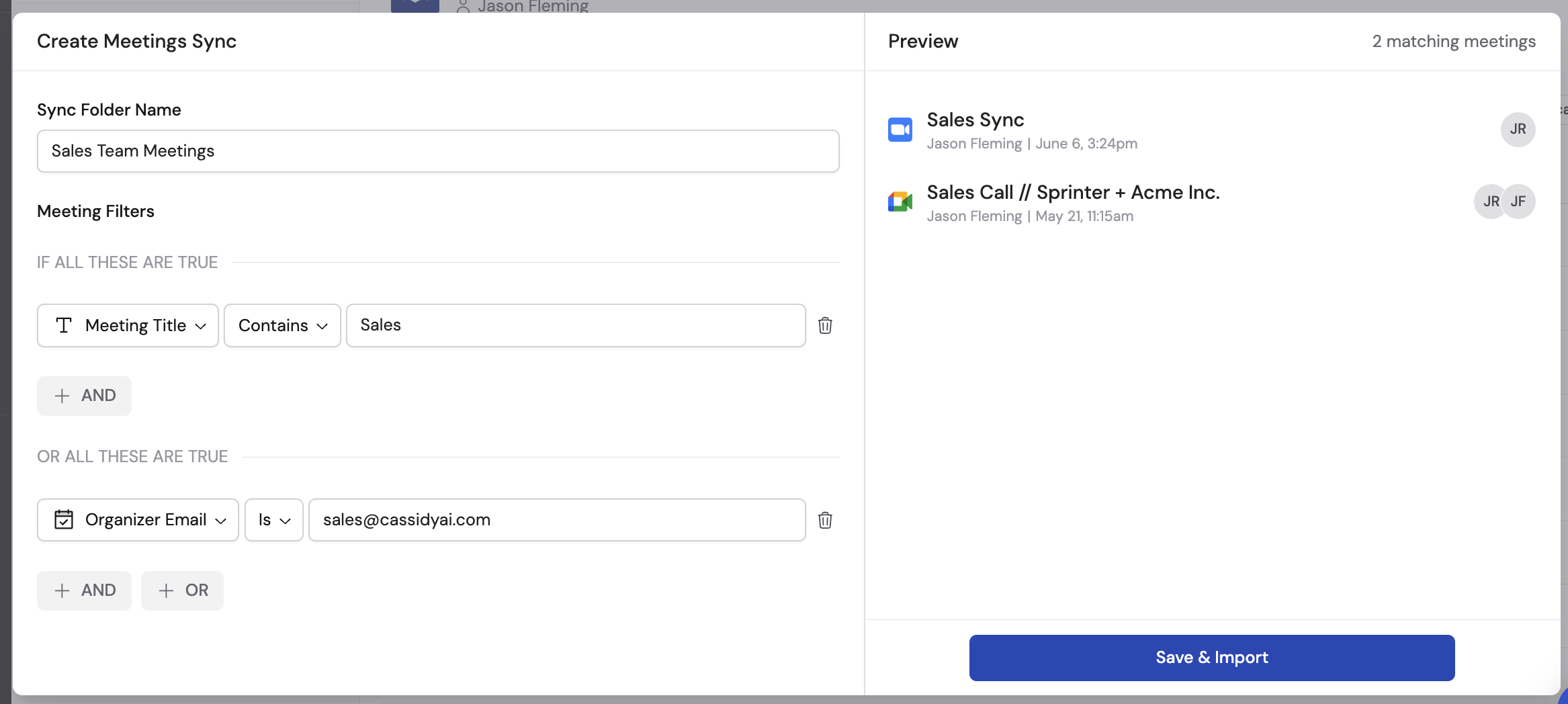
- Meeting title
- Meeting owner
- Meeting owner group
- Organizer email
- Participant names
- Invitee emails
6
Preview and import
Review the meetings that match your filters to confirm you’re importing the right content. Click Save & Import to begin.
7
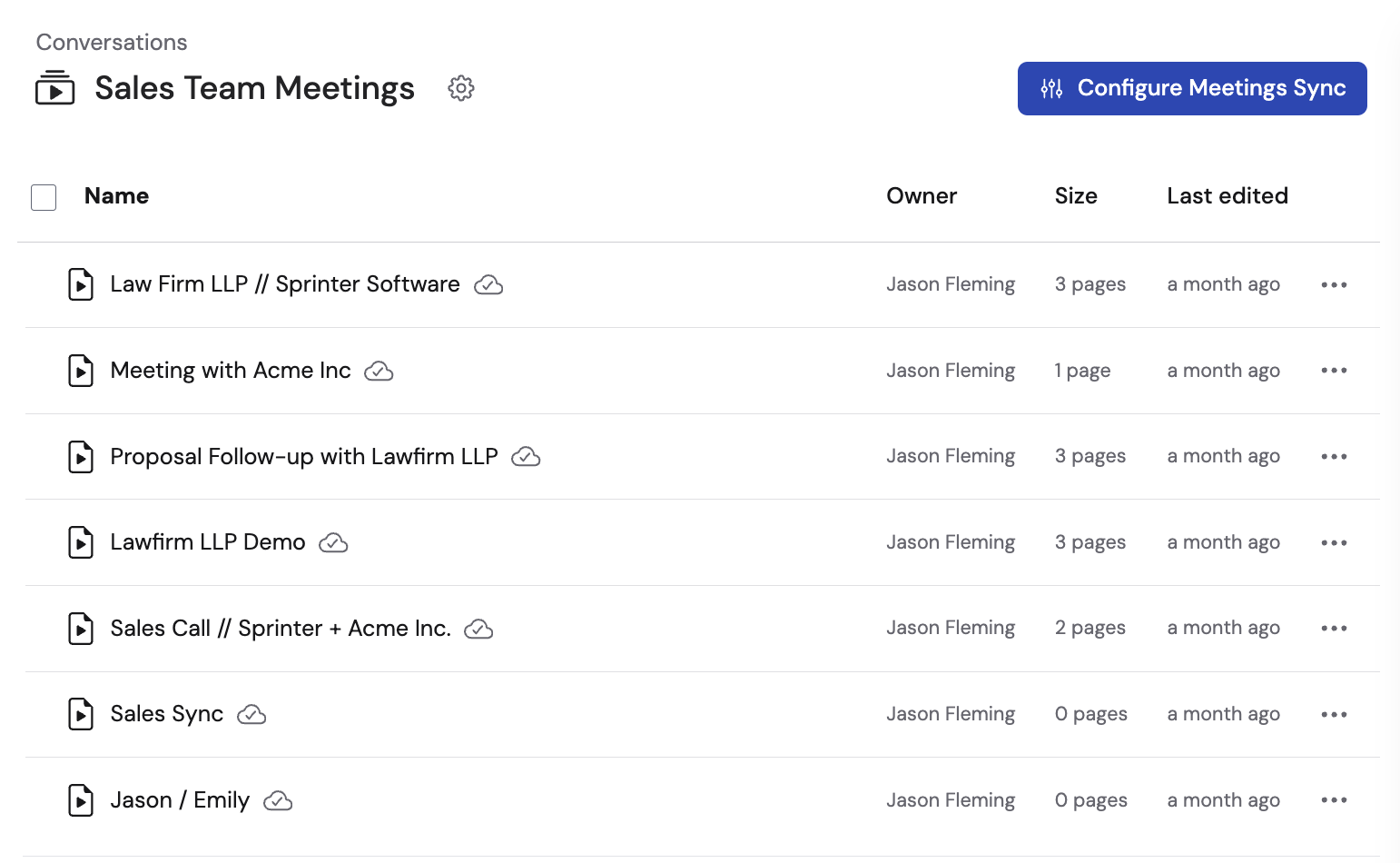
Verify the import
Check your Knowledge Base to confirm the meetings were imported. To adjust which meetings sync, click Configure Meetings Sync on the imported folder.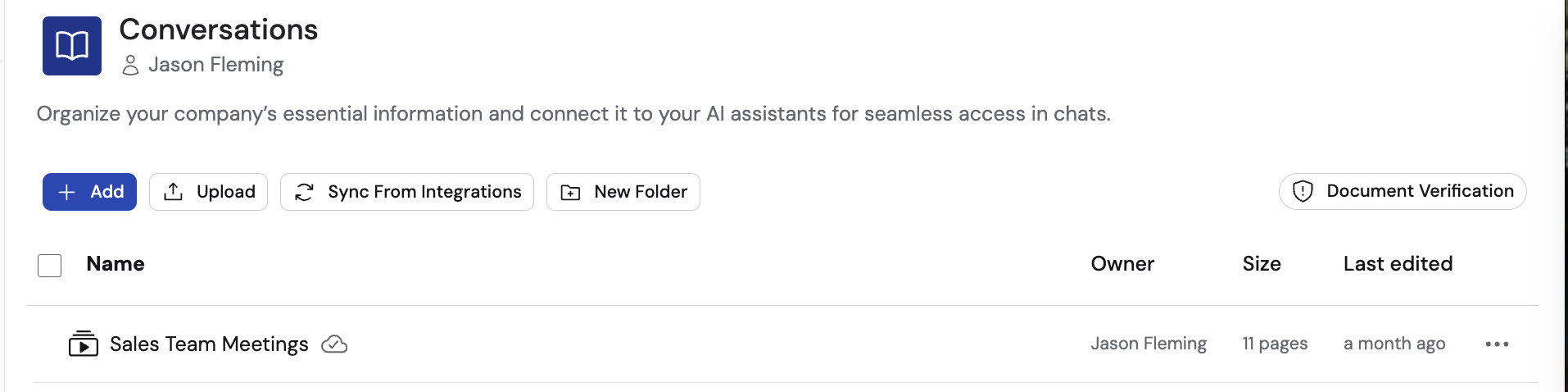
Next steps
Meetings Connector (Agents)
Overview of the Connector from the Agents documentation.
Get started with Meetings
Connect your calendar, record meetings, and review transcripts.
Automate with Workflows
Trigger actions automatically when meetings end.
Control meeting access
Configure who can see recordings and transcripts.