The Cassidy Outlook extension brings your Agents into your inbox. Draft email replies, summarize long threads, and work with email content — all from a side panel within Outlook.

Install the extension

1

Open the Microsoft Office Store

Go to the Cassidy Outlook extension in the Microsoft Office Store.
Cassidy for Outlook listing in the Microsoft Office Store
2

Start the installation

Click Get it now to begin the installation process.
3

Sign in to Microsoft

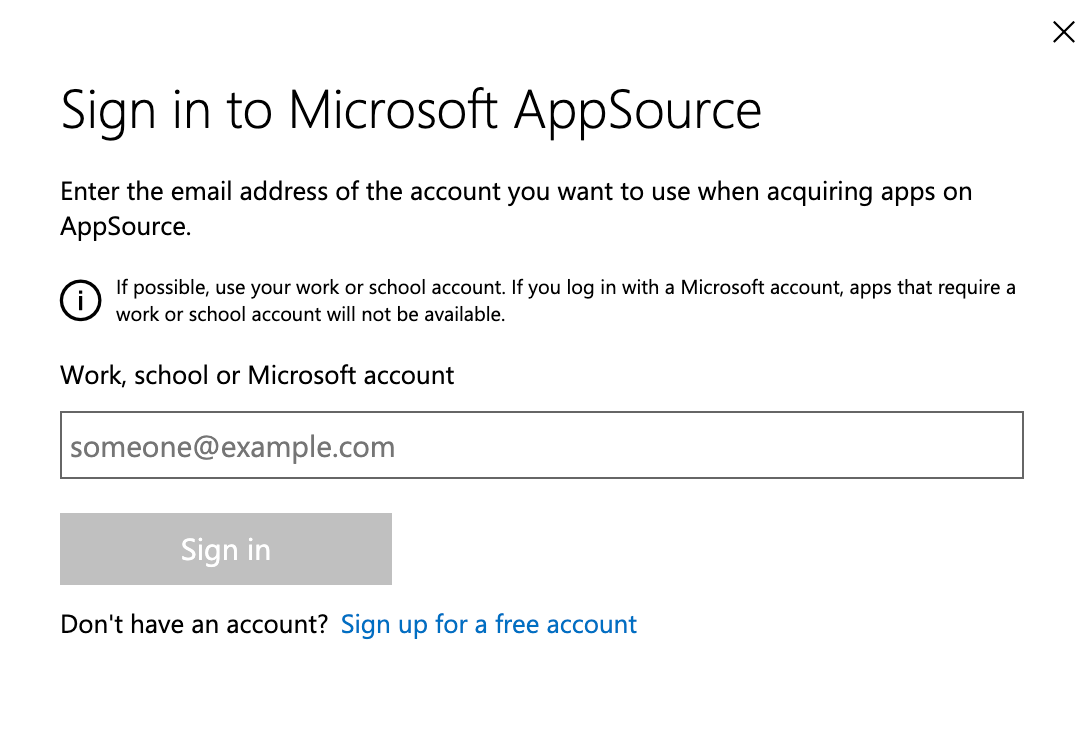
If you’re not already signed in, you’ll be prompted to log in to your Microsoft account before continuing.
Microsoft sign-in prompt during the Cassidy extension installation
4

Confirm your account

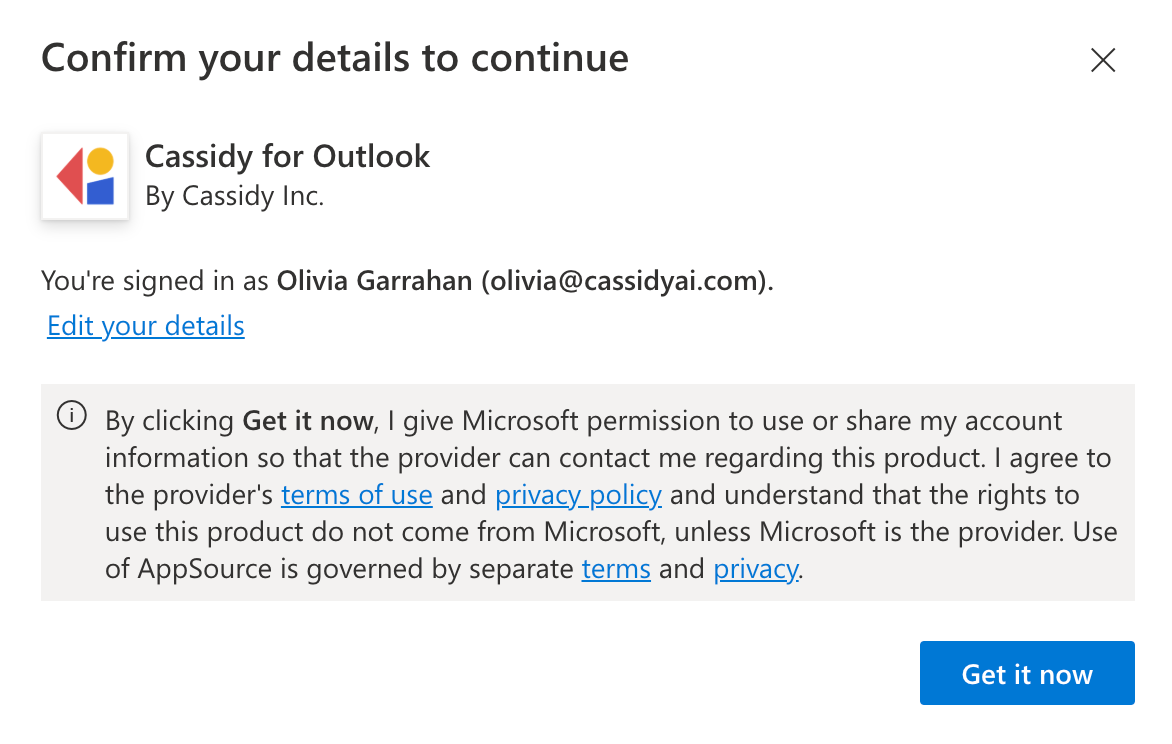
A confirmation dialog shows your account information. Verify you’re signed in with the correct account and click Get it now. Click Edit your details if you need to make changes.
Microsoft account confirmation dialog showing user details with a Get it now button
5

Accept the installation

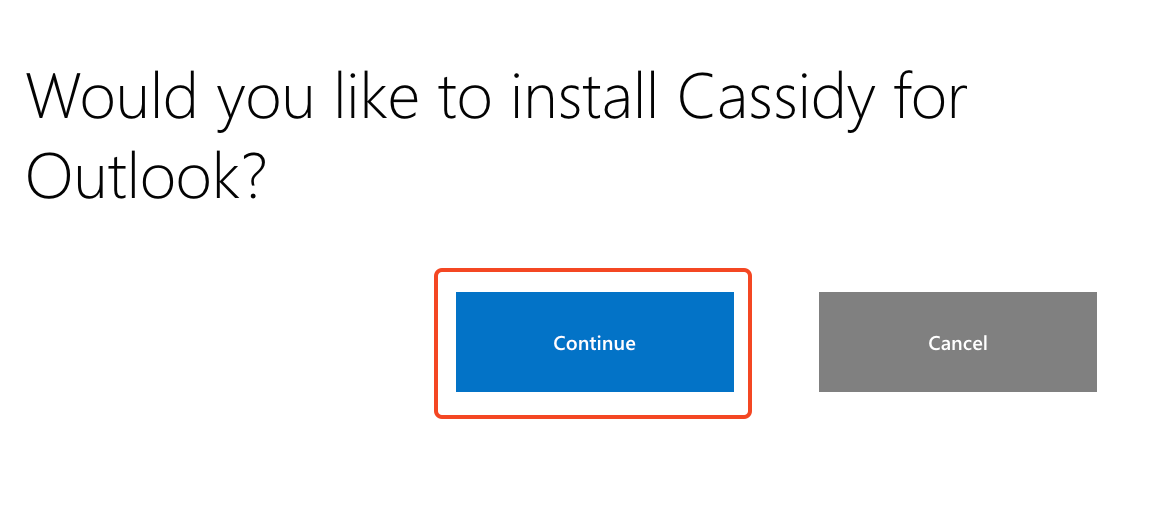
A dialog asks if you’d like to install Cassidy for Outlook. Click Continue to proceed.
Installation confirmation dialog with a Continue button
6

Access the extension

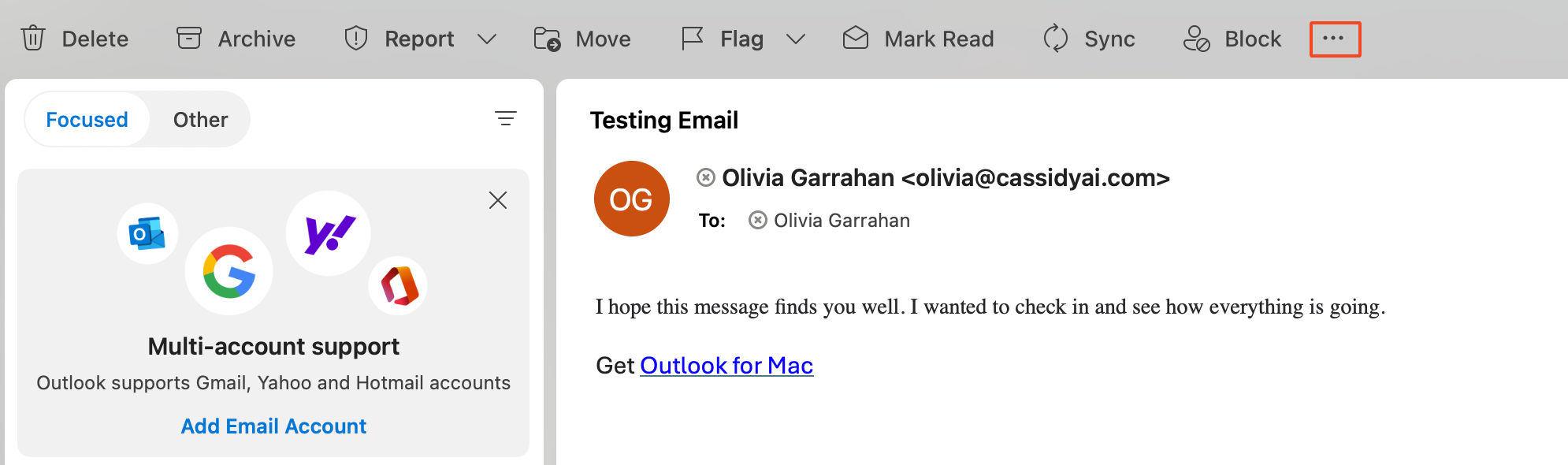
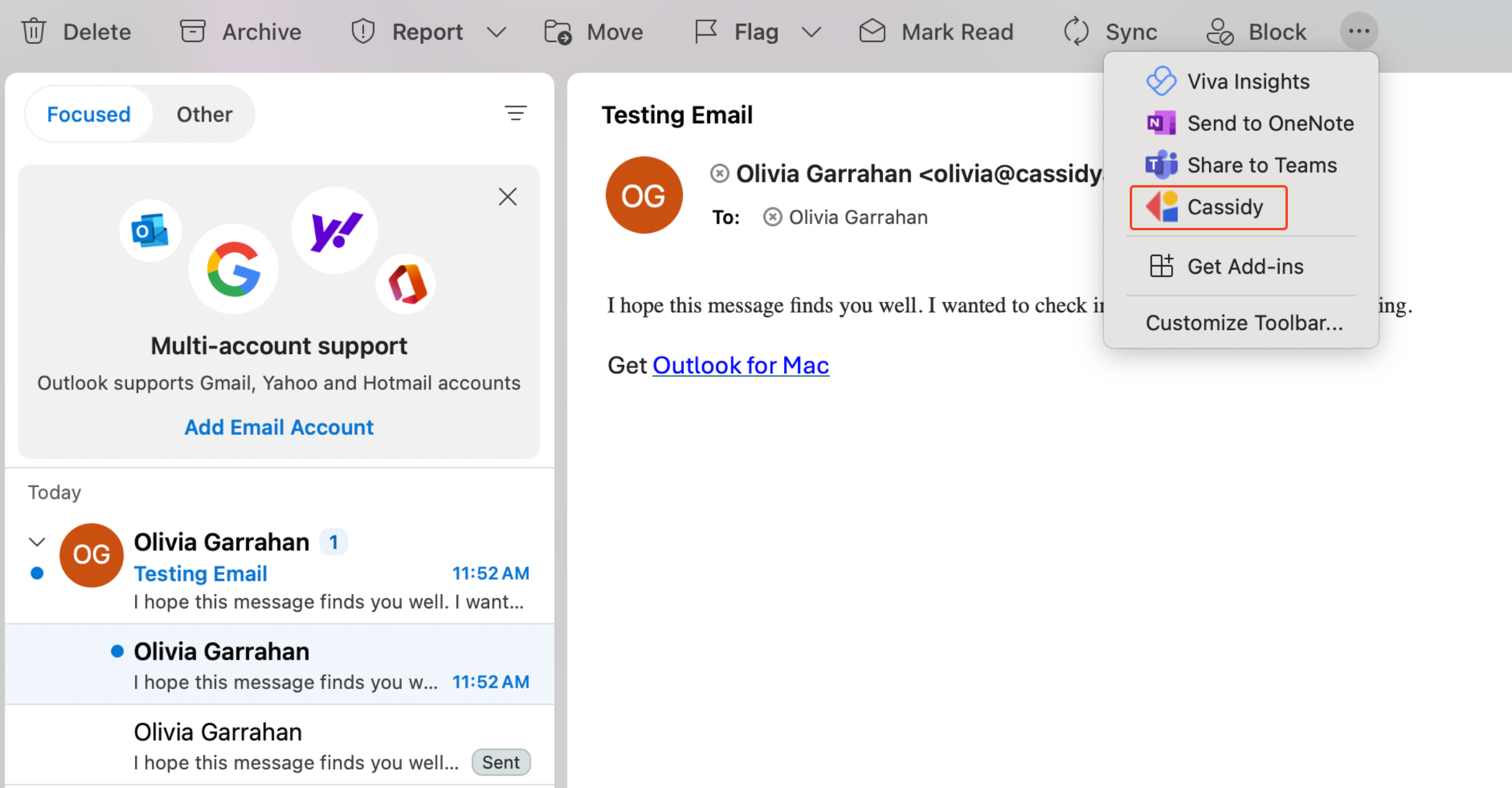
Once installed, find the Cassidy icon by clicking the three dots (more actions) at the right of the Outlook toolbar.
Outlook toolbar with the more actions menu showing the Cassidy extension
Cassidy listed in the Outlook overflow menu
7

Add to the toolbar (optional)

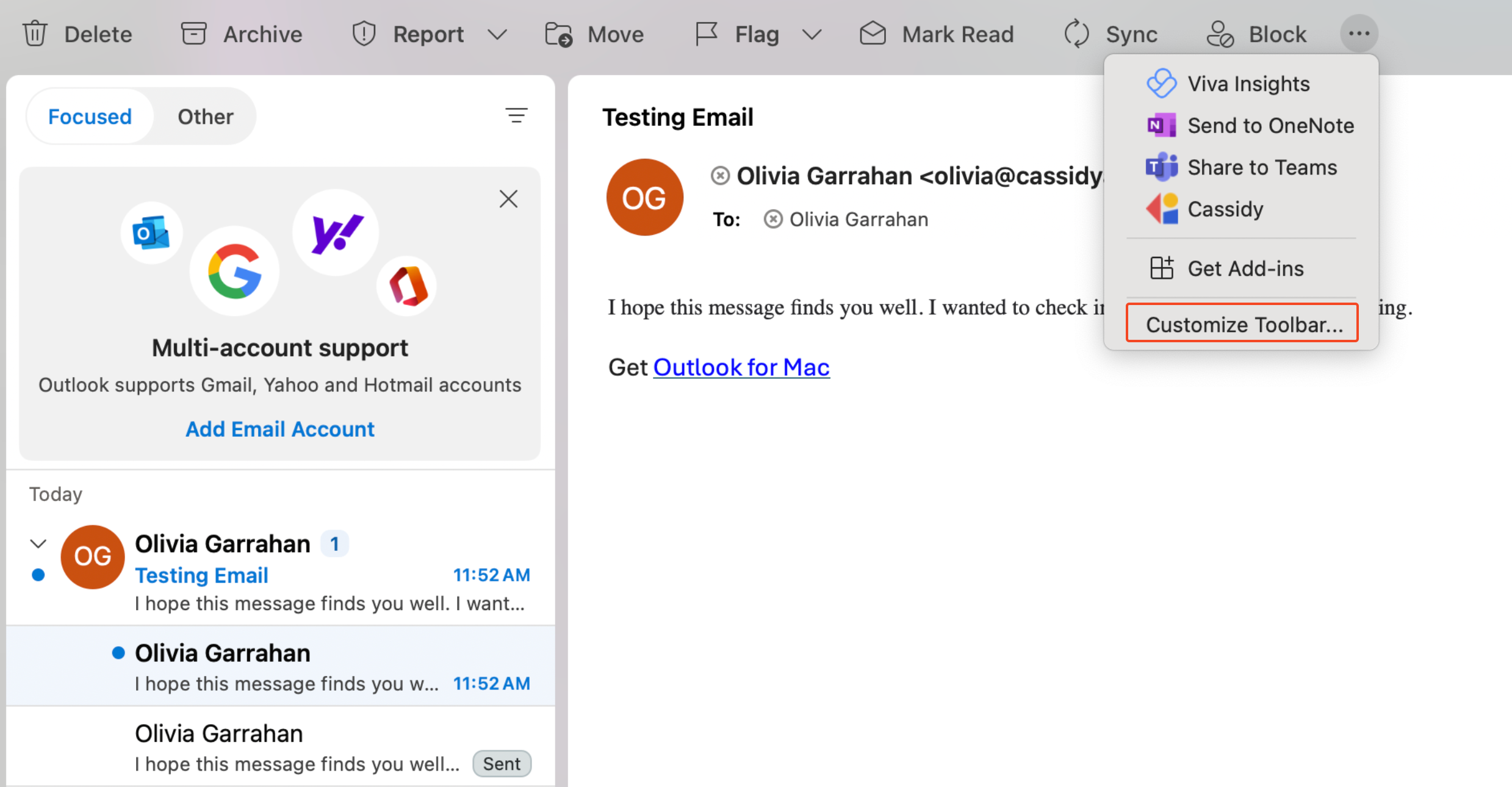
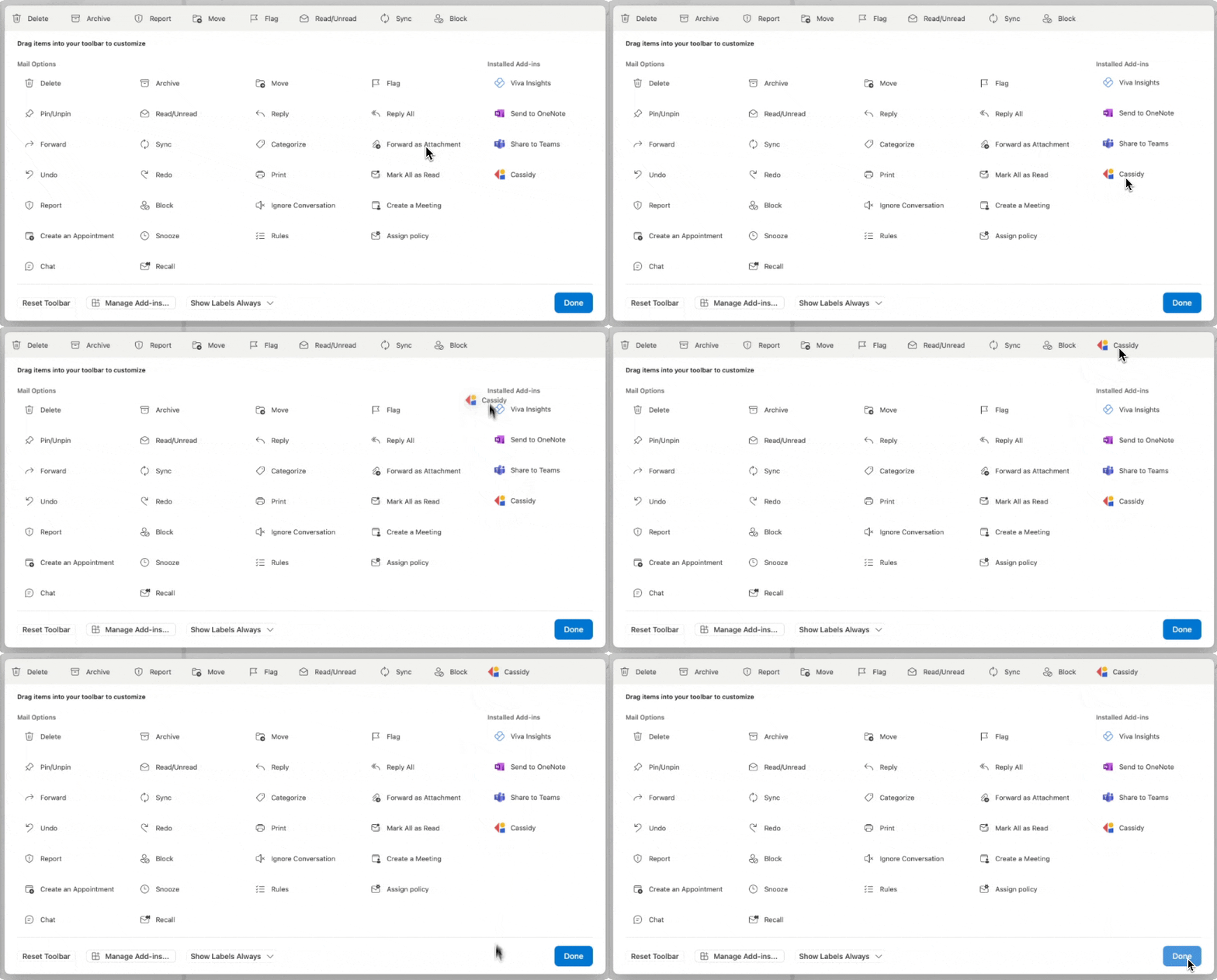
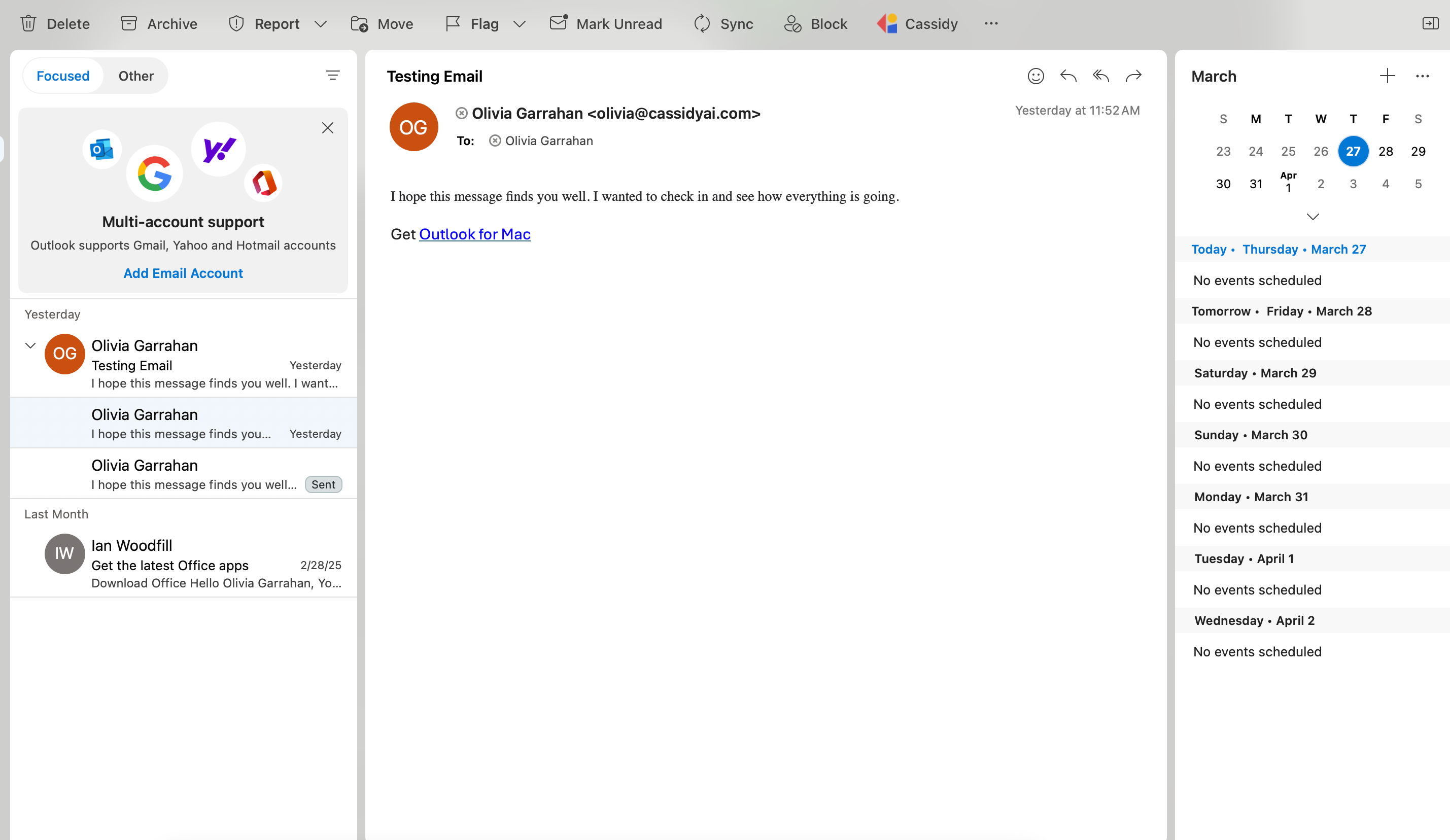
For quicker access, click Customize toolbar from the overflow menu and add Cassidy to your main toolbar.
Customize toolbar option in the Outlook overflow menu
Animation showing how to pin Cassidy to the Outlook toolbar

Use the extension

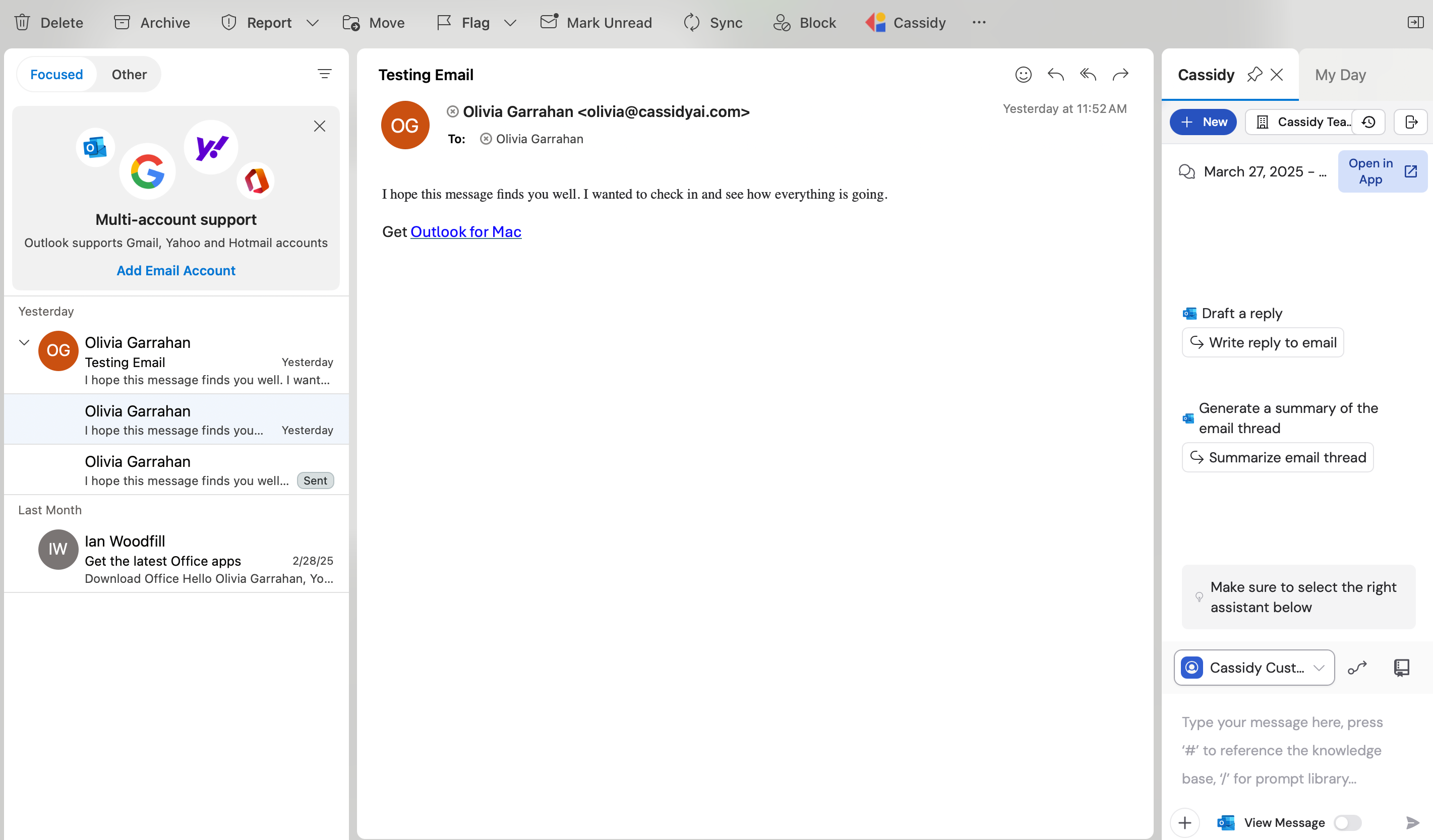
Once installed, open any email and click the Cassidy icon in your toolbar to open the Agent side panel. From there you can draft replies, summarize threads, and ask questions about email content — all without leaving Outlook.

Draft email replies

1

Open an email

Open the email you want to respond to.
An email open in the Outlook reading pane
2

Open the Cassidy Agent

Click the Cassidy icon from your toolbar. The Agent opens in a side panel next to your email.
Cassidy Agent side panel open next to an email in Outlook
3

Use or edit the suggested prompt

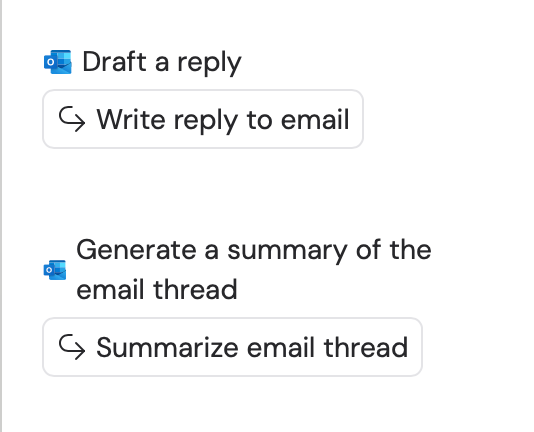
A prompt is automatically populated in the chat box based on the email content, giving you a starting point for your reply.
Cassidy chat panel showing a suggested reply prompt based on the email thread
4

Insert the response

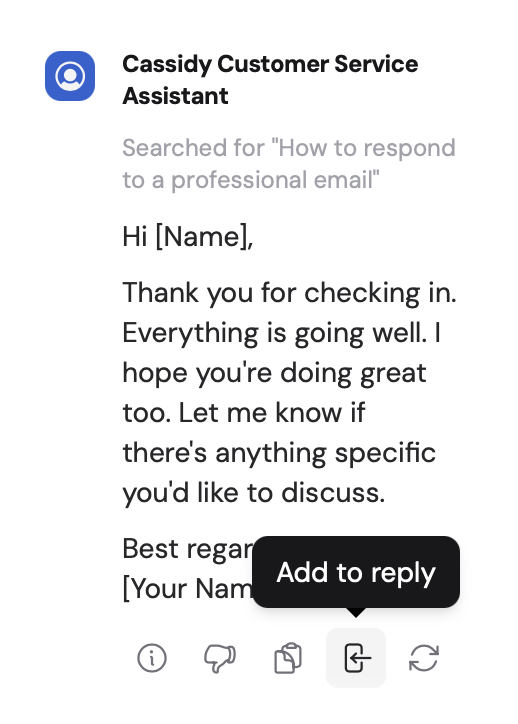
Once you’re happy with the generated reply, click Add to Reply to insert it directly into your email.
Add to Reply button in the Cassidy chat panel
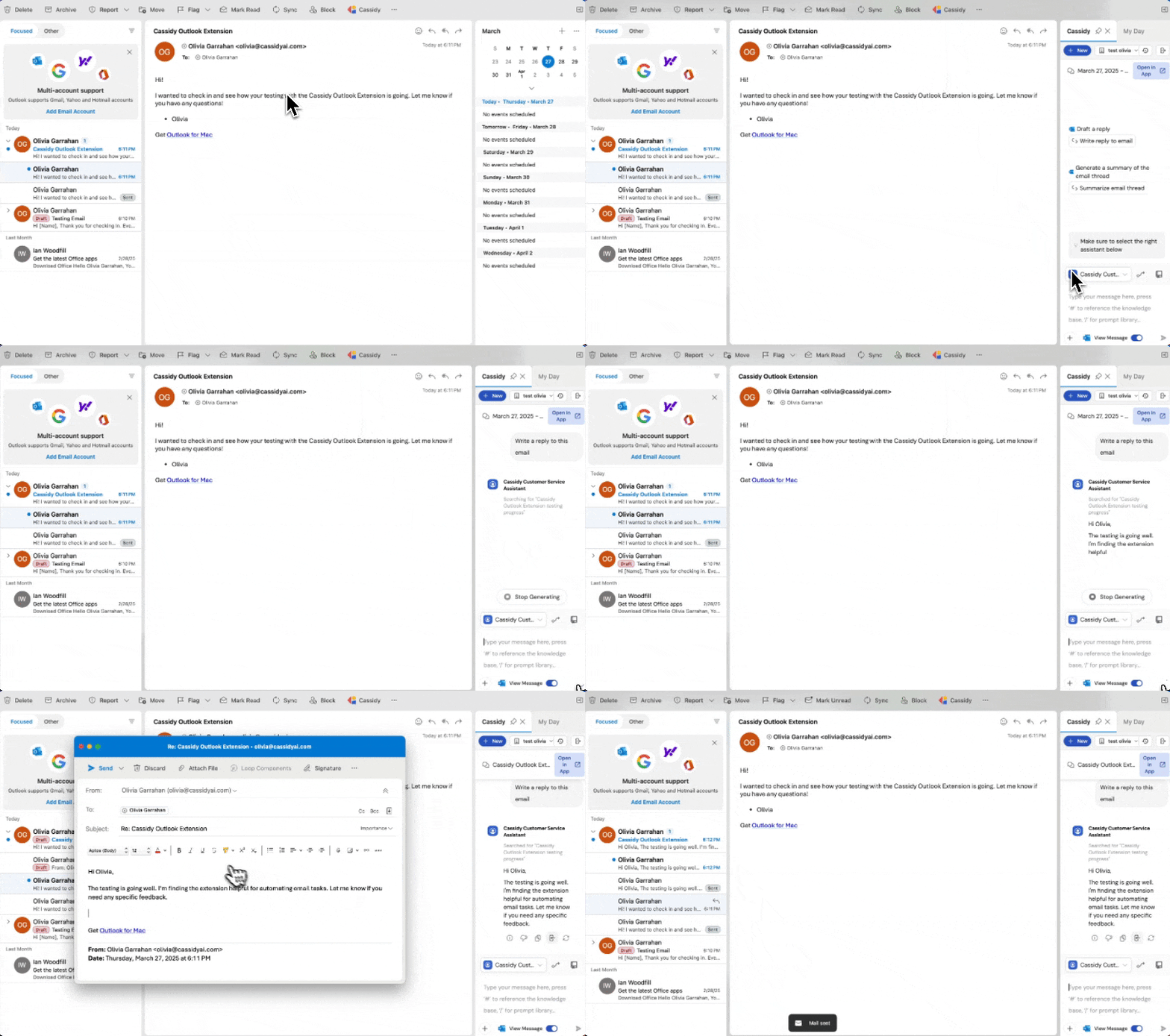
Animation showing the full flow of drafting and inserting an email reply with Cassidy

Summarize email threads

1

Open a long email thread

Open a lengthy email conversation you need to catch up on.
2

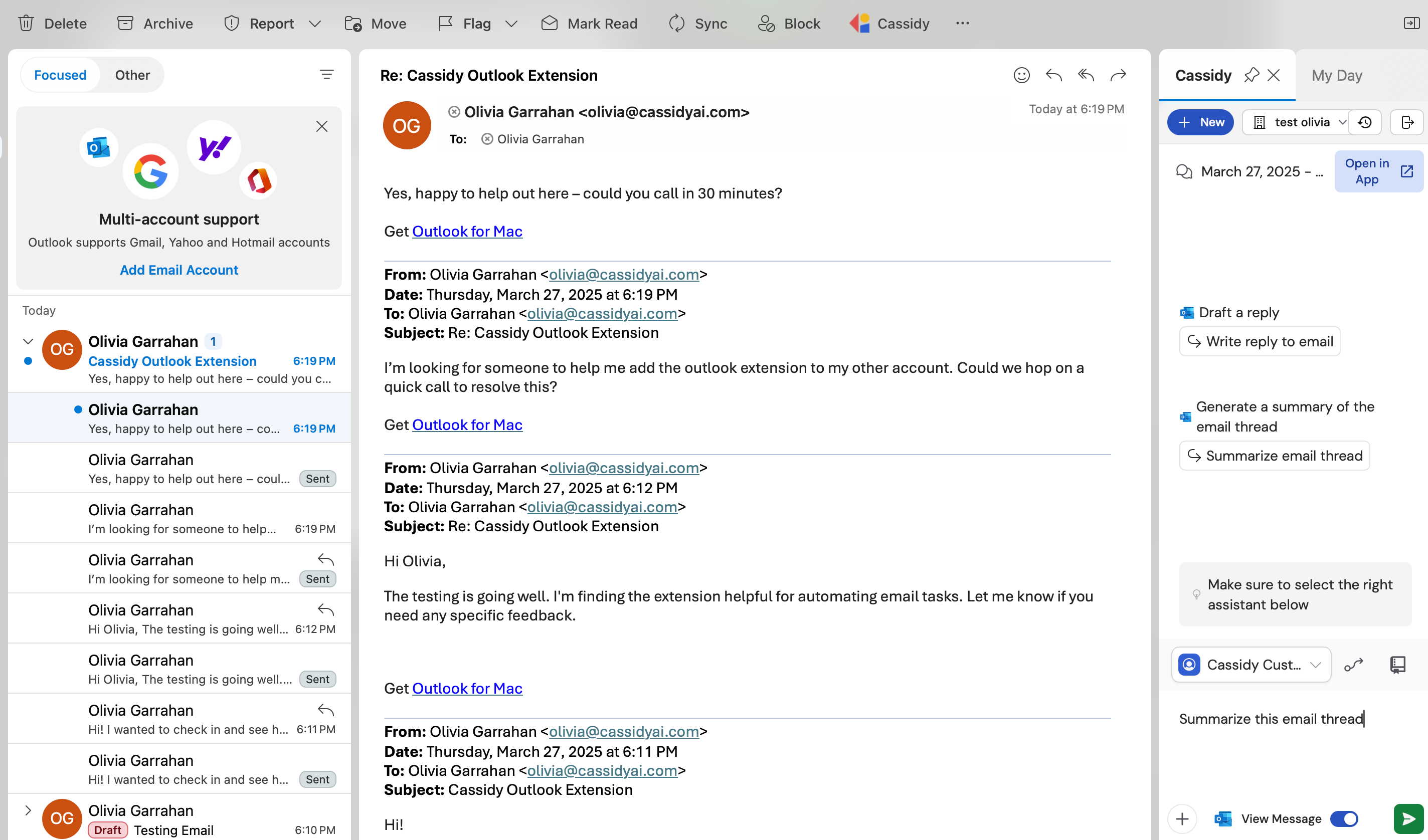
Request a summary

Click the Cassidy icon from your toolbar and ask for a summary of the thread.
Cassidy chat panel with a prompt asking for a thread summary
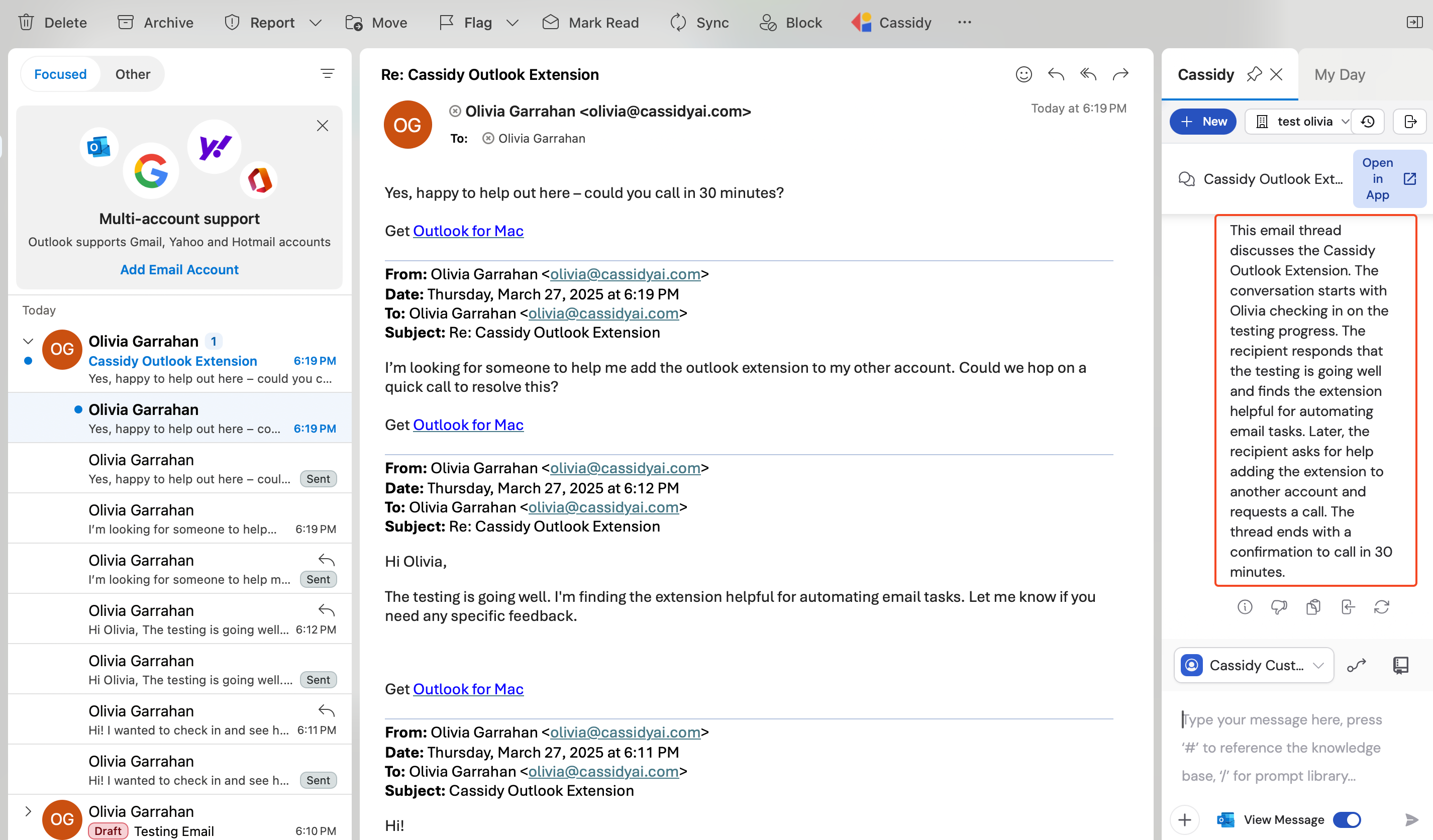
3

Review key points

Cassidy analyzes the conversation and provides a concise summary of important points, action items, and decisions.
Cassidy Agent displaying a summary of an email thread with key points and action items

Next steps

Build and configure an Agent

Customize the Agent your extension uses with instructions, knowledge, and capabilities.

Word and Excel extension

Bring Cassidy into your documents and spreadsheets.