

- Personalization — Cassidy learns your name, role, and how you like answers formatted.
- Connectors — The Agent can reach the business apps you use every day, like Outlook or Google Sheets.
- Skills — Cassidy follows reusable instructions for recurring tasks, like a meeting-prep routine your team has refined.
Tell Cassidy who you are
Personalization shapes how Cassidy responds in your chats — the name it uses, the context it assumes about your work, and the style of its answers.1
Open Personalization
Click Customize in the sidebar and select Personalization. The same
Customize menu is in the top-right corner of a new chat.
2
Fill in your details
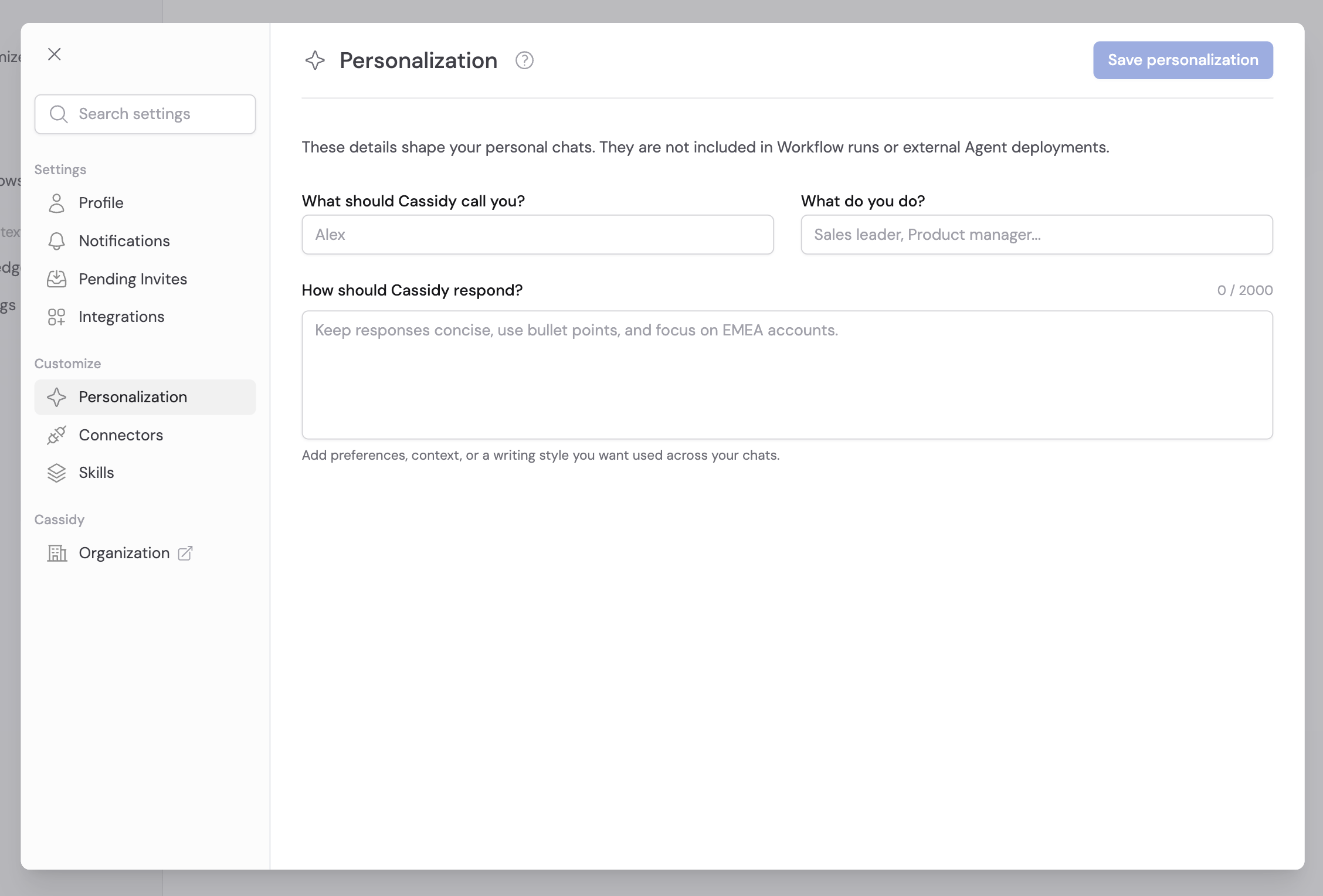
- What should Cassidy call you? — The name you want used in responses.
- What do you do? — Your role or focus, like “Sales leader” or “Product manager”. This gives Cassidy context for its answers.
- How should Cassidy respond? — Preferences, context, or a writing style you want used across your chats, up to 2,000 characters. For example: “I manage the enterprise sales team focused on AmLaw 200 firms. Keep responses concise and action-oriented. Use bullet points for key takeaways.”
3
Save
Click Save personalization.
Your preferences now apply to every new chat.
Personalization applies to your own chats in the Cassidy web app. It is not
included in Workflow runs or external Agent deployments
like Slack or Microsoft
Teams, and changing your name here does not
change your profile name. For organization-wide rules that apply to every
Agent and Workflow, see Global instructions.
Connect your business apps
Connectors let the Agent read and update data in tools like Outlook, Google Calendar, and Google Sheets during a chat — look up today’s meetings, draft an email, or pull numbers from a spreadsheet. Connect an app once under Customize → Connectors and it’s available in every chat in the Cassidy web app.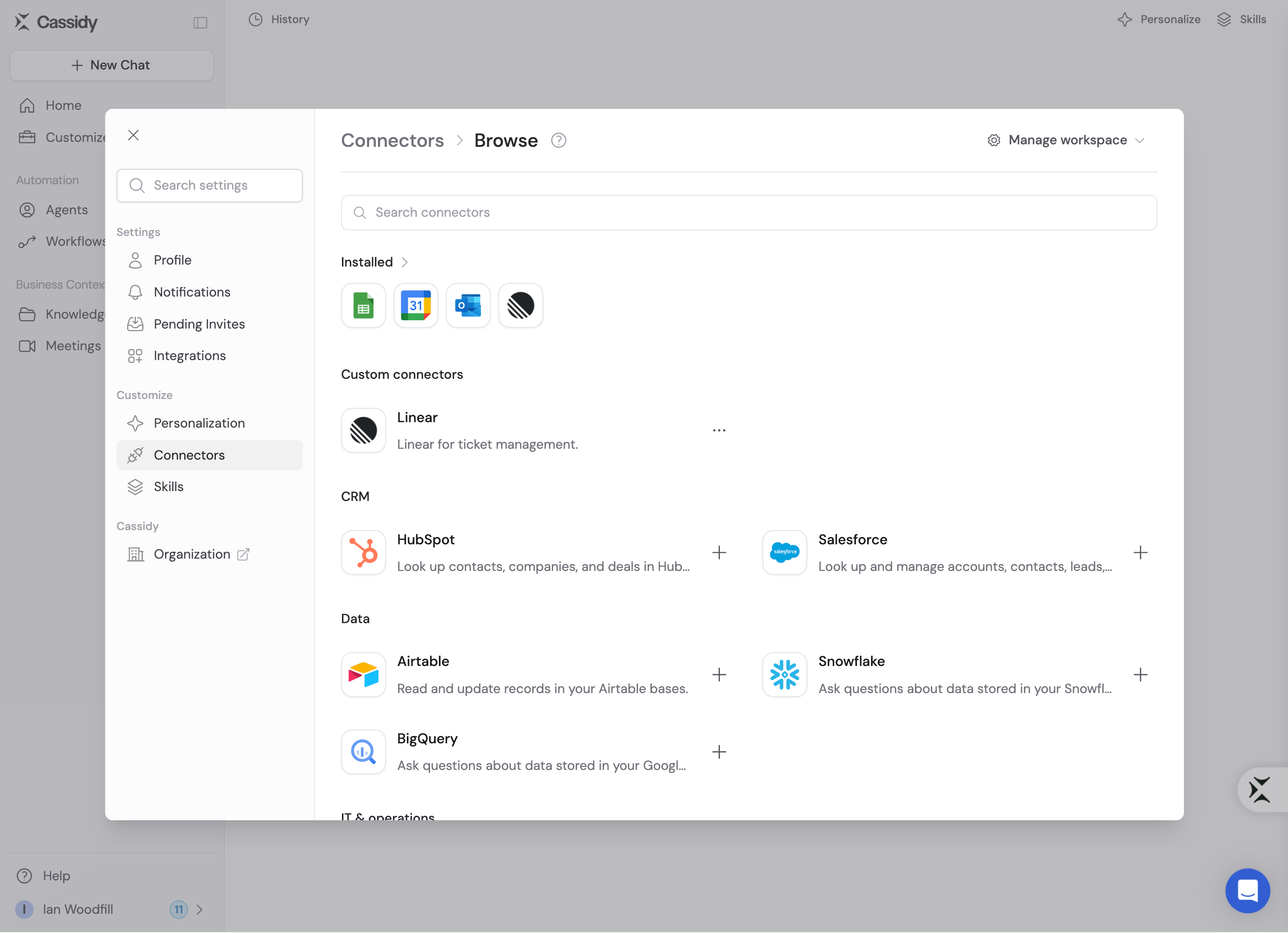
Add Skills
Skills are reusable instructions, files, and tools — like “Daily Workday Brief” or “Meeting Prep” — that Cassidy applies automatically when they match your request, so recurring tasks come out the way you want every time. Open Customize → Skills to see your active Skills, and browse the directory to install more from your team’s library.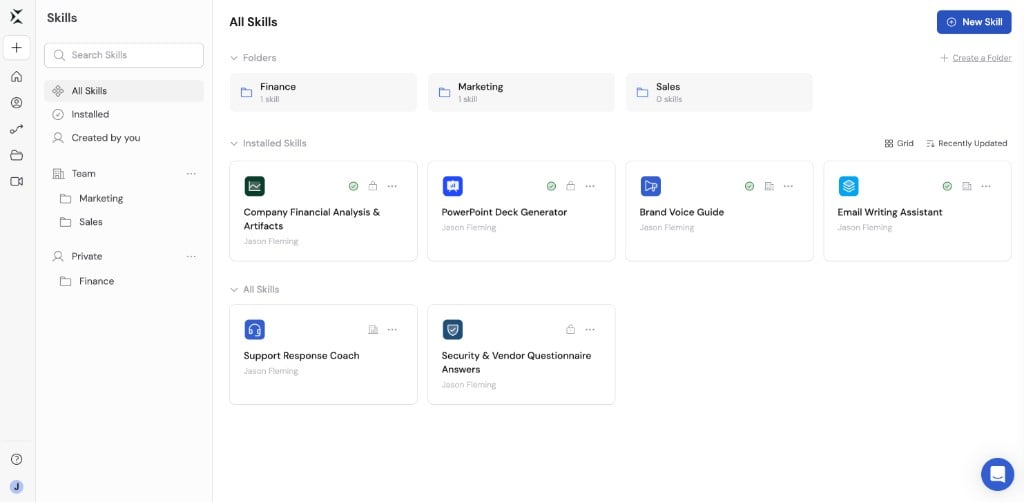
Next steps
Chat with an Agent
Put your personalization to work in your first conversations.
Connect business apps
Set up Connectors and control action approvals.
Use Skills
Install shared Skills and see how Cassidy applies them.
Build an Agent
Create an Agent tailored to your team’s work.