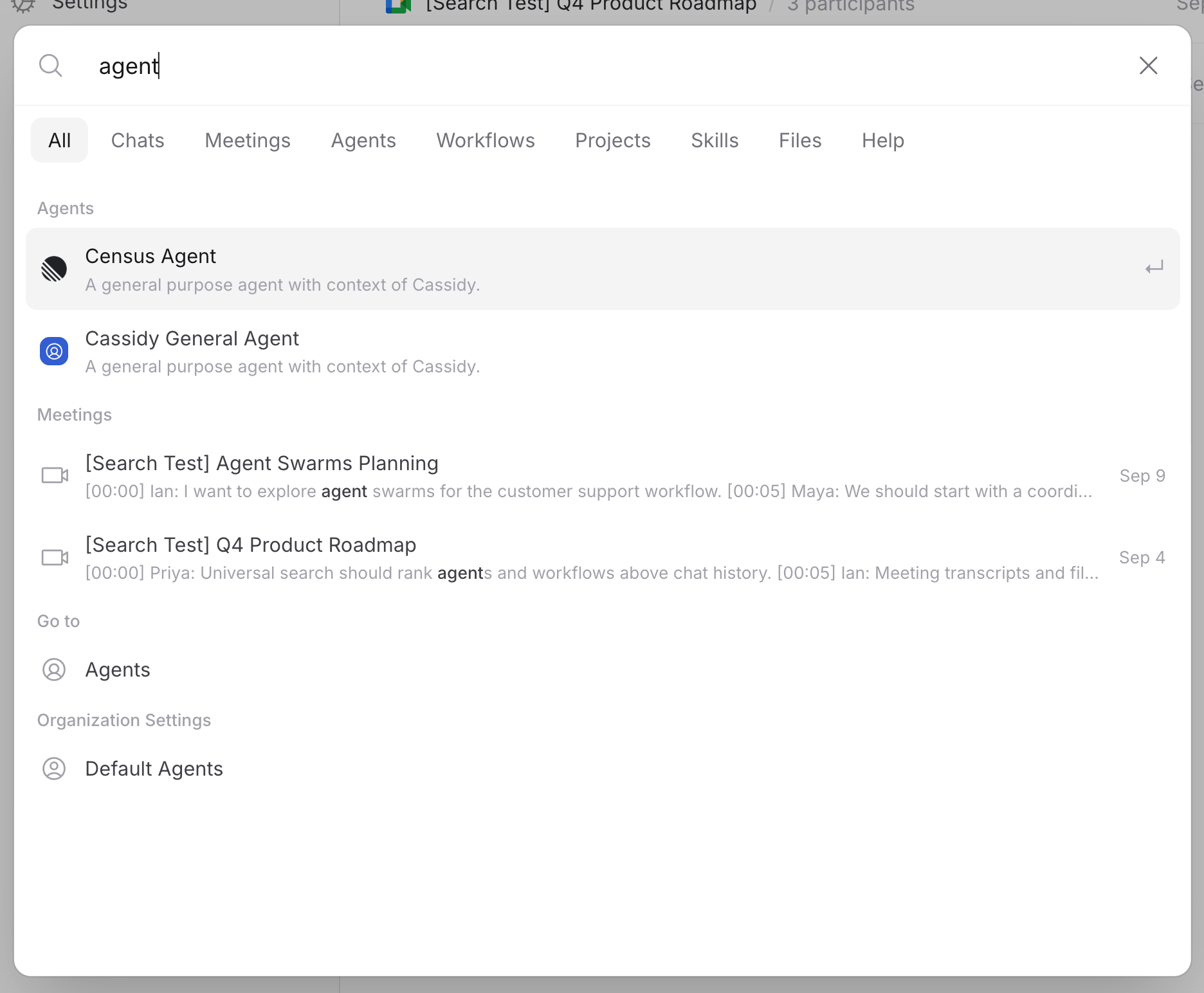
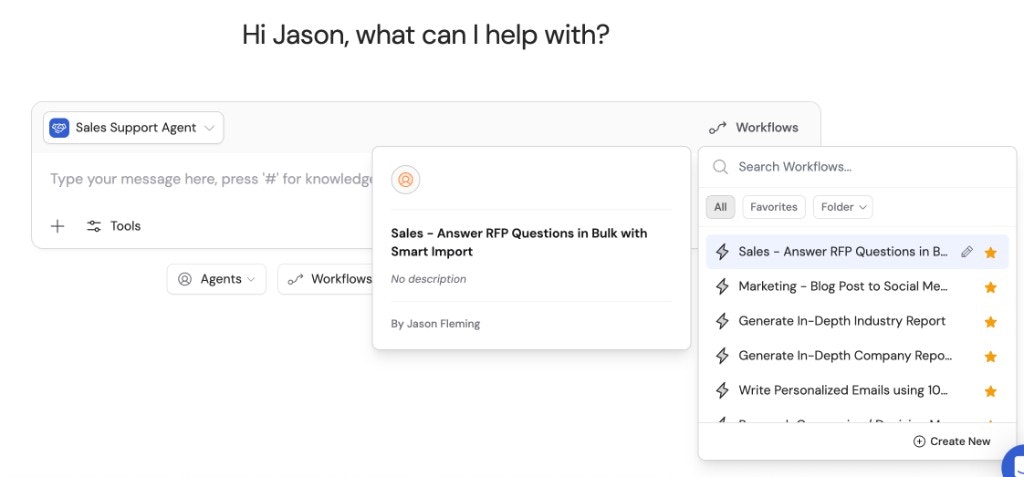
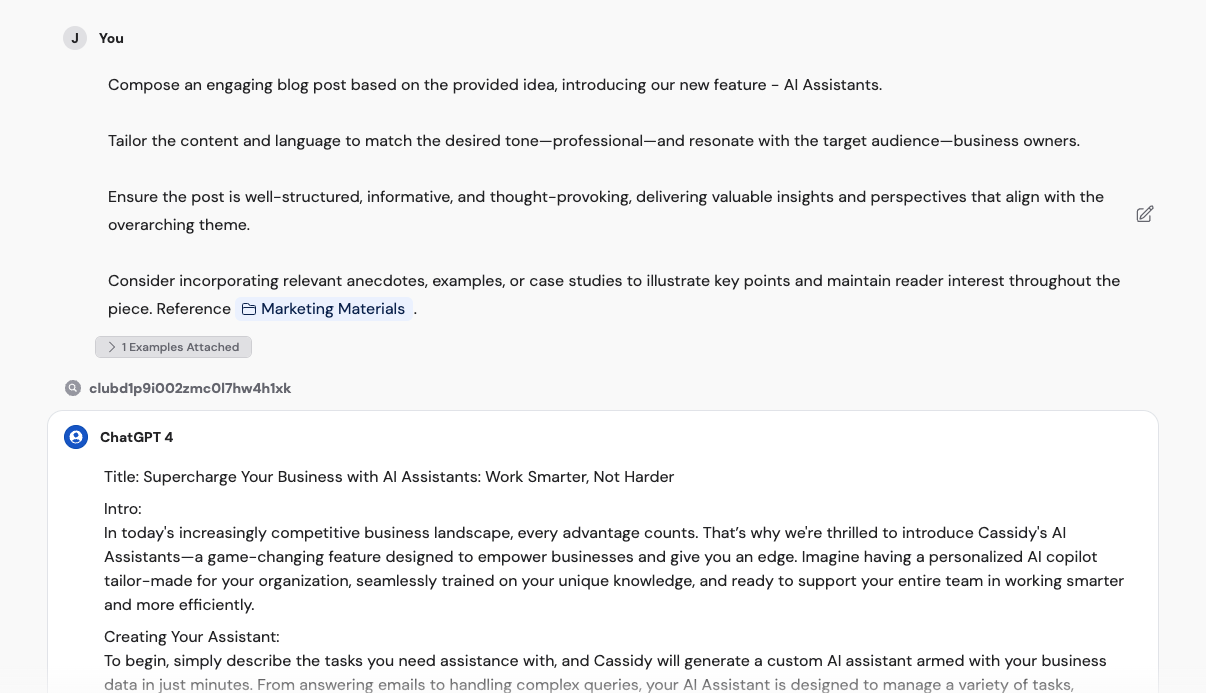
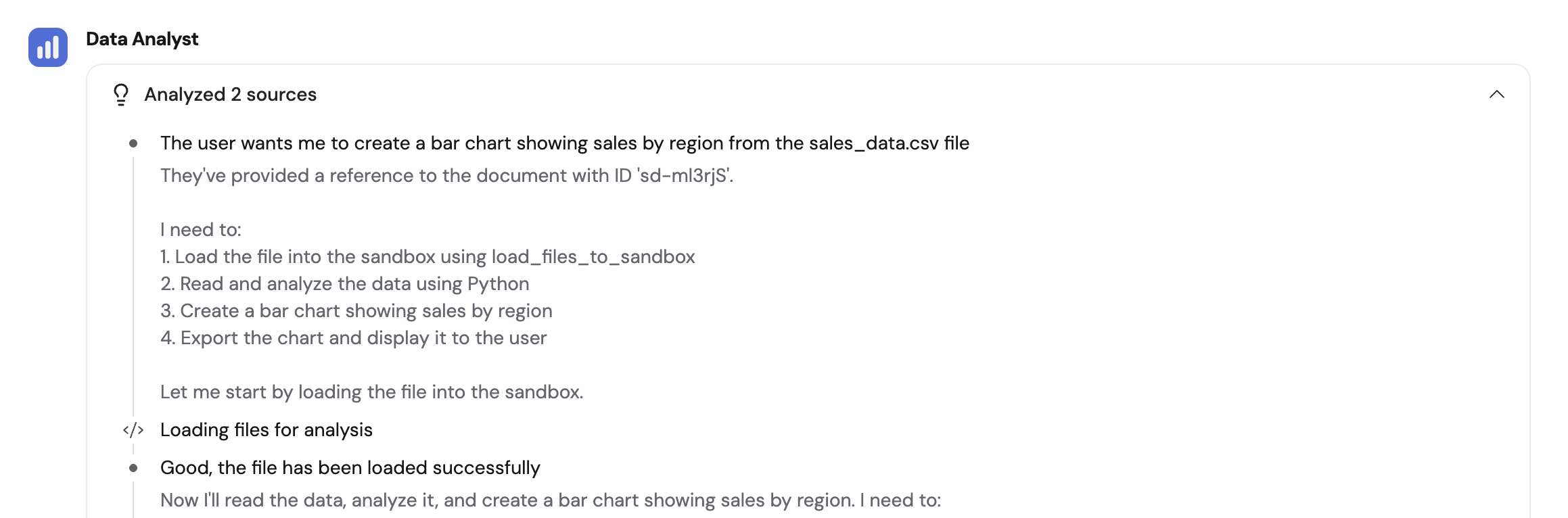
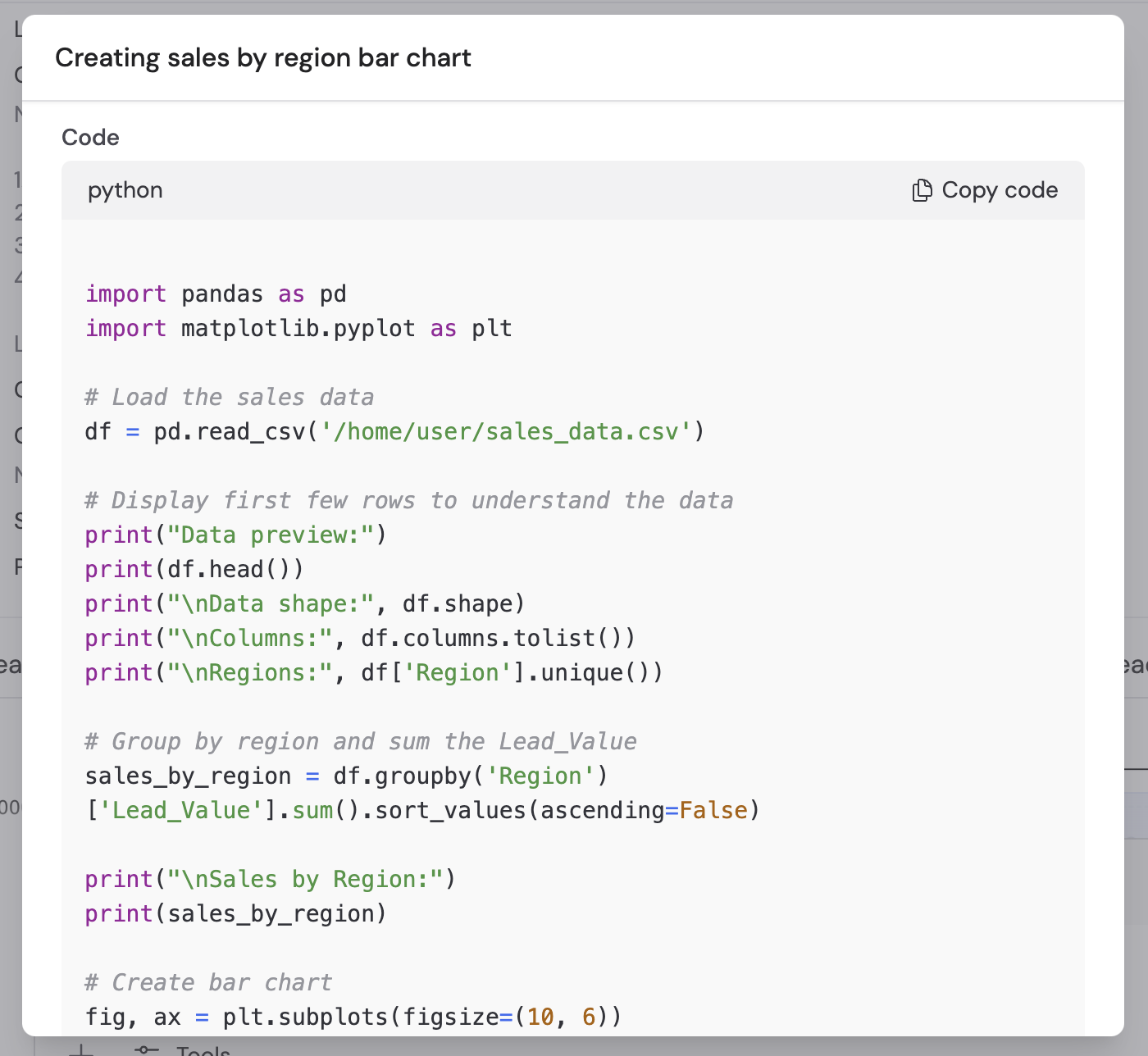
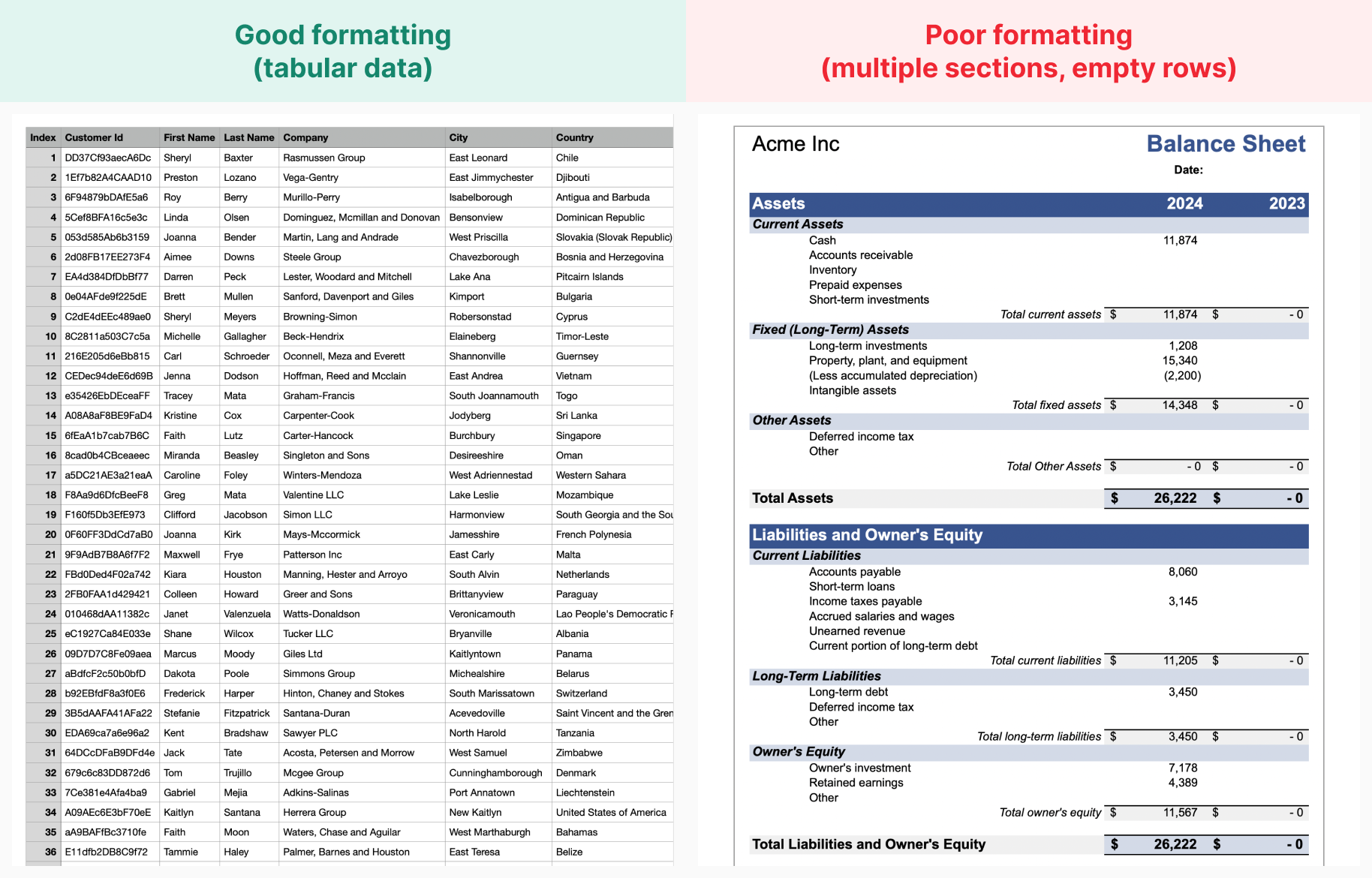
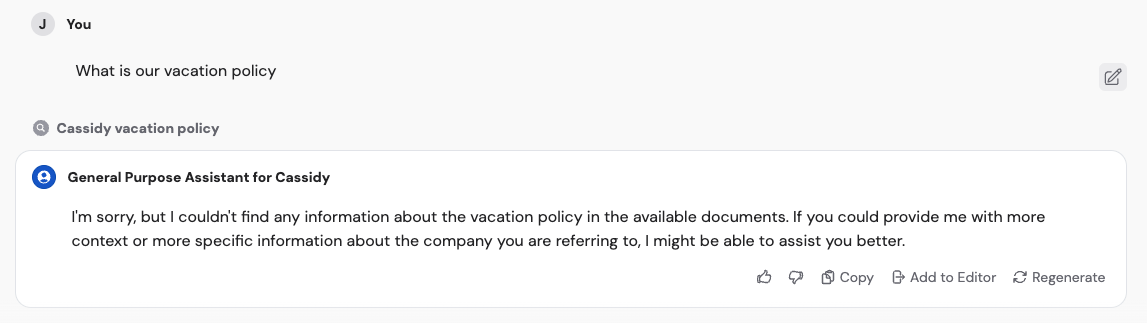
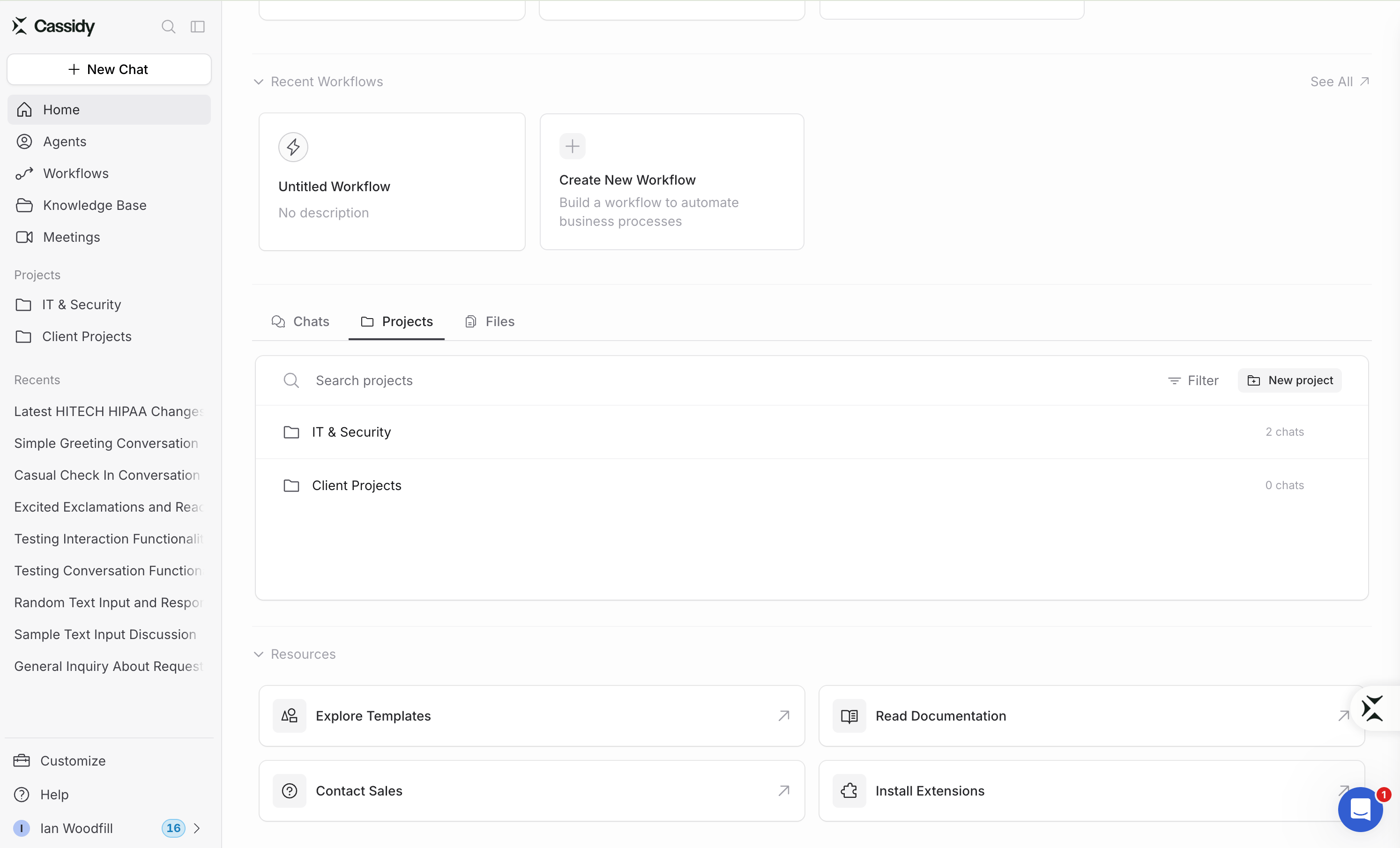
Click Search in the sidebar, or press Command + K on a Mac or Ctrl + K on Windows. You can search your chats, meetings, Agents, Workflows, projects, Skills, files, and Cassidy help articles from one place. Use the tabs at the top when you want to narrow the results.Search only shows resources you can access. Draft Agents, Workflows, and Skills do not appear because they are not ready to use.Choosing a result takes you to the most useful next step. Agents start a chat, Workflows open in the Run view, Skills are added to a new chat, projects filter the Chats tab, and files open in a preview. You can also search for destinations such as Account Settings → Notifications.
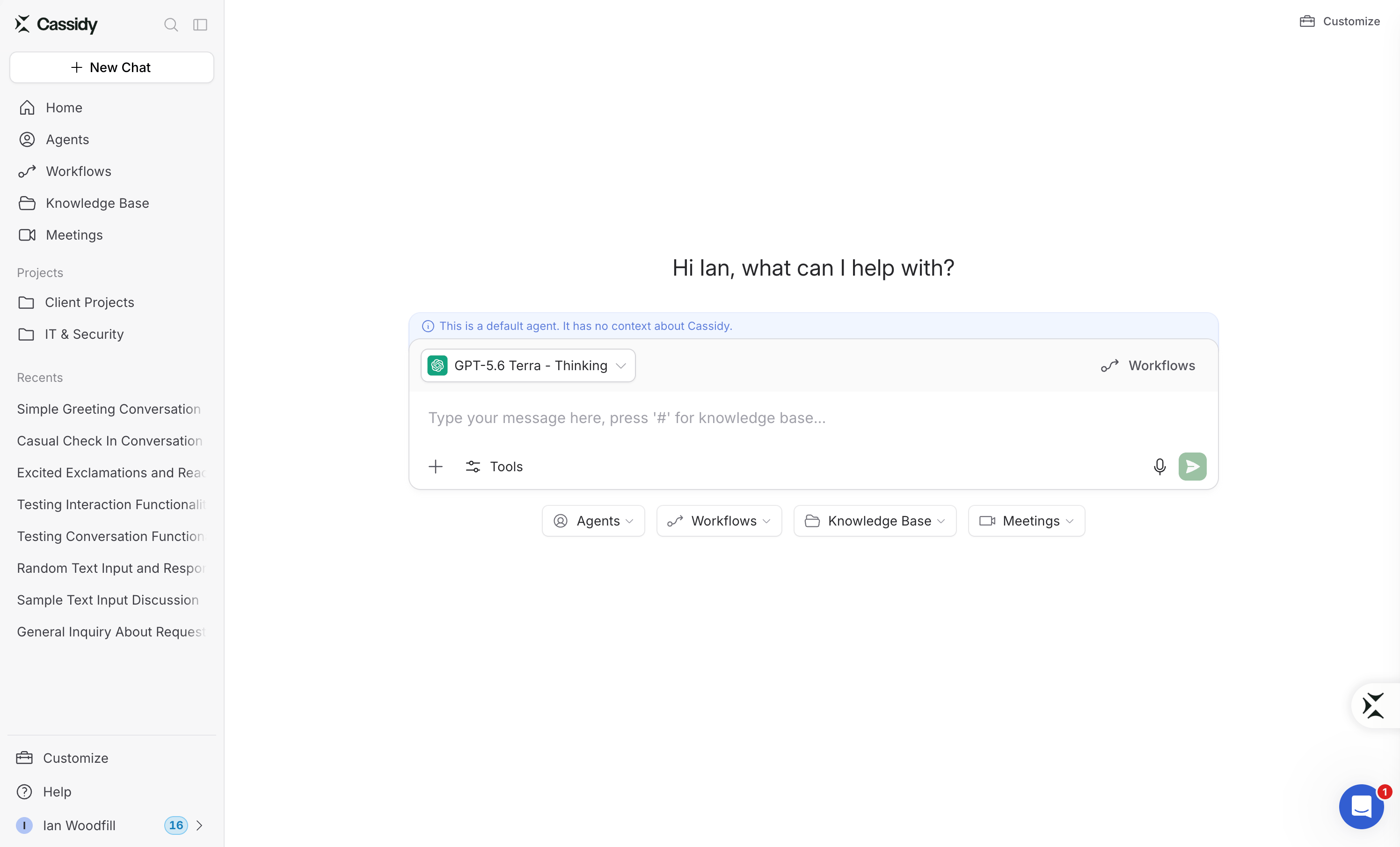
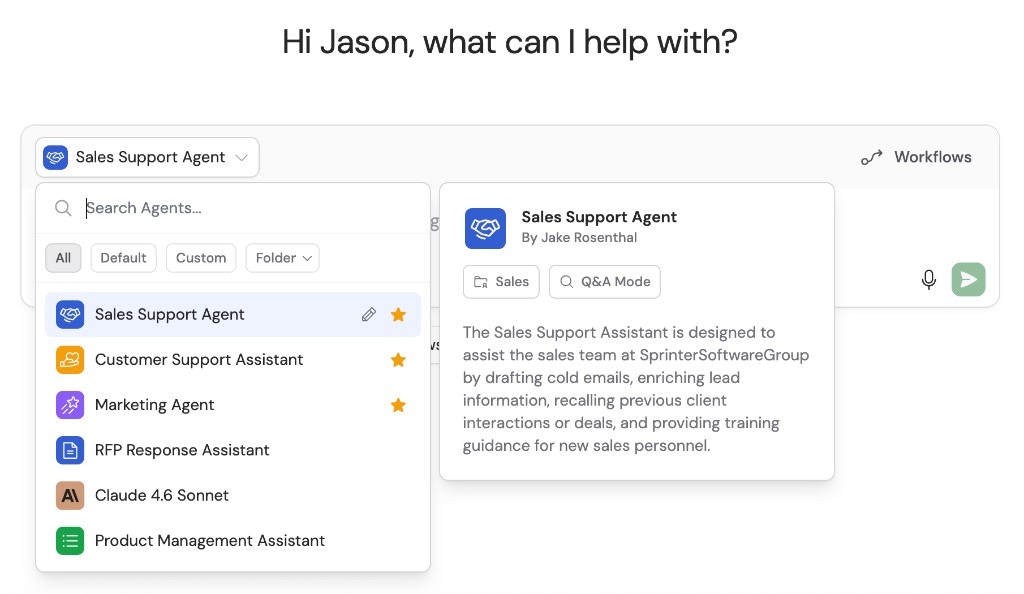
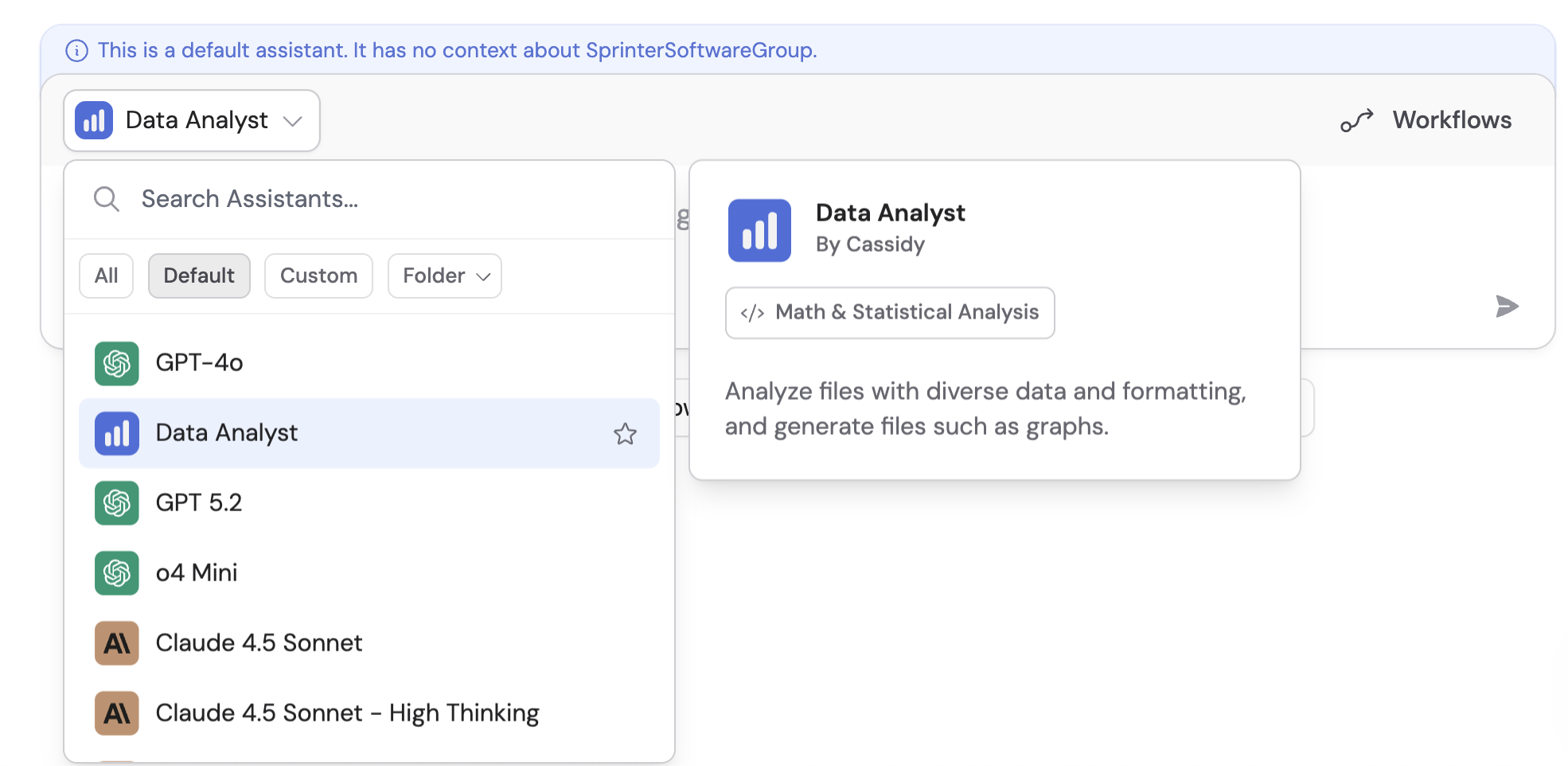
Every chat uses an Agent. You can switch between custom Agents, foundational models, and Cassidy’s pre-built Agents at any time.
1
Open the Agent dropdown
Click the Agent dropdown at the top of the chat or in the text box to see your options.
2
Browse and choose an Agent
You’ll see three categories:
Custom Agents — built by your team, trained on your Knowledge Base with tailored instructions
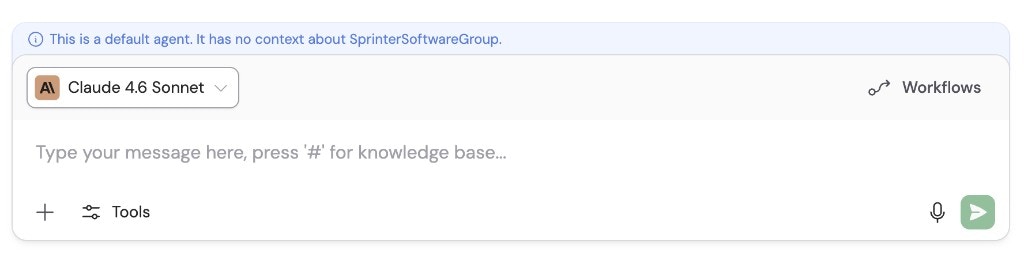
Default Agents — foundational models like GPT, Claude, and Gemini without your business context
Pre-built Agents — Cassidy’s ready-made options like the Data Analyst and Cassidy Help Agent
Default Agents don’t have access to your company’s Knowledge Base or custom instructions.
3
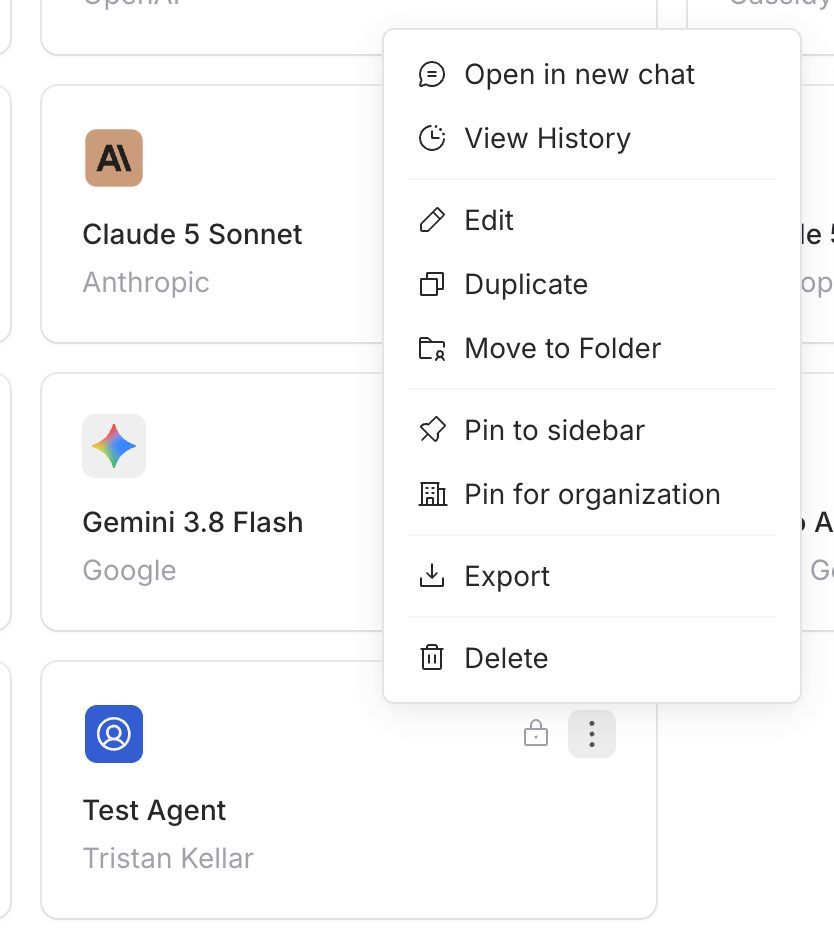
Pin an Agent
Hover over a published Agent, open its … menu, and select Pin to sidebar. Pinned Agents appear in the Pinned section of your sidebar and near the top of the Agent list. Draft Agents must be published before you can pin them.
4
Switch mid-conversation
Need a different Agent? Click the dropdown again and select a new one. The chat continues with the new Agent — no need to start over.
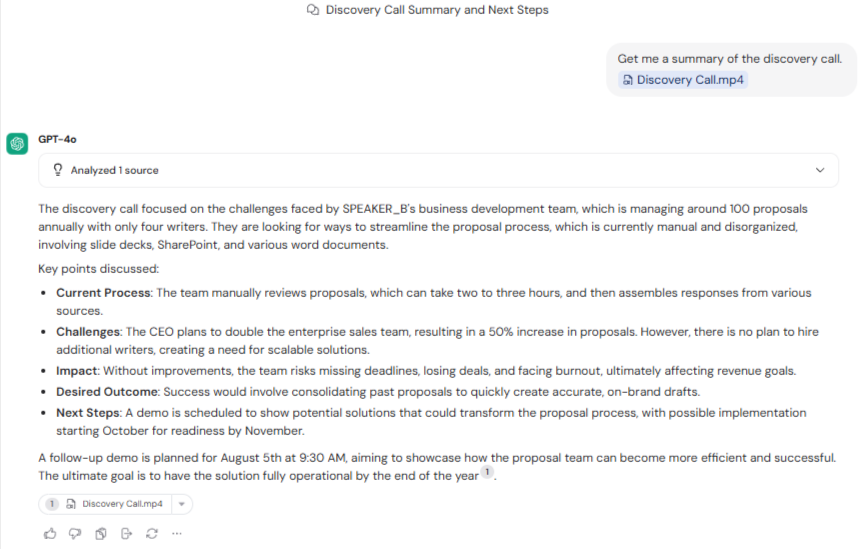
When chatting with a Q&A Agent, responses include source citations that link
back to your Knowledge Base so you can verify the information.
Tell Cassidy your name, role, and response preferences so every chat is tailored to you, no matter which Agent you use. Open Customize → Personalization from the sidebar or from the top-right corner of a new chat.See Personalize your chats for the full walkthrough and where your preferences apply.For organization-wide AI behavior rules that apply to every Agent and Workflow, see Global instructions.
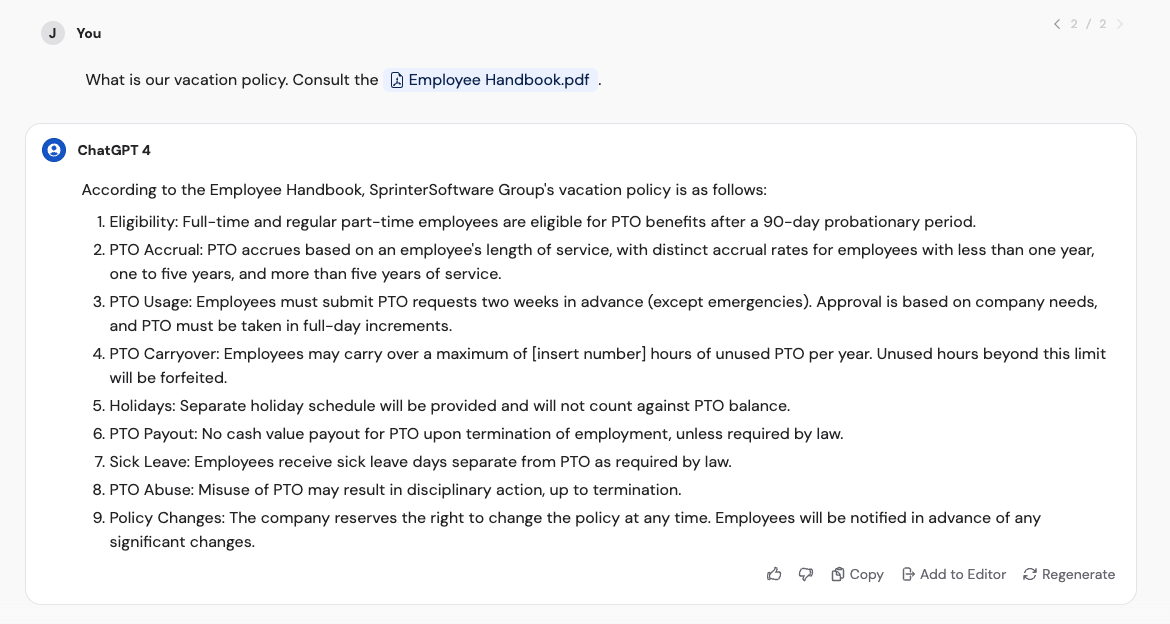
You can pull specific items from your Knowledge Base directly into a chat to ask targeted questions.
1
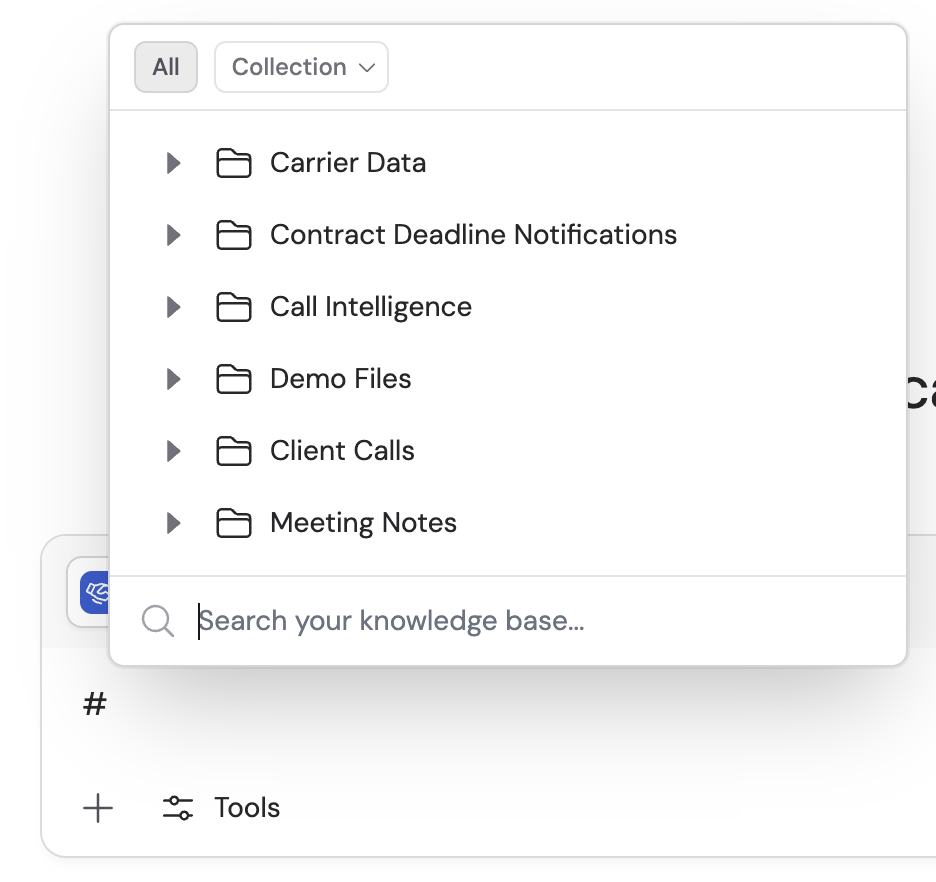
Type the # key
In the chat text box, type # to open a search dropdown for your Knowledge Base.
2
Search and select an item
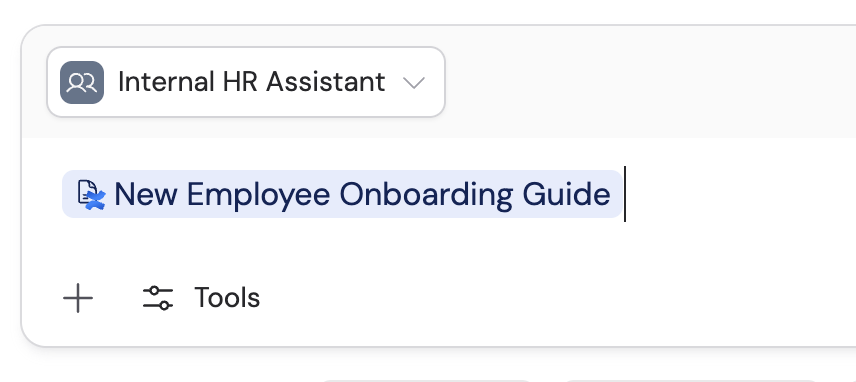
Start typing keywords to filter results. Click the item you want to reference — it appears as a tag in your message.
3
Ask your question
Send your message with the referenced item. The Agent uses that specific document as context for its response. For example:
“Can you summarize the main points of this employee handbook?”
“How many vacation days am I entitled to according to this policy?”
“What is the process for requesting time off?”
The # reference is useful when you want to point the Agent at a specific
document for a single question. To have an Agent always search certain
Knowledge Base items, add them to the Agent’s configuration — see Build and
configure an Agent for details.
The # picker can include recorded meetings,
not only Knowledge Base items. To search across your meeting library in
chat (with citations back to recordings), add the Meetings
Connector to the Agent — see Chat with your
meetings.
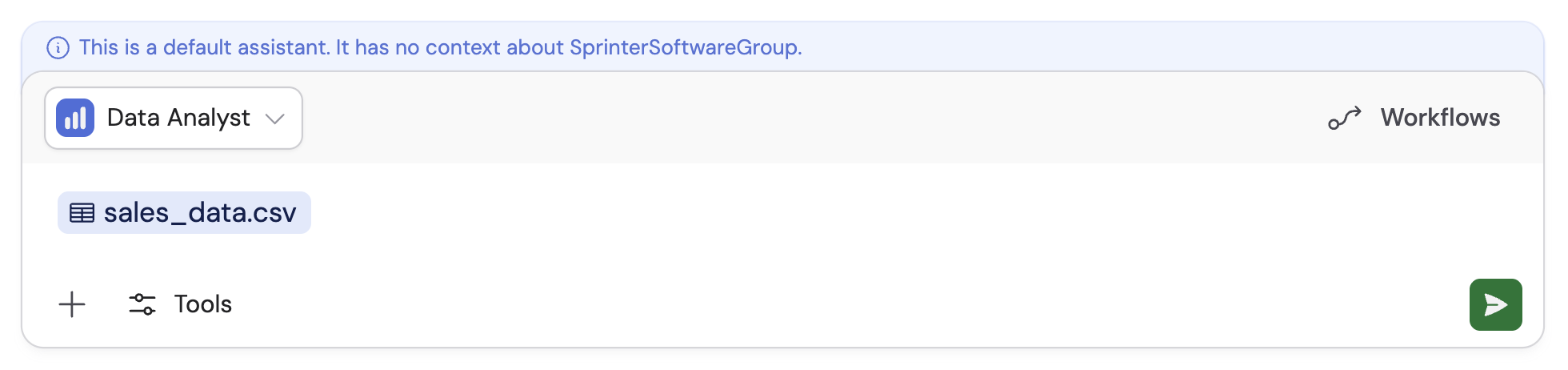
Share files, images, videos, and audio directly in chat to ask questions about their content. These uploads are temporary — they are not saved to your Knowledge Base.
1
Click the + button
In the bottom-left corner of the text box, click + to open attachment options.
2
Choose your upload type
Select Attach a File or Attach an Image from the menu. You can also drag and drop files directly into the chat window.
3
Ask questions about the content
Once uploaded, the Agent can analyze the content. Try prompts like:
“Summarize the key findings in this report”
“What text is visible in this screenshot?”
“Extract the data from this chart”
Uploaded files are temporary and tied to the chat session. If you need to
store a file permanently, upload it to your Knowledge
Base first, then reference it with #.
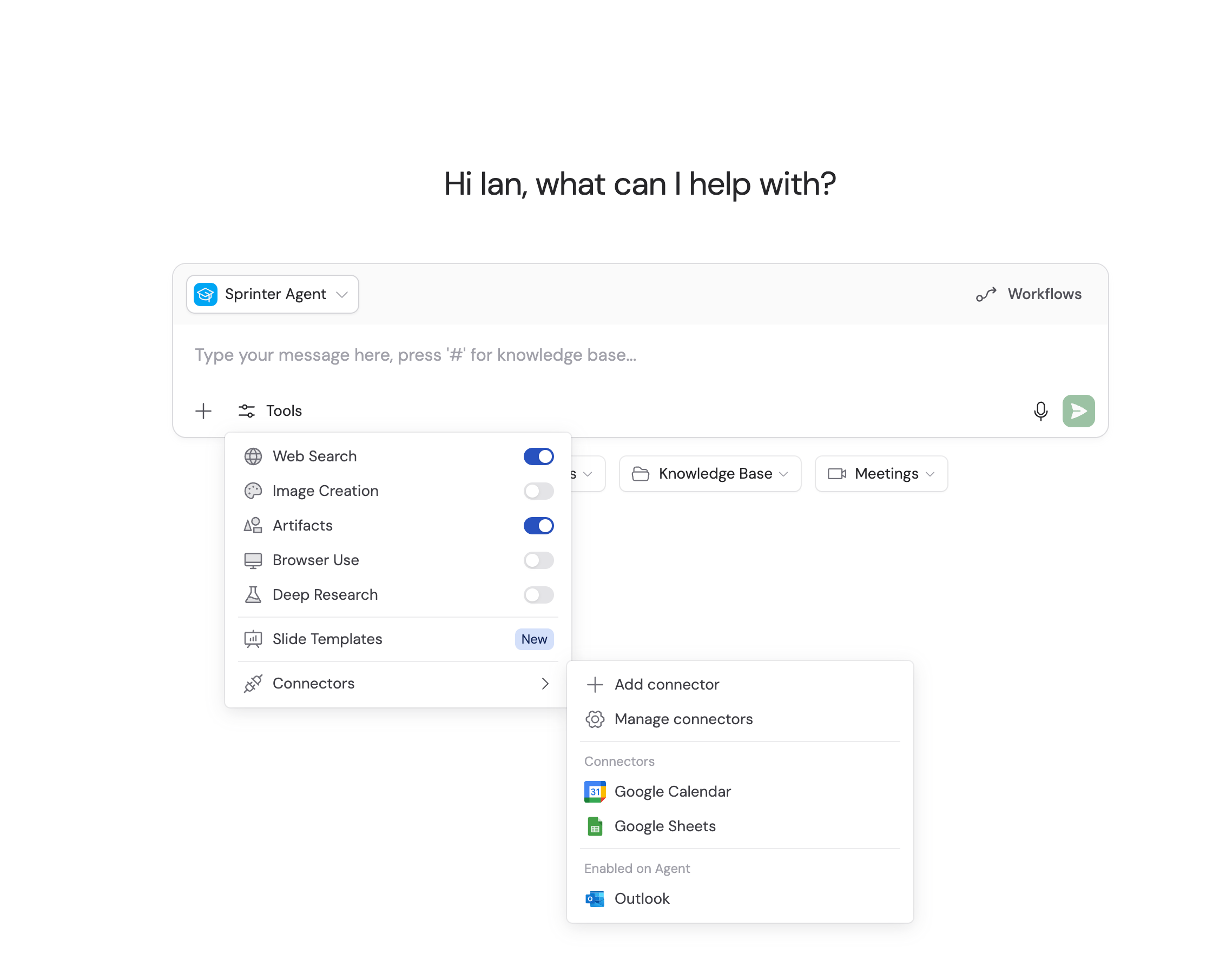
The menu also lists your Connectors. Your own
Connectors follow your account settings rather than per-chat toggles. Select
Add connector to browse apps or Manage connectors to reconnect, change
action permissions, or turn a Connector off. Connectors the Agent’s builder
added appear under Enabled on Agent. A warning icon means you need to
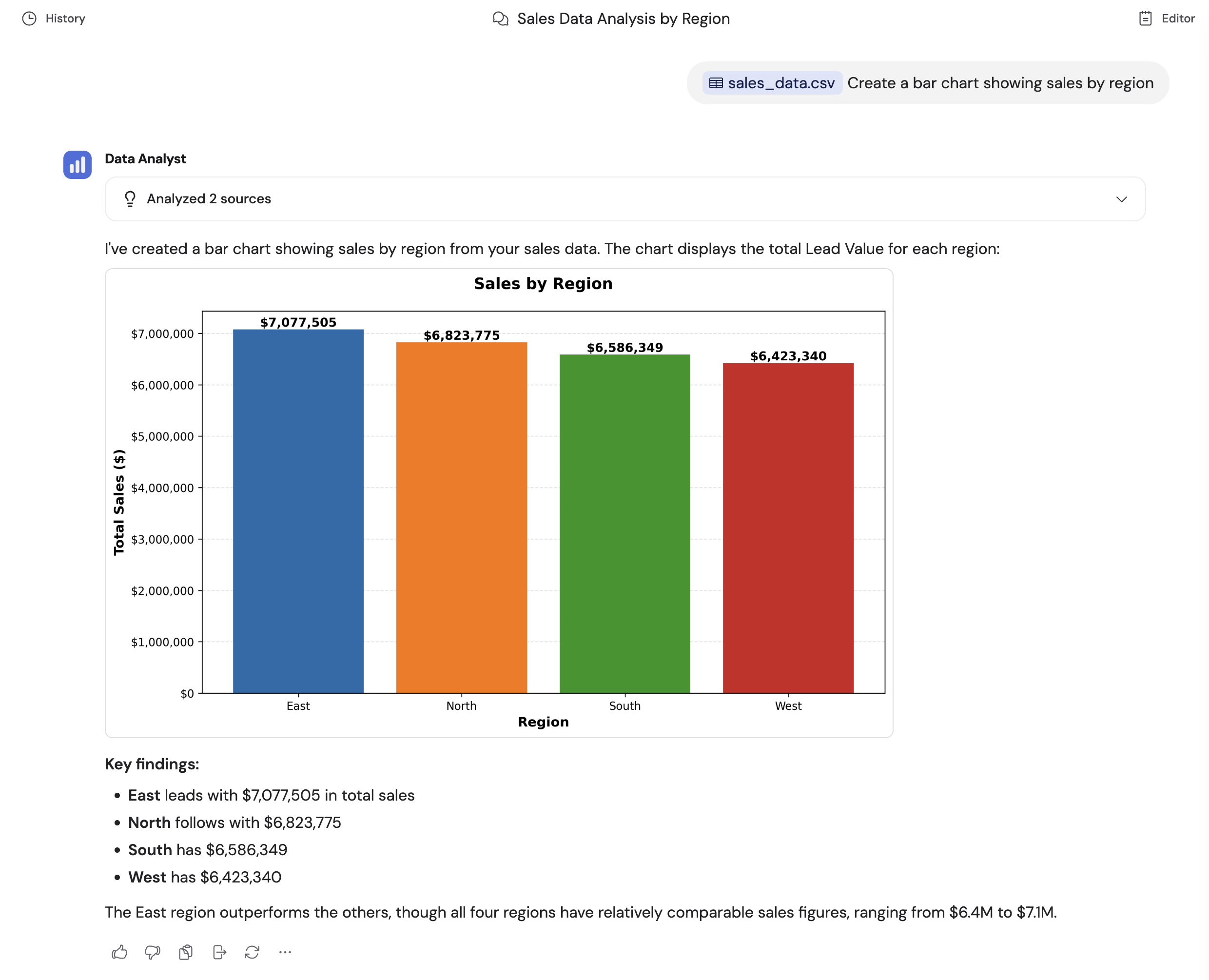
reconnect.Code Execution & File Creation is configured on the Agent itself. New custom Agents have it enabled by default. If it is missing, edit the Agent and enable Code Execution & File Creation under Customize > Advanced Settings.
Voice mode lets you have a spoken conversation with your Agent instead of typing. Click the microphone icon in the text box to start speaking. The Agent transcribes your speech, processes it, and responds — both in text and, optionally, with audio playback.
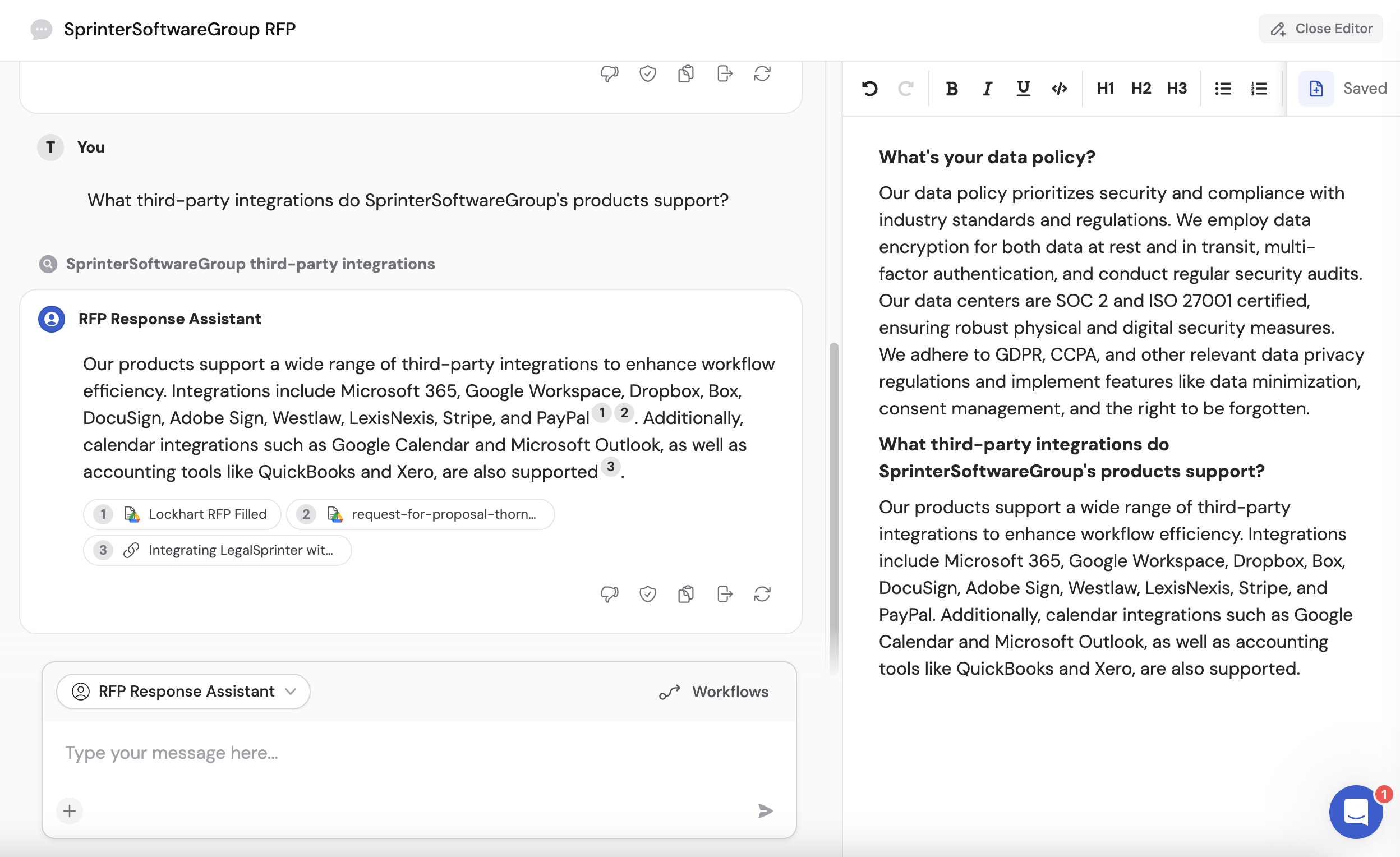
The writing editor is a side-by-side panel where you can draft and refine content while chatting with an Agent.
1
Open the editor
Click Open editor in the top-right corner of the chat interface.
2
Write alongside your chat
Type directly in the rich text editor while chatting with the Agent. This is useful for researching ideas, drafting content, or getting real-time writing assistance.
3
Add Agent responses to the editor
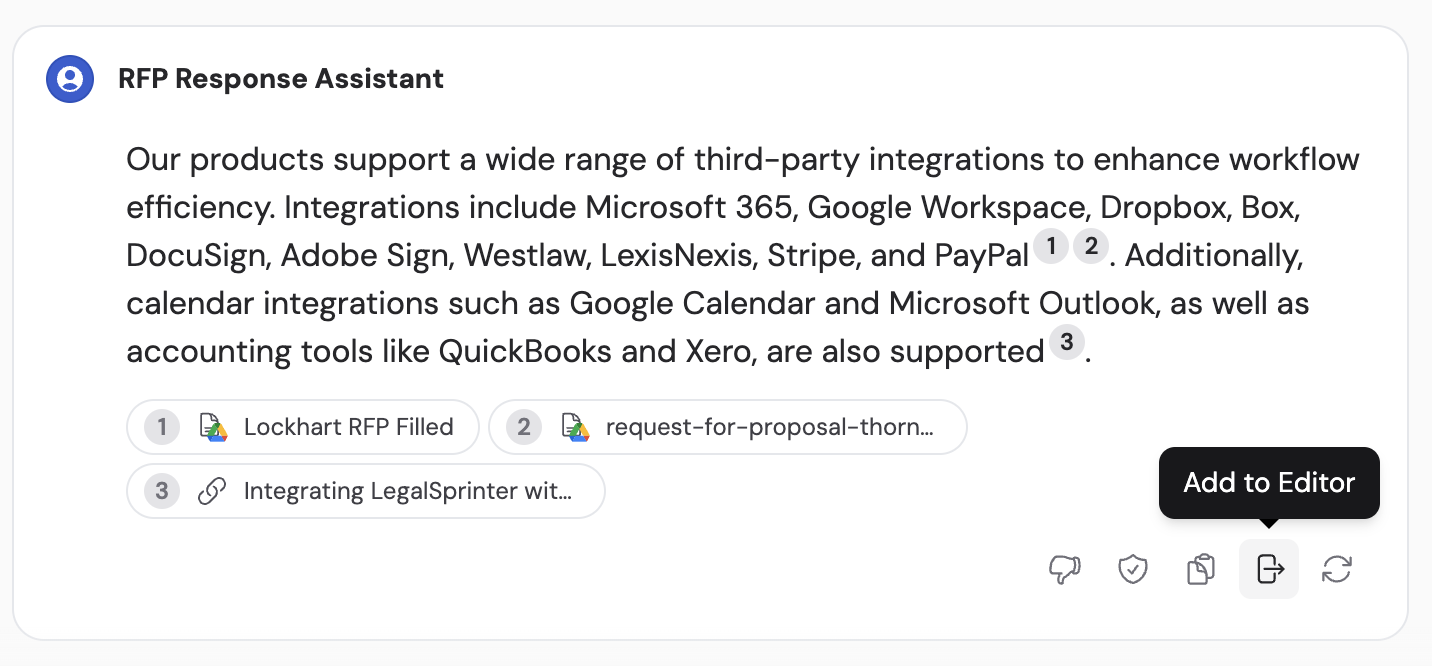
When the Agent generates something you want to keep, click Add to Editor on the message. The content is automatically added to your document.
4
Save to your Knowledge Base
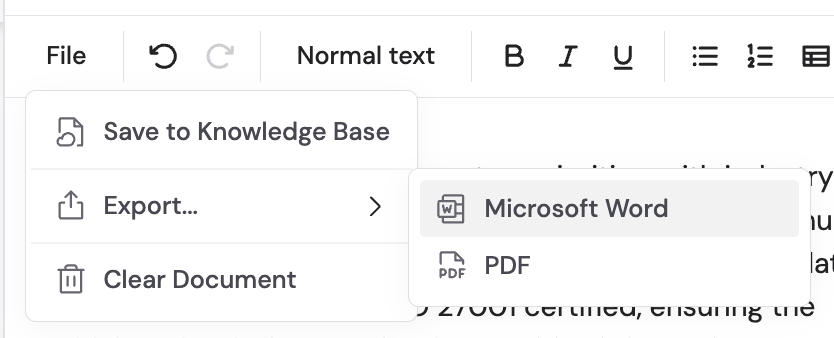
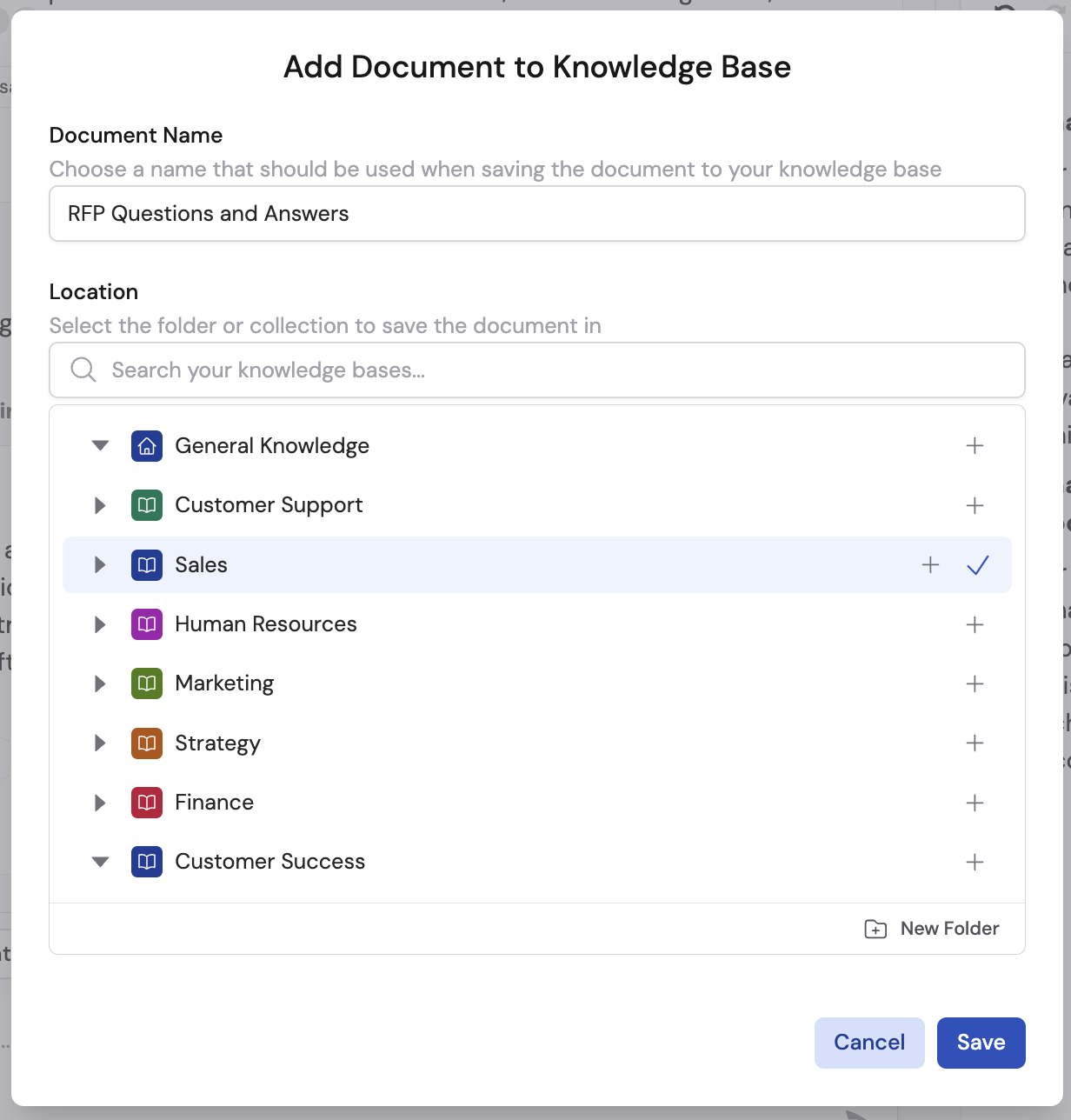
Click File then Save to Knowledge Base to store your document permanently. Choose a name and folder location, then click Save.
You can also export to Microsoft Word or PDF format.
Once saved, changes sync automatically between the writing editor and the Knowledge Base document.
The writing editor is tied to each individual chat. Save your work to the
Knowledge Base before closing if you want to keep it.
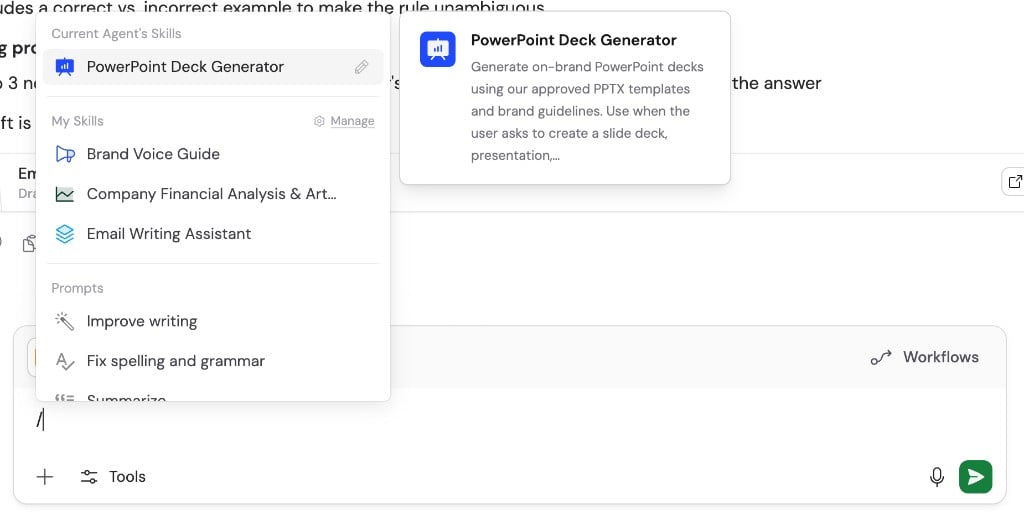
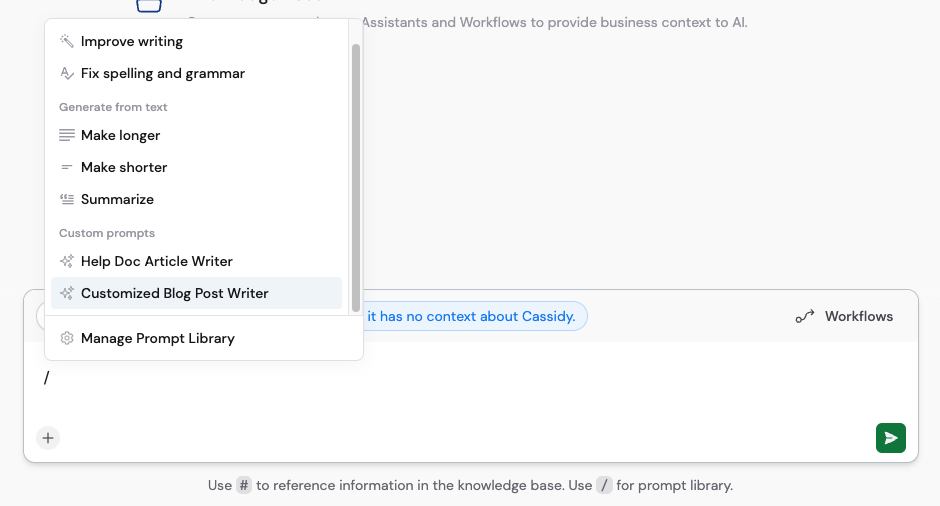
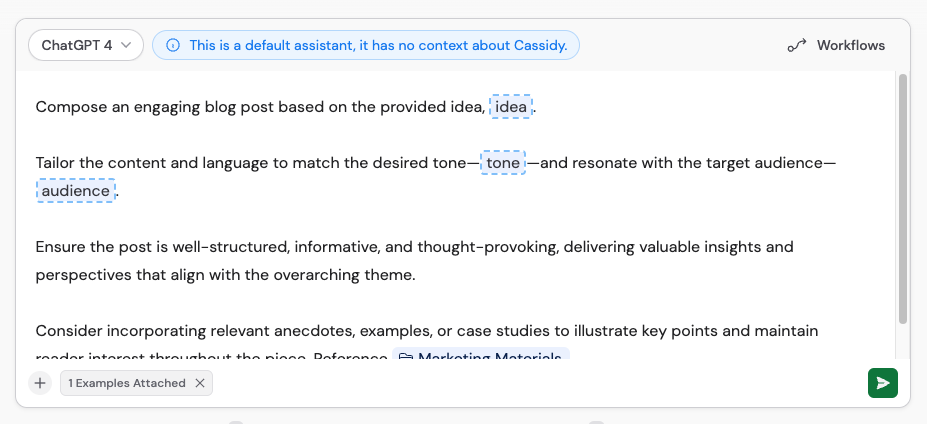
Skills give Agents reusable procedures, files, and tools for specialized tasks. Installed Skills are available across your chats, while Agent-attached Skills are available whenever you use that Agent.Agents choose relevant Skills automatically based on each Skill’s name and description. To select one yourself:
1
Open the slash menu
Type / in the chat box.
2
Select a Skill
Choose a published Skill under Current Agent’s Skills or My Skills.
3
Describe the task
Continue writing your request and send the message. The Agent reads the selected Skill before responding.
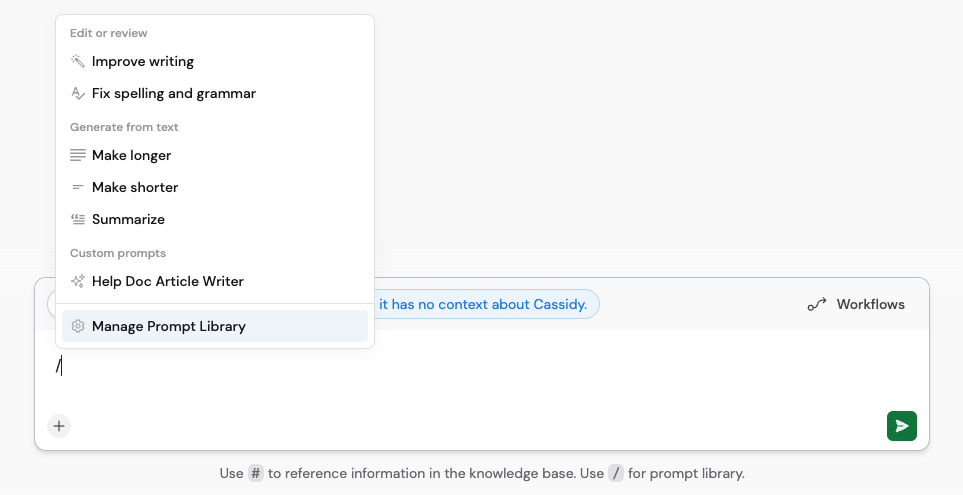
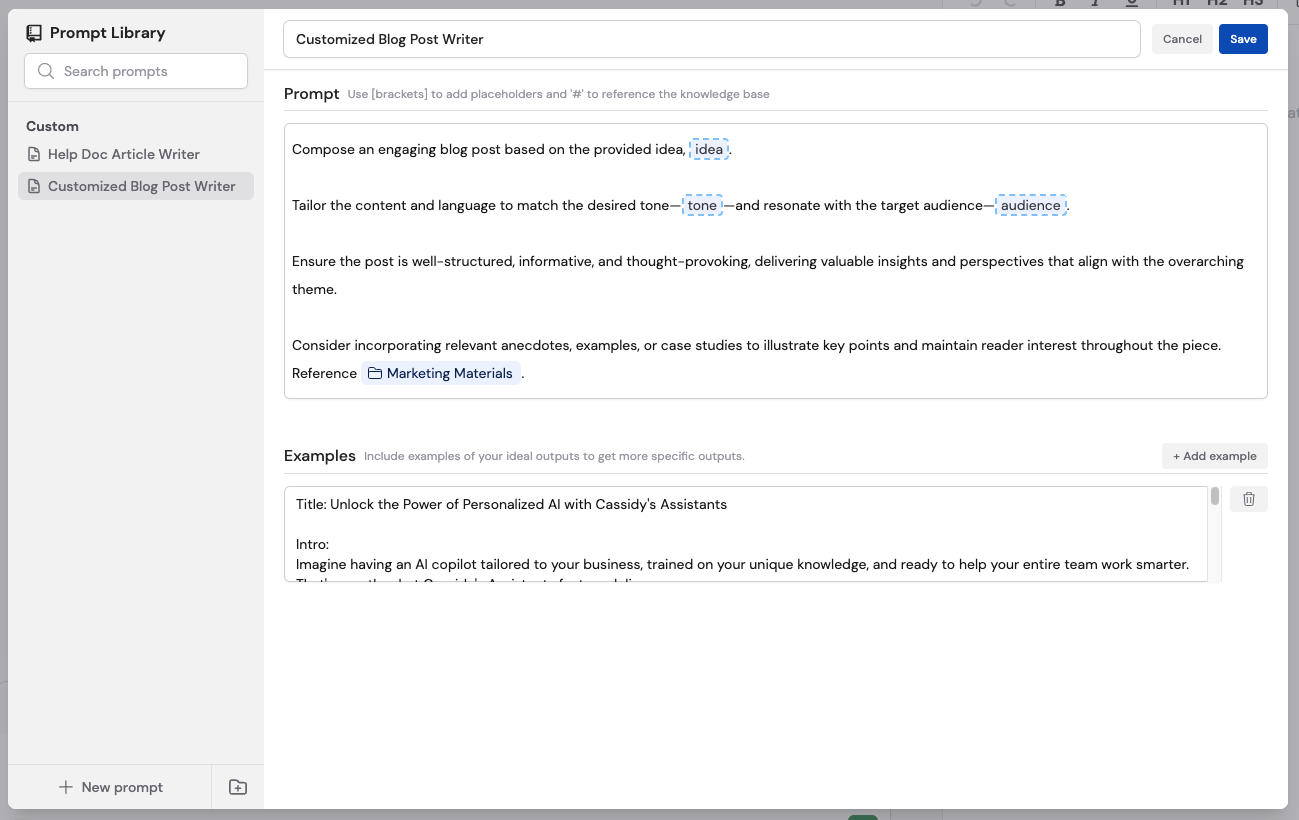
In the chat text box, type / and click Manage prompt library from the menu.
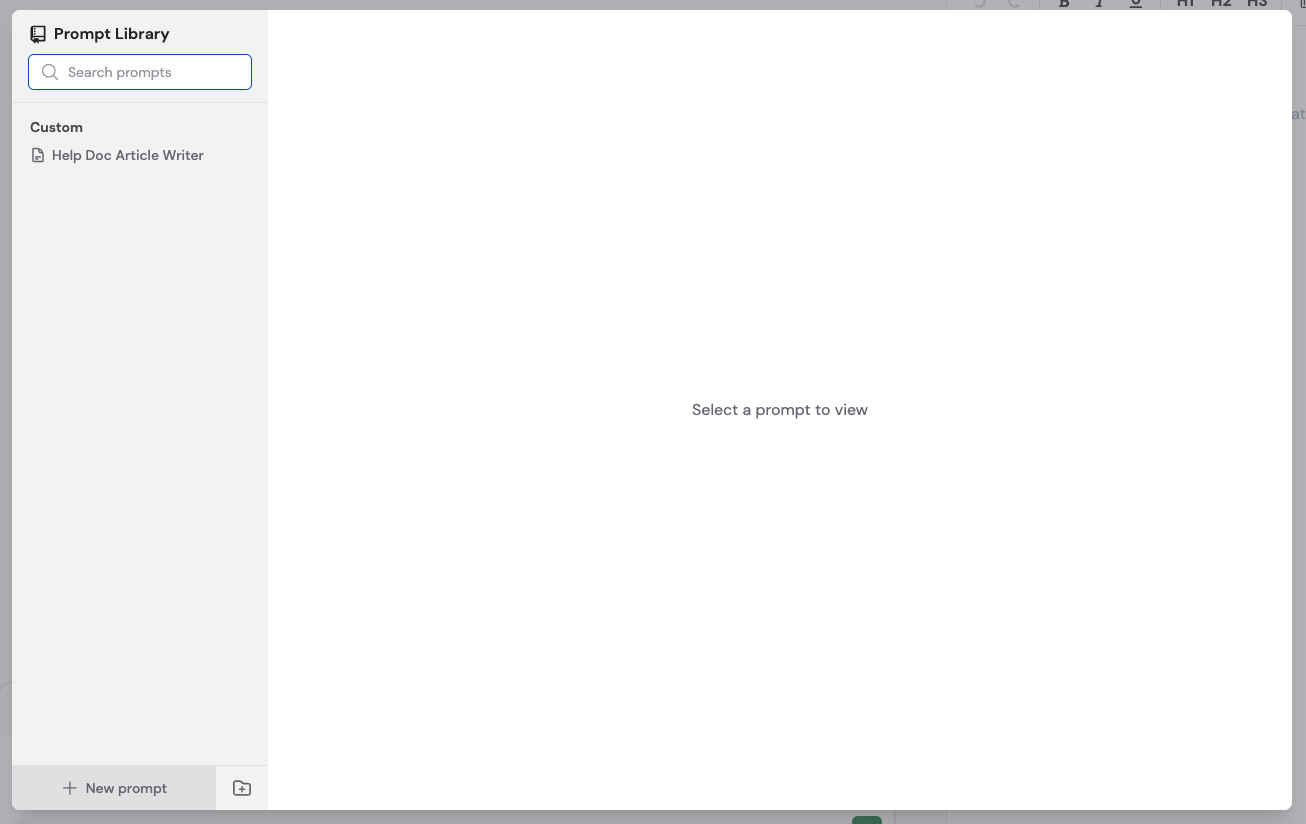
2
Create a new prompt
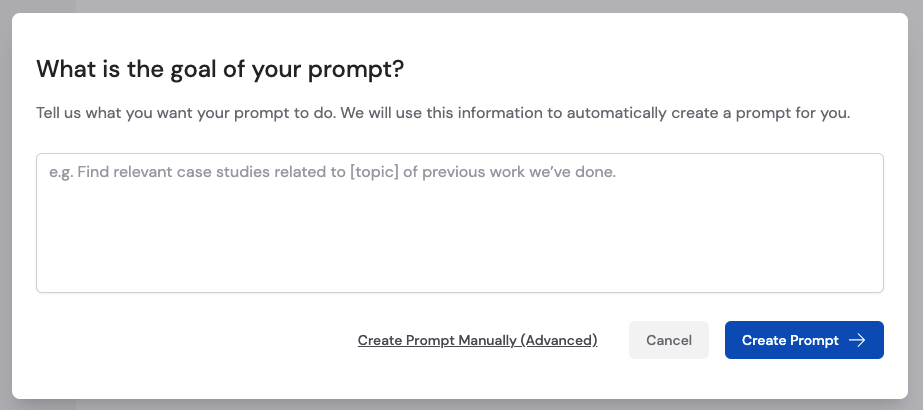
Click + New prompt. Describe what you want, and Cassidy generates a refined prompt for you. Or click Create prompt manually (advanced) to write it yourself.
When writing prompts manually, you can:
Use [brackets] for placeholders that change each time (e.g., [professional] or [witty] for tone)
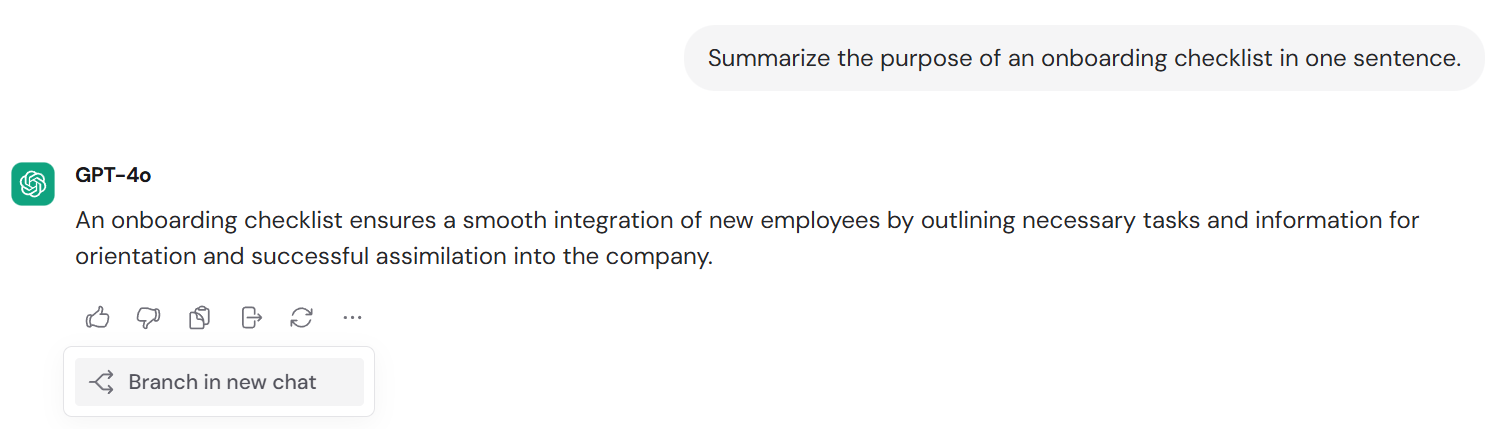
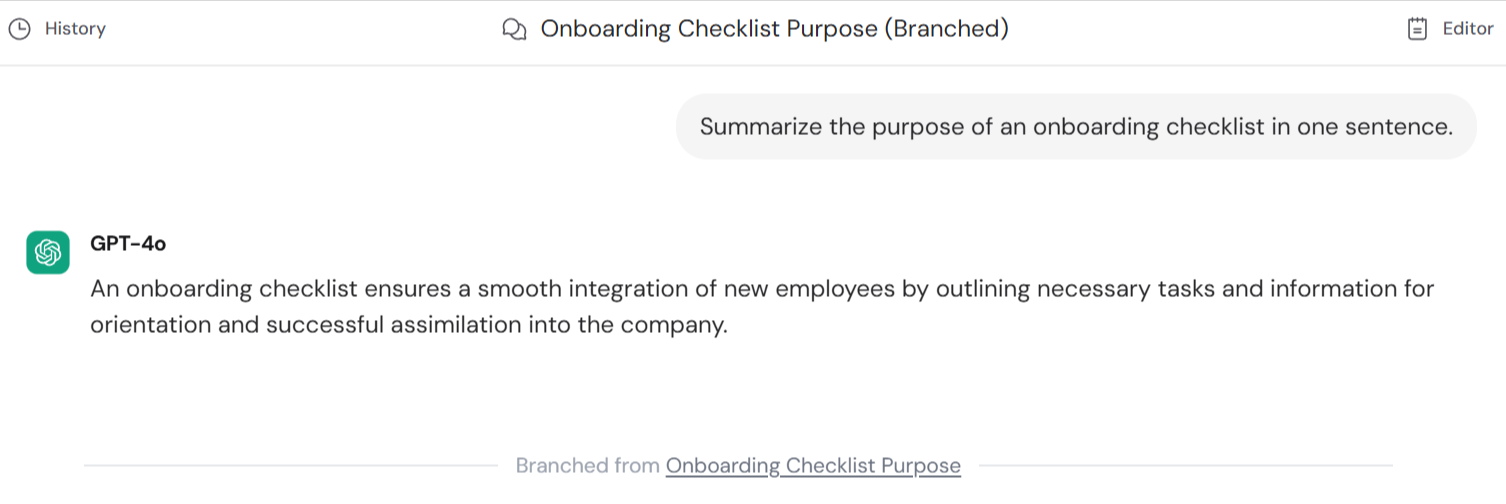
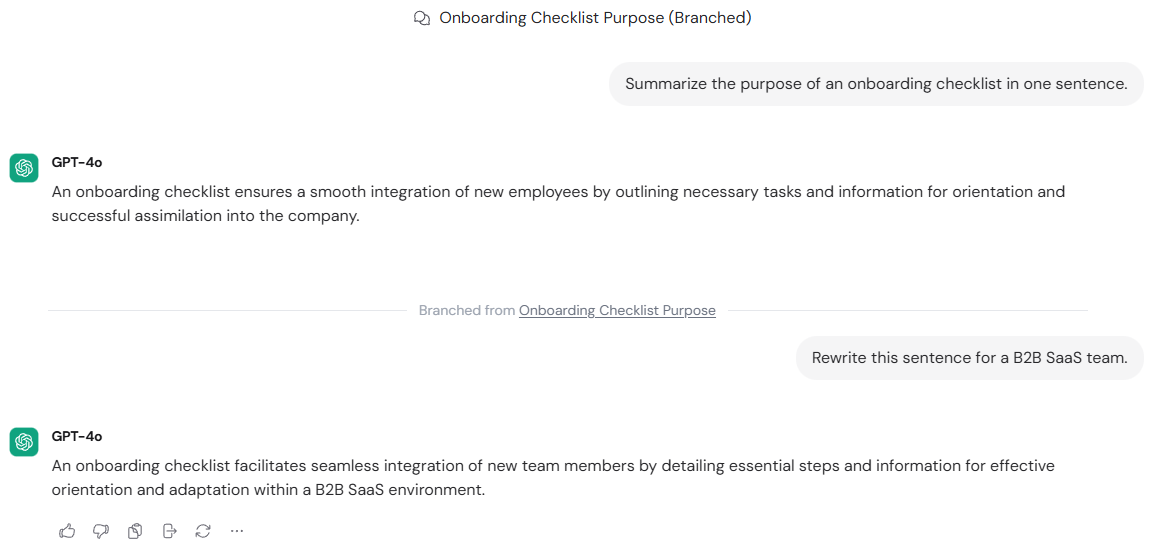
Branching creates a copy of a conversation up to a specific message, so you can explore a different direction without losing the original thread.
1
Find the branching point
Open a chat and scroll to the message you want to branch from.
2
Branch in a new chat
Click the … menu below the message and select Branch in new chat.
3
Continue in the new chat
A new chat opens in a separate tab with the full conversation history up to that message. The original chat remains unchanged. The new chat is labeled “Branched from [Chat Title].”
Chats use the same sharing model as Agents and Workflows — you can share with specific teammates, groups, or your whole organization, and set each person’s access to View (read-only) or Edit (can send messages).
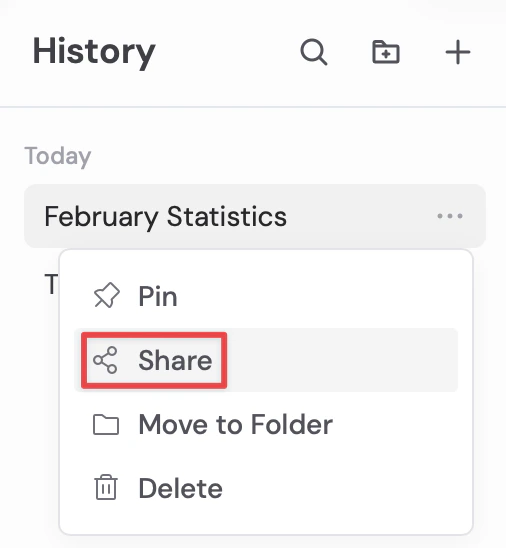
Open the … menu on any chat and select Share, or click the Share button in the chat header. Choose who can access it and set their permission level. Sharing a chat does not notify the recipient — you’ll need to send them the link directly.
Projects keep related chats together. They are useful for work such as a customer account, hiring process, or quarterly planning where several conversations should share the same access.
1
Open Projects
Go to Home and select the Projects tab. This page includes projects you
own and projects shared with you.
2
Create a project
Click New project, enter a name, and choose who can access it. New
projects start as restricted unless you choose a broader access level.
3
Add chats
Open a chat’s … menu and select Move to project. If Projects are
visible in your sidebar, you can also drag chats into and out of a project.
4
View a project's chats
Select a project from the Projects tab. Cassidy returns to the Chats
tab and adds the project as a filter.
Chats inside a project use the project’s sharing settings and cannot be shared separately. Change access from the project’s … menu. When you move a shared chat into or out of a project, Cassidy shows how its access will change before completing the move.The Projects section appears in the sidebar automatically once you create, open, or are directly shared on a project. To show or hide it yourself, open the … menu beside Recents, choose Customize sidebar, and change Show Projects section. From the Projects menu, choose My projects, My projects and shared with me, or All projects I can access. Projects can be sorted by recent activity or name.Chats that teammates share with you appear in Recents once you open them. To see them right away, open the … menu beside Recents, choose Chats shared with me, then select Always show.Pin a project when you want it in the main Pinned section instead of the Projects section.
Keep these things in mind when sharing chats:
Chats inside a project use the project’s sharing settings and cannot be shared individually
New messages added to a shared chat are visible to everyone with access in real time
Projects shared with you appear in the sidebar when your Show projects setting includes them
Deleting a project permanently deletes every chat inside it. This action
cannot be undone.
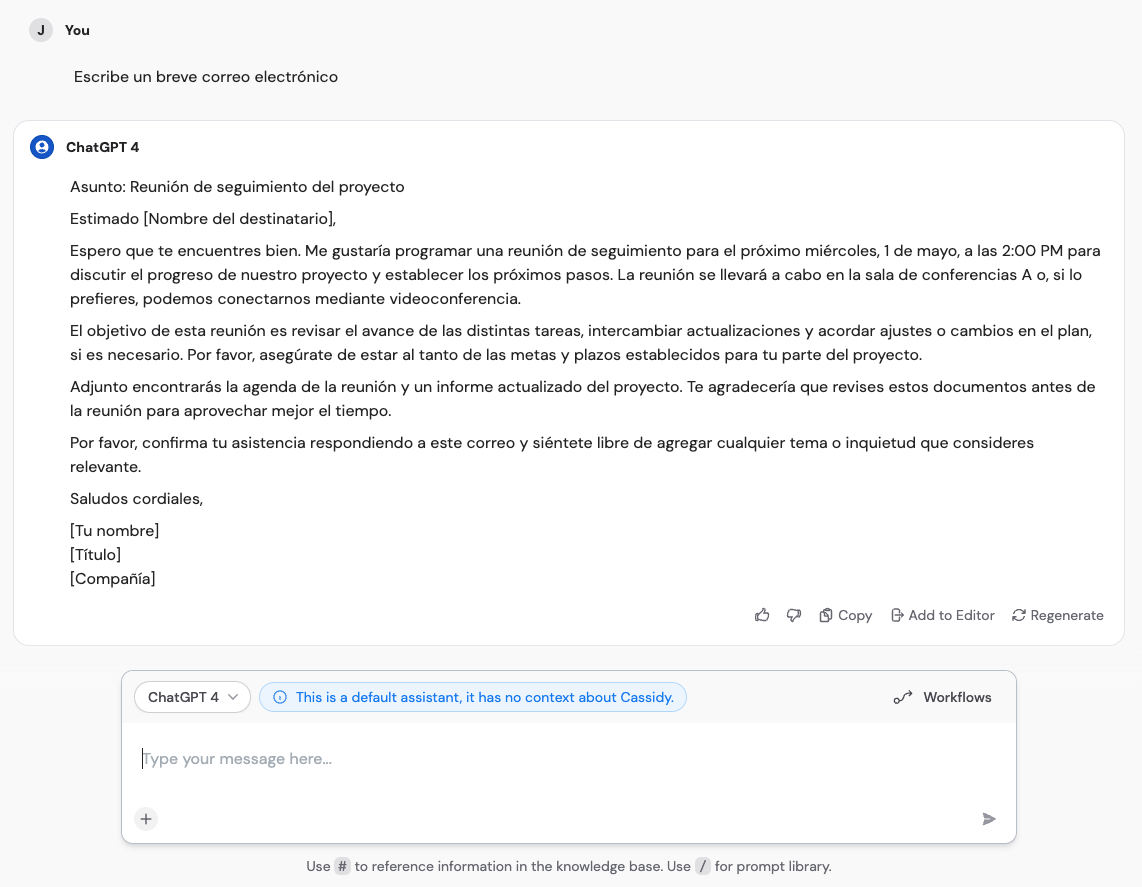
While the Cassidy interface is in English, the AI models can understand and respond in virtually any language. Type your message in the language you prefer, and the Agent responds in the same language.
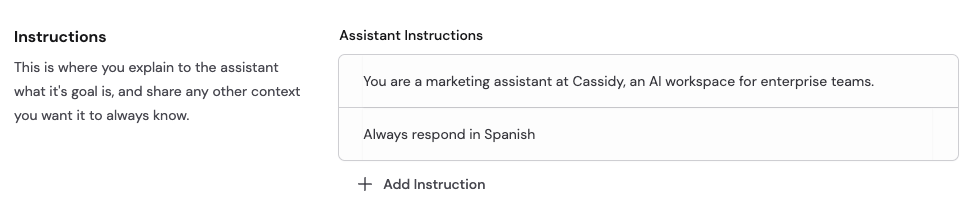
If the Agent doesn’t consistently use your preferred language, add a specific instruction to the Agent’s settings — for example, “Always respond in Spanish.”