The Web Search capability lets your Agent search the internet for current information during a conversation. When a user asks a question that requires up-to-date data — like recent news, market prices, or competitor information — the Agent automatically searches the web and incorporates the results into its response.
1

Select your Agent

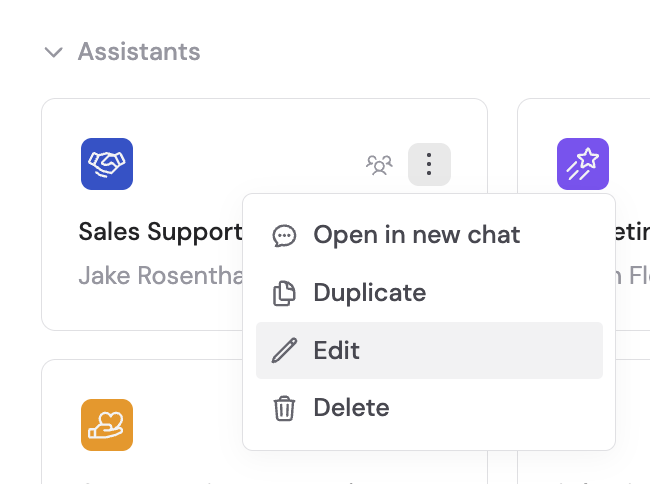
Navigate to Agents, find the Agent you want to configure, click and select Edit.
Agent card context menu showing Edit option
2

Navigate to Capabilities

In the Setup tab, scroll to the Capabilities section.
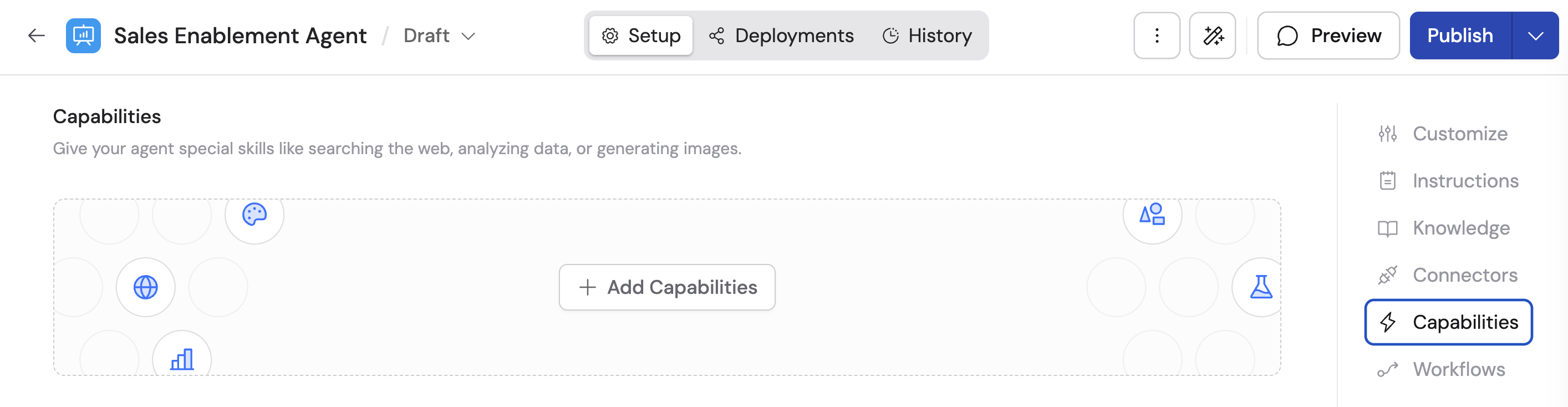
Agent Setup tab showing the Capabilities section
3

Add Web Search

Click + Add Capabilities and click + Add on the Web Search option.
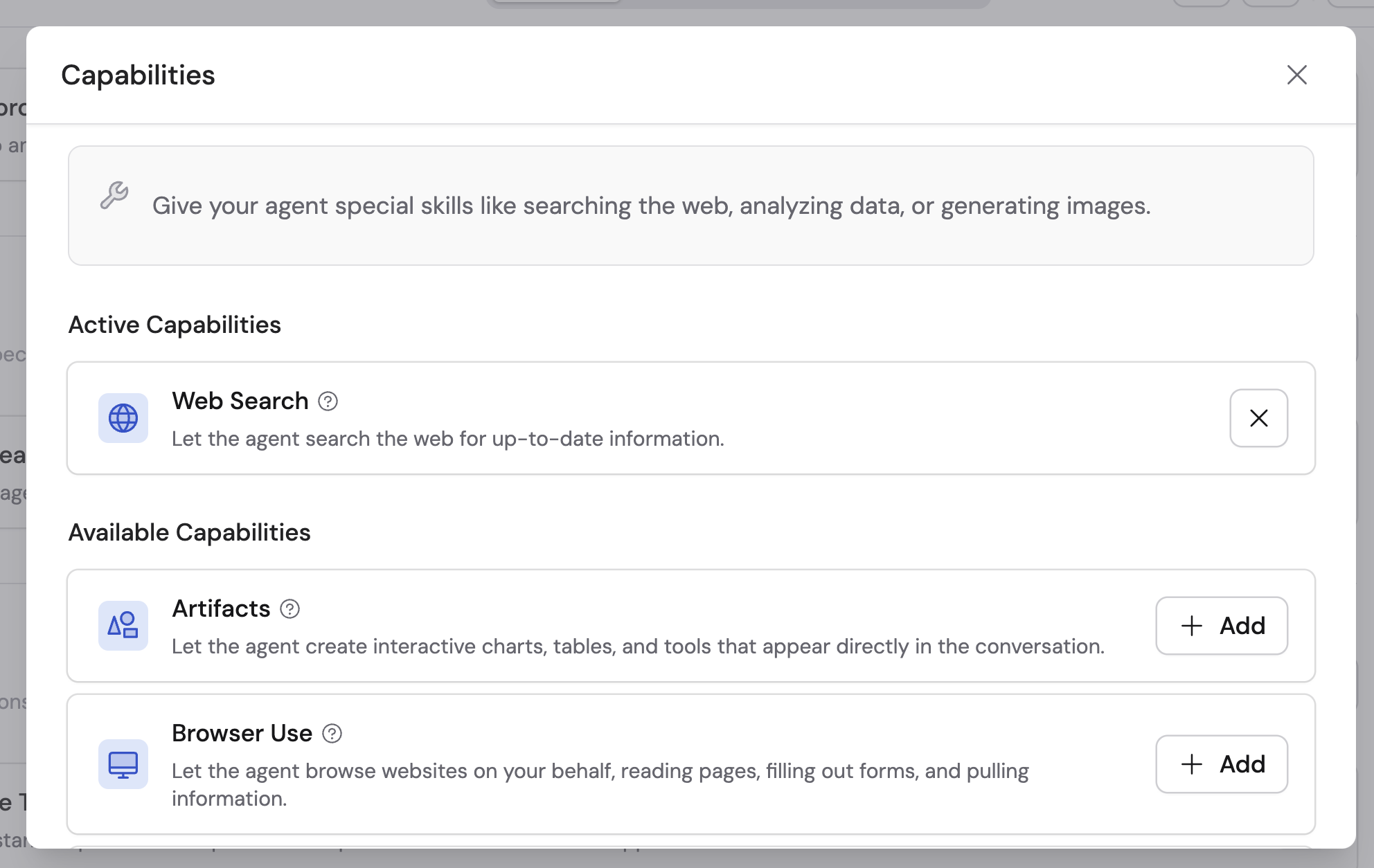

Capabilities dialog showing Web Search with Add button
Capabilities section showing Web Search added to the Agent
4

Publish your Agent

Click Publish to make the capability available in conversations.

How it works

Once Web Search is enabled, the Agent intelligently decides when to search the web based on the question asked. If the Agent determines it already has enough information from its instructions and Knowledge Base, it skips the web search and responds directly. This ensures you get the most relevant and timely responses without unnecessary searches.
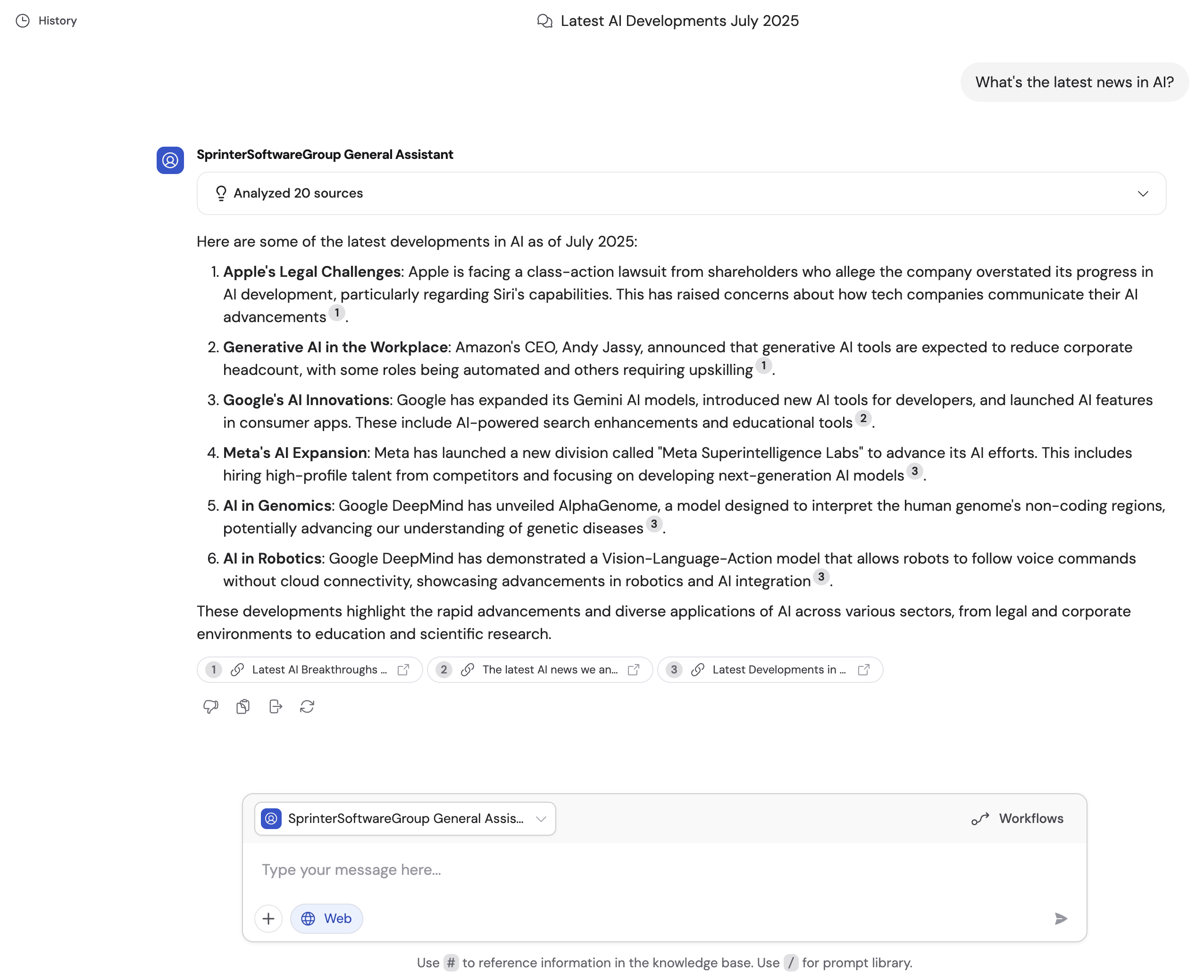
Agent response showing web search results with numbered source citations
Web Search is best for questions about current events, recent data, or topics outside your Knowledge Base. For questions about your company’s internal documents, the Agent uses its connected Knowledge Base instead.
You can also toggle Web Search on or off for any individual chat session using the Tools picker, without changing the Agent’s permanent configuration. See Use the tools picker for details.

Web Search vs. Browser Use

FeatureWeb SearchBrowser Use
Best forQuick lookups and simple page readingInteractive web tasks (filling forms, clicking, navigating)
How it worksSearches and reads publicly available web pagesOpens a live browser session and interacts with pages
SpeedFastSlower (requires browser rendering)

Next steps

Browser Use

Automate interactive web tasks with a live browser.

Deep Research

Run multi-step research combining web search and your Knowledge Base.