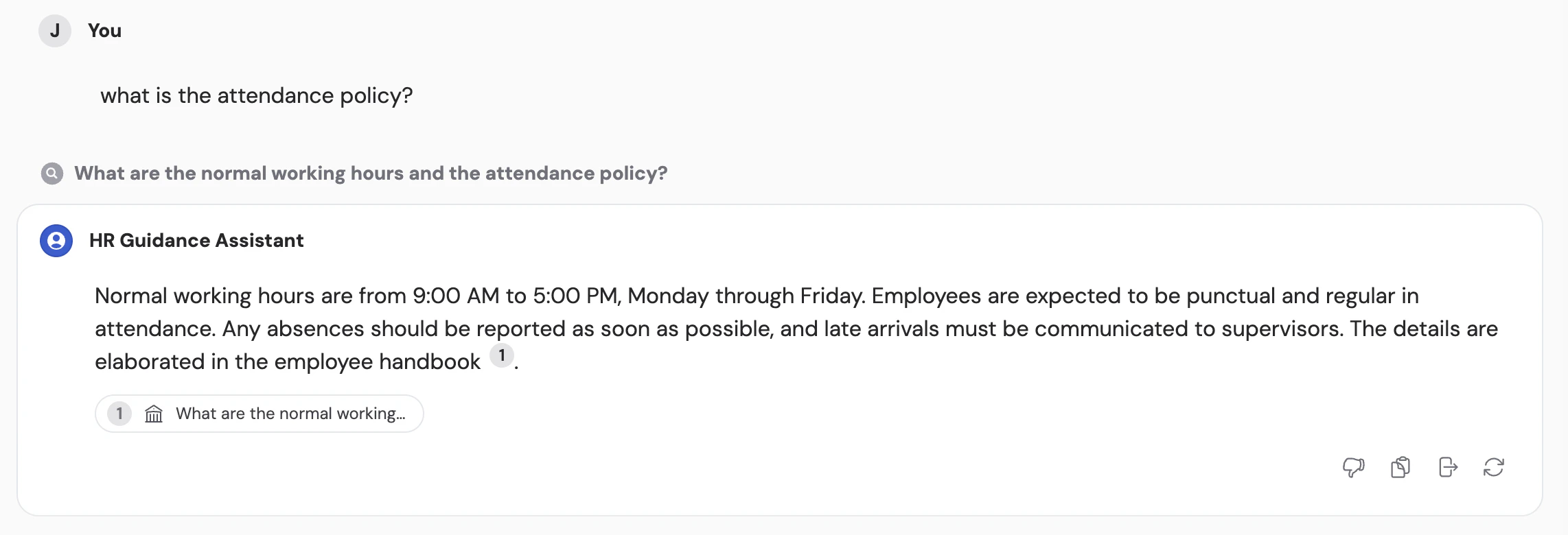
Answer Hubs let you create curated sets of questions and answers within your Knowledge Base. Unlike regular documents that get summarized during search, Answer Hubs deliver exact responses — making them ideal for FAQs, product questions, or any scenario where precision matters. When an Agent has access to an Answer Hub, it prioritizes Answer Hub content over other Knowledge Base sources for matching queries.

Create an Answer Hub

1

Add a new Answer Hub

In the Knowledge Base, click + Add and select Answer Hub.
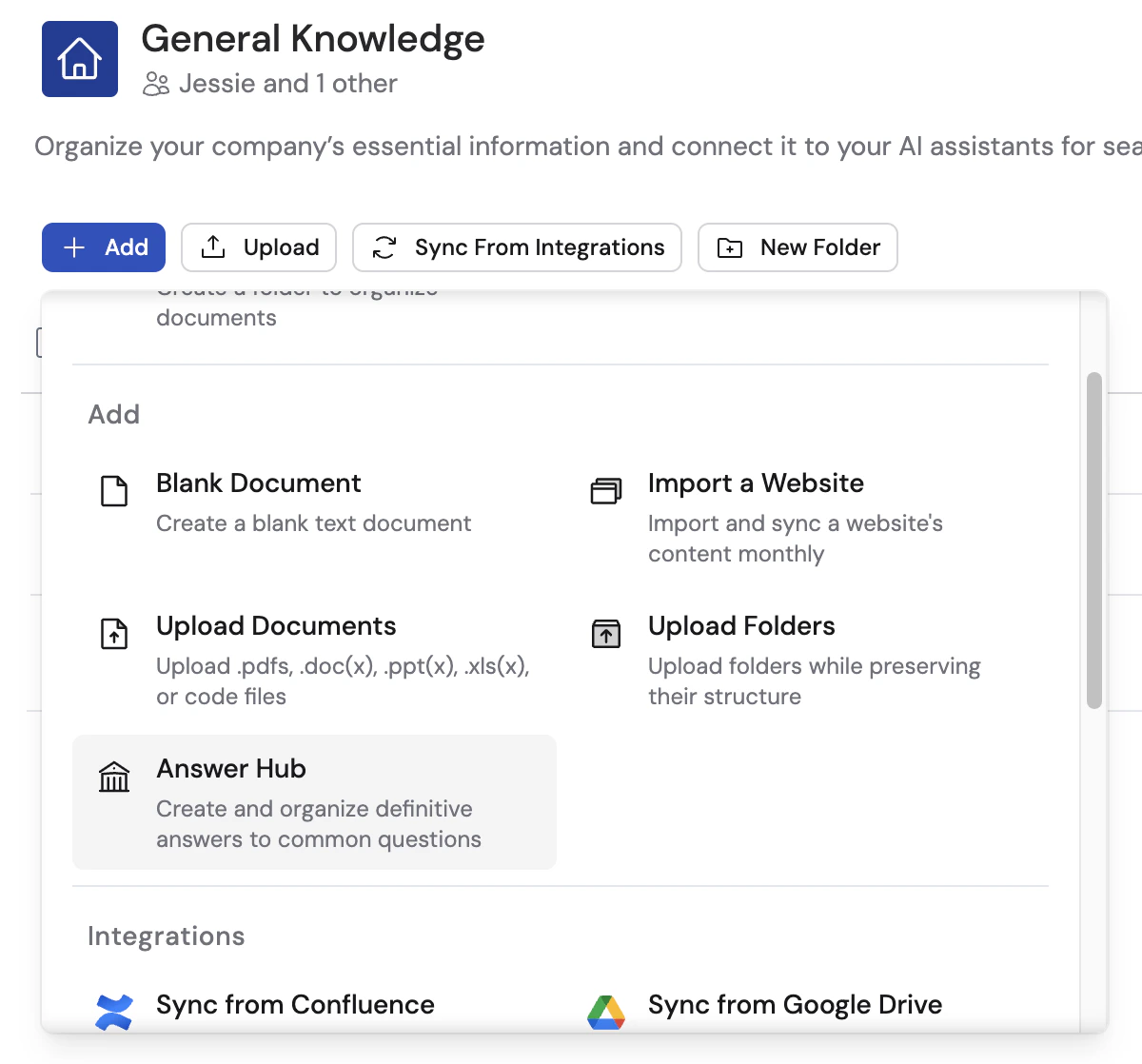
Add menu with Answer Hub option highlighted
2

Name the Answer Hub

Enter a descriptive name (e.g., “HR Policies”, “Product Pricing FAQ”) and click Save.
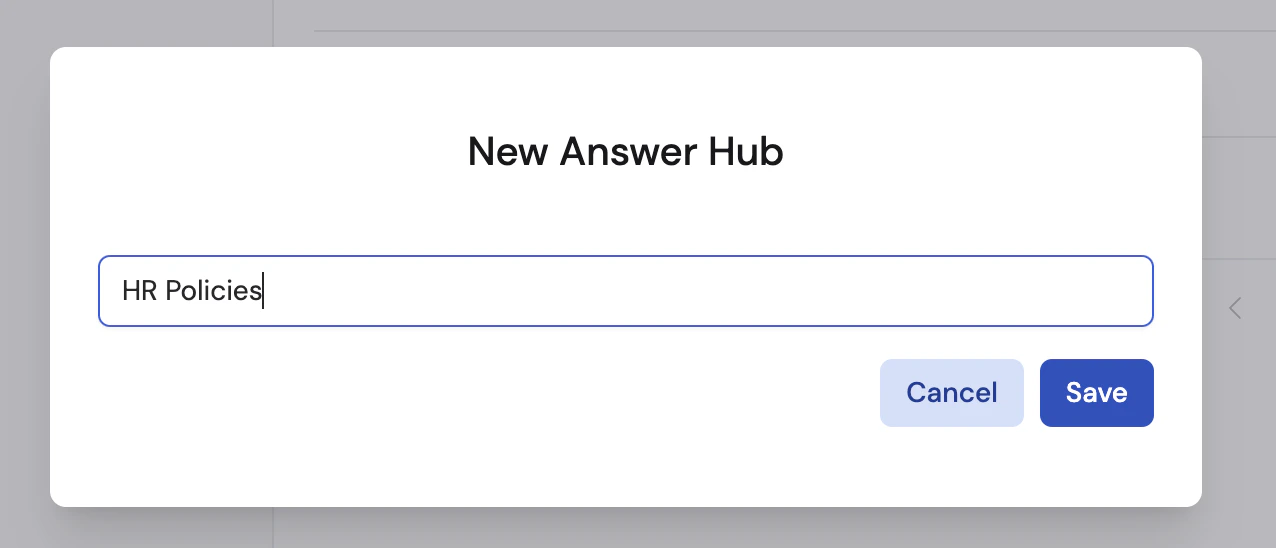
New Answer Hub dialog with name field showing HR Policies

Add questions and answers

1

Create a new article

Open your Answer Hub and click + Create New Article or + New Answer.
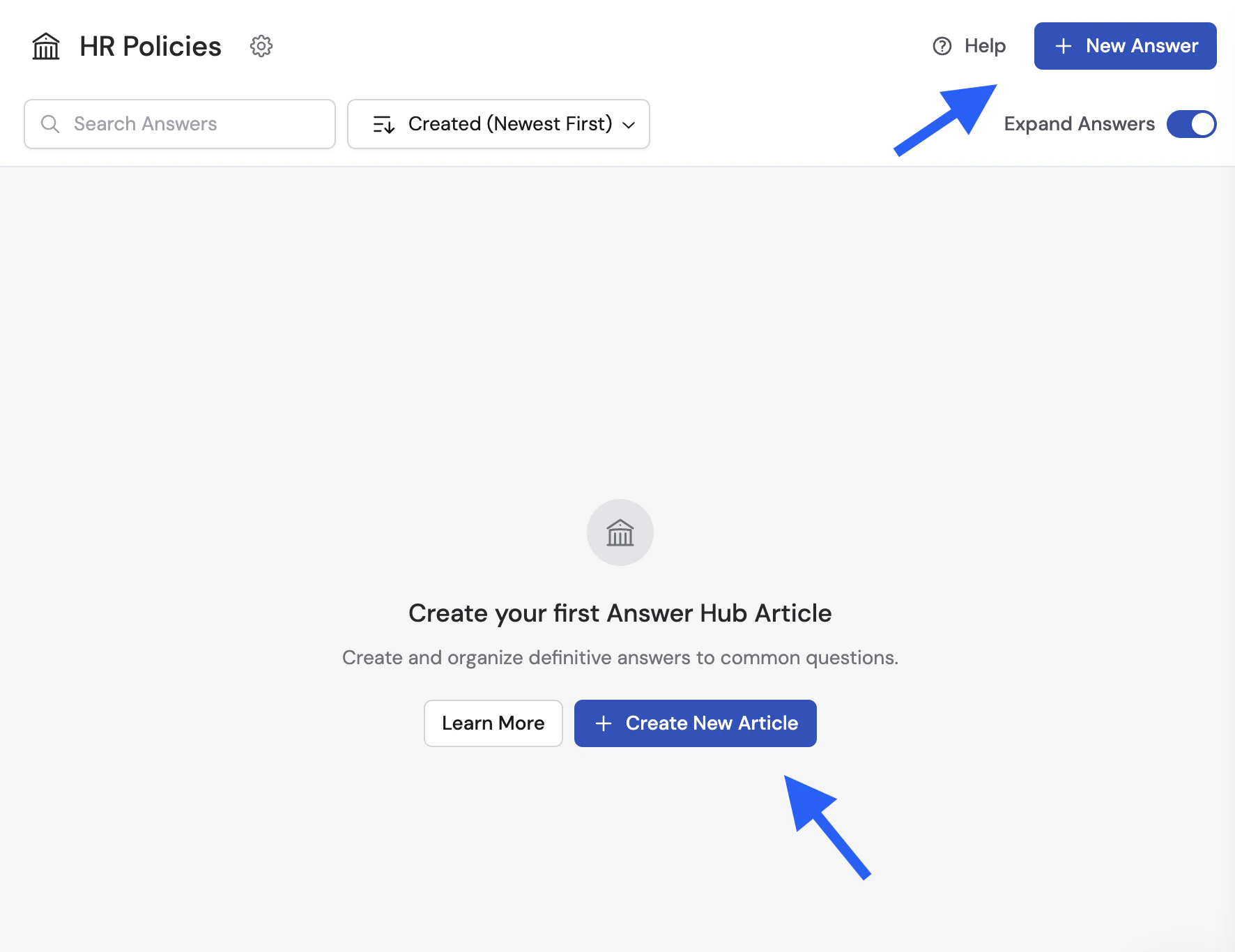
Empty Answer Hub with Create New Article and New Answer buttons highlighted
2

Enter the question

Phrase the question the way a user would naturally ask it, then click Save.
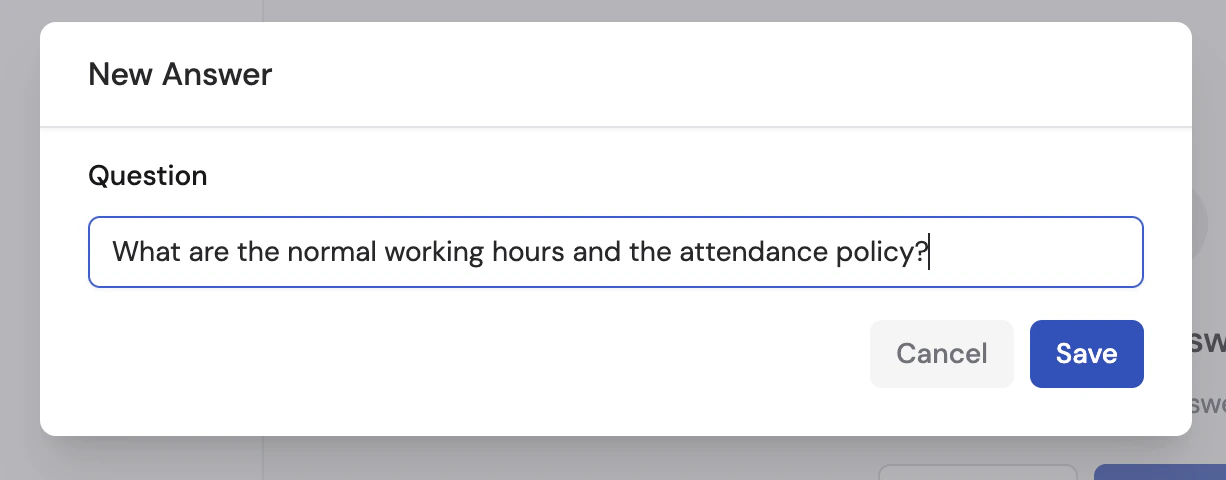
New Answer dialog with question field showing a question about working hours and attendance policy
3

Write the answer

Click the editor field below the question to write the answer. Use the text formatting tools to structure your response, then click Save.
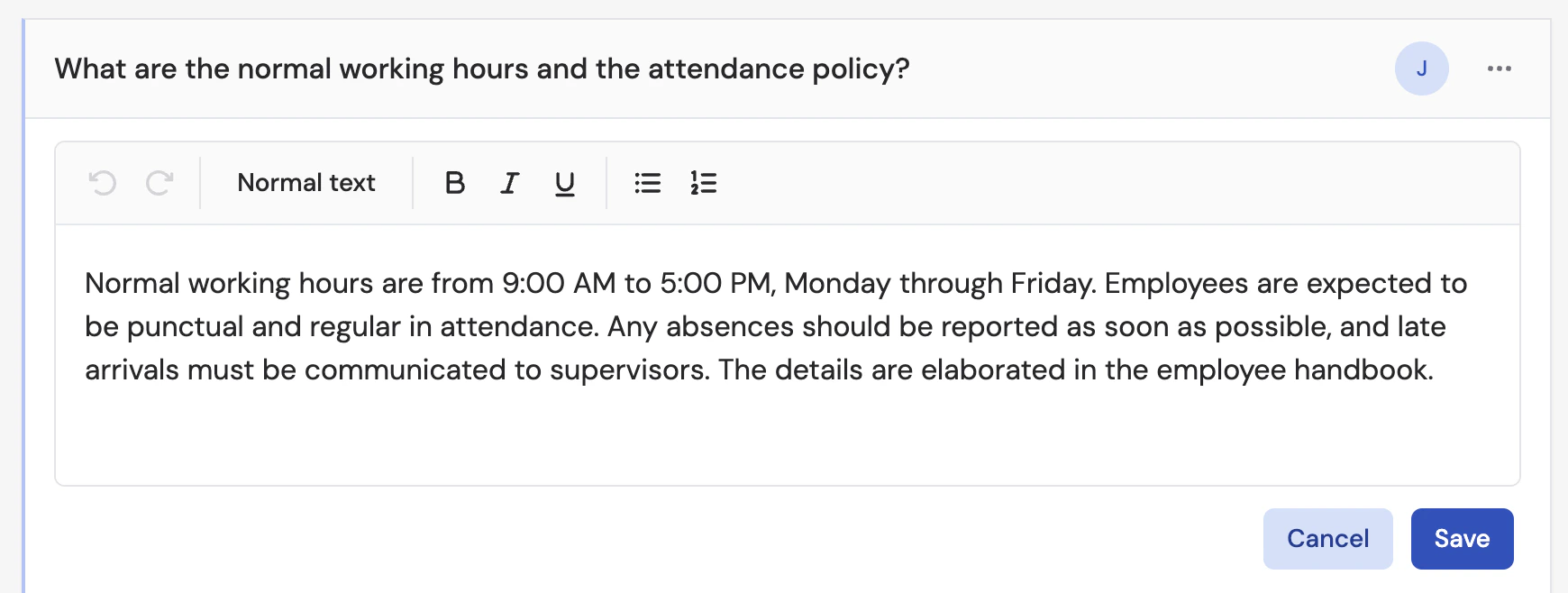
Answer Hub article editor showing a question with a formatted answer about working hours
4

Add more Q&A pairs

Repeat to build out your Answer Hub with more questions and answers.
Write questions using natural language variations. If customers ask about pricing in different ways, consider creating separate entries for “What are your pricing plans?” and “How much does it cost?” — or include common phrasings in the question field.

Edit, delete, and deprecate entries

Click the ellipsis (three dots) next to any entry to manage it:
  • Edit Question or Edit Answer — Update the content of an existing entry
  • Delete — Permanently remove the entry
  • Deprecate — Mark an entry as outdated without deleting it. Deprecated entries won’t be used in Agent responses but remain in the Answer Hub for reference.
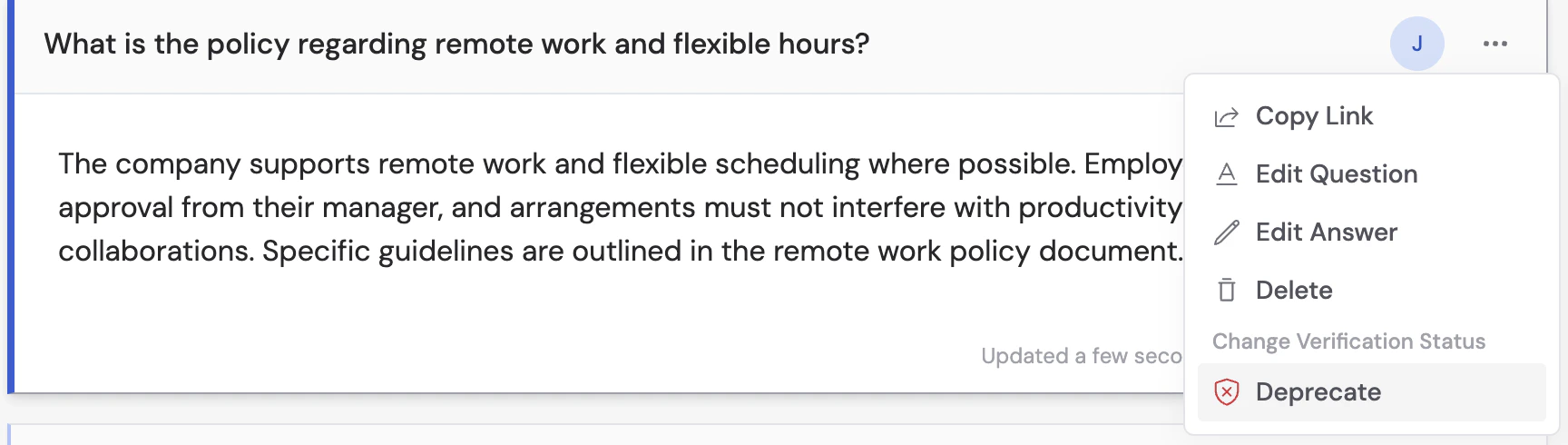
Answer Hub entry ellipsis menu showing Copy Link, Edit Question, Edit Answer, Delete, and Deprecate options

Connect an Answer Hub to an Agent

1

Open the Agent's Knowledge settings

Open the Agent you want to connect, then scroll to the Knowledge section.
2

Select the Answer Hub

Under Select Knowledge Base, choose the Answer Hub you want the Agent to reference.
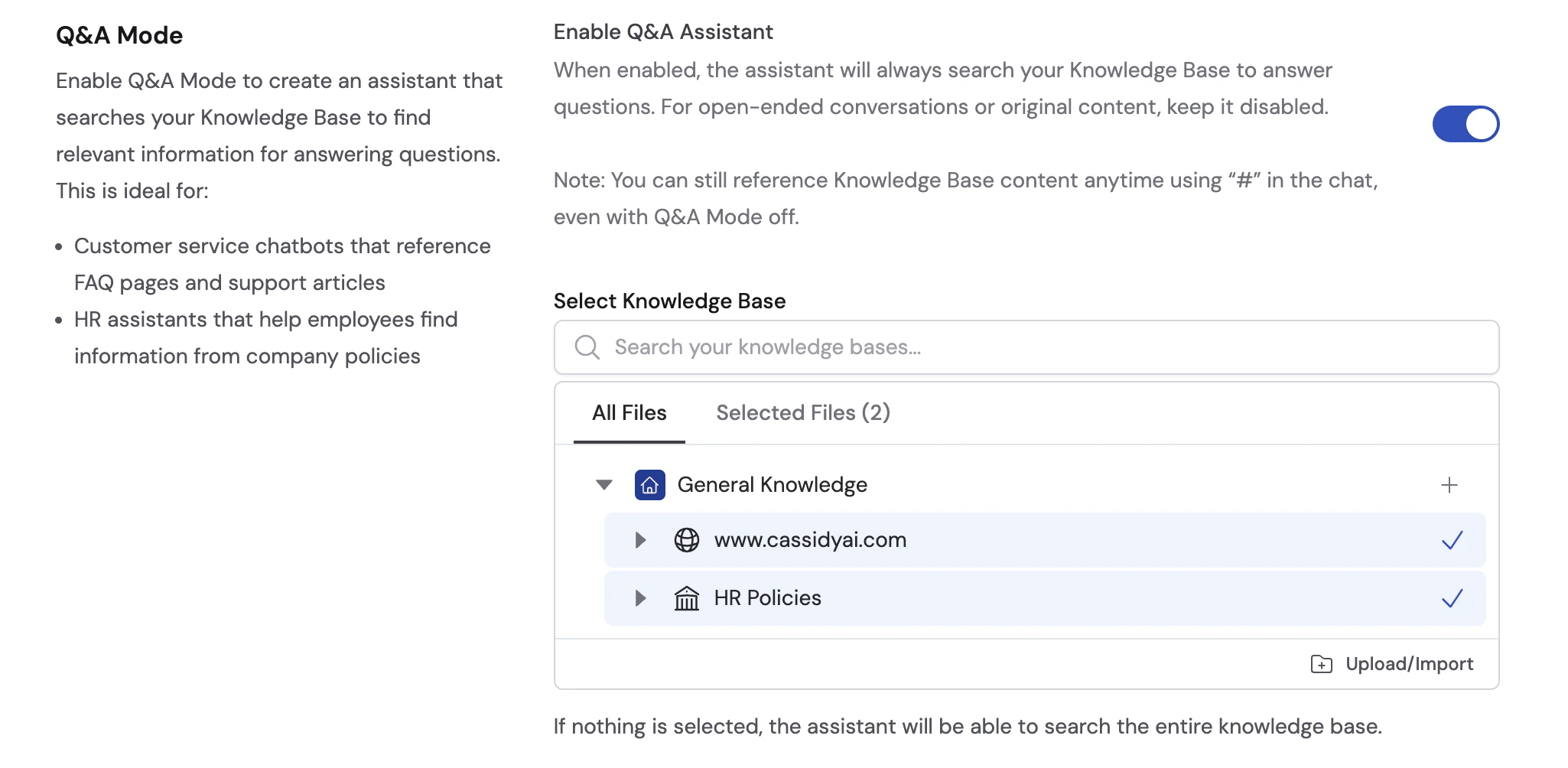
Agent Knowledge section showing Select Knowledge Base with an Answer Hub selected
3

Save

Click Save to apply the changes.
Answer Hub content takes priority over other Knowledge Base sources when the Agent can match a user’s question. You can use Answer Hubs alongside regular documents — the Agent will prefer the curated answer when one exists.
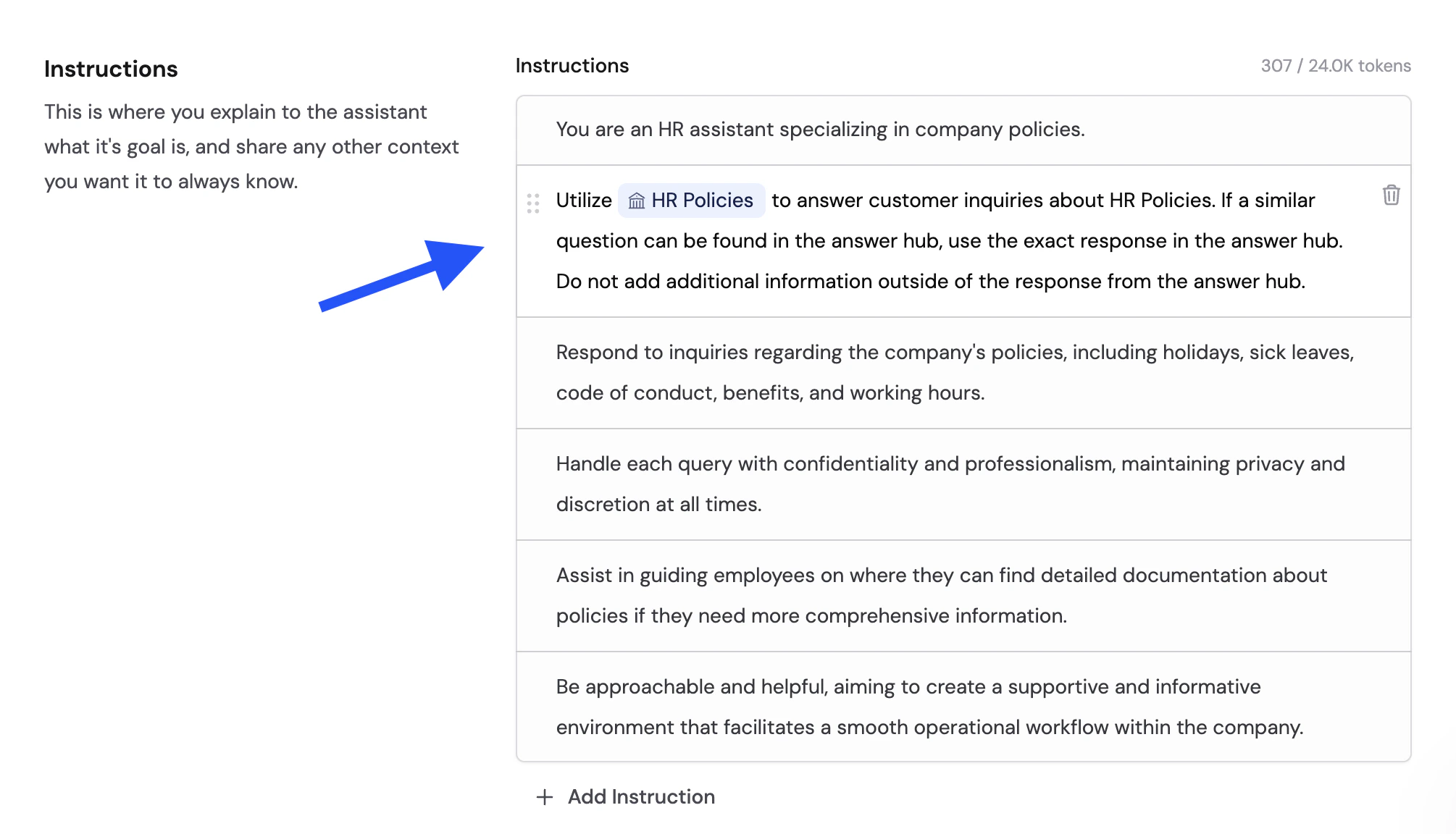
You can also reference Answer Hub items directly in the Agent’s instructions for more specific guidance.
Agent instructions editor with an Answer Hub referenced inline to guide the Agent's responses
When a user asks a matching question, the Agent delivers the exact Answer Hub response and cites it as a source.
Agent chat showing a user asking about attendance policy and receiving the exact Answer Hub response with a citation
Learn more about Agent knowledge settings.

Next steps

Set up your Knowledge Base

Upload documents, import websites, and connect integrations.

Build and configure an Agent

Create and customize Agents for your team.

Agent knowledge settings

Configure how Agents use your Knowledge Base.