

What you can do with Meetings
- Record and transcribe — Cassidy joins your meetings automatically and generates real-time transcripts with speaker identification.
- AI summaries and action items — Every recorded meeting gets an AI-generated summary with action items, discussion points, and key decisions.
- Chat with your meetings (recommended) — Add the Meetings Connector so your team can search transcripts, read summaries, and get timestamped citations in Chat, without importing meetings into the Knowledge Base. See Chat with your meetings for when to use the Connector, one-meeting chat, or KB import.
- Search and browse on the Meetings page — Find specific topics, decisions, or quotes across your meeting history from the Meetings list and filters.
- Power Workflows — Automatically trigger Workflows when a meeting ends to generate follow-ups, update your CRM, or post summaries to Slack.
- Share and control access — Share recordings with flexible permissions and automate access with sharing rules.
Connect your calendar
Connect your Google Calendar or Microsoft Outlook calendar so Cassidy knows which meetings to join.1
Open the Meetings page
Click Meetings in the left sidebar of your Cassidy workspace.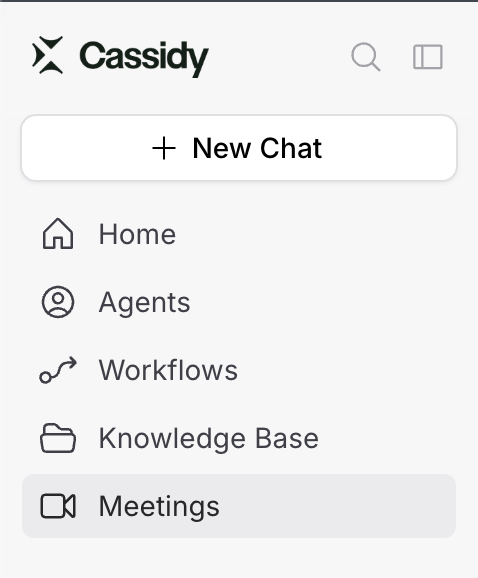
2
Start the setup
Click Connect to begin the meetings setup process.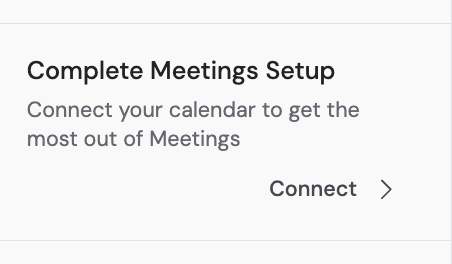
3
Choose your calendar provider
Select Google Calendar or Microsoft Outlook from the available options.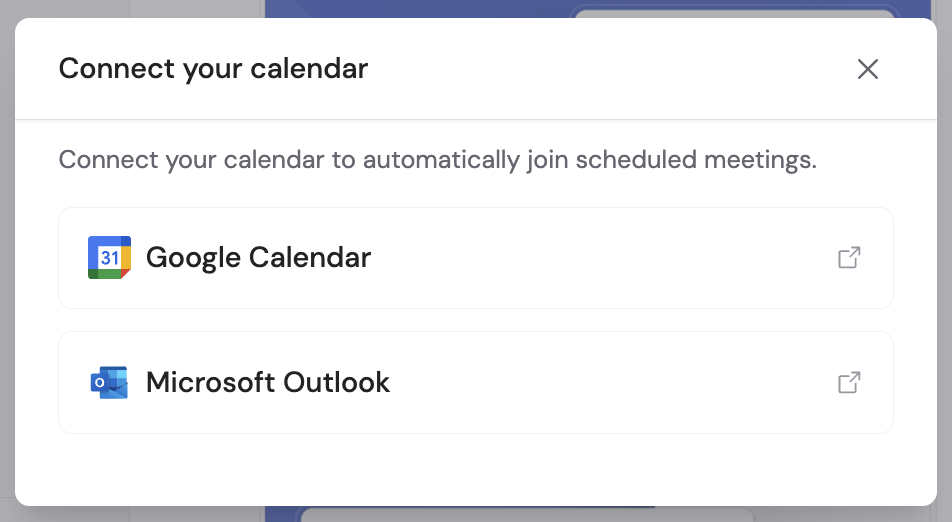
4
Authorize access
Follow the authentication prompts for your selected calendar provider to grant Cassidy access to your calendar.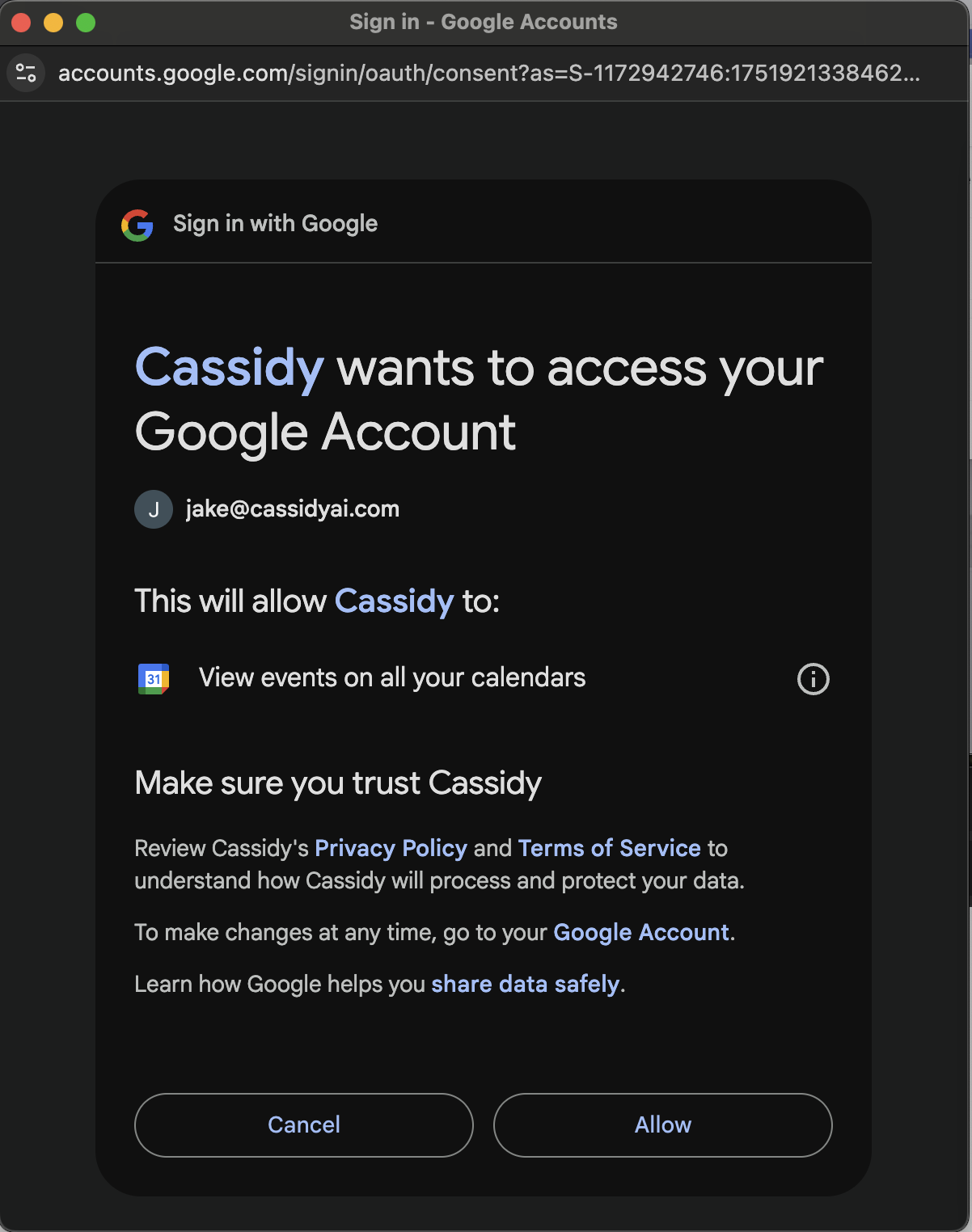
5
Configure auto-join preferences
Choose which meetings Cassidy should automatically join: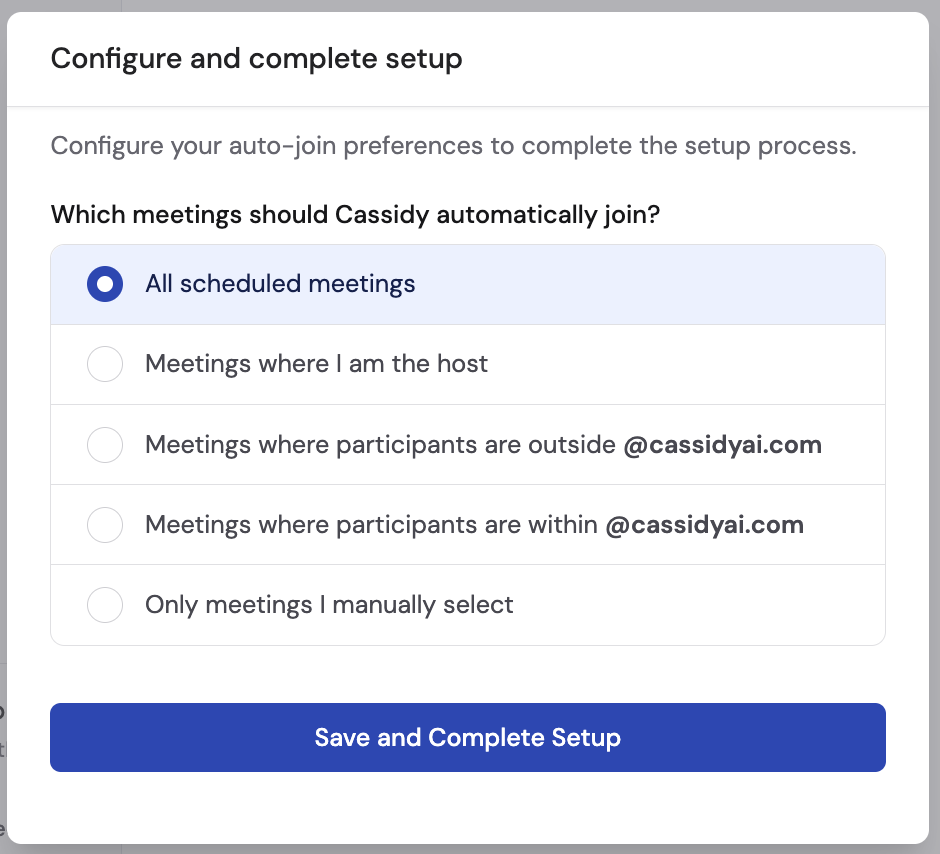
- All scheduled meetings
- Meetings where I am the host
- Meetings where participants are outside your domain
- Meetings where participants are within your domain
- Only meetings I manually select
Configure the meeting bot
Customize how the Cassidy meeting bot appears and behaves in your meetings. Navigate to the Settings tab on the Meetings page to adjust these options: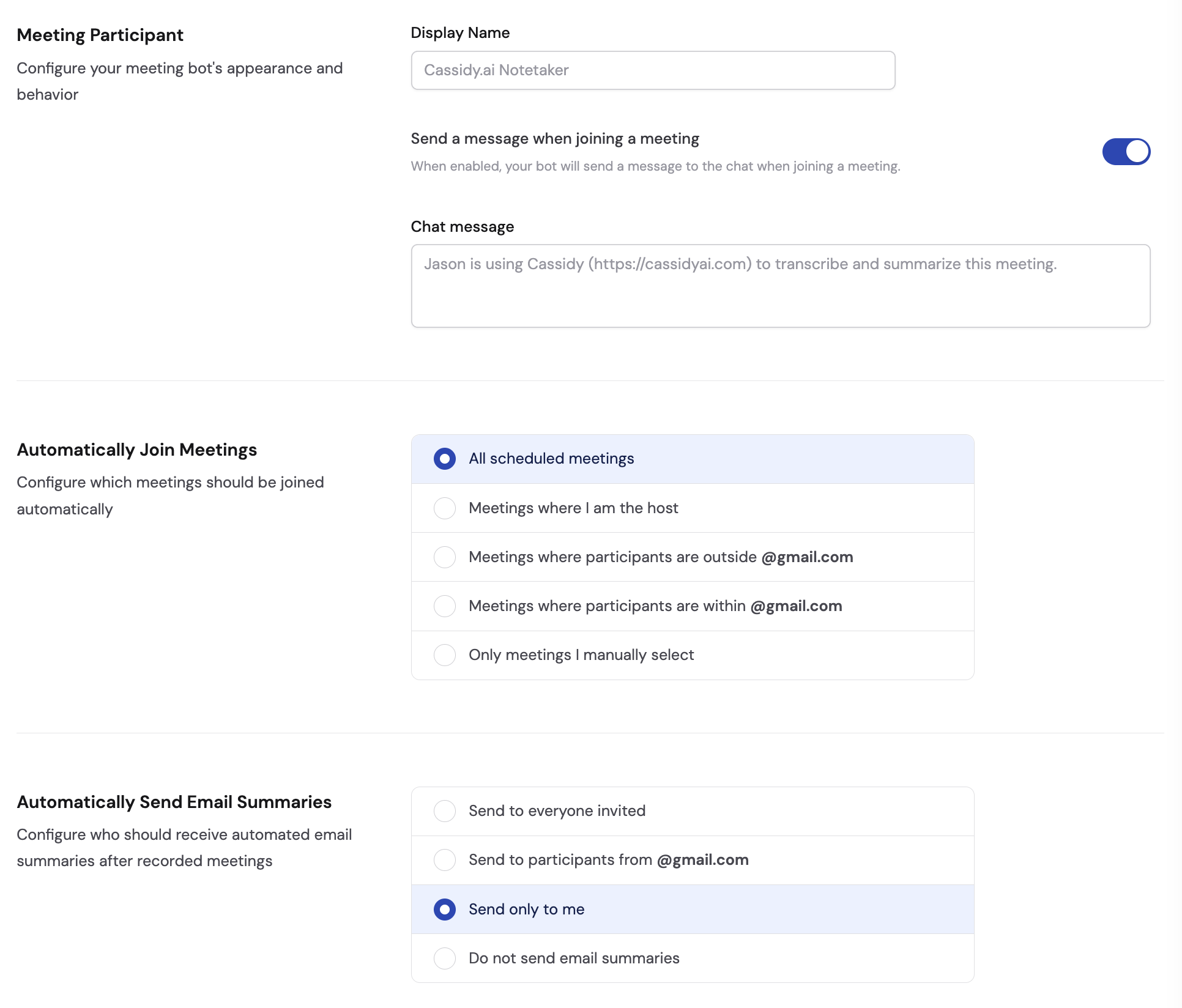
Cassidy merges participants based on display name. If multiple users in your
organization use the same display name, only one additional participant
appears in the meeting, but every user’s recording is captured separately.
Organization-wide meeting settings
Organization-wide meeting settings
Organization admins can configure meeting bot settings for the entire organization. Navigate to Organization Settings and select Meeting Settings from the sidebar to set defaults that apply to all team members.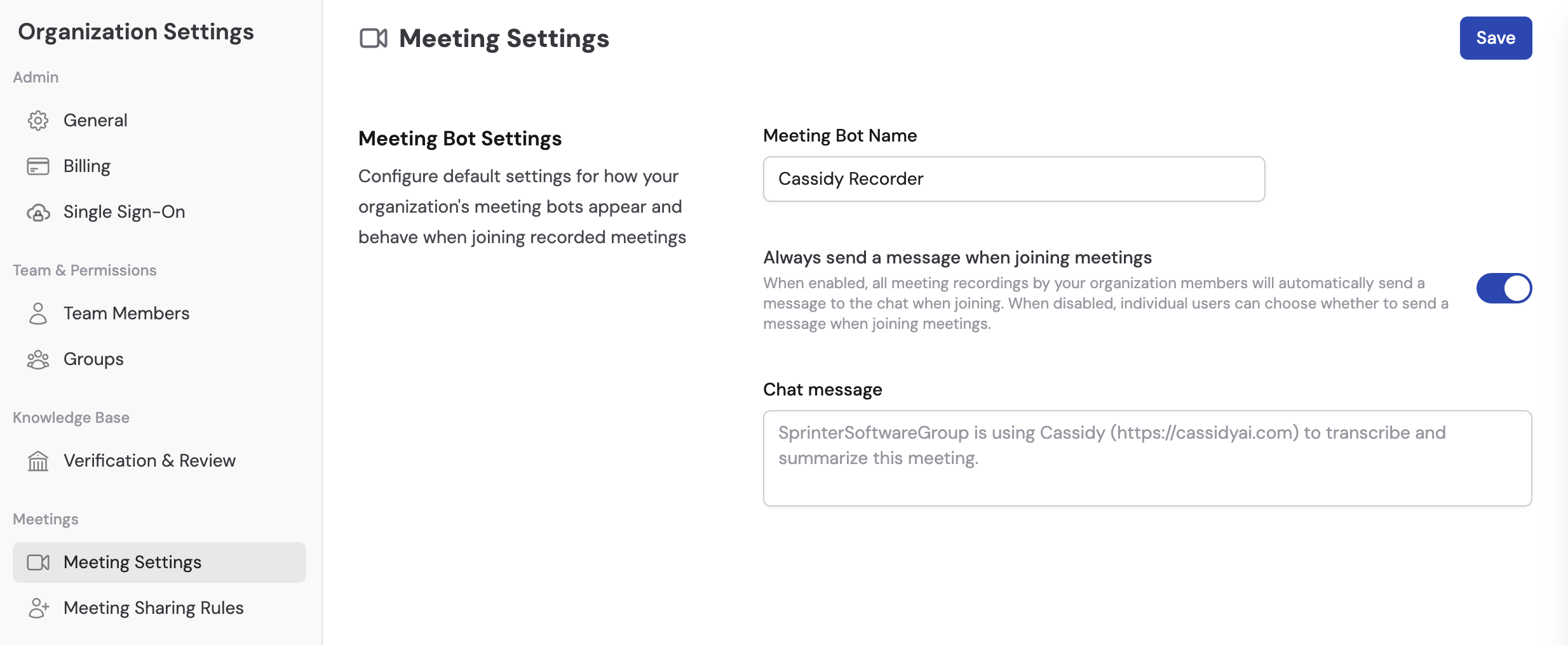
Manage upcoming meetings
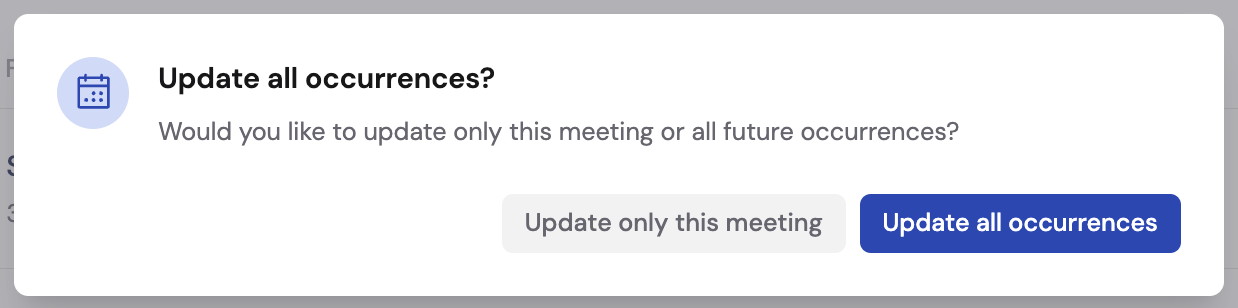
Go to the Upcoming tab on the Meetings page to see your next meetings. You can toggle the Cassidy will join automatically switch off for any specific meeting to prevent the bot from joining.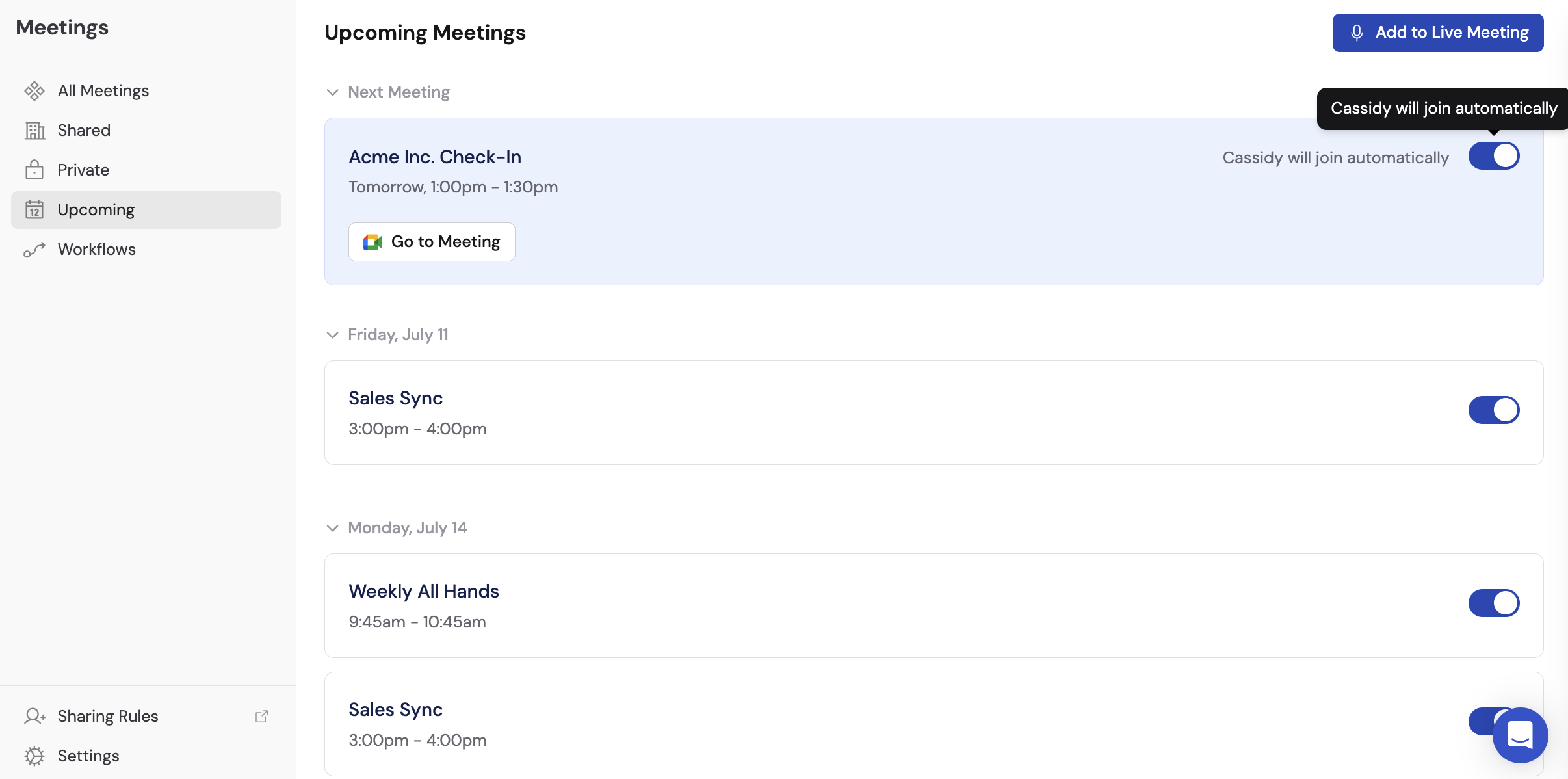
Add the bot to a live meeting
You can add the meeting recorder to any meeting that has already started.1
Click Add to Live Meeting
From the Meetings page, click Add to Live Meeting in the top right.
2
Paste the meeting link
Enter your Google Meet, Zoom, or Microsoft Teams meeting URL, optionally set a custom bot name, and click Add.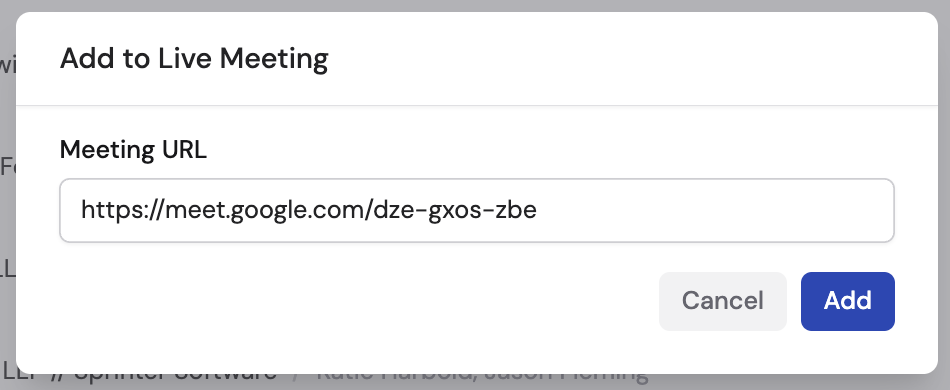
3
Admit the bot
When the Cassidy bot attempts to join, admit it from the meeting’s waiting room. Allow about 30 seconds for processing before the bot appears.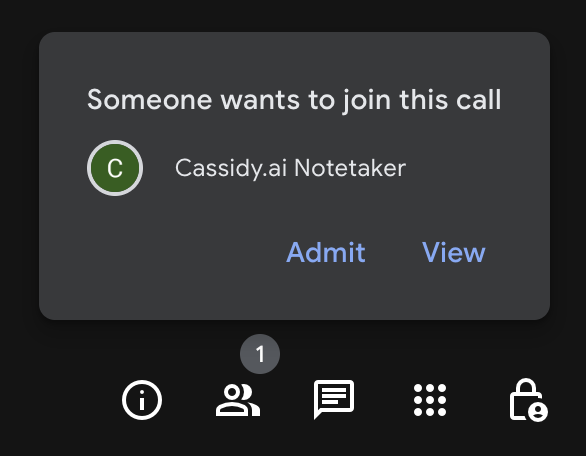
Review a recorded meeting
After a meeting ends, Cassidy processes the recording and makes it available on your Meetings page.1
Find the meeting
Navigate to Meetings. The Mine view opens by default. Use the buttons above the list to choose which meetings to browse:
- All shows every meeting you can access.
- Mine shows meetings you recorded, joined, or were invited to without declining. A meeting you recorded or joined still appears here if you declined its invitation.
- Shared with me shows other meetings you can access.
/, to search meeting titles and transcript text. Results may show the matching part of a transcript. Click Filter beside the search bar to narrow results by recording status or participant.2
Open meeting details
Click on a meeting to view its details, including date, participants, duration, and the recording.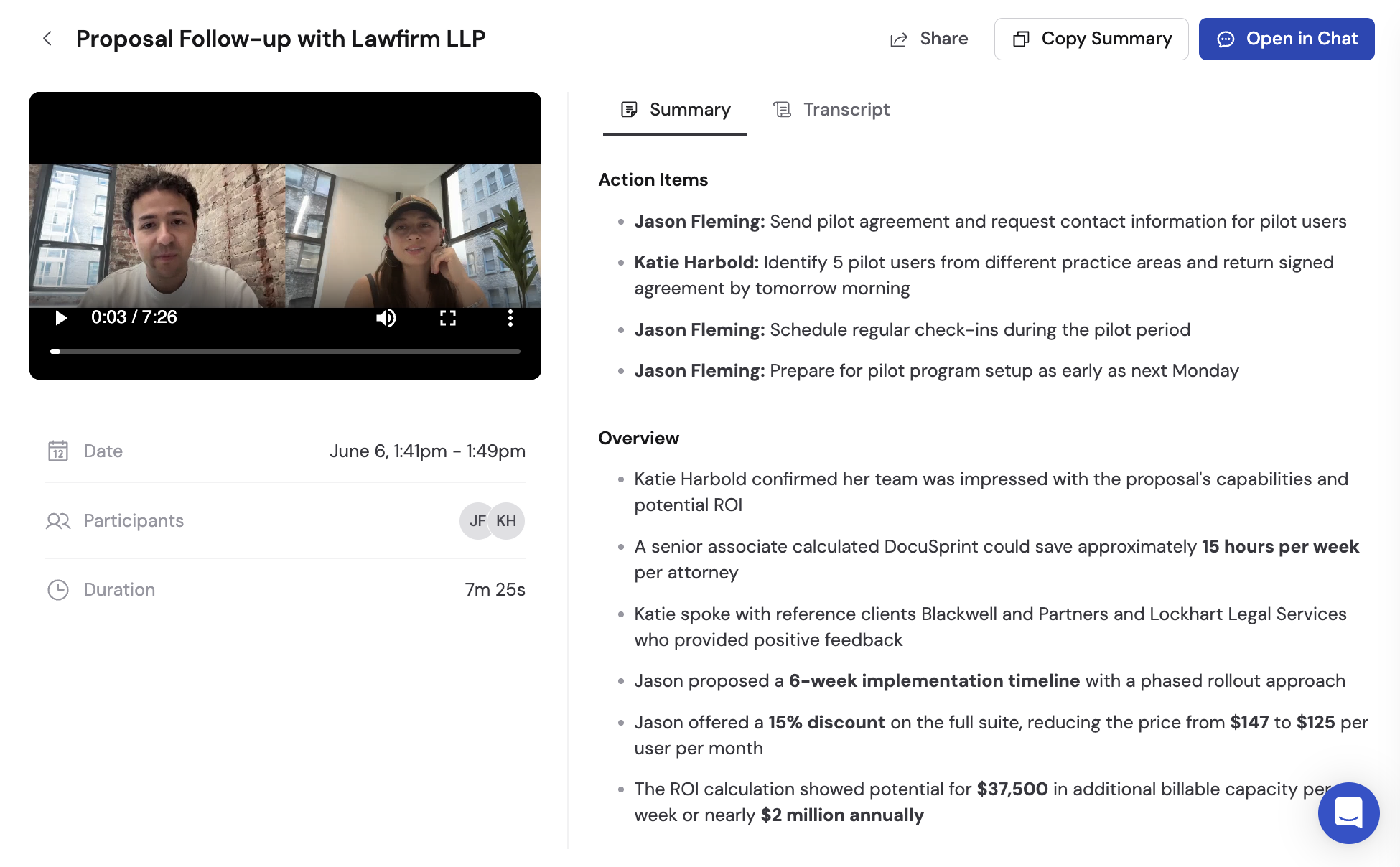
3
Read the AI summary
Click the Summary tab to see:
- Action items — Tasks identified from the conversation with owners
- Overview — A concise summary of what was discussed
- Discussion points — Key topics broken down by theme
4
Browse the transcript
Click the Transcript tab to see the full conversation with speaker labels. You can: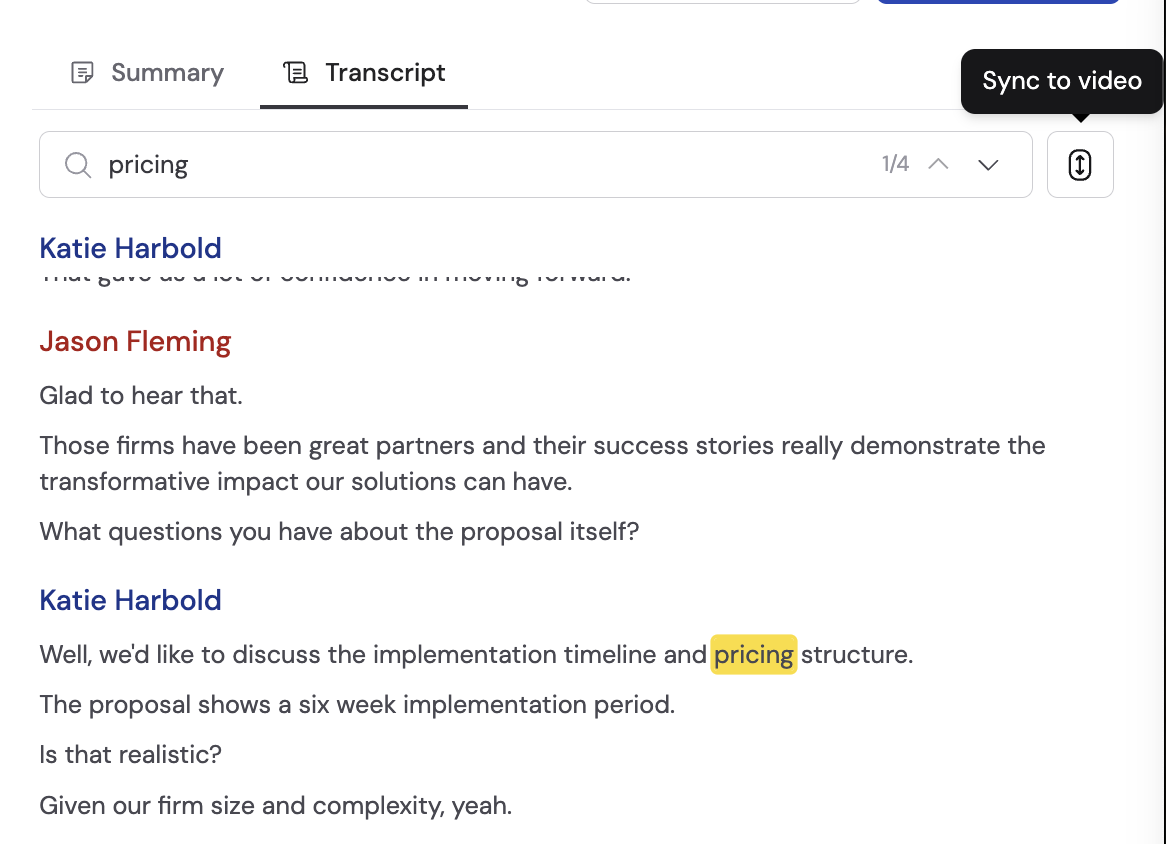
- Search through the transcript using the search bar
- Click any line to jump to that moment in the video
- Click Sync to video to synchronize transcript scrolling with video playback
Disconnect your calendar
To disconnect your calendar, go to the Settings tab on the Meetings page, click Disconnect, and confirm in the popup.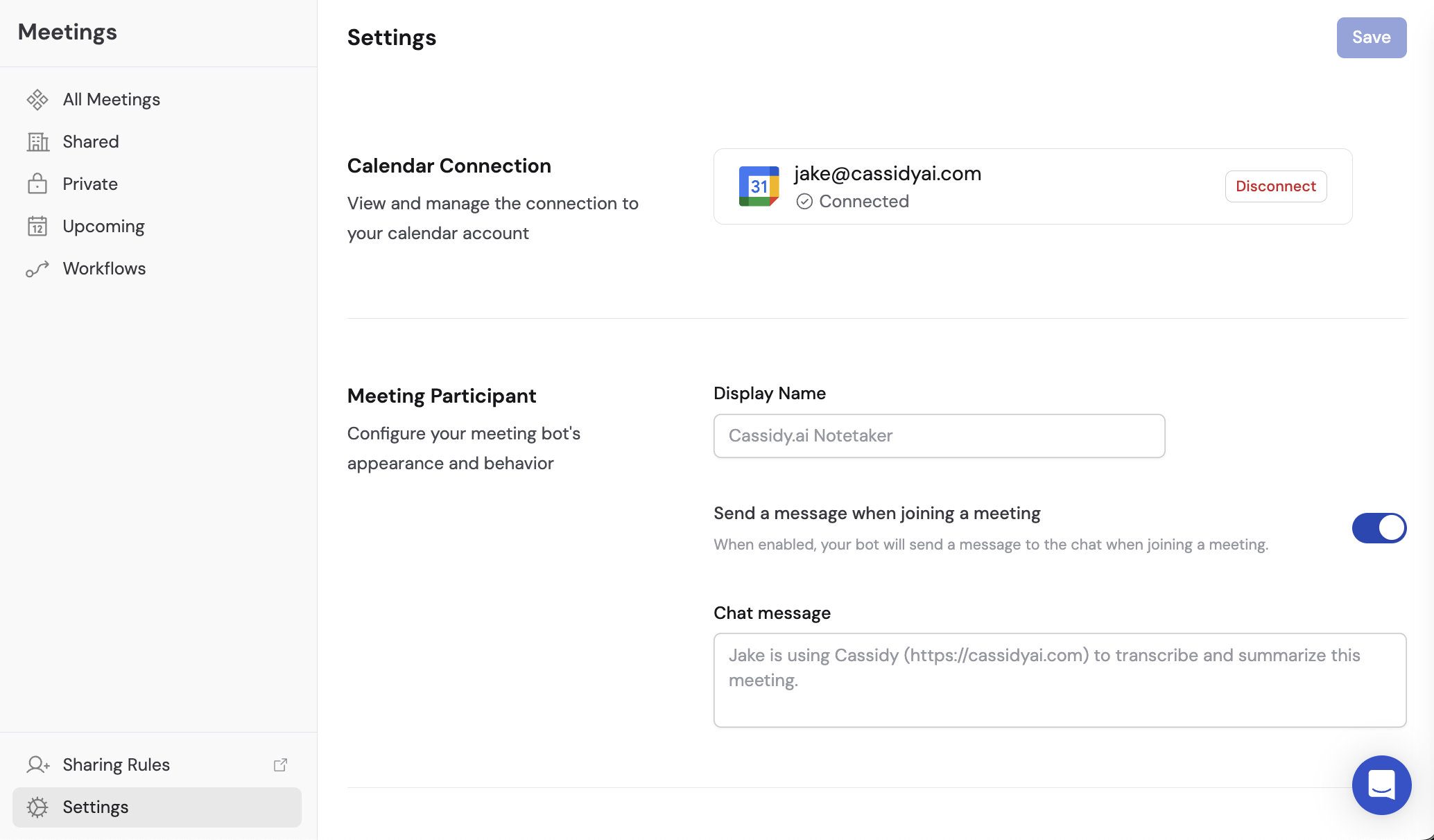
Next steps
Chat with your meetings
Choose the Meetings Connector, one meeting in Chat, or Knowledge Base
import.
Automate with meeting Workflows
Trigger Workflows when a meeting ends to generate follow-ups, update your
CRM, and more.
Meetings Connector
How the Connector works and when to use Knowledge Base import instead.
Control access and sharing
Share recordings with your team and set up automated sharing rules.
Build a Workflow
Learn the basics of creating Workflows in Cassidy.