

Connect your account
1
Open Integrations
Open Account Settings, then select Integrations.
2
Connect Zendesk
Locate Zendesk in the list and click Connect Zendesk.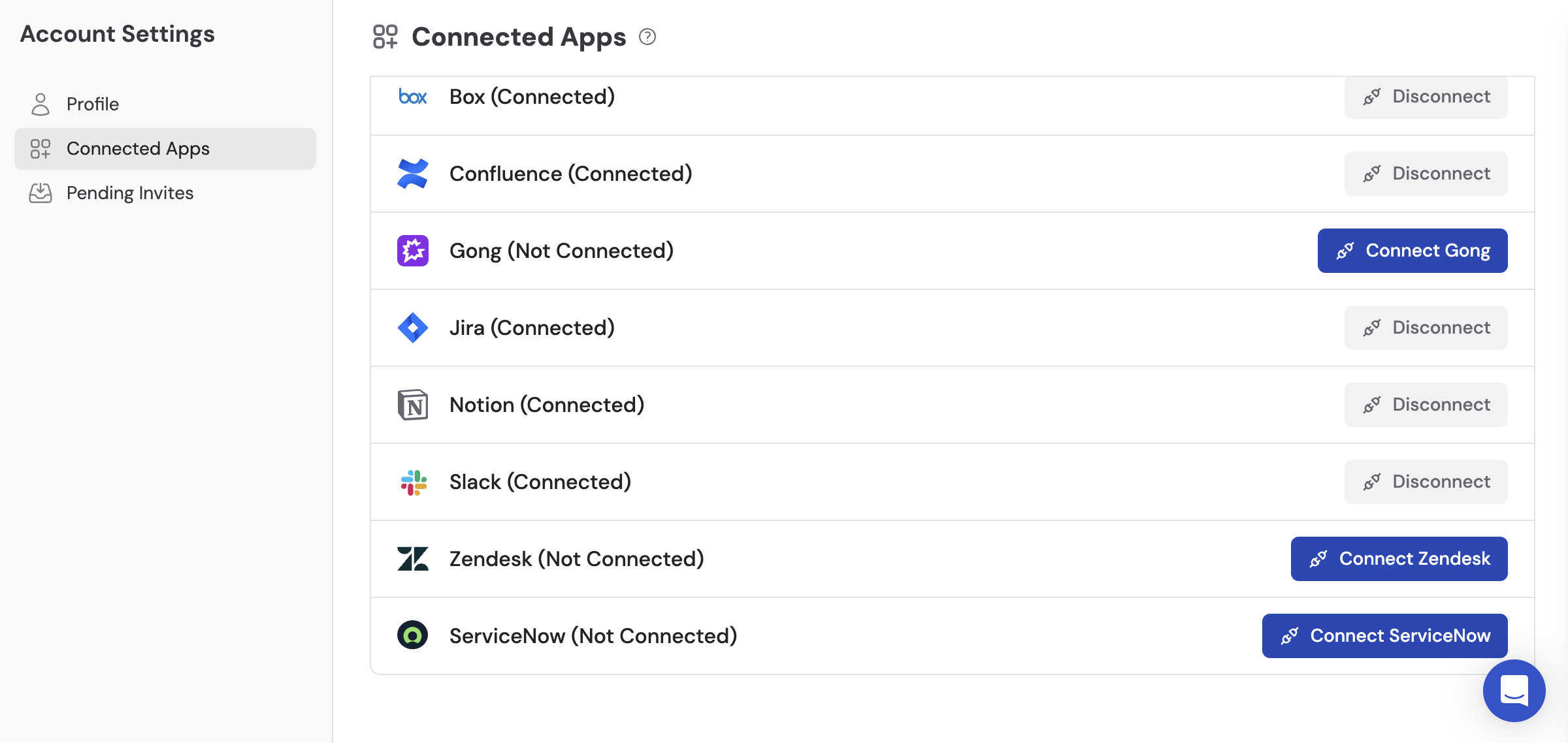
3
Enter your connection details
Fill in your Subdomain (the part before 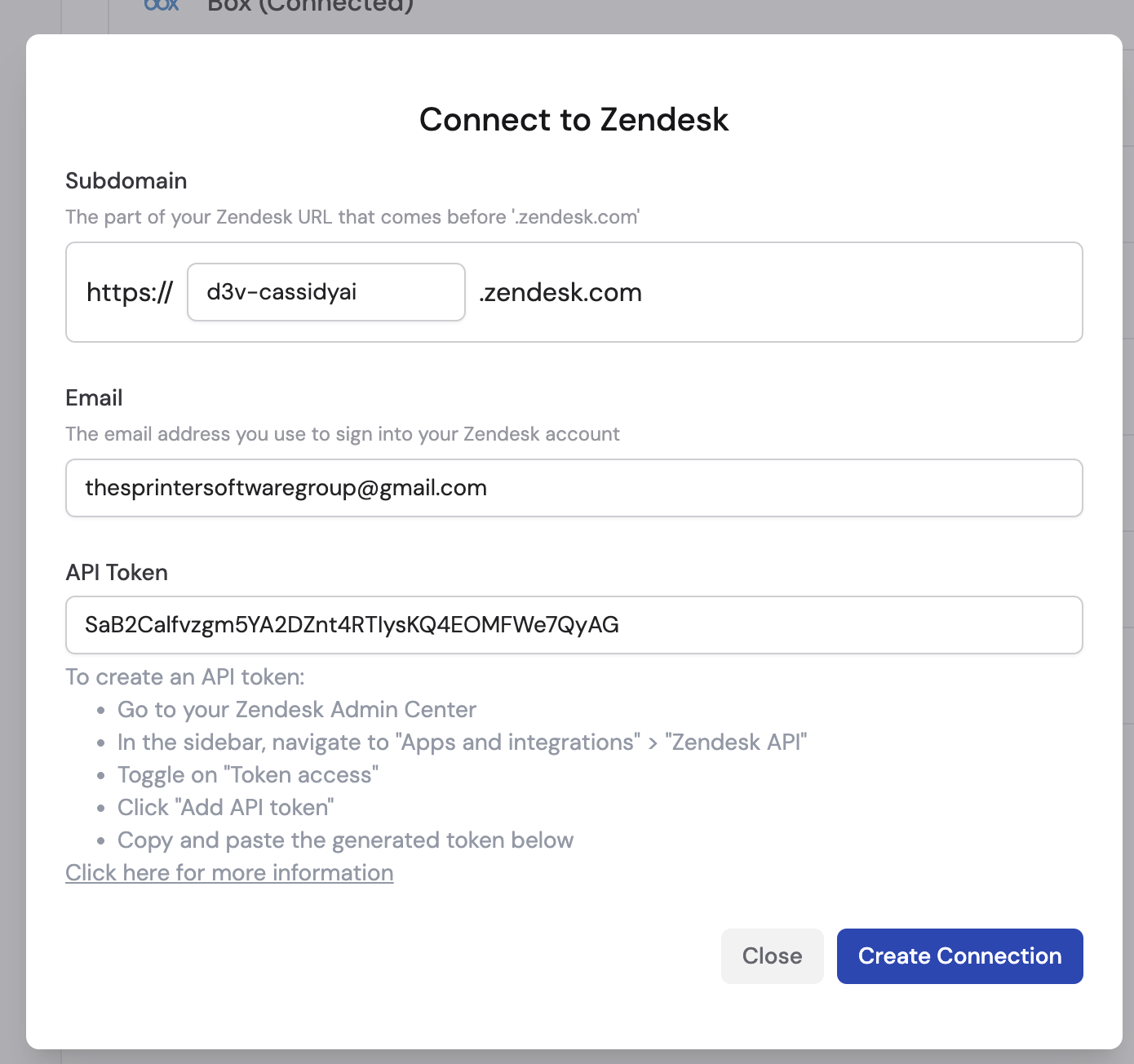
.zendesk.com in your Zendesk URL), the Email you use to sign in to Zendesk, and your API Token.You can generate an API token in your Zendesk Admin Center under Apps and integrations > Zendesk API > Add API token.4
Create the connection
Click Create Connection. Cassidy verifies your credentials and confirms the connection.
Import help center articles
1
Select Zendesk as the source
Navigate to Knowledge Base in the sidebar, click Sync From Integrations, and select Sync from Zendesk.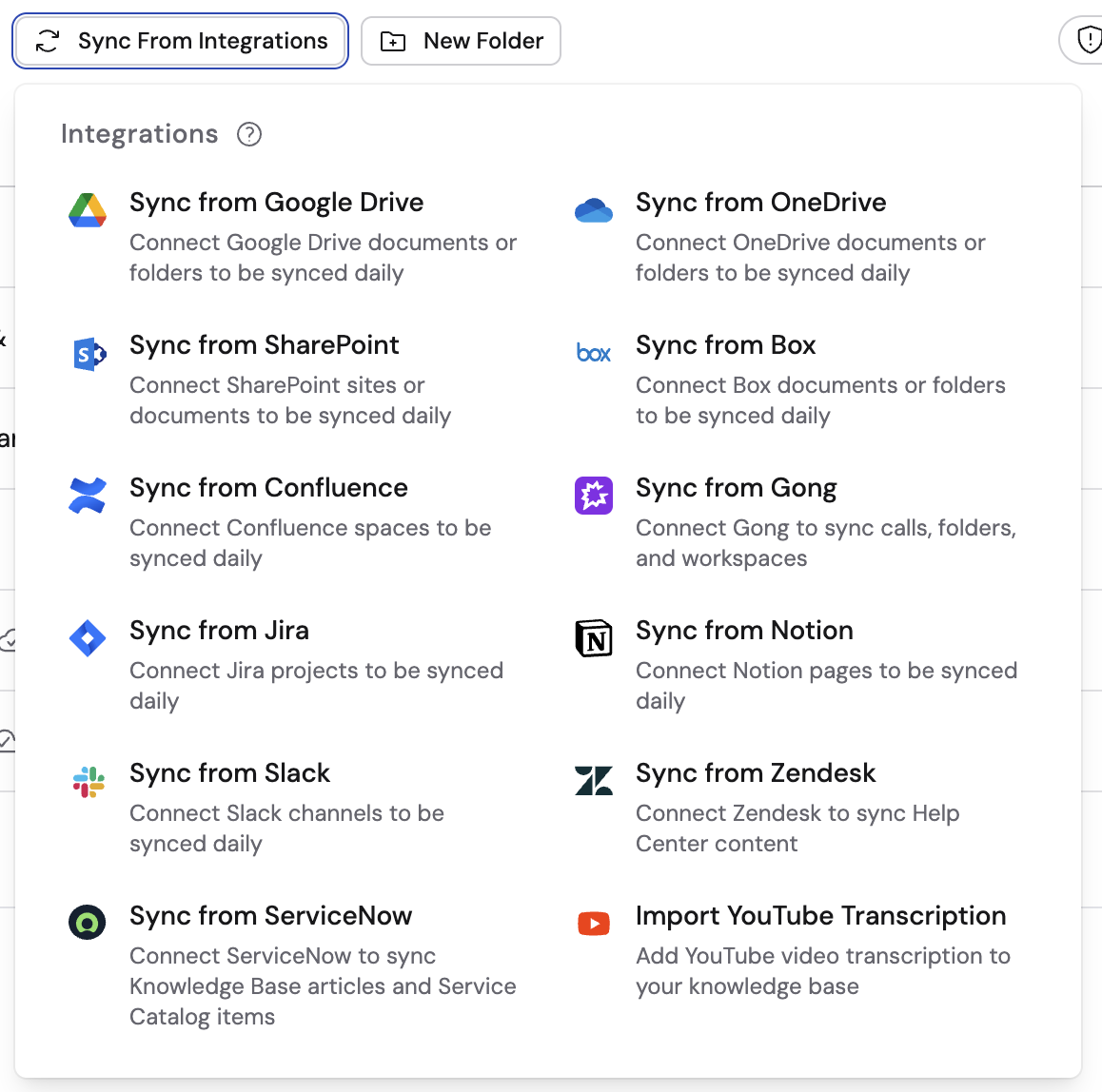
2
Choose content to import
Browse your Zendesk help center and select the categories, sections, or individual articles you want to import. Click Import when ready.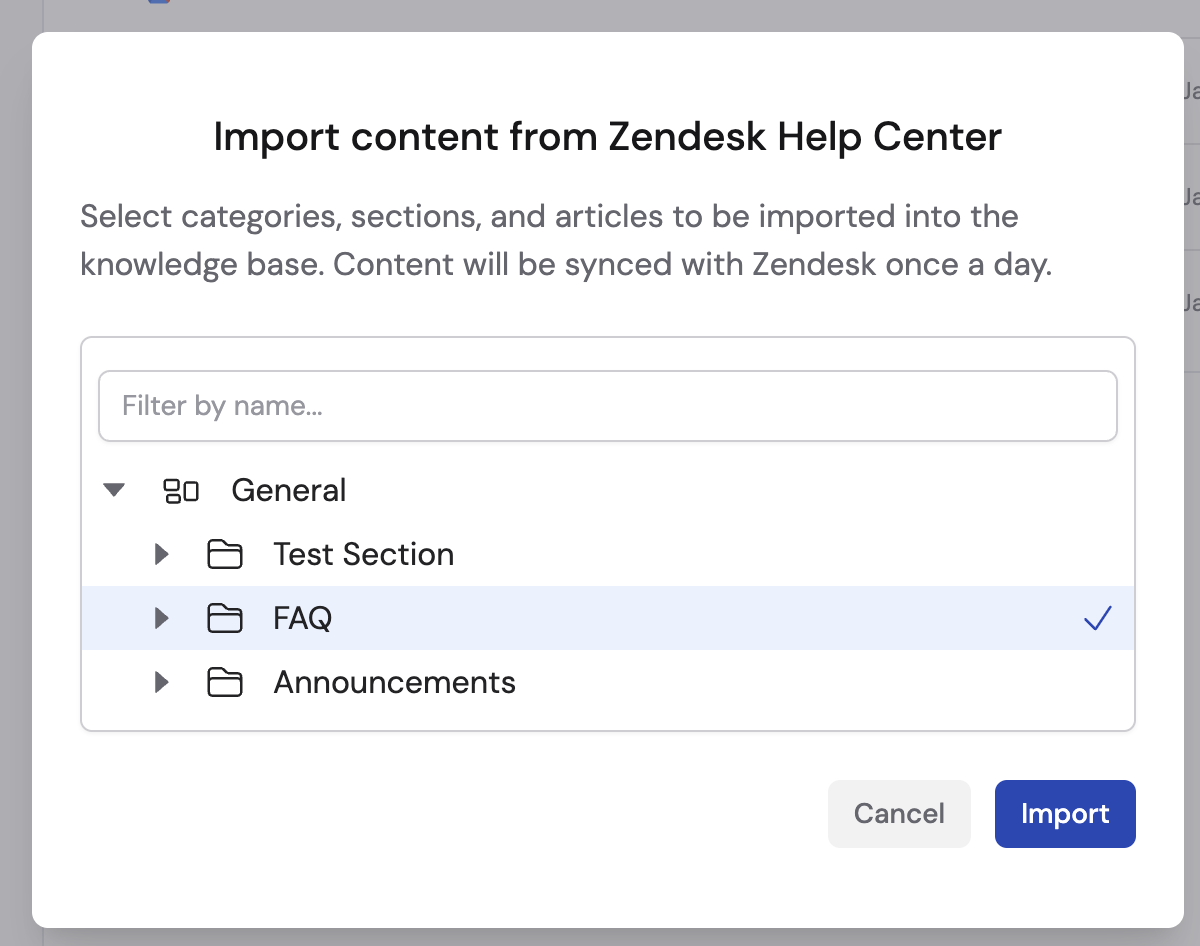
Zendesk articles sync automatically on a regular schedule. Learn more about
sync schedules and options.
Next steps
Trigger Workflows from Zendesk tickets
Automate ticket processing with AI-powered Workflows.
Explore the Knowledge Base
Learn how to organize and manage your imported content.