

Connect your Slack workspace
1
Open Integrations
Open Account Settings, then select Integrations.
2
Start the Slack connection
Find Slack in the list and click Connect, then click Get Started to begin setup.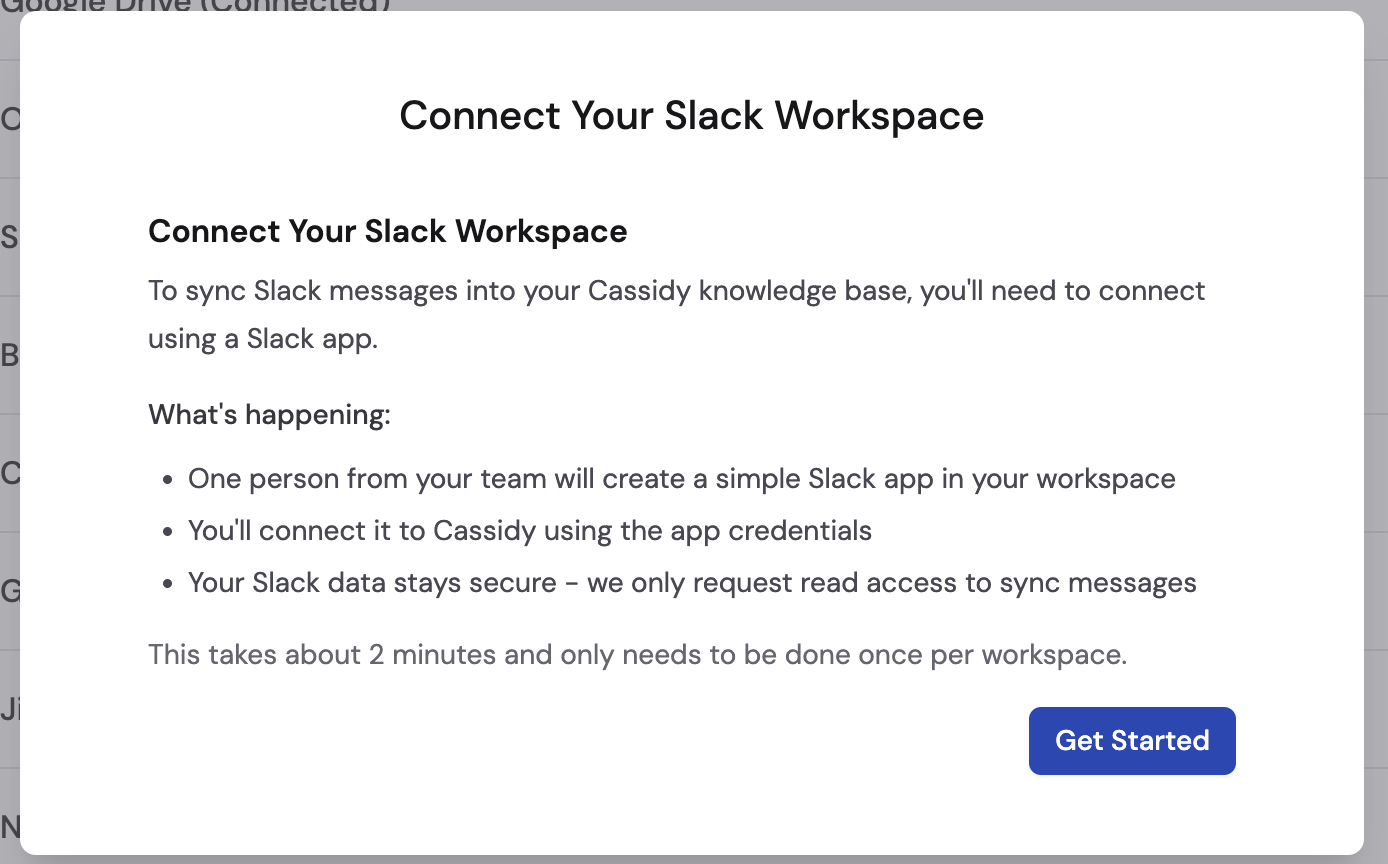
3
Create a Slack app
Follow the on-screen instructions to create a Slack app in your workspace. One person from your team completes this step.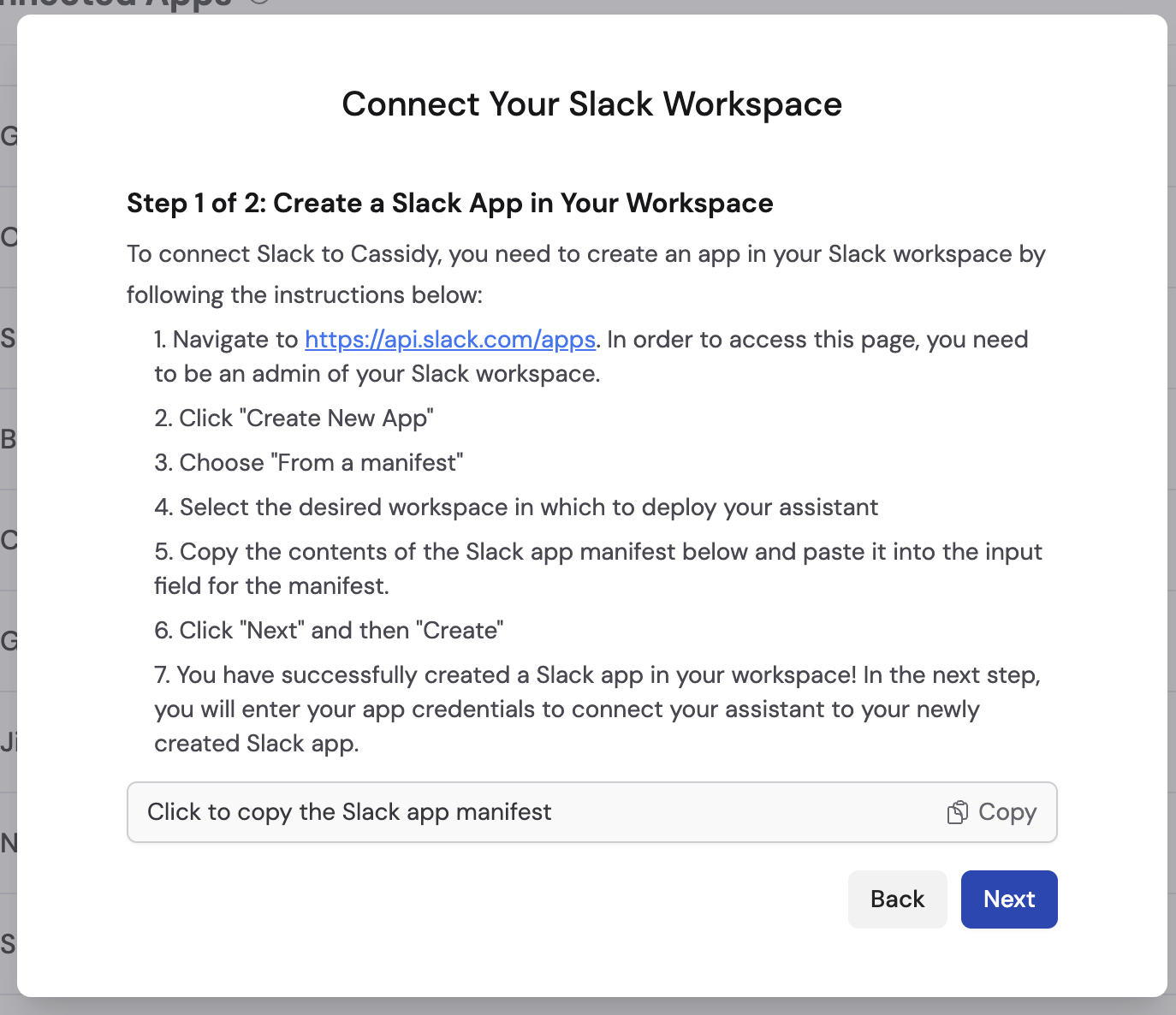
4
Enter your credentials
Copy the Client ID and Client Secret from your Slack app and paste them into the corresponding fields in Cassidy. Click Connect.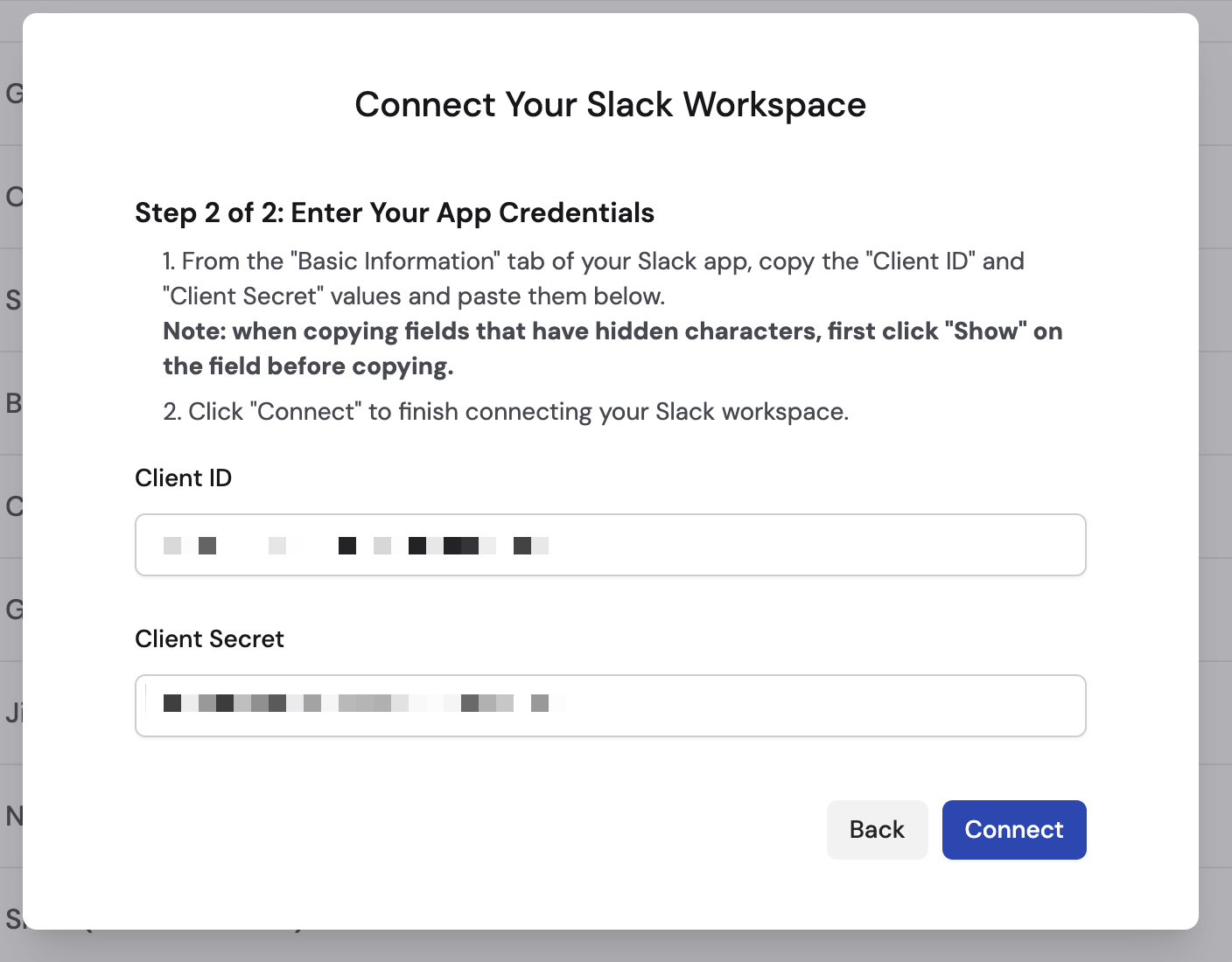
5
Authorize access
Review the access request and click Accept to grant Cassidy permission to your Slack workspace.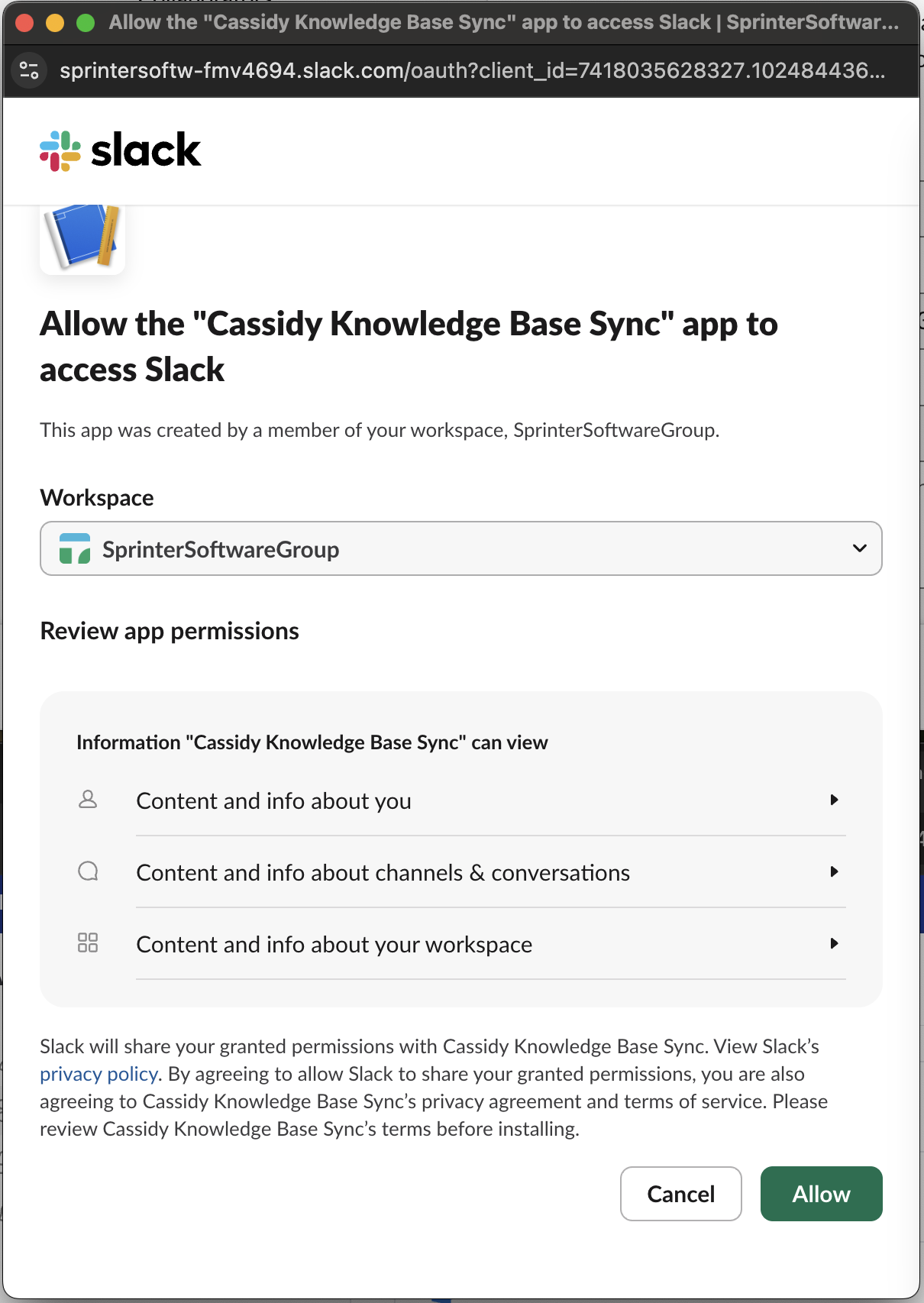
6
Confirm the connection
Slack now shows as Connected in your Integrations list.
7
Team member connections
After the workspace connection is set up, any team member can connect their
own Slack account. Team members open Account Settings →
Integrations, click Connect next to Slack, and click Connect to
Slack to authorize their individual access.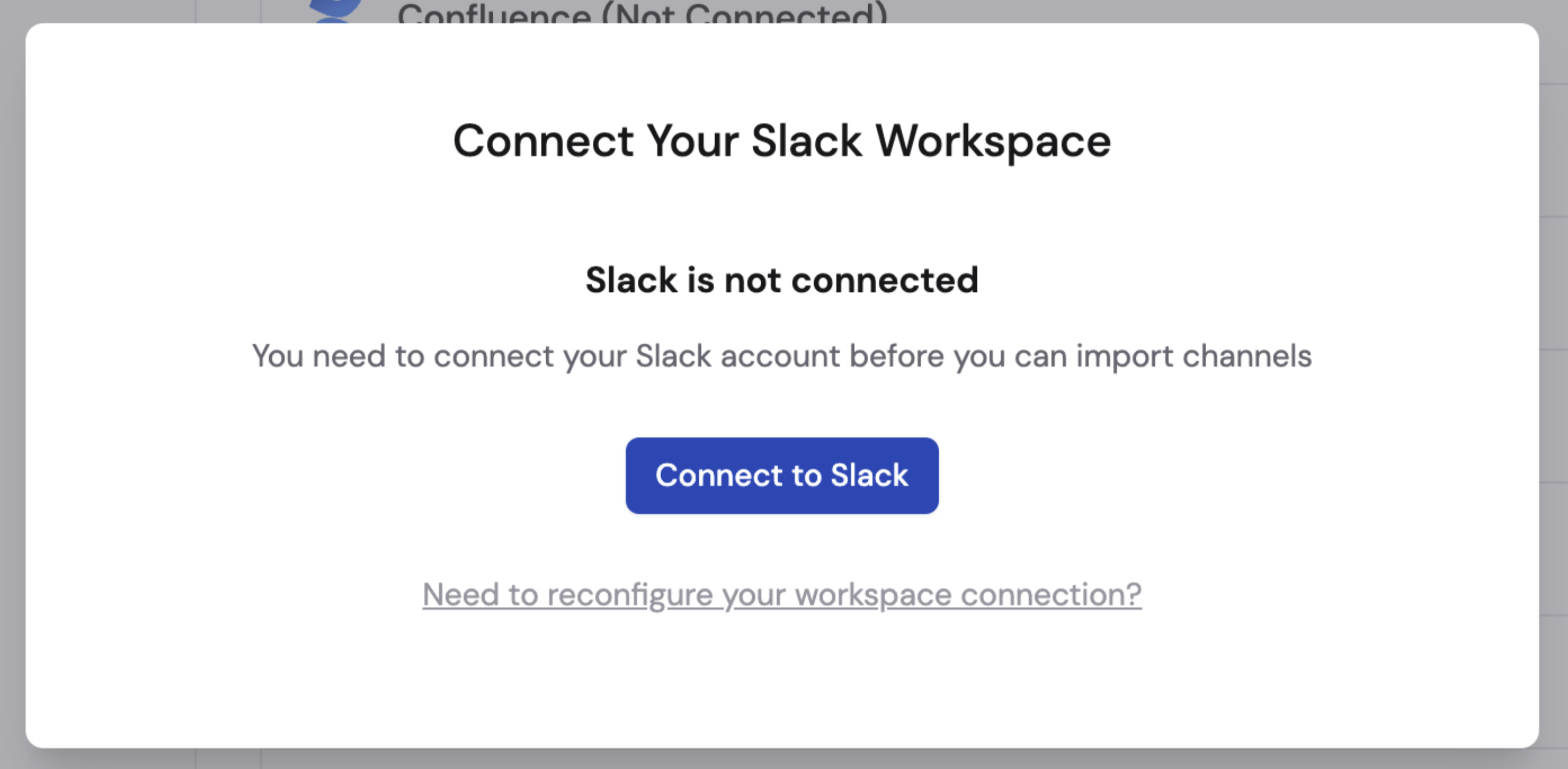
Import Slack channels
1
Select Slack as the source
Navigate to your Knowledge Base, click Sync From Integrations, and select Sync from Slack.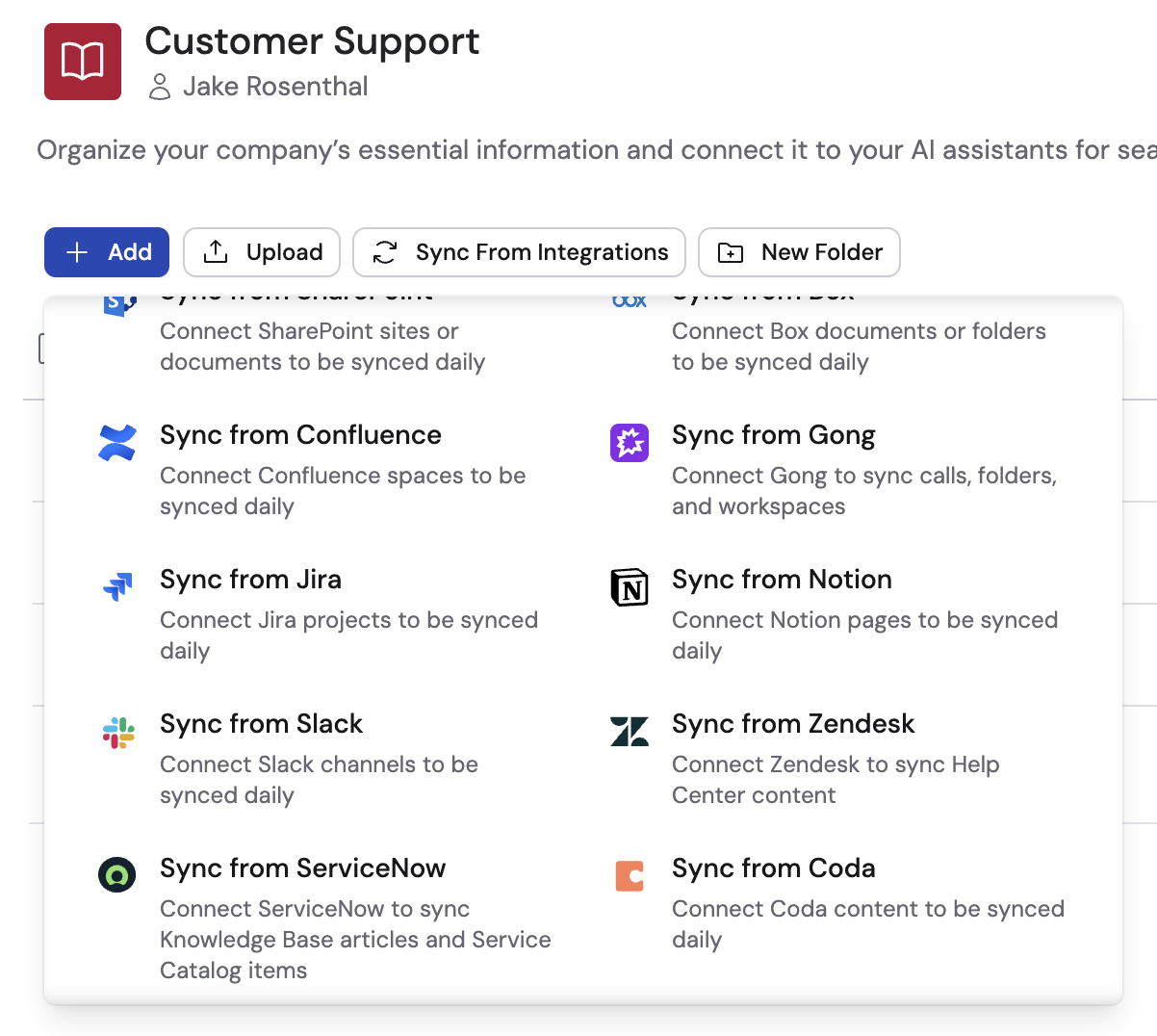
2
Choose channels to import
Select the Slack channels you want to bring into your Knowledge Base, then click Import.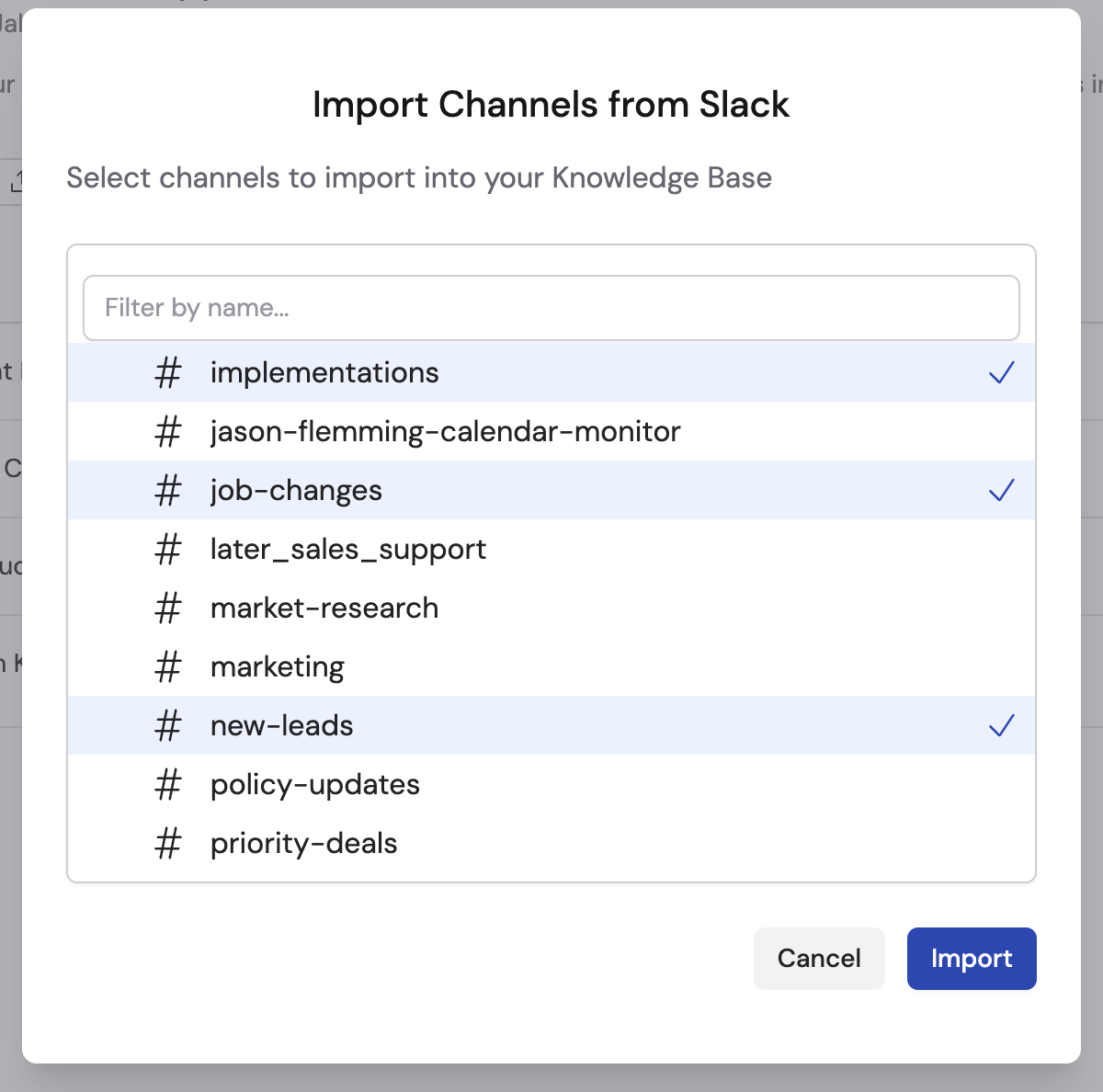
Slack channels sync automatically every 24 hours. Enterprise plans support
live syncing for real-time updates. Learn more about sync schedules and
options.
Next steps
Trigger Workflows from Slack
Automate actions when new messages arrive in Slack channels.
Deploy an Agent to Slack
Let your team chat with an Agent directly in Slack channels and DMs.