

Connect your account
1
Open Integrations
Open Account Settings, then select Integrations.
2
Find Microsoft OneDrive
Locate Microsoft OneDrive in the list and click Connect.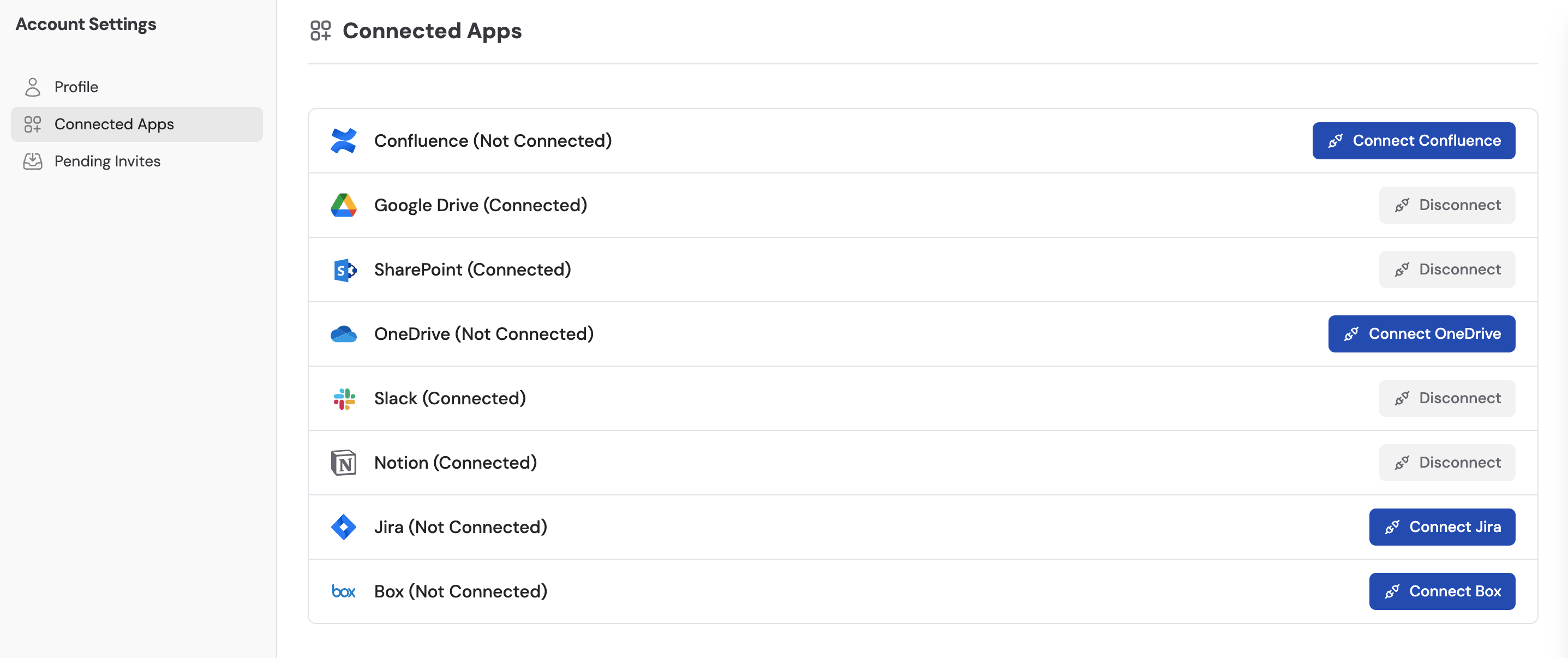
3
Log in with Microsoft
Sign in with your Microsoft account credentials.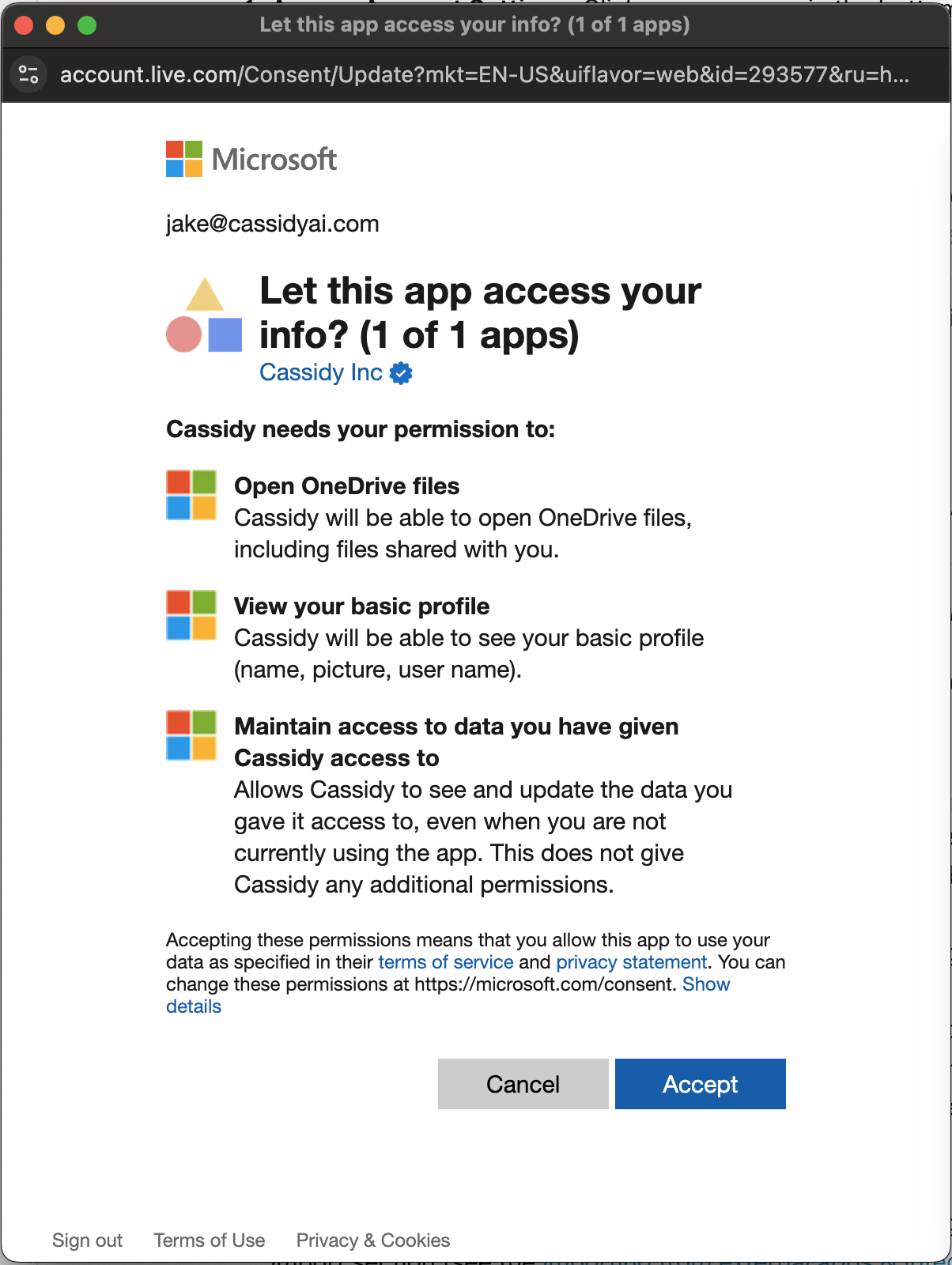
4
Accept permissions
Review the requested permissions and click Accept to authorize Cassidy.
Import OneDrive content
1
Add a OneDrive source
Open your Knowledge Base, click Sync From Integrations, and select Sync from OneDrive.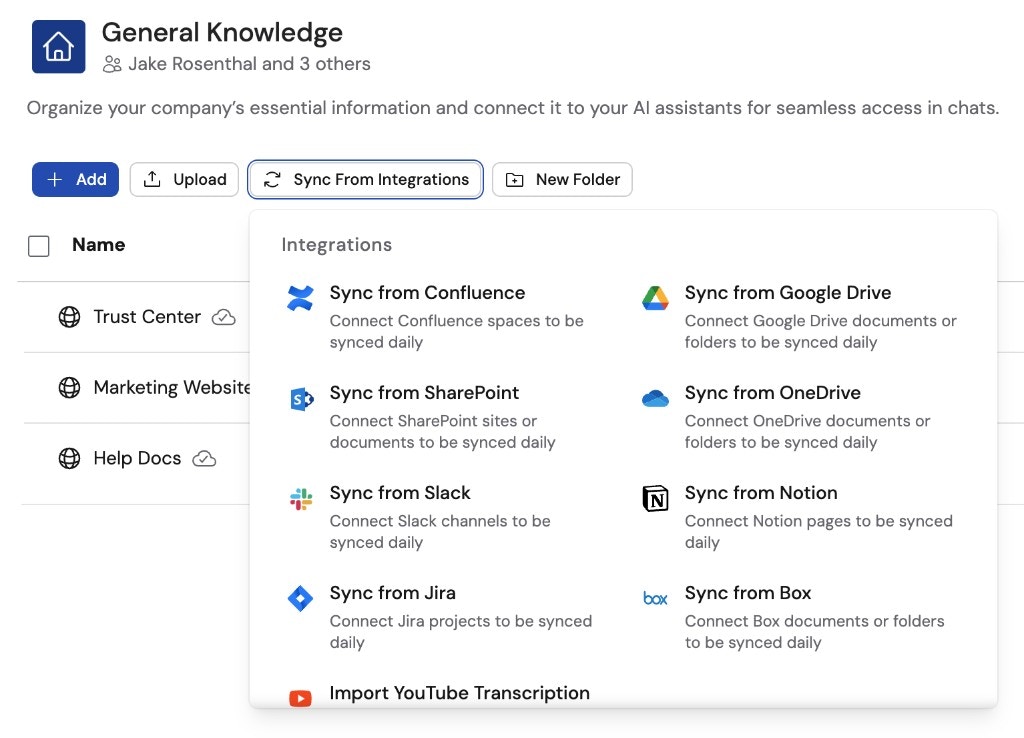
2
Select files and folders
Browse your OneDrive, select the files or folders you want to import, then click Import. Click Load more at the bottom of the list to see additional items.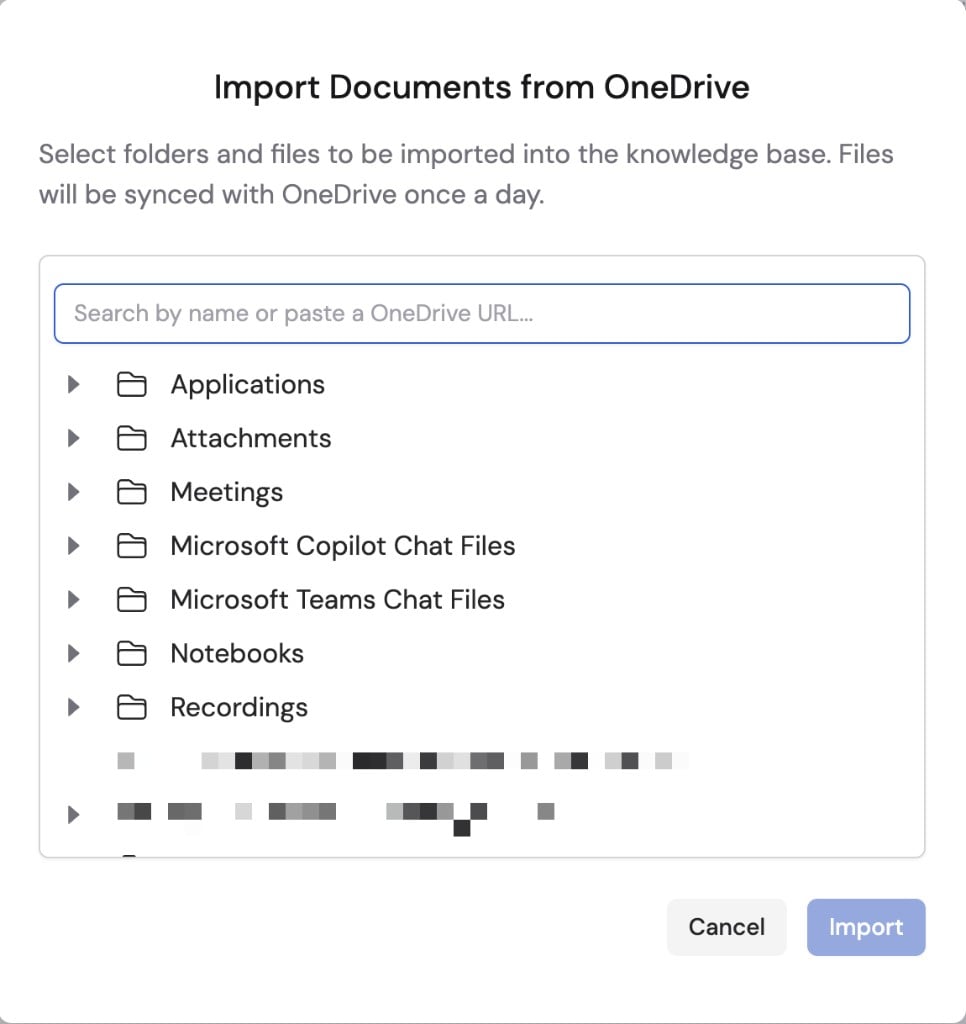
3
Search by file or folder URL
You can also search for files and folders by pasting its OneDrive link into the search bar. In OneDrive, open the file or folder, click the ⋯ menu next to it, and select Copy link. Then paste that URL into the search bar in Cassidy.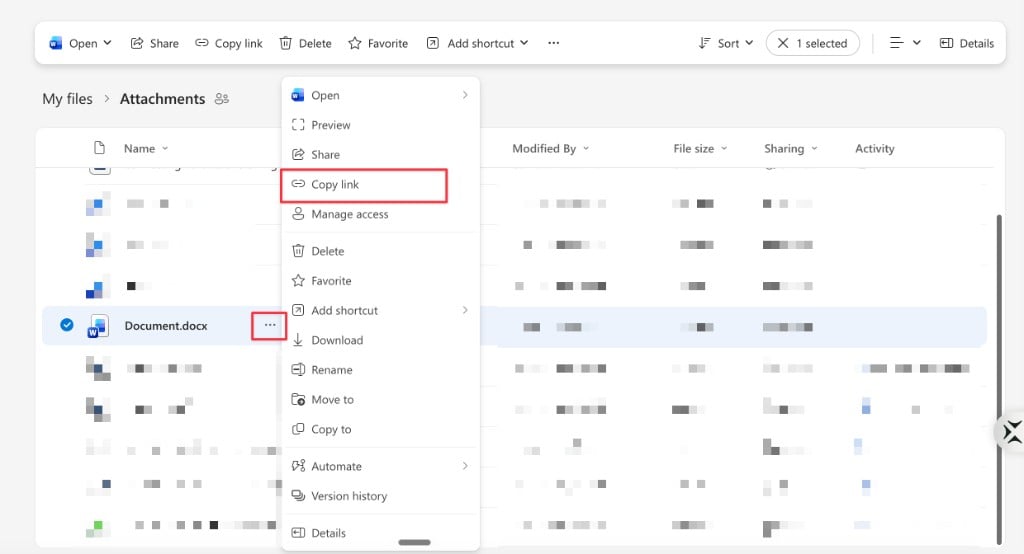
Next steps
Organize your Knowledge Base
Learn how to manage and structure your imported content.
Build your first Agent
Create an Agent that uses your OneDrive documents to answer questions.