

On-premise Jira syncing is available with Enterprise plans. Contact
us for more details on setting up on-premise
integrations.
Connect your account
1
Open Integrations
Open Account Settings, then select Integrations.
2
Connect Jira
Locate Jira in the list and click Connect Jira.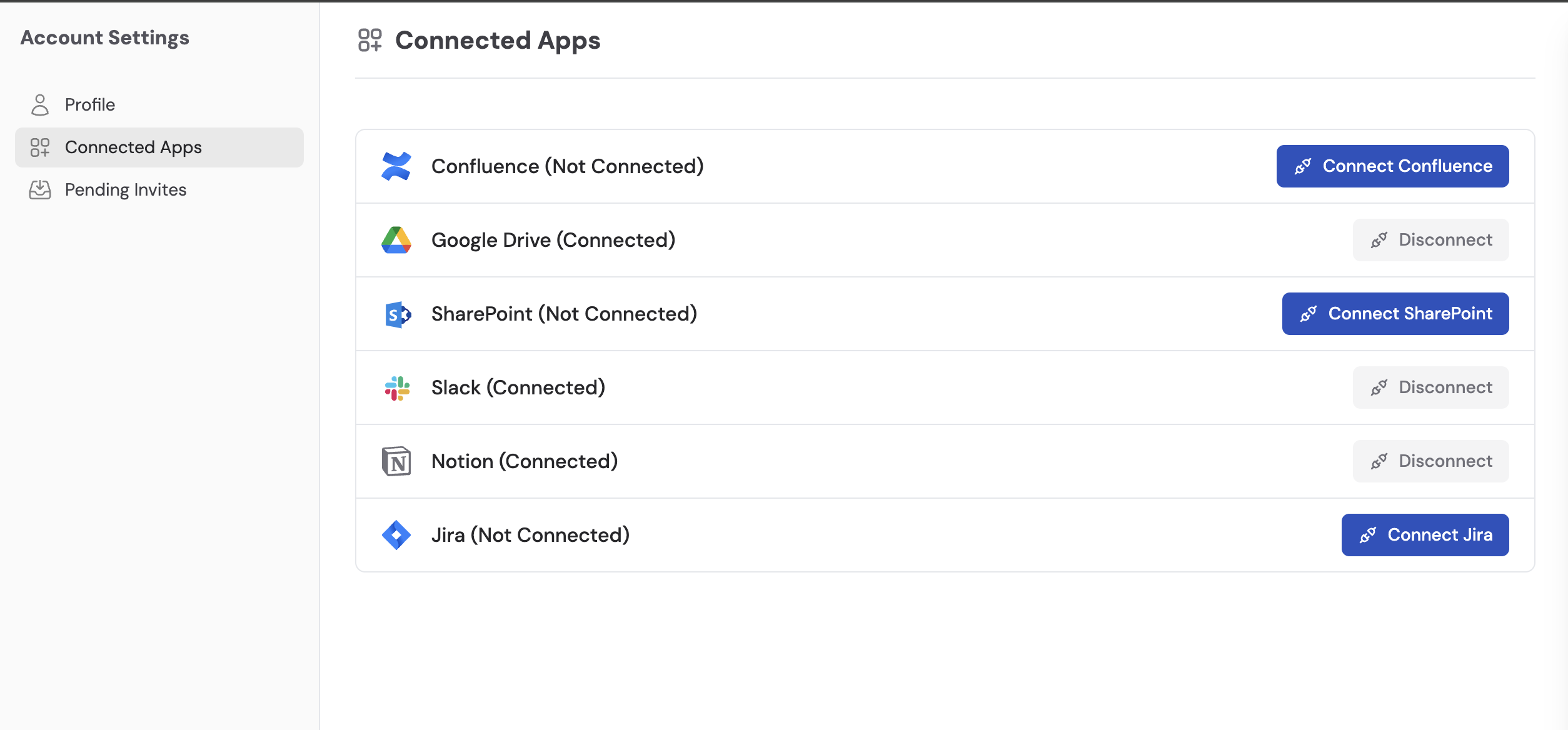
3
Accept the access request
Sign in to your Atlassian account if prompted, then review the permissions and click Accept to grant Cassidy access to your Jira projects and issues.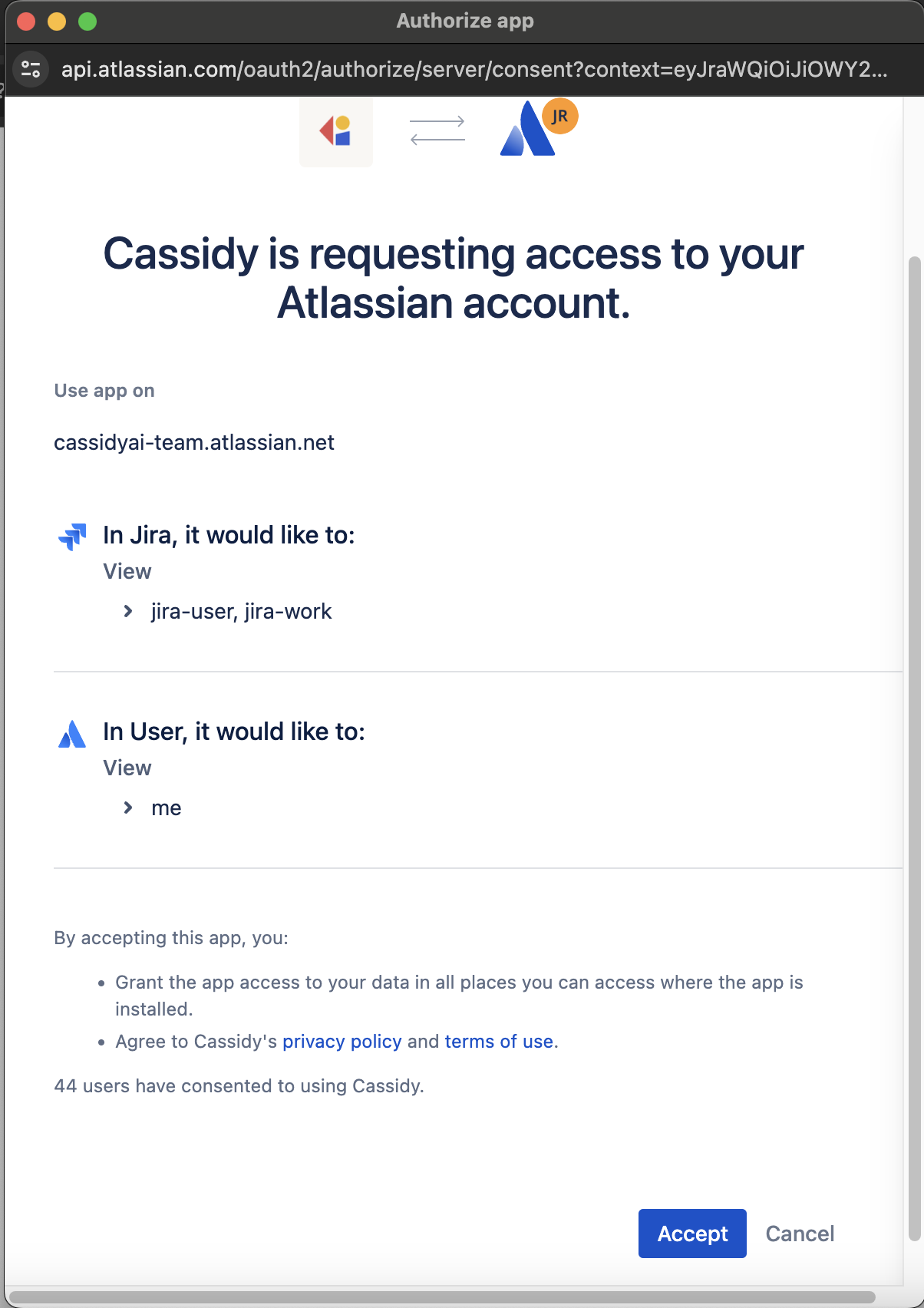
4
Confirm the connection
Jira now shows as Connected in your Integrations list.
Import Jira content
1
Select Jira as the source
Navigate to your Knowledge Base, click Sync From Integrations, and select Sync from Jira.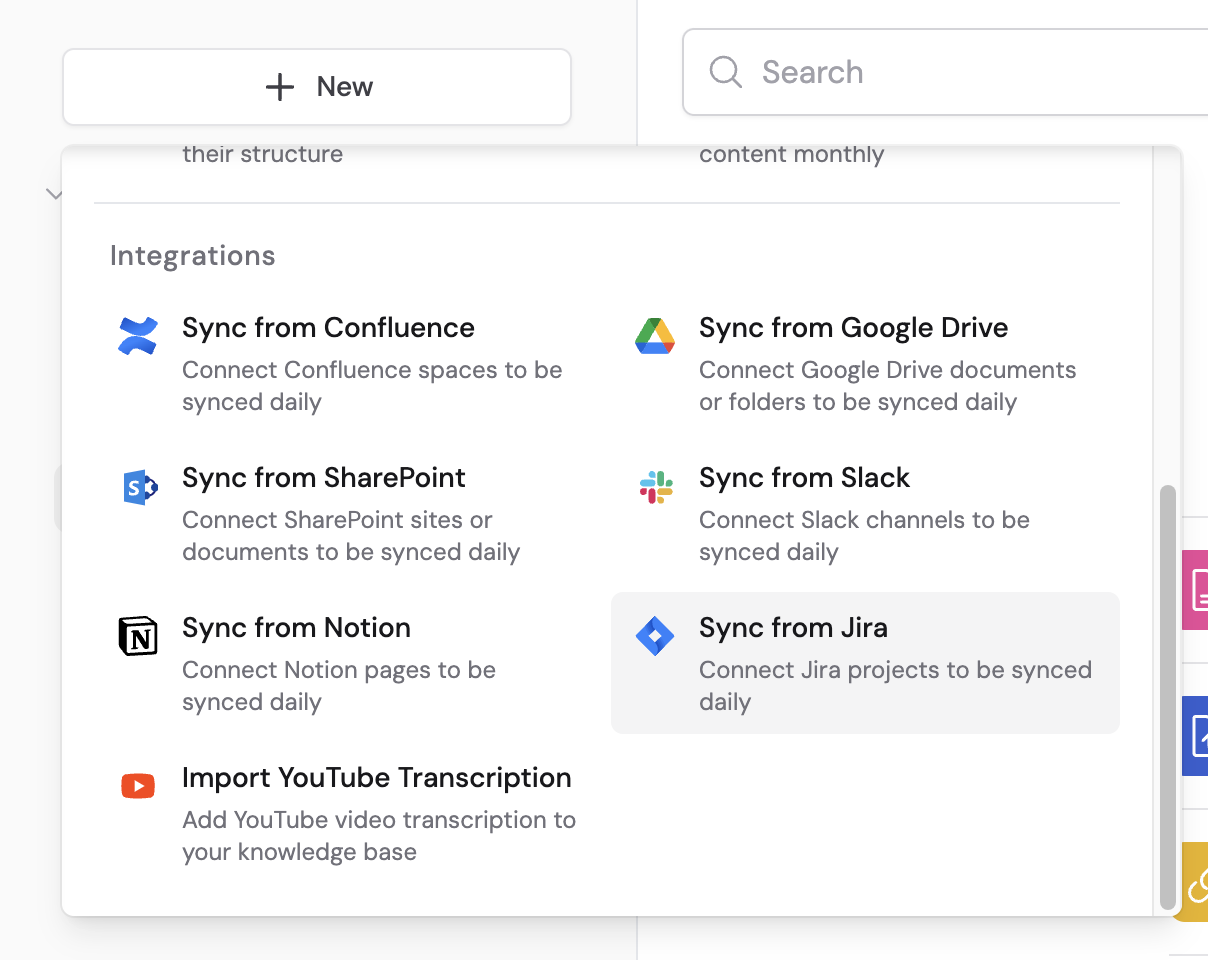
2
Select projects and issues
Browse your Jira projects, select the projects or individual issues you want to import, then click Import.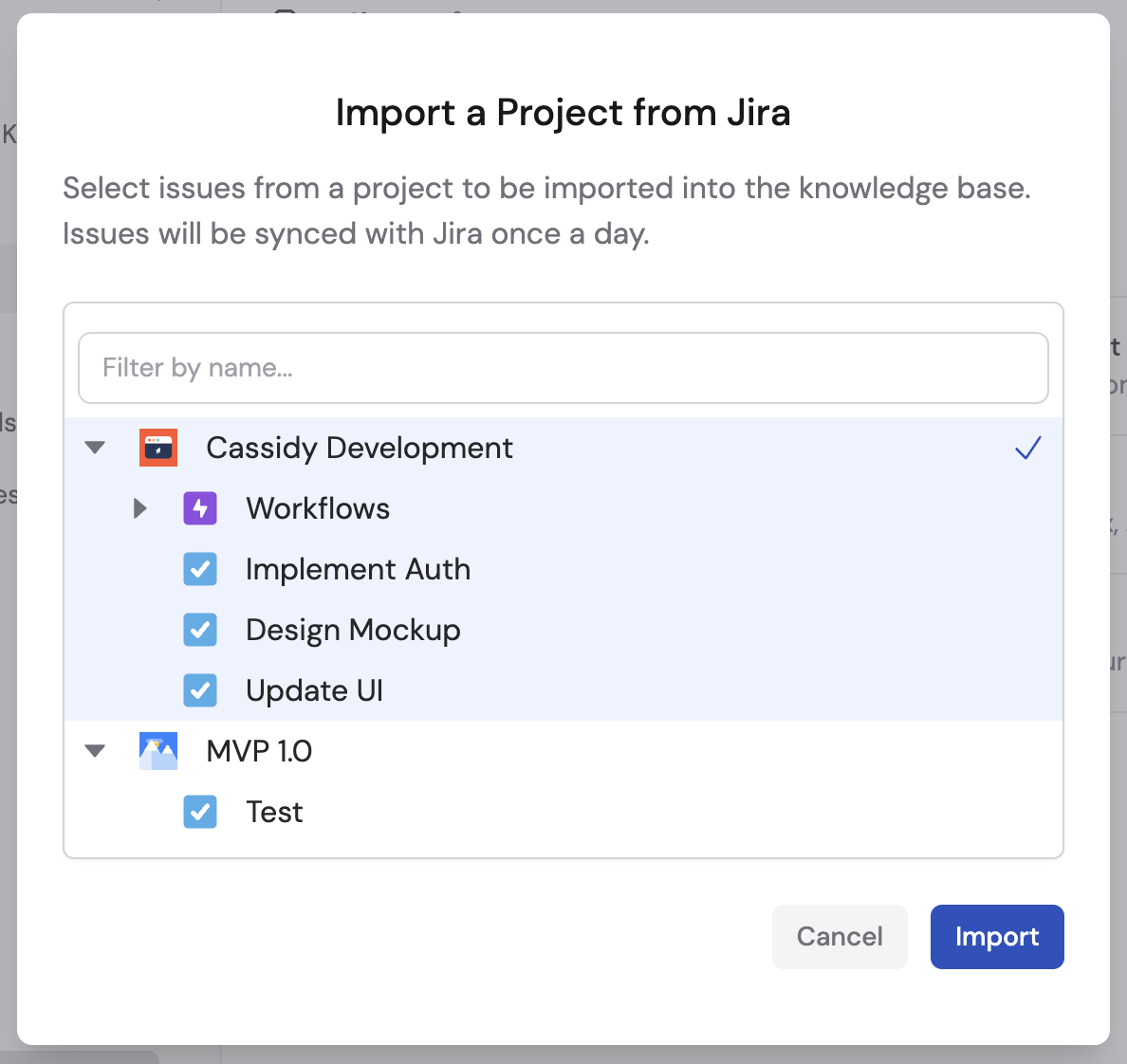
Imported content syncs automatically every 24 hours. Enterprise plans support
live sync for near-real-time updates. Learn more about sync
behavior.
Next steps
Automate Jira with Workflows
Trigger Workflows from issue changes and automate issue management.
Explore the Knowledge Base
Learn how to organize and manage your imported content.