

Connect your account
1
Open Integrations
Open Account Settings, then select Integrations.
2
Connect Coda
Locate Coda in the list and click Connect.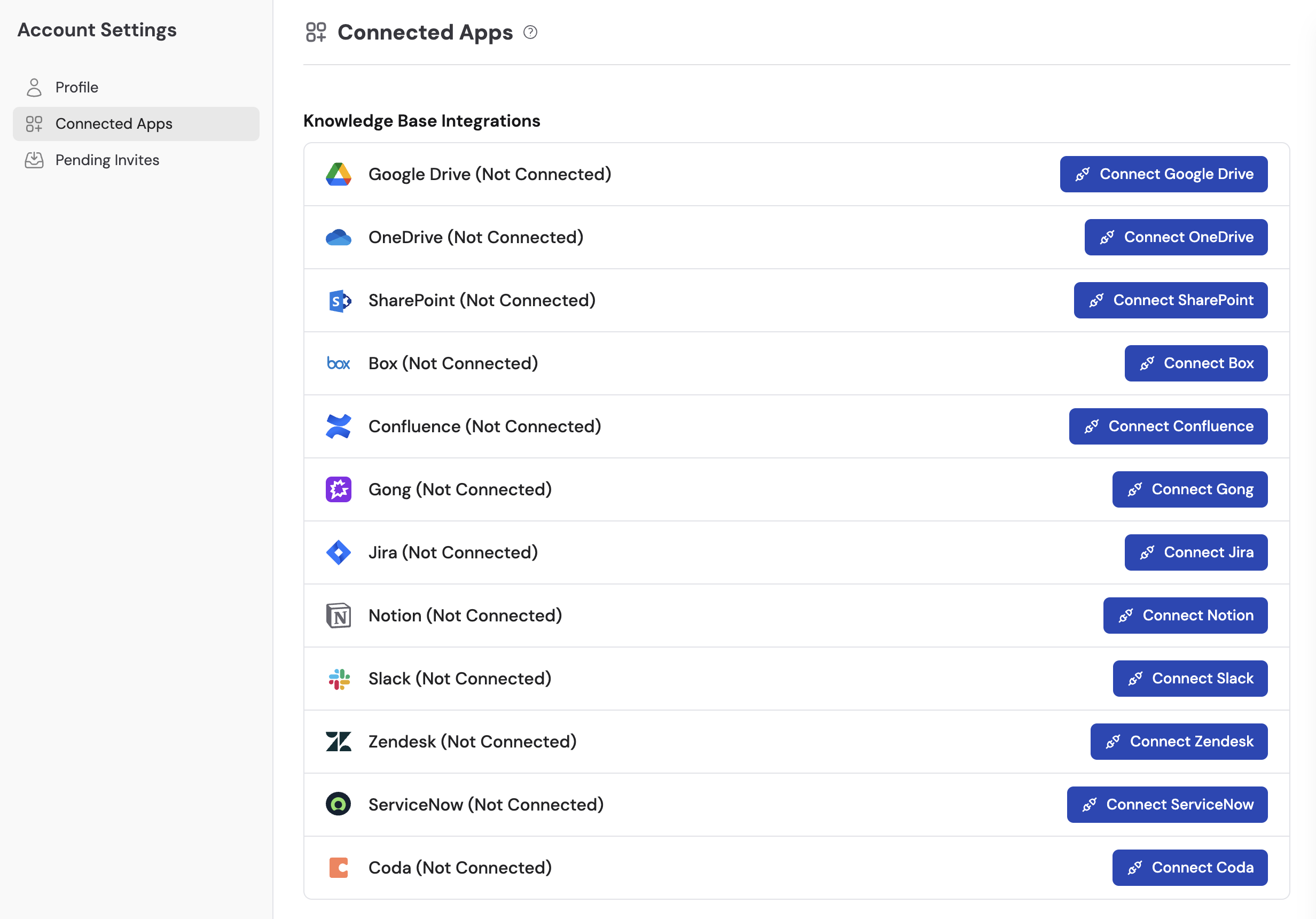
3
Enter your API token
Paste your Coda API token into the token field and click Create Connection. You can generate a token from Coda’s API settings if you don’t have one yet.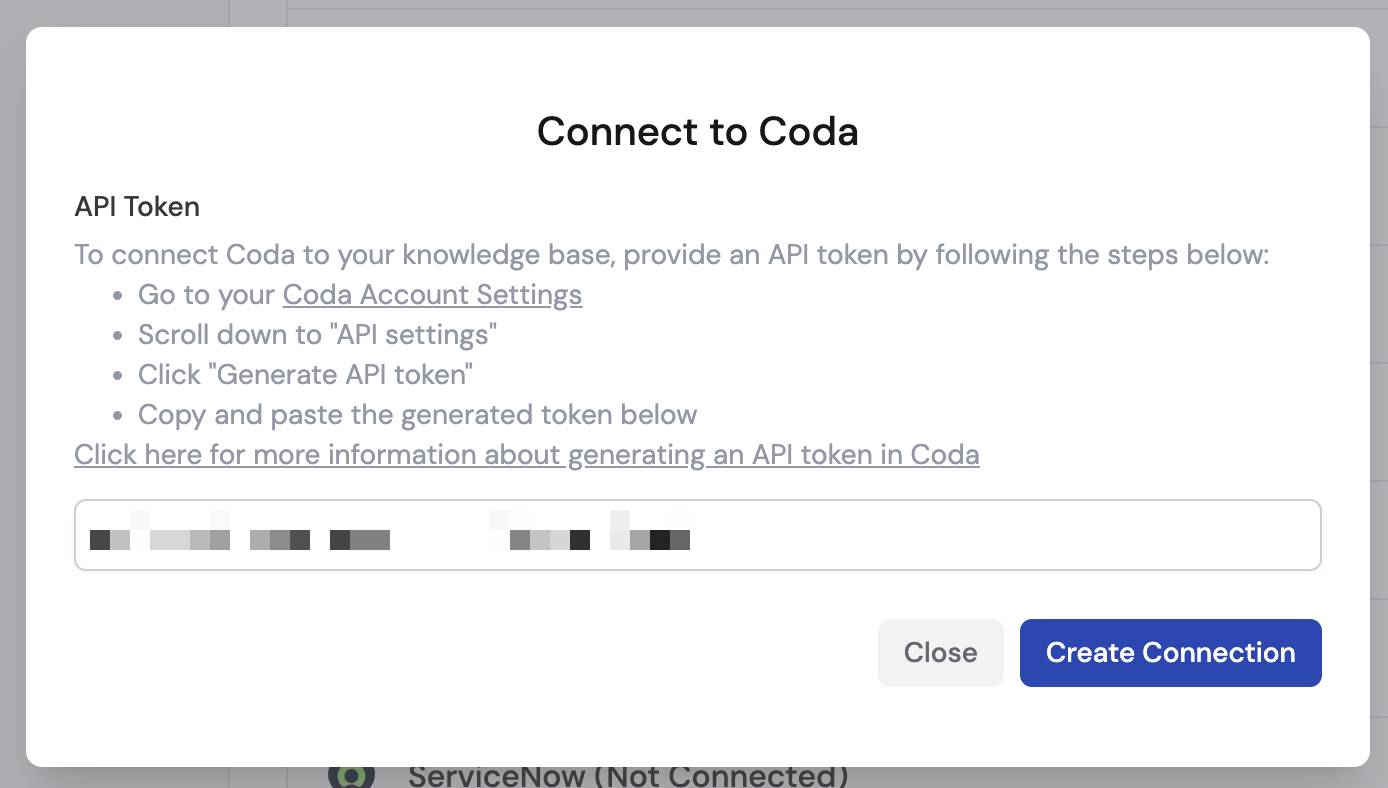
4
Confirm the connection
Coda now shows as Connected in your Integrations list.
Import content
1
Select Coda as the source
Navigate to your Knowledge Base, click Sync From Integrations, and select Sync from Coda.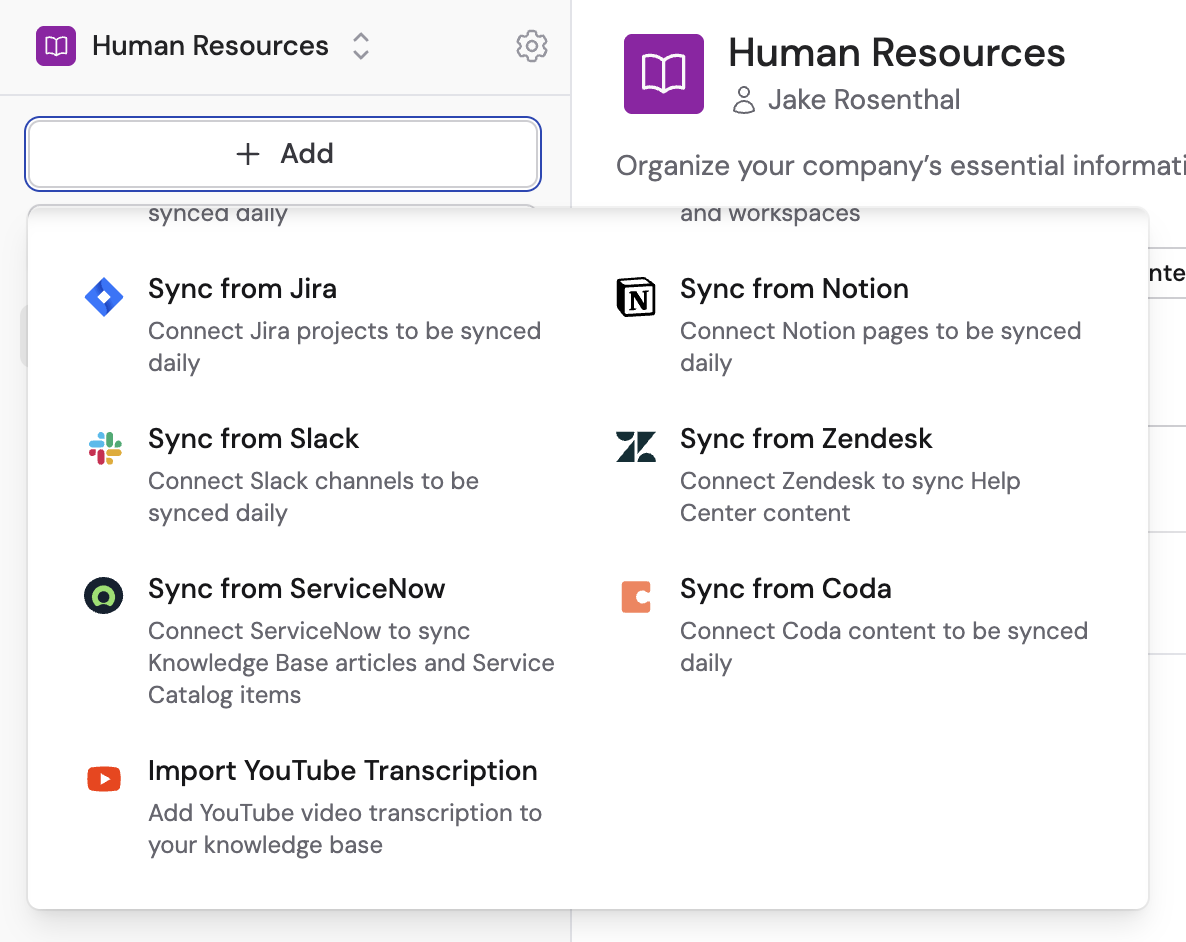
2
Select documents
Browse your Coda workspace, select the documents you want to import, then click Import.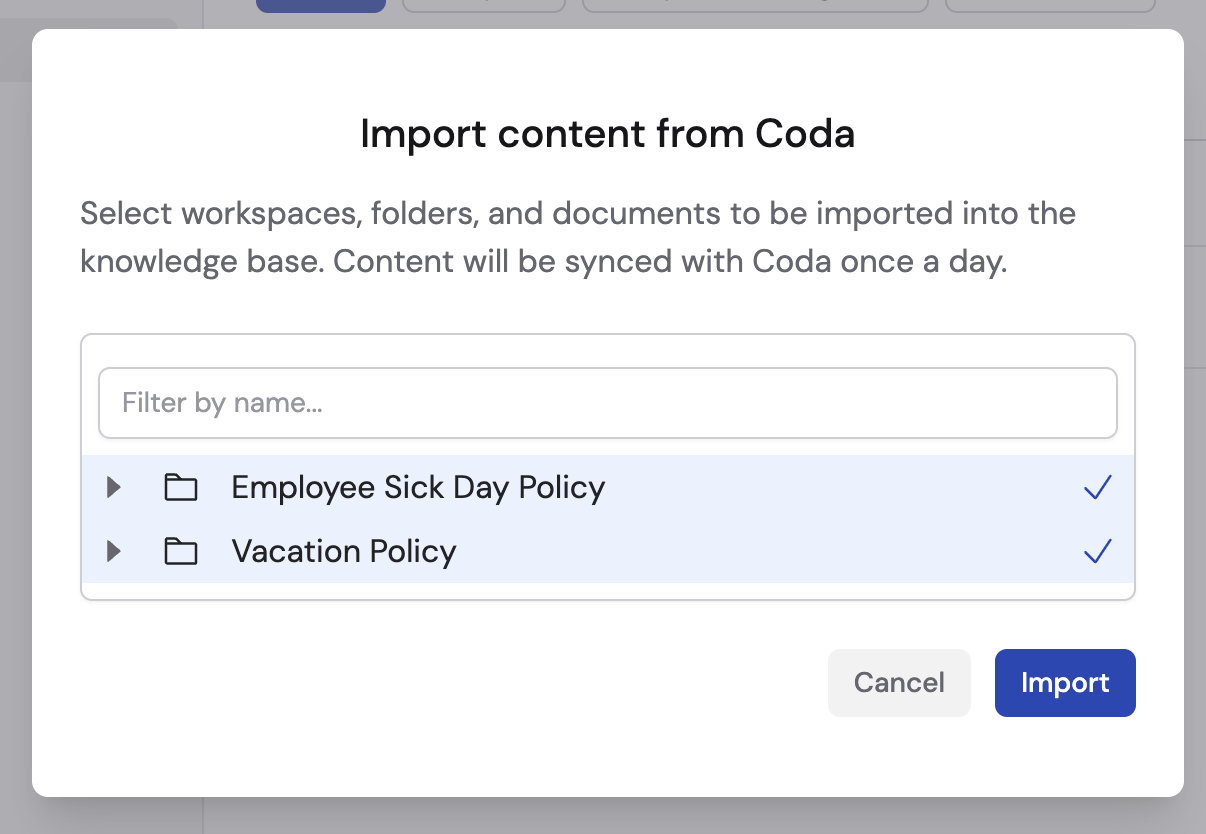
Next steps
Knowledge Base overview
Learn how to organize and manage your imported content.
Build your first Agent
Create an Agent that uses your Coda documents to answer questions.