

Connect your account
1
Open Integrations
Open Account Settings, then select Integrations.
2
Start the Google Drive connection
Find Google Drive in the list and click Connect.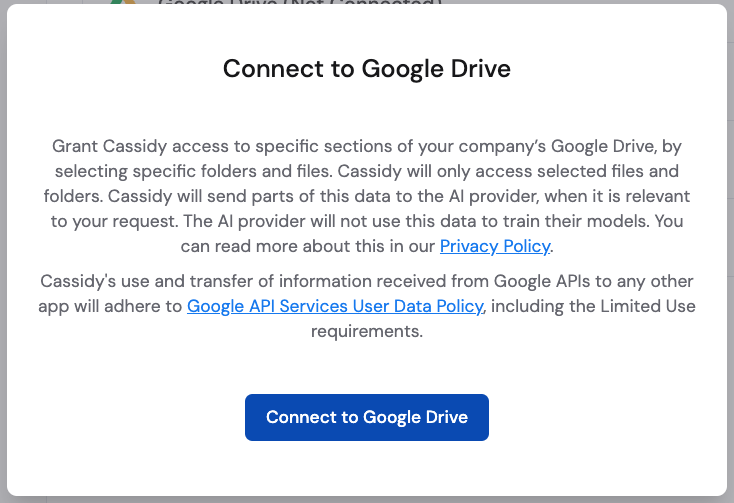
3
Log in to Google
Sign in to your Google account in the popup window.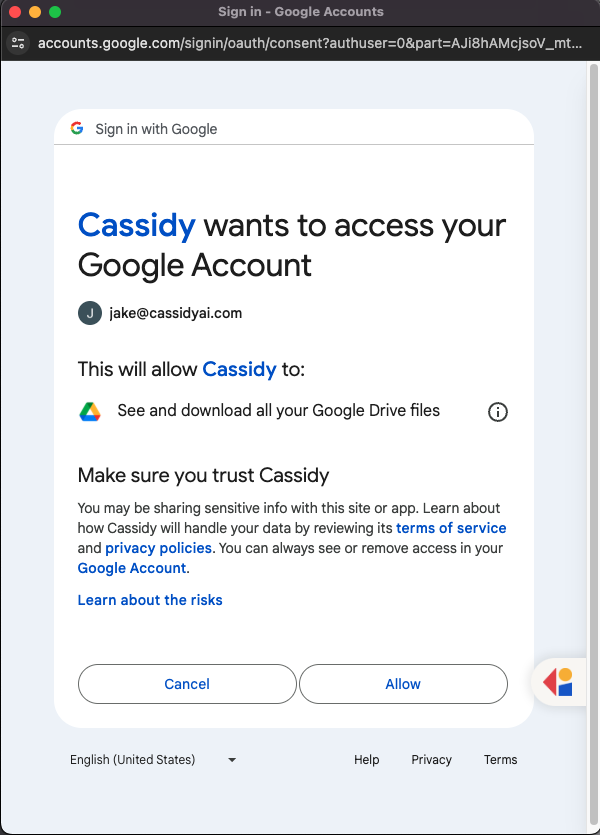
4
Accept the access request
Review the permissions and click Accept to grant access to your Google Drive files and folders.
Import content
1
Add a Google Drive source
Navigate to Knowledge Base in the sidebar and click Add. Select Google Drive from the list of available sources.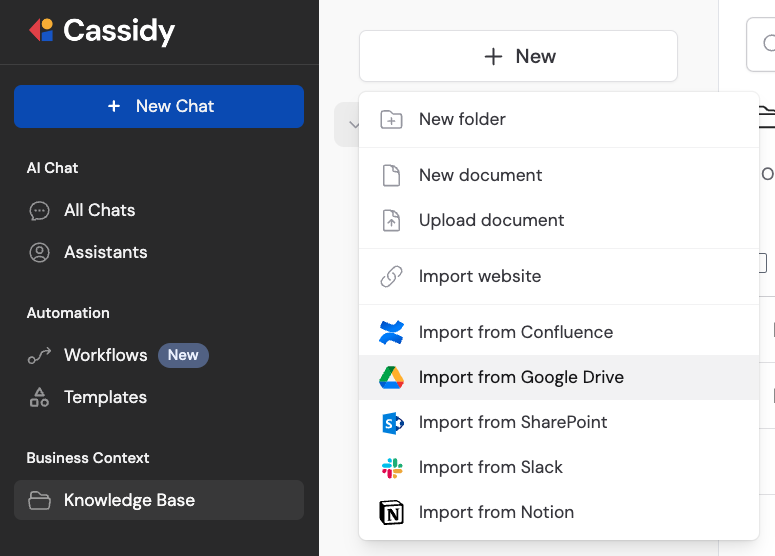
2
Select files and folders
Browse your Google Drive and select the files or folders you want to import, then click Import.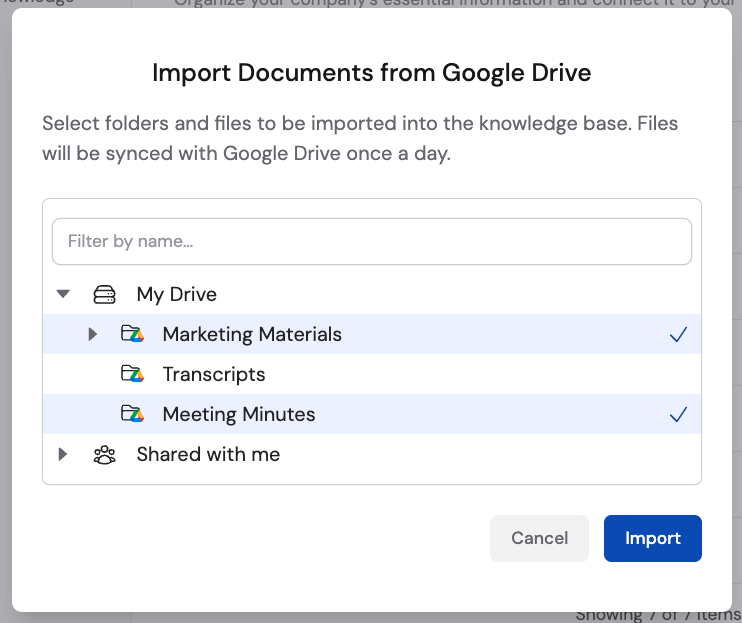
Imported content syncs automatically every 24 hours. Enterprise plans support
live sync for near-real-time updates. Learn more about sync
behavior.
Next steps
Use Google Drive in Workflows
Trigger automations from file changes and manage files programmatically.
Explore the Knowledge Base
Learn how to organize and manage your imported content.