

Document verification is currently available on Enterprise plans.
Flag a document as potentially outdated
Any team member can flag a document they suspect is outdated. There are three places to flag documents: From chat — When an Agent cites a source, click the dropdown on the reference and select Flag as potentially outdated.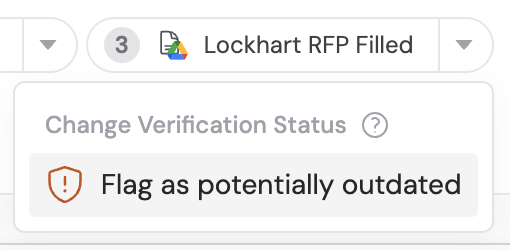
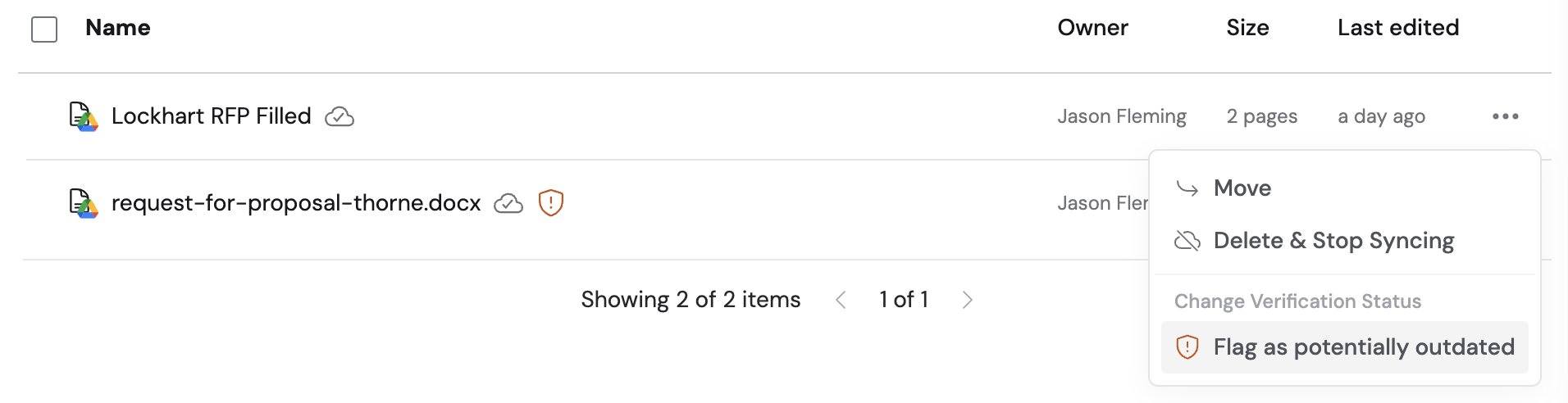
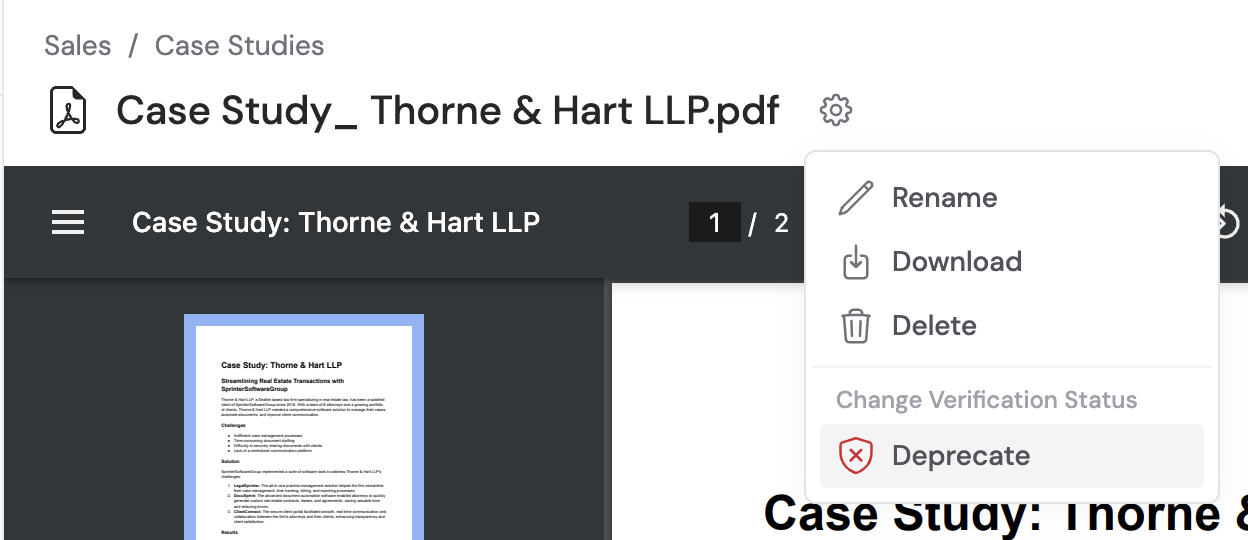
Review flagged documents
Collection owners can review and resolve flags from the collection homepage.1
Navigate to the collection homepage
Open Knowledge Base in the sidebar and select the collection.
2
Open flagged documents
Click Documents Flagged for Review to see all pending flags.
3
Resolve each flagged document
For each flagged document, choose: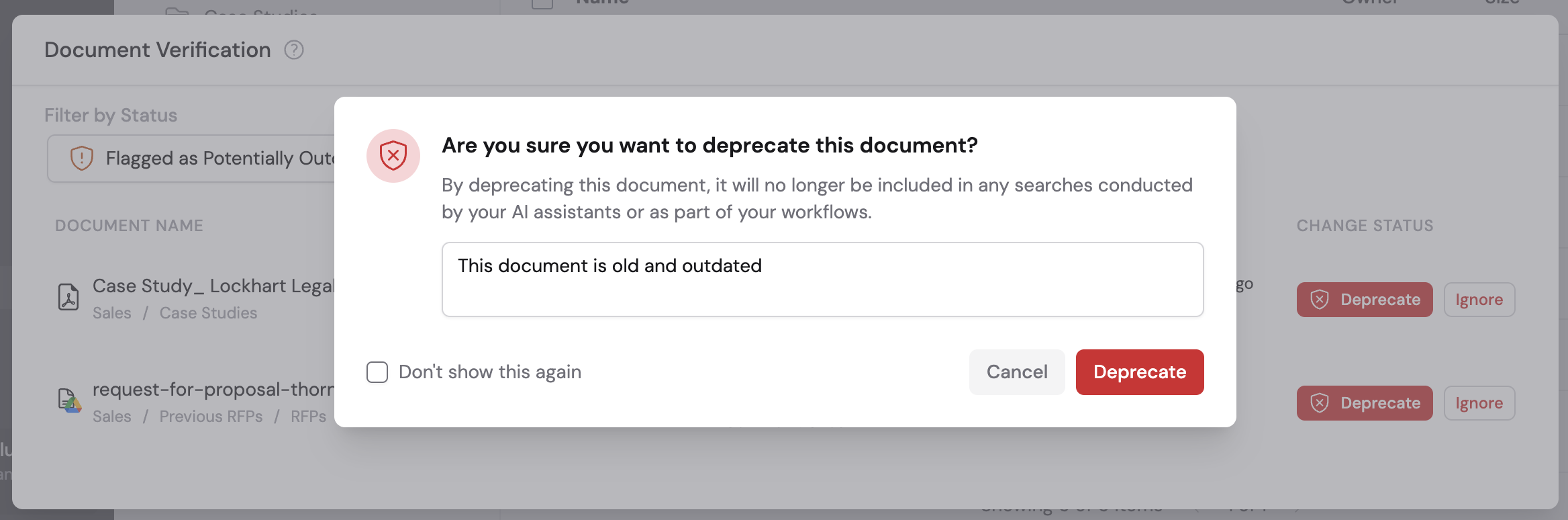
- Deprecate — The document is removed from search results and won’t be used by Agents or Workflows going forward. You can optionally add a reason.
- Ignore — Removes the flag and keeps the document active
Identify and manage deprecated documents
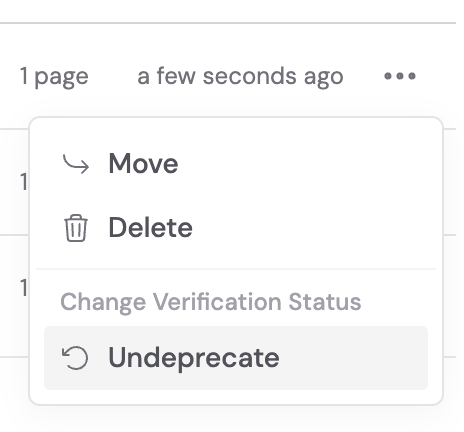
Deprecated documents display a Deprecated badge in the Knowledge Base. They are excluded from search results and won’t be referenced by Agents or Workflows. You can undeprecate a document if it becomes relevant again: click the ellipsis next to the document and select Undeprecate.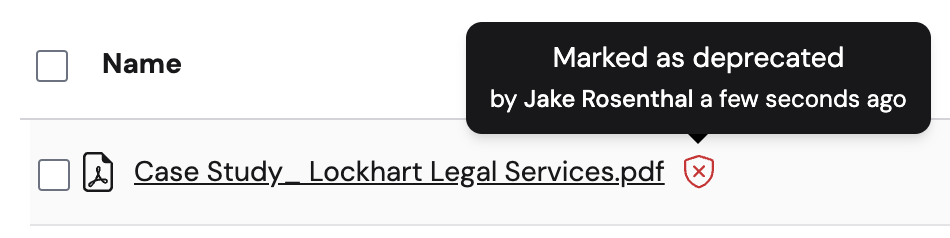
Review flagged items as an admin
Organization admins can review all flagged items across collections they own from Settings → Verification & Review.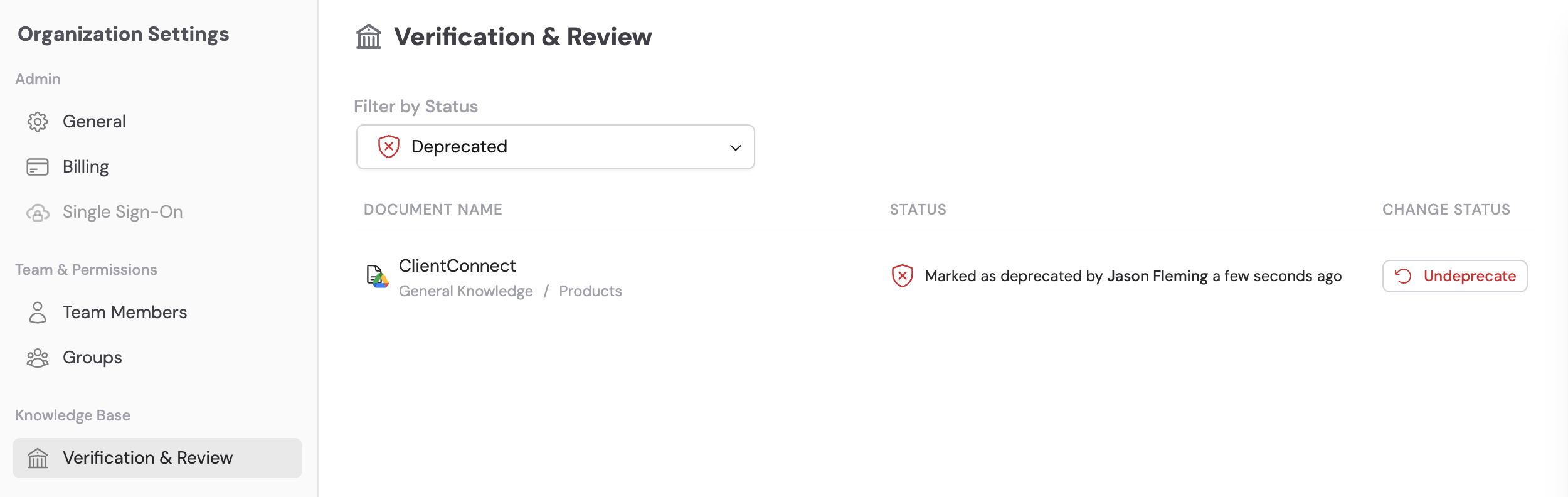
Next steps
Set up your Knowledge Base
Upload documents, import websites, and connect integrations.
Organize with collections and folders
Structure your content and control who can access it.