

Prerequisites: You need Global Admin or Exchange Admin access in
your Microsoft 365 tenant.
Deploy a Cassidy extension
1
Open the Integrated Apps portal
Sign in to the Microsoft 365 admin center and go to Settings → Integrated apps (you may need to click “Show all” for Settings to appear).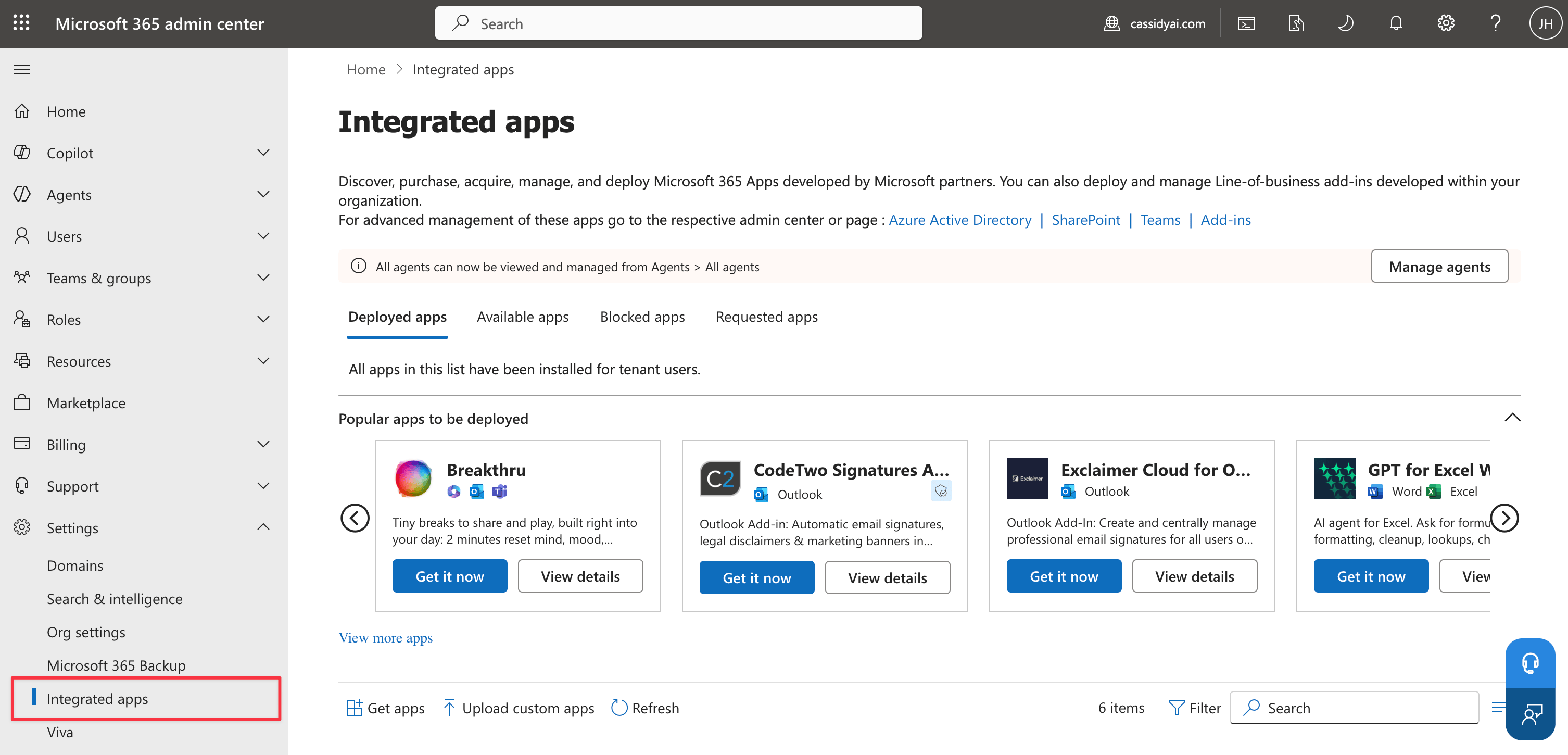
2
Find the Cassidy extension
Click Get apps to open the Microsoft Marketplace. Search for Cassidy and select the extension you want to deploy: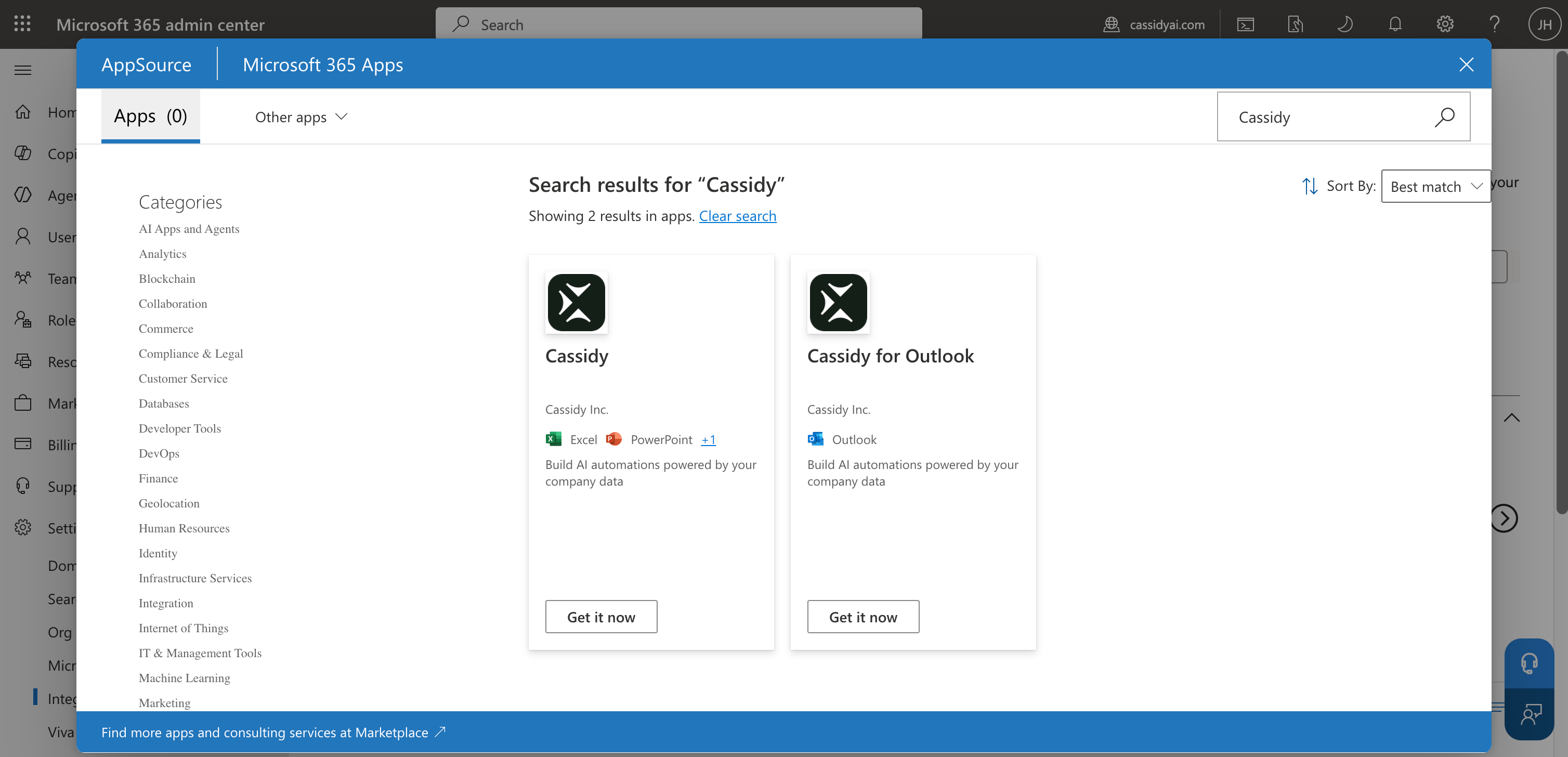
- Cassidy for Outlook — brings Agents into the Outlook inbox
- Cassidy — brings Agents into Word, Excel, and PowerPoint
3
Start the deployment
Click Deploy (or Get it now followed by Deploy) on the extension listing. This opens the deployment configuration wizard.
4
Choose who gets the extension
Select who the extension should be deployed to: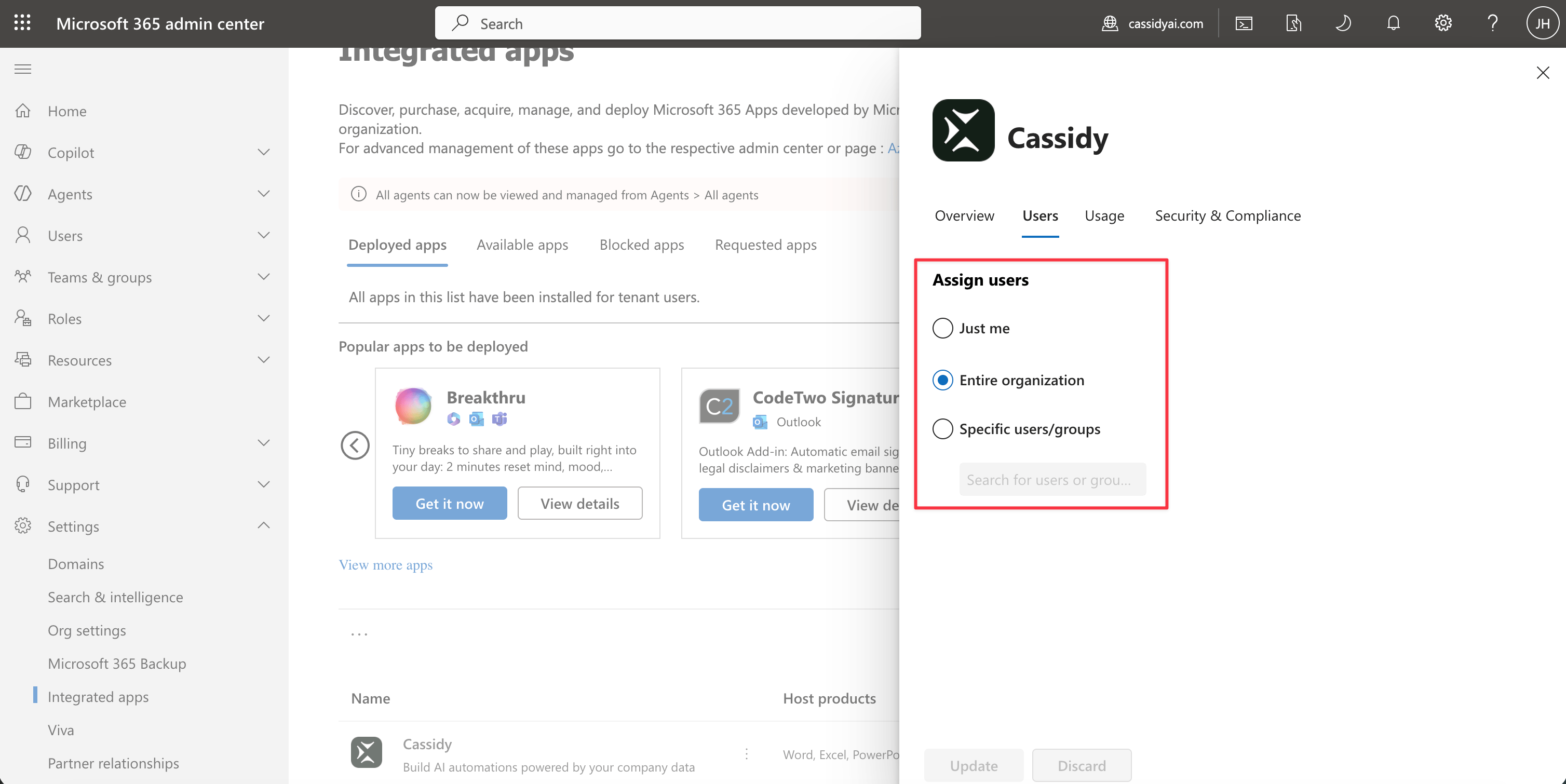
- Entire organization — every user in your tenant
- Specific users/groups — only the people or Microsoft 365 groups you select
Manage the deployment
After deploying, you can update who has access at any time:- Go to Settings → Integrated apps in the Microsoft 365 admin center.
- Find the Cassidy extension in the Deployed apps list and click on it.
- Under the Users tab, update the assignment to add or remove users and groups.
- Click Update to save your changes.
Next steps
Install the Outlook extension
Individual installation instructions for end users.
Install the Microsoft Office extension
Individual installation instructions for Word, Excel, and PowerPoint.