

Only Admins can configure credit alerts and limits.
Organization alerts
Organization alerts notify admins when your organization’s total credit usage crosses a threshold you define. They are informational only — they don’t restrict usage.Add an alert
1
Open organization settings
Open your account menu from the sidebar and select Organization
Settings.
2
Navigate to Usage Limits
In the left sidebar, click Limits & Alerts under the Usage section.
3
Open the Organization Alerts section
Expand Organization Alerts at the top of the page, then click Add alert.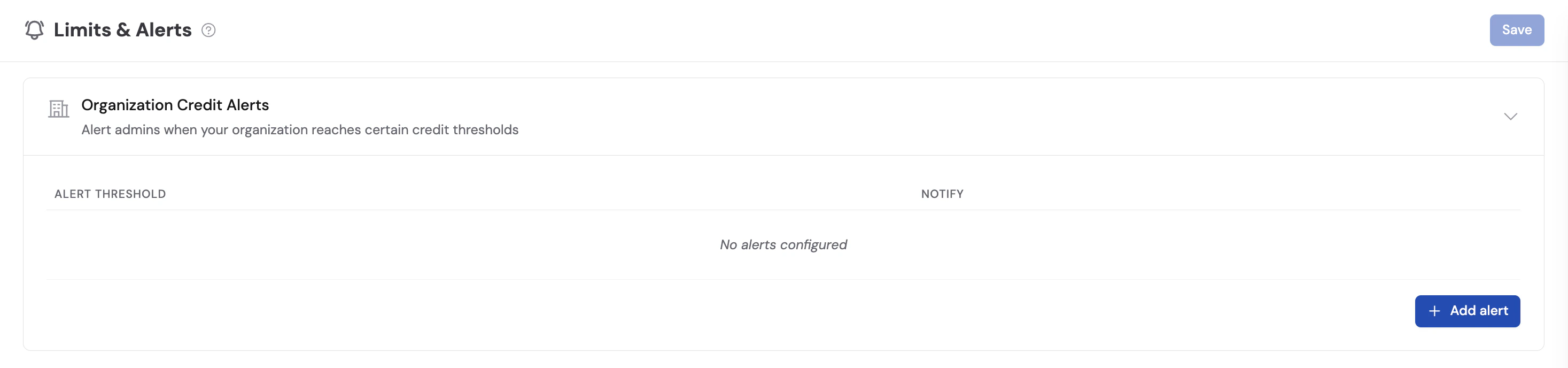
4
Choose a threshold type
Select how the threshold should be measured: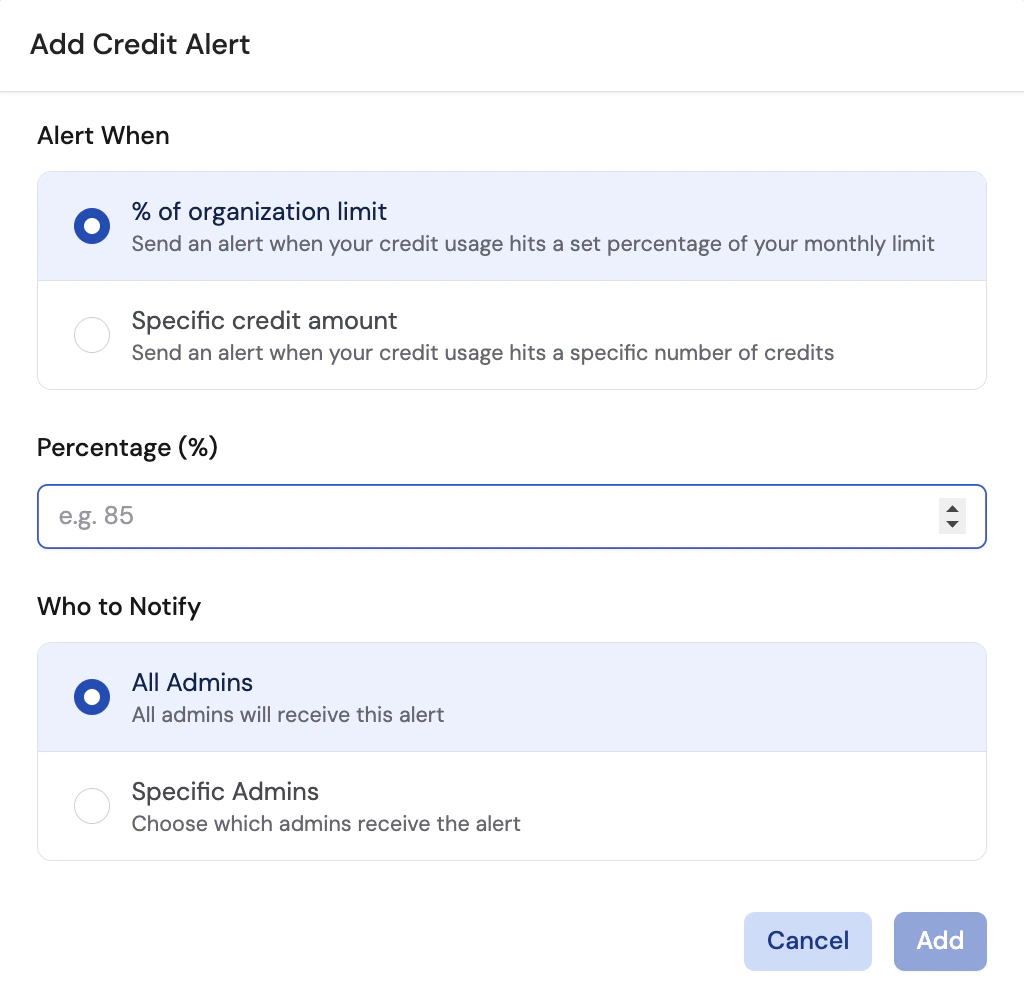
5
Set the threshold value
Enter the percentage (1–100) or credit count that should trigger the alert.
6
Choose who to notify
Select either All Admins or Specific Admins. If you choose specific admins, use the selector to pick who should receive the alert email.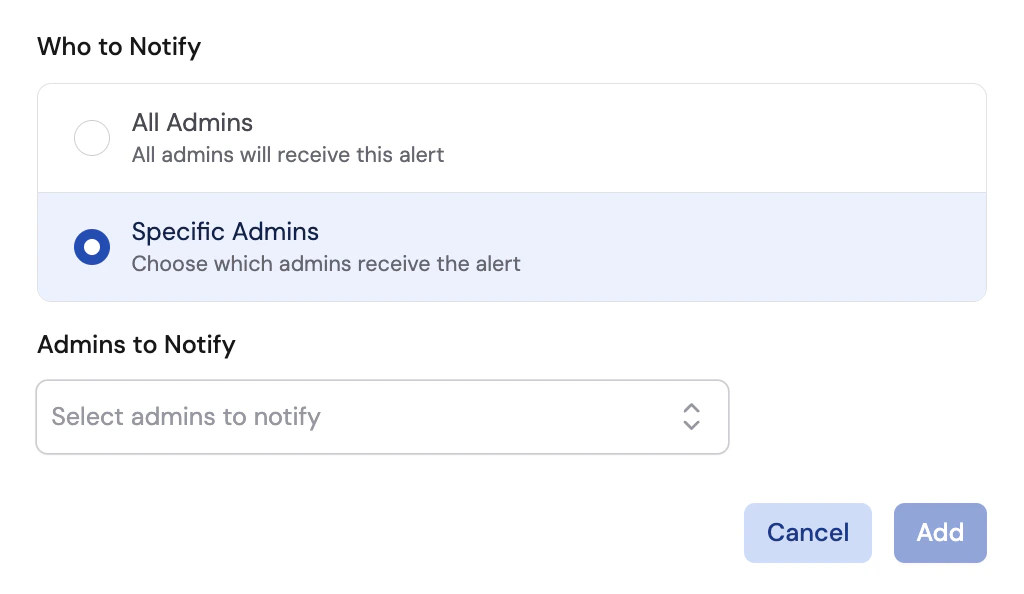
7
Save
Click Add to activate the alert.
The alert will fire the first time your organization’s credit usage crosses the threshold within each billing period.
How organization alerts work
- Each alert fires once per billing period. Usage dropping below the threshold and climbing back above it will not re-trigger the alert until the next billing period resets.
- You can configure multiple alerts at different thresholds — for example, one at 50% and another at 90% — to get early warnings and final notices.
- To change a threshold or notification recipients, click the pencil icon next to an alert. To remove an alert, click the trash icon.
Per-user alerts and limits
Per-user controls let you notify admins when individual team members exceed a credit threshold, and optionally enforce a hard cap that blocks users from consuming additional credits once their limit is reached.Check your usage remaining
When per-user credit limits are active and usage visibility is enabled, open your account menu in the sidebar and point to Usage Remaining. The flyout shows the percentage of your credits remaining, the credits used, and when the limit resets. For limits that do not reset, the flyout shows All time instead of a reset date. If you reach your limit, the flyout directs you to an admin or, if you can manage usage limits, to Organization Settings → Limits & Alerts.Set up per-user credit usage alerts
Credit usage alerts notify selected admins, the user whose activity triggered the alert, or both when a team member crosses a configured threshold. You can create multiple alerts with different thresholds and periods. Alerts are informational only — they don’t block users from consuming additional credits.1
Open organization settings
Open your account menu from the sidebar and select Organization
Settings.
2
Open user credit alerts
In the left sidebar, click Limits & Alerts under the Usage section. Find User Credit Alerts, then click Add alert.
3
Set the threshold and period
Enter the number of credits that triggers the alert, then choose whether Cassidy measures usage by day, week, month, or billing period.
4
Choose recipients
Turn on Notify the user who triggered the alert to email the team member whose usage crossed the threshold. Choose All Admins or Specific Admins for the admin recipients.
5
Add an optional message
Enter a message to include extra context or instructions in the alert email. Each alert can have a different message.
6
Add the alert
Click Add to activate the alert. Repeat these steps to create more thresholds.
Each alert sends one email per user during its configured period. Editing an alert lets the updated alert fire again if the user is already above its threshold.
Set up per-user credit limits
Per-user credit limits set a hard cap on how many credits each team member can consume per billing period. When a user hits their limit, they are blocked from credit-consuming actions and shown an explanation.1
Enable per-user credit limits
On the Limits & Alerts page, toggle on Per-User Credit Limits.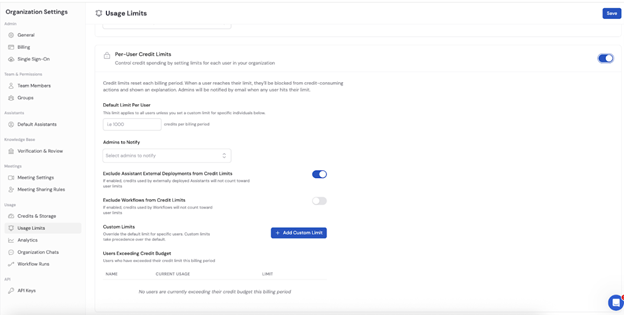
2
Set the default limit
Under Default Limit Per User, specify the credit limit that applies to all users (e.g., 1000 credits per billing period).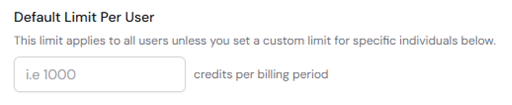
3
Choose whether users can see usage remaining
Leave Show Usage Remaining to Users on to show the Usage Remaining flyout in each user’s account menu. Turn the setting off to hide the flyout from users. The setting is on by default.
4
Select admins to notify
Choose which admins should receive email notifications when any user hits their credit limit.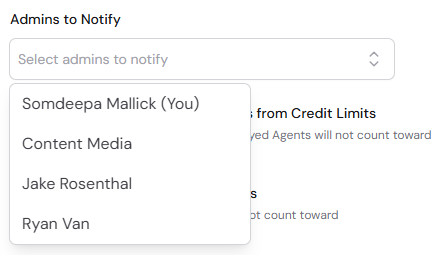
5
Configure exclusions (optional)
Toggle on the following options if you want to exclude certain usage from counting toward credit limits: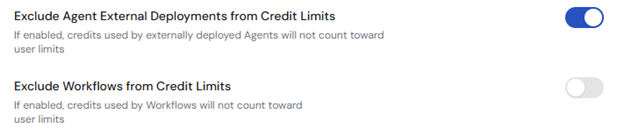
- Exclude Agent External Deployments from Credit Limits — Credits used by externally deployed Agents won’t count toward user limits.
- Exclude Workflows from Credit Limits — Credits used by Workflows won’t count toward user limits.
6
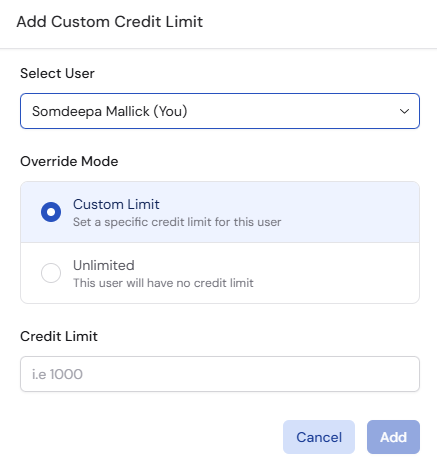
Add custom limits for specific users (optional)
Click Add Custom Limit to override the default limit for individual users. Select the user and set a specific credit cap, or leave them unlimited.
7
Monitor users exceeding their budget
Review the Users Exceeding Credit Budget section to see which users have exceeded their credit limit in the current billing period, along with their current usage and limit.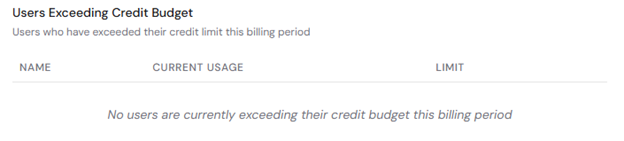
8
Save
Click Save to apply your credit limit configuration.
Per-user credit limits are now active. Limits reset at the start of each billing period. Custom limits take precedence over the default limit.
Comparison
All three can be used together. For example, set an organization alert at 80% to track overall spend, per-user alerts to catch high individual usage early, and per-user limits to enforce a hard ceiling.
Next steps
Manage credits
Understand how credits work and check your balance.
Monitor usage
Track credit, storage, and meeting usage across your organization.