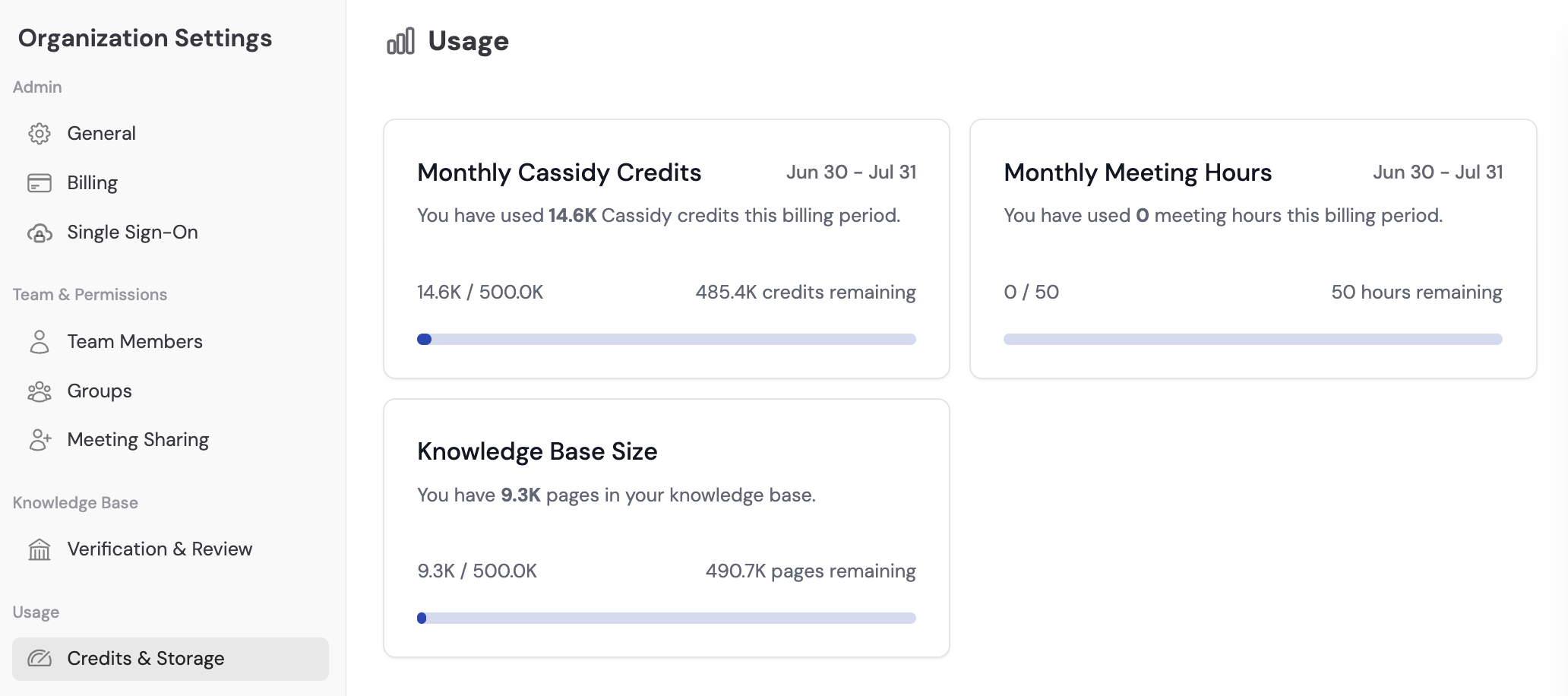
View your usage dashboard
Open organization settings
Click your account name at the bottom of the sidebar, then click the gear icon next to your organization name.
What you can track
| Metric | What it measures | Where to look |
|---|---|---|
| Credits used | Total AI credits consumed this billing period | Credits section |
| Knowledge Base storage | Total storage used by uploaded documents and imported content | Storage section |
| Meeting hours | Total hours of Meetings recorded this billing period | Meetings section |
What happens when you exceed limits
| Limit exceeded | What happens |
|---|---|
| Credits | AI-powered features (Agent chats, Workflow runs) are temporarily unavailable until credits reset or you upgrade |
| Storage | You won’t be able to upload new documents until you free up space or upgrade your plan |
| Meeting hours | Meeting recording is disabled until hours reset or you upgrade |
If your team is consistently hitting limits, consider upgrading your plan for higher allocations. See Manage plans.
Next steps
Credit usage alerts and limits
Set up automatic alerts and per-user spending caps.
Manage credits
Understand how credits work and explore options for getting more.