

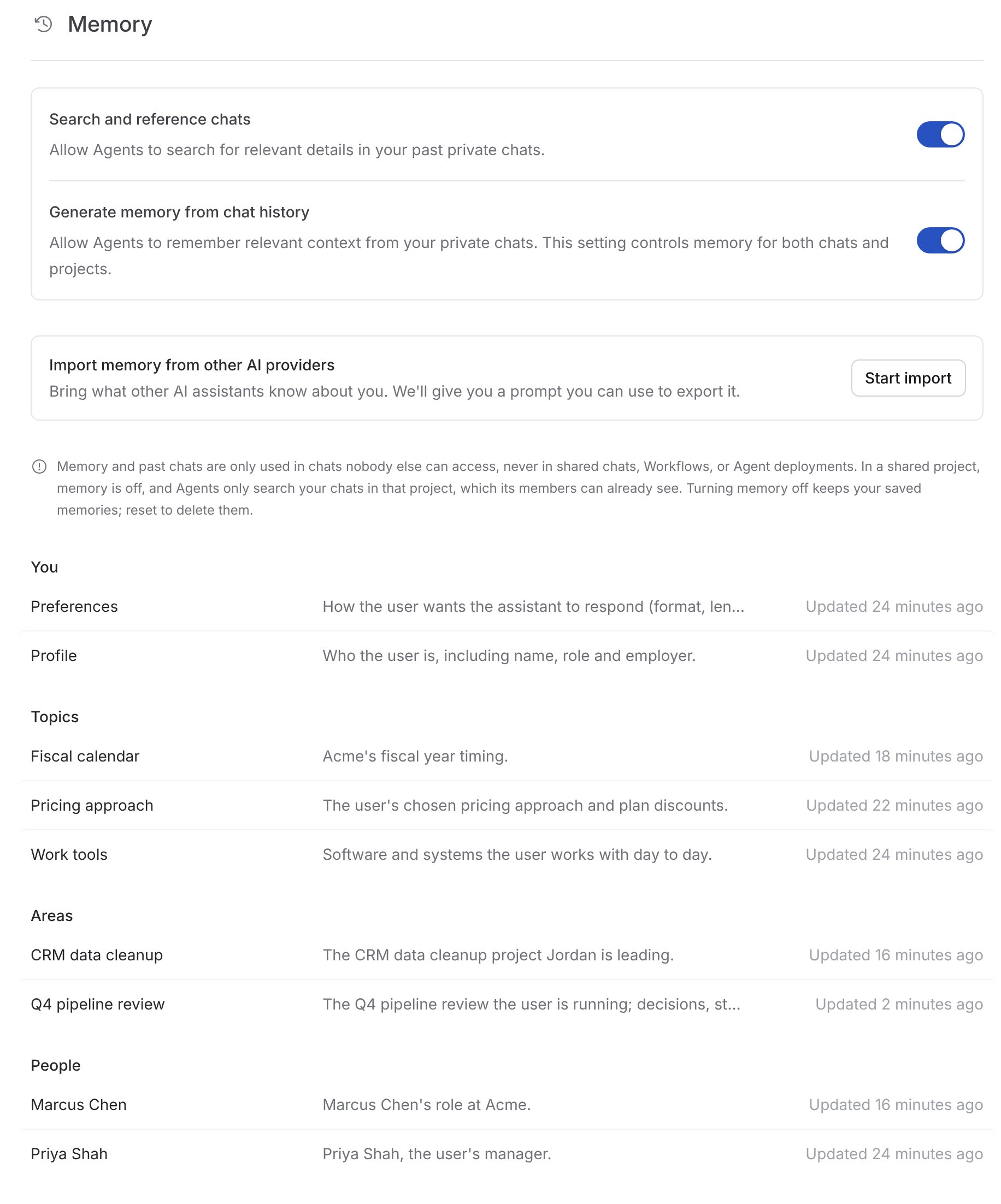
How memory works
Memory has two parts, each with its own setting in Customize → Memory:- Generate memory from chat history: Agents remember useful context from your private chats and use it in later ones.
- Search and reference chats: Agents can search your past private chats and open the relevant one when you refer back to earlier work.
What Agents remember
After an Agent replies, Cassidy reviews the conversation in the background and saves details that will still be useful later. Agents save only what you tell them directly, such as:- Who you are and what you work on, like your role, team, and company
- How you want Agents to work, like “keep answers short” or “always use bullet points”
- Ongoing work, like a launch, a renewal, or a hiring process, with the decisions and deadlines you mention
- The people you work with, as you describe them
- Anything you explicitly ask an Agent to remember
How Agents use memory
At the start of a chat, the Agent sees your profile, your preferences, and a list of everything else it remembers. When your request needs more, it reads the relevant memory first. You’ll see that step in the chat, for example Recalled Profile and Q4 pipeline review.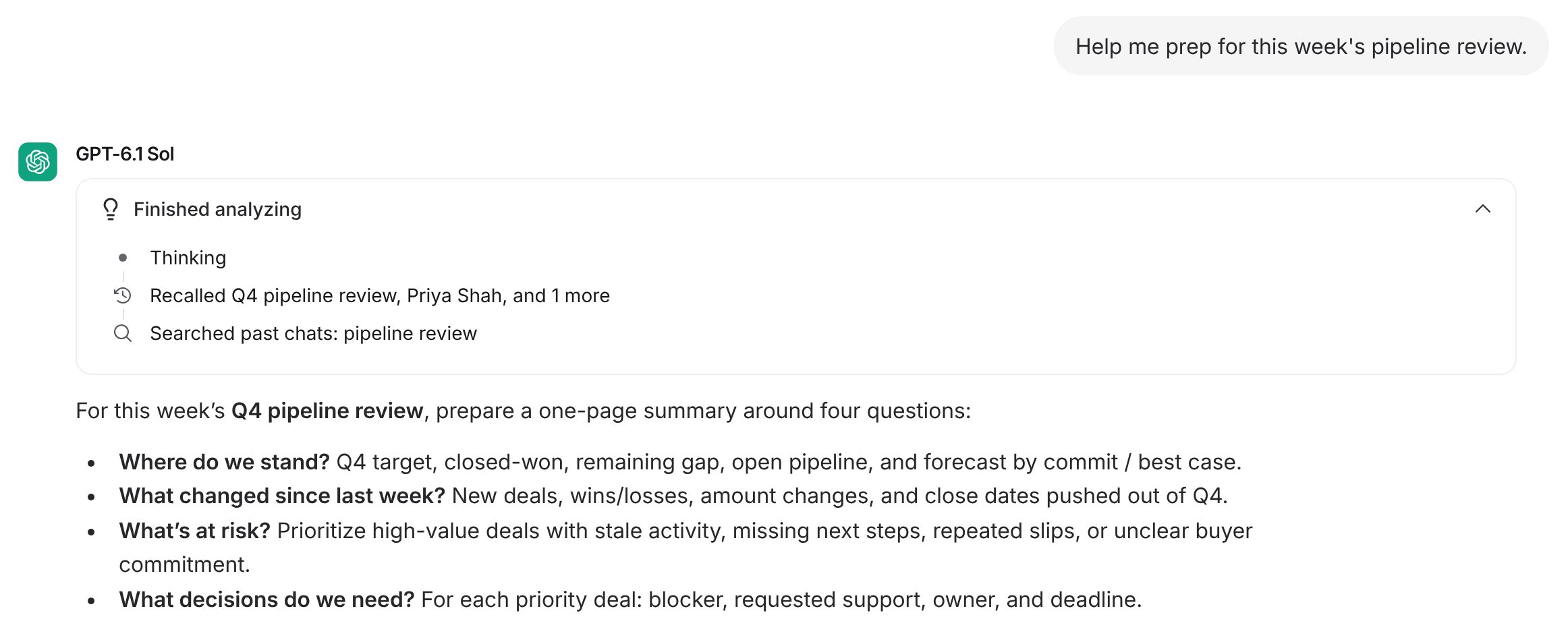
What memory never saves
Agents never save sensitive personal details, health information, finances, or secrets like passwords and API keys, even if you ask. Work about these topics is fine. For example, an Agent can remember that you manage benefits enrollment, or that you’re drafting a policy for a client. When part of a request is blocked, the Agent saves only the rest. If you say “I have a bad back, so schedule meetings as calls,” it remembers only that you prefer calls.Where memory is used
Memory and past chat search run only in chats you haven’t shared, because a shared chat would show what the Agent used. If you share a chat later, Agents stop using memory from then on, but people you share with can still see earlier messages, including anything the Agent read from or saved to your memory.
Memory is also off with an Agent whose builder turned on Turn off memory for
this Agent in its Advanced Settings, in a chat branched from someone else’s
chat, and in some specialized runs, such as Deep Research.
Organization admins who can view all chats, and people who can view an Agent’s
chat history, can see the chats where Agents used your memory, including what
the Agent read or saved. They can’t browse your memory in settings.
Remember, update, or forget something
You can manage memory by asking an Agent in any private chat:- “Remember that our fiscal year starts in February.” The Agent saves it right away.
- “Actually, I moved to the infrastructure team.” The Agent updates what it remembers.
- “Forget what I said about the Denver trip.” The Agent removes it.
- “What do you remember about me?” The Agent tells you what’s saved.

Search and reference past chats
With Search and reference chats on, you can refer to earlier work the way you would with a colleague, for example “use the outline we wrote last week” or “what did we decide about pricing?” The Agent searches your past private chats, opens the relevant one, and tells you which chat it used. You’ll see steps like Searched past chats: pricing decision or Read a past chat. Search stays within where you’re chatting. In a project, it covers only that project’s chats. Outside projects, it covers only chats outside projects.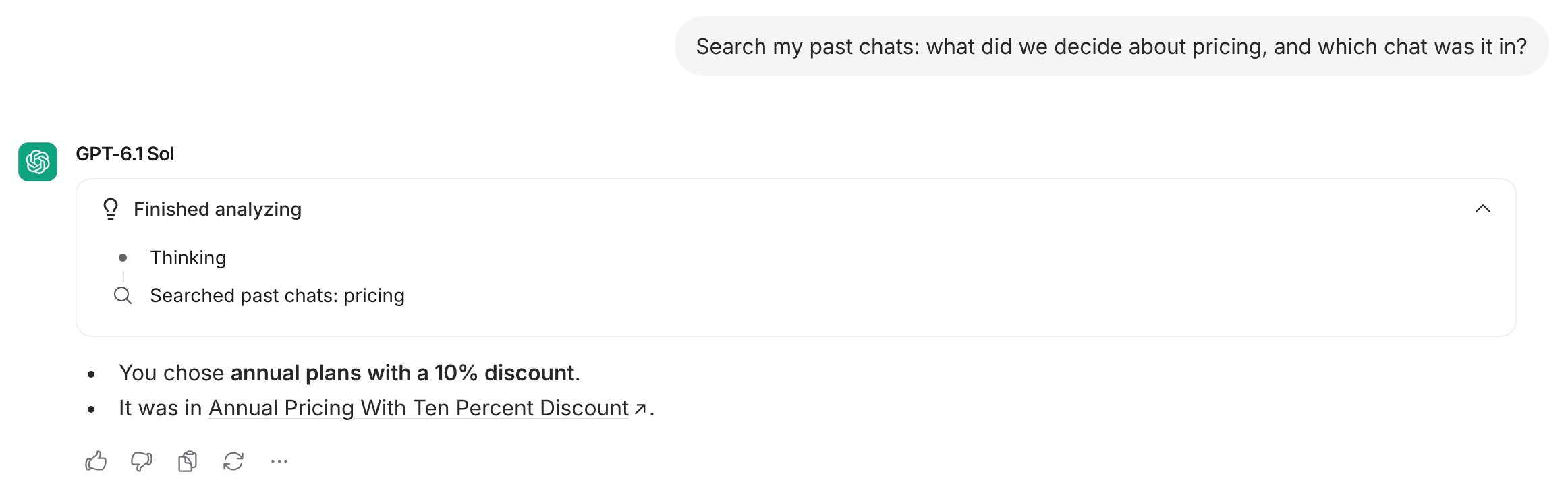
View and delete memories
1
Open Memory settings
Click Customize in the sidebar and select Memory. Saved memories
are grouped into You, Topics, Areas, and People, with
project memories under Projects.
2
Open a memory
Click any memory to see its summary, details, and when it was last
updated. Links to related memories open them.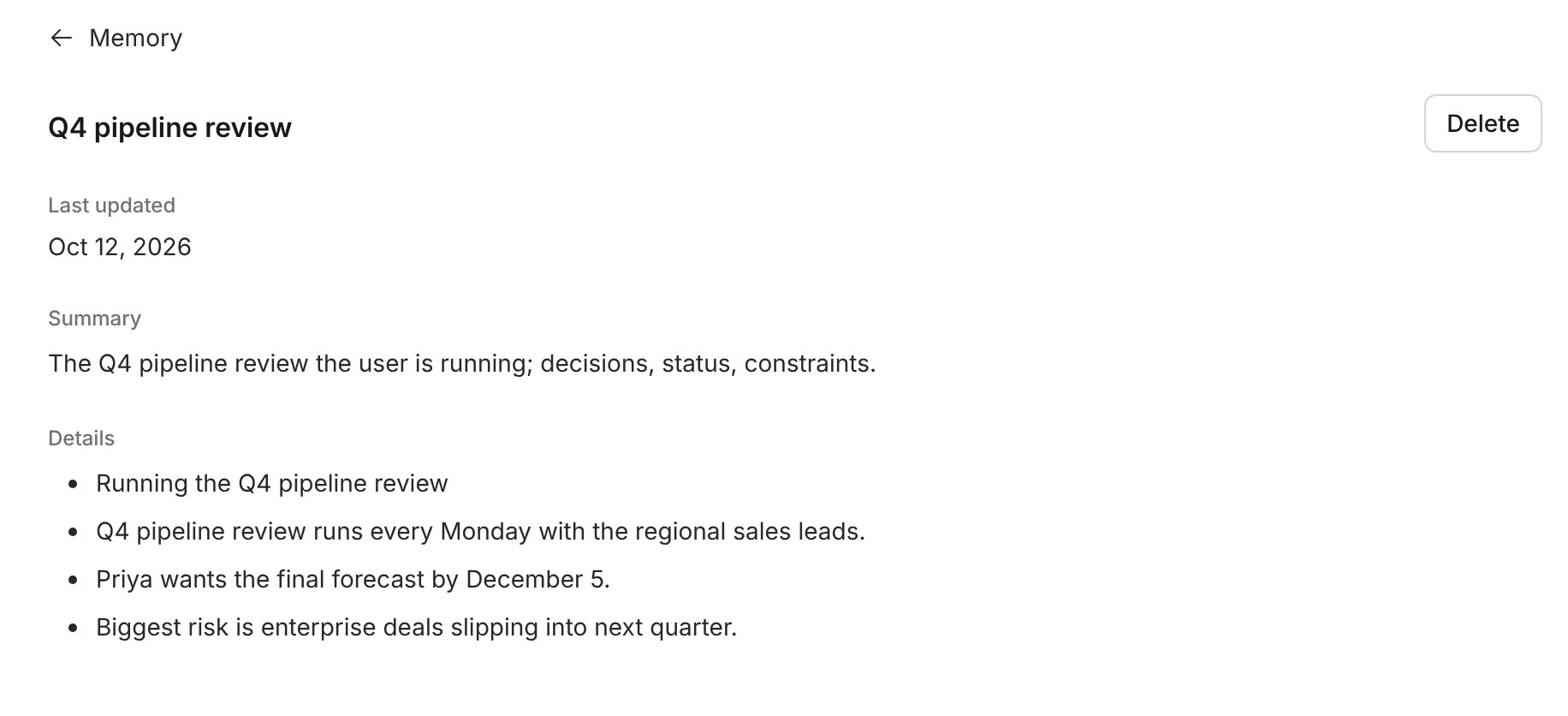
3
Delete a memory
Click Delete and confirm. Agents no longer remember anything in that
memory. To change a single detail instead, ask an Agent in a private chat,
for example “Update my profile: I now lead the West region.”
Import memory from other AI assistants
If you’ve used ChatGPT, Claude, or another AI assistant, you can bring what it knows about you into Cassidy.1
Start the import
In Customize → Memory, find Import memory from other AI
providers and click Start import. Memory must be on to import.
2
Copy the prompt into your other assistant
Click Copy, paste the prompt into a chat with your other AI assistant,
and send it. The assistant replies with what it knows about you.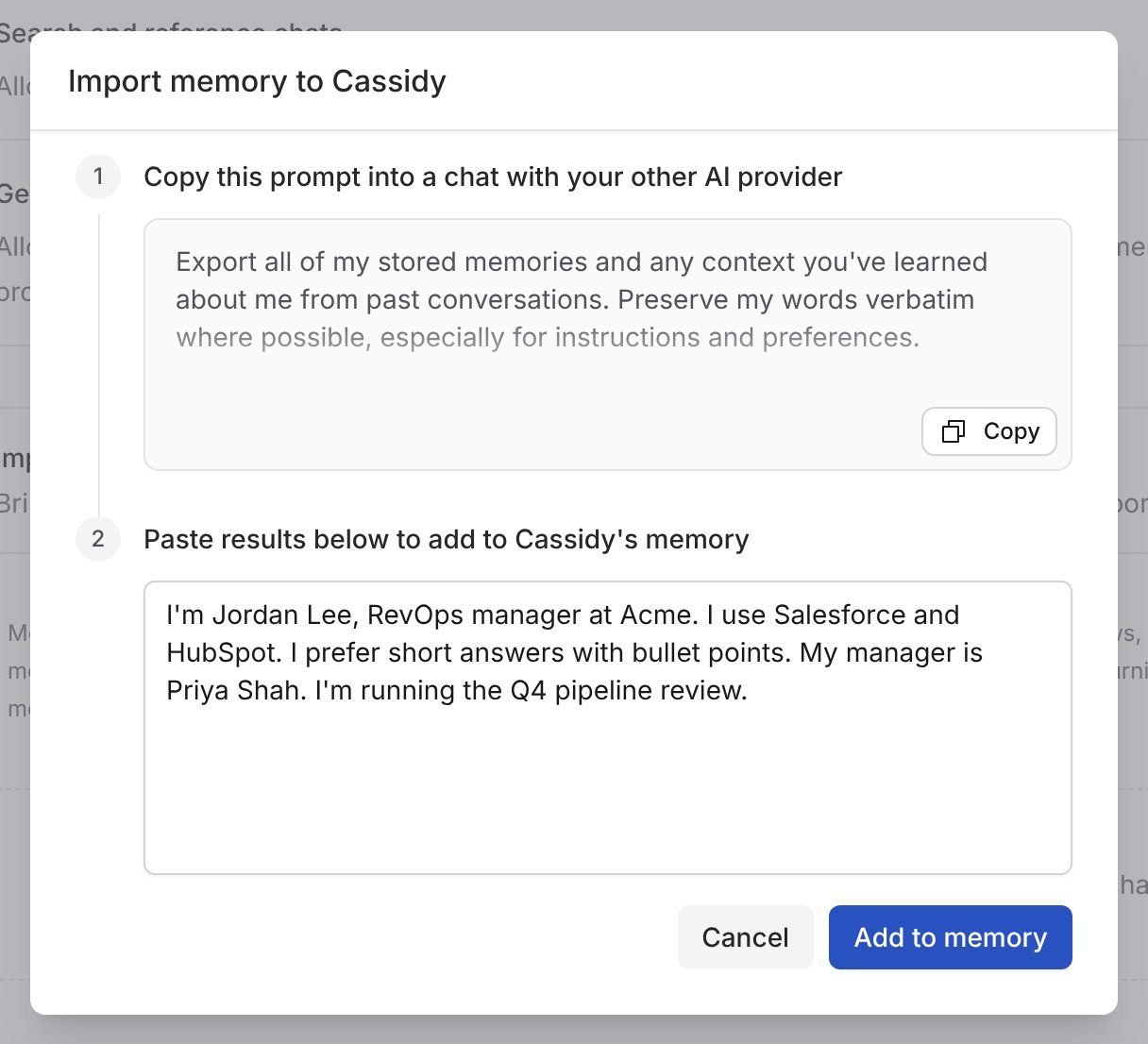
3
Paste the results
Copy the assistant’s reply, paste it into the box, and click Add to
memory.
Cassidy sorts the details into memories in the background. They appear
in your settings when the import finishes.
Memory in projects
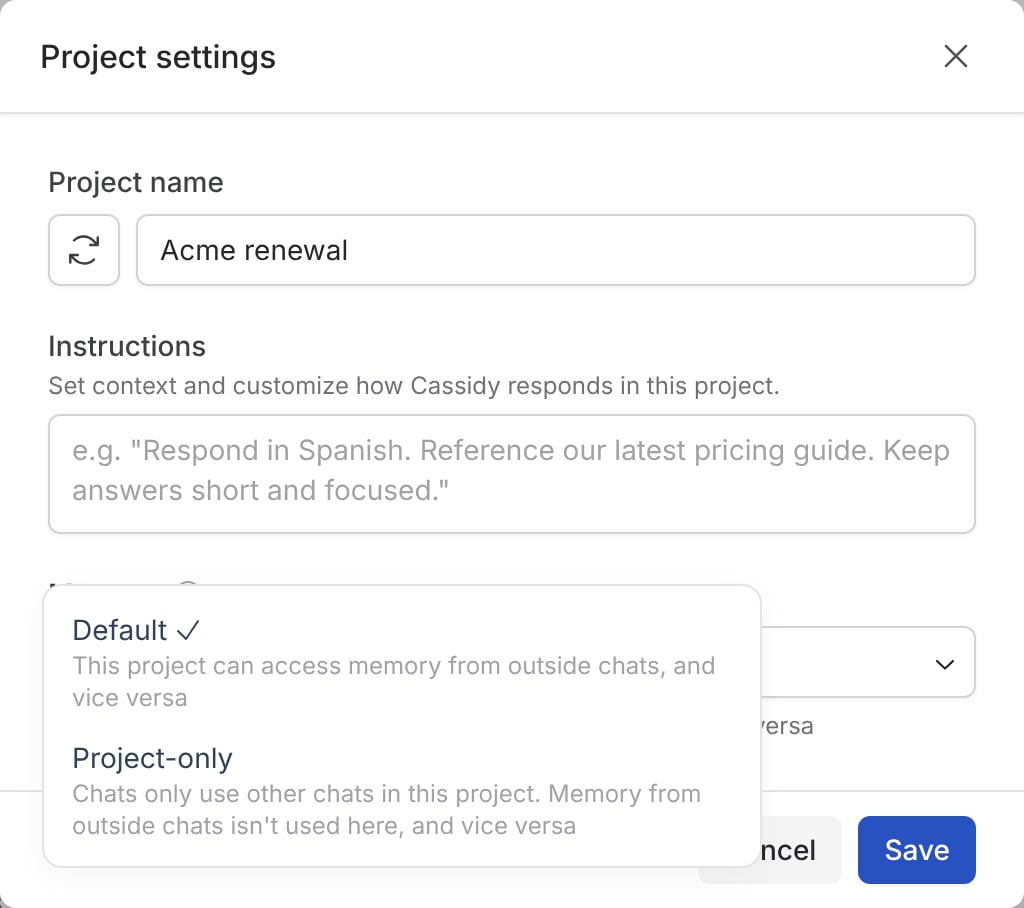
Projects keep related chats together, and memory follows them. Project memory belongs to you, like the rest of your memory, and teammates never see it, even in a shared project.- Default: Details that only matter to the project, like a client’s name or a launch plan, are saved to the project’s own memory, and details that apply everywhere are saved to your memory. Memory works in both directions: chats in the project can use everything Agents remember about you, and chats outside the project can use the project’s memory.
- Project-only: Memory is off in the project. Agents only search other chats in the project, and chats outside it can’t see its memory. Switching back to Default brings back any memory the project already had.
- Shared projects: Sharing a project switches it to Project-only, and it stays that way while shared, because everyone in the project can open its chats. Agents can still search the project’s chats, including your teammates’, which everyone in the project can already open.

Turn memory off or reset it
- Pause memory: Turn off Generate memory from chat history. Agents stop using and updating memory, and your saved memories are kept for when you turn it back on.
- Stop chat search: Turn off Search and reference chats.
- Delete everything: Click Reset memory at the bottom of Customize → Memory and confirm. This permanently deletes all of your memories, including project memories. Your past chats aren’t changed.
Turn memory on for your organization
Memory is on by default. Organizations on an Enterprise plan may have it off until an admin turns it on. When memory is on for the organization, memory and chat search are on for every member, and each member can turn either one off for themselves.1
Open Controls
In Organization Settings, click Controls under the Admin
section.
2
Turn on Memory
Find Memory and turn it on. Memory and chat search turn on for every
member, and each member can turn them off in Customize → Memory.
Turning it off later stops Agents
from using memory and past chat search for everyone. Saved memories are
kept and apply again if you turn memory back on.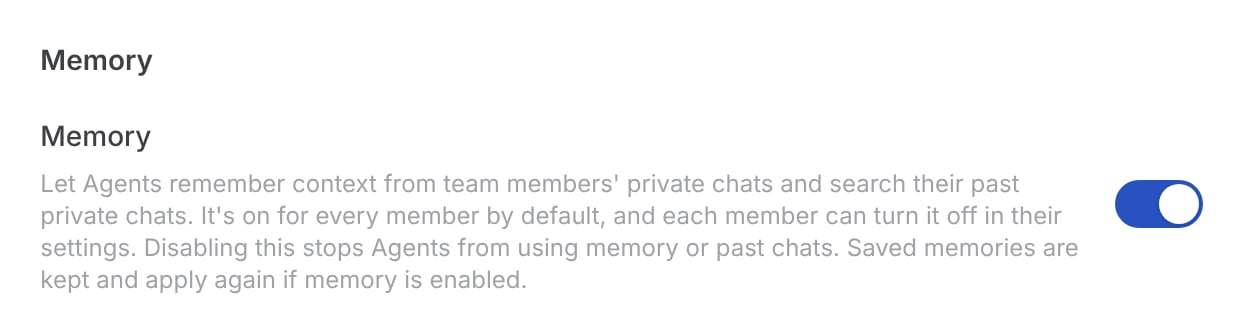
Common questions
Why didn't the Agent remember something I told it?
Why didn't the Agent remember something I told it?
A few common reasons:
- The detail won’t matter for long, like a date this week or where you are today. Ask the Agent to remember it if you want it saved anyway.
- It came from a file, a search result, or the Agent’s own suggestion rather than from you.
- The chat was shared, in a shared project, or with an Agent whose builder turned memory off for it, so memory was off.
- It falls under what memory never saves.
Do other people see my memory?
Do other people see my memory?
No. Your memory is used only in chats you haven’t shared, and it never
changes an Agent for anyone else. If you share a chat that already used
memory, people you share with can see what the Agent read or saved in its
earlier messages. Organization admins who can view all
chats, and people who can view an Agent’s chat history, can see those
chats, including what the Agent read or saved.
Does memory work with every Agent?
Does memory work with every Agent?
Yes. Memory is shared across all Agents in your organization, so a detail
you mention to one Agent is available to another in your next private
chat.
How is memory different from Personalization?
How is memory different from Personalization?
Personalization is what you write
yourself: your name, role, and response preferences. Memory is what Agents
learn from your chats over time. Agents use both.
Does memory use credits?
Does memory use credits?
Updating memory after a reply runs as part of the chat and uses a small
number of credits, which appear in that reply’s credit details.
Next steps
Personalize your chats
Tell Cassidy your name, role, and how you like answers written.
Chat with an Agent
Learn the chat features, including projects.