

What archiving does
- Archived items no longer appear in the Agent and Workflow directories, including folders and the folder item counts.
- Archived items still appear in search results, so you can find and restore them.
- All archived items are listed in the Archived view in the sidebar of each directory.
- Nothing is deleted. Configuration, version history, and past runs and chats stay intact.
Archive an item manually
1
Find the item
Open the Agents or Workflows directory and find the item you want to
archive.
2
Archive it
Open the item’s actions menu and click Archive.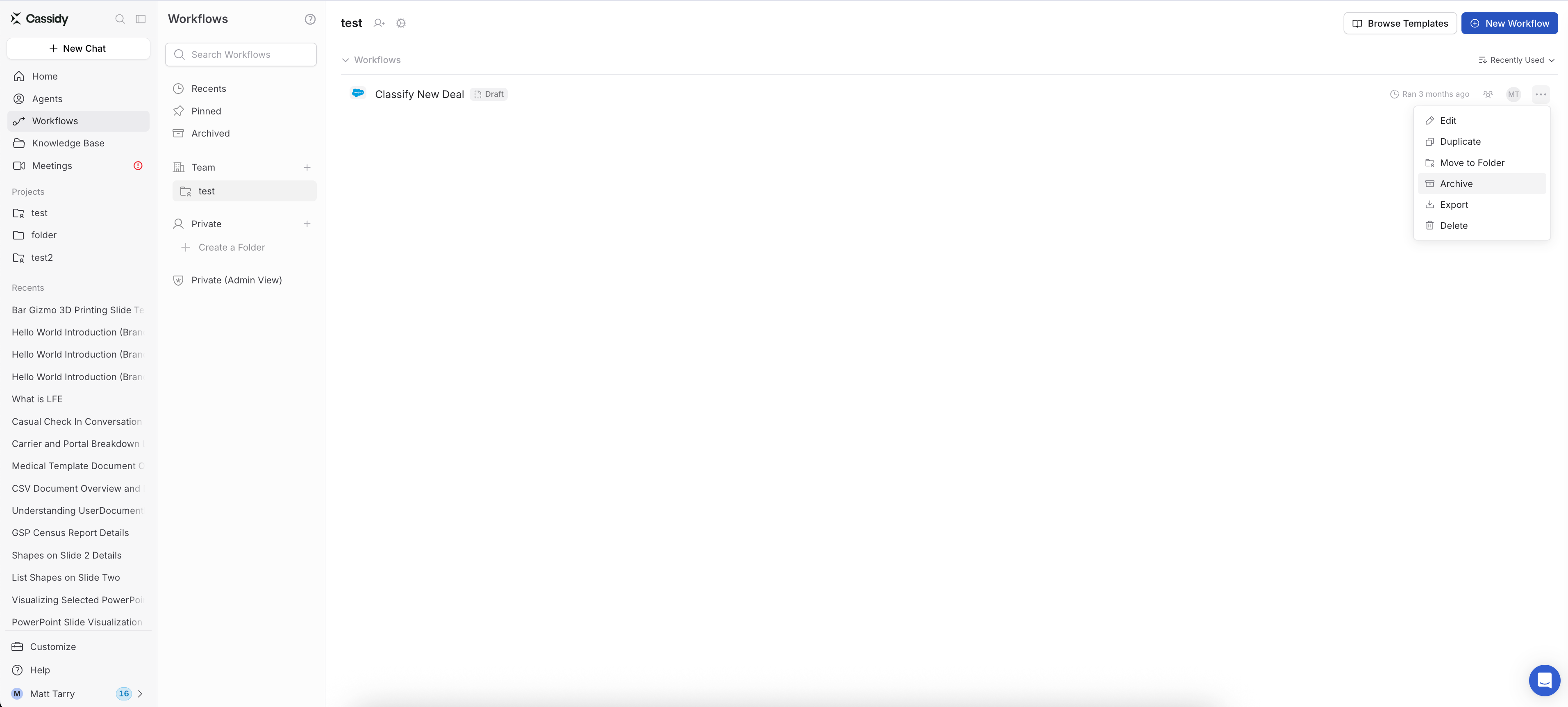
Restore an archived item
Open the Archived view in the sidebar, open the item’s actions menu, and click Unarchive. You can also find the item with search. A manually unarchived item stays visible even if it’s inactive for longer than your auto-archive period. To let auto-archive manage it again, see Return items to auto-archive. Items archived by auto-archive are restored automatically as soon as someone uses them.Auto-archive inactive items
Admins can have Cassidy archive unused Agents and Workflows automatically.Only Admins can configure auto-archive. Settings apply to your whole
organization.
1
Open General settings
In Organization Settings, click General under the Admin section.
2
Turn on auto-archive
In the Auto-Archive section, turn on Archive inactive workflows,
Archive inactive agents, or both.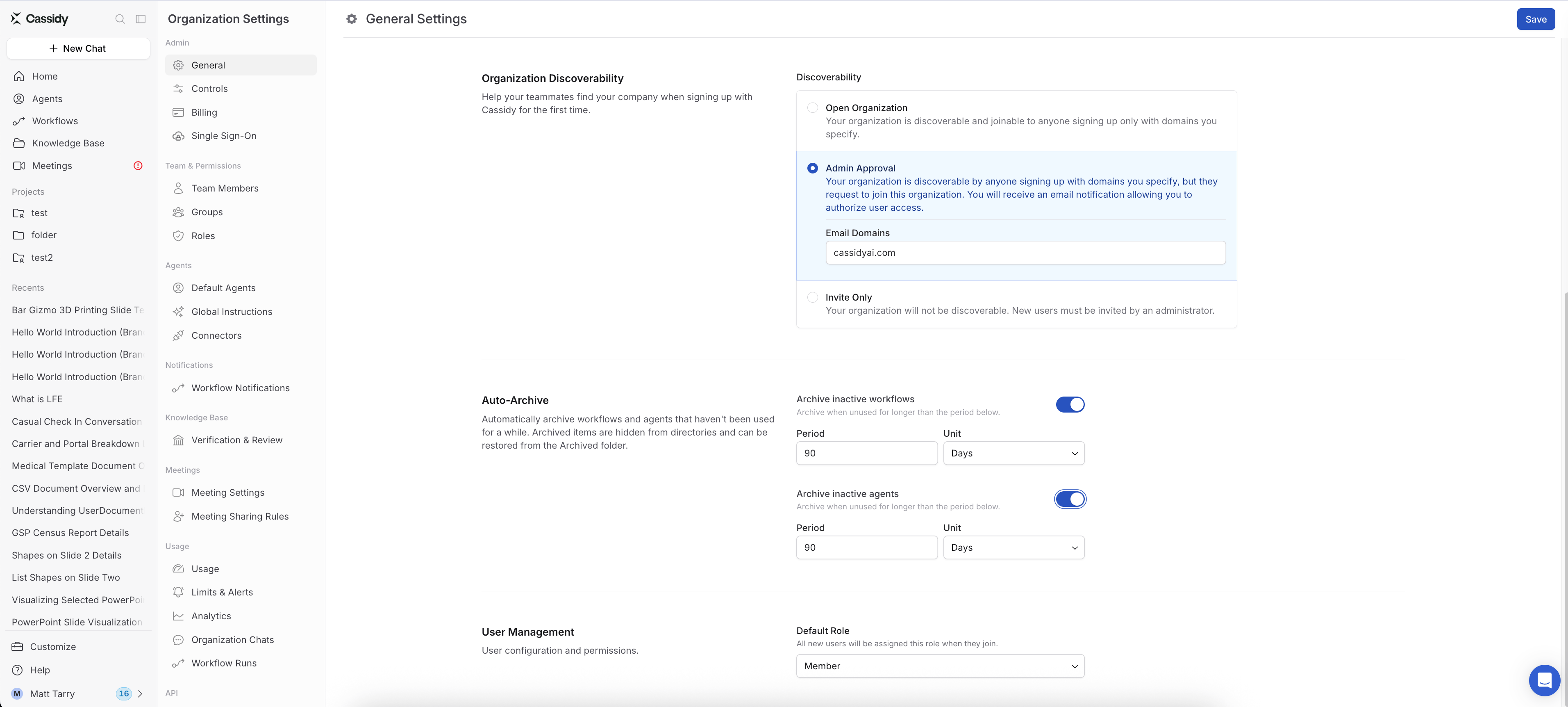
3
Set the inactivity period
Enter a period in days, months, or years. The default is 90 days.
4
Save
Save your settings. Changes take effect immediately. Before saving, click
Preview what will change to see which items will be archived or
restored.
Turn off auto-archive
Turning off auto-archive leaves everything as is. Items it archived stay archived and need to be unarchived manually. When you save, Cassidy tells you how many items this affects and lets you unarchive them instead. If you turn off auto-archive for both workflows and agents at once, you can choose separately for each. Items kept archived this way are listed under Excluded from auto-archiving if you turn auto-archive back on.What counts as activity
An item is archived when it has had no activity for longer than your period. Any of these counts as activity:- Running a Workflow, including runs from triggers.
- Chatting with an Agent, including through deployments like Slack.
- Saving or publishing changes to the item.
- Creating the item.