Learn how to enable Widgets and create focused interactive forms, reviews, charts, and controls directly inside Agent conversations.
Widgets let an Agent place a focused interactive experience directly inside a chat reply. You can review information, filter data, provide missing details, attach supporting files, or send a structured follow-up without leaving the conversation.
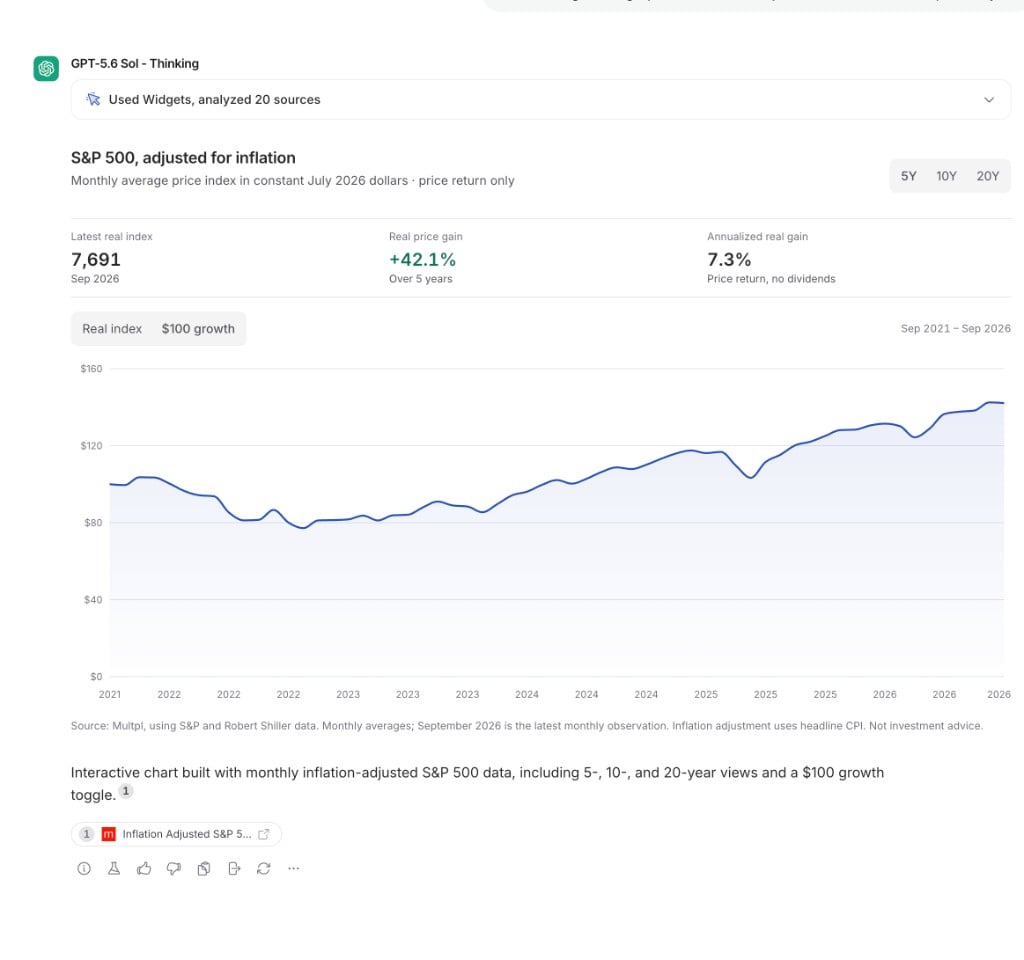
An interactive market chart rendered directly inside an Agent reply
For a reusable Agent configuration, open the Agent editor and use the Setup tab. For a one-off test in chat, open the tools menu beside the chat input.
2
Turn on Widgets
In the Agent editor, add Widgets under Capabilities and publish the Agent. In a chat, select Widgets from the tools menu instead.
An Agent creates a Widget only when you explicitly ask for a widget or interactive widget. Ordinary requests for a chart, form, or visualization do not automatically use Widgets.
1
Describe the outcome and interaction
Tell the Agent what the Widget should help you review or accomplish. Include the decisions, fields, filters, or actions that matter.For example:Create an interactive widget that compares these two employee censuses, highlights meaningful changes, and lets me ask about a selected change.
2
Use the Widget in the reply
Click, filter, type, select values, or attach requested files directly inside the Agent’s message. Submitting a Widget can send your selections back to the same conversation so the Agent can continue.
3
Ask for adjustments
Request changes in plain language, such as Make the review queue wider, add a confidence filter, and show the source for each answer. The Agent can revise and present the Widget again.
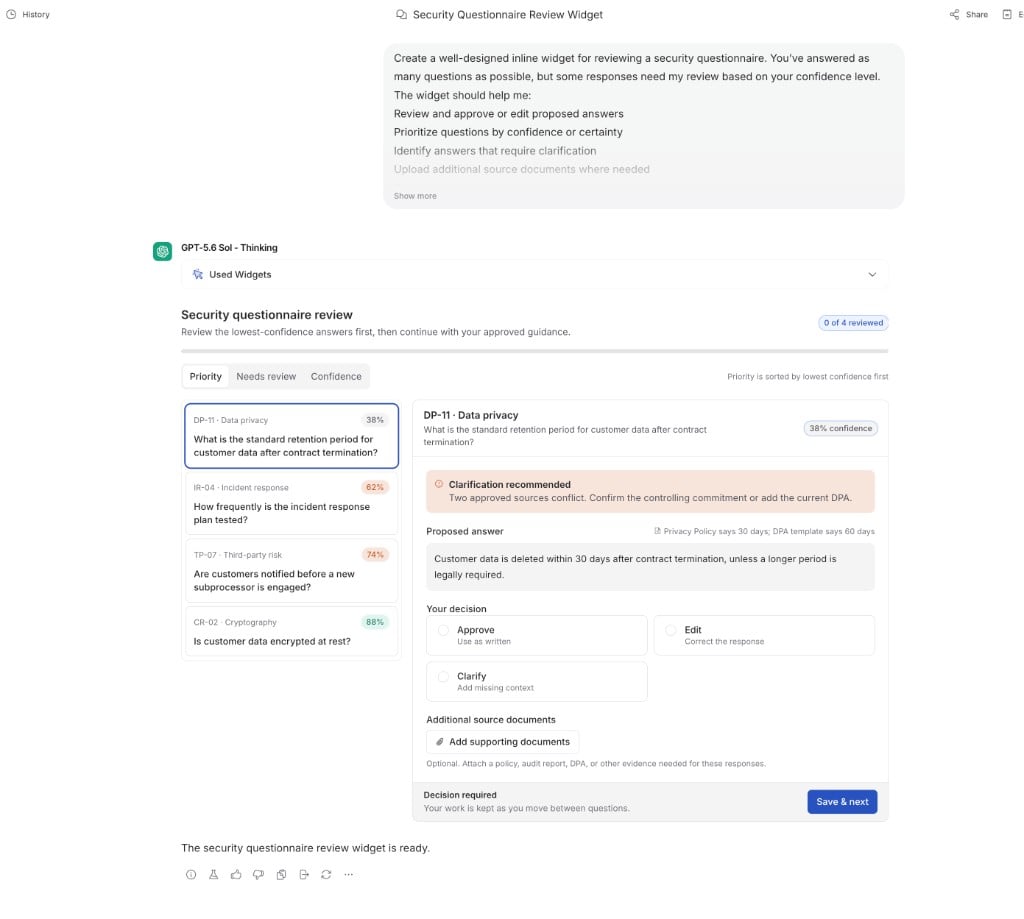
Create an interactive widget for reviewing the security questionnaire you answered. Group the questions that need my input by confidence, let me correct answers or attach supporting documents, and show a summary before I submit my review.
Create a widget that shows monthly retention by customer segment. Let me change the date range, compare two segments, and select an unusual month to ask you for an explanation.
Create a widget that summarizes this customer handoff, highlights missing information, and lets me approve it, request changes, or add a note for the implementation team.
Widgets appear inside the Agent message and adapt to the available chat width.
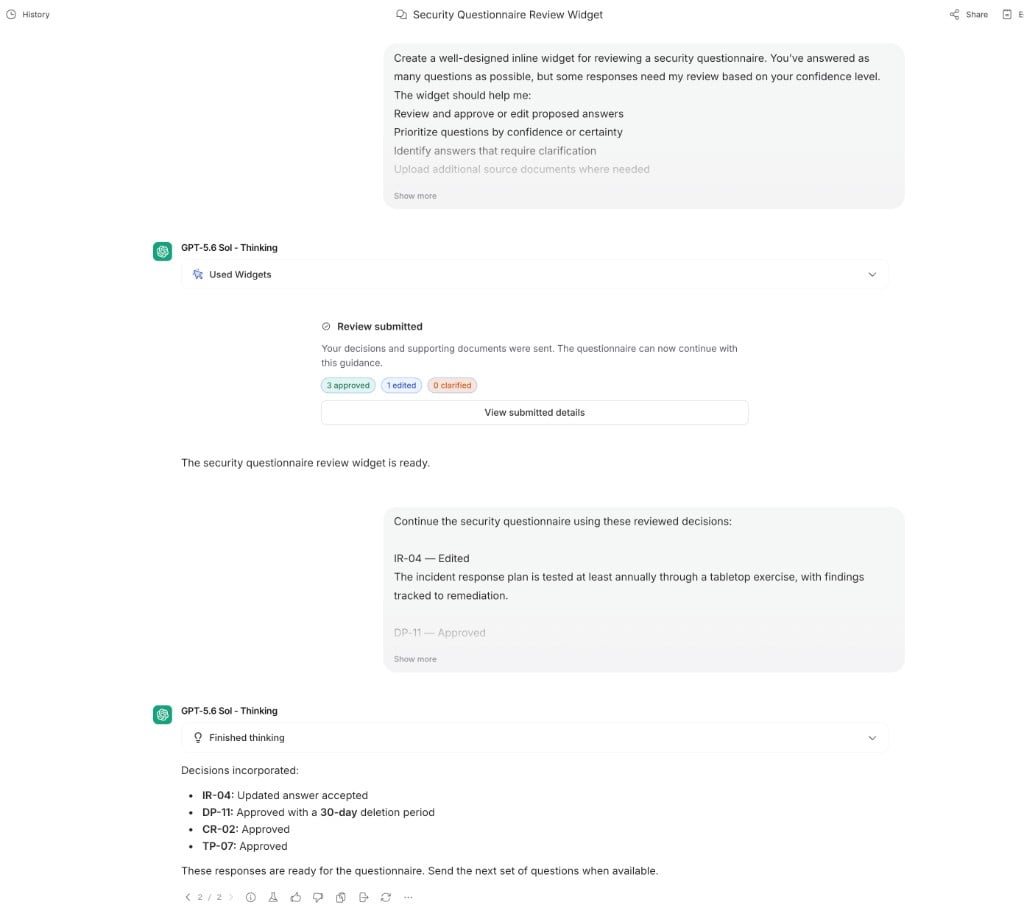
A submitted Widget should leave a short receipt of what you sent. Larger submissions may provide a way to reopen the submitted details.
If the Agent is already responding, a Widget submission may wait until the current response finishes before it is sent.
Some Widgets are temporary and reset when the chat reloads. Review and approval Widgets can be designed to remember progress for people who can edit the chat.
Widgets run in an isolated environment and cannot freely access your browser, account, or external websites.
Advanced: reusable Widgets from Skills
A Skill can include a reusable Widget that follows the
same structure each time. The Agent can adapt it to the current task and show
it directly in chat.This is useful for standardized calculators, intake forms, comparison tools,
review queues, and interactive explainers. The Skill can provide the structure
while the Agent adapts the content to the current conversation.