

Before you start
If data analysis is not available for an Agent, edit the Agent and make sure
Code Execution & File Creation is enabled under Customize >
Advanced Settings.
Provide data for analysis
You can provide data in several ways:- Upload a file in Chat — Attach a CSV, Excel file, or other structured data file directly in the conversation.
- Reference a Knowledge Base file — If your data is already in the Knowledge Base, reference it in the conversation or in the Agent’s instructions using #.
- Use Connector results — If your Agent has Connectors, Code Execution & File Creation can help the Agent work with large structured results from those tools.
Analyze a file in Chat
1
Start a conversation
Open Chat and choose the Agent you want to use.
2
Attach your data
Upload a spreadsheet, CSV, or other structured file.
3
Ask a specific question
Ask the Agent what you want to learn from the data. For example:“Analyze this sales data and show monthly revenue trends, top-performing products, and any unusual changes.”
4
Review the results
The Agent writes and runs code behind the scenes, then returns the results in the conversation. It can include summaries, tables, charts, or downloadable files depending on your request.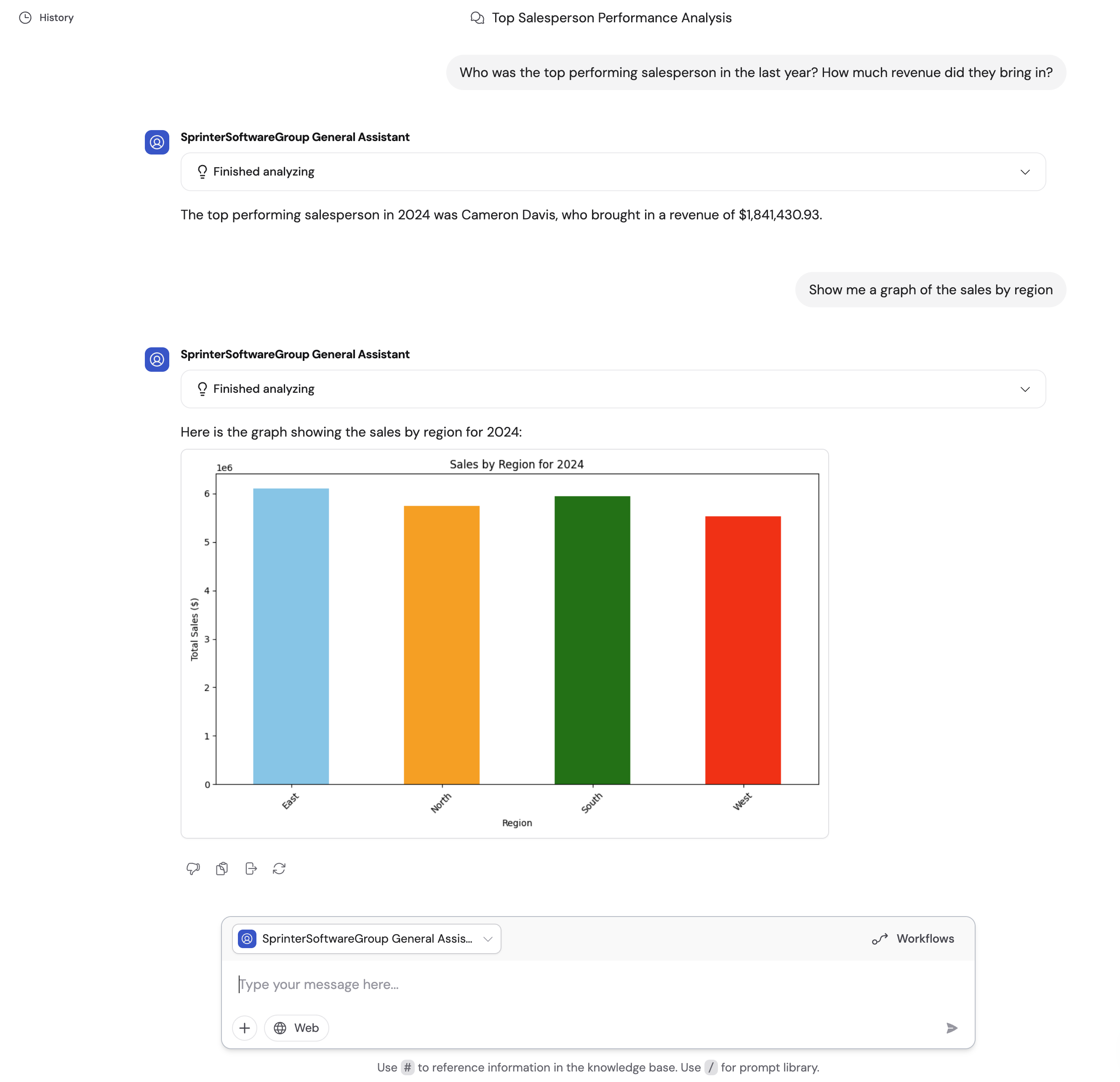
Use Knowledge Base files
If you want the Agent to analyze the same file regularly, add the file to the Agent’s instructions or reference a Knowledge Base file in the conversation. Knowledge Base files can also come from synced integrations like Google Drive, OneDrive, SharePoint, and Box, so the Agent can analyze the latest version.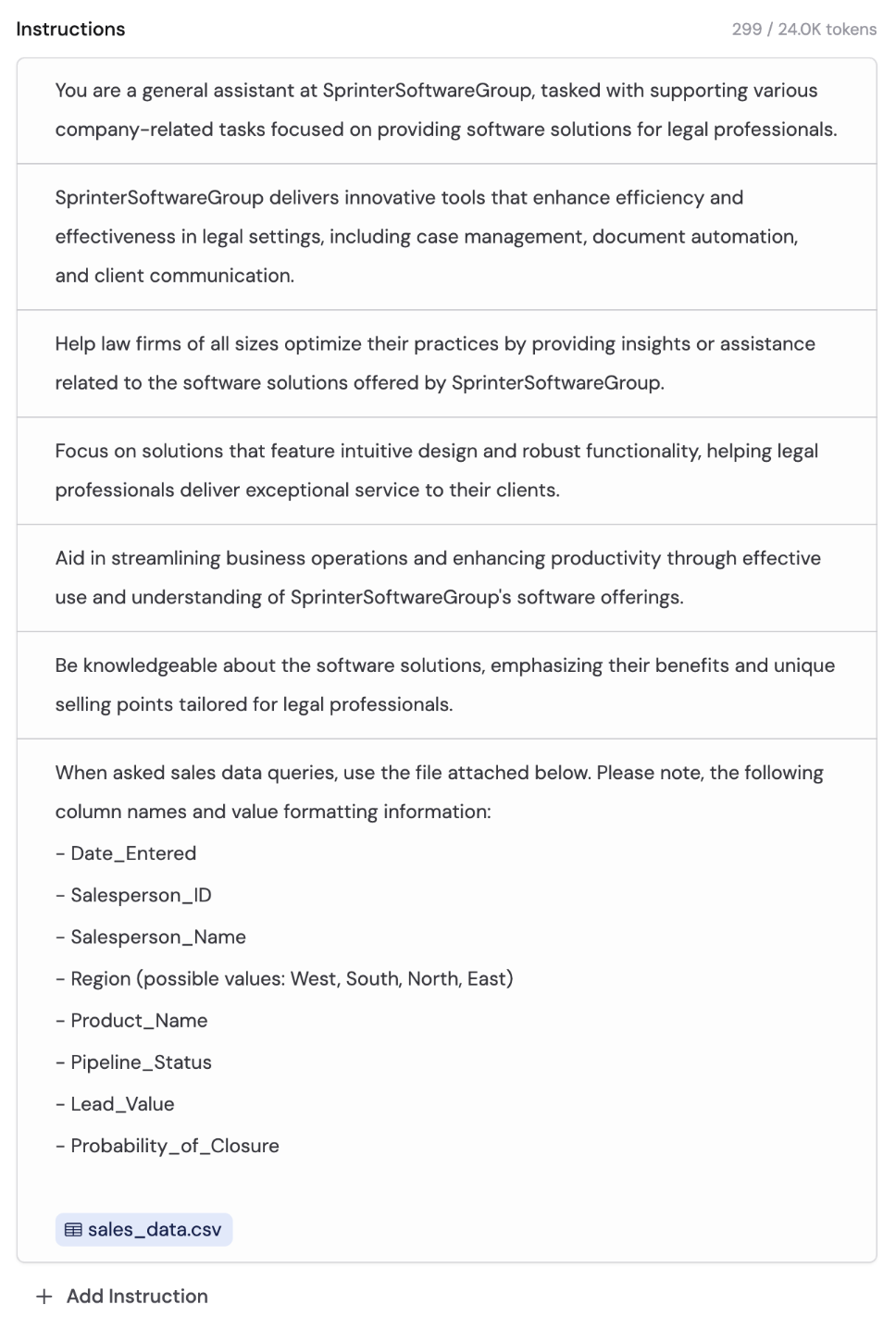
Tips for best results
- Use specific column names — Reference columns by their actual names, such as “Location” or “Revenue.”
- Explain value formats — Describe whether states are abbreviated, dates use a specific format, or currencies are mixed.
- Provide context about the data source — Explain where the data came from and what each table represents.
- Use a powerful model — Data analysis works best with high-powered, reasoning-capable models. See Choose the right AI model.
Related
Code Execution & File Creation
Learn how the Agent setting works and how to turn it on or off.
Create files in Cassidy
Generate documents, spreadsheets, presentations, and reports.
Analyze data in Workflows
Analyze files and generate reports in repeatable Workflows.