

Agent chat retention is an Enterprise-only feature. Contact our sales
team to learn more about upgrading to
Enterprise access.
Required privilege
Viewing and editing an Agent’s chat retention settings requires the Manage
Agent Data Retention admin privilege. Org Admins have this privilege by
default. To grant it to other team members without full Admin access, add it
to a custom role. Saving changes or deleting
chat history also requires edit access to that specific Agent.
Set a retention policy
1
Open the Agent
Navigate to the Agent you want to configure and click the … menu.
2
Access data retention settings
Select Data Retention. If you also have Agent export access, you’ll find it nested under Advanced instead.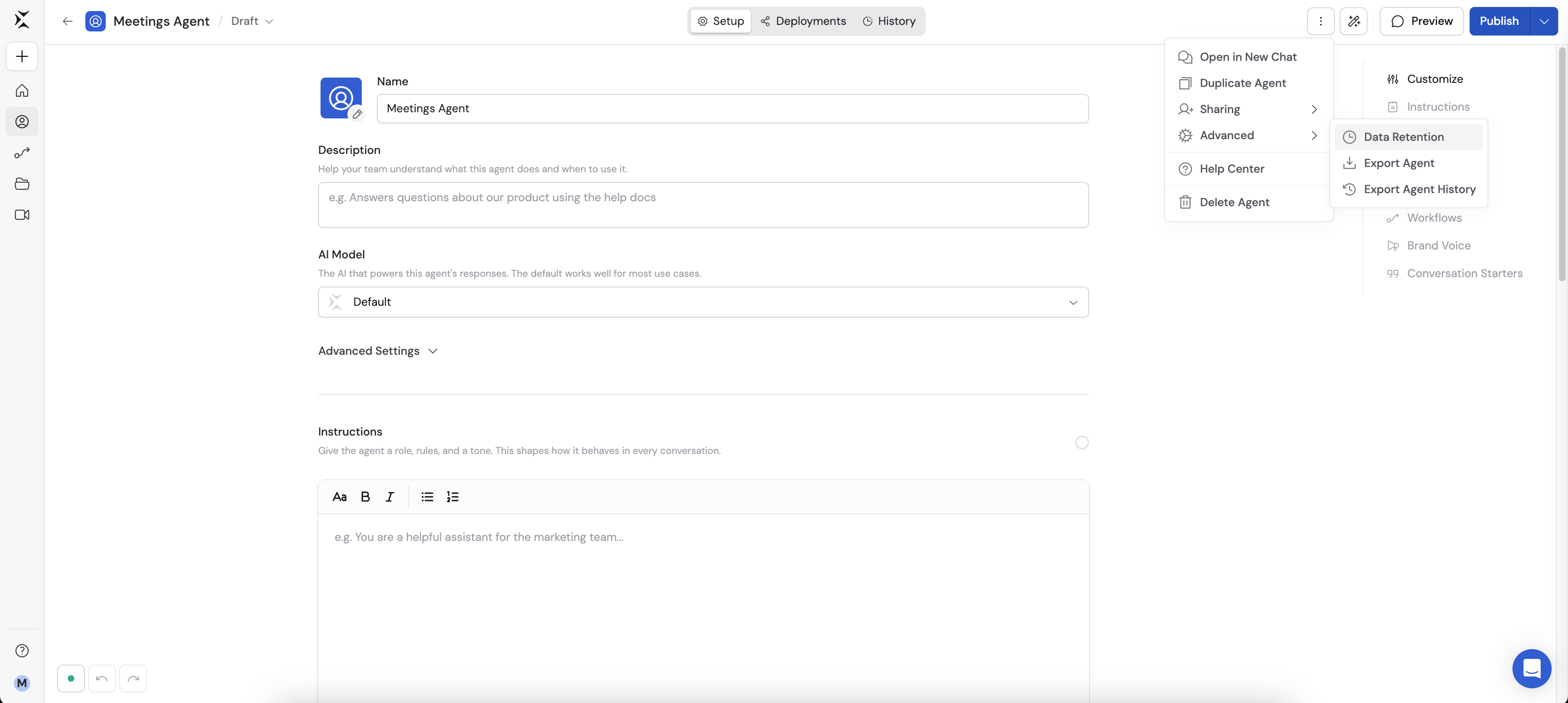
3
Choose a retention type
In the Update Data Retention Period dialog, select from the available options: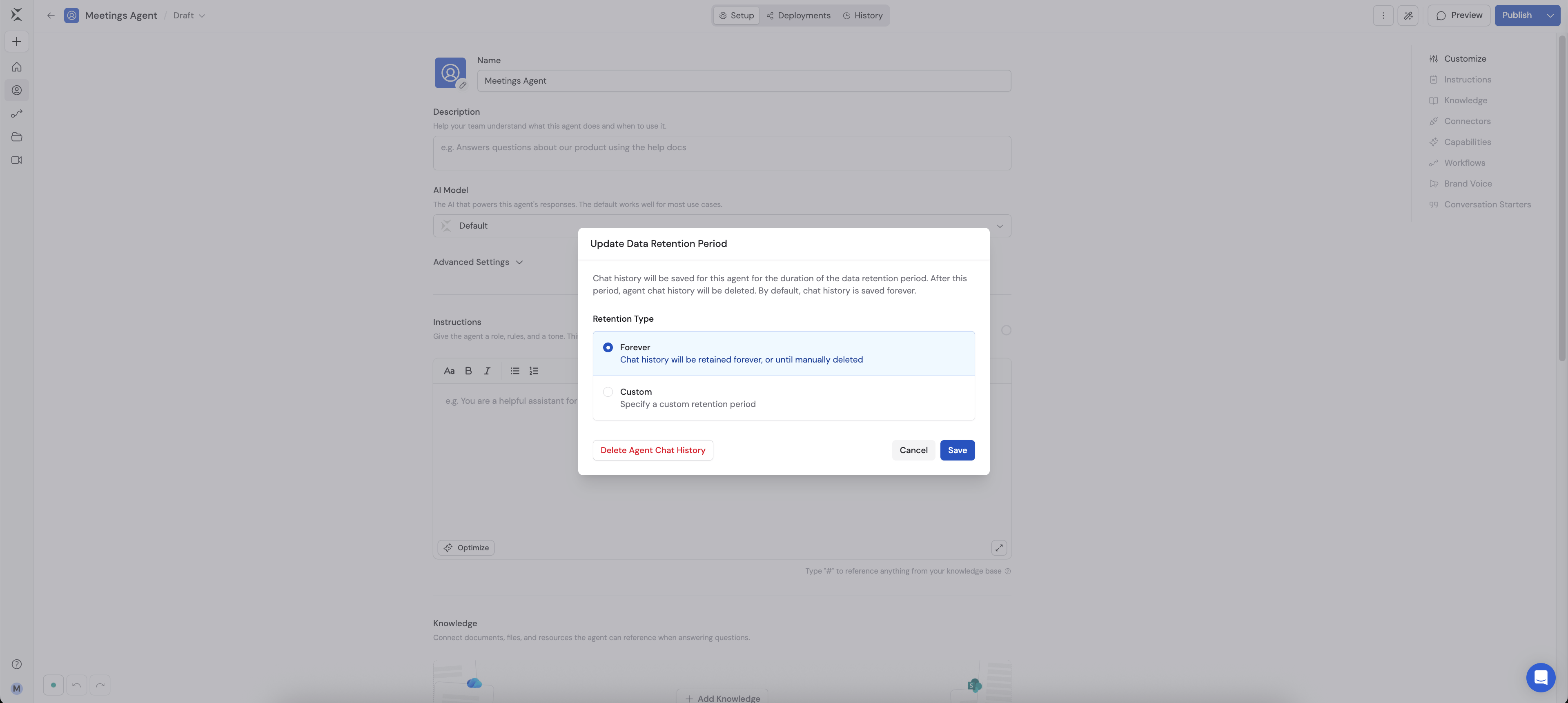
- Forever — chat history is retained indefinitely, or until you manually delete it. This is the default for every Agent.
- Custom — specify a retention period based on your needs.
4
Configure a custom period
If you selected Custom, enter the retention duration (e.g., 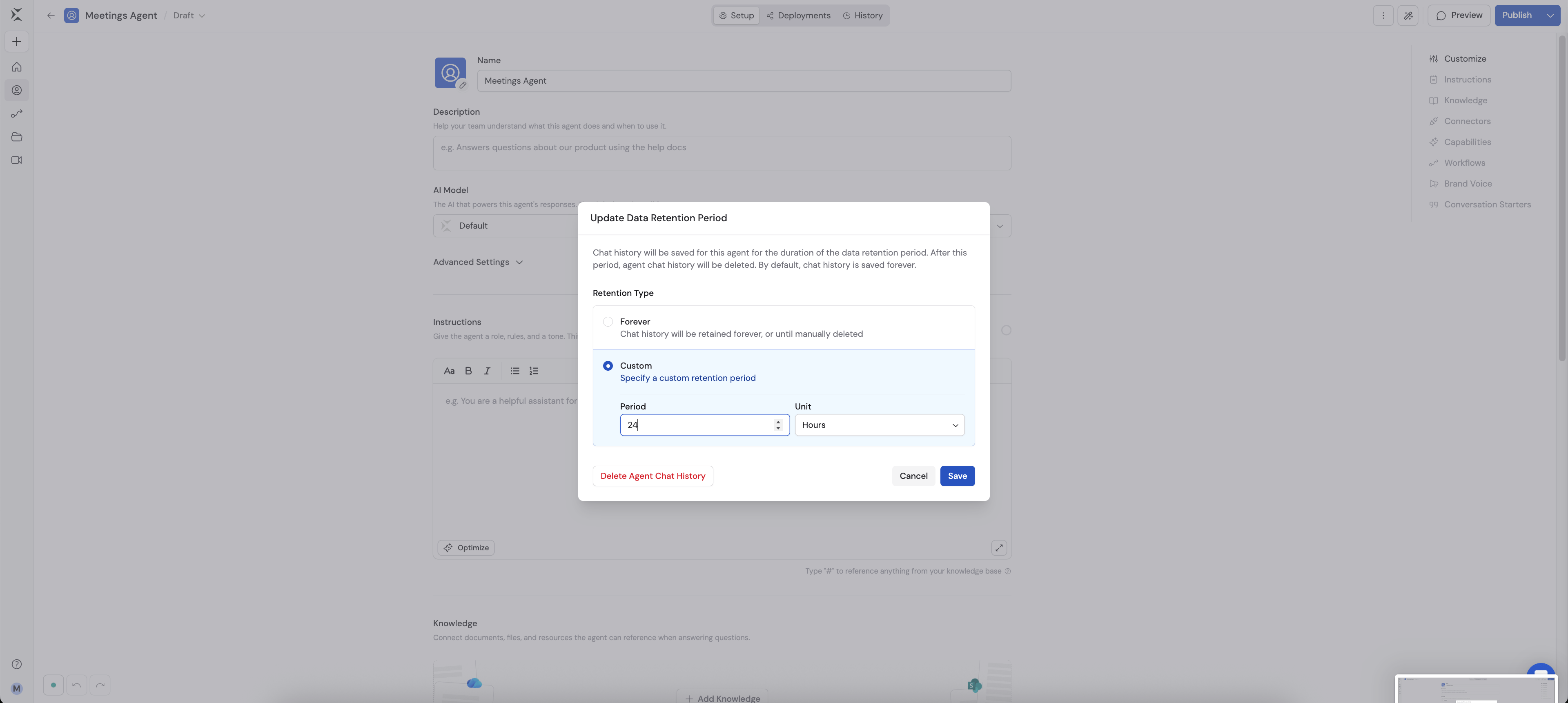
30) in the Period field and select the unit from the dropdown: Hours, Days, Weeks, Months, or Years. The minimum period is 1 hour.5
Save
Click Save to apply the retention settings. Cassidy automatically deletes chat history older than the configured period, for every user who has chatted with this Agent.
Manually delete chat history
You can delete all existing chat history for an Agent at any time, regardless of the retention setting.1
Open data retention settings
Follow the steps above to navigate to the Data Retention settings for your Agent.
2
Delete chat history
Click Delete Agent Chat History, then click Delete again to confirm.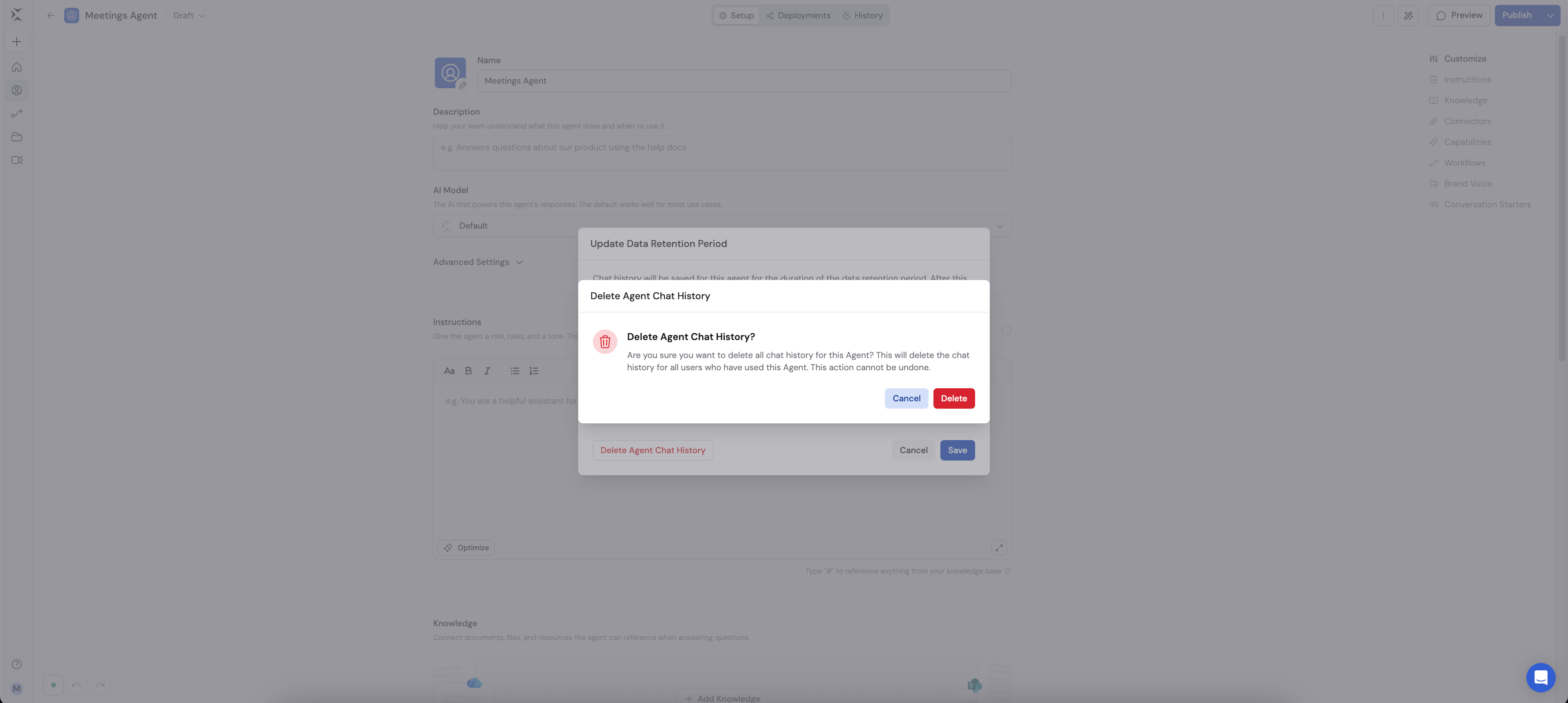
Next steps
Manage roles and permissions
Grant the Manage Agent Data Retention privilege to a custom role.
Enterprise security features
Learn about SSO, SAML, RBAC, and other enterprise controls.