1
Add a Gong New Call Transcript trigger
Create a new Workflow or open an existing one, and add a Gong New Call Transcript trigger.
2
Connect your Gong account
If you haven’t already, click Connect to link your Gong account to Cassidy.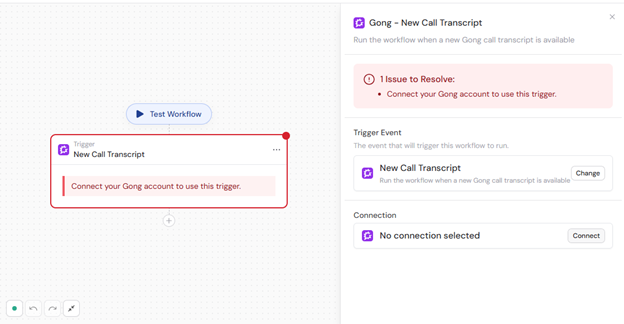
3
Reference the trigger variables
In subsequent Workflow steps, you can reference the following variables from this trigger: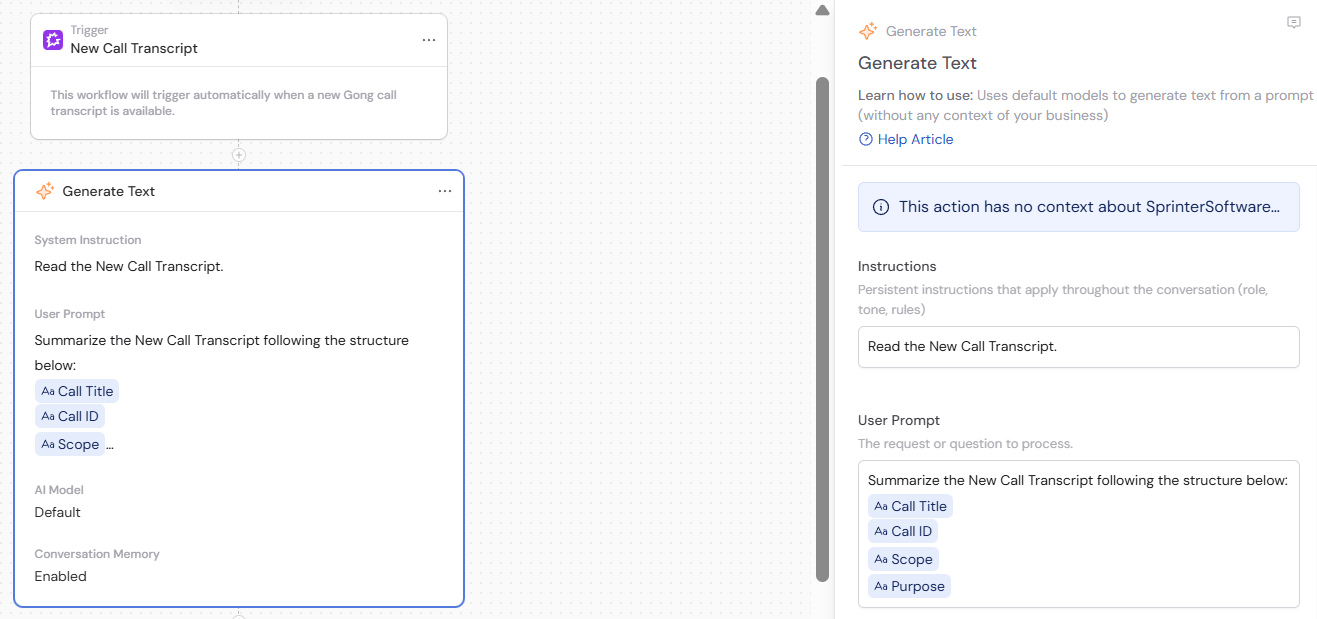
- Call ID — unique identifier for the call
- Call Title — the title of the call
- Call Started — timestamp when the call began
- Call Transcript — full text transcript of the call
- Call URL — link to the call in Gong
- Parties — list of participants in the call
- Scheduled — whether the call was scheduled
- Duration — length of the call
- Scope — the workspace scope in Gong
- Client Unique ID — unique identifier for the client
- Custom Data — any custom data fields you configured
- Purpose — the purpose of the call
- Meeting URL — the original meeting URL (e.g. Zoom, Google Meet link)
4
Process the transcript data
Add actions to your Workflow to process the transcript. Common actions include: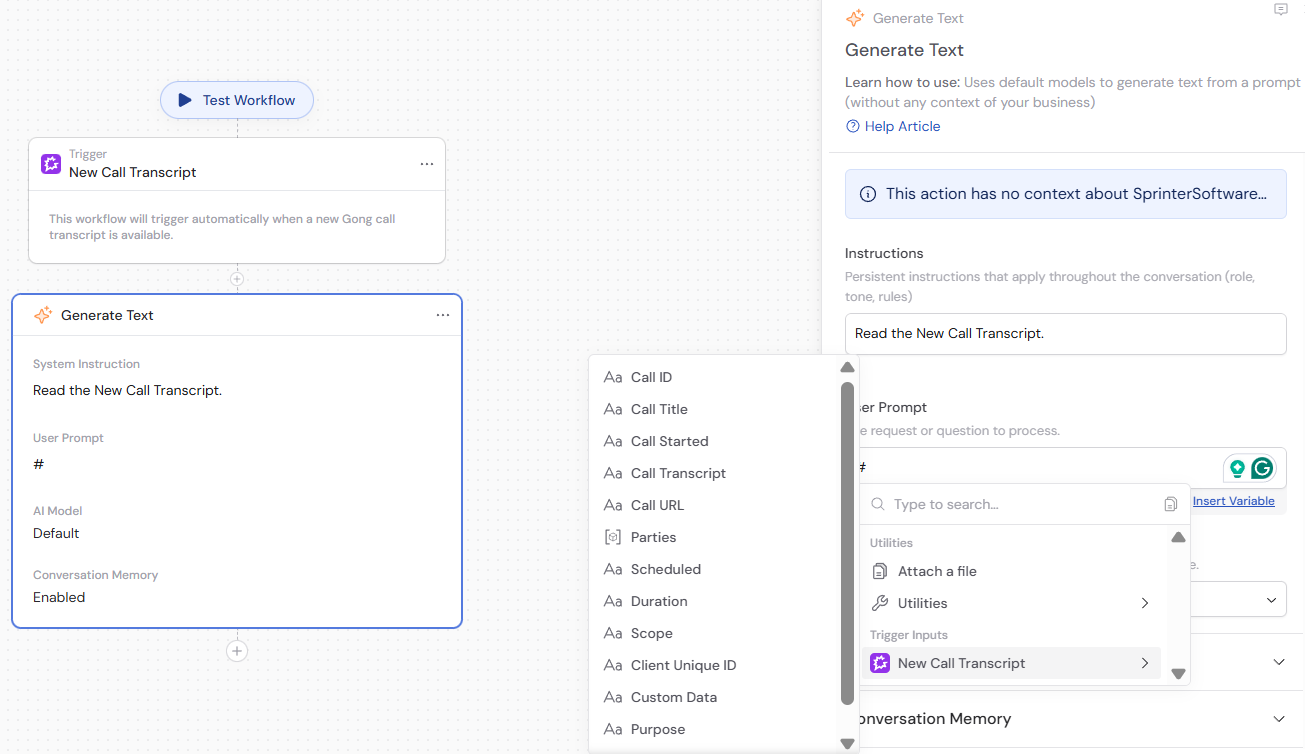
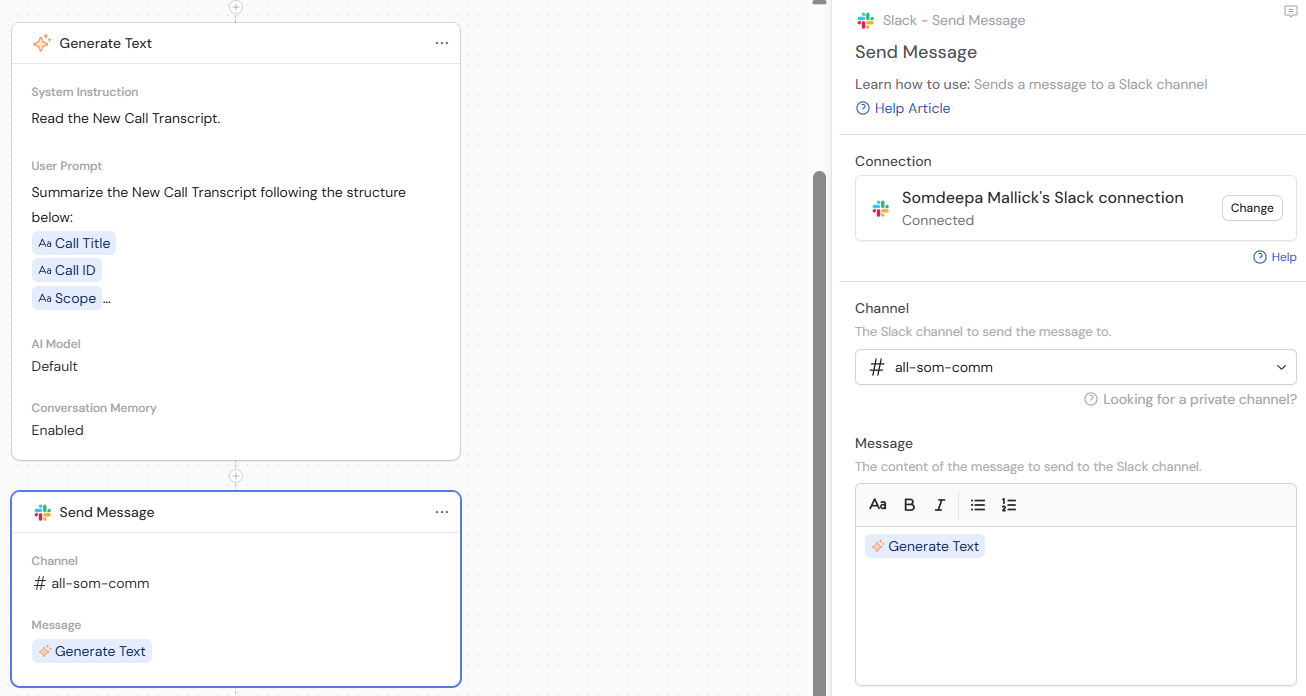
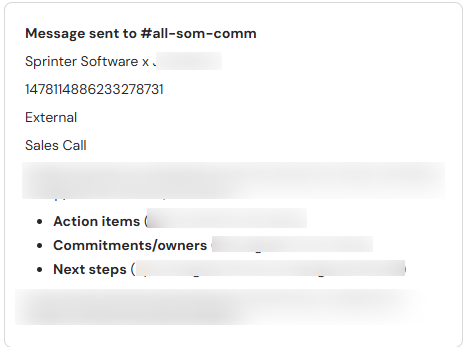
- Generate Text — extract action items, commitments, and next steps from the call transcript
- Update CRM — update your CRM with call information
- Send Email — send a summary to the account team with call highlights and action items
- Send Slack Message — send call highlights to a relevant Slack channel
5
Publish the Workflow
Click Publish to activate your Workflow. New call transcripts will automatically trigger the automation.