This action generates text based only on your prompt and any variables you
reference. It does not automatically access your Knowledge
Base. To include Knowledge Base context, use
Generate Text with Agent or add
a Search Knowledge Base action
before this one.
1
Add the action
In the Workflow builder, click + between blocks and select Generate Text from the action library.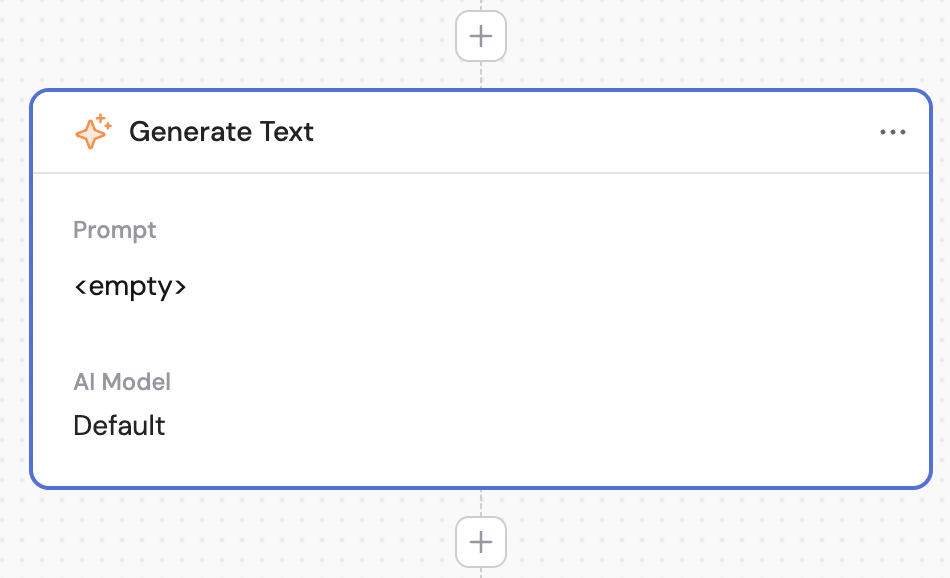
2
Write a prompt
Enter the text that guides the AI model. Reference variables from previous steps or the trigger using the # symbol to provide dynamic context.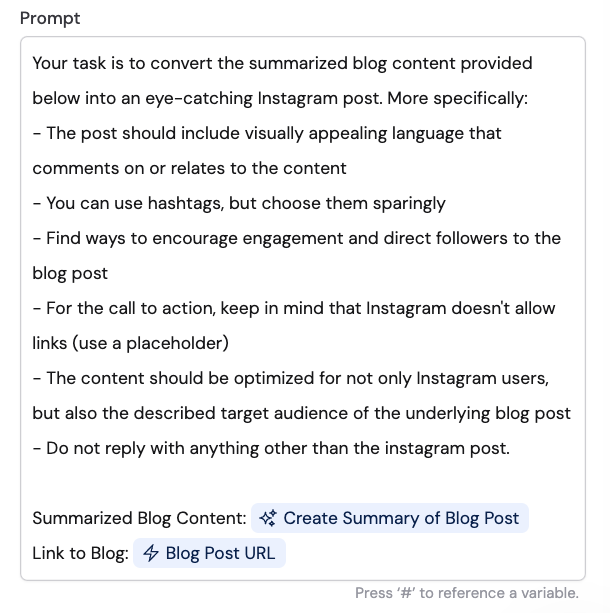
3
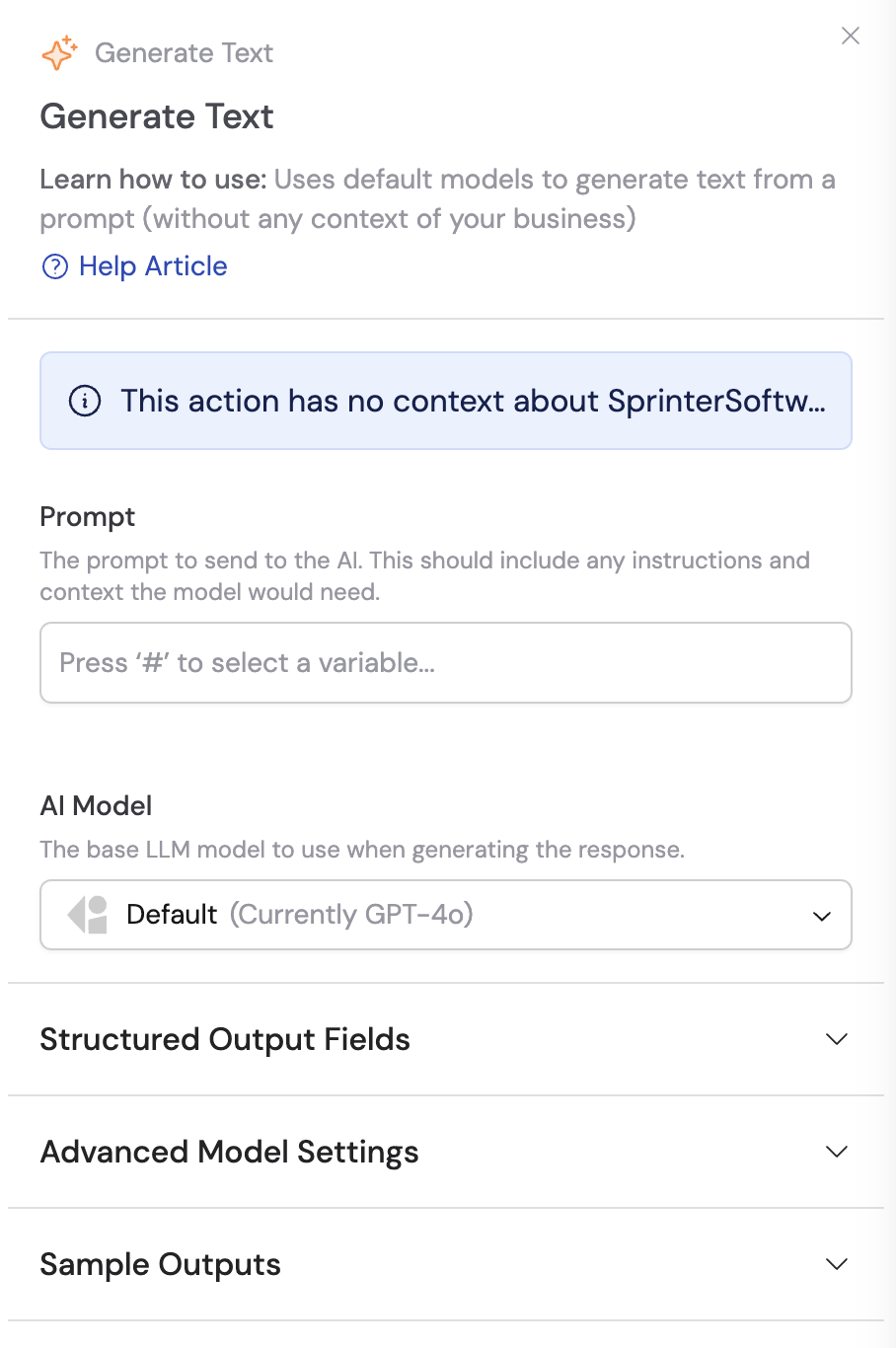
Select the AI model
Choose the model for this step. Each model has different strengths — select the one that best fits your task (writing, reasoning, analysis, etc.). See Choose an AI model for guidance.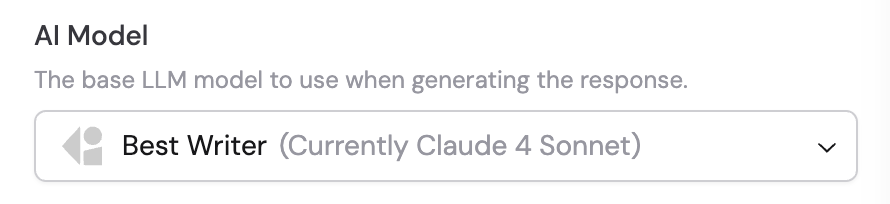
4
Configure Structured Output Fields (optional)
If you need the AI to return data in a specific format with defined fields, set up structured outputs. This gives you named fields with specific data types you can reference individually in later steps.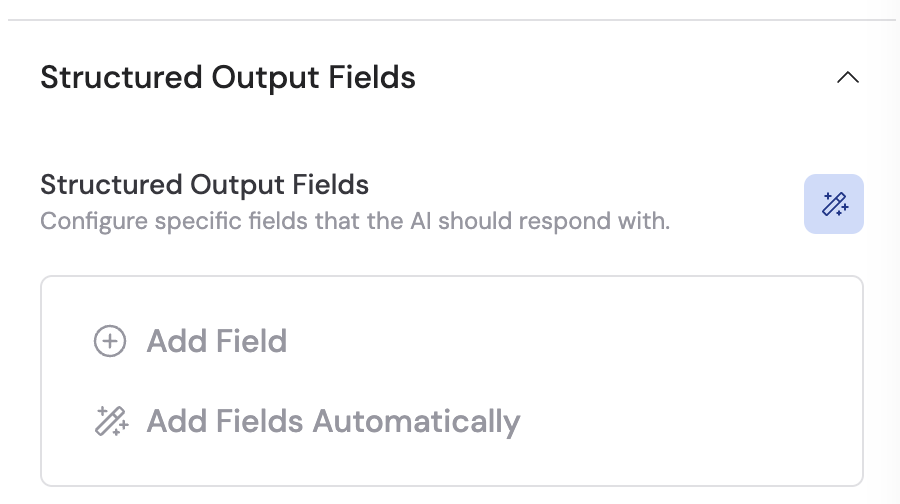
5
Configure Conversation Memory (optional)
Enable Conversation Memory if you
want the Workflow to retain conversation history and carry context across
runs.
6
Add Connectors (optional)
Expand the Connectors section and click + Add Connector to let this action query live data from your business tools — like looking up records in HubSpot, Salesforce, or Airtable. The AI decides when to use a connector based on your prompt.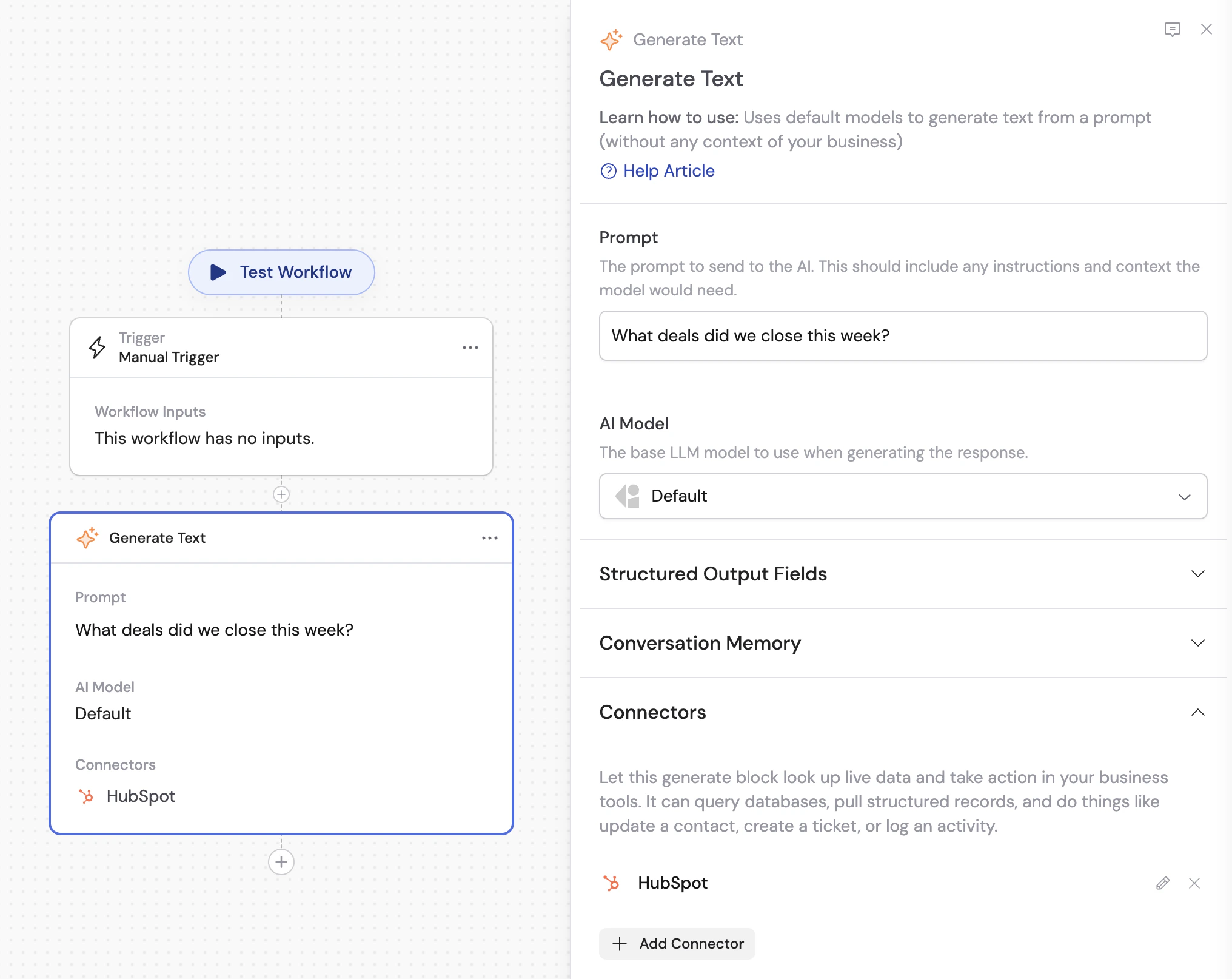
7
Enable Code Execution and File Creation (optional)
Expand Code Execution & File Creation and turn on the setting when the
action should process file attachments, generate charts, create reports, or
edit files by writing and executing code. See Analyze data in
Workflows for a full walkthrough.
8
Add Capabilities (optional)
Expand the Capabilities section and click + Add Capability to give
this action additional abilities like Web
Search or Image
Generation.
9
Add Skills (optional)
Expand Skills and click Add Skill to give this AI step a published
procedure, supporting files, and tools. Adding a Skill automatically enables
Code Execution & File Creation for the action.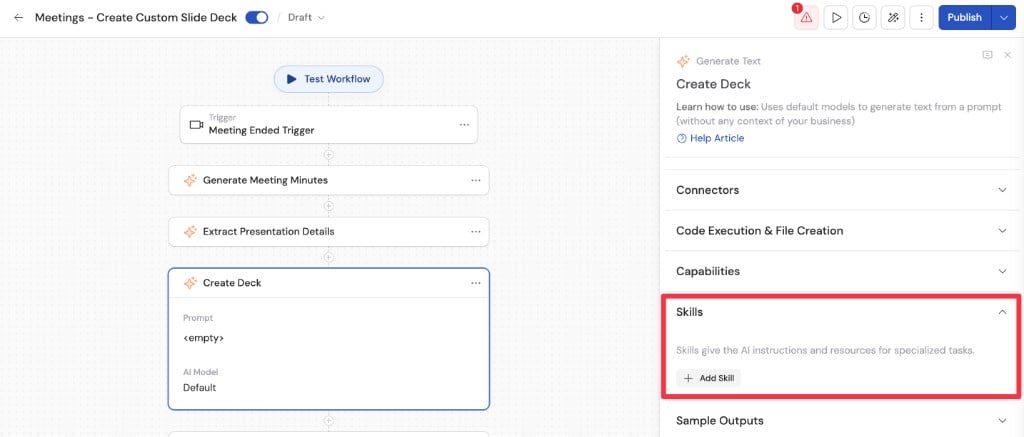
10
Adjust advanced model settings (optional)
Under Advanced Model Settings: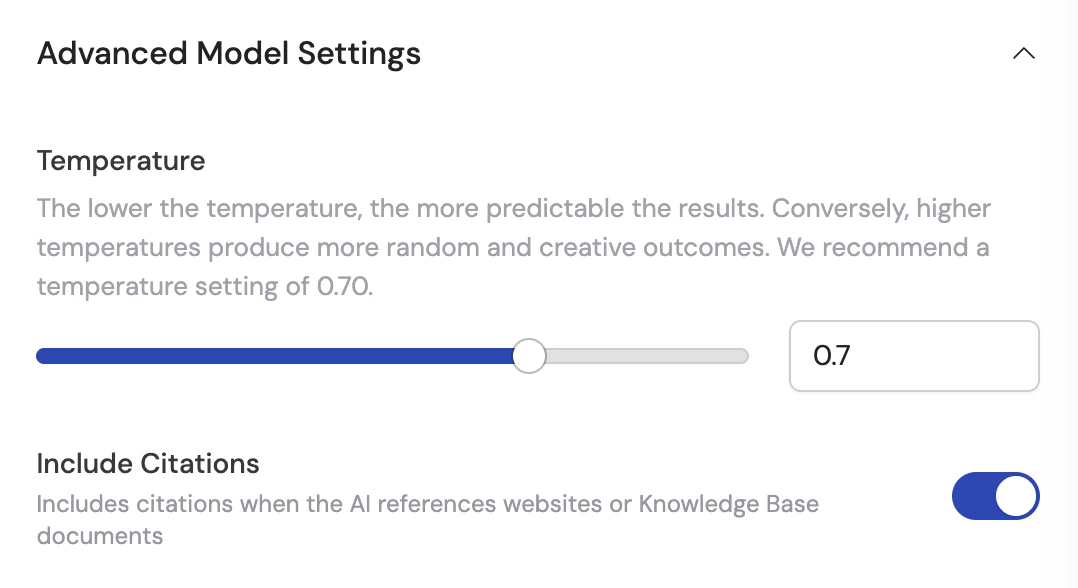
- Temperature — Controls randomness. Lower values (e.g., 0.1) produce focused results; higher values (e.g., 1.0) produce more creative outputs. Default is 0.70.
- Include Citations — Toggle to include Knowledge Base citations in the output.
11
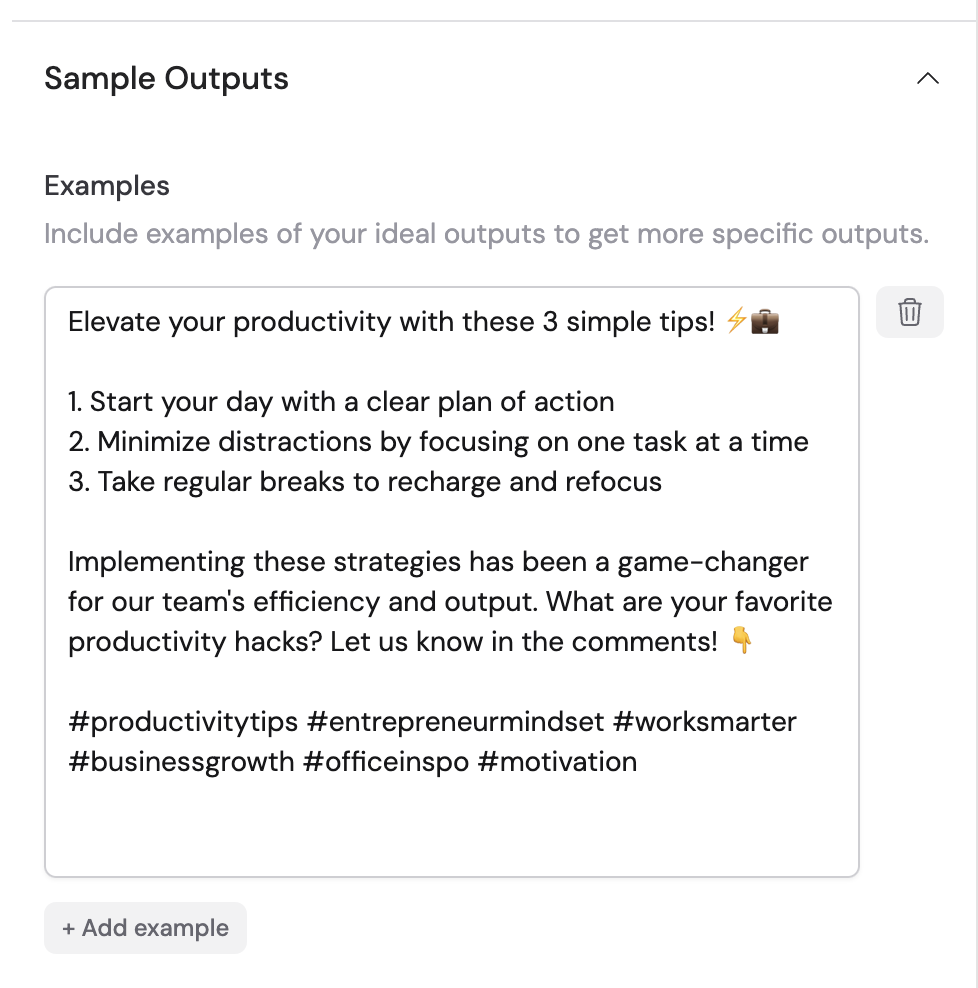
Add examples (optional)
Under the Sample Outputs tab, provide examples to guide the AI toward a specific style or format.