Send an email directly from a Workflow using Cassidy’s built-in email sender. Use this for notifications, alerts, or any email that doesn’t need to come from a specific inbox. For sending from your own email account, use Send Email with Gmail or Send Email with Outlook.
1

Add the action

In the Workflow builder, click + between blocks and select Send Email from the action library.
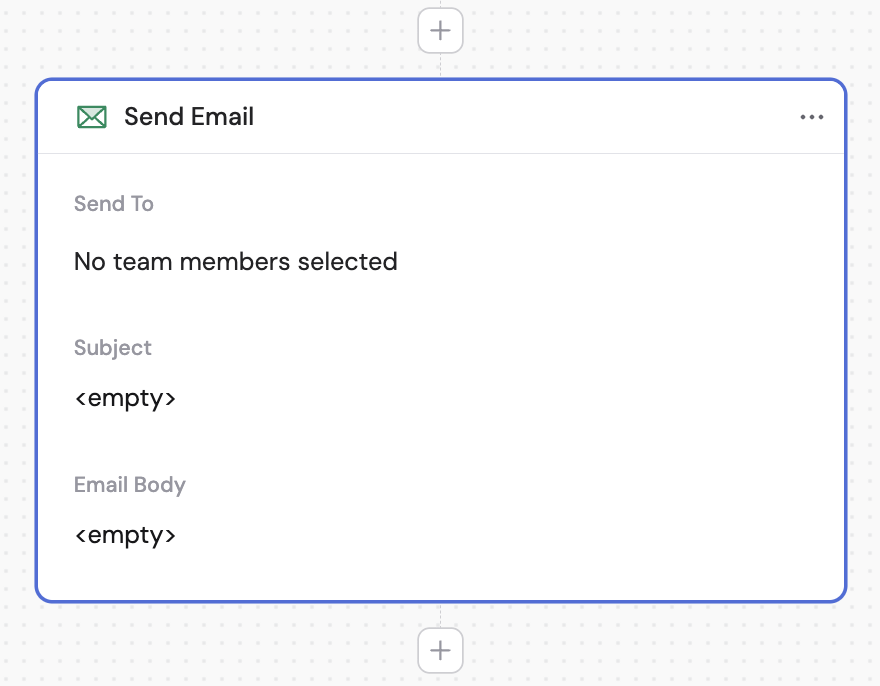
Action library with Send Email selected
Send Email action added to the Workflow
2

Choose the recipients

In the Send To field, select members of your organization to receive the email. If left blank, the email is sent to the user who triggered the Workflow.
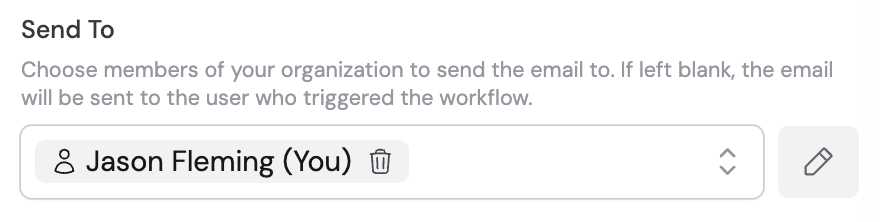
Send To field with organization member dropdown
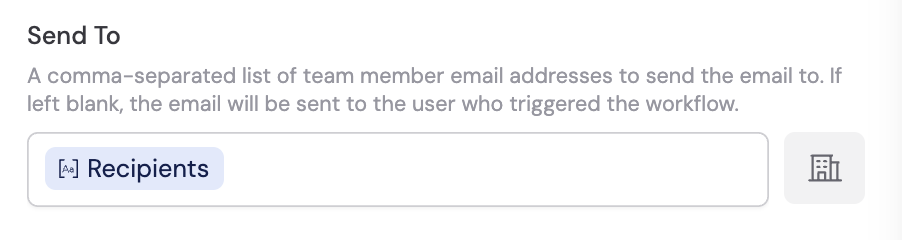
You can also click the pencil icon to switch to a text input where you enter a comma-separated list of email addresses. Recipients must use the same domain as your organization. Click the pencil icon again to switch back to the dropdown.
Send To field in comma-separated email mode
3

Enter the subject

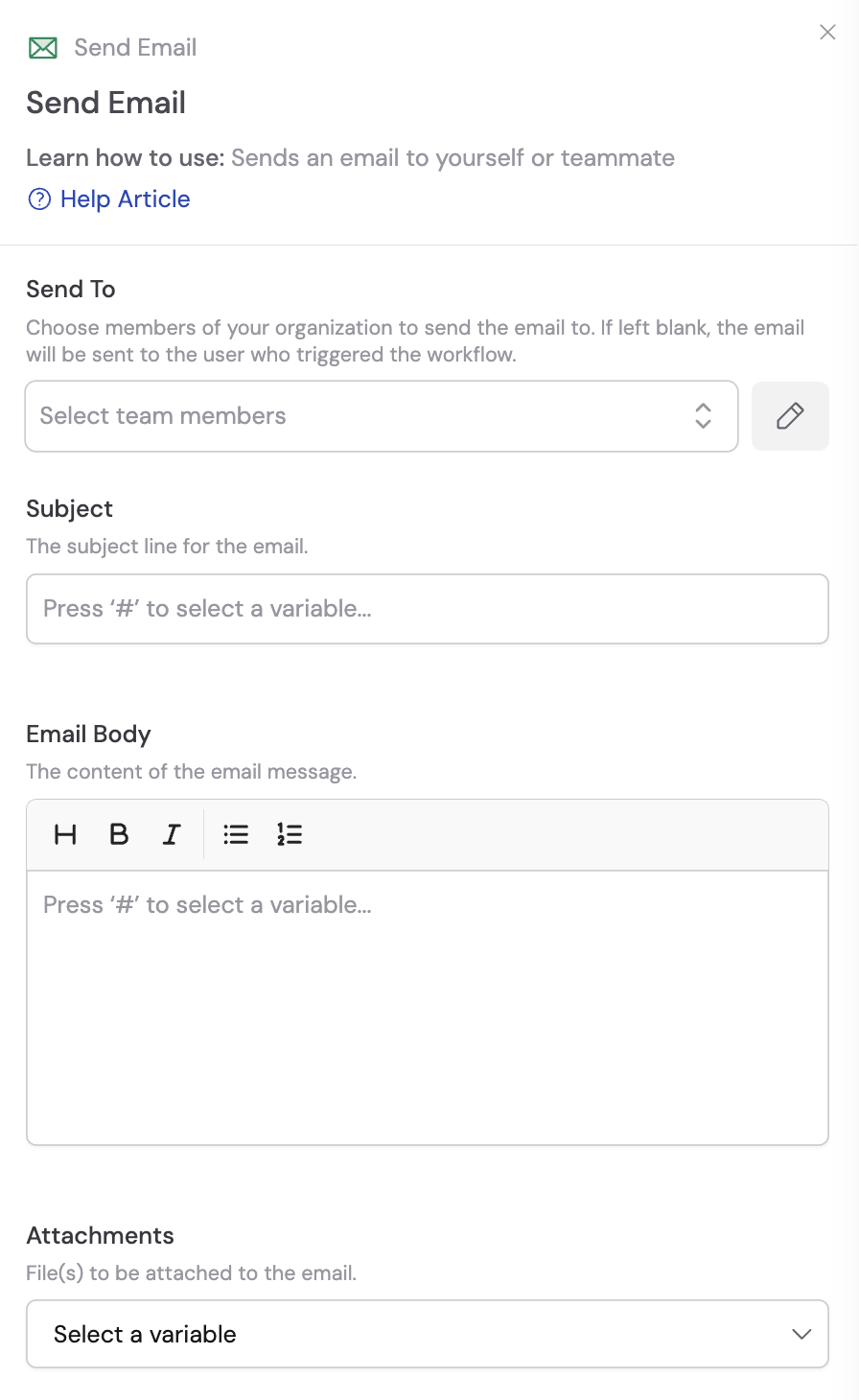
In the Subject field, enter the subject line for your email. Use # to insert variables from previous steps or the trigger.
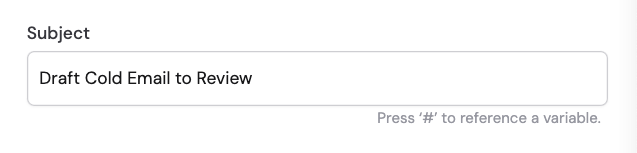
Subject field with variable reference
4

Write the email body

In the Email Body field, enter the content of your message. Use # to reference variables and personalize the email.
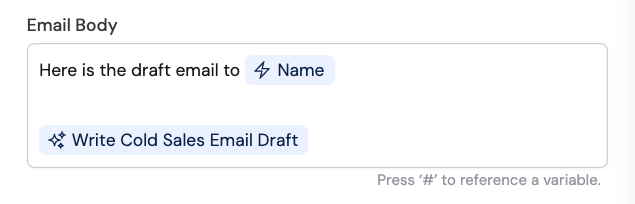
Email Body field with variable references
5

Add attachments (optional)

Select variables from previous trigger inputs or action outputs to include as attachments. For example, you can attach files from Export as PDF or Export as Microsoft Word Document actions.
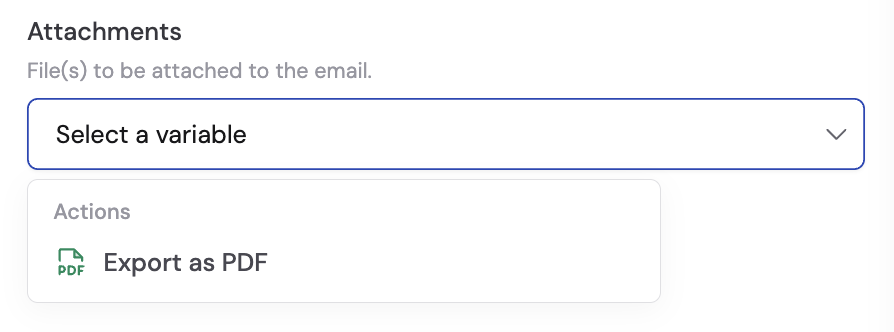
Attachments field with variable selector