

1
Add the action
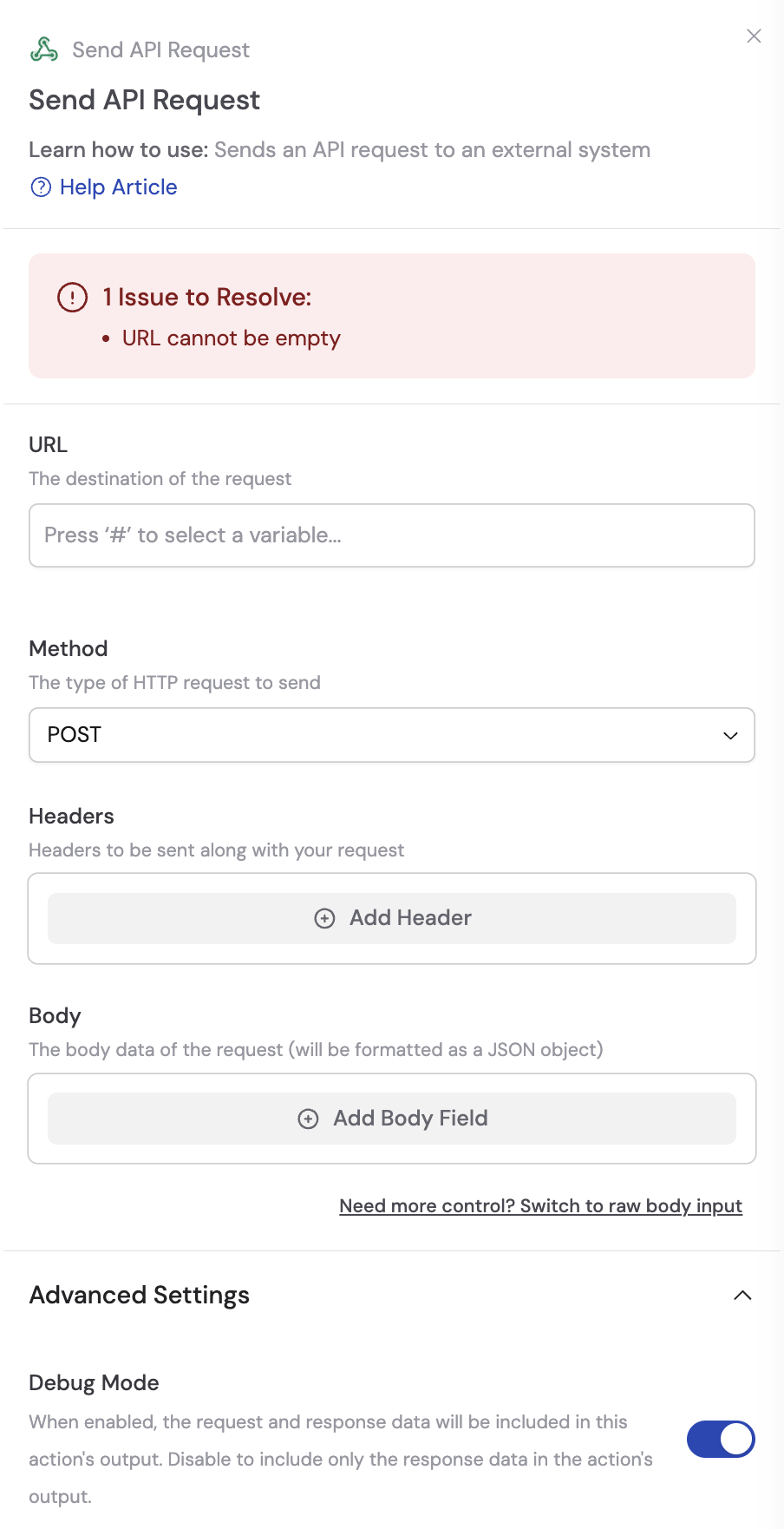
In the Workflow builder, click + between blocks and select Send API Request from the action library.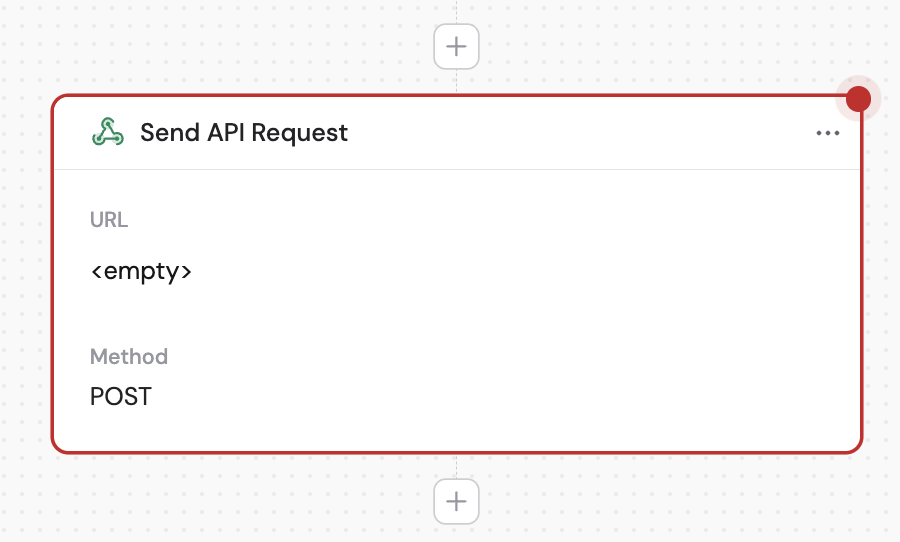
2
Enter the URL
In the URL field, enter the destination for the API request. You can hardcode the URL or use # to insert variables from previous steps or the trigger to build it dynamically.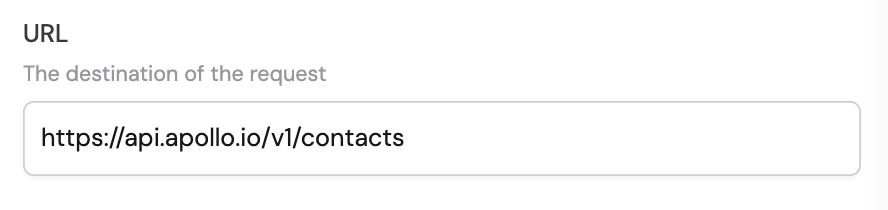
3
Select the method
Choose the HTTP method that matches your API endpoint’s requirements: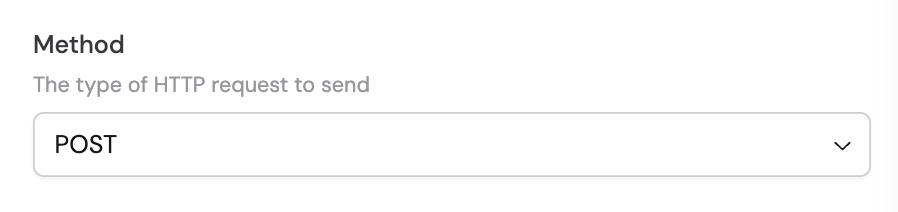
- GET — Retrieve data
- POST — Create a new resource
- PUT — Replace an existing resource
- PATCH — Partially update a resource
- DELETE — Remove a resource
4
Add headers
If the API requires specific headers (such as authentication or content type), click + Add Header. Fill in the Key and Value fields for each header. You can reference variables in header values using #.For sensitive values like API keys, use Secret Keys instead of pasting credentials directly.Click the trash icon next to a header to remove it.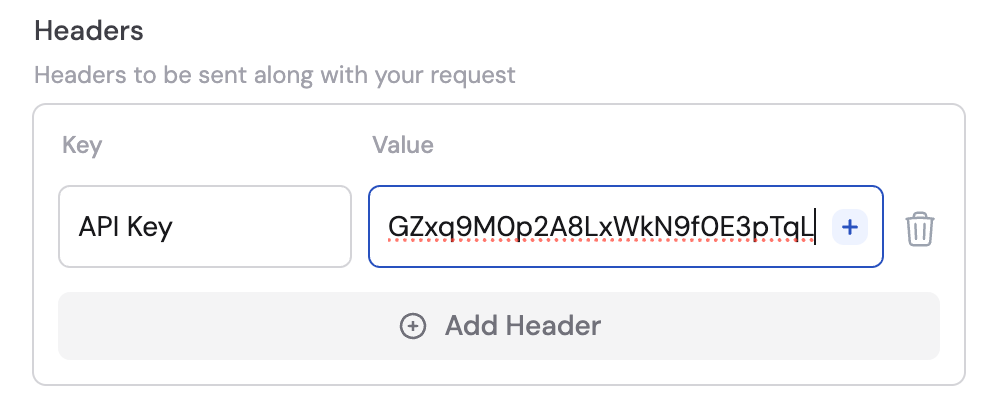
5
Add a request body
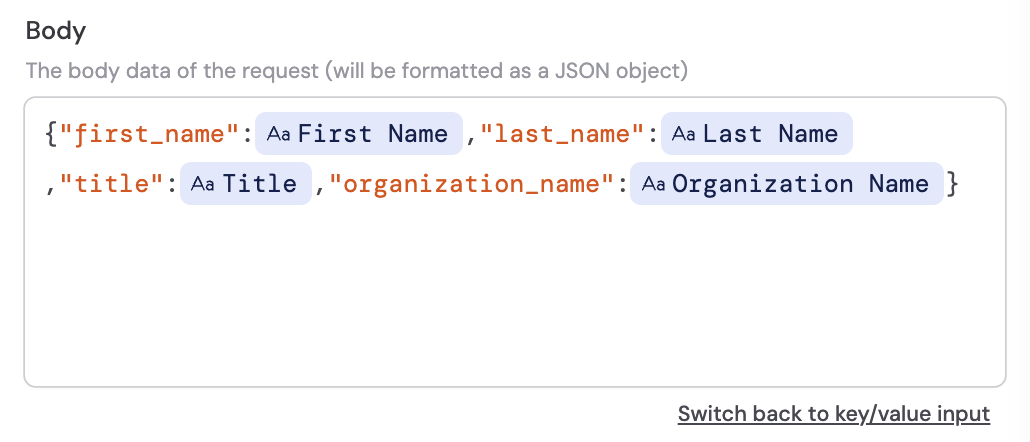
Depending on the HTTP method, you may need to include a request body. Click + Add Body Field and fill in Key and Value pairs. You can reference variables in body values using #.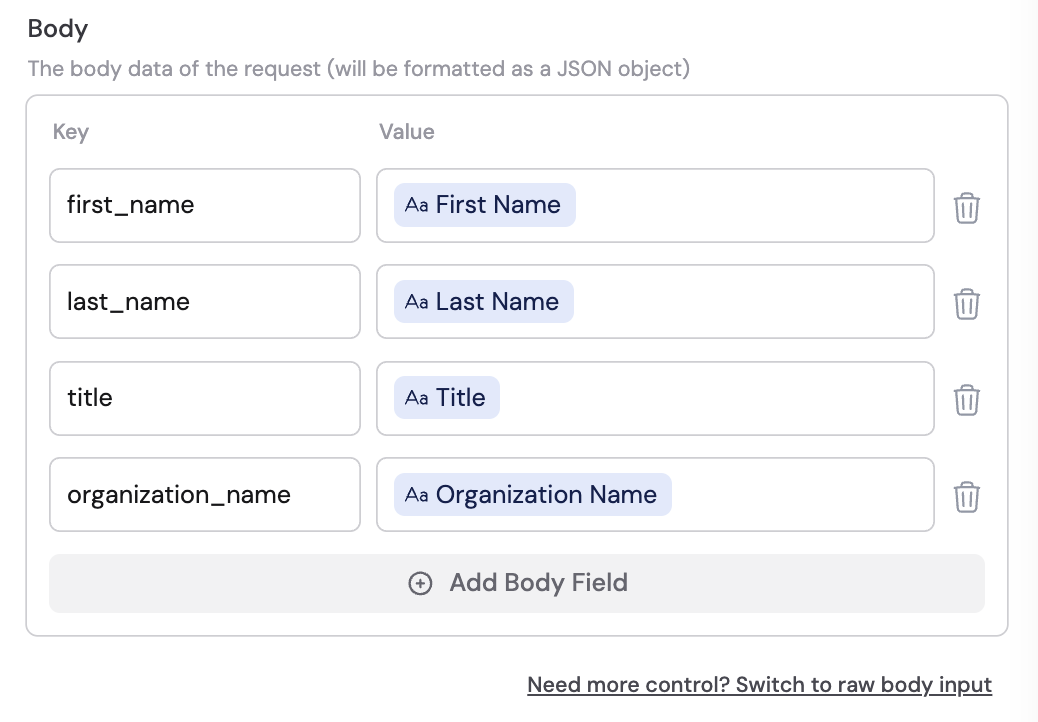
6
Use the response
The response body and status code are available as variables in subsequent steps.