1
Add the action
In the Workflow builder, click + between blocks and select Update Knowledge Base Document from the action library.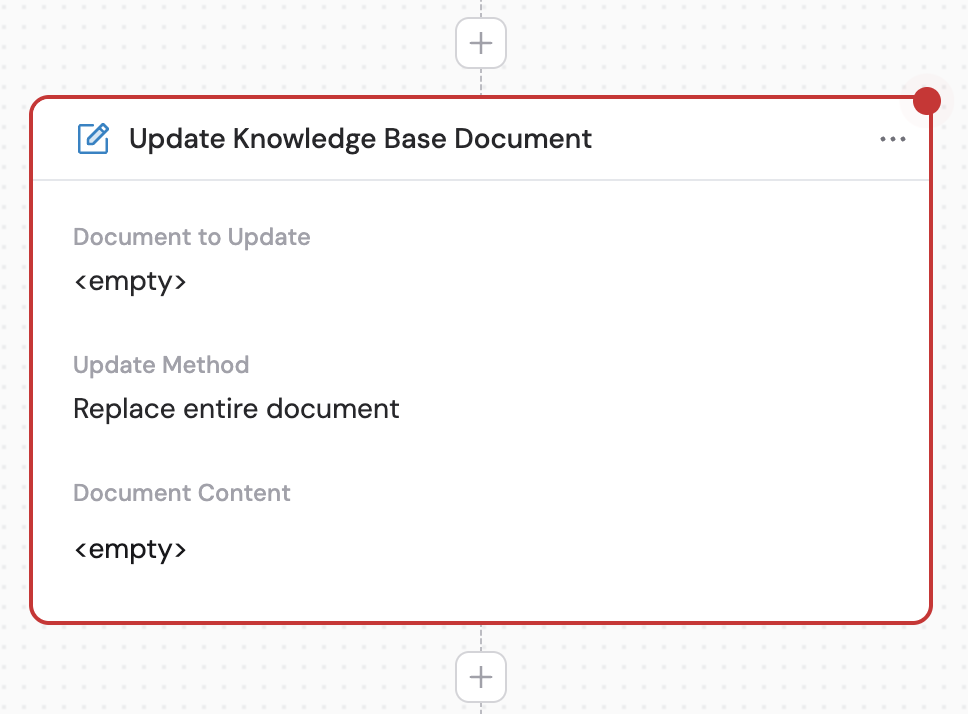
2
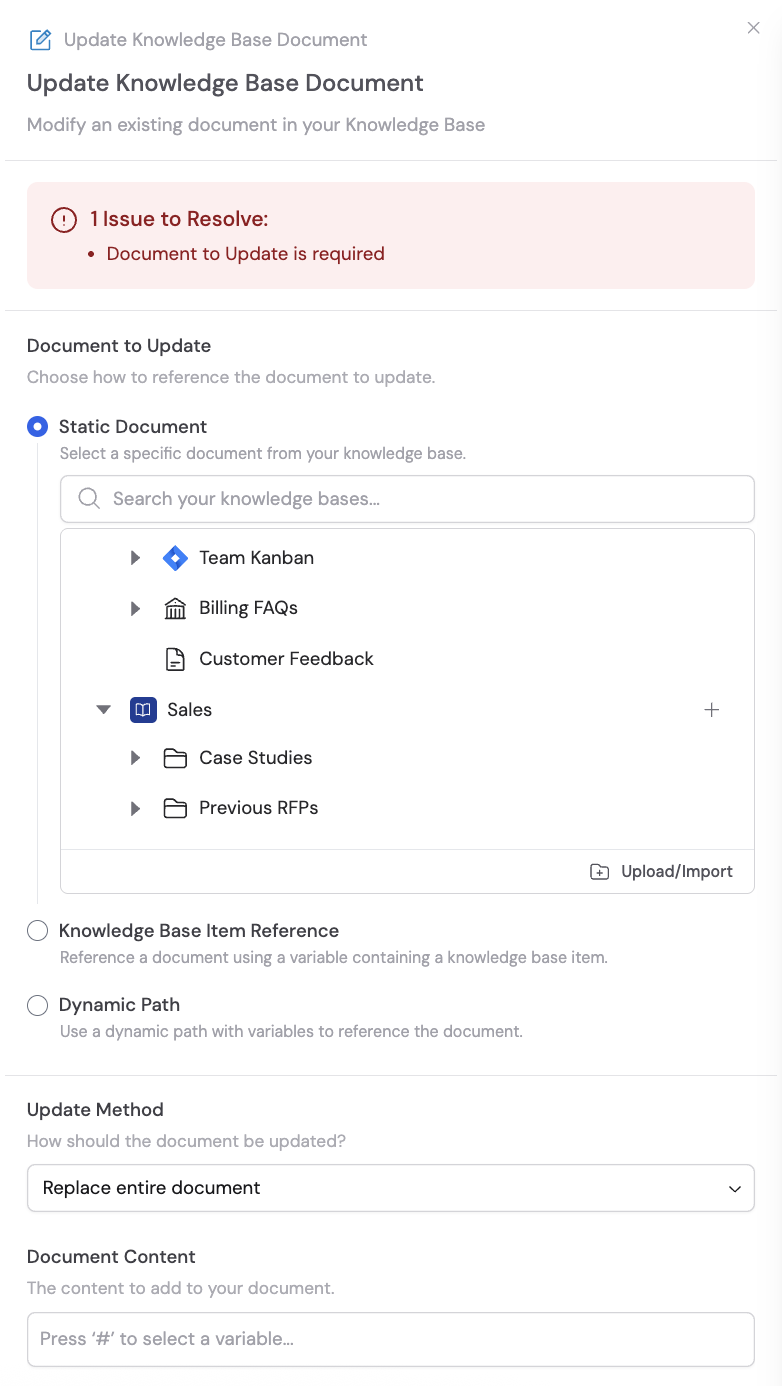
Select the document to update
Choose how to reference the document using one of three options: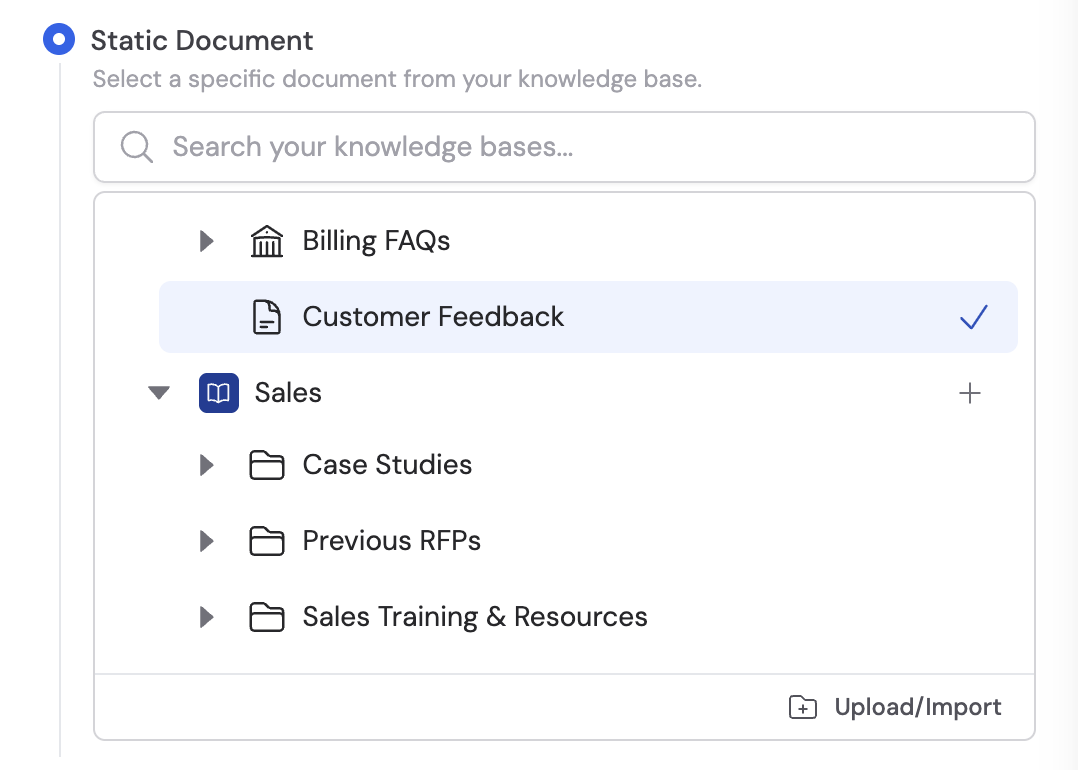

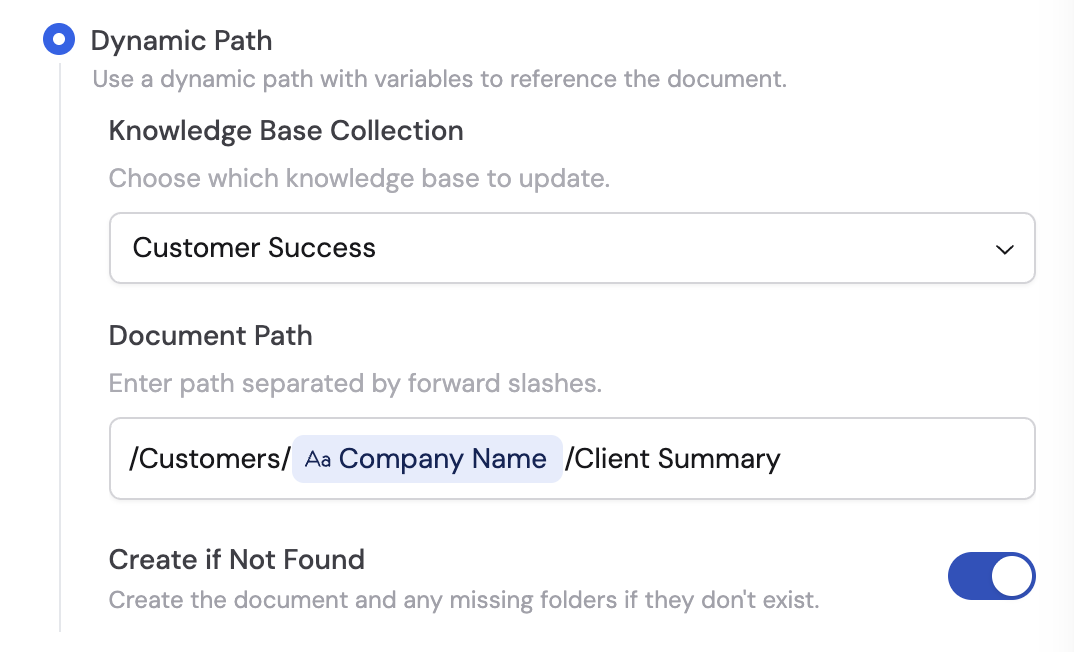
- Static Document — Select a specific document directly from your Knowledge Base. Best for keeping a running document like a feedback log.
- Knowledge Base Item Reference — Use a variable that references a Knowledge Base item. Useful when the document to update is a trigger input — for example, augmenting an existing document with a generated summary or FAQ.
- Dynamic Path — Specify a document path using variables or naming conventions. Select the Knowledge Base Collection, enter the Document Path separated by forward slashes, and toggle Create if Not Found to create the document and any missing folders if they don’t exist.
3
Select the update method
Choose how the new content should be applied to the existing document: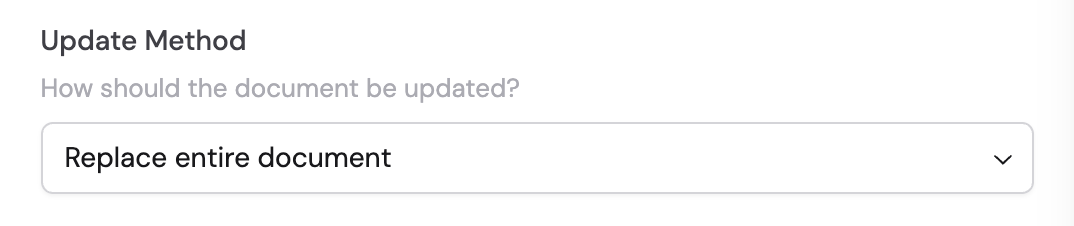
- Replace entire document — Completely replaces the existing content with new content
- Append to end — Adds new content after the existing content
- Prepend to beginning — Adds new content before the existing content
4
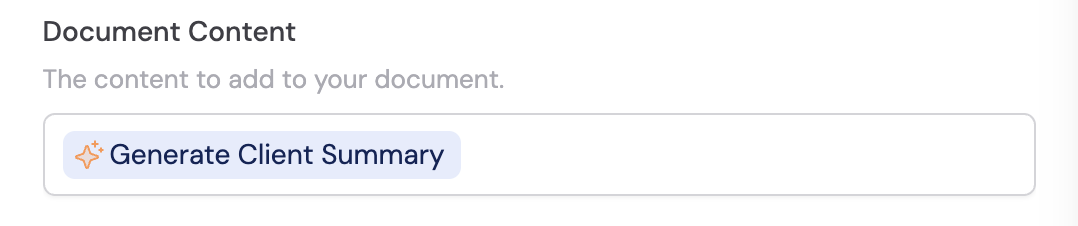
Enter the document content
Specify the text to update the document with. Use # to insert variables from previous steps or the trigger to dynamically generate the content.