

1
Add the action
In the Workflow builder, click + between blocks and select Text to Speech from the action library.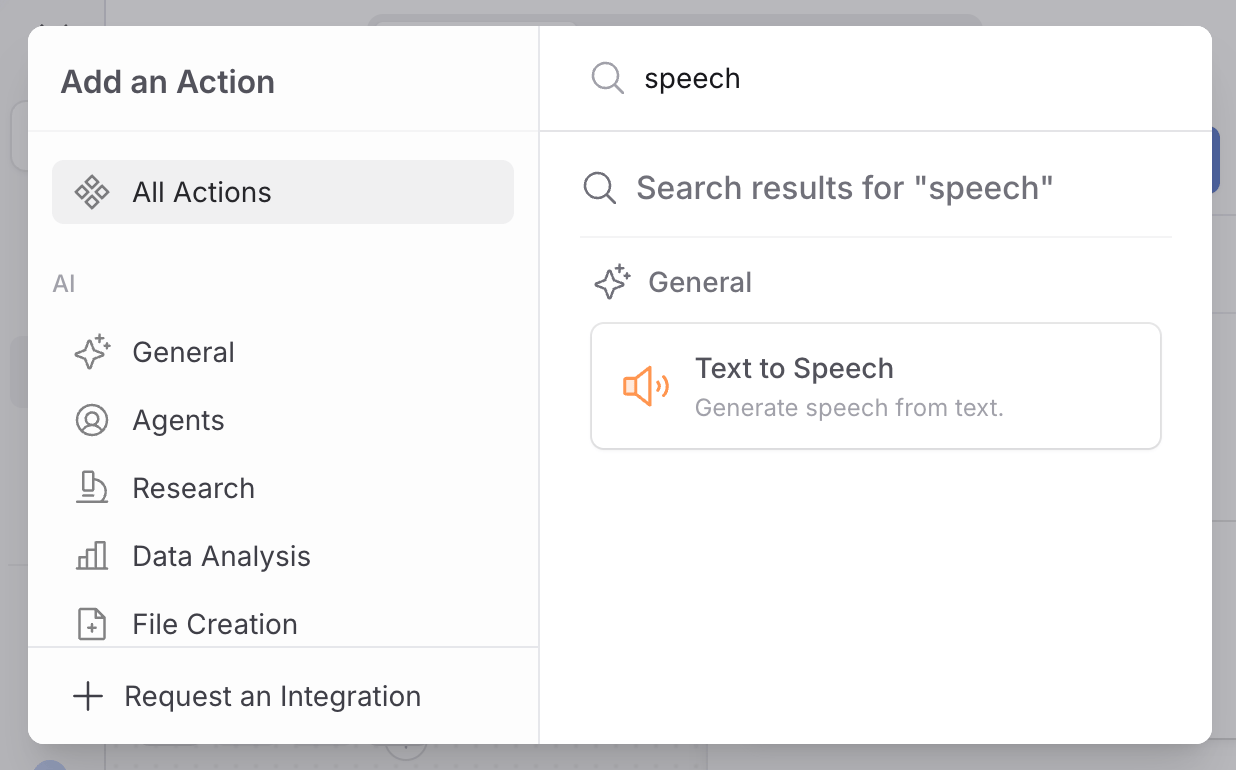
2
Enter the text
In the Text field, enter the content you want Cassidy to read aloud. You can reference variables from the trigger or previous actions to generate audio from dynamic content.Text to Speech accepts up to 4,096 characters. Some text may exceed the supported length even below that character count. If the final text is too long, the action stops and asks you to shorten it. Cassidy does not truncate the text or create a partial audio file.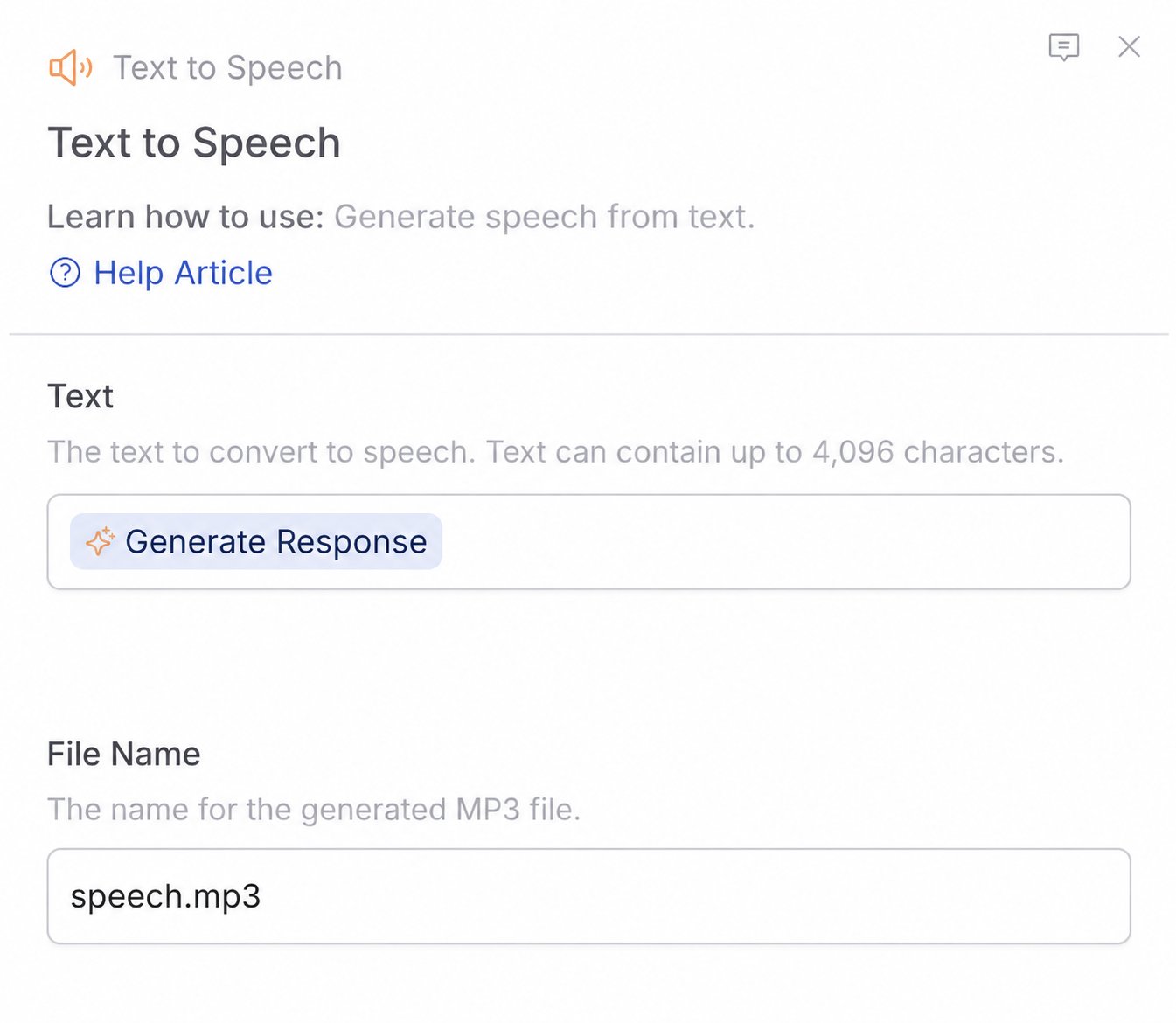
3
Choose a file name
In the File Name field, enter a name for the generated audio file. Cassidy
adds the
.mp3 extension automatically when needed. If you leave this field
blank, Cassidy creates a timestamped file name.4
Test the action
Run a test of your Workflow. When the action succeeds, the result contains an MP3 file that you can play or download. Click the generated output to listen to the audio.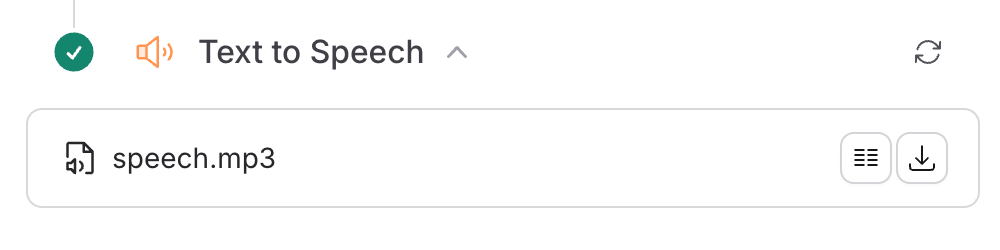
5
Use the audio in another action (optional)
Reference the Text to Speech output anywhere a later action accepts a file. For example, attach the MP3 to a Send Email action.