Exports data from a Workflow to a Microsoft Excel (.xlsx) file with support for multiple sheets.
1

Add the action

In the Workflow builder, click + between blocks and select Export as Microsoft Excel Document from the action library.
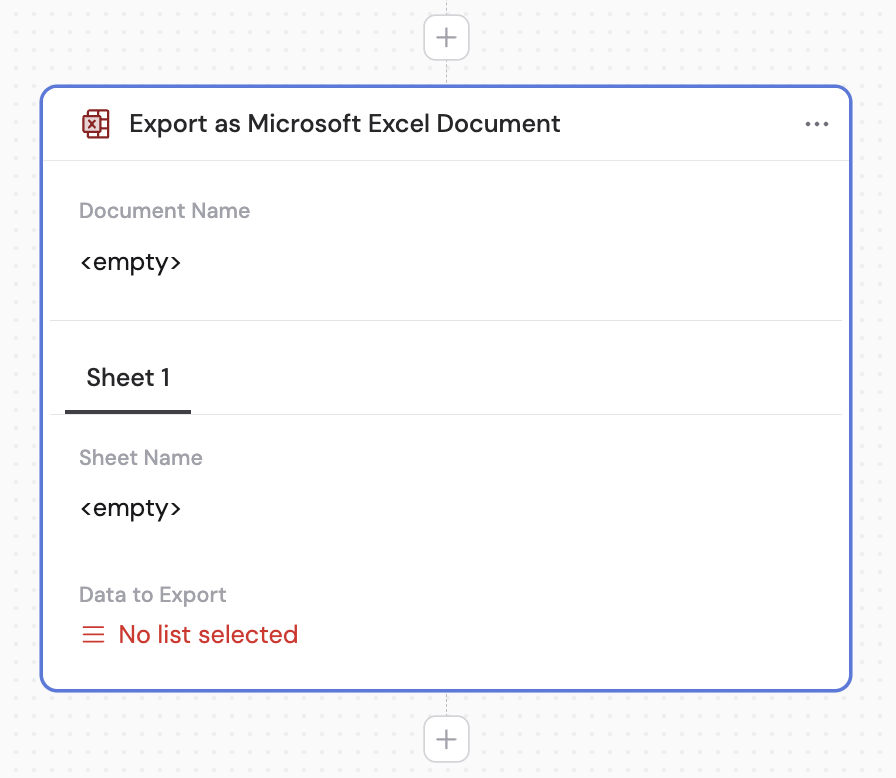
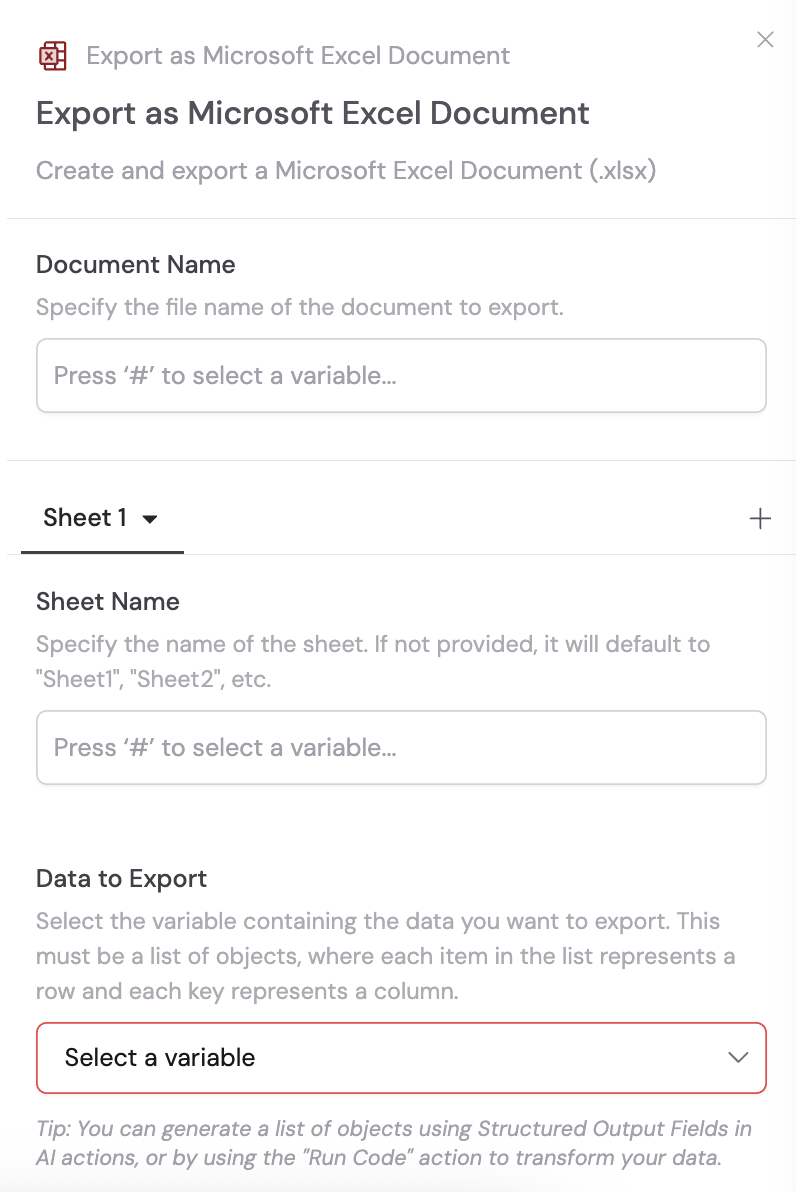
Action library with Export as Microsoft Excel Document selected
Adding the Export as Microsoft Excel Document action between blocks
2

Enter the document name

Provide a name for your Excel file. You can type a name directly or reference a variable from a previous step or the trigger to dynamically name the file.
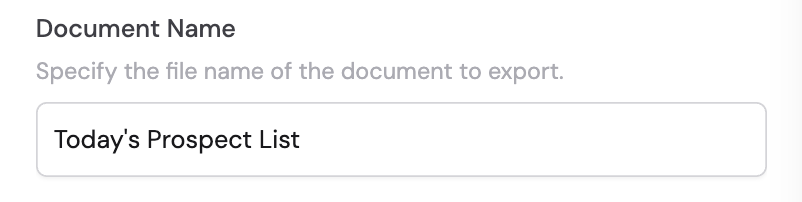
Document name field for the Excel file
3

Configure sheets

For each sheet in your Excel document, configure the following. Click the + button to add additional sheets.Enter the sheet name — provide a descriptive name for each sheet.
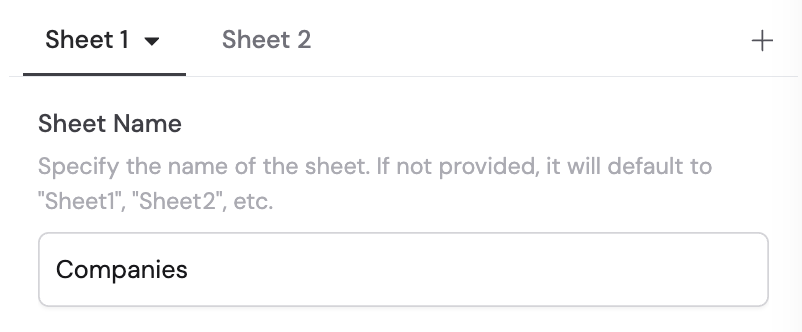
Sheet name field
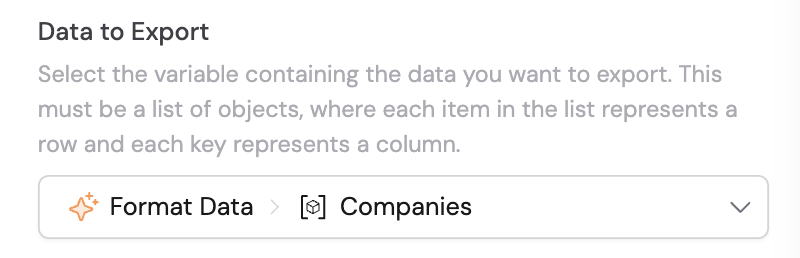
Select the data to export — choose the variable containing the data for this sheet. This must be a list of objects, where each item represents a row and each key represents a column.
Selecting the data source variable for a sheet
You can generate structured data using actions like Generate Text with structured output fields, Run Code, or Extract Information.
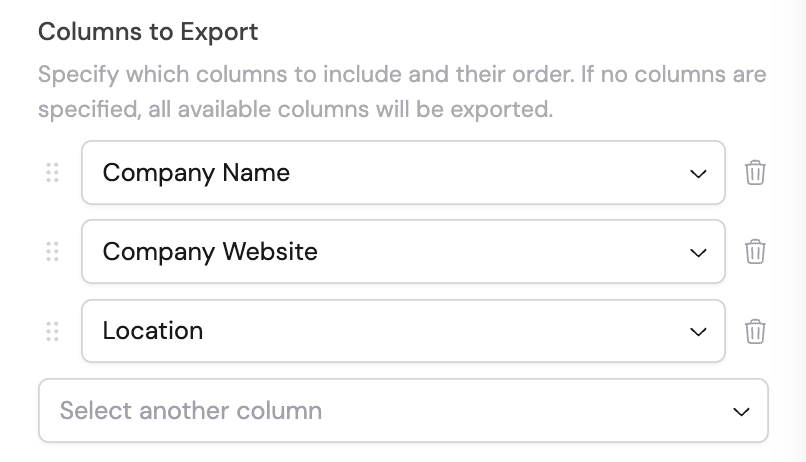
Configure columns to export — specify which columns to include in this sheet and their order. If no columns are specified, all available columns are exported. You can drag and drop to reorder columns.
Column configuration with drag-and-drop reordering