1
Add the action
In the Workflow builder, click + between blocks and select Generate Image from the action library.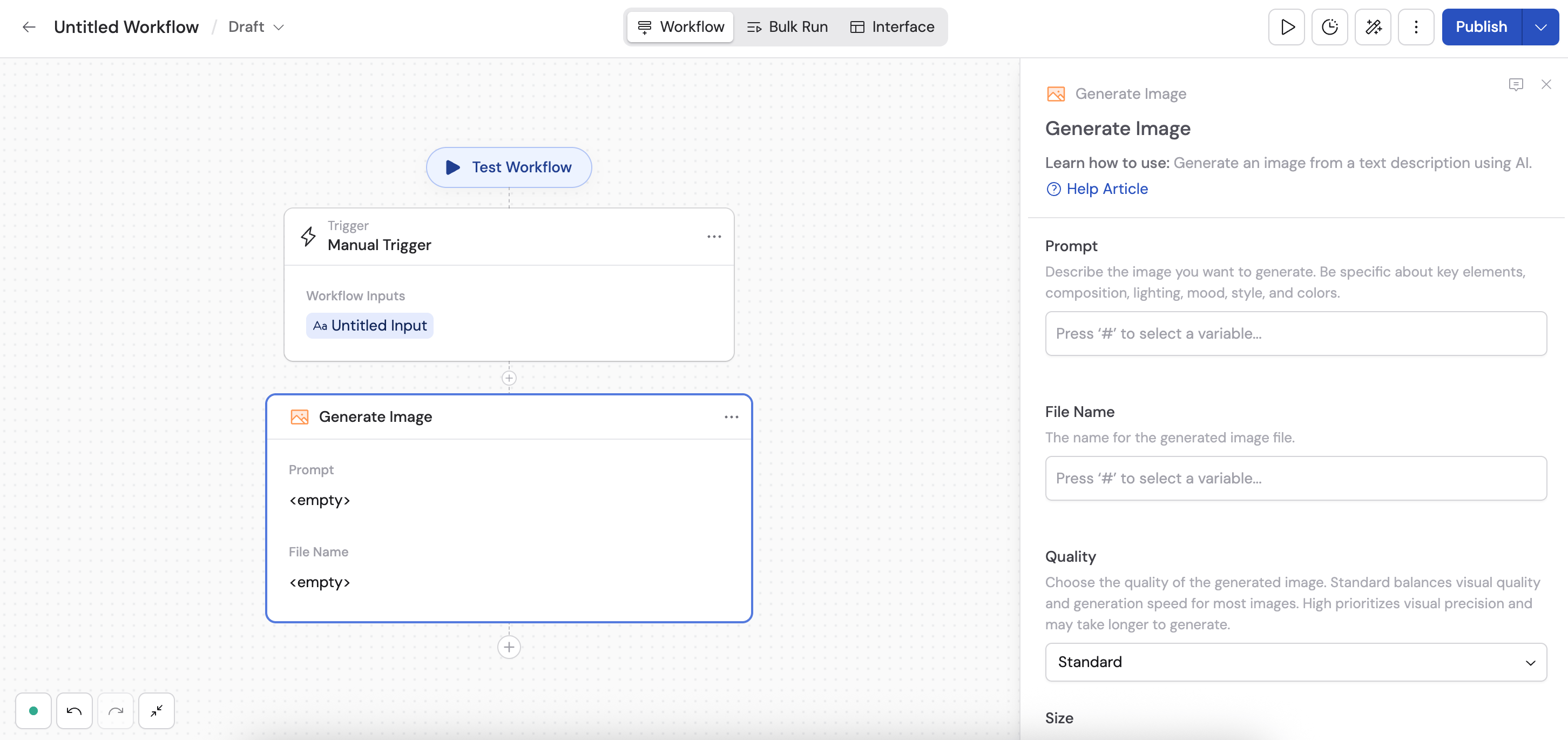
2
Write the image prompt
In the Prompt field, describe the image you want to generate. Be specific about key elements, composition, lighting, mood, style, and colors for best results. Reference variables from previous steps or the trigger using # to create dynamic image prompts.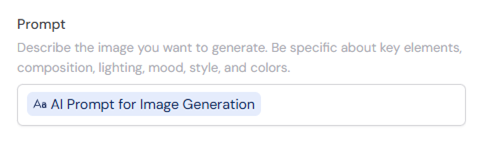
3
Enter a file name
In the File Name field, specify the name for the generated image file. You can reference variables from previous steps to create dynamic file names.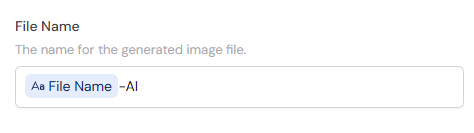
4
Choose the image quality
In the Quality dropdown, select how Cassidy balances generation speed and visual precision: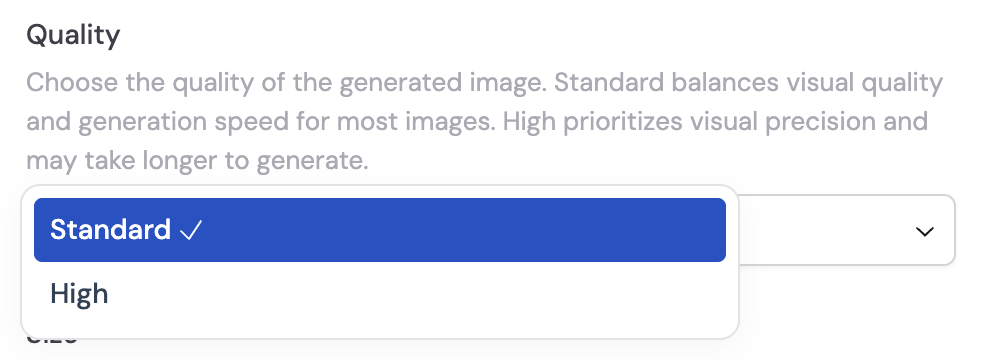
- Standard (default) — balances visual quality and generation speed for most requests
- High — prioritizes visual precision and may take longer to generate
5
Choose the image size
In the Size dropdown, select the aspect ratio for the generated image: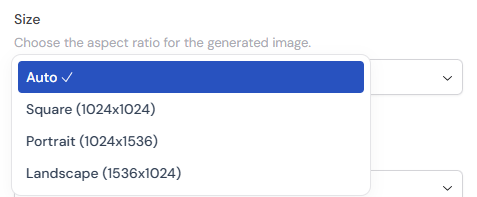
- Auto (default) — automatically determines the best aspect ratio based on your prompt
- Square — 1:1 aspect ratio
- Portrait — vertical orientation
- Landscape — horizontal orientation
6
Select the background type
In the Background dropdown, select the background type for the generated image: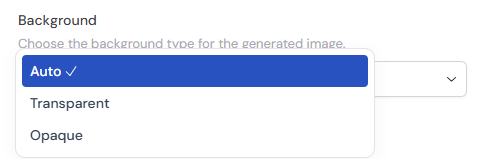
- Auto (default) — AI determines the best background
- Transparent — generates an image with a transparent background
- Opaque — generates an image with a solid background
7
Test the action
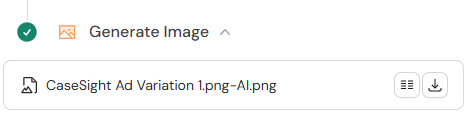
Run a test of your Workflow to preview the generated image and ensure it meets your expectations. Refine your prompt based on the results to achieve the desired output.