1
Add the action
In the Workflow builder, click + between blocks and select Paths from the action library.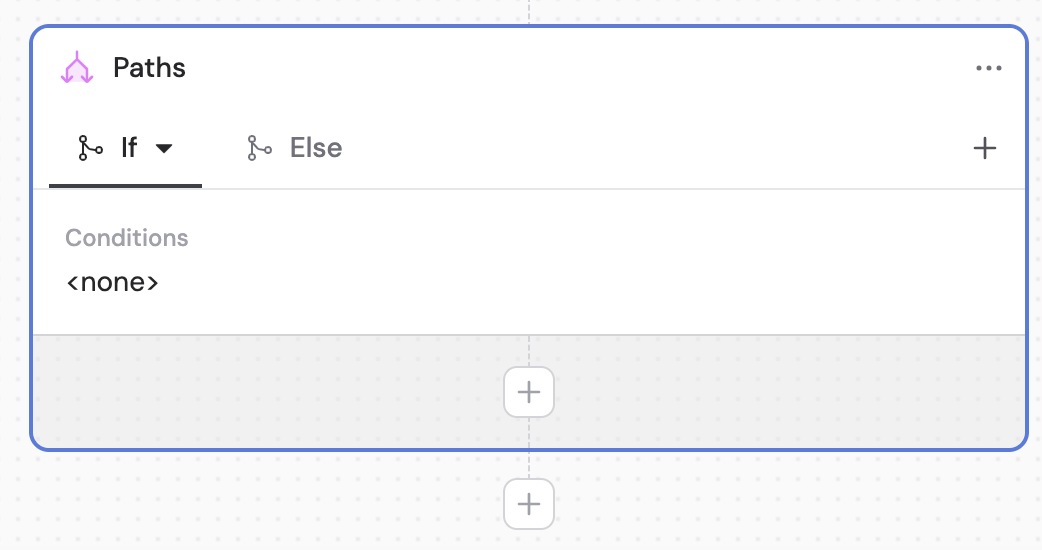
2
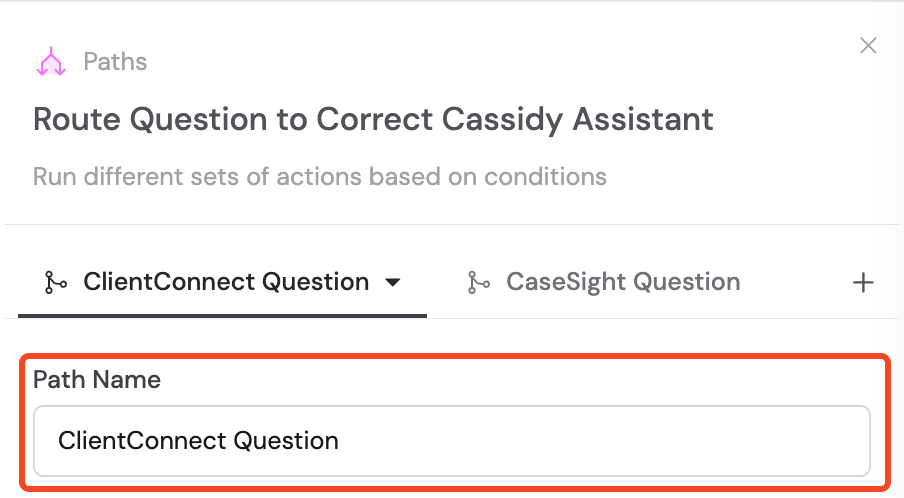
Rename your paths
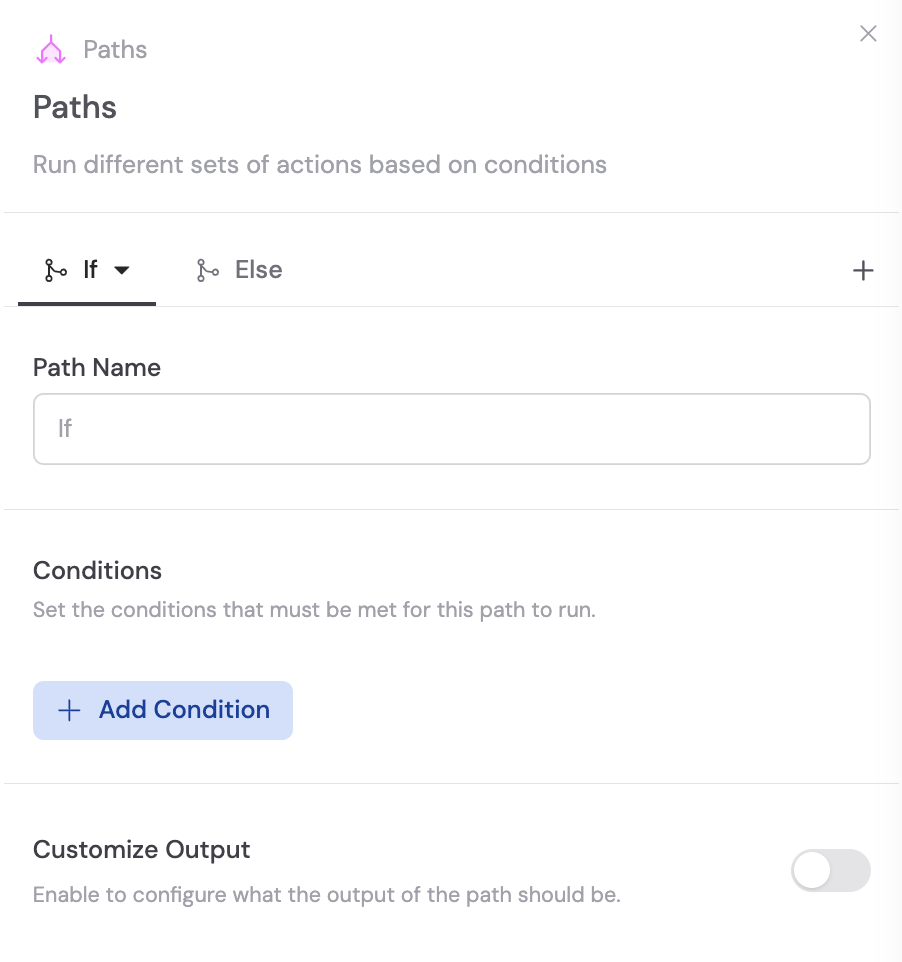
Give each path a descriptive name to clarify its purpose. This makes the Workflow easier to read and the path output easier to reference in later steps.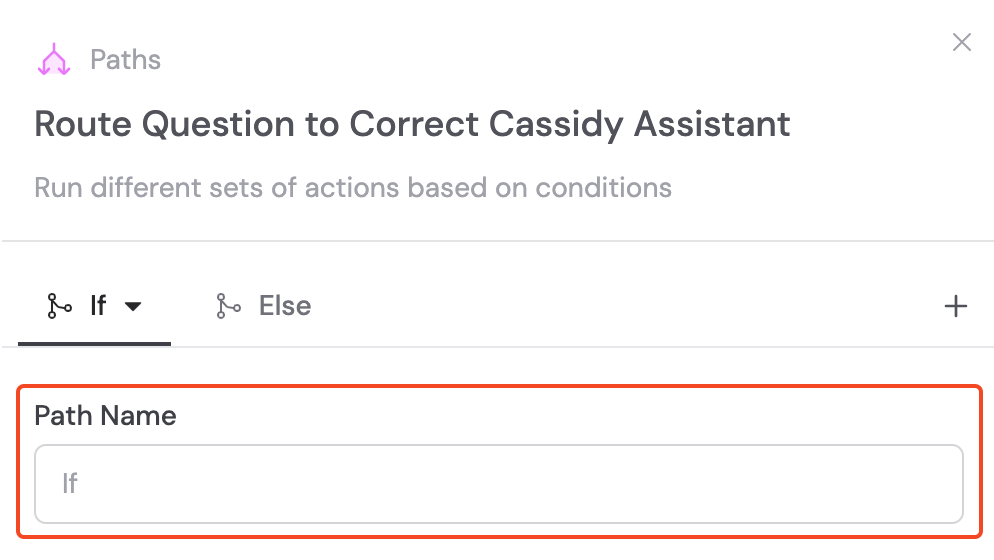
3
Create conditions for each path
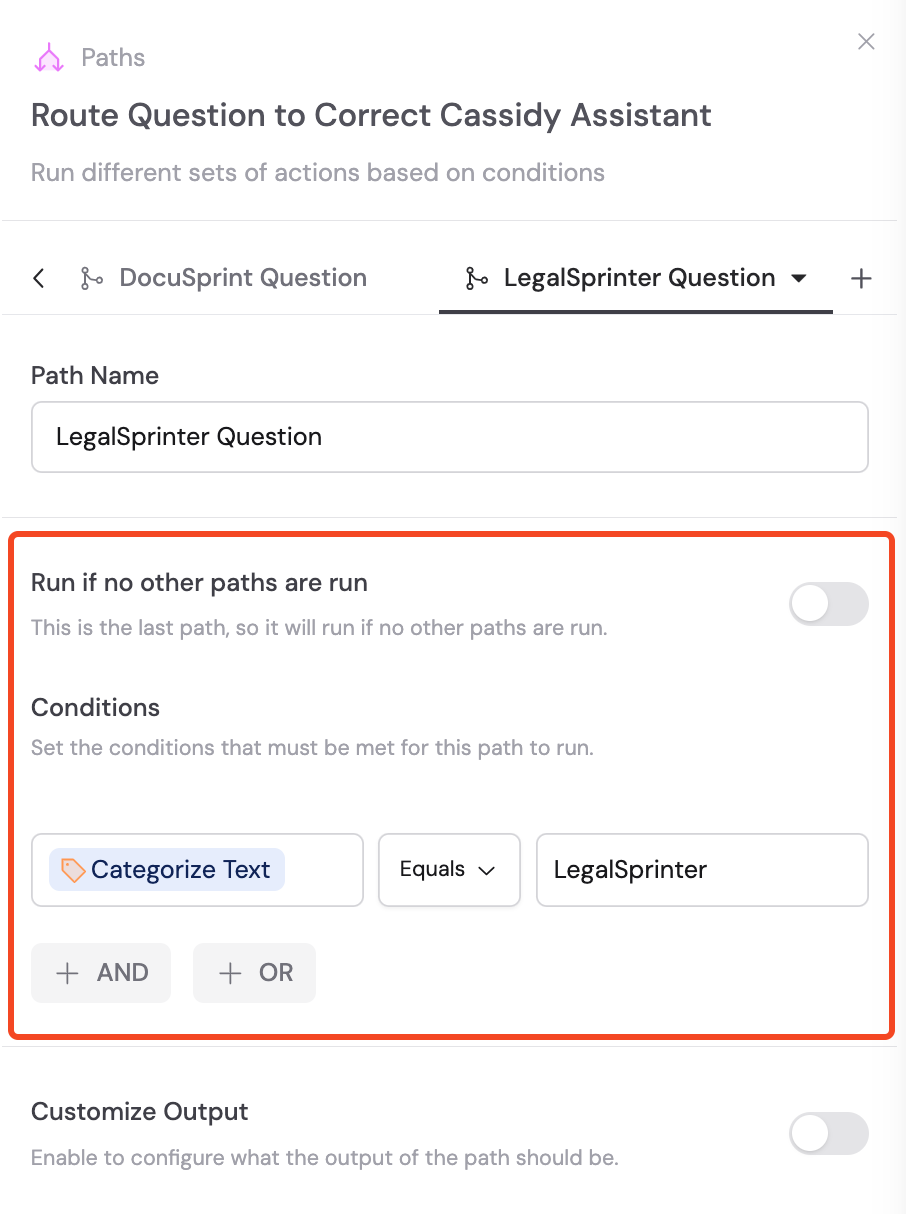
Define the conditions that determine when each path runs. Click Add Condition within a path tab and configure: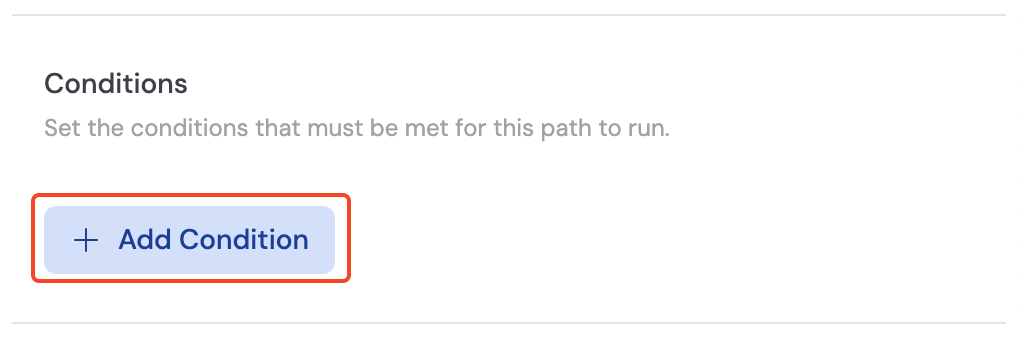
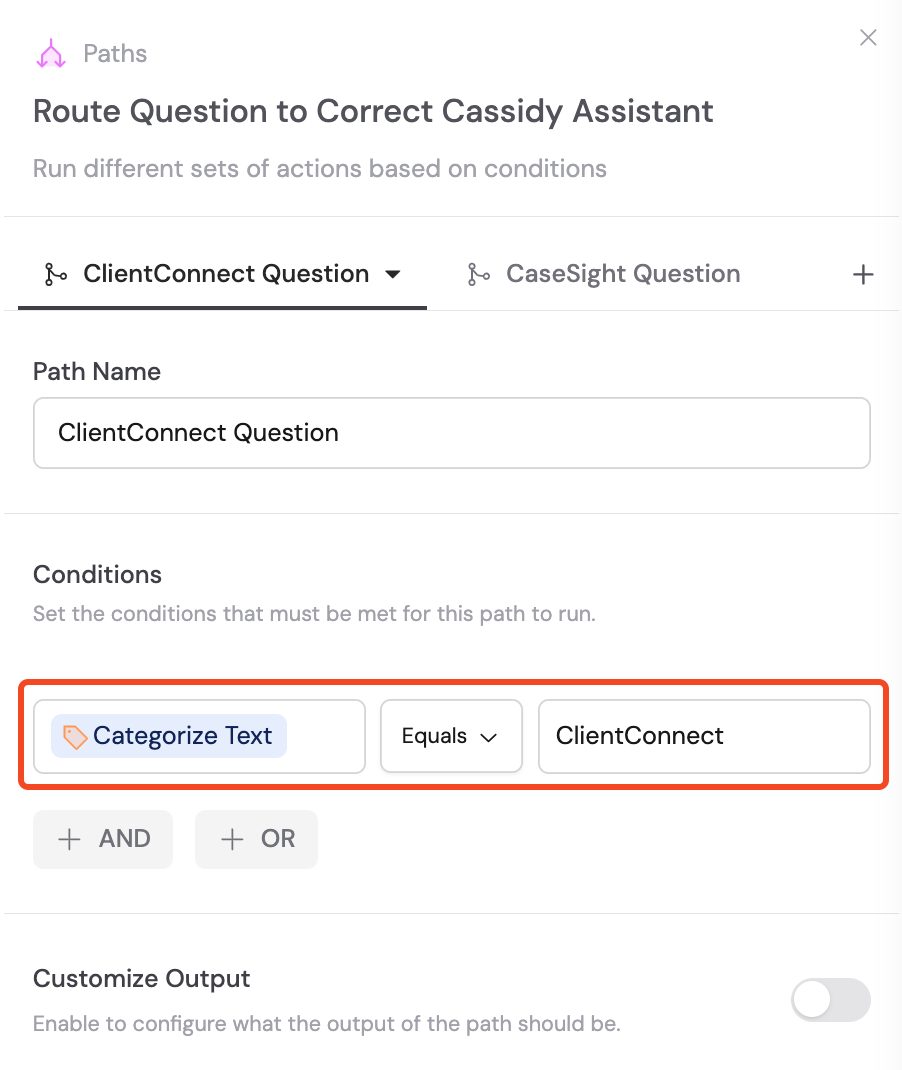
- Field — The variable to evaluate (from a previous step or the trigger)
- Operator — The comparison type (Equals, Contains, etc.)
- Value — The value to compare against
4
Add And/Or operators (optional)
Add multiple conditions to a path by clicking the And or Or buttons: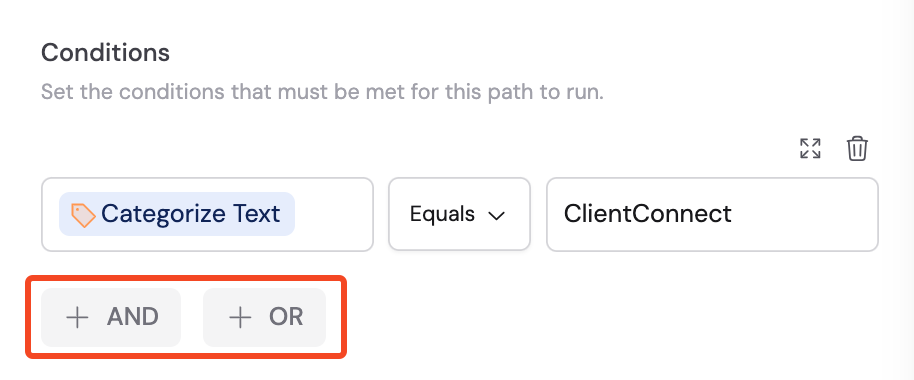
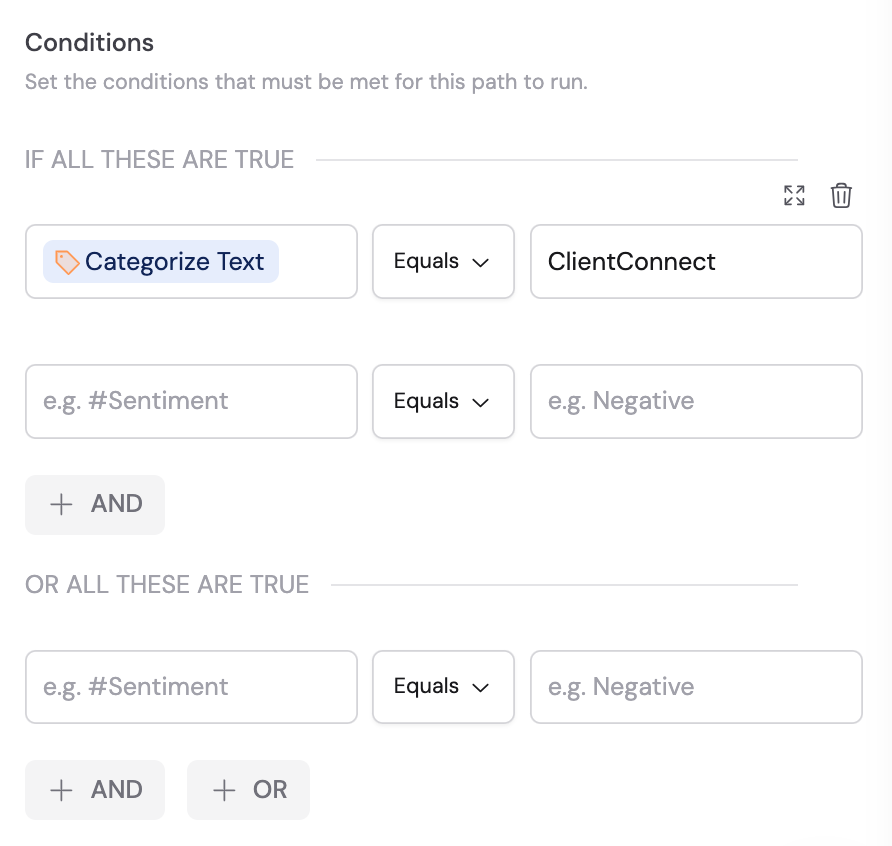
- And — Both conditions must be true for the path to run
- Or — The path runs if either condition is true
5
Add more paths (optional)
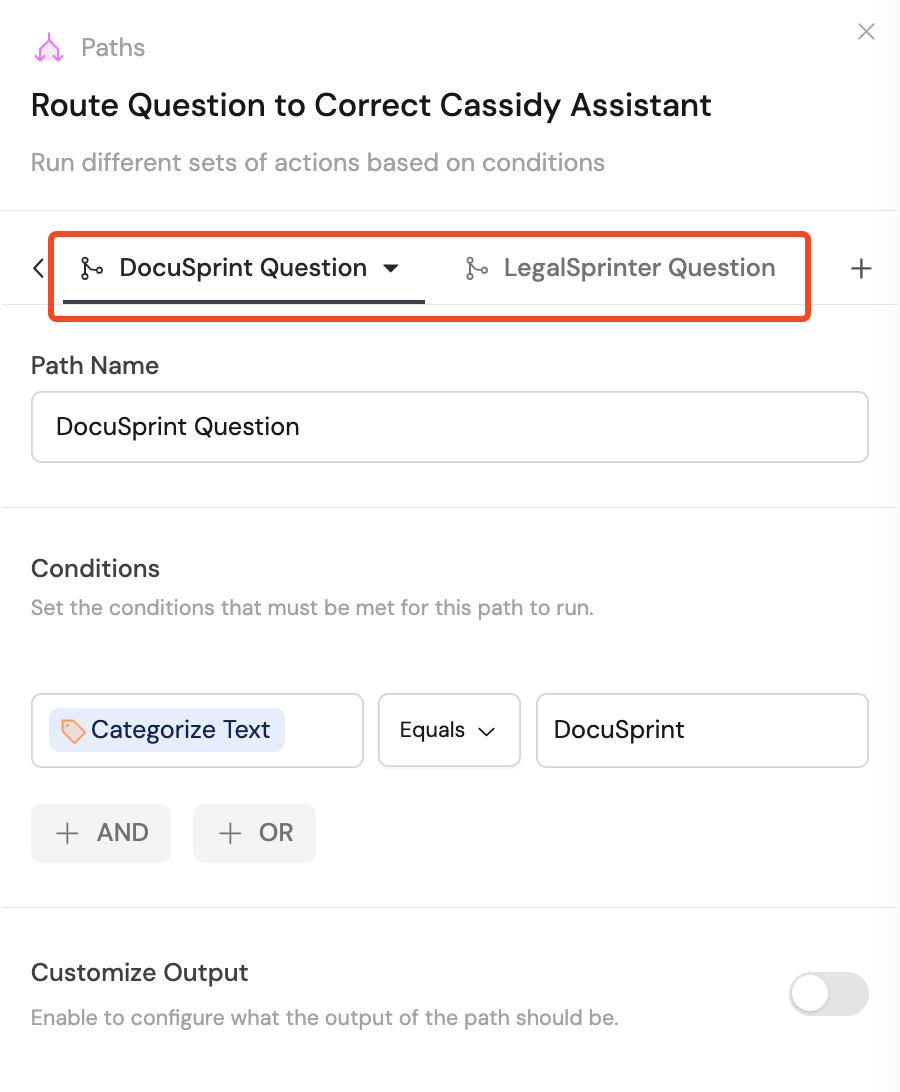
Click the + icon next to the path tabs to add additional paths. Each path should have its own conditions.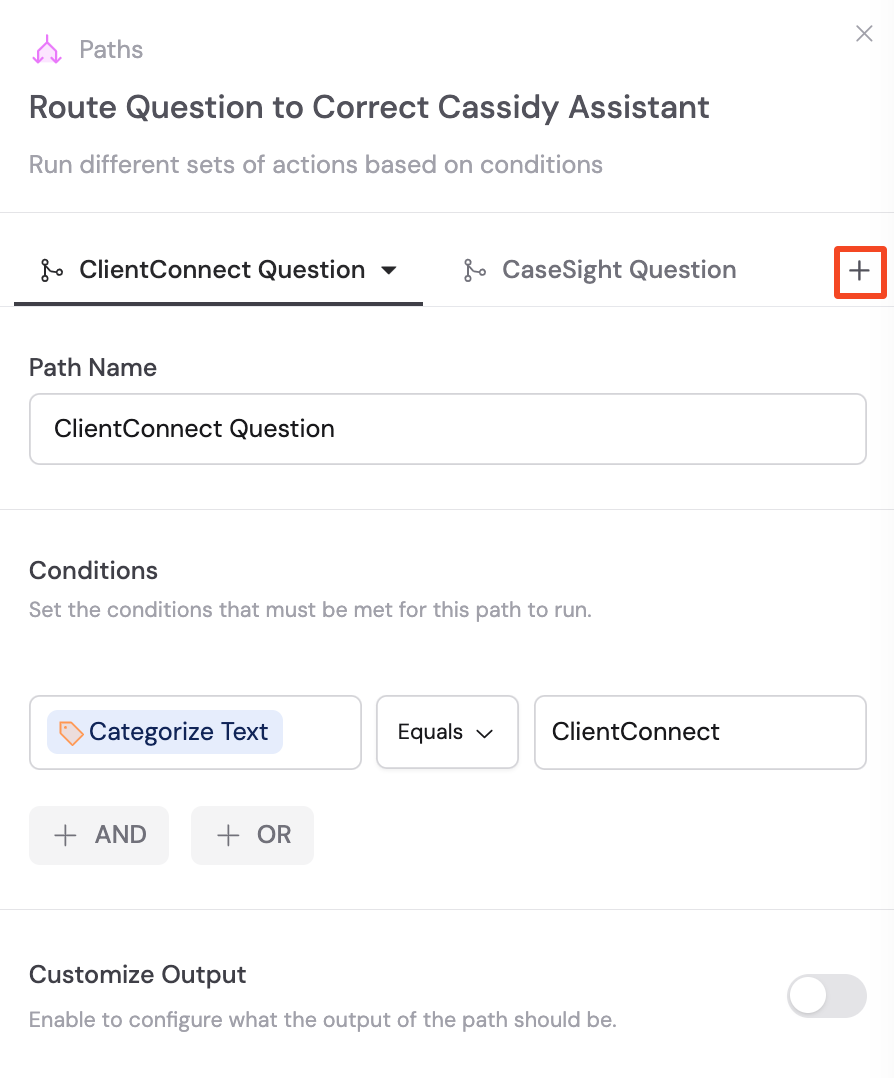
6
Configure the last path's conditions
By default, the last path has Run if no other paths are run toggled on, making it a catch-all that executes when no other path’s conditions are met. You can turn this toggle off and set specific conditions for the last path instead.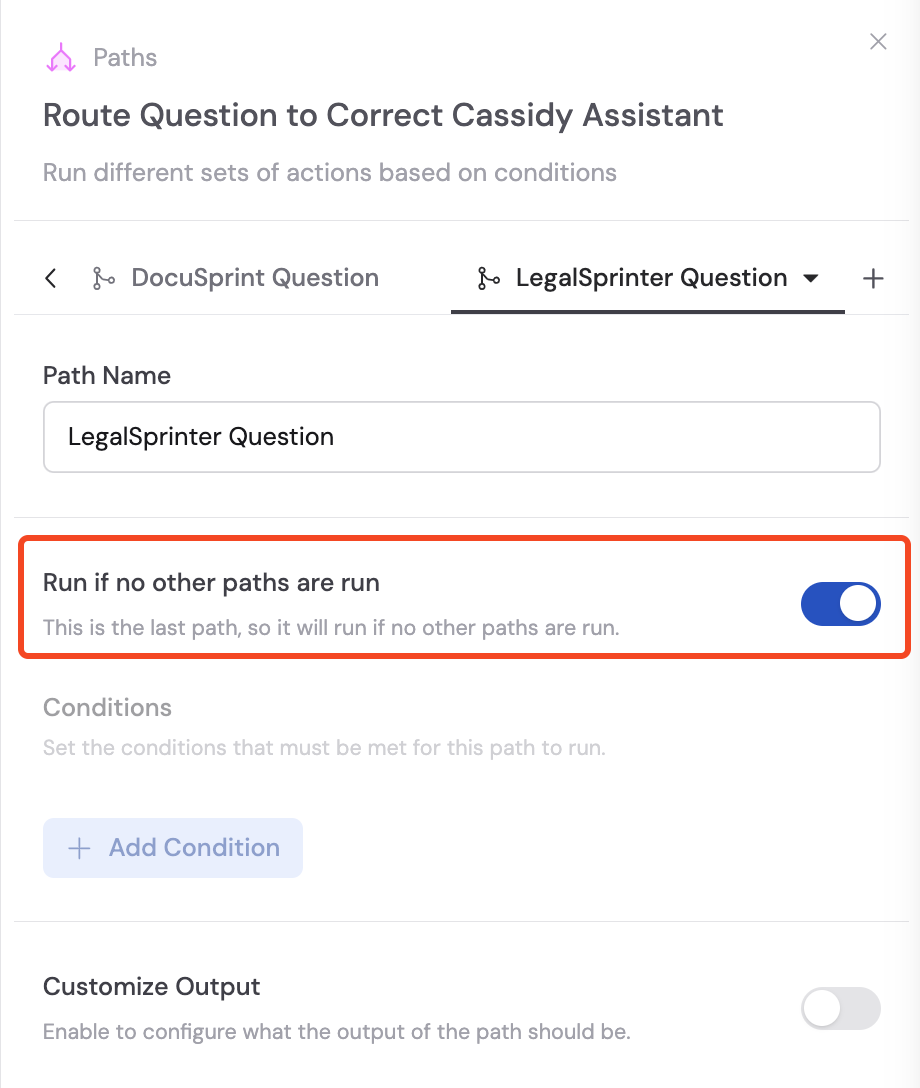
7
Add actions within each path
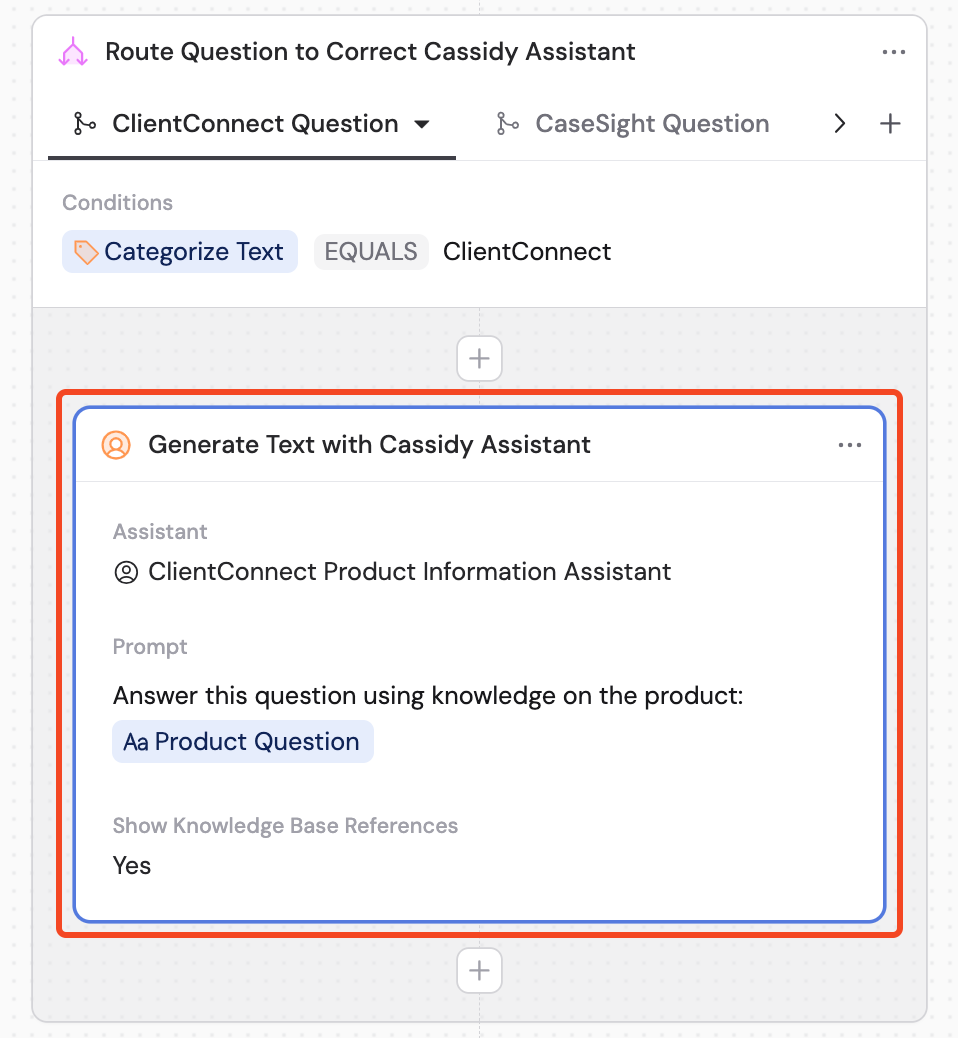
Click + inside each path to add the actions that should run when that path’s condition is met. You can define a different set of actions for each path.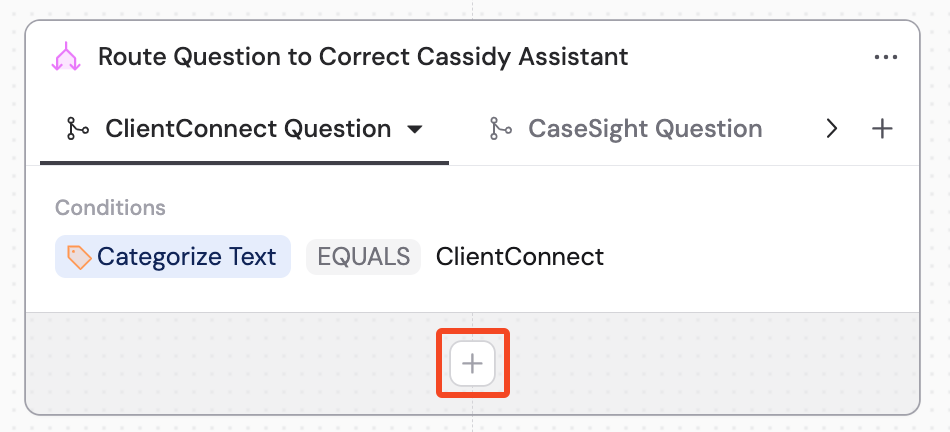
8
Customize output per path (optional)
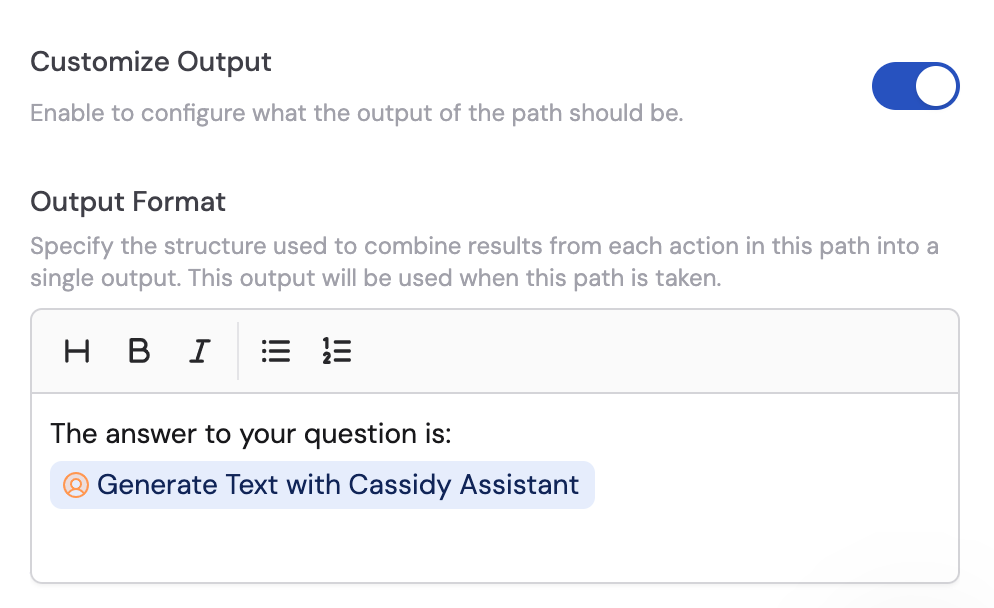
Toggle on Customize Output in each path’s settings and click Customize Output at the bottom of the tab to define what the path returns. This is especially useful when referencing the path’s output in later steps — customizing the output ensures each path produces a uniform result.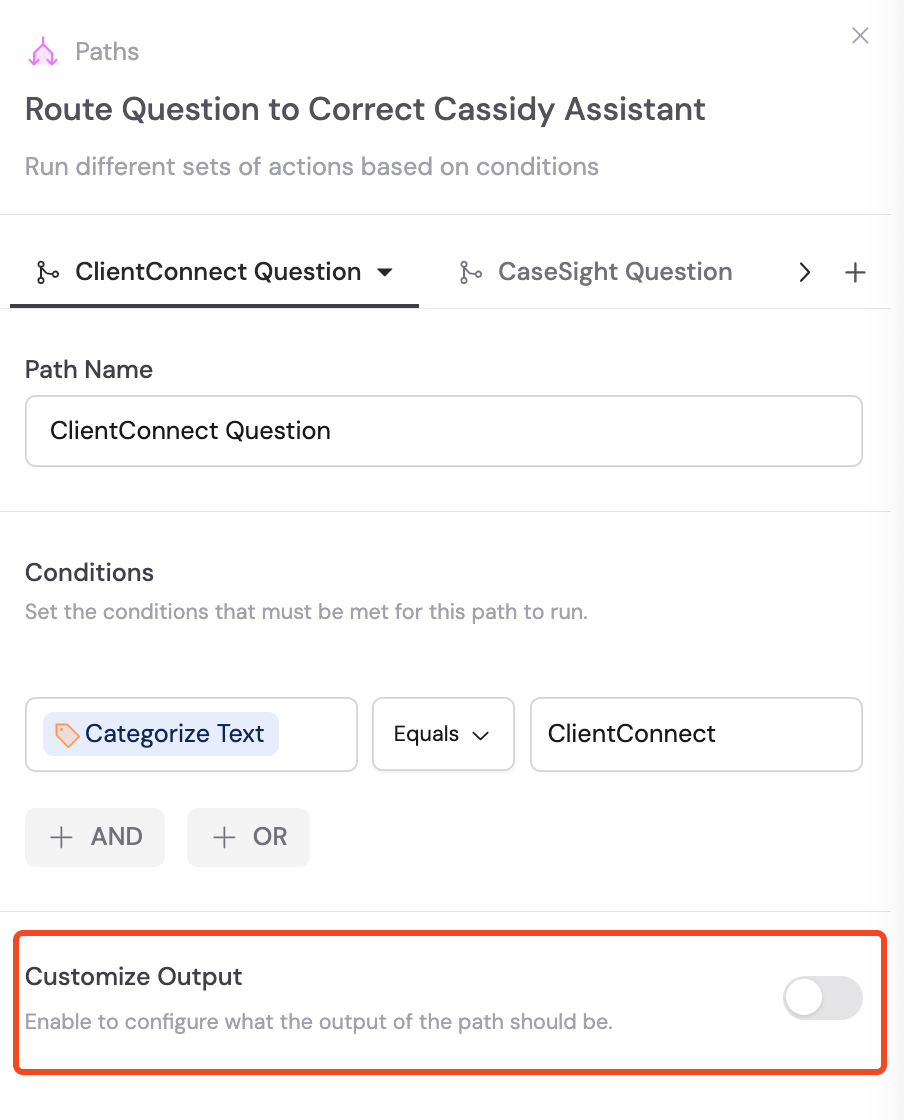
9
Use the path output in later steps
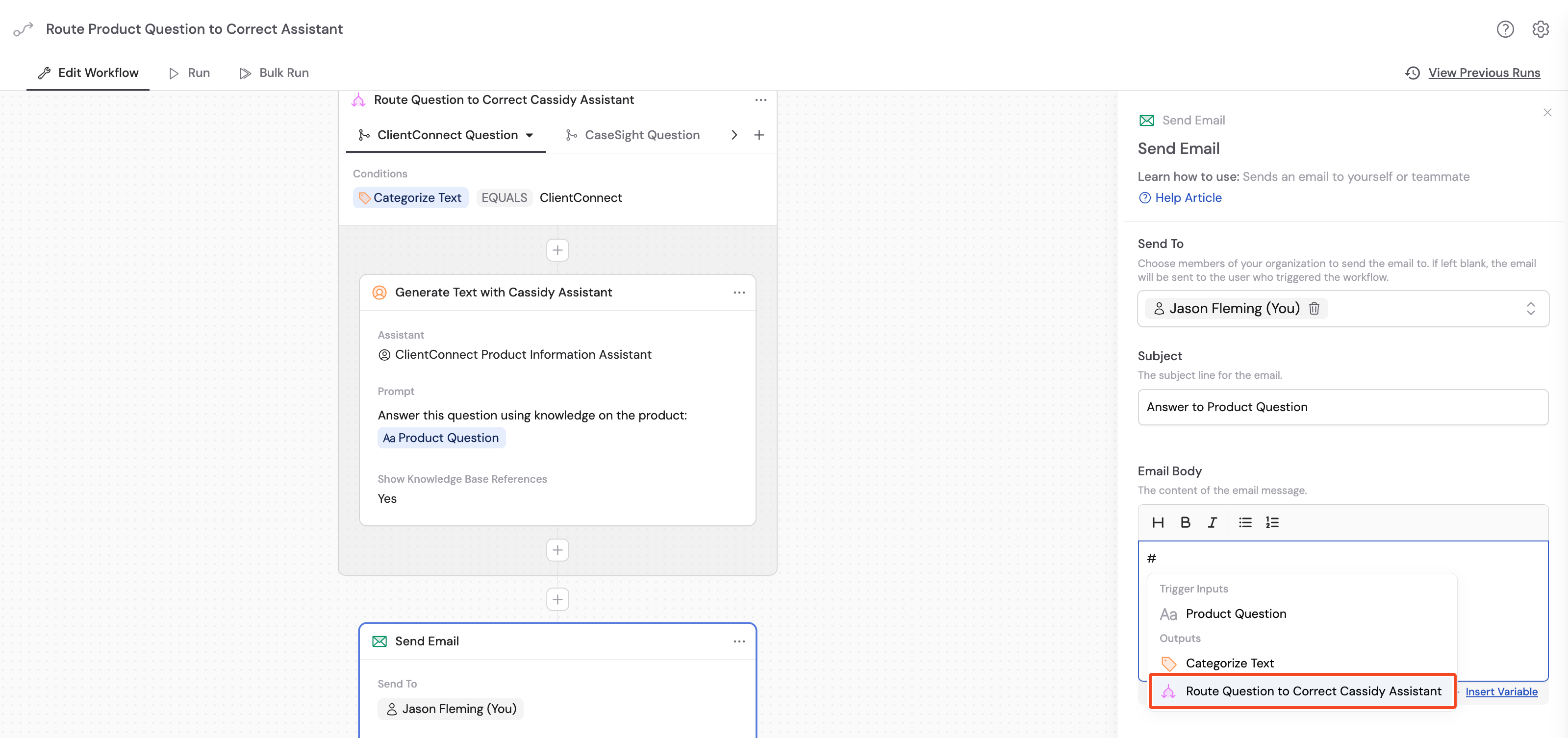
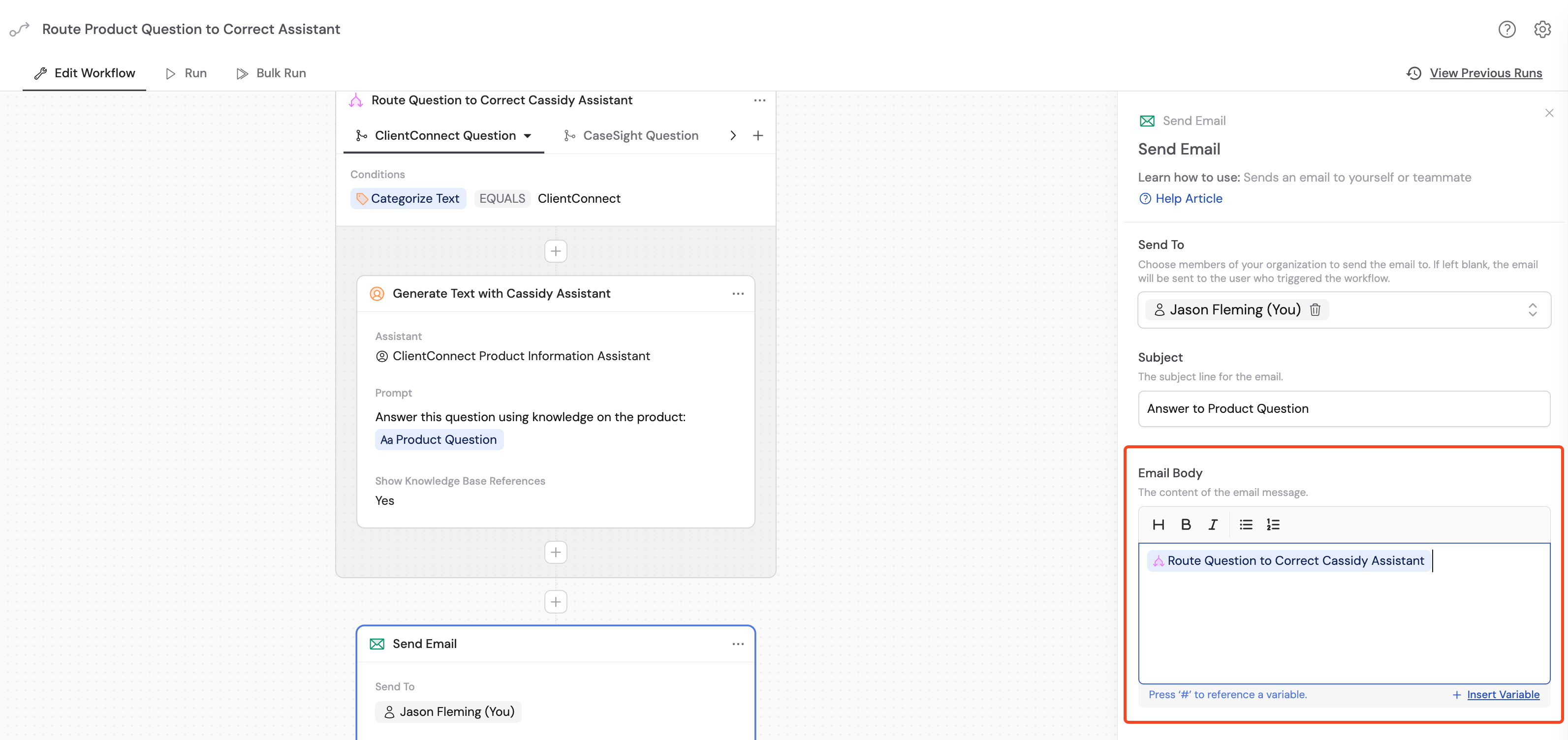
Only one path runs per execution. After the Paths action, add subsequent actions and reference the path output as a single variable — it contains the output from whichever path ran.