

Use Advanced Document Extraction when your document has complex layouts
like tables or multi-column structures, poor scan quality, non-Latin scripts
with diacritics, or when accuracy is very important.
1
Add the action
In the Workflow builder, click + between blocks and search for Advanced Document Extraction or OCR, then select it from the action library.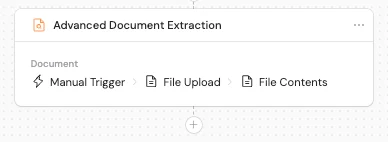
2
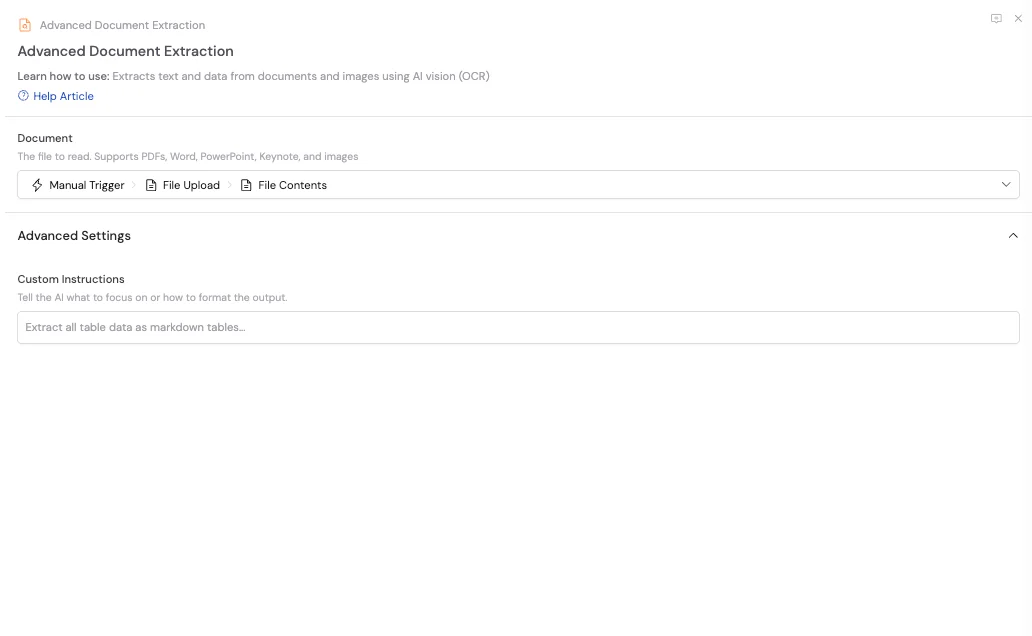
Select the document
In the Document field, reference the file you want to read. Use # to reference variables from a previous step.Common sources include:
- Image uploads from a Manual trigger file input (images are not auto-parsed like PDFs and Word docs)
- Email attachments from an Email trigger
- Downloaded files from Download File from URL or integration download actions (Google Drive, SharePoint, Box, etc.)
- Files inside a Loop when processing multiple attachments or documents one at a time
3
Use the output in later steps
The action outputs the extracted text as a single text variable. Reference it in subsequent actions to summarize, categorize, extract fields, or generate a response.
Supported file types
Advanced: custom instructions
Advanced: custom instructions
Under Advanced Settings, add Custom Instructions to tell the AI what to focus on or how to format the output. For example:
Extract all table data as markdown tablesFocus on the invoice number, date, and line items onlyPreserve headings and bullet lists from the original document