

1
Add the action
In the Workflow builder, click + between blocks and select Get Knowledge Base Folder Contents from the action library.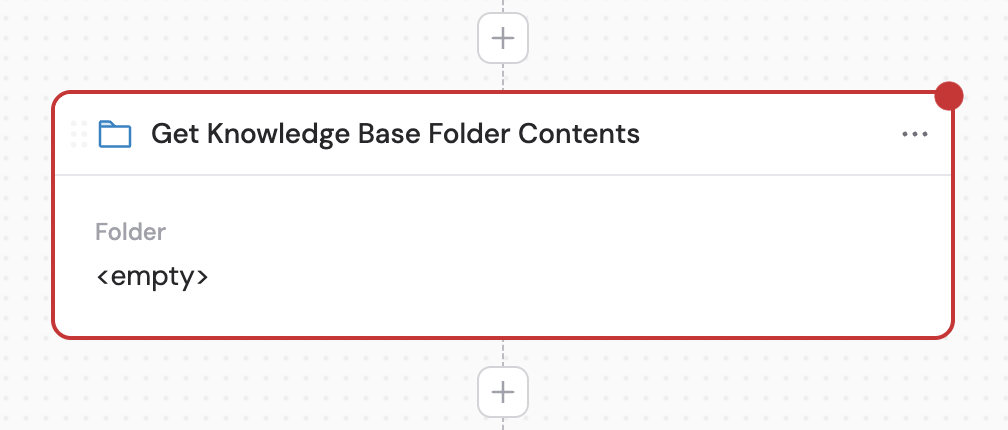
2
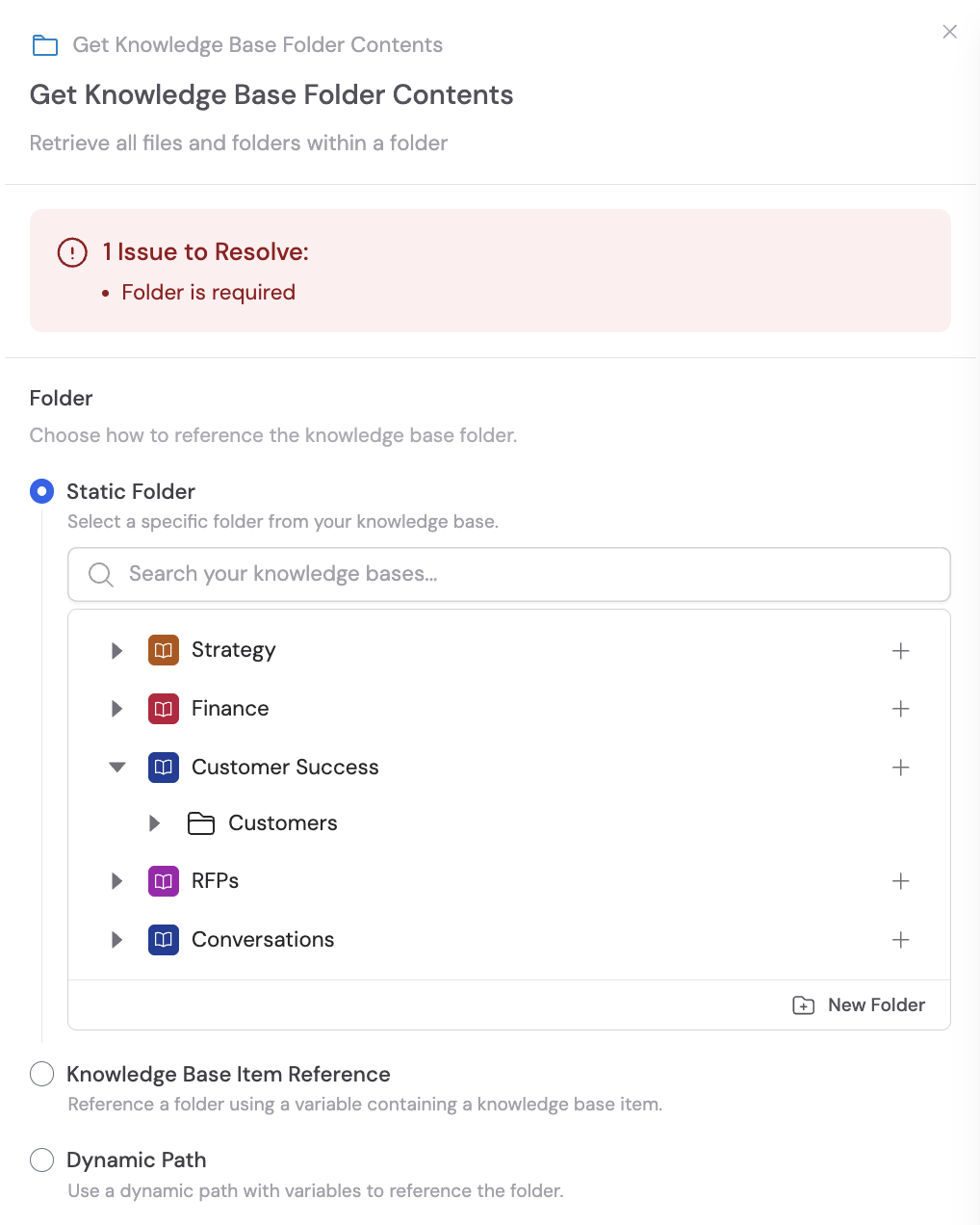
Select the folder
Choose how to reference the Knowledge Base folder using one of three options: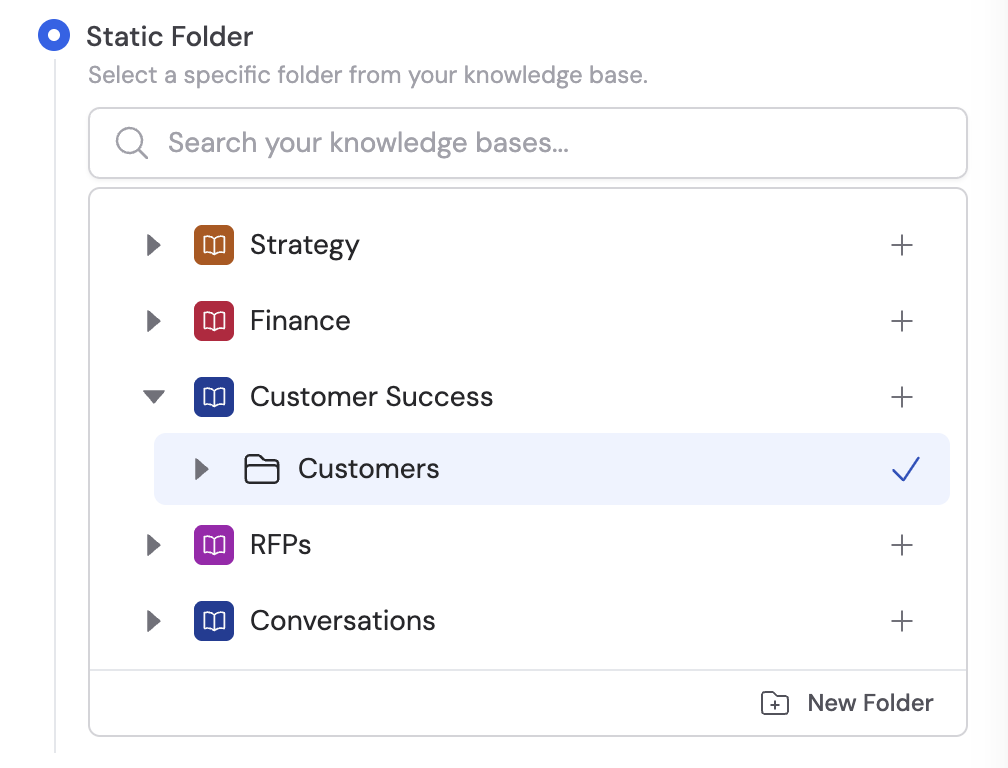

- Static folder — Select a specific folder directly from your Knowledge Base. Best when you always need the same folder, such as a client’s document folder or a specific project directory.
- Knowledge Base Item Reference — Use a variable that references a Knowledge Base folder. Useful for dynamically selecting folders based on client names or project IDs from previous Workflow steps.
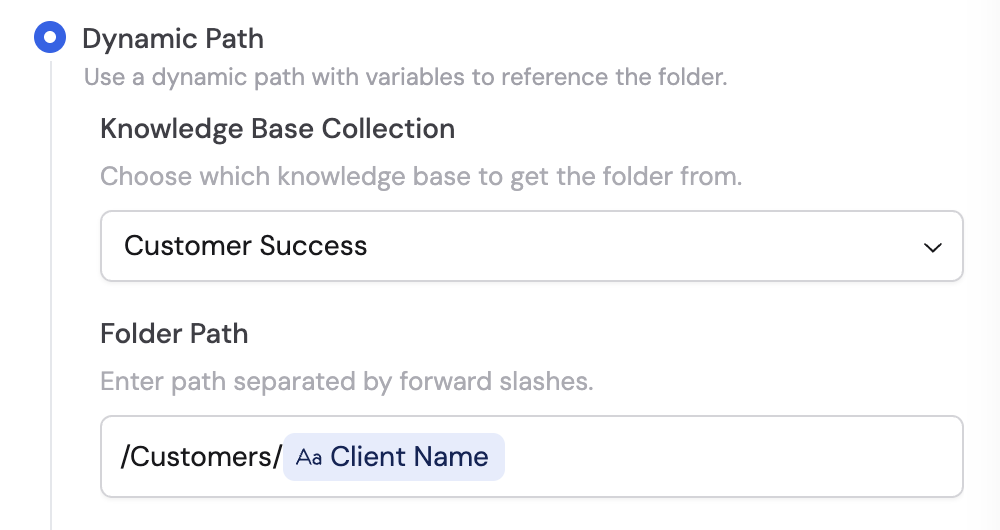
- Dynamic Path — Specify a folder path using variables or naming conventions. Select the Knowledge Base Collection where the folder is located, then enter the Folder Path separated by forward slashes. Useful for accessing folders based on dynamic inputs like client names or date-based directories.
3
Use the folder contents in subsequent steps
Once configured, the following variables are available in later Workflow steps: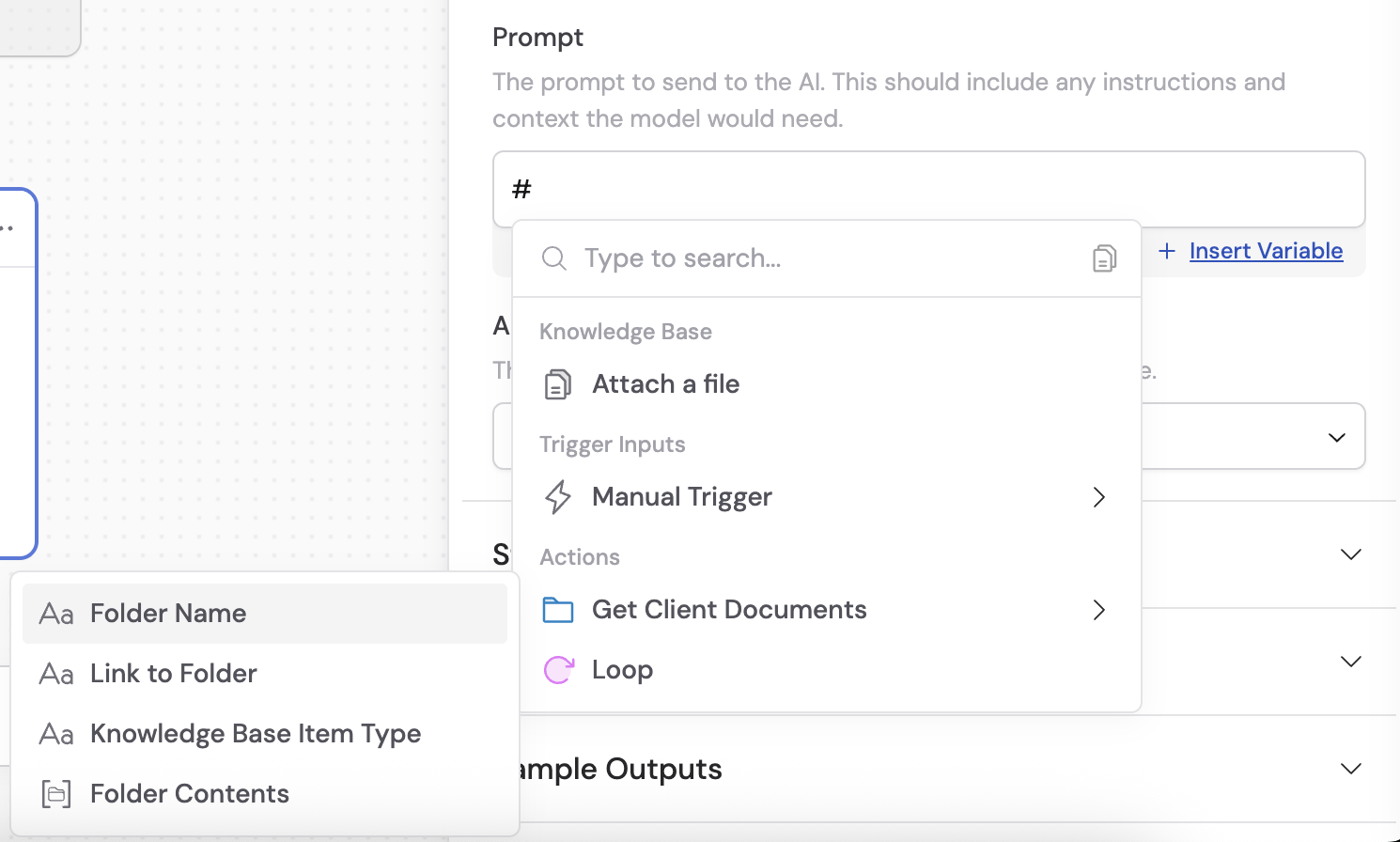
- Folder Name — The name of the retrieved folder
- Link to Folder — A direct link to the folder in the Knowledge Base
- Knowledge Base Item Type — The type (e.g., Folder, Collection)
- Folder Contents — A list of the item names within the folder
Common pattern: Loop + Get Knowledge Base FileA powerful combination is to use Get Knowledge Base Folder Contents with a Loop and Get Knowledge Base File to process each file in a folder individually. For example, retrieve a client folder containing multiple contracts and proposals, then loop through each document to generate summaries or extract key terms.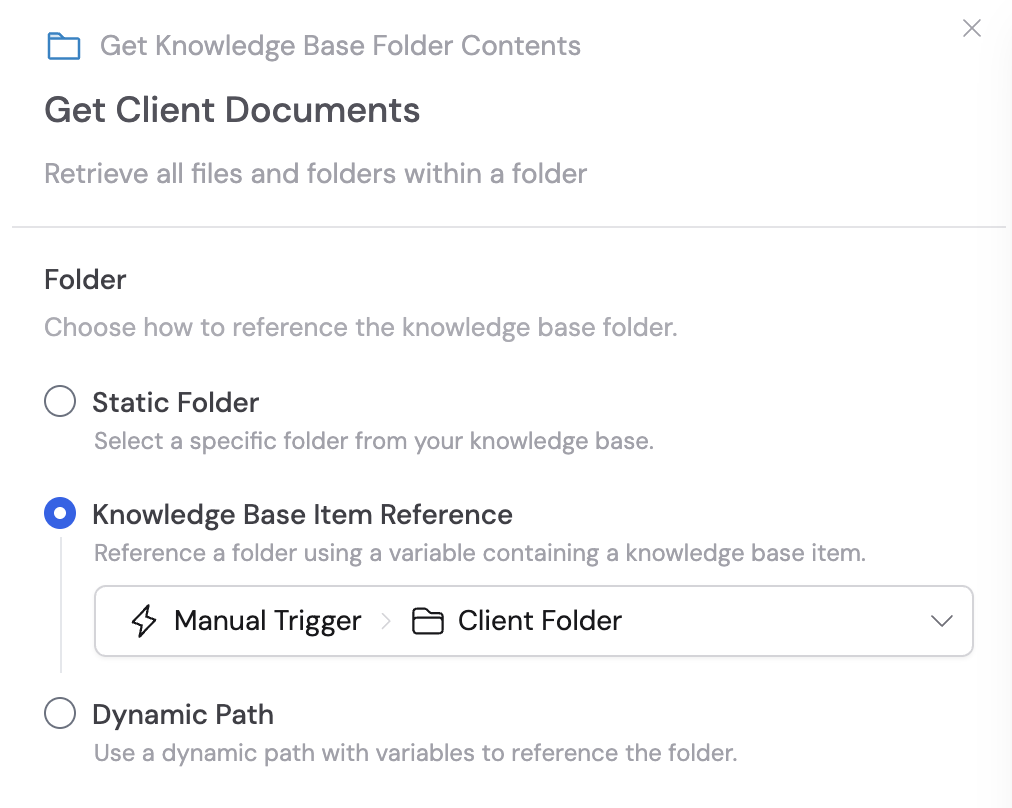
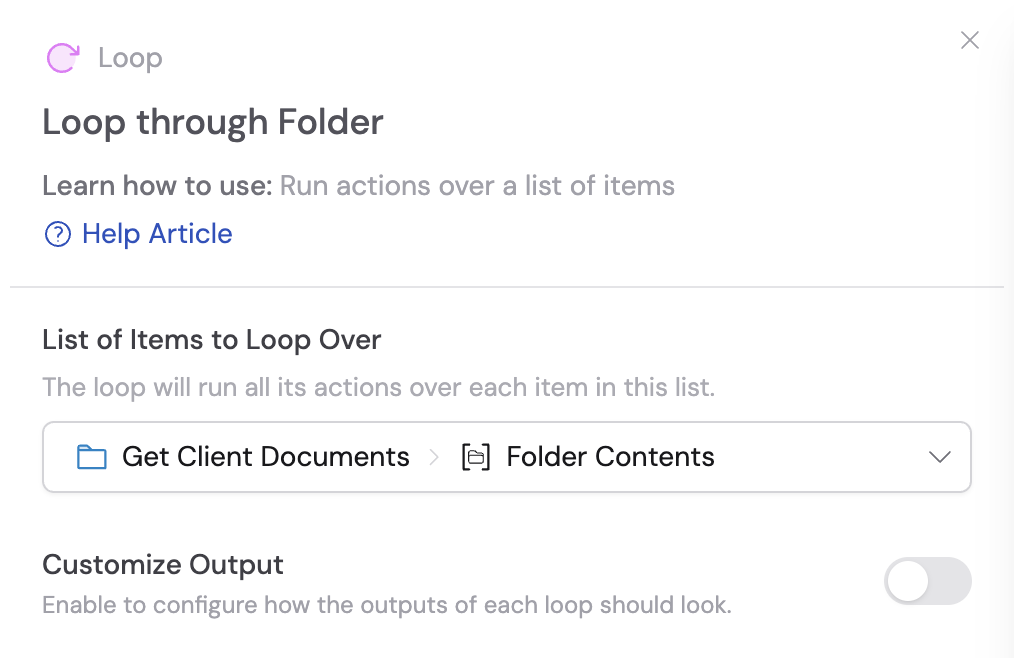

- Use Get Knowledge Base Folder Contents to retrieve all files in a folder
- Add a Loop action that iterates over the folder contents
- Within the Loop, use Get Knowledge Base File to retrieve each individual file’s content
- Process each file (e.g., summarize, extract information, or analyze)