

- Generate personalized contracts that pull client details from your CRM
- Create dynamic reports with charts, tables, and conditional sections
- Produce invoices that automatically calculate totals and format line items
- Build proposals that adapt content based on client requirements
- Generate certificates with participant information from your database
1
Add the action
In the Workflow builder, click + between blocks and select Create Microsoft Word Document from Template from the action library.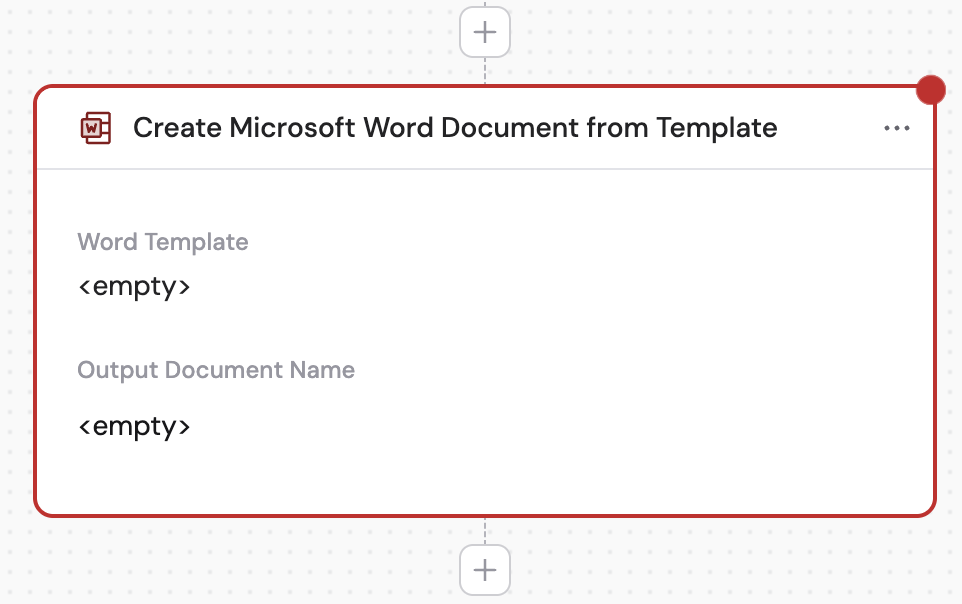
2
Upload the Word template
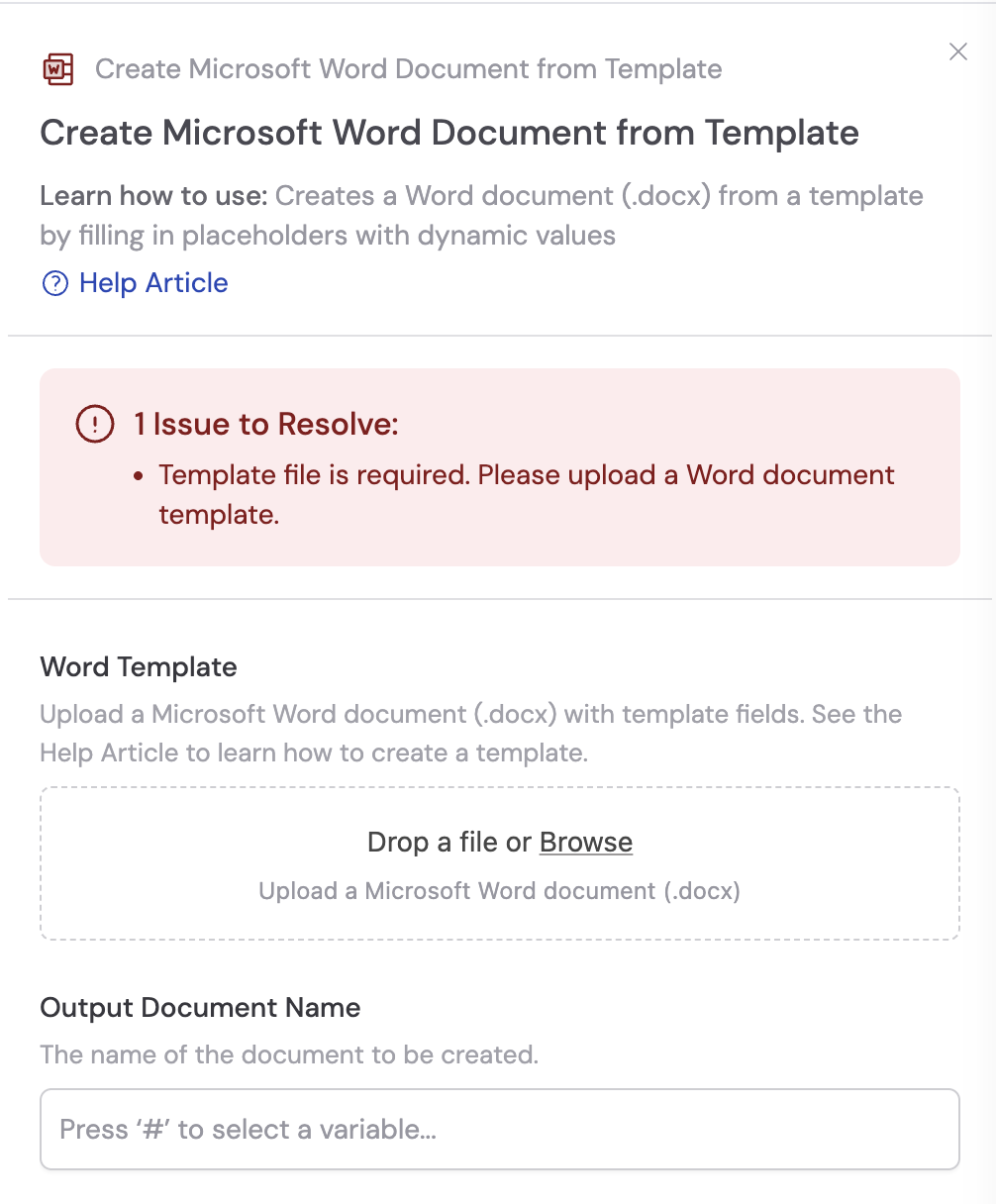
Click to upload your Word document template (.docx file) that contains placeholders for dynamic content. See Template placeholders below for how to set up your template.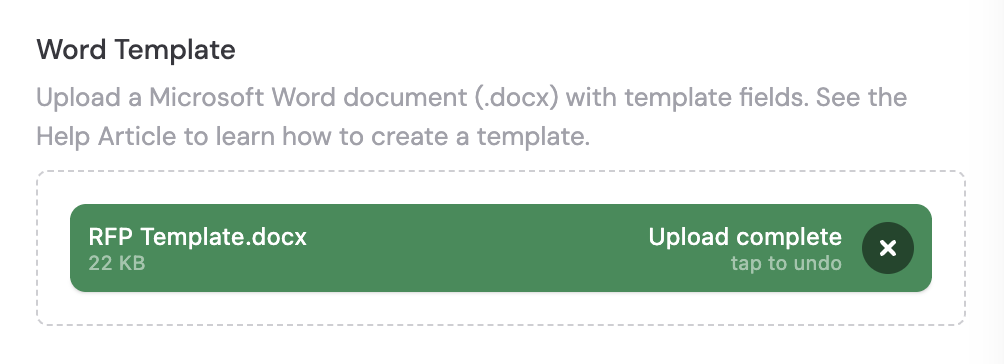
3
Enter the output document name
Provide a name for the generated Word document. This will be the filename when the document is created. You can use variables from previous steps.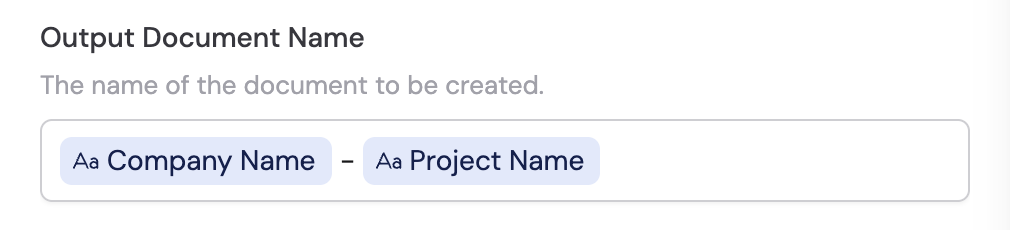
4
Configure template fields
Under the Template Fields section, map each placeholder in your template to a variable from previous Workflow steps or trigger inputs.For example, in an RFP response template: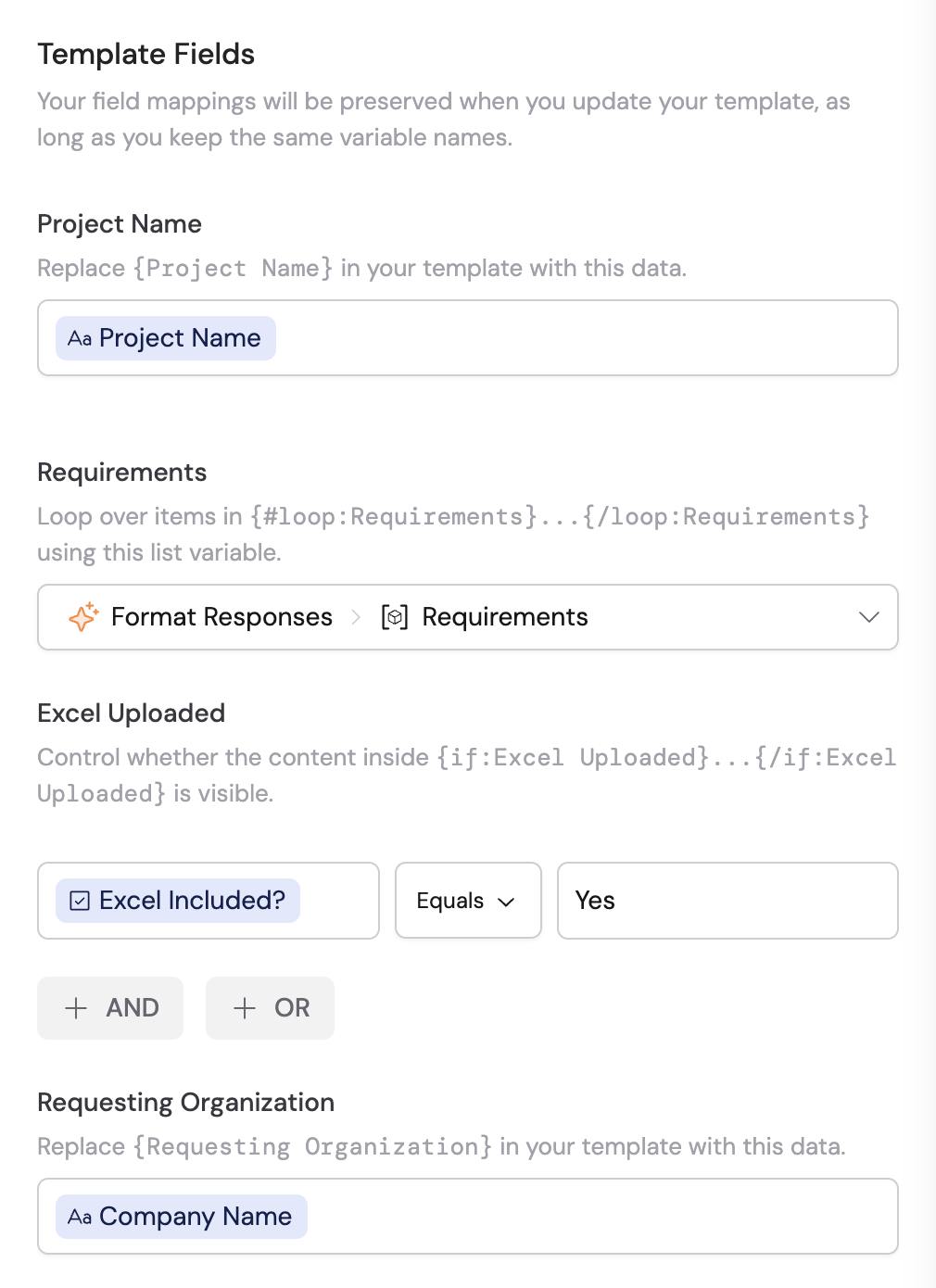
- {Project Name} maps to a text variable from your trigger or previous step
- {Requesting Organization} maps to your client company variable
- {Requirements} maps to a list variable containing objects with “Requirement Description” and “Solution Details” properties
- {Excel Uploaded} maps to a boolean variable that controls whether to show a conditional section
5
Preview and download the document
After running the Workflow, preview the generated Word document and download it by clicking the icons next to the action in the results panel.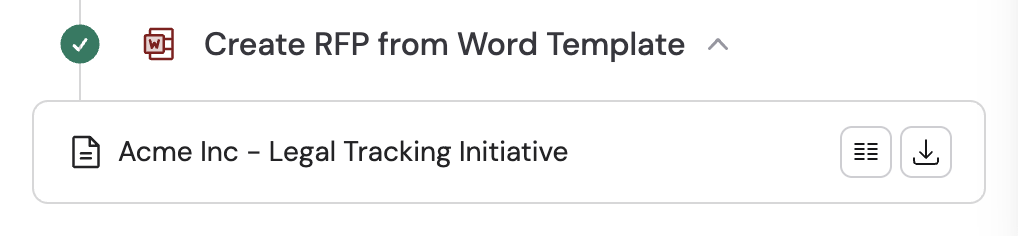
6
Attach the document to other actions (optional)
You can use the generated Word document as an attachment in other actions like Send Email. Reference the Word document output from this action when configuring email attachments.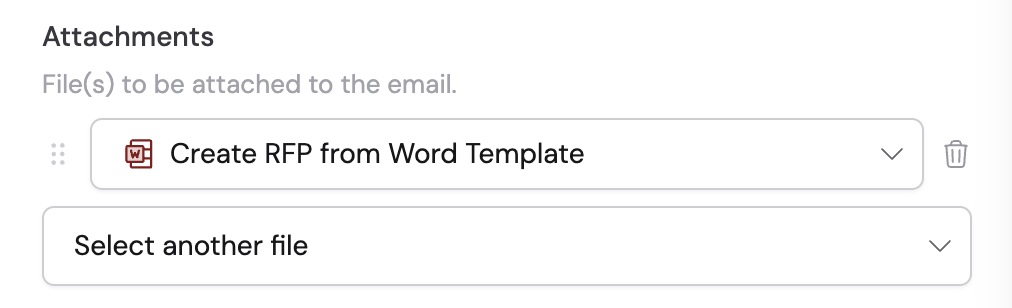
Template placeholders
Use placeholders in your Word template to define where dynamic content should appear. Cassidy detects these placeholders when you upload the template and lets you map them to Workflow variables.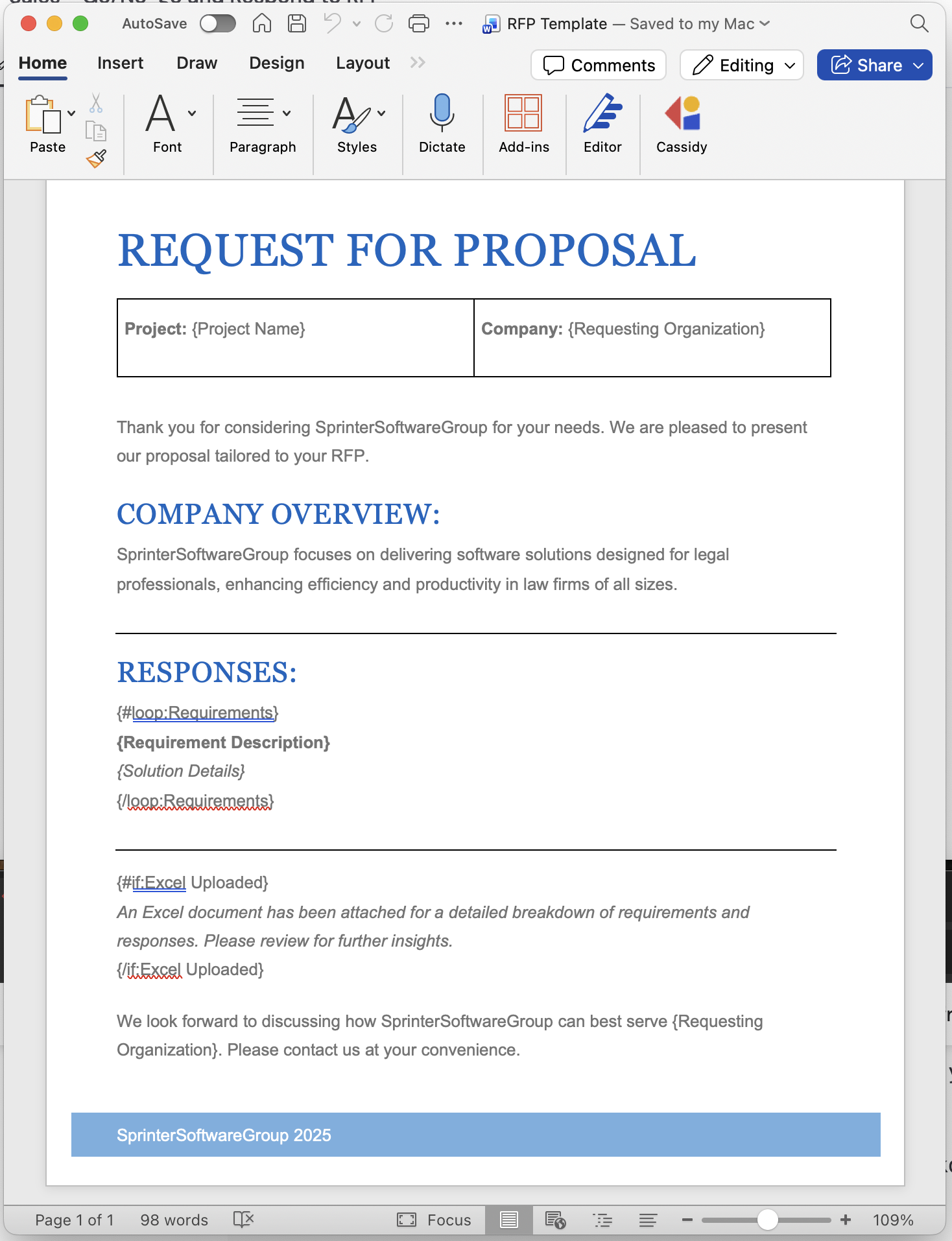
Text placeholders
Use text placeholders to insert text, numbers, or formatted content from your Workflow data. Syntax:{variableName}
Example:
- Inline placeholders insert content within the same line or paragraph, like
{Requesting Organization}above - Block placeholders replace entire paragraphs with formatted content including headers, bullet points, and multi-paragraph text, like
{Contact Information}above
Conditionals
Use conditionals to display sections only when certain conditions are true, or to show alternative content when conditions are false. Syntax:- Standard:
{#if:conditionName}…{/if:conditionName} - Inverse:
{^if:conditionName}…{/if:conditionName}
Loops
Use loops to display repeating content for arrays of data. Syntax:{#loop:arrayName} … {/loop:arrayName}
Example:
Variable scope in loops
When you’re inside a loop, you can access both properties of the current item and properties from outside the loop:- Properties of the current item — use the field names directly
- Properties from outside the loop — these remain accessible
Nested loops
You can create nested loop structures for complex documents:Data format for loops
If your template has this loop:Troubleshooting
Extra lines in output
Extra lines in output
To avoid extra empty lines in the output, place the closing tag on the same line as your variable: