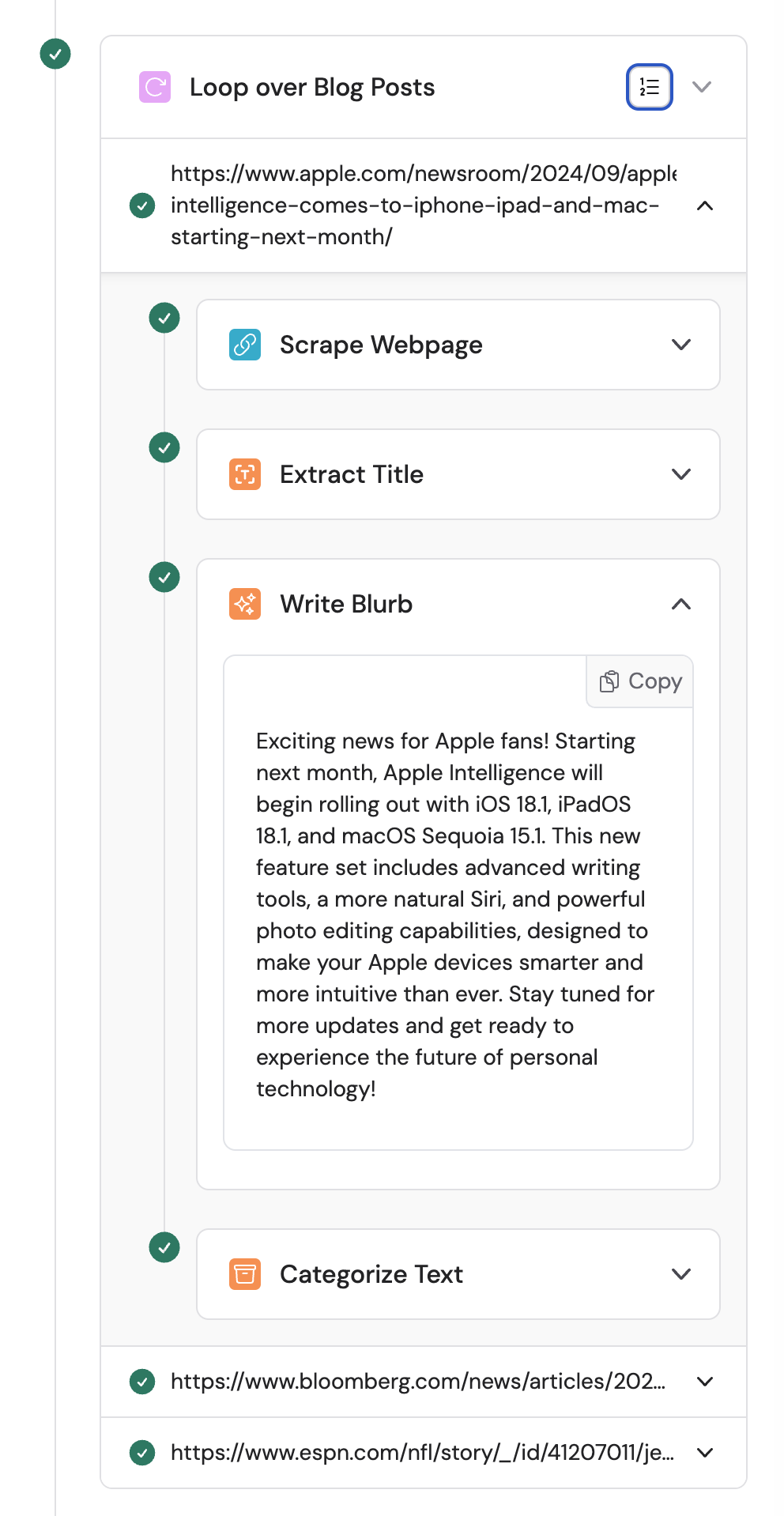
Loop is an advanced feature. If you need help setting it up for your use case, reach out to our team at support@cassidyai.com.
Prerequisites
You need a list variable to loop over. You can get one from:- Extract Information with the “List” option checked
- Trigger inputs with Allow multiple values enabled
- Run Code actions that output lists
- Structured outputs from other actions
- Actions that return multiple records (like CRM lookups)
1
Add the action
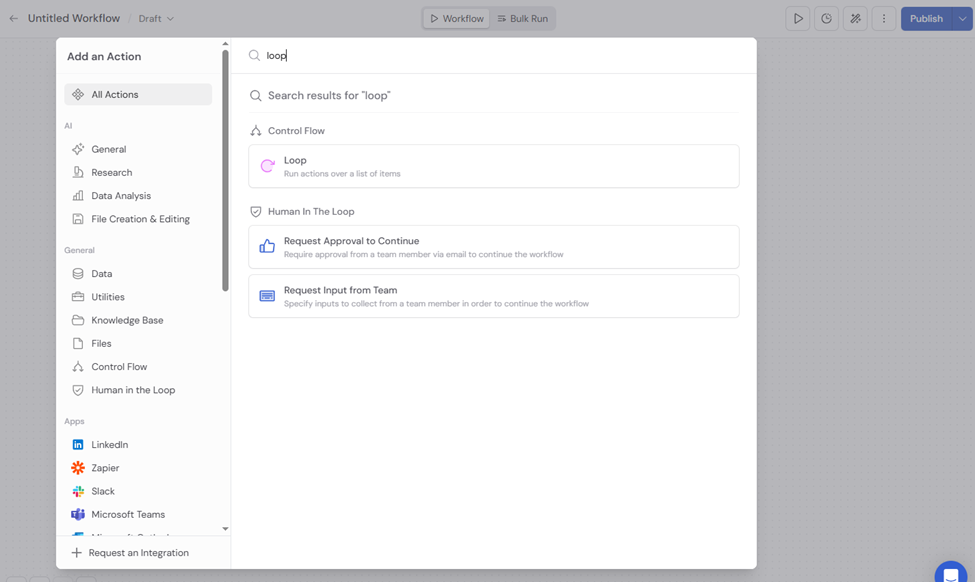
In the Workflow builder, click + between blocks and select Loop from the action library.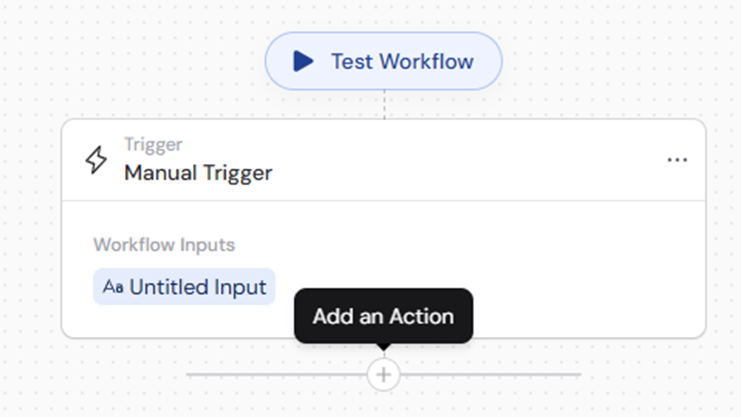
2
Select the list to loop over
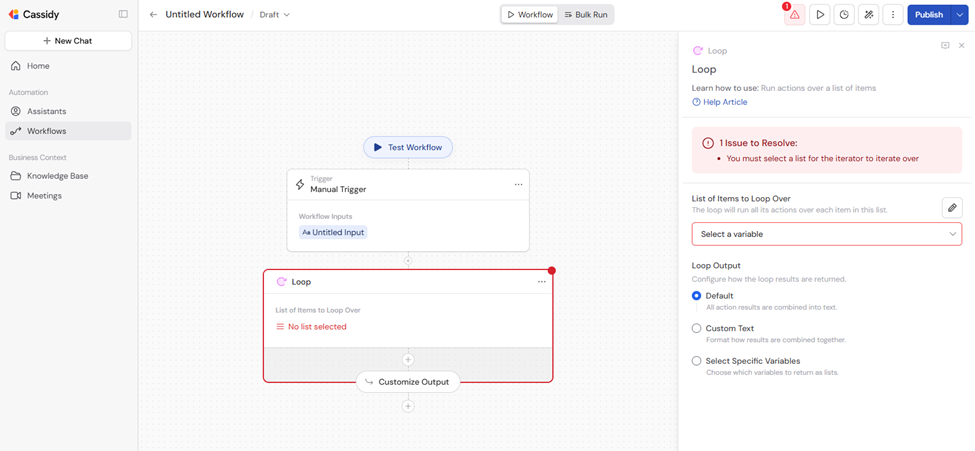
In List of Items to Loop Over, choose how to provide the list: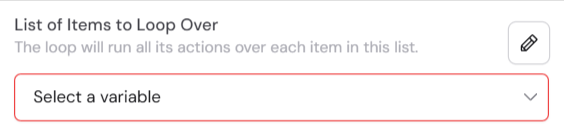
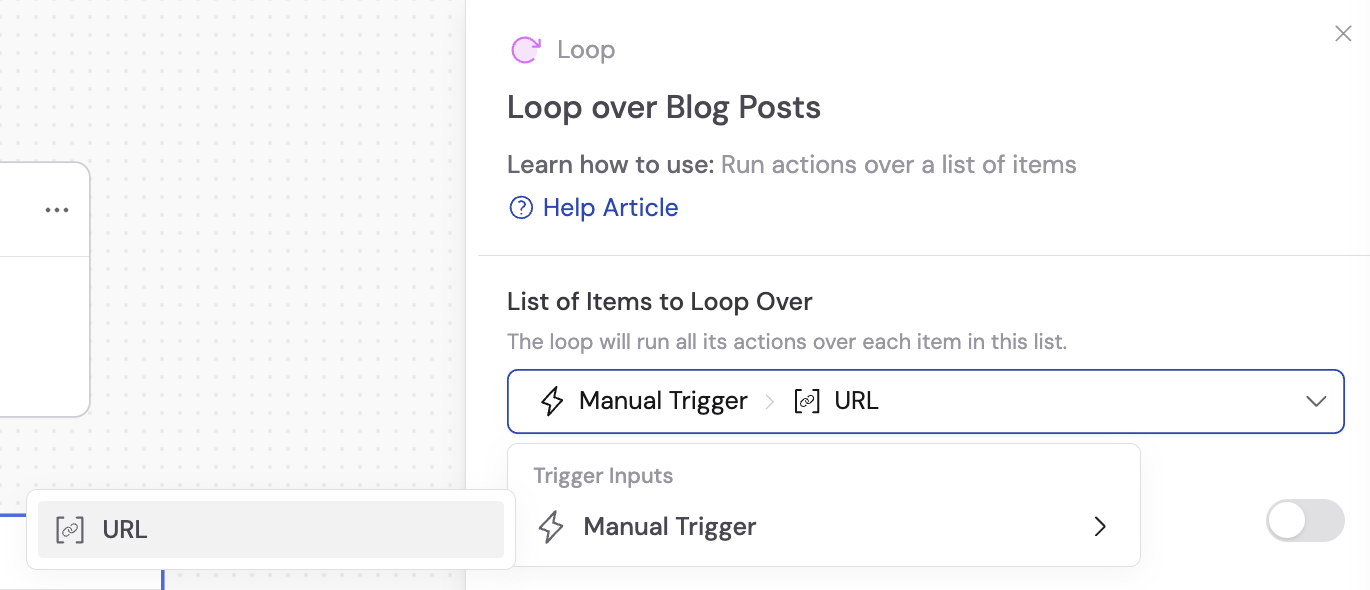
- Select an existing list variable — Click the field, choose Select a variable, and pick a list variable from a previous step or trigger.
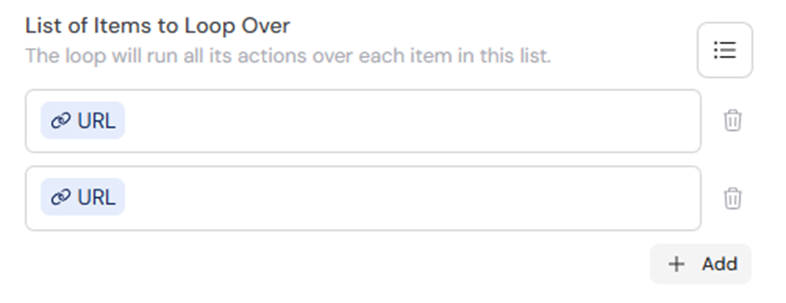
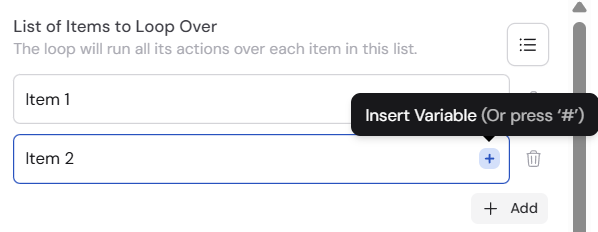
- Enter hardcoded items — Click the pencil icon to switch to manual entry. Type an item or click # to reference a variable, then click Add. Repeat for each item.
3
Add actions inside the loop
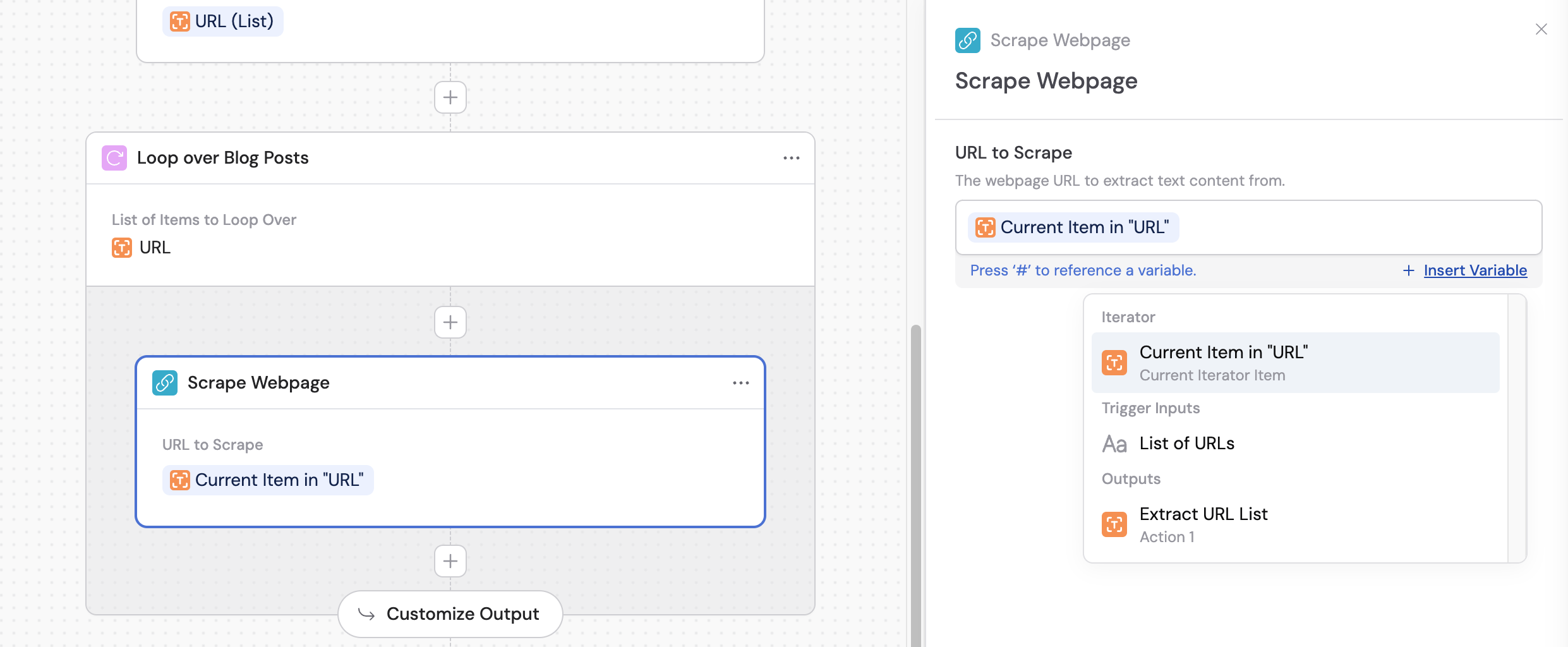
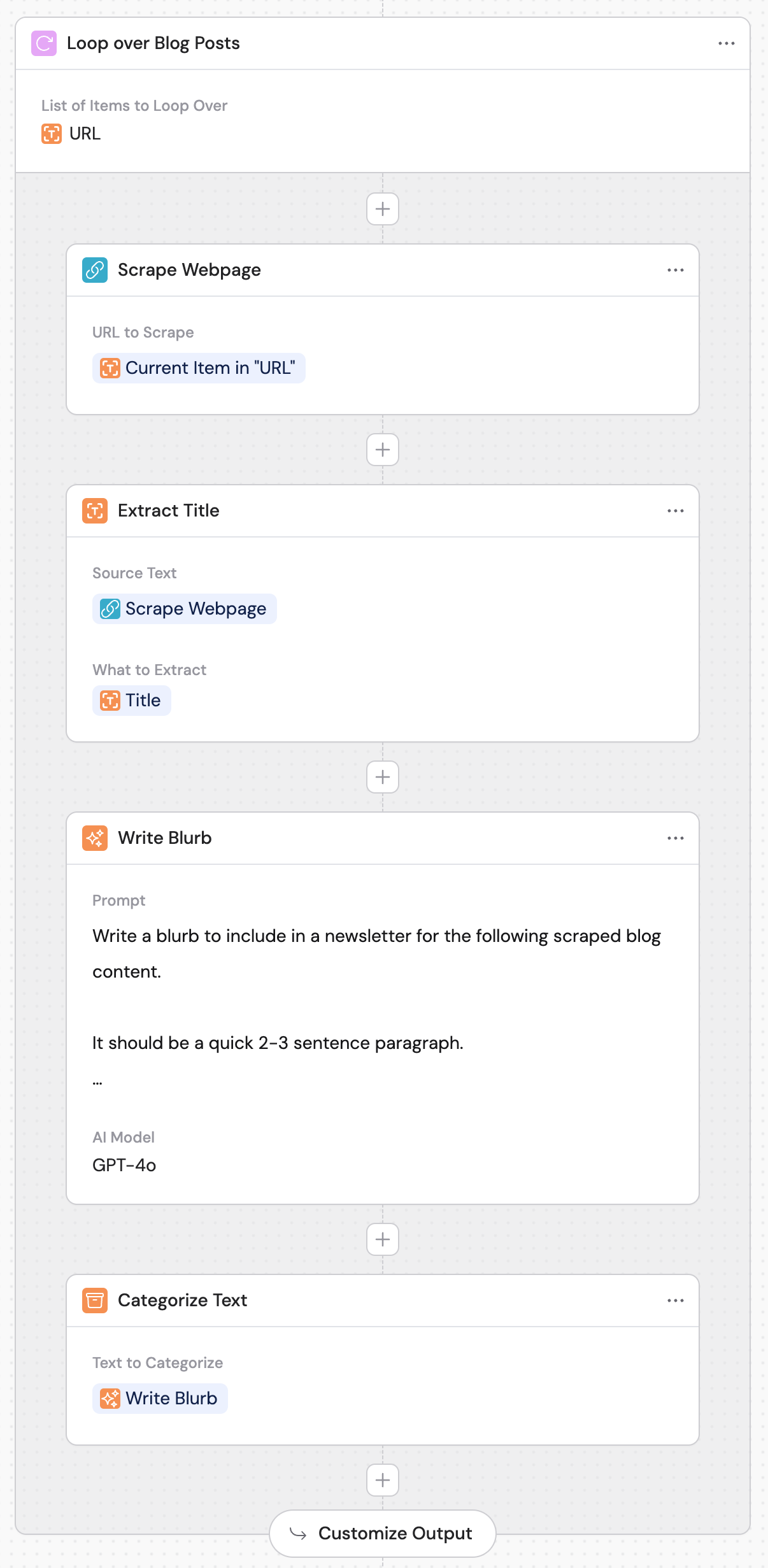
Click + inside the Loop to add actions that run for each item. For each item in the list, these actions run once — so if your list contains 3 items, the Loop runs 3 times.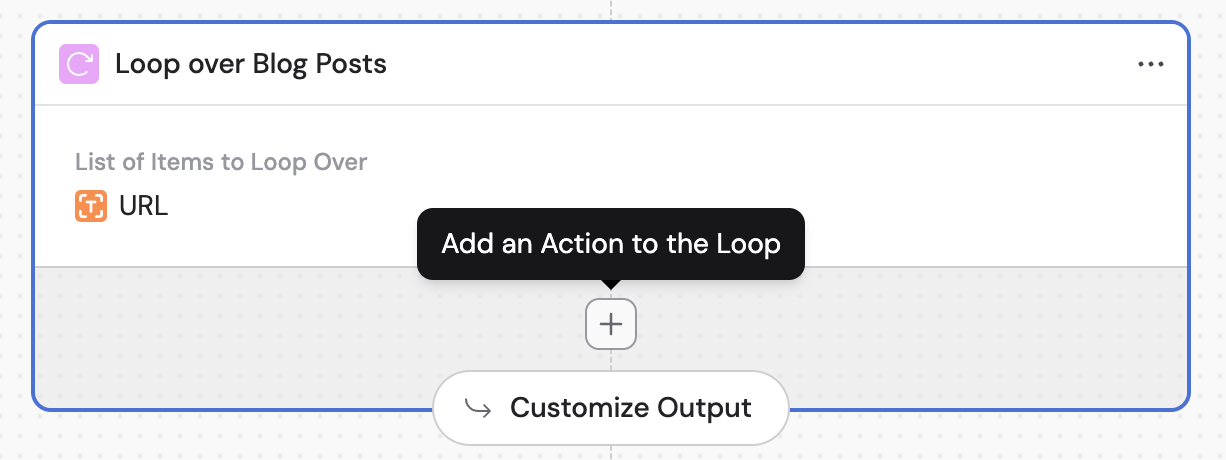
4
Configure the loop output
Choose how results from each iteration are combined: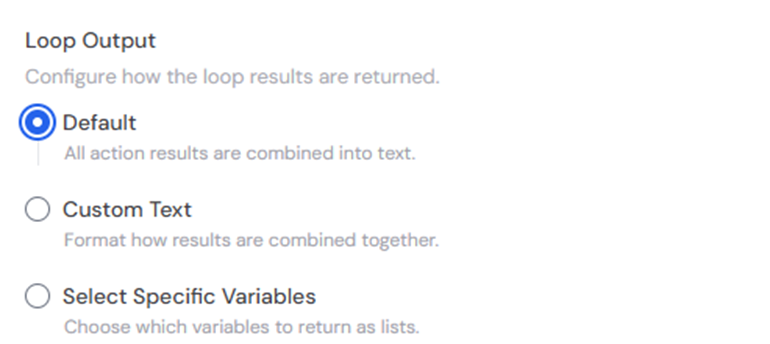
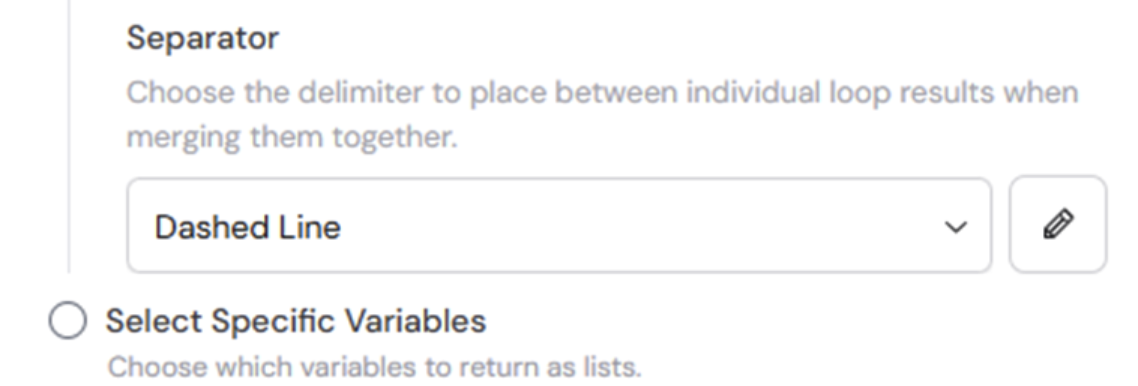
- Default — Concatenates all outputs from each iteration into a single merged result.
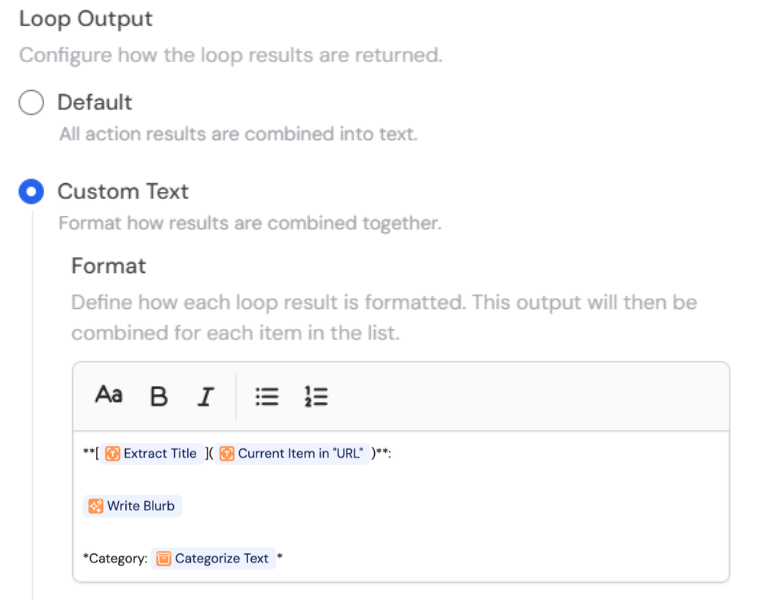
- Custom Text — Define a template for how each iteration’s output is formatted. Use # to reference variables from the loop’s inner actions.
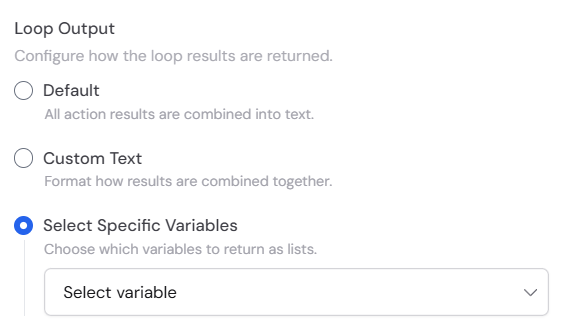
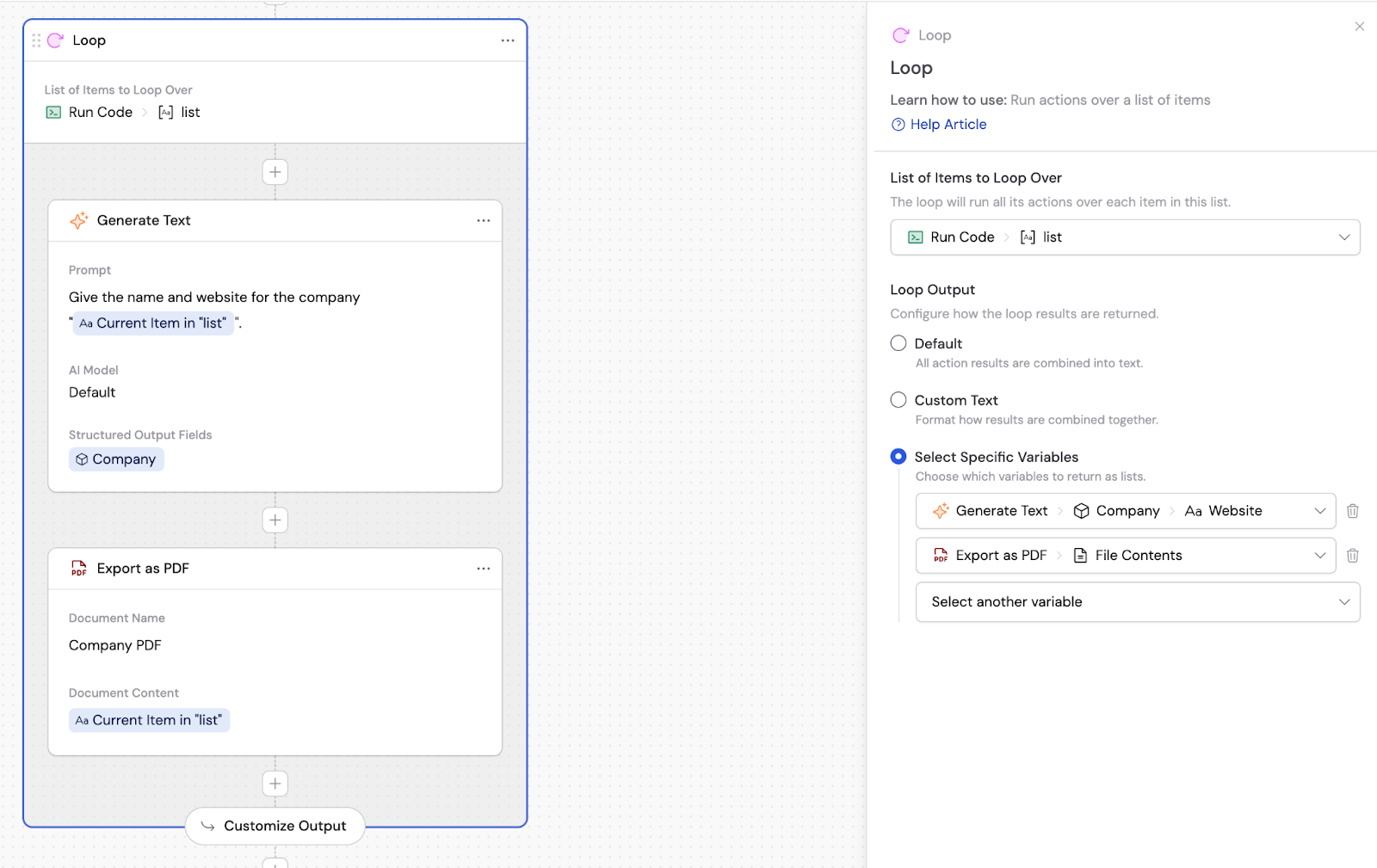
- Select Specific Variables — Choose which variables to return as lists, with one value per iteration (in order). Useful when you need a clean list of outputs for later steps (e.g., titles, URLs, IDs, or files).
5
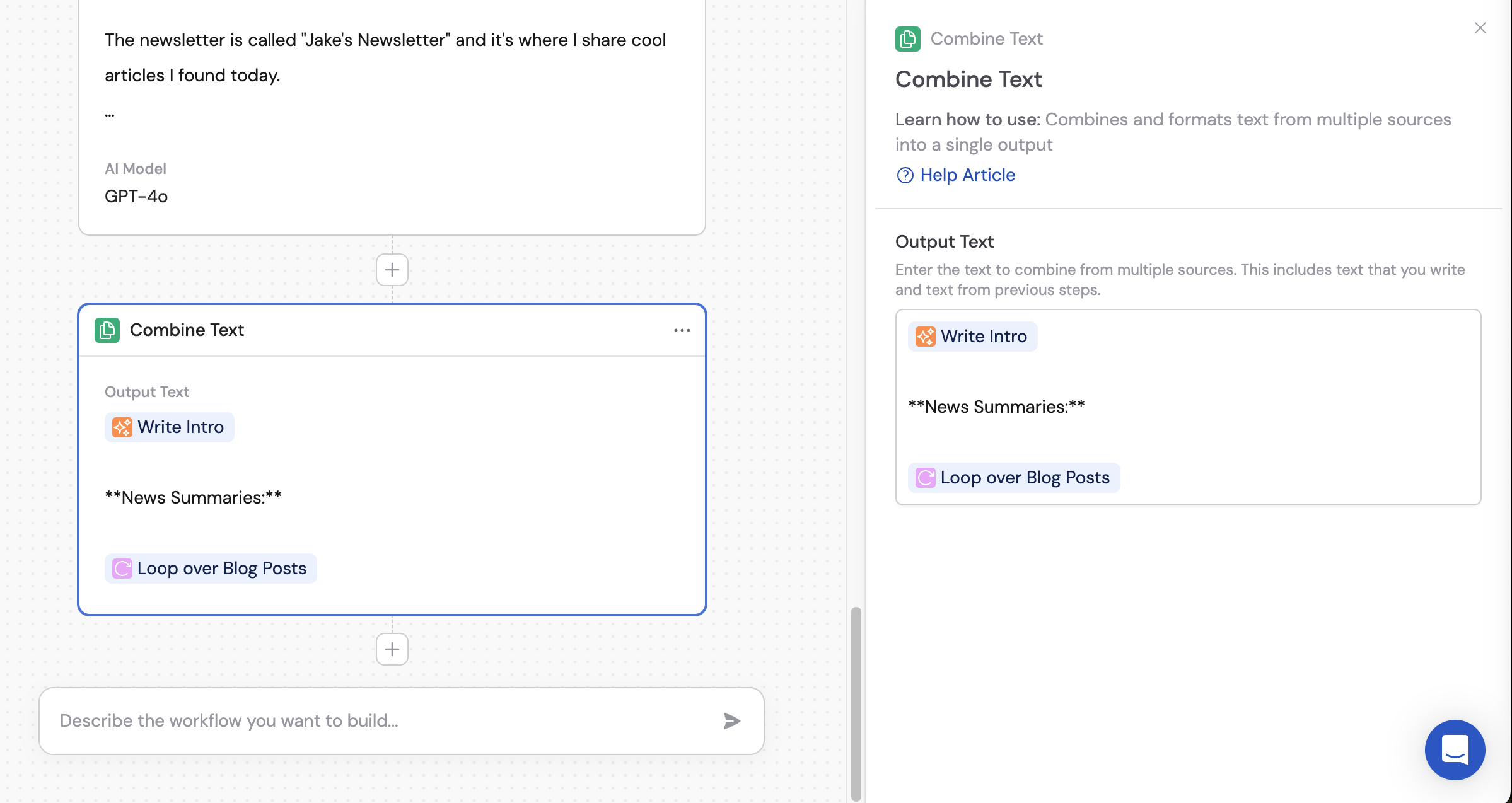
Use the loop output
After the Loop, reference its output in subsequent actions. The combined output is available as a single variable.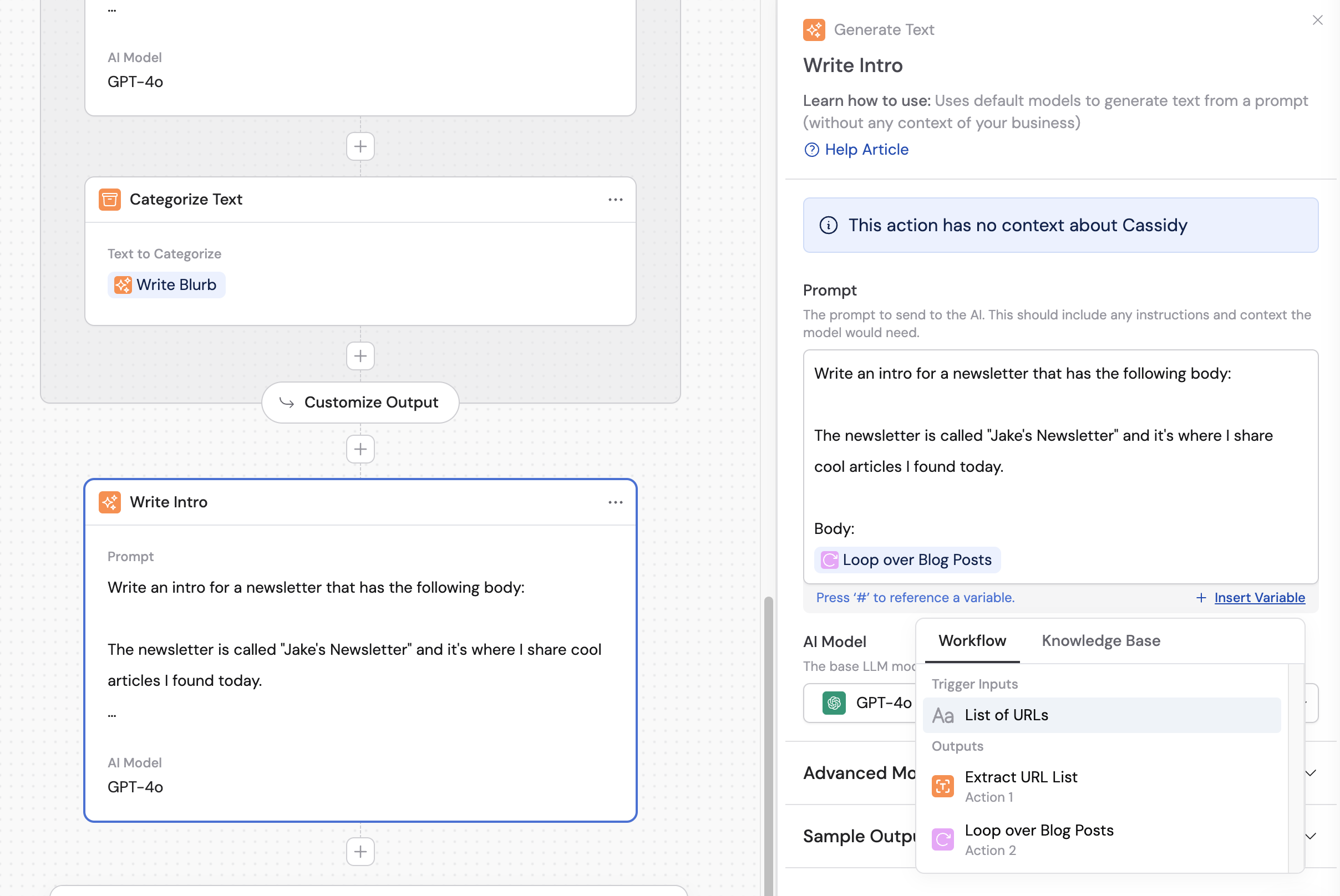
6
Inspect individual loop iterations
After running the Workflow, click the numbered icon on the Loop step to inspect each iteration. Open any individual loop to see the result and output of each action within that iteration.