

Onboarding - Acme, where Acme comes from the customer name in the trigger.
1
Add the action
In the Workflow builder, click + where you want to rename the run, then select Rename Workflow Run from the action library.
2
Set the run name
In Run Name, enter the text you want to use. Press # to add variables from the trigger or earlier actions.For example, combine 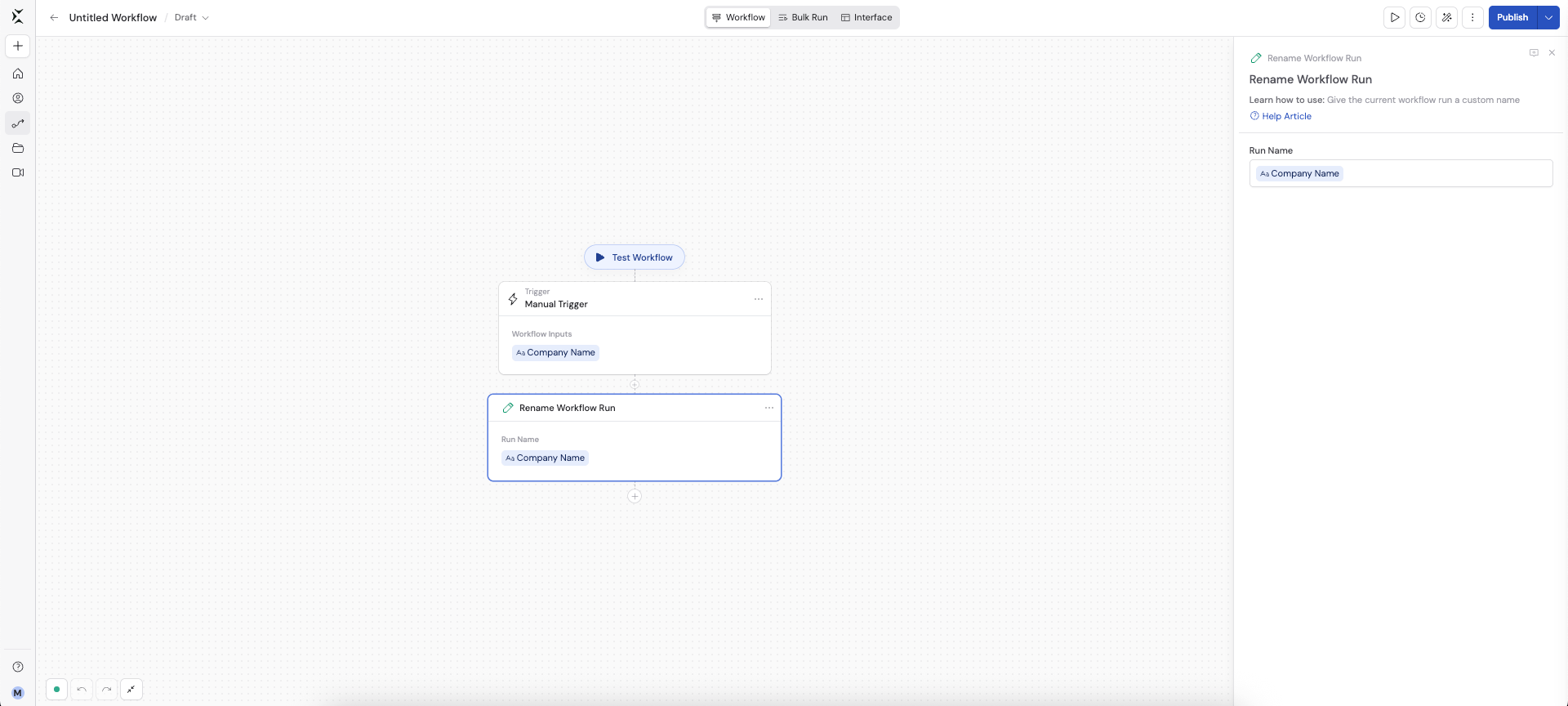
Follow-up - with a company name variable to create names such as Follow-up - Acme.3
Run the Workflow
When the action runs, Cassidy updates the name shown for that run. Open the Workflow’s run history to find the run by its new name.
Things to know
- Run names can contain up to 1,000 characters. Cassidy shortens longer names automatically.
- If Run Name is empty after the variables are filled in, Cassidy removes the run’s custom name.
- If the Workflow renames the same run more than once, the most recent completed rename becomes the displayed name.