

1
Add the action
In the Workflow builder, click + between blocks and select Upload Knowledge Base File from the action library.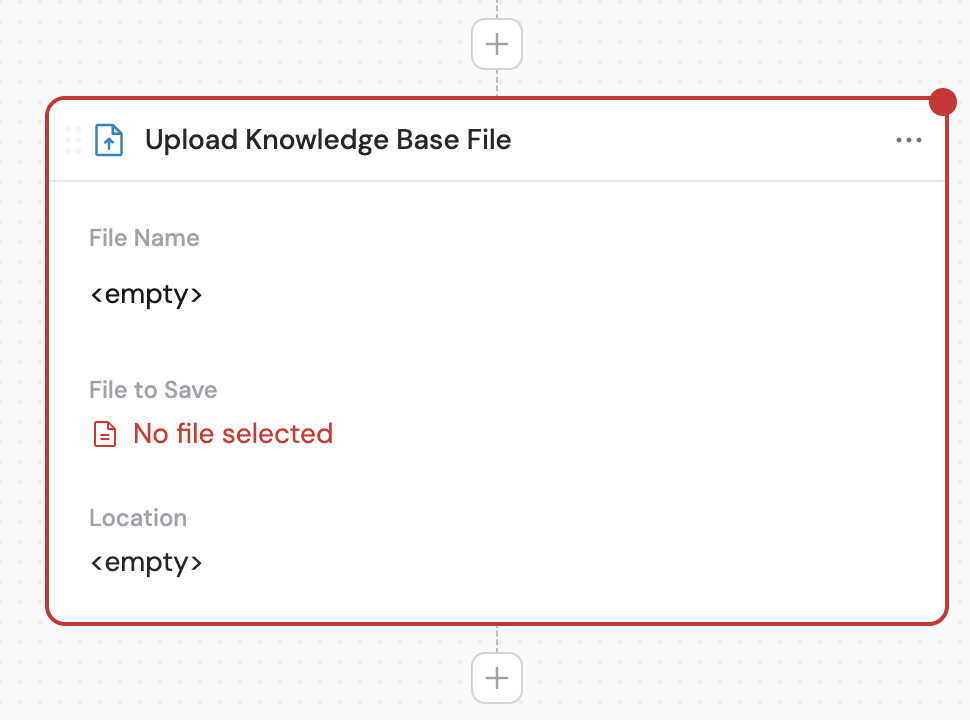
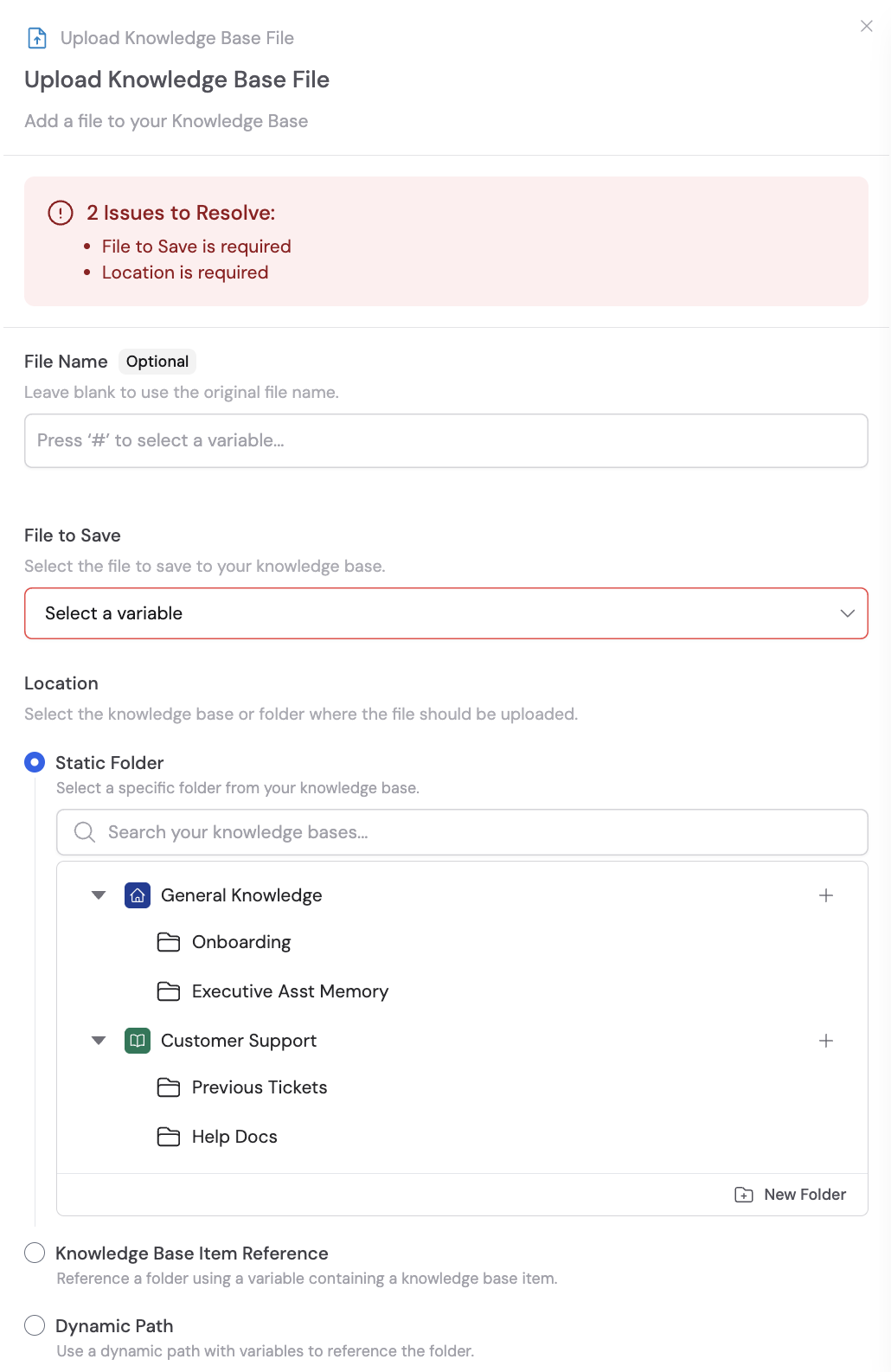
2
Enter the file name
Specify the name for the uploaded file. You can use # to insert variables from previous steps or the trigger to dynamically generate the file name.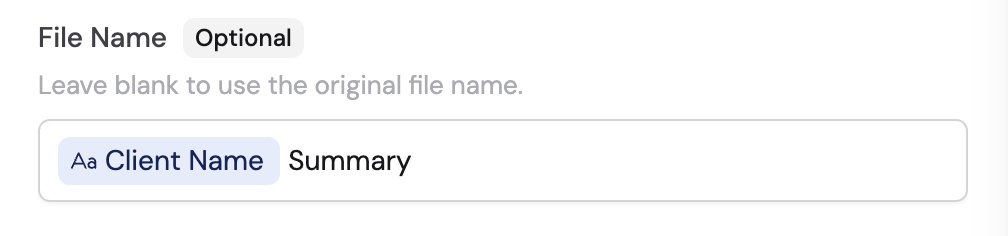
3
Select the file to save
Choose the file source:
- Trigger attachment — Select files attached to email triggers or form submissions. Useful for automatically saving contracts, invoices, or reports sent via email.
- Variable from previous step — Use files generated by other Workflow actions, such as Export as PDF or Export as Microsoft Word Document.
4
Select the location
Choose where in your Knowledge Base the file should be uploaded:

- Static Folder — Select a specific folder directly from your Knowledge Base. Best when you always upload to the same location, such as a contracts folder.
- Knowledge Base Item Reference — Use a variable that references a Knowledge Base folder. Useful when the destination folder is selected dynamically, such as a client folder from a trigger input.
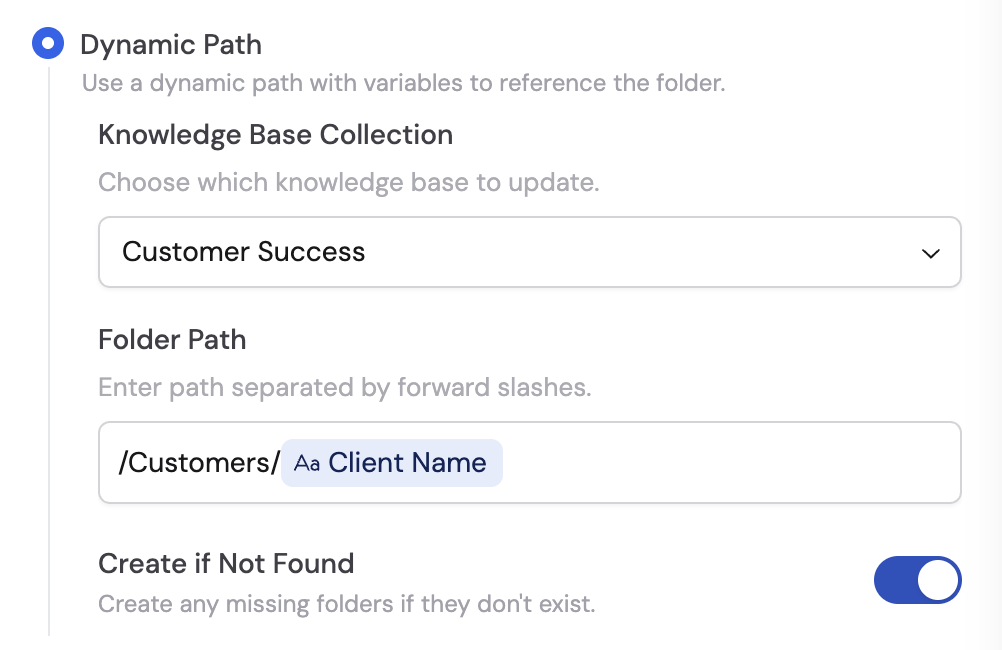
- Dynamic Path — Specify a folder path using variables or naming conventions. Select the Knowledge Base Collection, then enter the Folder Path separated by forward slashes. Toggle Create if Not Found to automatically create the folder if it doesn’t exist.