

Conversation memory is available on the Generate Text and Generate Text with Agent actions.
Memory modes
When you configure conversation memory on an action, you choose one of three modes:Set up conversation memory
1
Open the action settings
In the Workflow editor, click the Generate Text or Generate Text with Agent action you want to configure.
2
Expand the Conversation Memory section
In the action settings sidebar, find and expand the Conversation Memory section.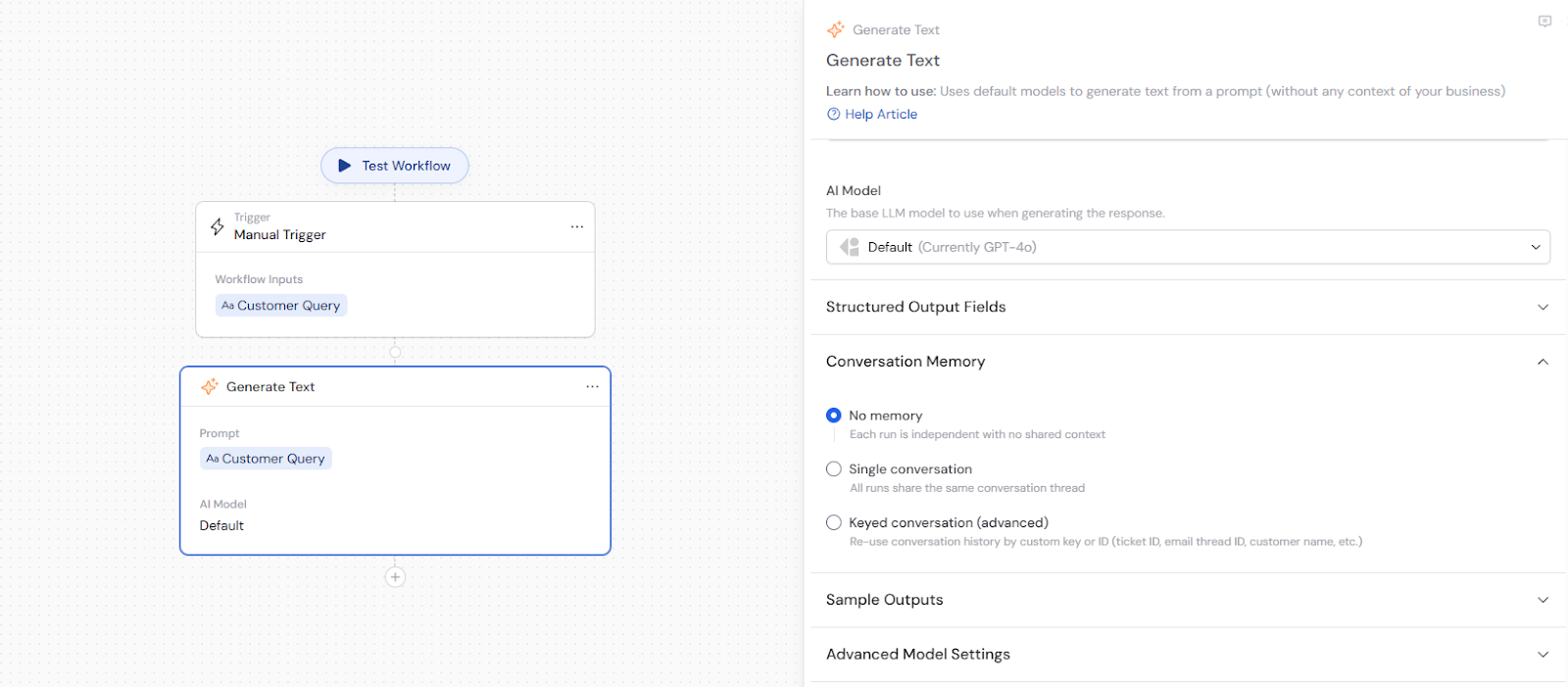
3
Choose a memory mode
Select the mode that fits your use case:
- No memory — choose this if each run should be independent (default).
- Single conversation — choose this if every run of this Workflow should share the same conversation history.
- Keyed conversation (advanced) — choose this if you need separate conversations grouped by a dynamic value like a ticket ID or customer name.
Configure keyed conversation
If you select Keyed conversation (advanced), you get additional settings to control how conversations are grouped and managed.Conversation key
The Conversation Key determines which conversation thread a run belongs to. Each unique key creates its own thread — runs with matching keys continue the same conversation. Use the# symbol to insert variables from the trigger or previous steps. For example:
#Ticket ID— separate conversation per support ticket#Email Thread ID— one conversation per email thread#Customer Name— one conversation per customer
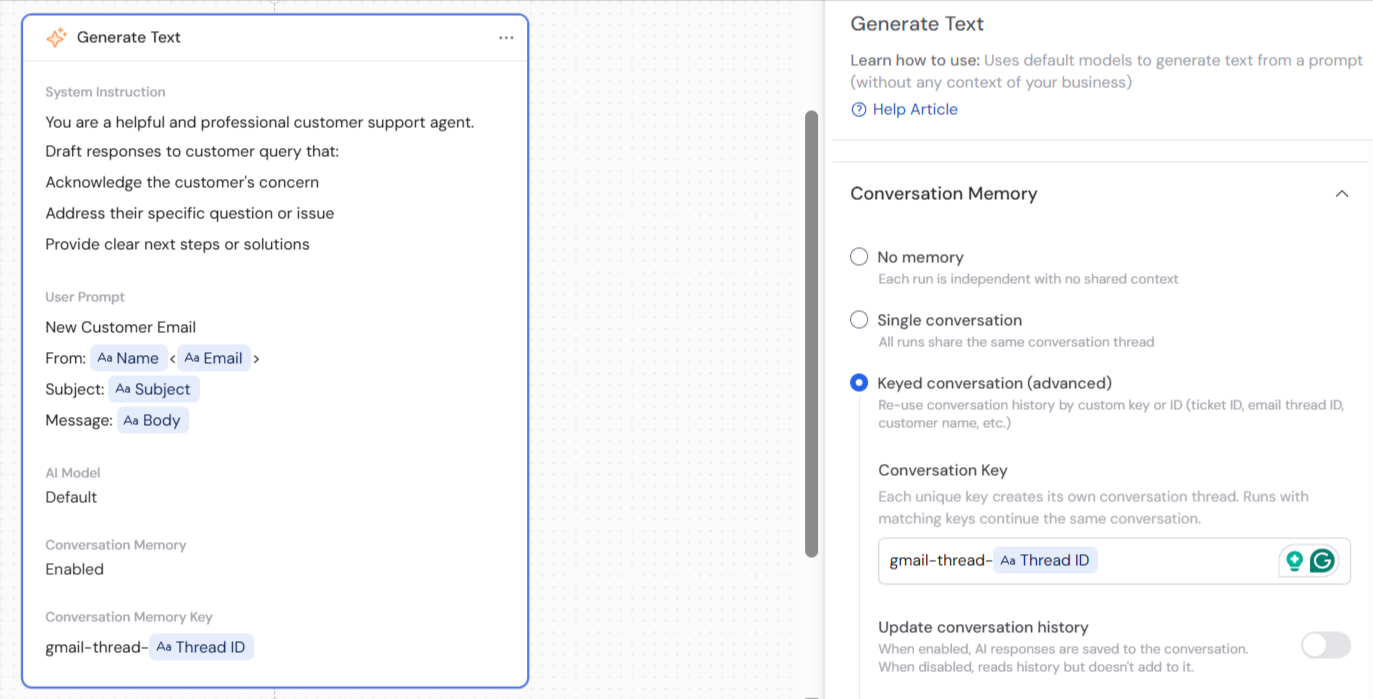
Update conversation history
When Update conversation history is enabled (the default), the AI’s response from each run is saved to the conversation. Future runs with the same key will see the full history. When disabled, the action reads the existing conversation history but does not add to it. This is useful when you want to reference past context without modifying the conversation record — for example, generating a summary of a conversation thread without the summary itself becoming part of the history.Share across Workflows
When Share across workflows is enabled, other Workflows can access the same conversation using the same key. This lets you build multi-Workflow processes that share a common memory — for example, one Workflow handles initial triage and another handles follow-up, both contributing to the same conversation thread for a given ticket. When disabled (the default), the conversation is scoped to the current Workflow only.Common use cases
- Support ticket follow-ups — use the ticket ID as the conversation key so each run for the same ticket builds on the previous interactions.
- Email thread responses — use the email thread ID as the key so the AI has full context of the conversation when drafting a reply.
- Rolling account summaries — use single conversation mode to maintain a continuously updated summary of customer interactions.
- Multi-step pipelines — enable “Share across workflows” so a triage Workflow and a resolution Workflow both contribute to the same conversation history for a given case.
Next steps
Build a Workflow
Learn how to add and configure actions in the Workflow editor.
Structured output fields
Format action output into consistent, typed fields.