

Structured output fields are available on these actions: Generate Text, Generate Text with Agent, Run Code, and Research Agent.
Set up structured output fields
1
Open the action settings
In the Workflow editor, click the action you want to configure. The settings sidebar opens.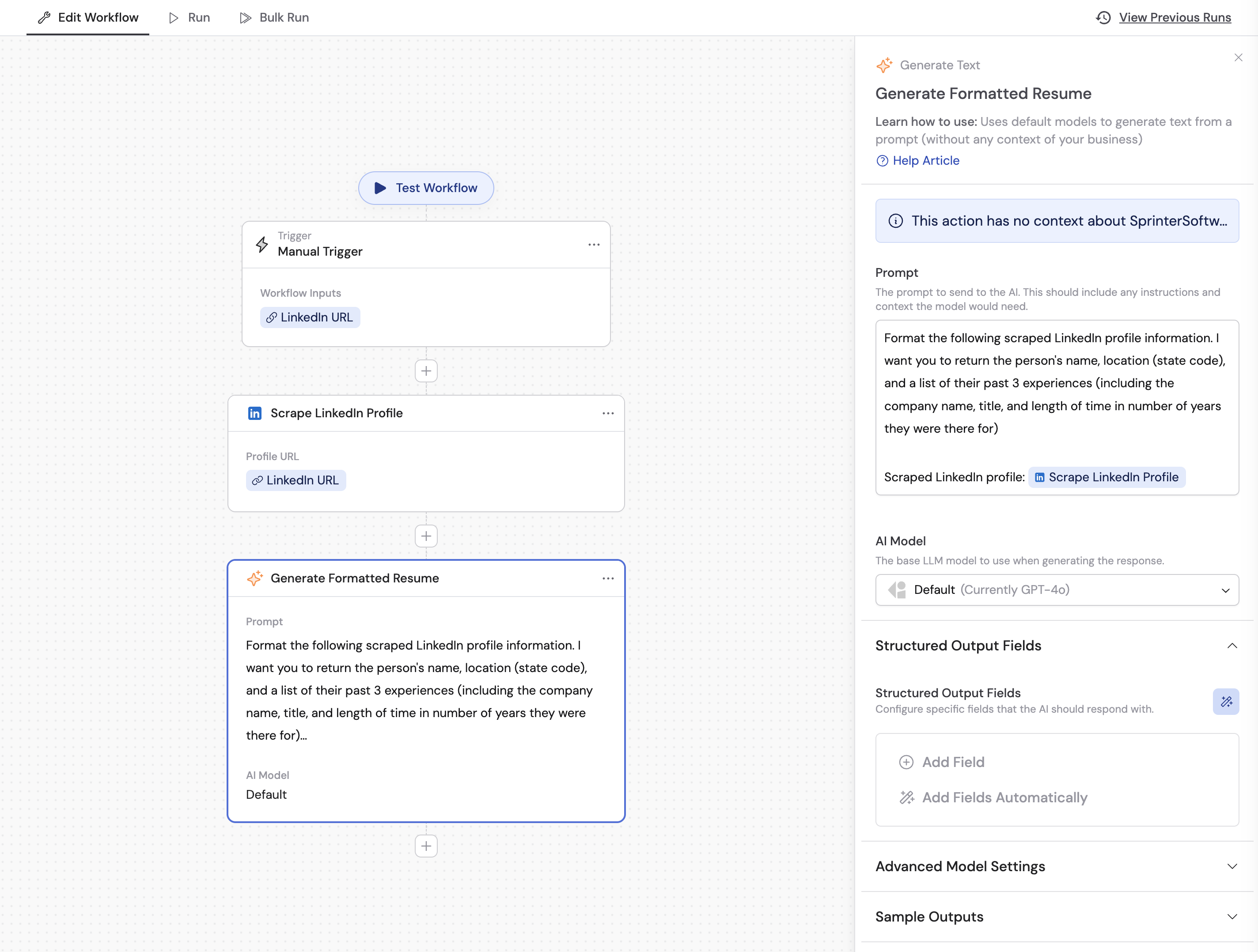
2
Add fields
Under Structured Output Fields, you have two options: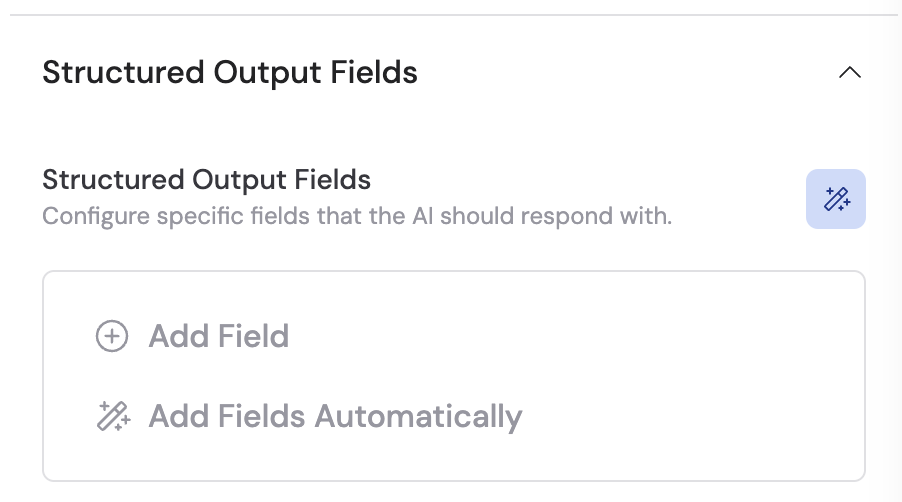
- Add Fields Automatically — Cassidy analyzes your prompt and generates a suggested set of fields.
- + Add Field — manually create each field yourself.
3
Configure each field
For each field, specify: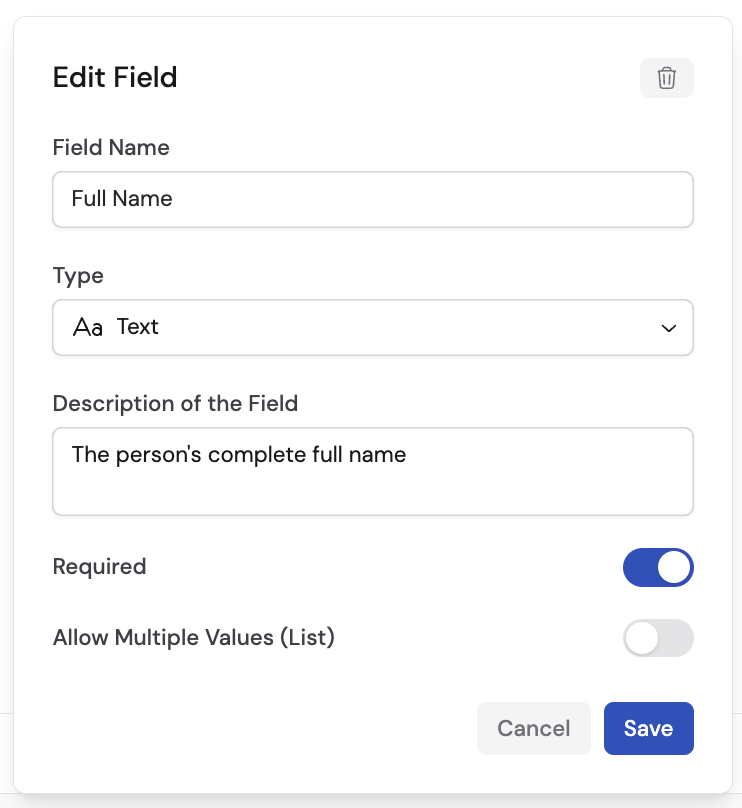
- Field Name — a descriptive label (e.g., “Full Name”, “Location”, “Score”).
- Type — the data type for this field (see the table below).
- Description — help the AI understand what value to fill in (e.g., “The person’s complete full name as listed on LinkedIn”).
4
Set field options
Customize each field further: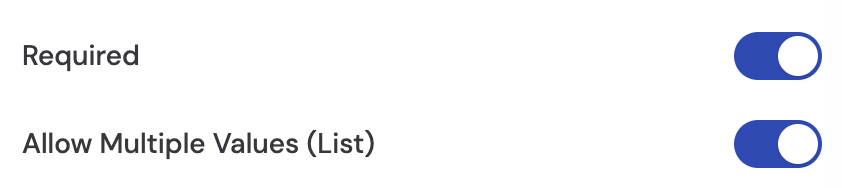
- Required — toggle on if this field must always be populated.
- Allow Multiple Values (List) — toggle on if the AI should return more than one value (e.g., a list of skills or multiple work experiences).
5
Reference the output in later steps
In subsequent actions, insert a variable and you will see each structured field as an individual variable you can reference by name.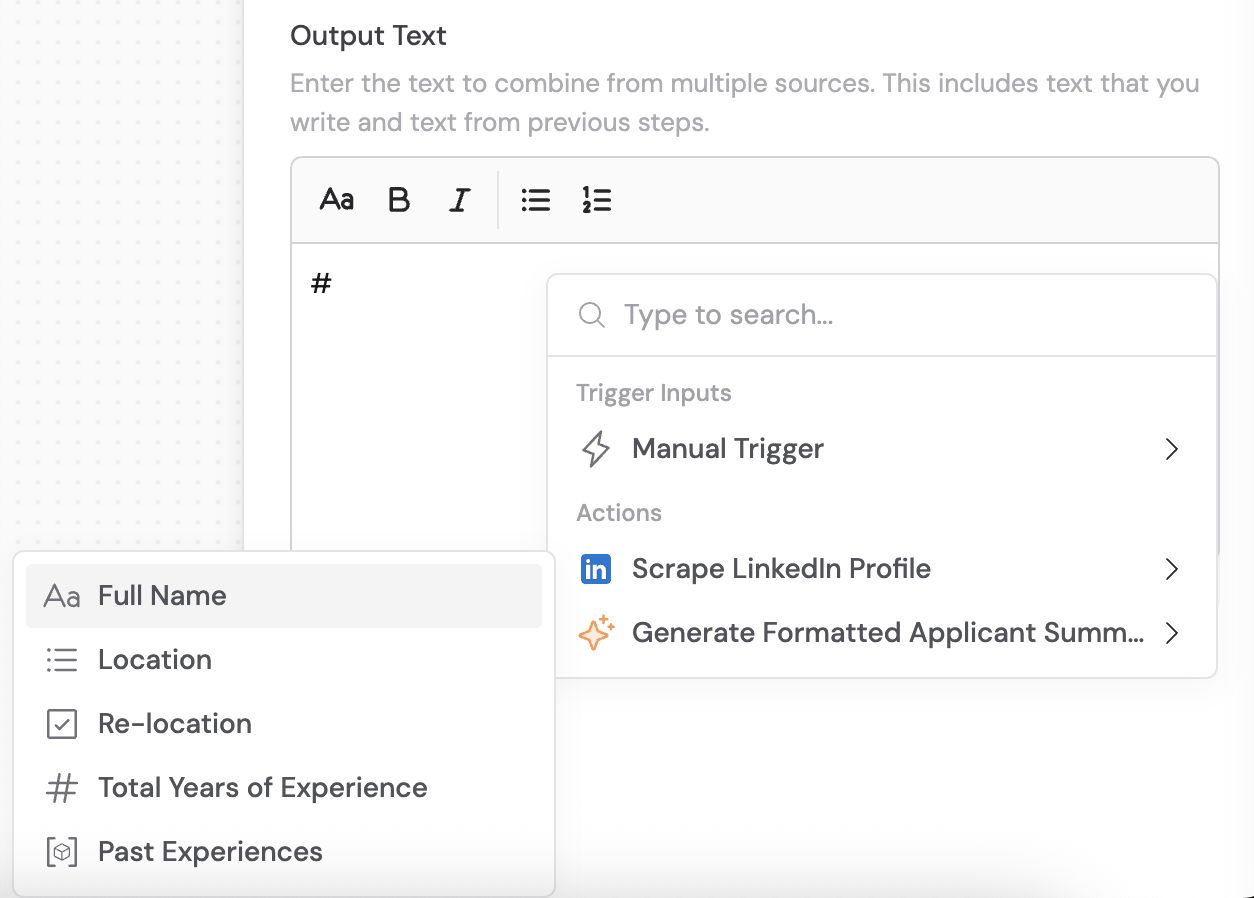
Available field types
When using the Object type, you add sub-fields within the object by repeating the same field configuration process. Objects can be combined with Allow Multiple Values to create lists of structured records.
Example: parse a LinkedIn profile
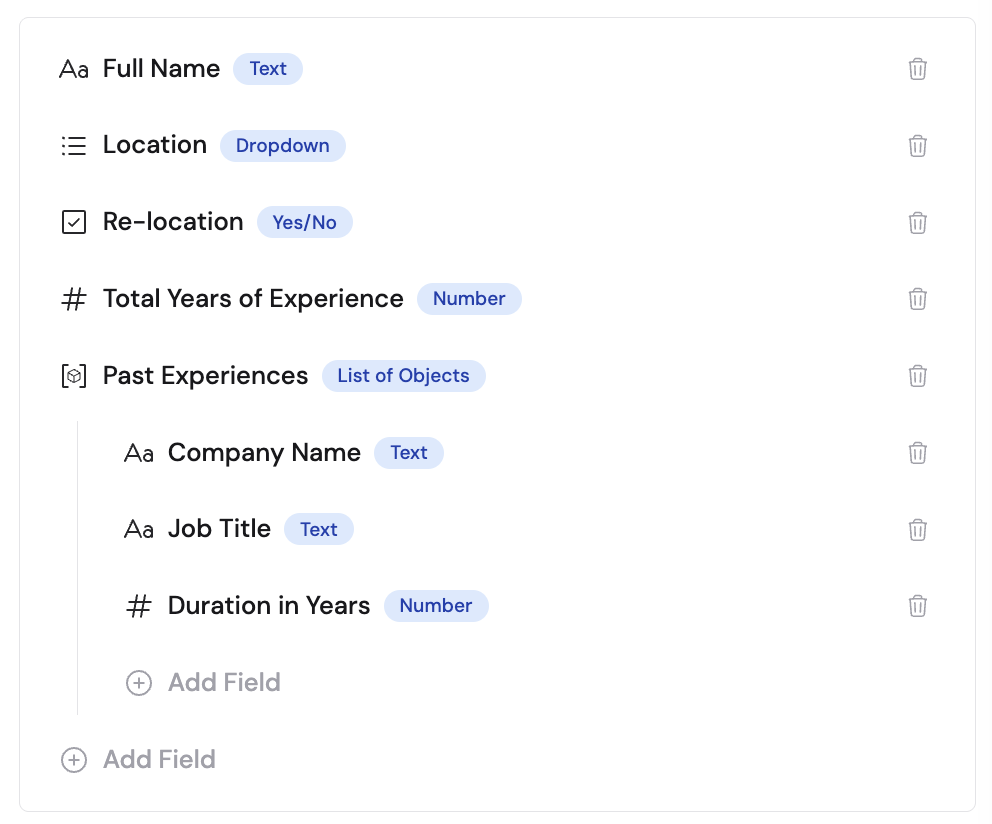
To illustrate, here is how you might extract structured data from a scraped LinkedIn profile:- Full Name — Type: Text, Description: “The person’s complete name”
- Location — Type: Dropdown, Options:
CA,NY,TX,FL(state codes), Description: “The US state where the person is located” - Past Experiences — Type: Object, Allow Multiple Values: on
- Company Name — Type: Text
- Job Title — Type: Text
- Duration in Years — Type: Number
Next steps
Reference variables
Learn how to pass structured output data between Workflow steps.
Run Workflows in bulk
Apply structured outputs across an entire dataset.