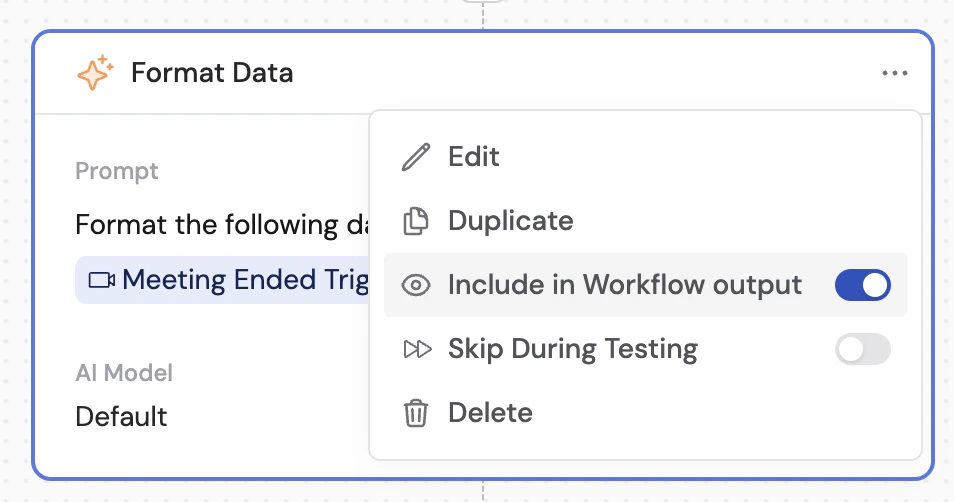
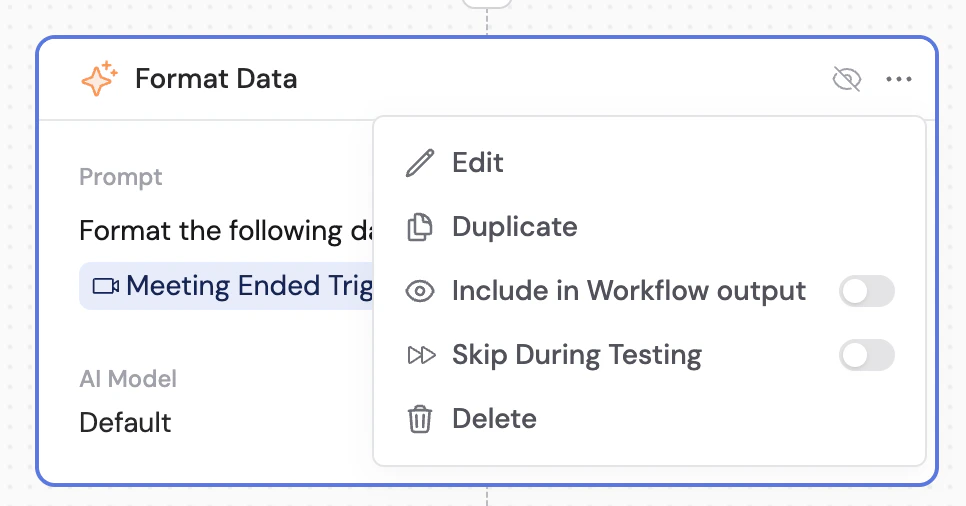
Control which Workflow actions are visible to end users by hiding preprocessing steps and internal operations from the results view.
When a Workflow runs, every action’s output is shown in the results by default. For Workflows with preprocessing steps, API calls, or other internal operations, you may want to hide these from end users to create a cleaner, more focused results view.Hidden actions still execute normally — they just don’t appear in the output that users see when viewing run results.
Test Workflow — hidden actions are still fully visible when you use the testing interface in the editor. This lets you debug without affecting what end users see.
Run results and Previous Runs — hidden actions do not appear in run results or the Previous Runs view.
The Interface tab’s Outputs list is separate: it highlights specific action variables on the Run tab after a successful run. Hiding an action from workflow output does not remove its variables from that list if you explicitly added them as outputs; remove them on Interface if you no longer want them shown there. See Customize the Workflow run view.
Use this feature for actions like Scrape Webpage, Categorize Text, Send API Request, or any step that produces intermediate data your users do not need to see. It keeps the output focused on the final, meaningful results.