

Set up the trigger
1
Add the trigger
Create a new Workflow with the Updated Zendesk Ticket trigger, or change an existing Workflow’s trigger type to Updated Zendesk Ticket.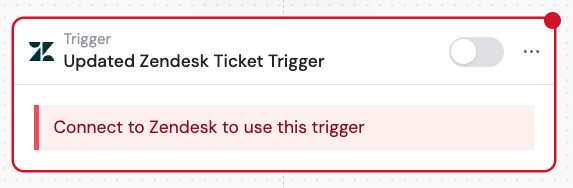
2
Connect your Zendesk account
If you haven’t already, connect your Zendesk account to Cassidy. This allows Cassidy to monitor your Zendesk tickets and trigger Workflows based on ticket updates.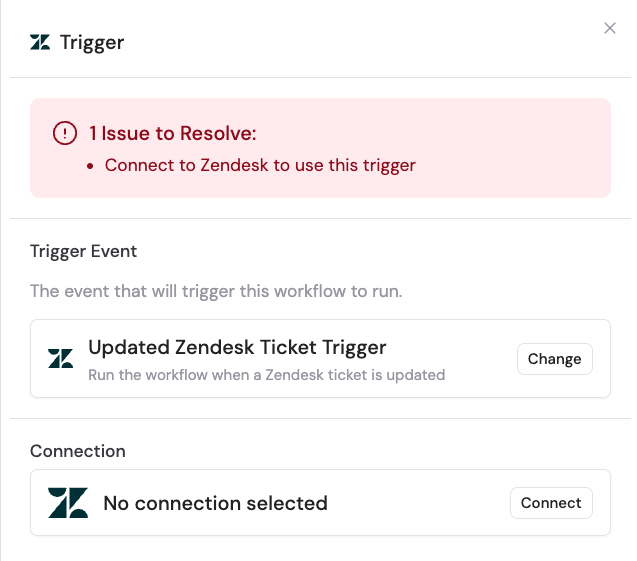
3
Select an organization (optional)
Choose a specific Zendesk organization to monitor for updated tickets. Leave this field blank to monitor tickets from all organizations.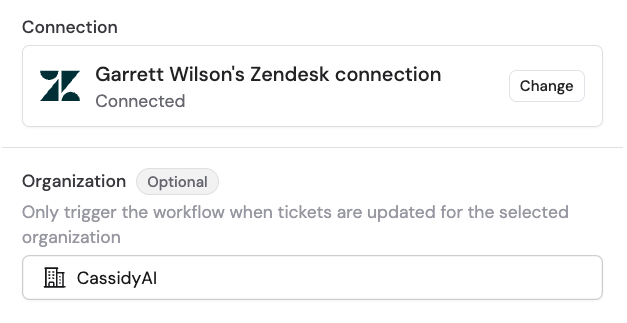
4
Reference the trigger variables
In subsequent Workflow steps, you can reference the following variables from this trigger: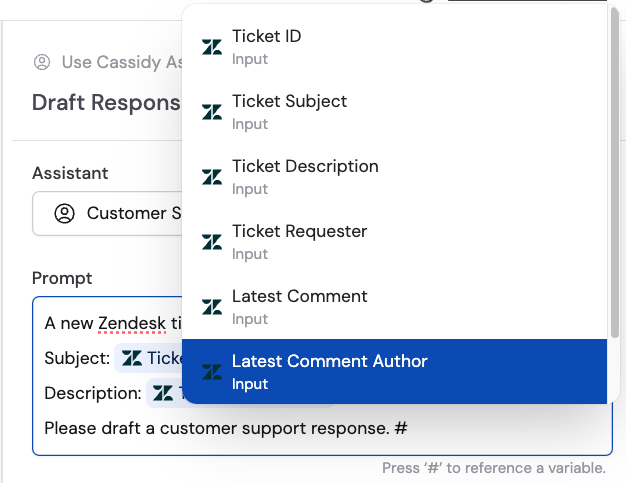
- Ticket ID — the unique identifier of the updated ticket
- Ticket Subject — the subject line of the updated ticket
- Ticket Description — the body of the updated ticket
- Ticket Requester — the email address of the person who submitted the ticket
- Latest Comment — the content of the most recent comment
- Latest Comment Author — the name of the person who posted the last comment
- Comment History — the full comment history of the ticket, including names, timestamps, and content of all comments
5
Activate the trigger
In the trigger block, click the toggle switch to turn it on.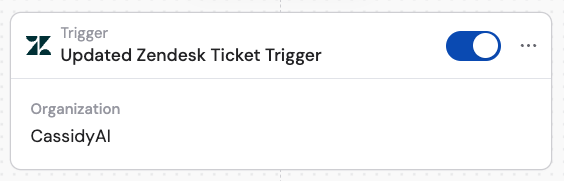
Related
New ticket trigger
Trigger a Workflow when a new ticket is created.
Add comment to ticket
Add a comment to a Zendesk ticket from a Workflow.