

Set up the trigger
1
Add the trigger
Create a new Workflow with the New Email Received in Gmail trigger, or change an existing Workflow’s trigger type to New Email Received in Gmail.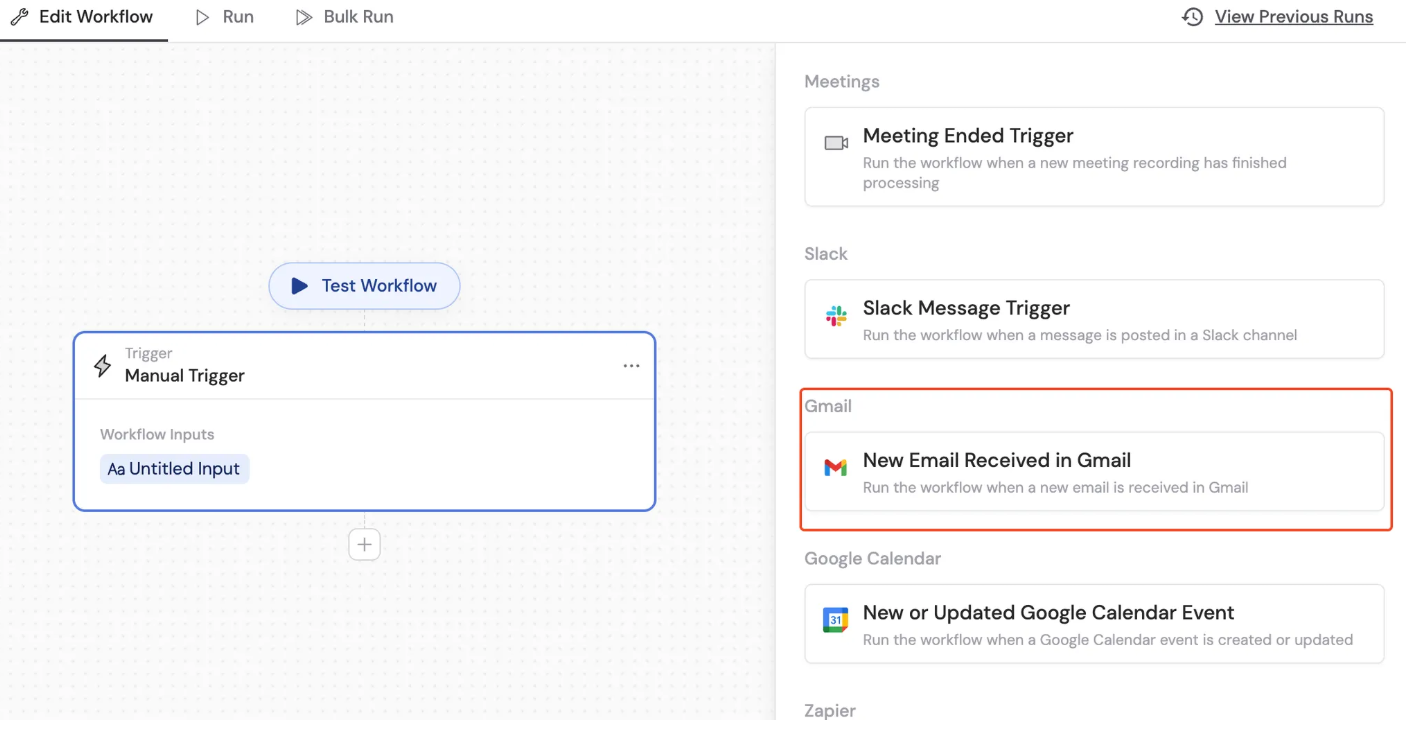
2
Connect your Gmail account
If you haven’t already, connect your Gmail account to Cassidy.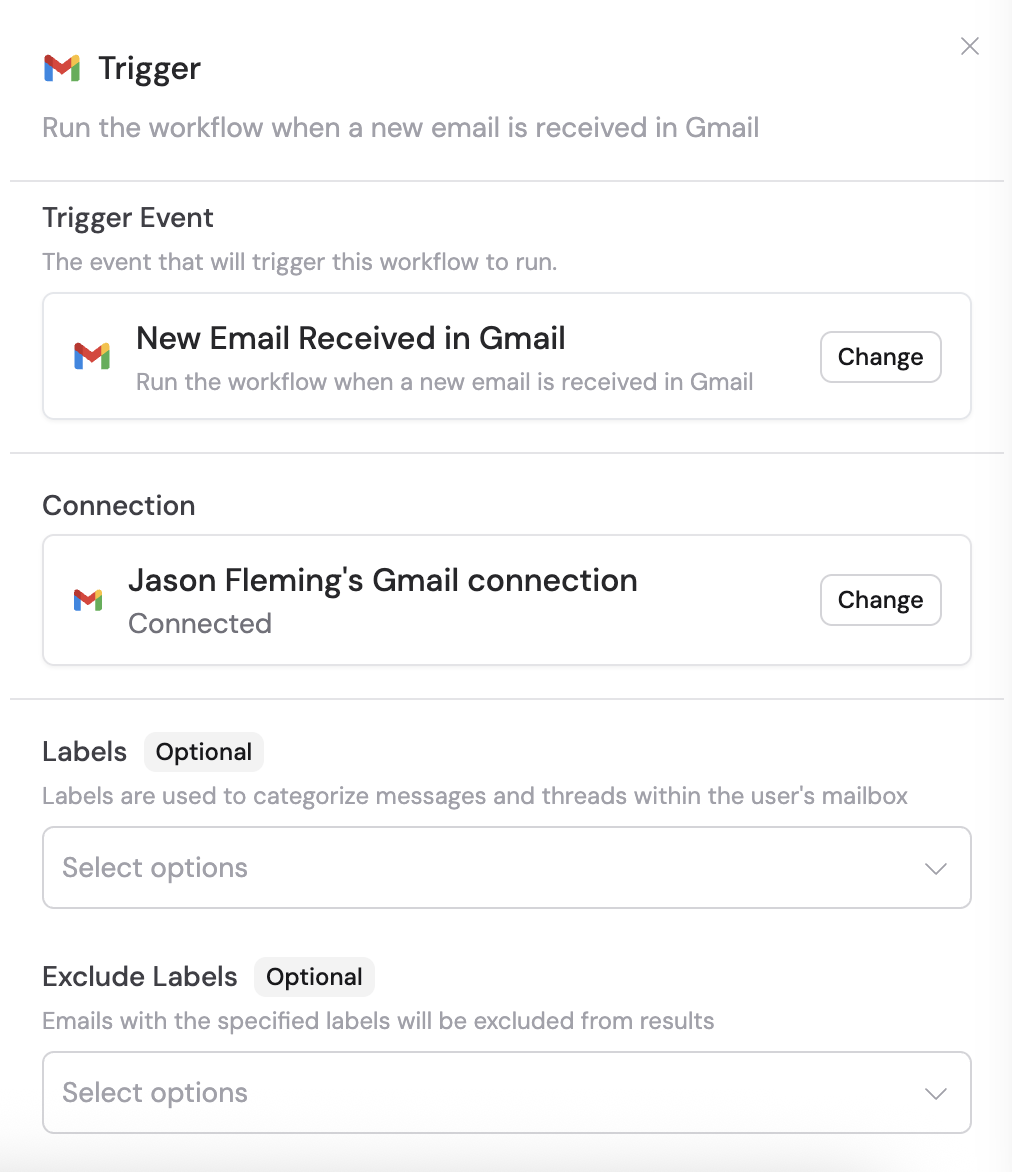
3
Configure labels (optional)
Filter the trigger to only activate for emails with specific labels such as Inbox, Important, Chat, Sent, Trash, Draft, or Spam.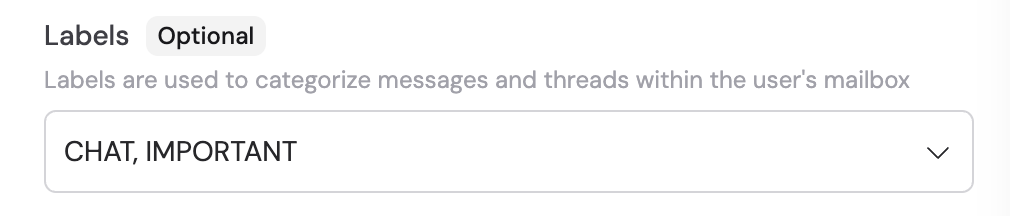
4
Configure exclude labels (optional)
Select any labels you want to exclude from triggering the Workflow.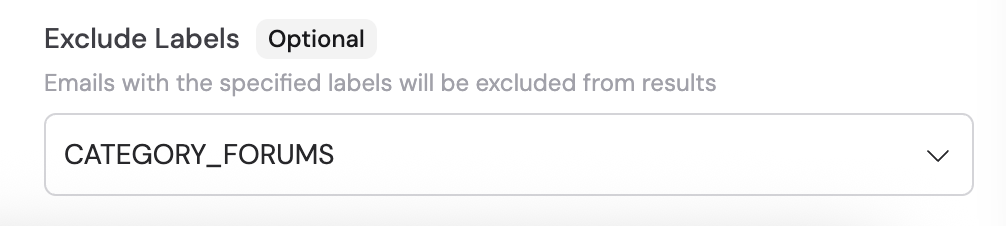
5
Reference the trigger variables
In subsequent Workflow steps, you can reference the following variables from this trigger: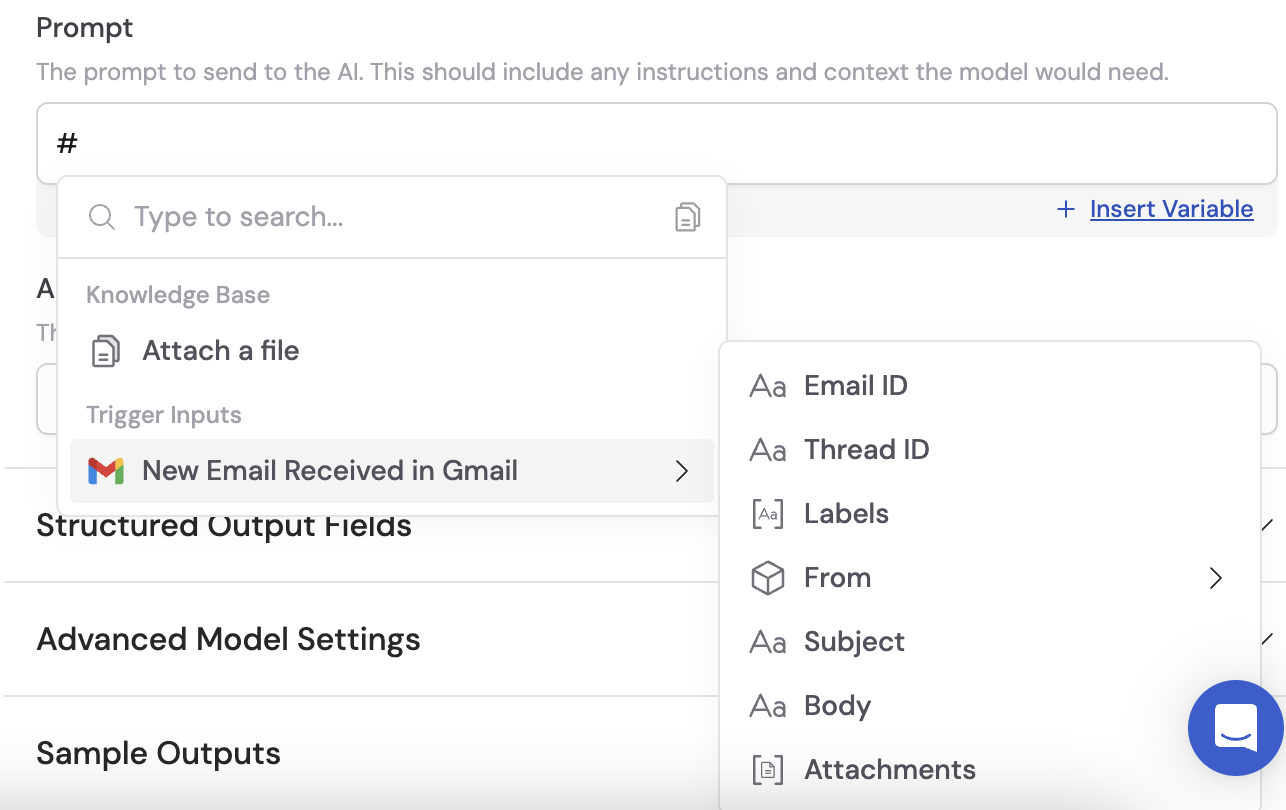
- Email ID — the ID of the new email
- Thread ID — the ID of the email thread
- Labels — the inbox labels applied to the email
- From — the sender’s email address
- Subject — the subject line
- Body — the email body content
- Attachments — any files attached to the email
6
Activate the trigger
In the trigger block, click the toggle switch to turn it on.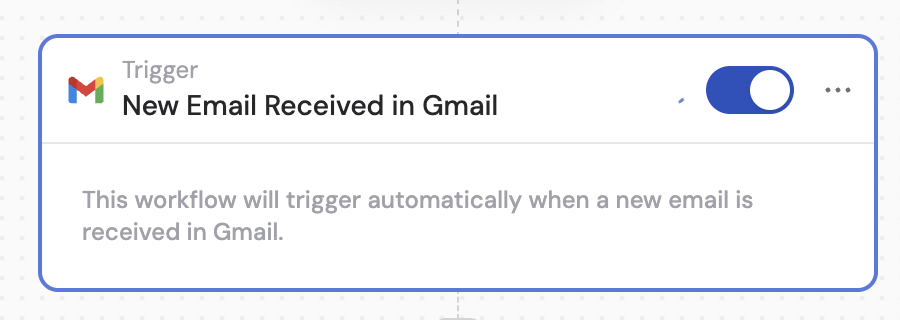
This trigger only activates for emails received after the trigger is set up. It does not process existing emails.
Related
Send email with Gmail
Send or reply to an email from a Workflow.
Draft email with Gmail
Create a draft email from a Workflow.
Add labels to Gmail message
Add labels to a Gmail message from a Workflow.