

Sample data is available for most integration triggers (HubSpot, Salesforce,
Slack, Google Sheets, and more) — see supported
triggers below. It isn’t available for the
Manual,
Scheduled,
Email, Webhook, or
Meeting ended triggers, since those don’t
pull records from a connected app.
Load sample data
1
Open the Test Workflow panel
Open your Workflow, click Edit, then click Test Workflow in the editor toolbar.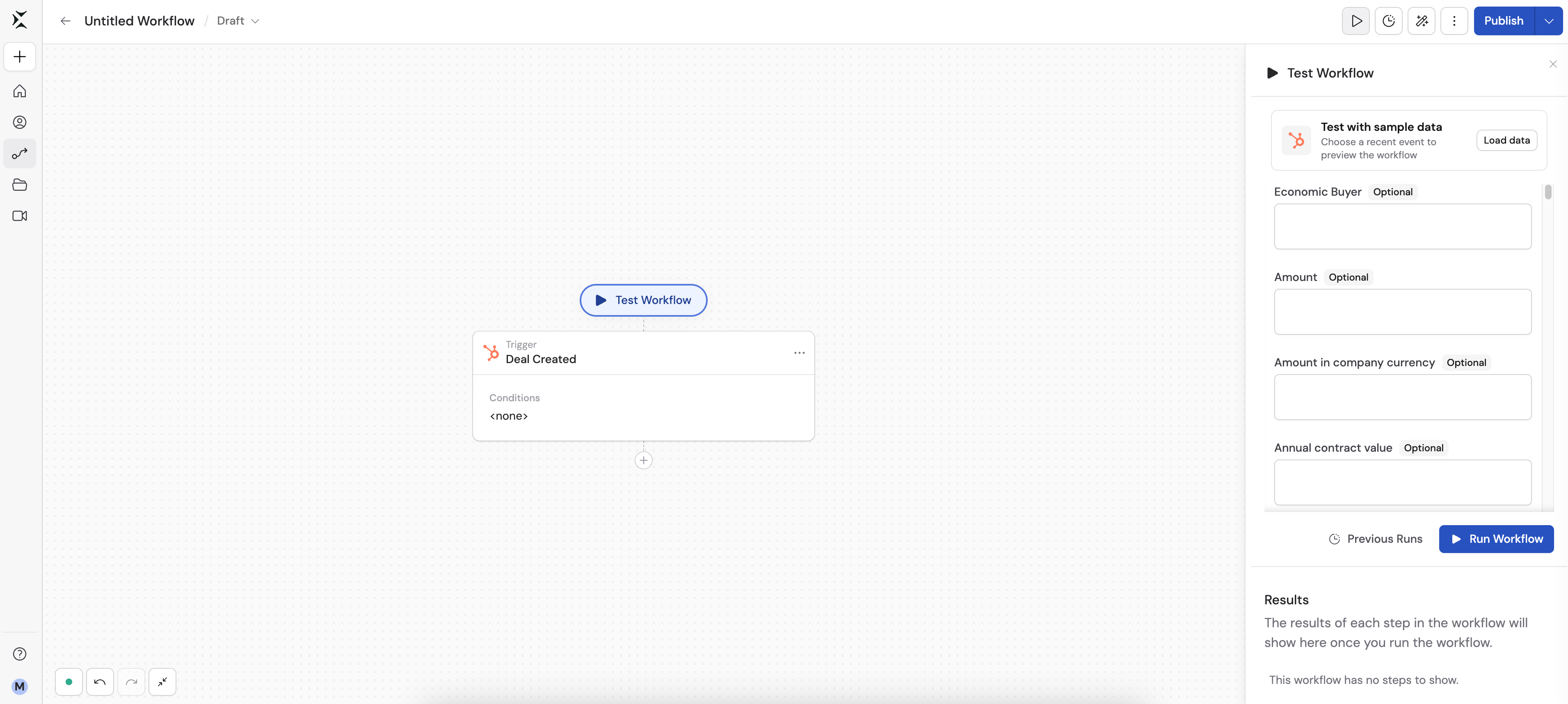
2
Click Test with sample data
If your trigger supports sample data, a Test with sample data row appears above the trigger inputs. Click it, or click Load data.If the row is disabled, connect the trigger’s app first — a tooltip prompts you to connect your account.
3
Choose a recent event
A list of Recent Events from the connected app appears. Hover over any event to preview its field values, then click it to select it.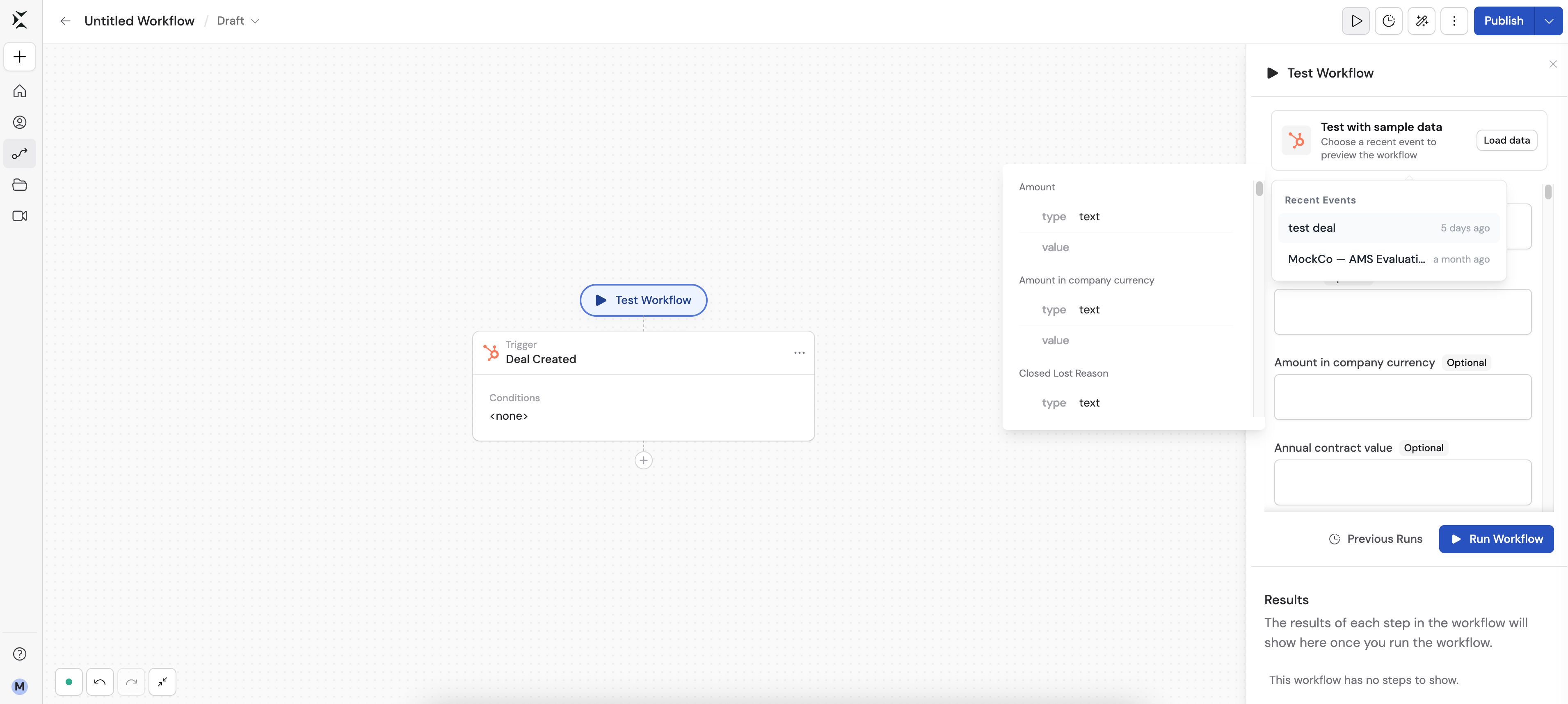
4
Run your test
The selected record’s values fill in the trigger inputs automatically. Click Run Workflow to test every downstream action against real data.
Sample data respects your trigger’s filters
If you’ve added filter conditions to your trigger — for example, a HubSpot trigger that only fires for deals in a specific stage, or a Slack trigger scoped to one channel — sample data fetching applies those same filters. You’ll only see records that would have actually triggered the Workflow, instead of scrolling through unrelated ones. If no recent record matches your filters, the list shows No records found. Try loosening the filter temporarily, or pick a broader trigger event to confirm your Workflow logic before narrowing it back down.Discover field values before you build
Hovering over an event in the Recent Events list expands a preview of every field on that record, including nested objects and lists — the same fields available to reference in later actions. This makes it easy to find the exact field you need and see what its real API value looks like (a HubSpot lifecycle stage, a Slack user ID, a Google Sheets cell) before you go looking for it in the variable picker.Supported triggers
Sample data is available for the following integration triggers:Recently loaded events are cached for about a minute per trigger
configuration. If you just created a new record in the connected app and don’t
see it yet, wait a moment and click Load data again.
Next steps
Run and test a Workflow
Learn about the full testing interface, including retesting individual steps
and skipping actions.
Build a Workflow
Configure triggers, add filters, and reference data from other steps.
Share and deploy
Publish your Workflow once you’ve tested it with real data.