Run a Workflow on a recurring schedule. Use this trigger for automations that should happen at regular intervals, like daily reports, weekly competitor briefs, or overnight data enrichment.
1

Add a Scheduled trigger

Create a new Workflow with a Scheduled trigger, or change an existing Workflow’s trigger type to Scheduled.
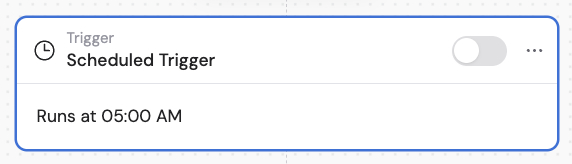
Workflow builder showing trigger type selection with Scheduled highlighted
2

Set the frequency and time

Choose how often you want the Workflow to run — every hour, day, week, or month — and select the specific time(s).
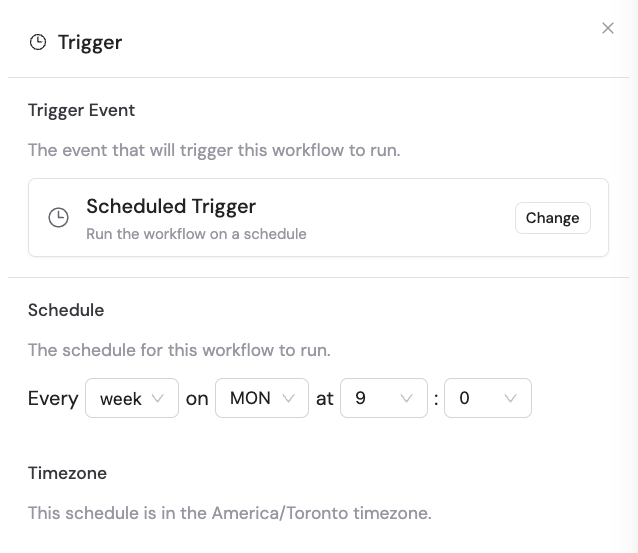
Schedule frequency selector showing day/time options
Schedule times are based on your organization’s configured timezone. If you’re in a different timezone, account for the difference to ensure the Workflow runs at your desired local time.
3

Activate the trigger

In the Scheduled trigger block, click the toggle switch to turn it on. The Workflow will begin running at the next scheduled time.
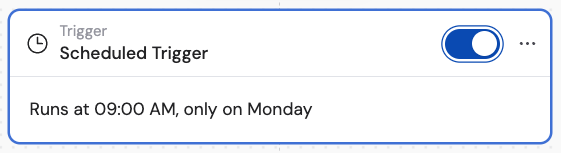
Scheduled trigger block with the activation toggle