

Set up the trigger
1
Add the trigger
Create a new Workflow with the New Teams Channel Message trigger, or change an existing Workflow’s trigger type to New Teams Channel Message.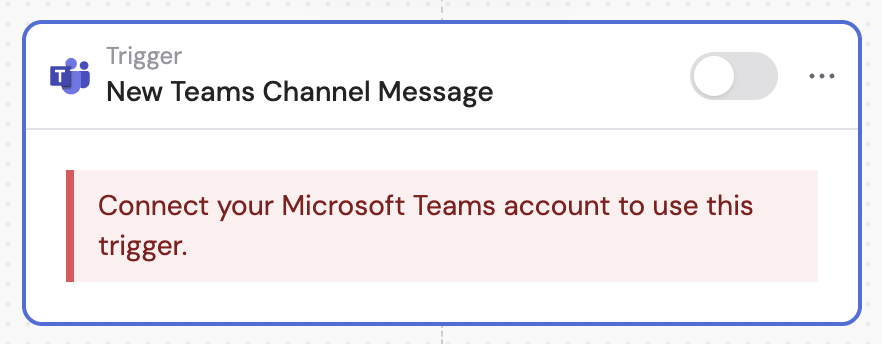
2
Connect your Microsoft Teams account
If you haven’t already, connect your Microsoft Teams account to Cassidy.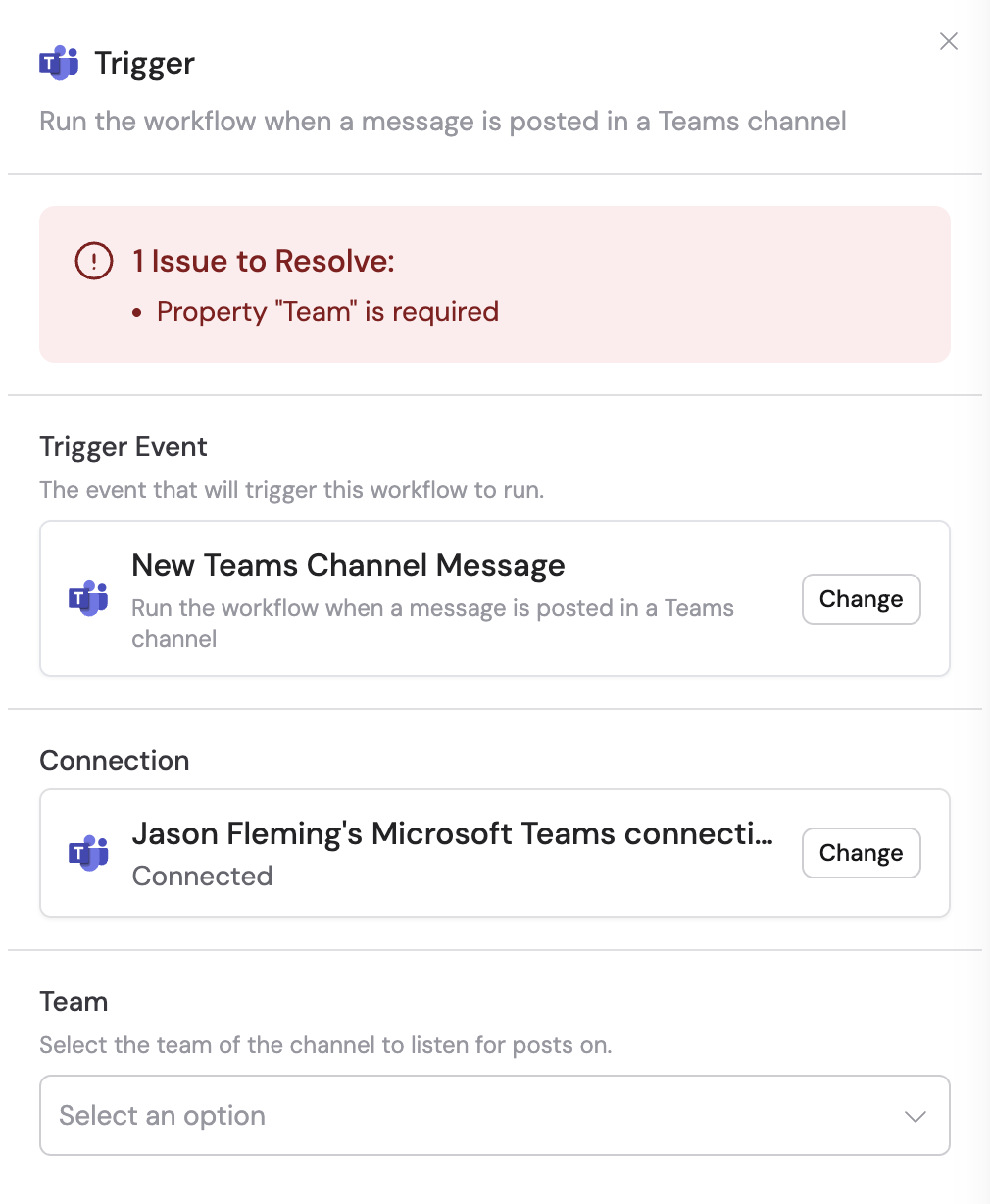
3
Select the team
Choose the specific team that contains the channel you want to monitor.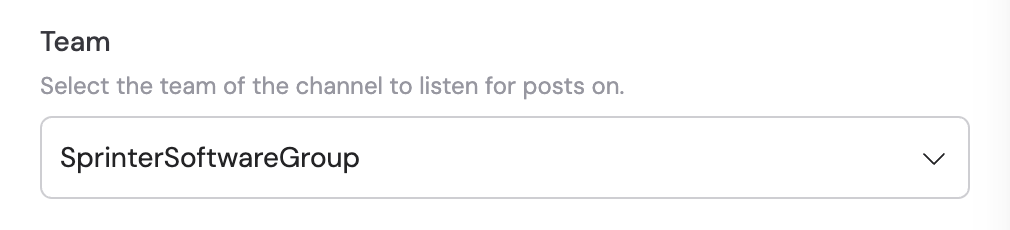
4
Select the channel
Choose the specific channel within the selected team. The Workflow will trigger when new messages are posted in this channel.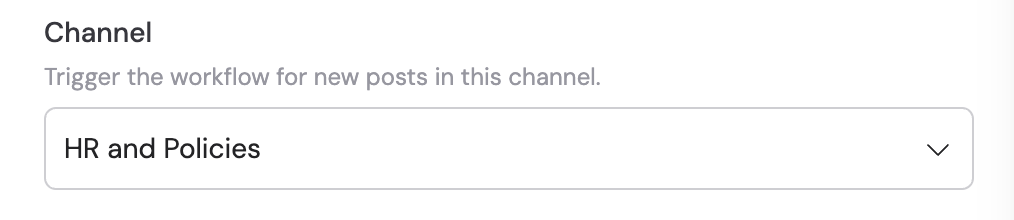
5
Reference the trigger variables
In subsequent Workflow steps, you can reference the following variables: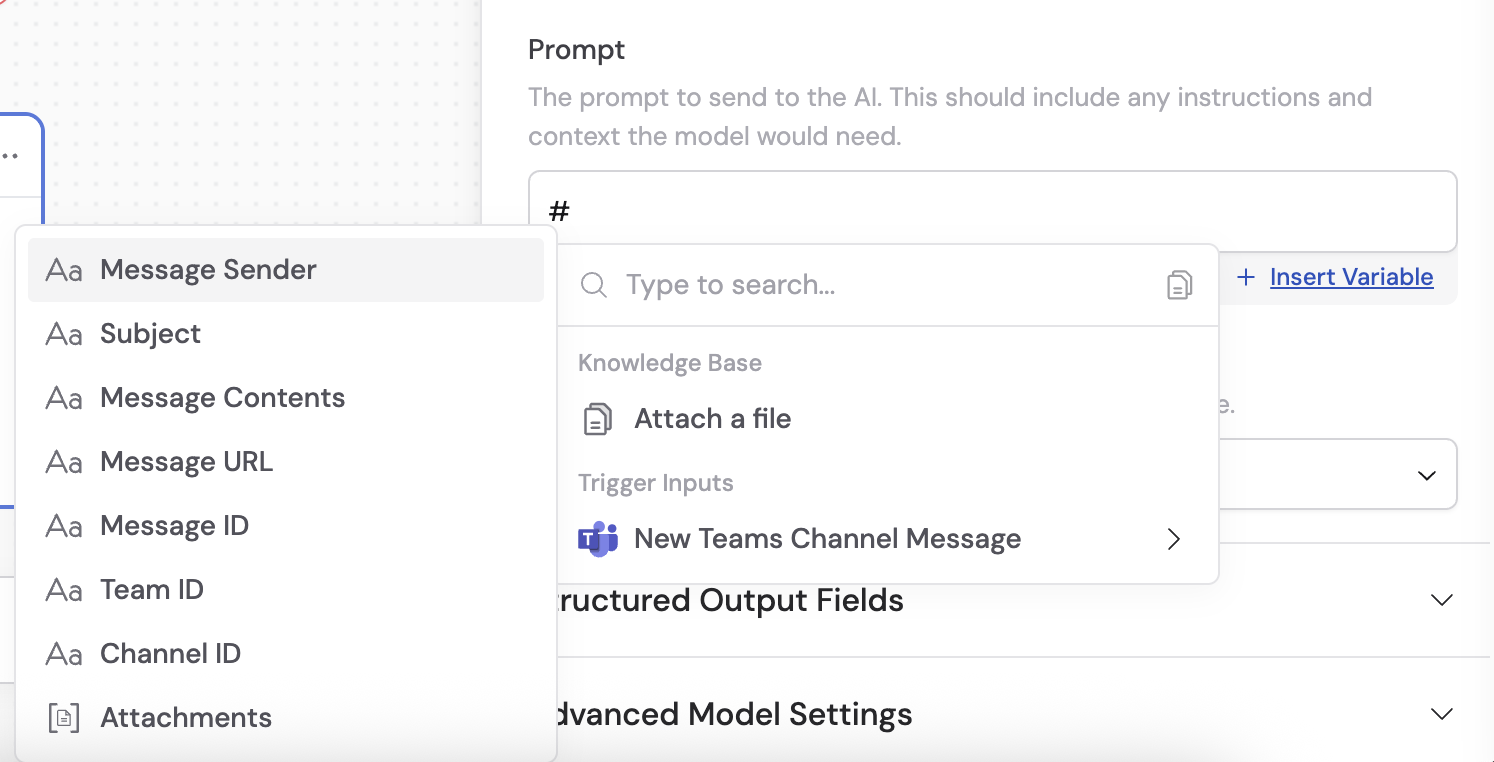
- Message Sender — the person who sent the message
- Subject — the subject of the message
- Message Contents — the text content of the message
- Message URL — the URL of the message
- Message ID — the unique identifier of the message
- Team ID — the unique identifier of the team
- Channel ID — the unique identifier of the channel
- Attachments — any attachments on the message
6
Activate the trigger
In the trigger block, click the toggle switch to turn it on.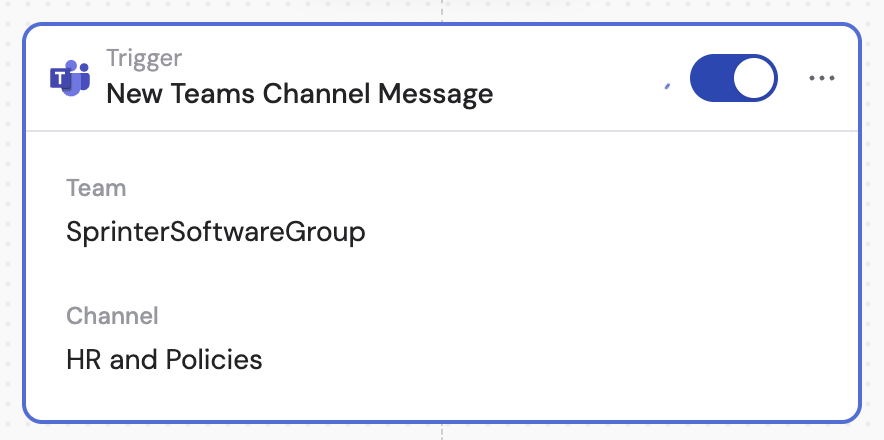
Related
Send channel message
Send a message to a Teams channel from a Workflow.
New chat message trigger
Trigger a Workflow from a Teams chat message.