

Set up the action
1
Add the action
While editing a Workflow, click the + button between existing blocks. Select Send Message to Teams Channel from the action list.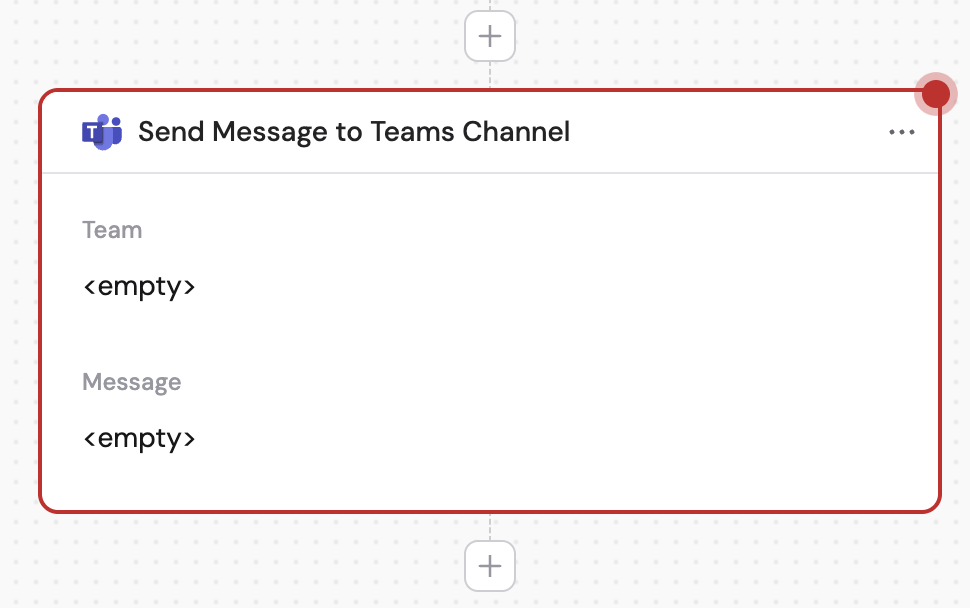
2
Rename the action (optional)
Click the action name to give it a more descriptive label.
3
Connect your Microsoft Teams account
If you haven’t already, connect your Microsoft Teams account to Cassidy.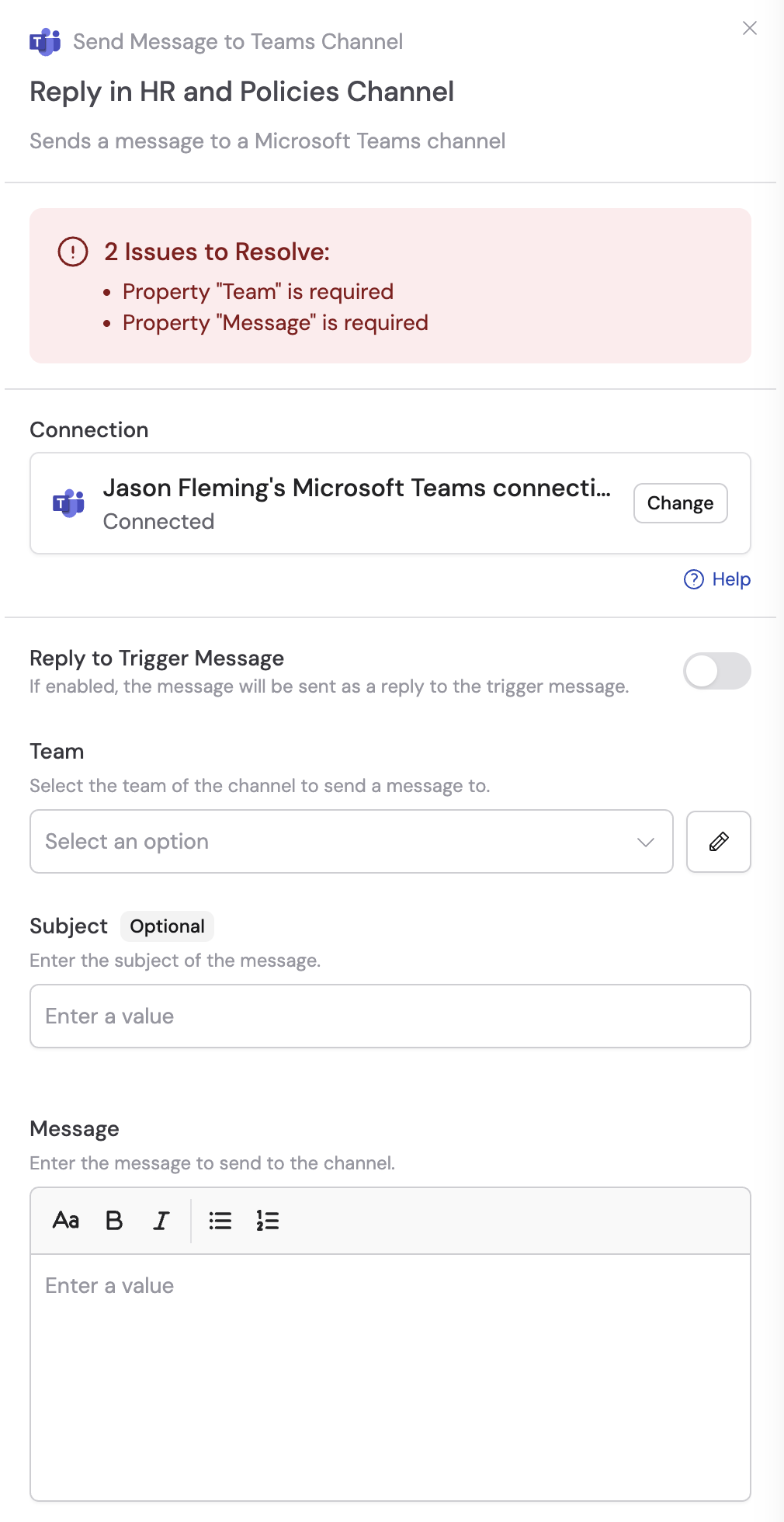
4
Toggle on reply to trigger message (optional)
If you’re using this action with the New Teams Channel Message trigger, enable Reply to Trigger Message to reply to the same channel that started the Workflow. When enabled, you only need to fill out the Message field.
5
Select the team
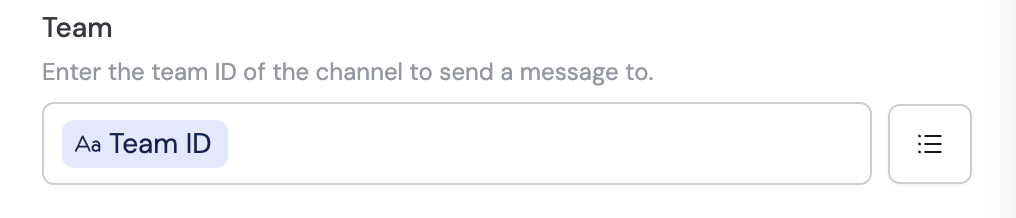
Select the team containing the channel you want to send to. You can also click the pencil icon to enter the team ID directly. You can reference variables from previous steps.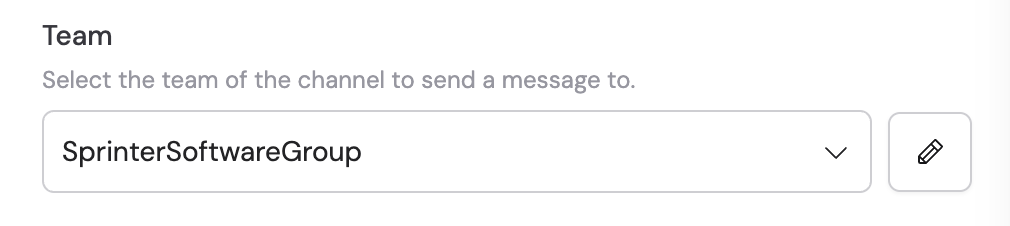
6
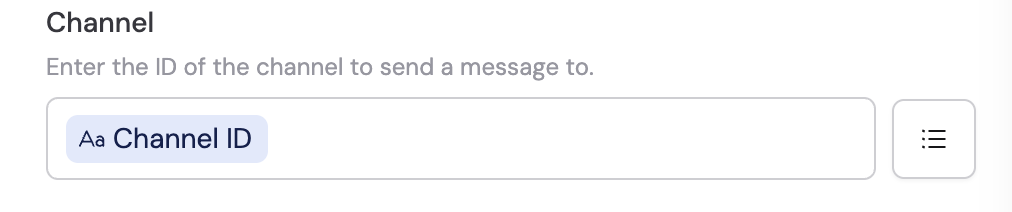
Select the channel
Select the channel to send a message to. You can also click the pencil icon to enter the channel ID directly.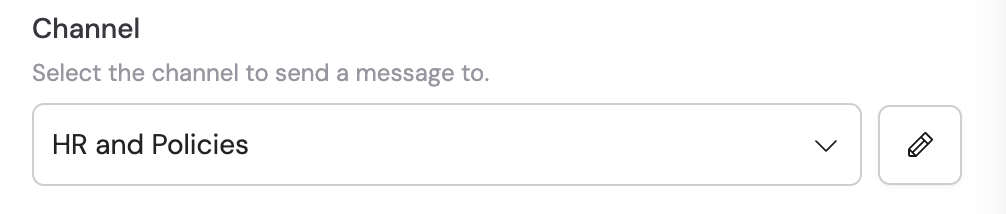
7
Enter the subject (optional)
Enter a subject line for the message if desired.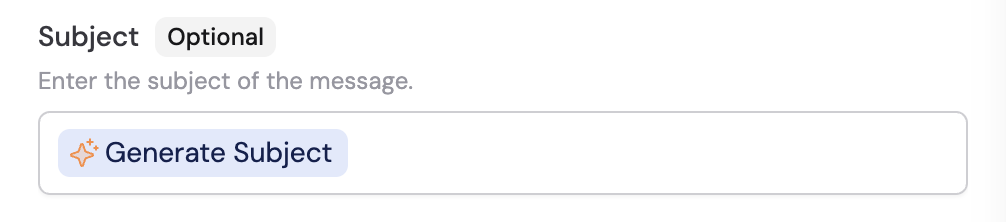
8
Enter the message
Enter the message to send to the channel. You can type directly or reference a variable from a previous step or the trigger.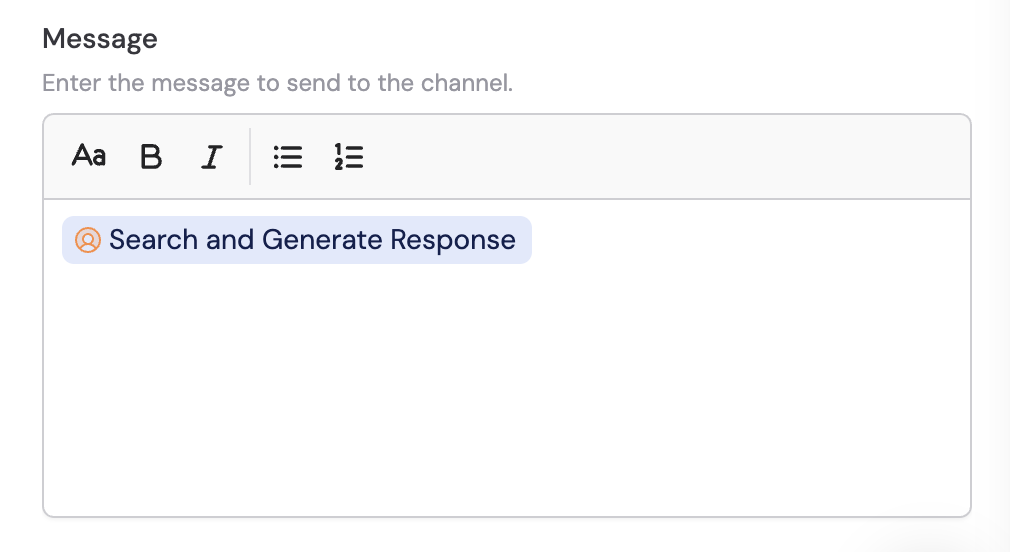
Related
New channel message trigger
Trigger a Workflow from a channel message.
Send chat message
Send a message to a Teams chat from a Workflow.